

O plug-in MemberPress AppKit se conecta ao WordPress, permitindo a funcionalidade de aplicativo móvel para conteúdo de associação. Este documento explica como instalar o plug-in MemberPress AppKit, vinculá-lo ao WordPress com credenciais de licença e verificar se a conexão foi bem-sucedida.
Entendendo o AppKit do MemberPress Conexão
O plug-in MemberPress AppKit fornece a ponte entre o conteúdo de associação do WordPress e os aplicativos móveis. A instalação do plug-in adiciona a funcionalidade necessária para a configuração do aplicativo, geração de compilação e sincronização de conteúdo. A autenticação da chave de licença conecta o site do WordPress aos serviços do MemberPress AppKit.
Download do AppKit do MemberPress Plug-in
O download do plug-in ocorre por meio do painel de controle da conta do MemberPress.
- Faça login na conta MemberPress no portal da conta.
- Navegue até Painel de controle > Downloads.
- Localize o plug-in MemberPress AppKit na lista de downloads.
- Clique em Baixar para salvar o arquivo ZIP do plug-in.
Instalação do AppKit do MemberPress Plug-in
A instalação do plug-in adiciona a funcionalidade do AppKit MemberPress ao WordPress.
- Faça login no painel do WordPress.
- Navegue até Plug-ins > Adicionar novo plug-in.
- Clique no botão Plug-in de upload na parte superior da página.
- Clique em Selecionar arquivo para abrir a seleção de arquivos.
- Selecione o arquivo ZIP do plugin MemberPress AppKit baixado.
- Clique em Instalar agora para iniciar a instalação.
- Clique em Ativar após a conclusão da instalação.
Obtenção do AppKit MemberPress Chave de licença
A recuperação da chave de licença permite a conexão do plug-in aos serviços MemberPress.
- Faça login na conta MemberPress no portal da conta.
- Navegue até a seção Assinaturas seção.
- Localize a assinatura do AppKit do MemberPress.
- Clique em Gerenciar ao lado da assinatura.
- Copiar o Chave de licença exibido na página.
Conexão do AppKit MemberPress
A entrada da chave de licença estabelece uma conexão entre seu site e os serviços do AppKit do MemberPress.
- Navegue até Painel de controle > MP AppKit > Conectar.
- Localize o Chave de licença campo.
- Cole a chave de licença copiada no campo.
- Clique em Conectar para estabelecer uma conexão.
- Aguarde a mensagem de confirmação da conexão.
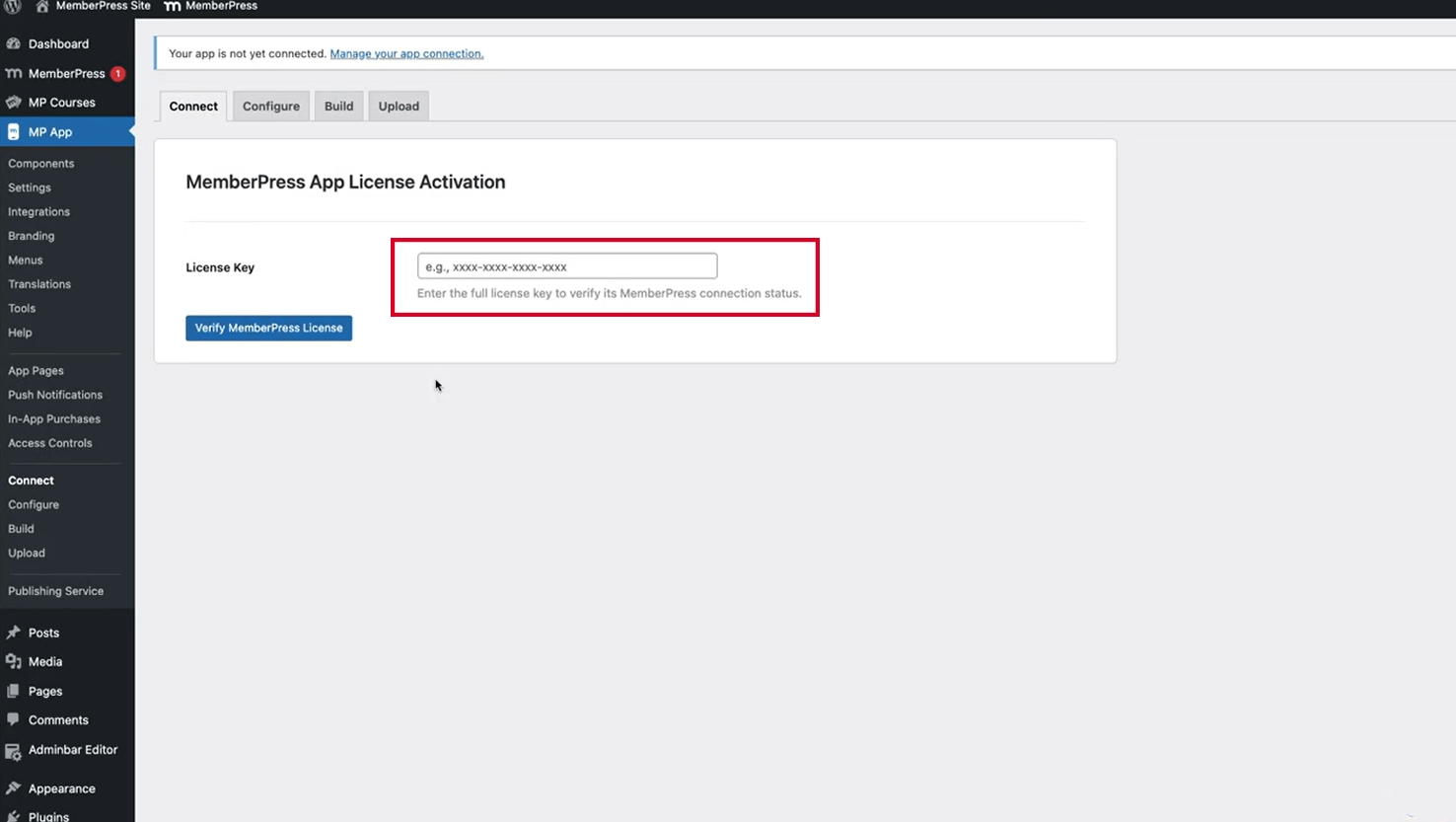
A confirmação da conexão indica que a ativação do plug-in e o acesso ao serviço foram bem-sucedidos. O plug-in agora está pronto para a configuração do aplicativo e a geração de compilação.
Verificação do status da conexão
A verificação da conexão confirma a configuração correta do plug-in.
- Navegue até Painel de controle > MP AppKit.
- Verifique se a página Connect mostra o status conectado.
- Verifique se os itens de menu do AppKit do MemberPress aparecem na barra lateral do Dashboard.
- Navegue até Painel de controle > MP AppKit > Configurações para confirmar o acesso.
- Verifique se as páginas de configurações são carregadas sem erros de conexão.
Uma conexão bem-sucedida permite o acesso a todas as interfaces de configuração do AppKit MemberPress, incluindo as seções Components, Settings, Build e Menus.










 PT
PT  EN
EN  ES
ES  FR
FR  DE
DE 