

A navegação personalizada aumenta o envolvimento do usuário ao exibir opções de menu relevantes com base nos atributos do membro. Várias versões de menu permitem estruturas de navegação diferentes para convidados desconectados, membros conectados e grupos de acesso específicos.
Este documento explica como criar variações de menu, configurar o estilo do menu e gerenciar a prioridade do menu quando os membros se qualificam para várias versões.
Compreensão de várias versões de menu
Várias versões de menu permitem experiências de navegação personalizadas no aplicativo. Cada versão do menu é exibida aos membros que atendem a critérios específicos, como status de login ou associação ao Access Group. A barra de guias fornece navegação primária na parte inferior da tela, enquanto o menu More oferece opções de navegação secundária. Ambos os tipos de menu suportam várias versões adaptadas a diferentes segmentos de membros.
Criação de menus para membros desconectados
Os menus de membros desconectados são exibidos aos convidados que não se autenticaram. Esses menus normalmente incluem opções de login, registro e informações públicas.
- Navegue até Painel de controle > MP AppKit > Menus > Barra de guias ou Mais Menu.
- Clique em Criar um novo menu.
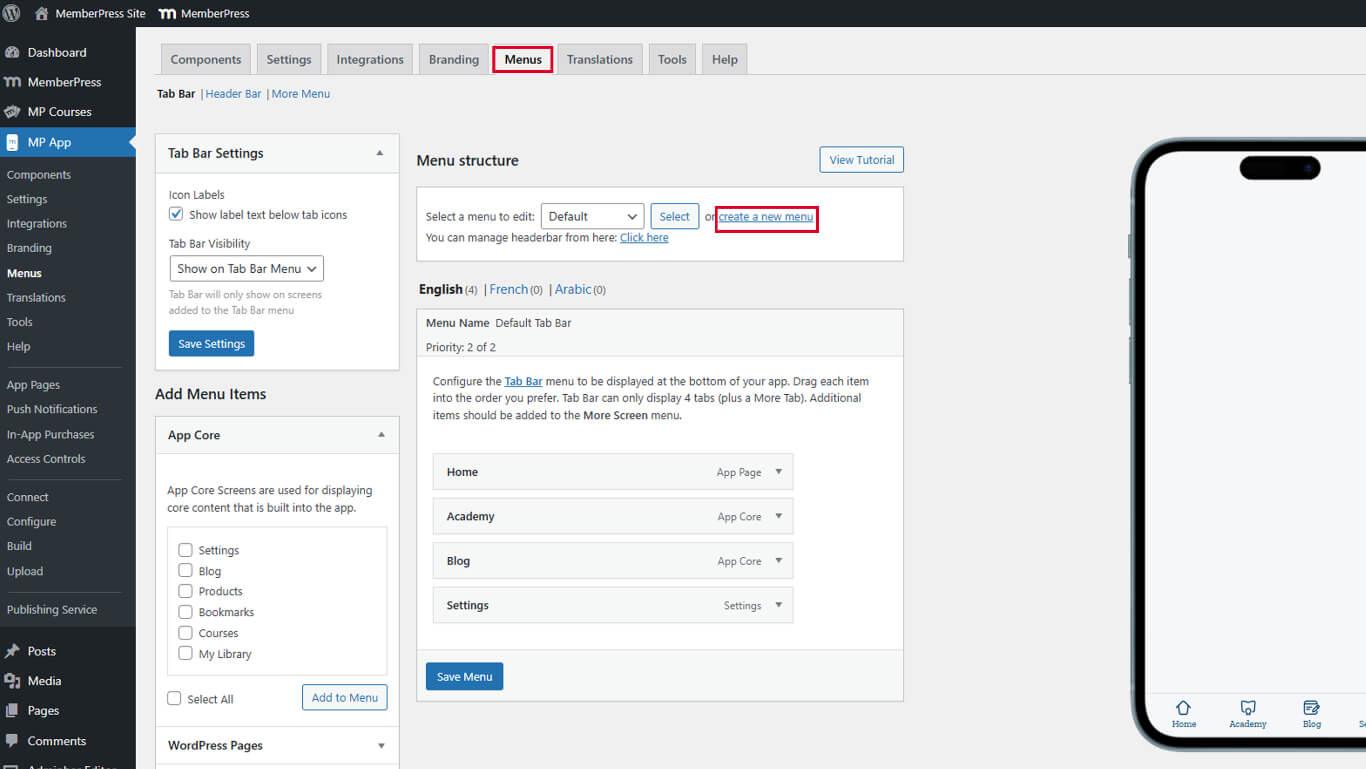
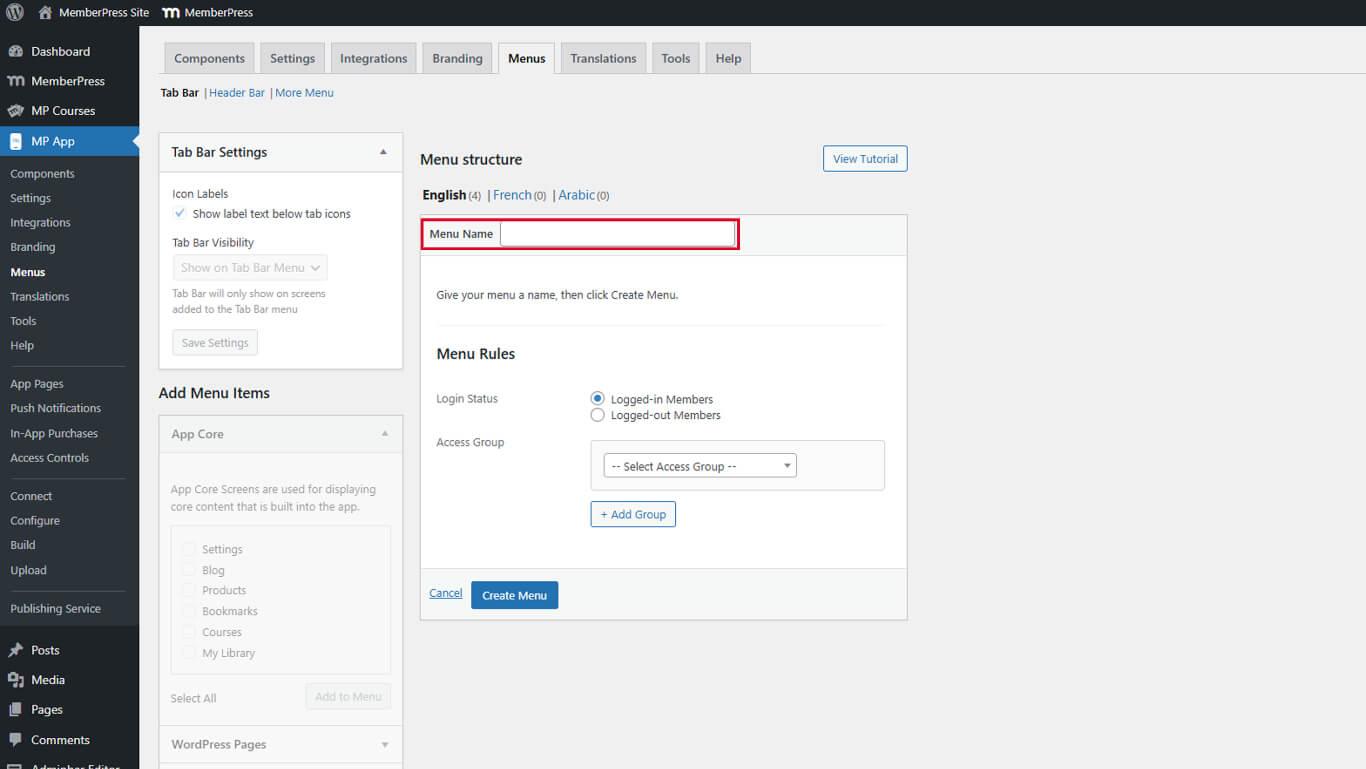
- Insira um nome descritivo no campo Nome do menu campo.
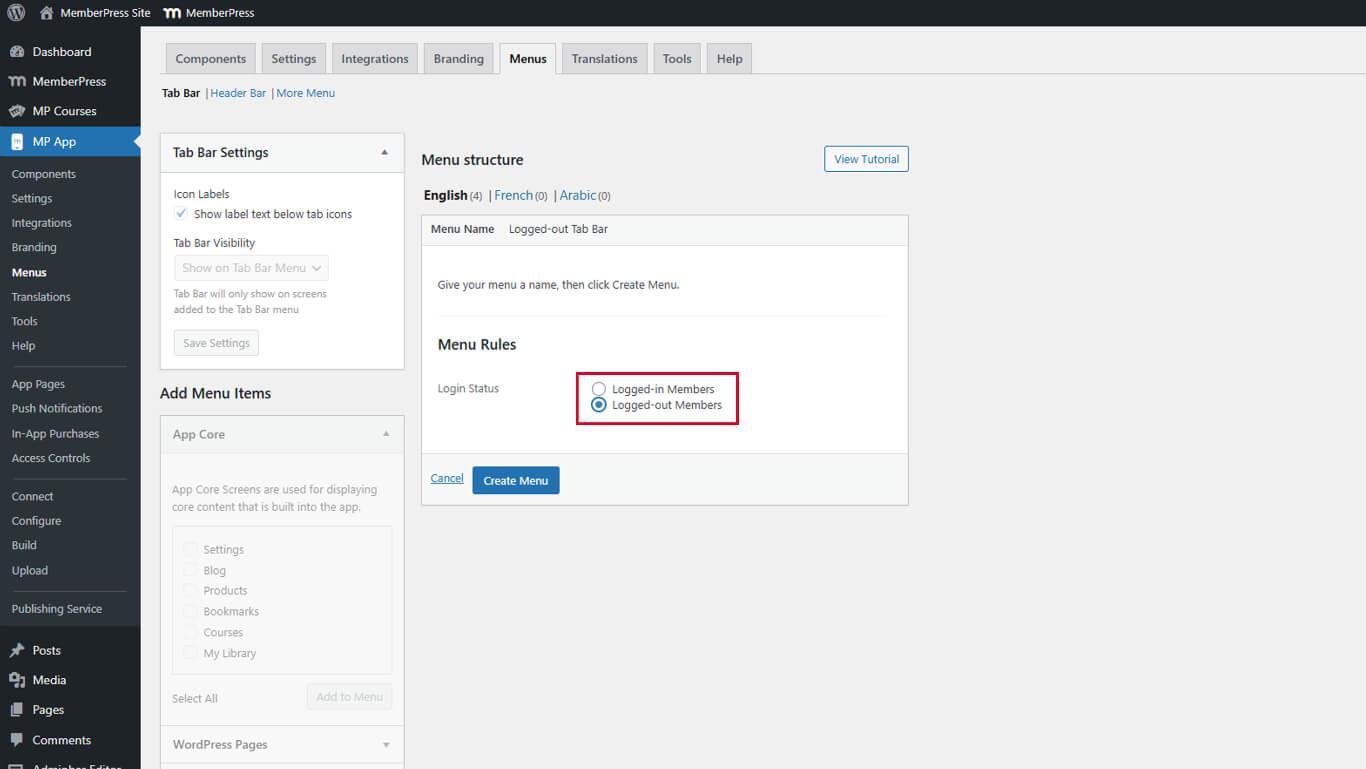
- Selecione Membros desconectados do Status de login lista suspensa.
- Clique em Criar menu.
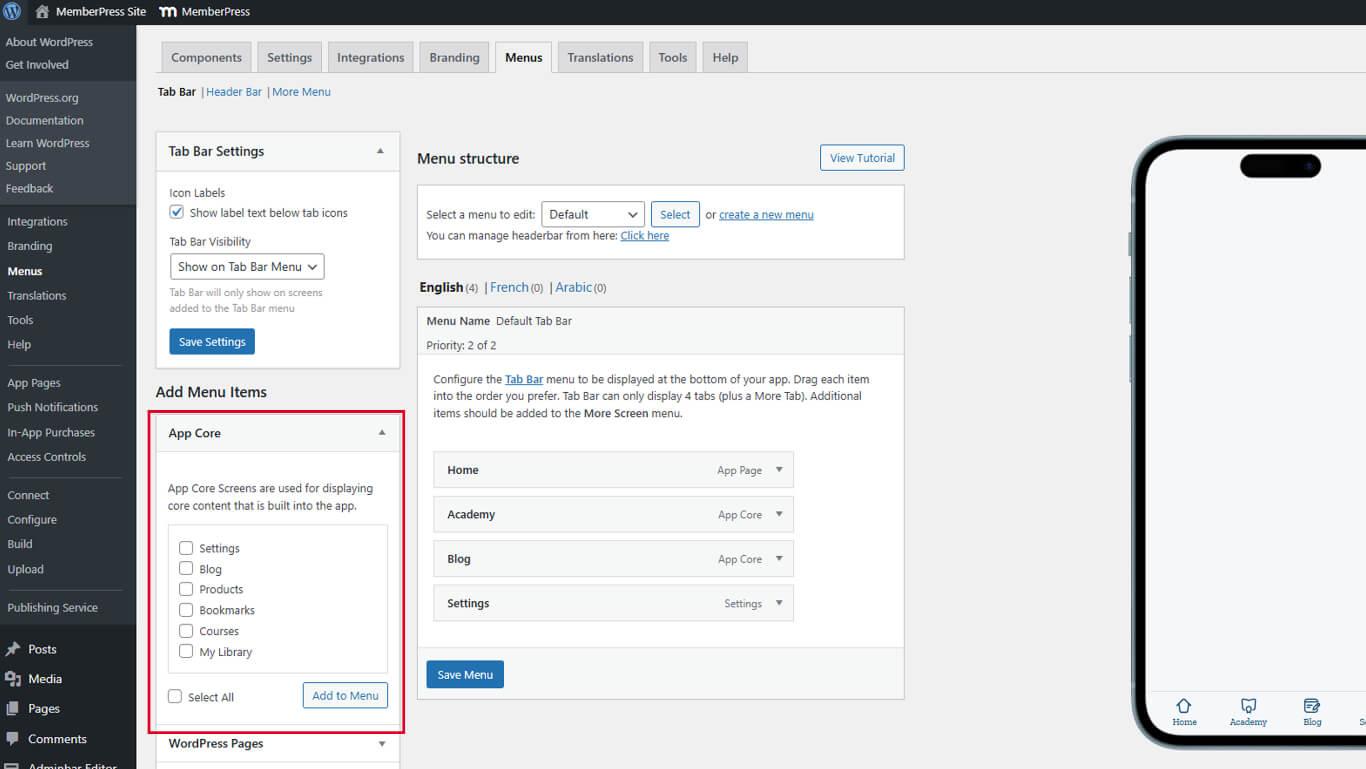
- Clique em Adicionar itens de menu para selecionar as opções de navegação.
- Arraste os itens do menu para organizar a ordem de exibição.
- Clique no botão Salvar menu.
Requisitos de visibilidade do menu para convidados
Os menus Guest são exibidos somente quando a configuração Private App está desativada.
- Navegue até Painel de controle > MP AppKit > Configurações > Geral > Privacidade.
- Verifique o Aplicativo privado está desmarcada.
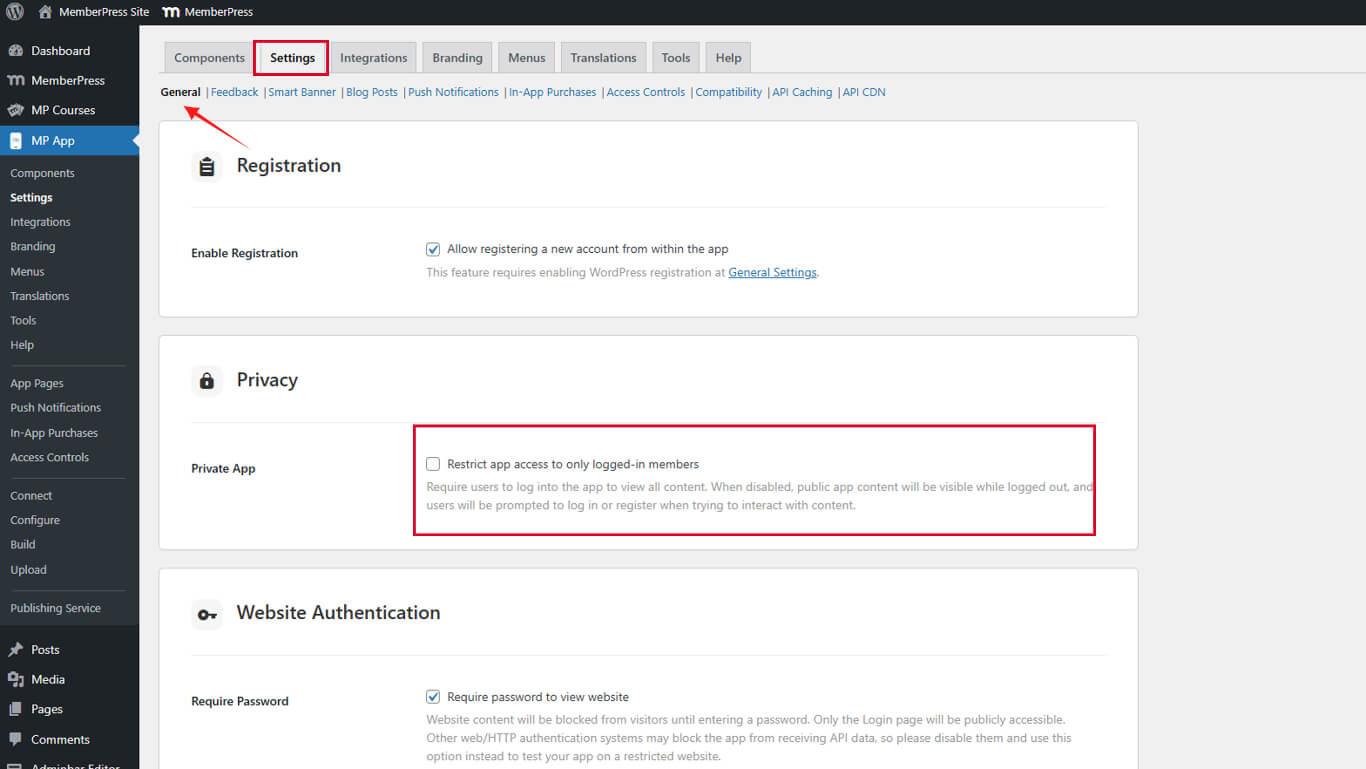
- Clique em Salvar alterações se foram feitas modificações.
Criação de menus para membros conectados
Os menus de membros conectados são exibidos para usuários autenticados. Esses menus podem ser personalizados com base na associação ao Access Group.
- Navegue até Painel de controle > MP AppKit > Menus > Barra de guias ou Mais Menu.
- Clique em Criar um novo menu.
- Insira um nome descritivo no campo Nome do menu campo.
- Selecione Membros conectados do Status de login lista suspensa.
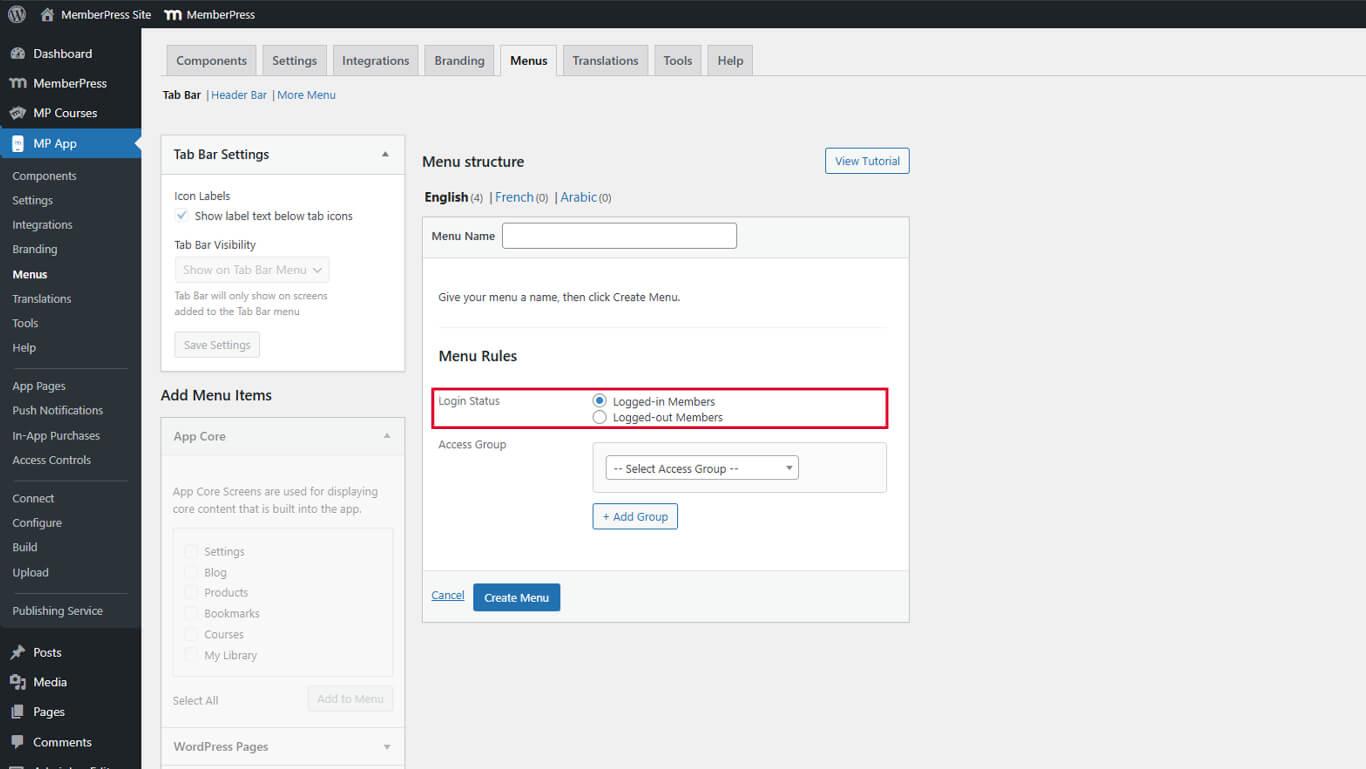
- Clique em Criar menu.
- Clique em Adicionar itens de menu para selecionar as opções de navegação.
- Arraste os itens do menu para organizar a ordem de exibição.
- Clique no botão Salvar menu.
Esse menu é exibido para todos os usuários autenticados, independentemente da associação ao Access Group. Use essa opção para navegação comum a todos os membros conectados.
Configuração do estilo da barra de guias
O estilo da barra de guias controla a aparência em todas as versões do menu da barra de guias.
- Navegue até Painel de controle > MP AppKit > Menus > Barra de guias.
- Alternar Rótulos de ícones para mostrar ou ocultar rótulos de texto abaixo dos ícones.
- Conjunto Visibilidade da barra de guias:
- Mostrar no menu da barra de guias exibe a Tab Bar somente nas telas designadas;
- Mostrar em todas as telas exibe a barra de guias em todo o aplicativo.
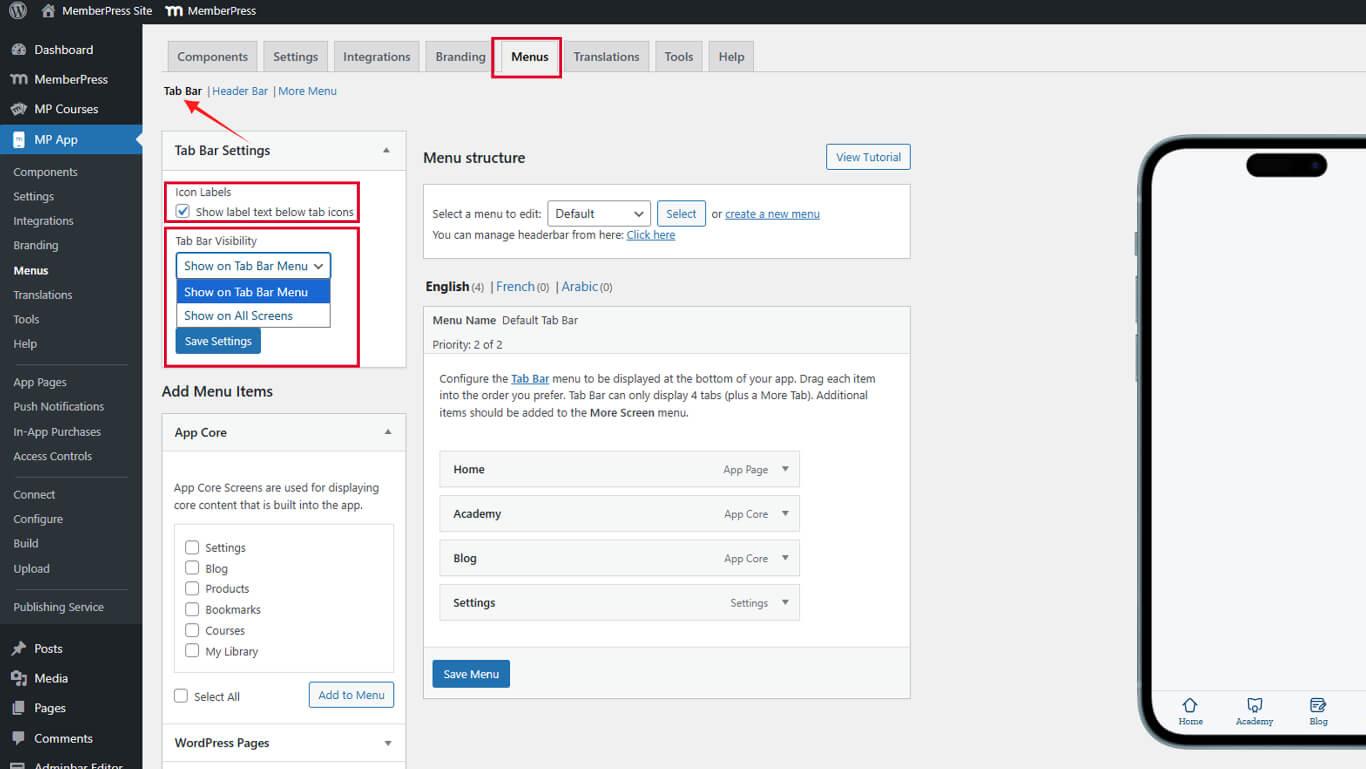
- Clique em Salvar configurações.










 PT
PT  EN
EN  ES
ES  FR
FR  DE
DE 