

A personalização do cabeçalho de navegação aprimora a usabilidade e reforça a marca nos aplicativos móveis. O cabeçalho de navegação do aplicativo suporta o posicionamento flexível do More Menu e a personalização de ícones.
Este documento explica como definir as configurações do cabeçalho, realocar o menu Mais e personalizar os ícones do cabeçalho para melhorar a experiência dos membros.
Compreensão do cabeçalho de navegação do AppKit do MemberPress
O cabeçalho de navegação aparece na parte superior das telas de aplicativos móveis, exibindo títulos de páginas e elementos de navegação.
A configuração do cabeçalho controla o alinhamento do título, o comportamento de rolagem e o posicionamento do menu Mais.
Mover o menu More da barra de guias para o cabeçalho libera um espaço na barra de guias para navegação primária adicional. A configuração adequada do cabeçalho equilibra a funcionalidade com um design de interface limpo.
Compreender os benefícios da configuração do cabeçalho
A personalização do cabeçalho oferece várias vantagens em termos de usabilidade e branding.
Relocável Mais Menu A flexibilidade afeta a capacidade da barra de guias. Mover o menu Mais para o cabeçalho libera a quinta posição da barra de guias para itens de navegação principais.
Expansão da barra de guias permite cinco itens de navegação personalizados quando o menu Mais é movido para o cabeçalho. A capacidade expandida melhora o acesso à navegação principal.
Personalização de ícones alinha a aparência do cabeçalho com a identidade da marca. Os ícones padrão podem ser substituídos por opções adequadas à marca.
Consistência visual mantém a acessibilidade do Menu Mais, independentemente da localização. Os membros acessam a navegação secundária a partir de um ícone familiar.
Acessando as configurações da barra de cabeçalho
A configuração do cabeçalho está disponível na interface de configurações do menu.
- Navegue até Painel de controle > MP AppKit > Menus.
- Clique no botão Barra de cabeçalho guia.
- Localize o Configurações da barra de cabeçalho seção.
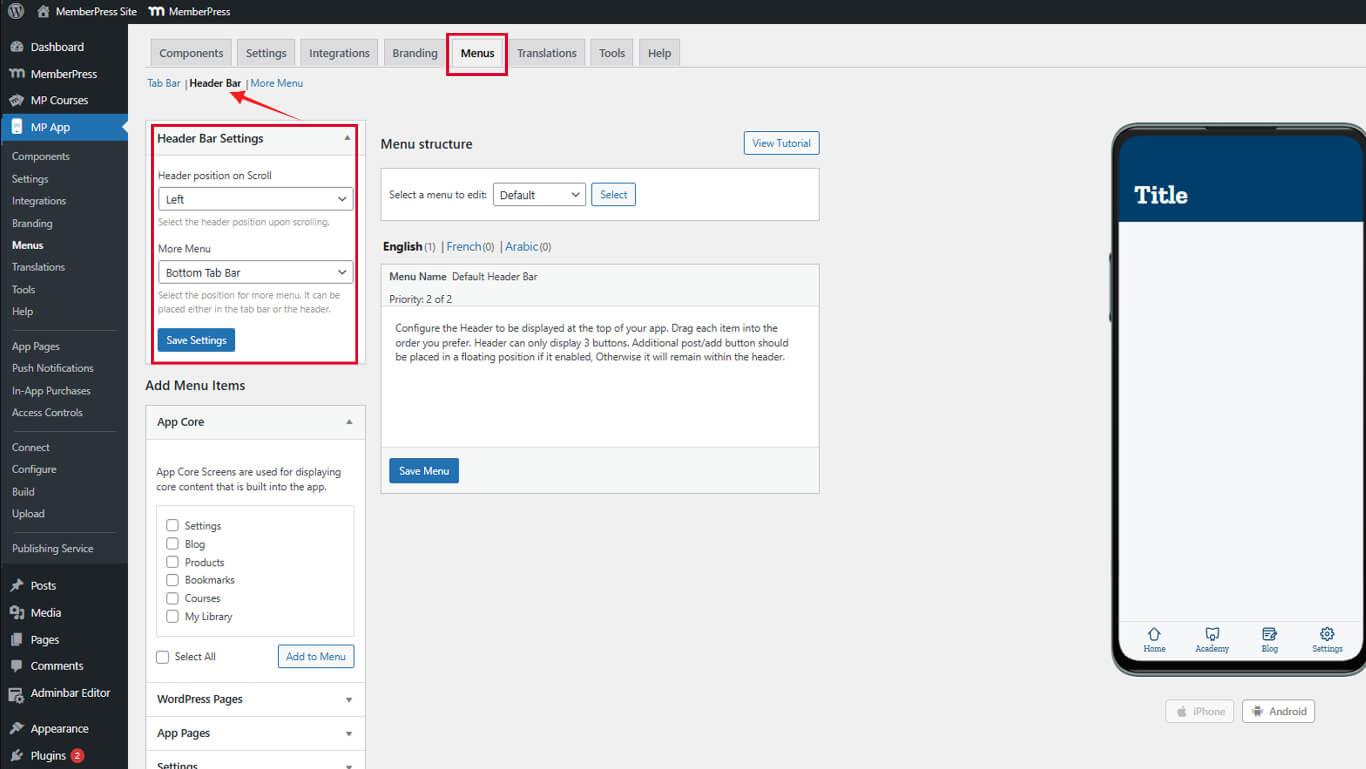
As configurações da barra de cabeçalho controlam o alinhamento, a visibilidade e a localização do menu Mais.
Configurando o alinhamento do cabeçalho
O alinhamento do cabeçalho afeta o posicionamento do título e o equilíbrio visual.
- Localize o Configurações da barra de cabeçalho seção.
- Selecione a opção de alinhamento desejada:
- Alinhado à esquerda mantém os títulos das páginas alinhados à esquerda;
- Oculto oculta o cabeçalho durante a rolagem para expandir o espaço de conteúdo.
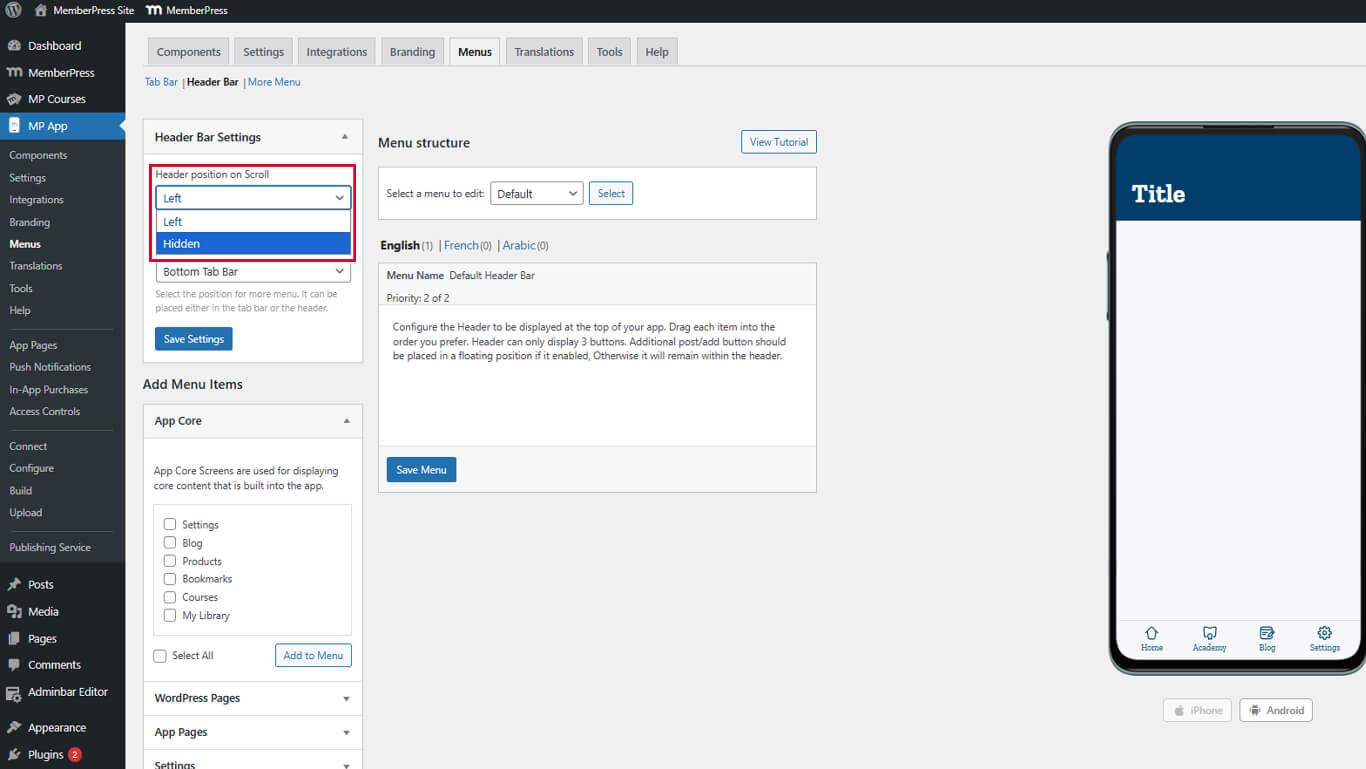
- Clique em Salvar configurações.
O alinhamento à esquerda mantém a consistência com os padrões de design padrão para dispositivos móveis.
Configurando mais posicionamentos de menu
More O posicionamento do menu determina se a navegação secundária aparece na barra de guias ou no cabeçalho.
- Navegue até Painel de controle > MP AppKit > Menus > Barra de cabeçalho.
- Localize o Mais posicionamento do menu menu suspenso em Configurações da barra de cabeçalho.
- Selecione o posicionamento desejado:
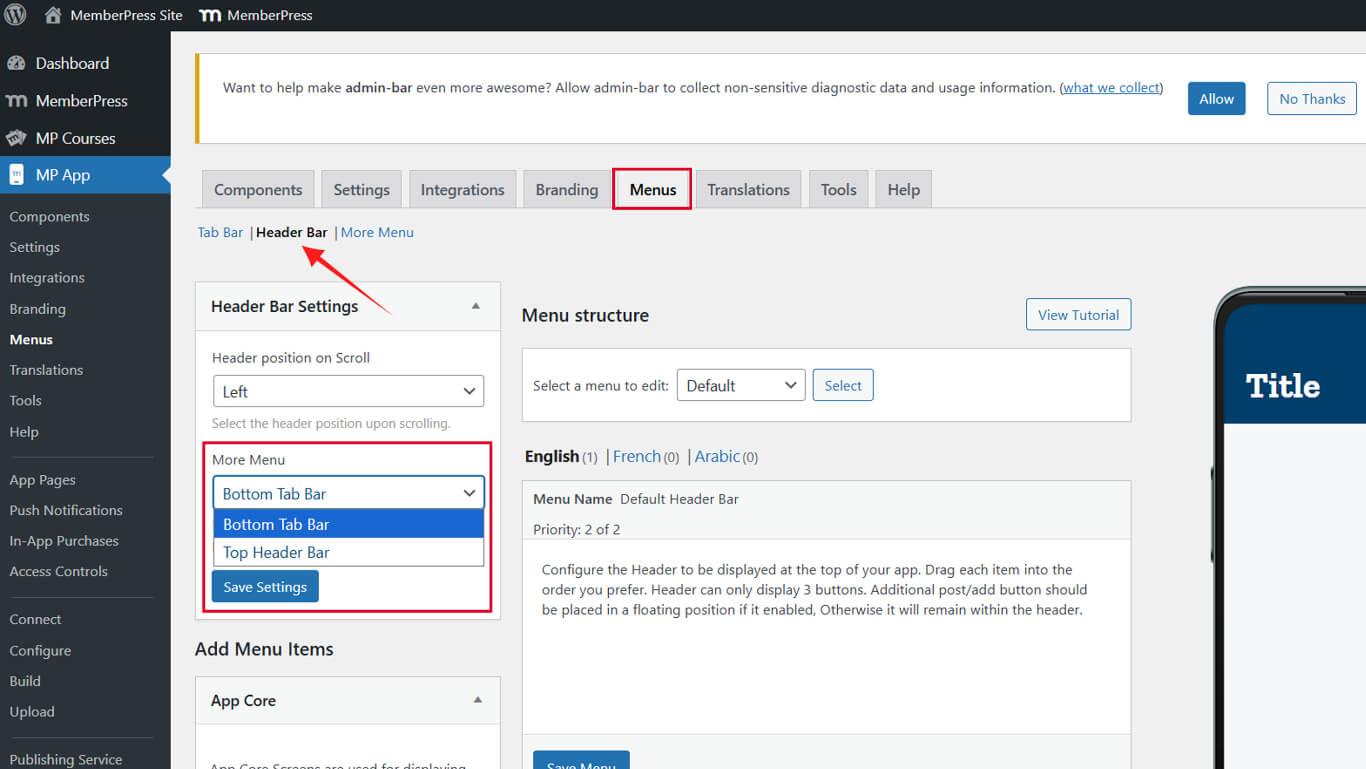
- Barra de abas inferior mantém o menu Mais na quinta posição da barra de guias;
- Barra de cabeçalho superior move o ícone do menu Mais para o cabeçalho.
- Clique em Salvar configurações.
A localização do menu afeta a capacidade da barra de guias e a organização geral da navegação.
Atualizando os itens do menu do cabeçalho
- Vá para o Menu da barra de cabeçalho guia.
- Encontre o Mais Menu item (normalmente o avatar do usuário).
- Clique na seta do menu suspenso > Ícone do item > Selecionar ícone.
- Escolha um ícone do Pacote de Ícones ou carregue o seu próprio.
- Clique no botão Selecionar ícone, então o Salvar menu.
Repita para qualquer botões de ação (por exemplo, Criar postagem, Adicionar Grupo, Enviar mensagem):
- Clique nas setas suspensas.
- Escolha ou carregue novos ícones.
- Clique no botão Selecionar ícone, então o Salvar menu.
Atualizando o menu da barra de guias
- Mude para o Menu da barra de guias guia.
- Clique em Adicionar ao menu para um item (por exemplo, Notificações) dos itens de menu disponíveis listados no MemberPress AppKit ou Membro conectado seções.
- Certifique-se de que há não mais do que quatro total de itens na barra de guias.
- Clique no botão Salvar menu.
A capacidade da barra de guias só aumenta quando o menu Mais é movido com sucesso para o cabeçalho.










 PT
PT  EN
EN  ES
ES  FR
FR  DE
DE 