

O recurso Bookmark do aplicativo MemberPress (iOS/Android) permite que os usuários salvem suas publicações favoritas do blog do WordPress em uma tela personalizada para acesso rápido. Isso melhora a experiência do usuário e aumenta o envolvimento e a retenção de conteúdo.
Este guia o orienta na ativação dos marcadores no AppKit do MemberPress, adicionando a tela ao menu do aplicativo e explicando como os usuários podem marcar e gerenciar as postagens salvas.
Compreensão do recurso Bookmark
Os requisitos do recurso de marcador definem as configurações para permitir o salvamento do conteúdo dos membros e os recursos de gerenciamento de coleções personalizadas.
Ativação de marcadores ativa a funcionalidade de salvar conteúdo, permitindo que os membros organizem coleções de postagens pessoais. O recurso Salvar transforma leitores casuais em membros engajados, criando bibliotecas de conteúdo.
Integração de menus adiciona a tela Bookmarks à navegação, fornecendo acesso direto ao conteúdo salvo. O posicionamento do menu determina a acessibilidade dos marcadores e os padrões de uso dos membros.
Indicação do estado do ícone usa feedback visual mostrando o status do marcador para postagens individuais. Os ícones preenchidos indicam publicações salvas, enquanto os ícones delineados mostram conteúdo não salvo.
Tratamento de estado vazio exibe uma mensagem informativa quando não há marcadores, orientando a interação dos membros. Estados vazios claros melhoram a capacidade de descoberta e o uso inicial do recurso.
Persistência de marcadores mantém o conteúdo salvo em todas as sessões de aplicativos e alterações de dispositivos. A sincronização na nuvem garante a disponibilidade dos favoritos, independentemente do dispositivo de acesso.
Ativando os favoritos
A ativação de marcadores ativa a funcionalidade de salvar conteúdo nas exibições de posts de blog e nas interfaces de visualização.
- No seu painel do WordPress, vá para Painel de controle > MP AppKit > Configurações > Posts do blog.
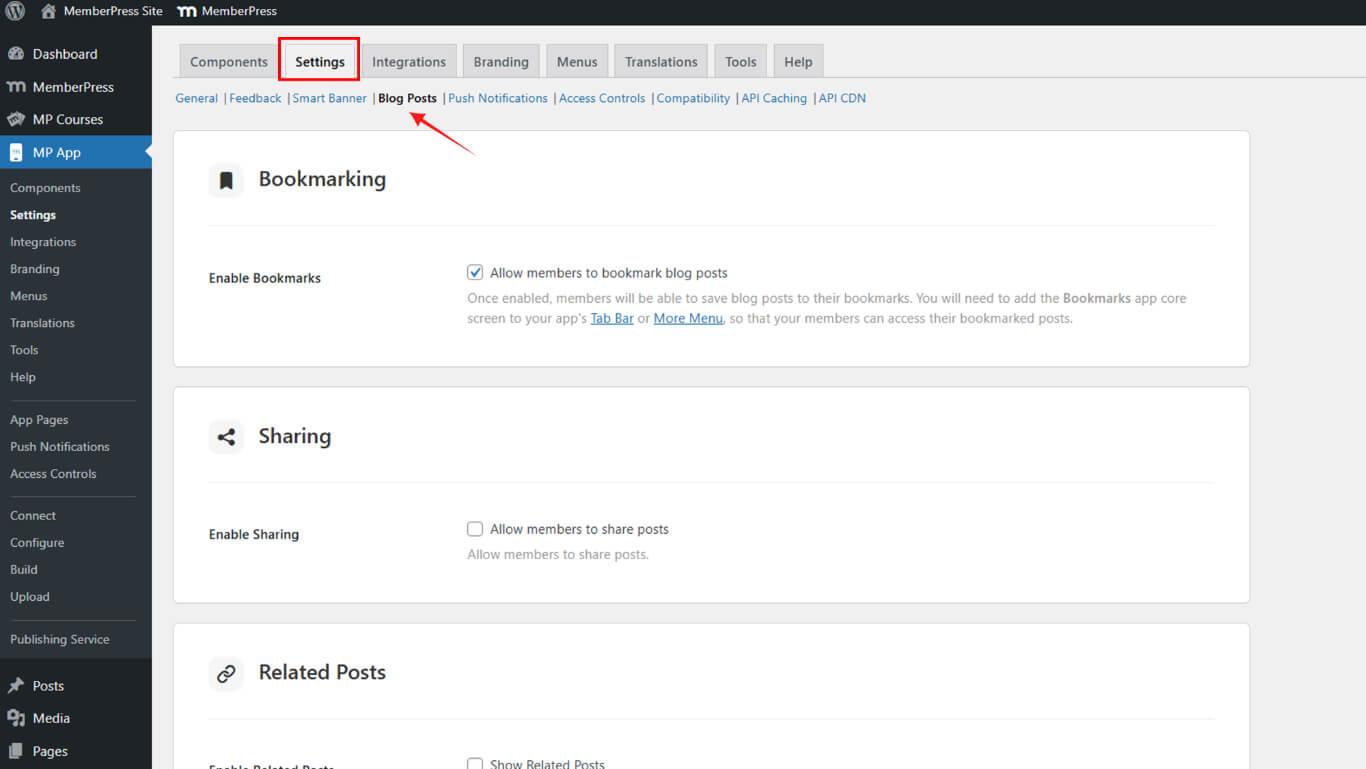
- Verificar Ativar bookmarking.
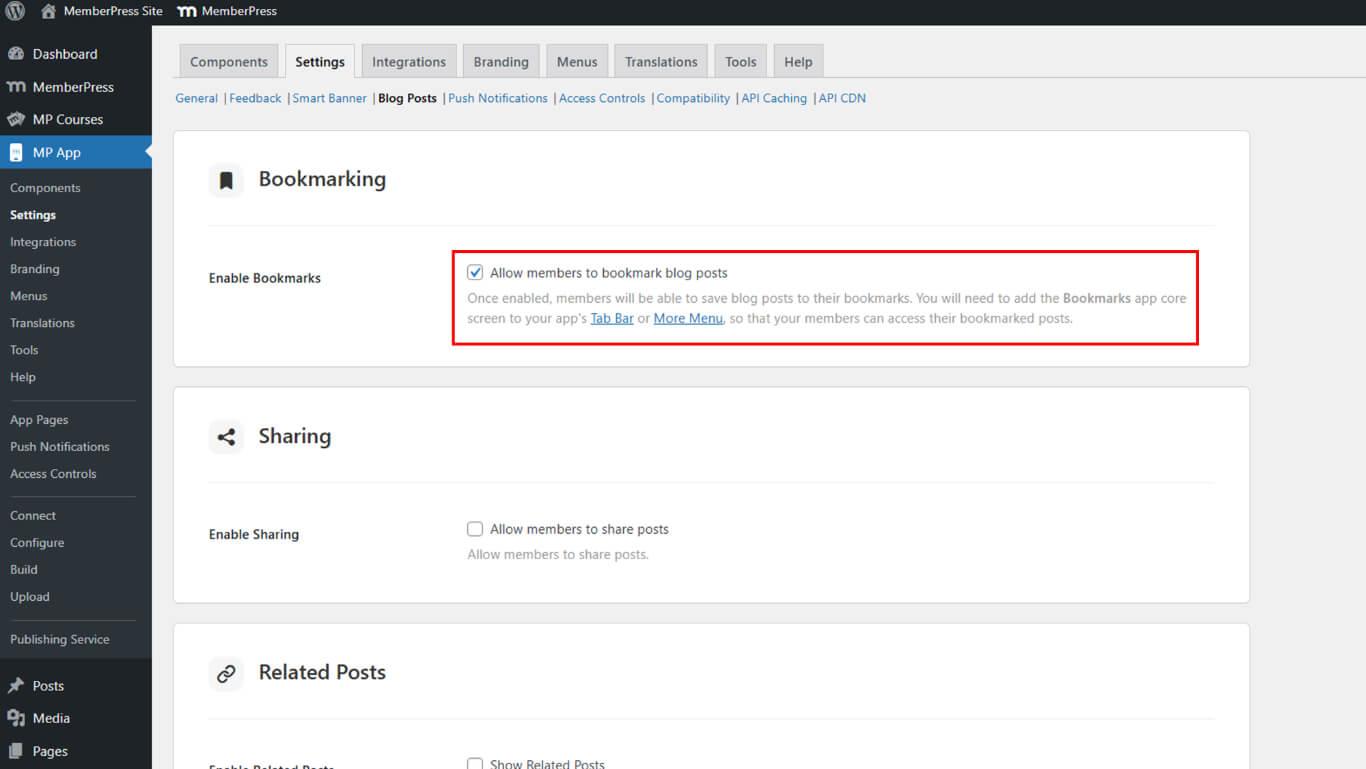
- Clique em Salvar alterações.
Adicionar à barra de guias ou ao menu Mais
A integração de menus adiciona a tela Bookmarks à navegação do aplicativo, permitindo o acesso dos membros a coleções de conteúdo salvas.
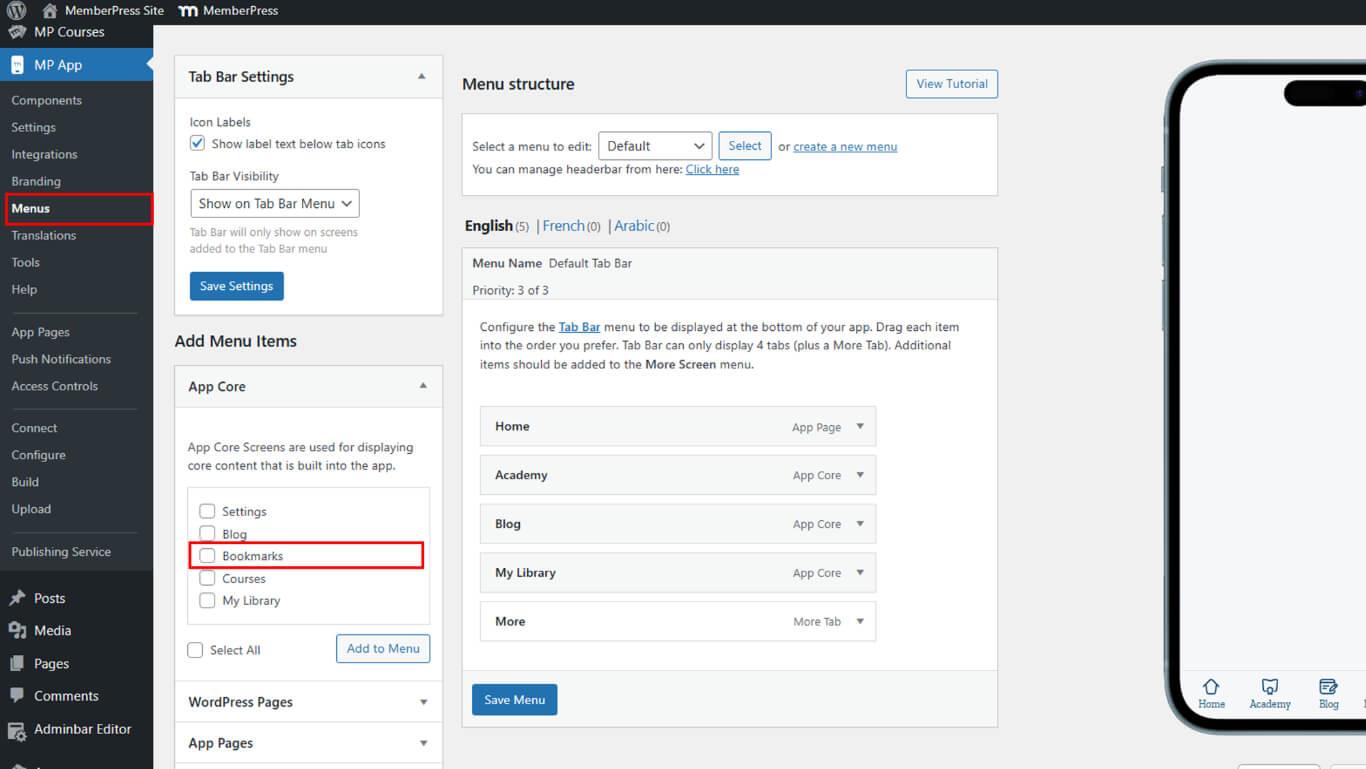
- Ir para Painel de controle > MP AppKit > Menus.
- Sob o Núcleo do aplicativo, selecione Marcadores.
- Clique em Adicionar ao menu.
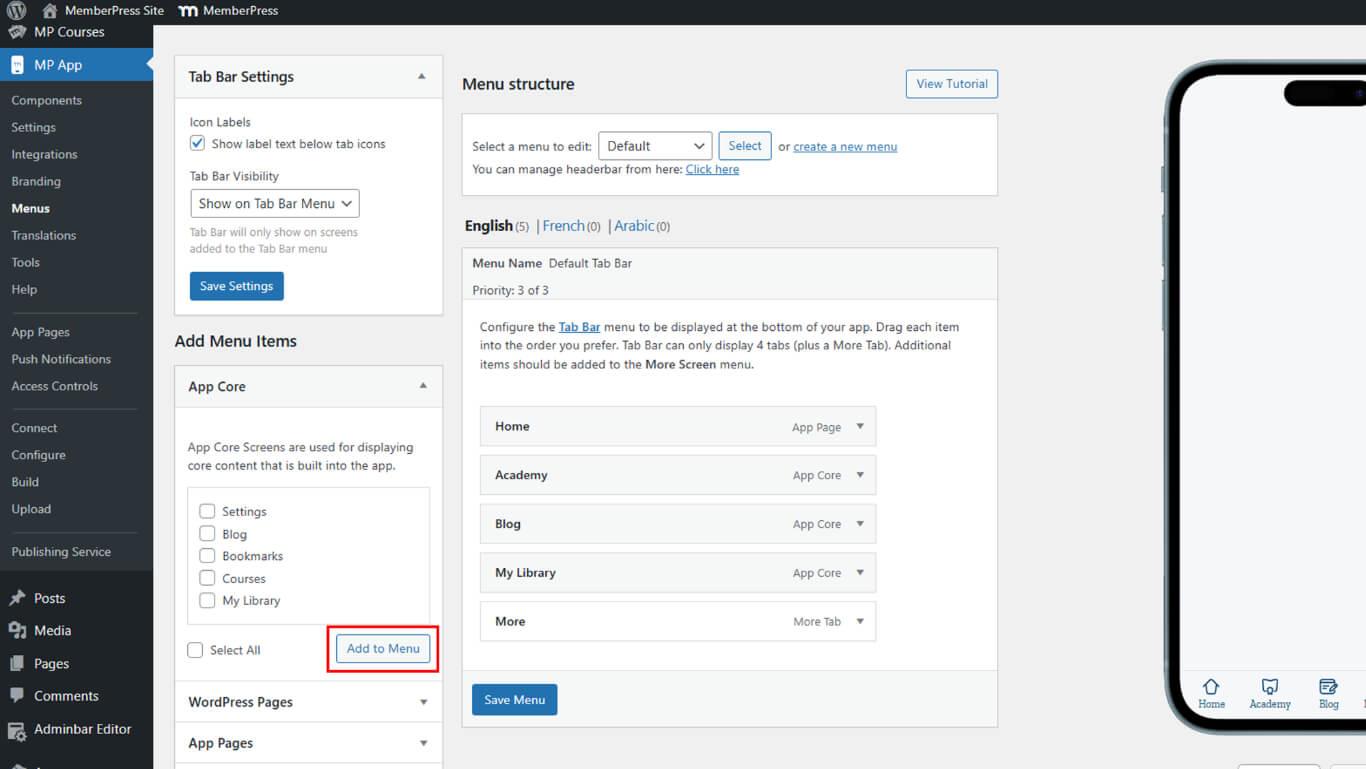
- Reorganize ou publique o cardápio, se necessário.
- Atualize o aplicativo para aplicar as alterações.
Marcação de publicações no blog
Os marcadores de posts de blog permitem que os membros salvem o conteúdo para referência posterior e acesso rápido em uma tela dedicada.
Salvando uma postagem
O salvamento de posts adiciona posts individuais do blog à coleção de favoritos pessoais de um membro para acesso futuro.
- Abra o aplicativo MemberPress para iOS/Android e vá para a tela Blog Posts.
- Toque no ícone de marcador ao lado de uma postagem.
- O ícone mudará de delineado para preenchido, confirmando que foi salvo.
Exibição de postagens com marcadores
A visualização de posts marcados exibe a coleção de conteúdo salvo do membro em uma tela dedicada para facilitar o acesso.
- Navegue até a tela Bookmarks por meio da Tab Bar ou do menu More (Mais).
- Visualizar suas postagens salvas.
Remoção de um marcador
A remoção de marcadores exclui publicações da coleção salva quando o membro não precisa mais de acesso rápido.
- Vá para a tela Bookmarks (Marcadores).
- Toque no ícone de marcador preenchido na postagem que você deseja remover.
- O ícone voltará a ser delineado, e a postagem desaparecerá da lista.










 PT
PT  EN
EN  ES
ES  FR
FR  DE
DE 