

O Modo de manutenção restringe temporariamente o acesso ao aplicativo durante atualizações, solução de problemas ou modificações de back-end. Os usuários veem uma tela de espera com a marca durante os períodos de manutenção.
Este documento explica como ativar o Modo de manutenção, personalizar a tela de manutenção e restaurar o acesso normal ao aplicativo.
Entendendo o modo de manutenção
O modo de manutenção impede a interação do usuário e preserva a consistência da marca. A tela de manutenção exibe o logotipo do aplicativo, a cor de fundo e a mensagem personalizável. Esse recurso permite o trabalho técnico sem expor alterações incompletas ou interromper a experiência do usuário.
Ativação do modo de manutenção
A ativação do Modo de manutenção restringe imediatamente o acesso ao aplicativo para todos os usuários.
- Navegue até Painel de controle > MP AppKit > Configurar > Geral.
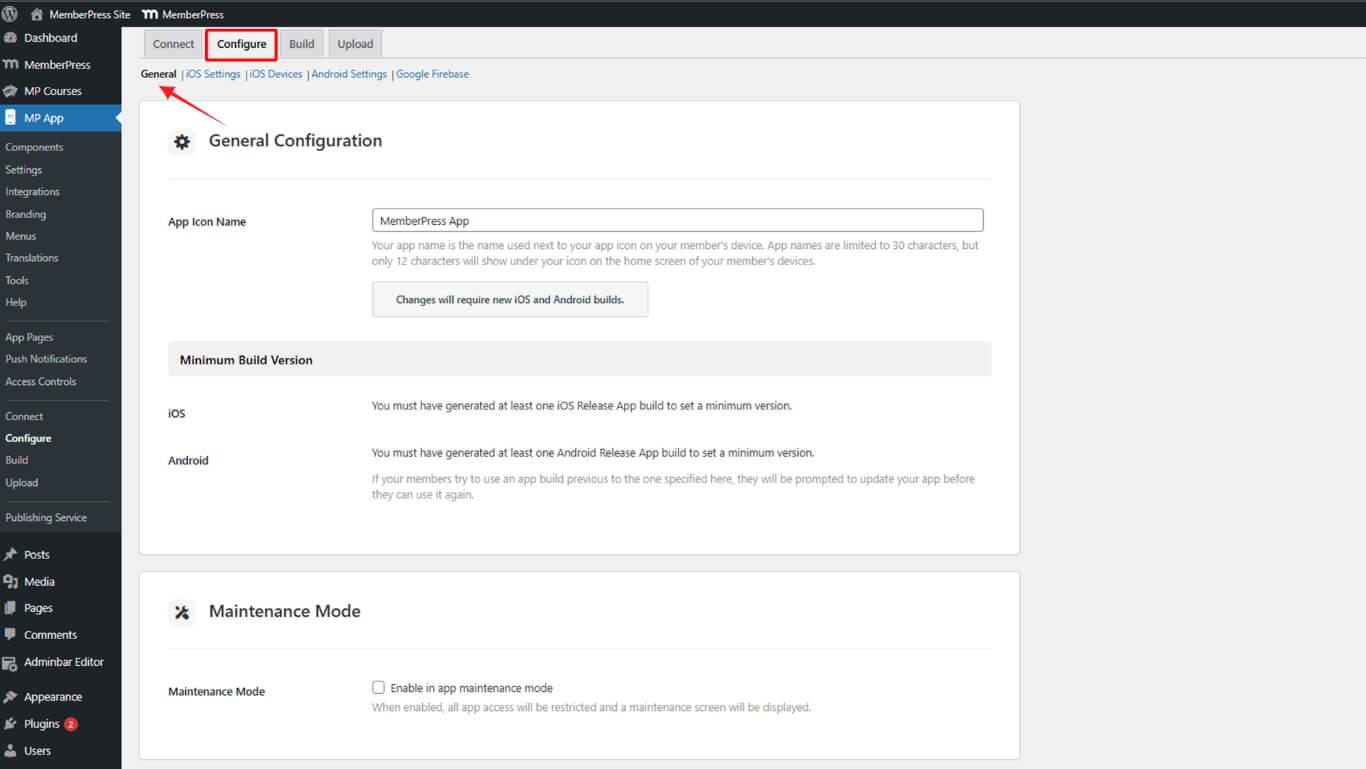
- Role até o Modo de manutenção seção.
- Verifique o Ativar o modo de manutenção caixa de seleção.
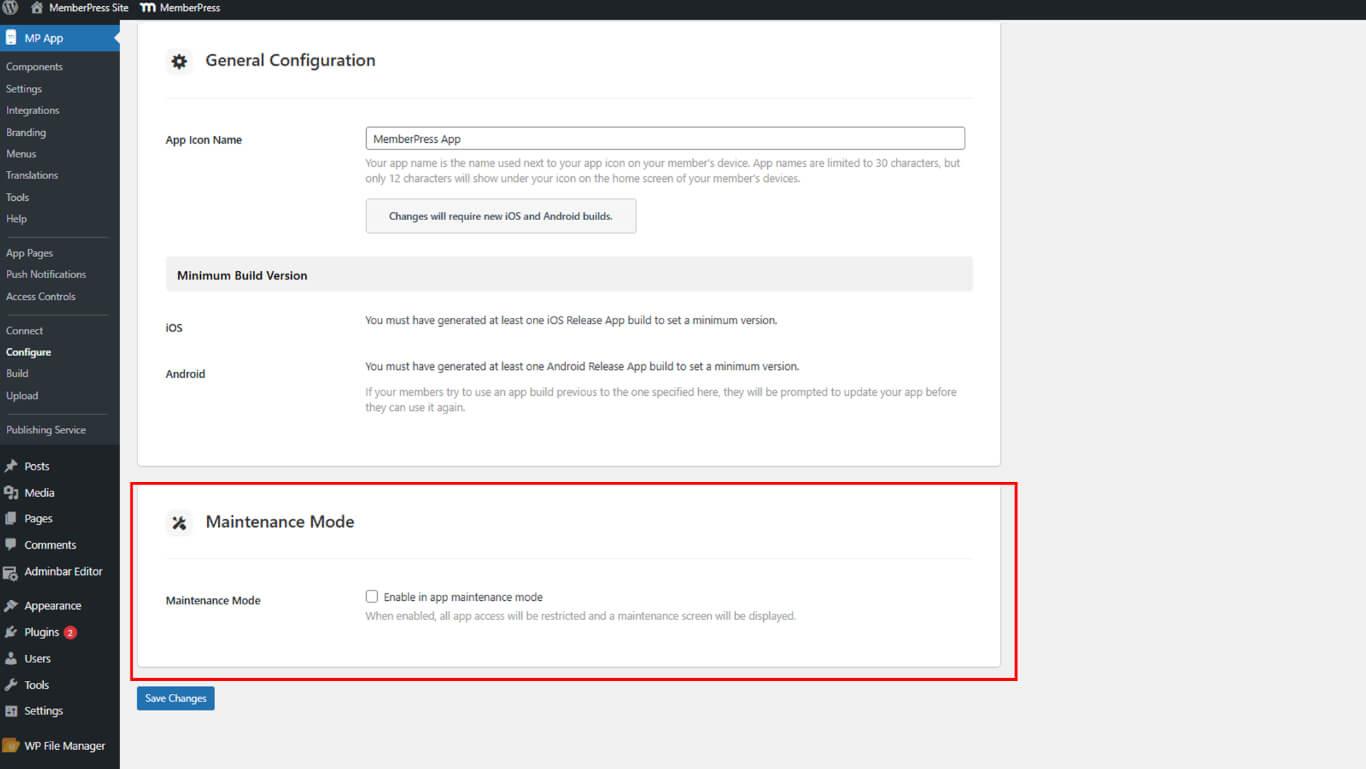
- Clique em Salvar alterações.
Todos os usuários que tentam acessar o aplicativo veem a tela de manutenção após a ativação.
Entendendo os elementos da tela de manutenção
A tela de manutenção exibe três elementos de marca durante o tempo de inatividade.
- Logotipo do aplicativo é exibido centralizado na tela. O sistema recupera esse logotipo de Painel de controle > MP AppKit > Branding > Tela de logon > Logotipo. Um espaço reservado padrão será exibido se nenhum logotipo estiver configurado;
- Cor de fundo preenche a tela atrás do logotipo e da mensagem. O sistema aplica a cor de Painel de controle > MP AppKit > Identidade visual > Cor geral do plano de fundo. O plano de fundo padrão do aplicativo será exibido se nenhuma cor personalizada for definida;
- Mensagem de manutenção aparece abaixo do logotipo como texto centralizado. A mensagem padrão é “O modo de manutenção está ativado. Tente novamente mais tarde.” Essa mensagem pode ser personalizada por meio de traduções.
Desativação do modo de manutenção
A desativação do Modo de manutenção restaura o acesso normal ao aplicativo para todos os usuários.
- Navegue até Painel de controle > MP AppKit > Configurar > Geral.
- Role até o Modo de manutenção seção.
- Desmarque a opção Ativar o modo de manutenção caixa de seleção.
- Clique em Salvar alterações.










 PT
PT  EN
EN  ES
ES  FR
FR  DE
DE 