

O suporte a idiomas da direita para a esquerda fornece a exibição adequada do texto e a orientação da interface para idiomas RTL. O suporte a RTL garante que idiomas como árabe e hebraico sejam exibidos corretamente com a direção de texto apropriada e elementos de interface espelhados.
Este documento explica como traduzir as cadeias de texto do aplicativo, ativar o layout RTL e verificar a direção adequada em todo o aplicativo.
Entendendo o suporte ao idioma RTL
O suporte a idiomas RTL ajusta a direção do texto e a orientação da interface para idiomas da direita para a esquerda. A ativação do RTL altera o fluxo do texto, a direção da navegação e o posicionamento do elemento visual. A configuração RTL se aplica globalmente com base nas configurações de idioma do site do WordPress.
Adição da tradução RTL
As cadeias de texto do aplicativo devem ser traduzidas para o idioma RTL de destino.
- Navegue até Painel de controle > MP AppKit > Traduções.
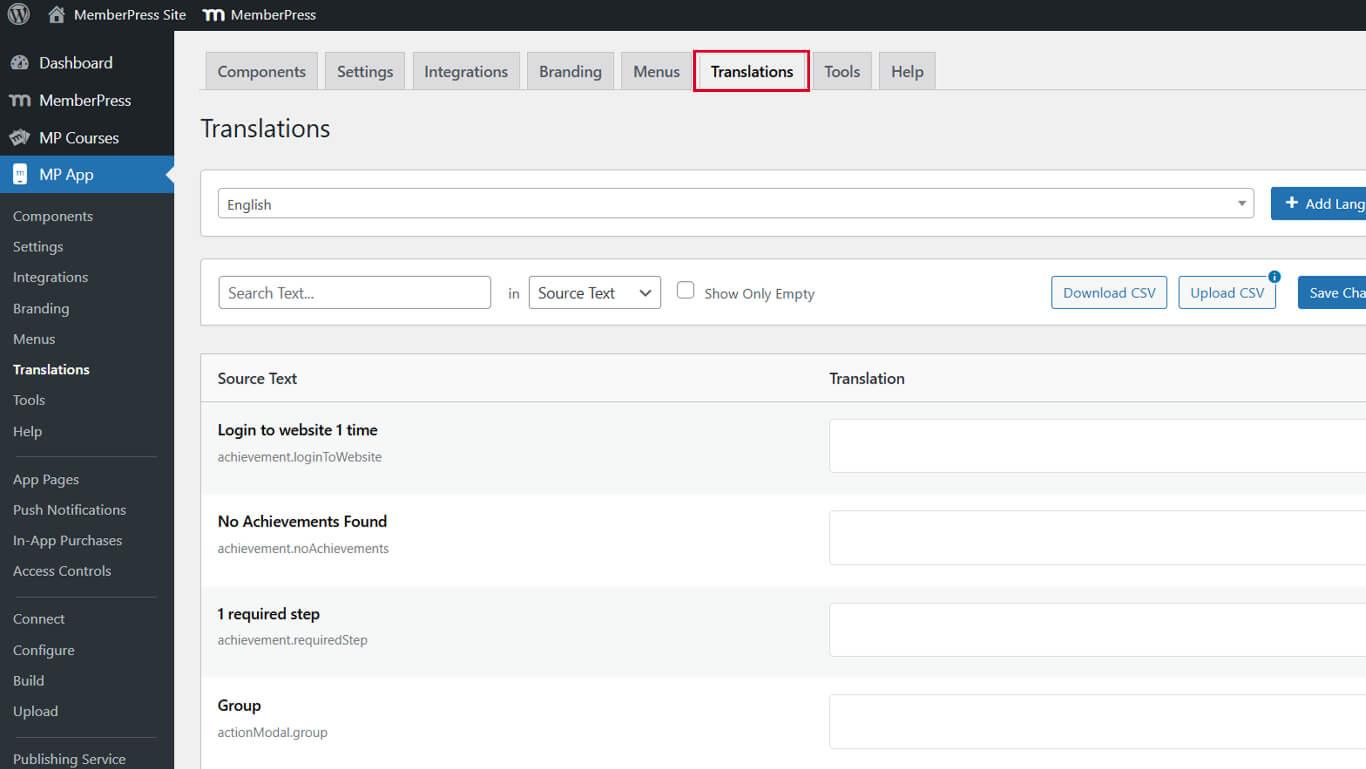
- Digite um termo de pesquisa na barra de pesquisa para encontrar cadeias específicas.
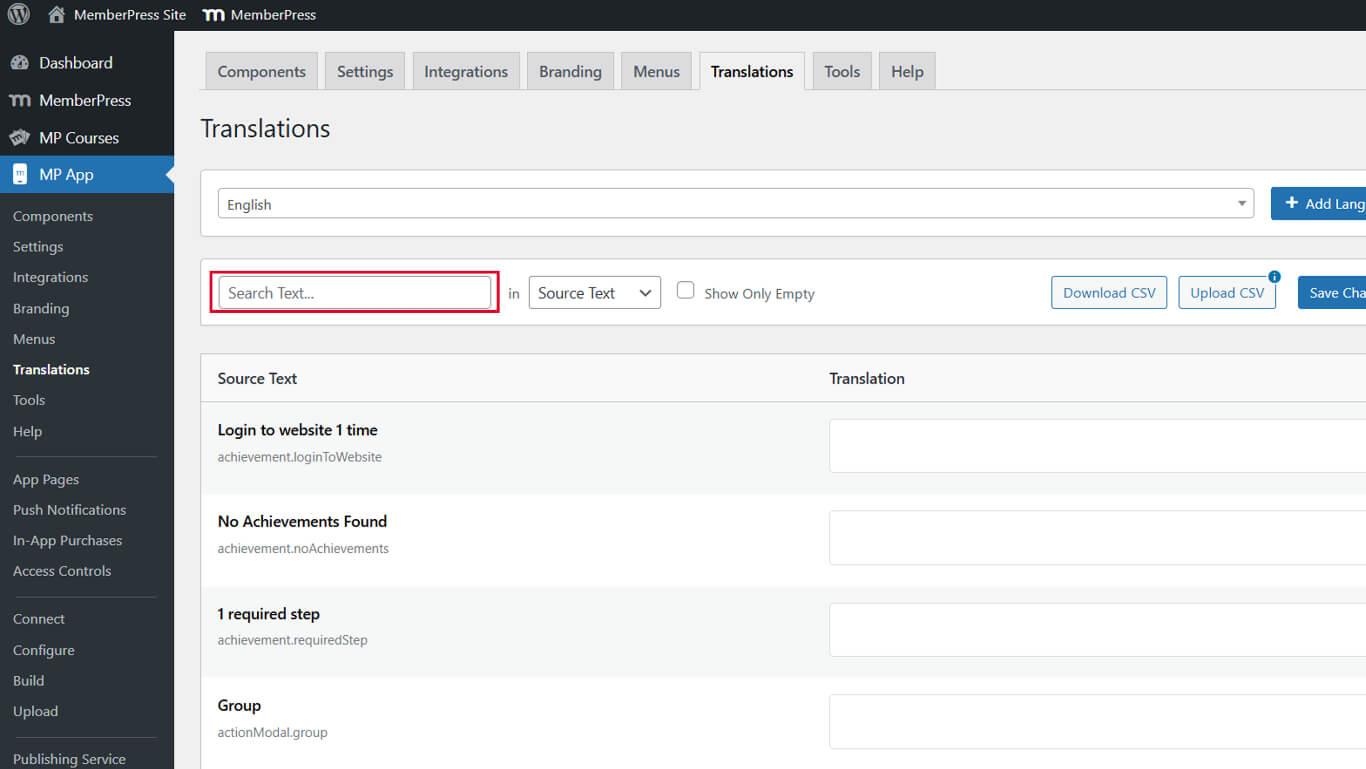
- Localize a string você deseja traduzir.
- Digite o texto de tradução do idioma RTL no campo Tradução campo.
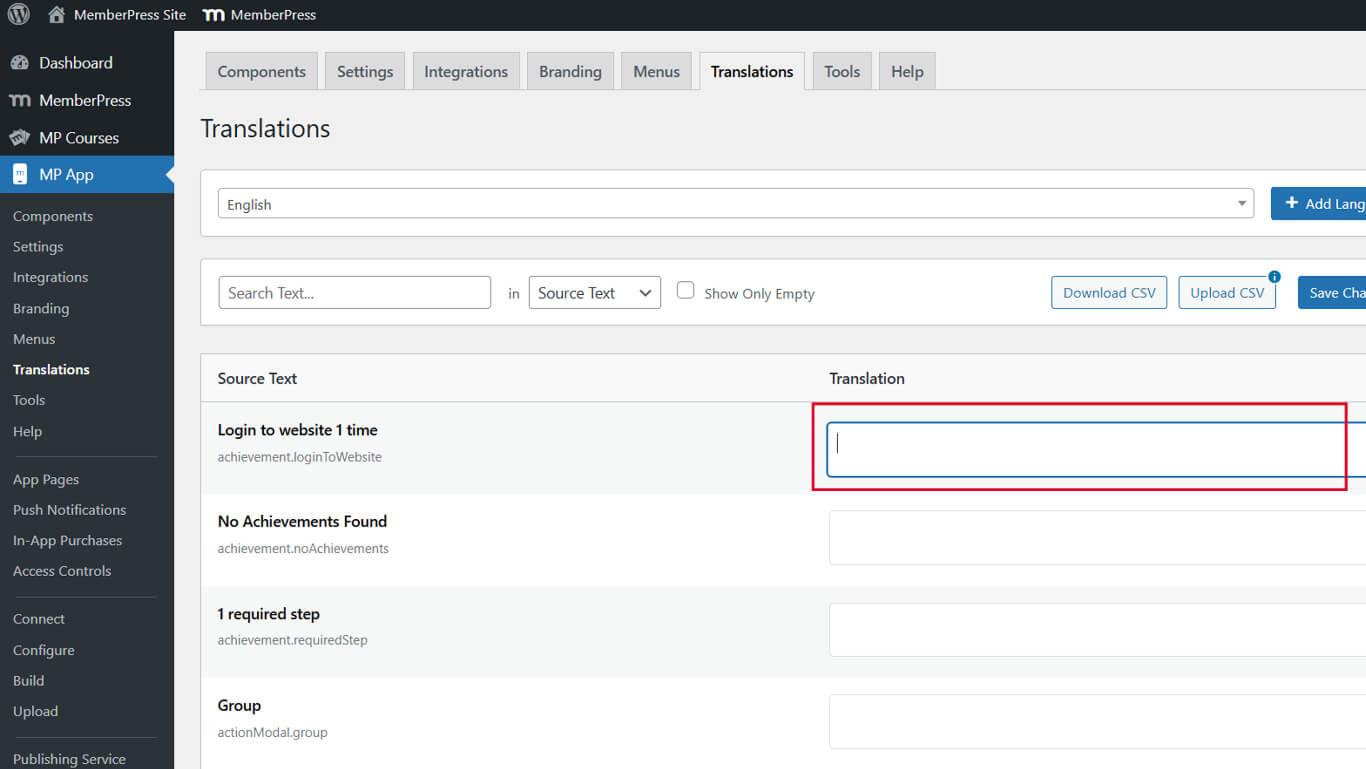
- Clique em Salvar alterações.
- Repita as etapas 2 a 5 para todas as cadeias de caracteres que deseja traduzir.
As cadeias de caracteres comuns para tradução incluem rótulos de navegação, texto de botões e mensagens de interface.
Mudança de idioma do site para RTL
A configuração de idioma do site do WordPress controla o comportamento global do layout RTL.
- Navegue até WordPress Painel de controle > Configurações > Geral.
- Localize o Idioma do site lista suspensa.
- Selecione uma opção de idioma RTL na lista suspensa.
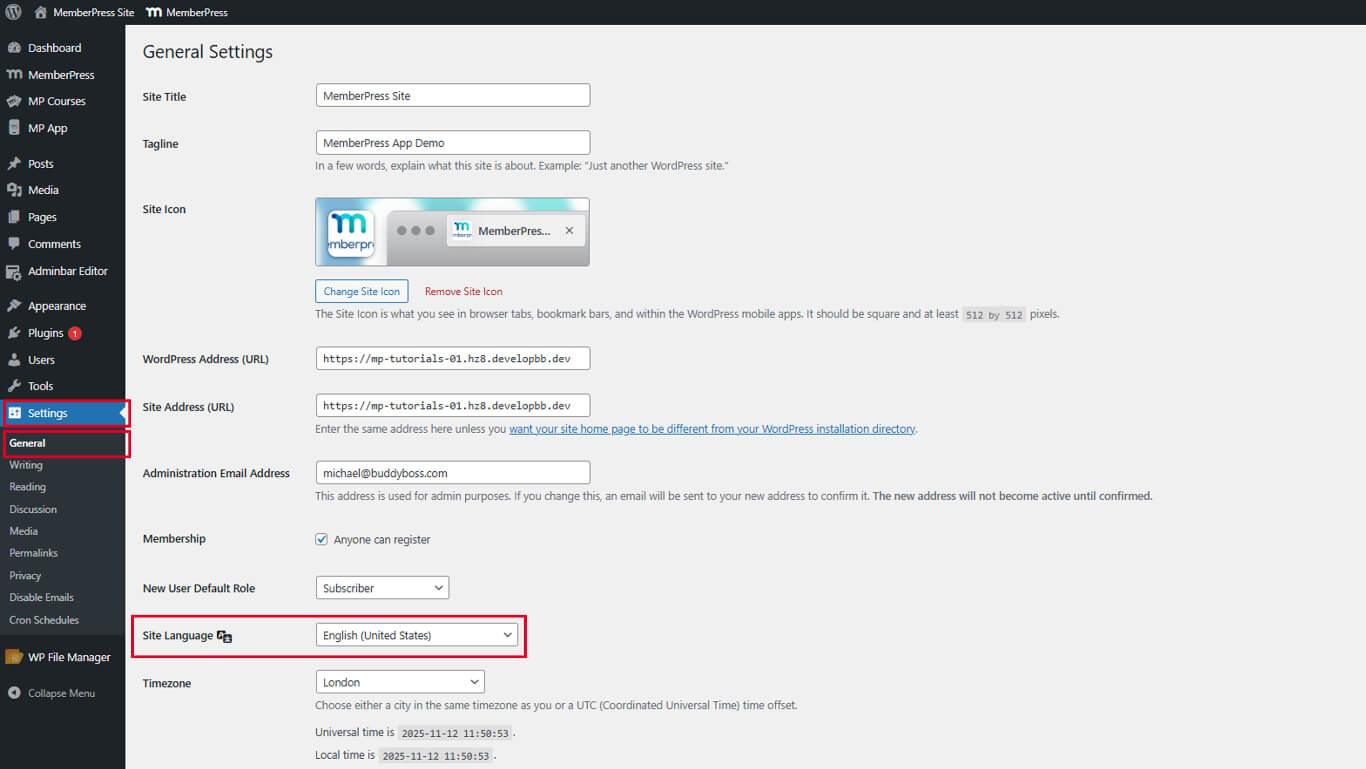
- Clique em Salvar alterações.
O painel de administração do WordPress e o tema do site mudarão para o layout RTL depois de salvos.
Verificação do layout RTL no aplicativo móvel
- Forçar fechamento e reabertura o aplicativo MemberPress para iOS/Android em seu dispositivo móvel.
- Verifique se o barra de registro e ícones de cabeçalho aparecem na ordem da direita para a esquerda.
- Abra qualquer tela traduzida (por exemplo, Membros) e verifique se o texto e os menus são RTL.
- Navegue pelo aplicativo para confirmar setas para trás, As animações e o fluxo de conteúdo correspondem à direção RTL.










 PT
PT  EN
EN  ES
ES  FR
FR  DE
DE 