

A autenticação de site mantém seu site de teste ou desenvolvimento privado, exigindo uma senha para visualizá-lo. Isso garante que seu site permaneça oculto e permite que o aplicativo MemberPress para iOS/Android acesse os dados da API para testes.
Este guia o orienta na ativação da proteção por senha, na verificação do prompt de login e na atualização das configurações de senha e aviso.
Entendendo o recurso de autenticação do site
Os requisitos do recurso de autenticação do site definem configurações para proteger sites de teste ou desenvolvimento do acesso público, mantendo a conectividade do aplicativo.
Ativação da proteção por senha restringe o acesso ao site a usuários autorizados por meio de um requisito de autenticação. A proteção garante que o trabalho de desenvolvimento permaneça privado até que esteja pronto para o lançamento público.
Preservação do acesso à API mantém a conectividade do aplicativo apesar dos requisitos de autenticação, permitindo testes e desenvolvimento. A funcionalidade do aplicativo continua enquanto o site permanece protegido contra visualização pública.
Configuração personalizada de avisos exibe uma mensagem informativa aos visitantes solicitando autenticação, explicando os requisitos de acesso. A personalização do aviso melhora a compreensão dos visitantes sobre o objetivo da autenticação.
Flexibilidade na gestão de senhas permite que os administradores atualizem credenciais, mantendo a segurança durante as fases de desenvolvimento. As alterações de senha entram em vigor imediatamente, protegendo contra acessos não autorizados.
Verificação anônima permite testar a autenticação sem interferência do cache do navegador, confirmando a funcionalidade da proteção. A verificação garante que a solicitação de senha seja exibida corretamente para visitantes não autenticados.
Ativando a proteção por senha
A ativação da proteção por senha ativa os requisitos de autenticação para acesso ao site, mantendo a conectividade da API do aplicativo.
- No WordPress, vá para Painel de controle > MP AppKit > Configurações > Geral.
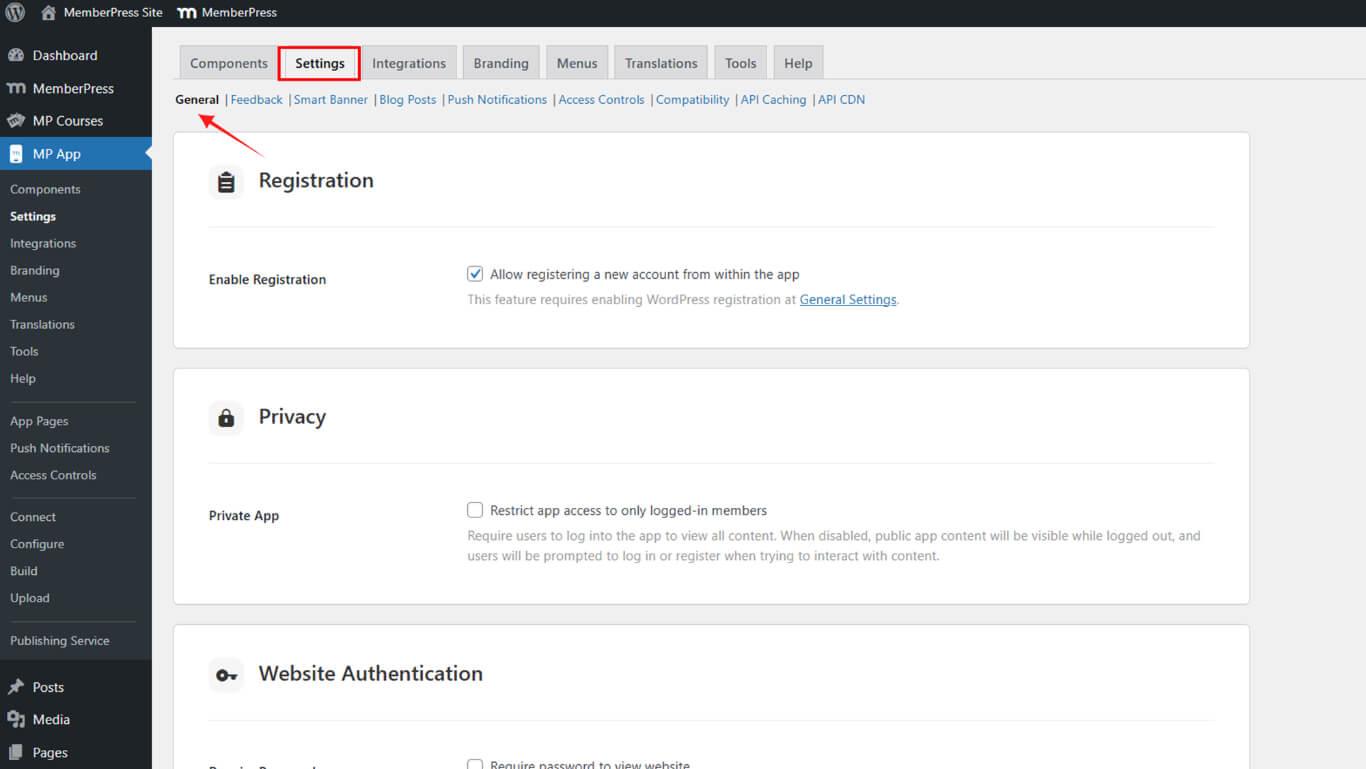
- Role para Autenticação do site.
- Verifique o Senha necessária.
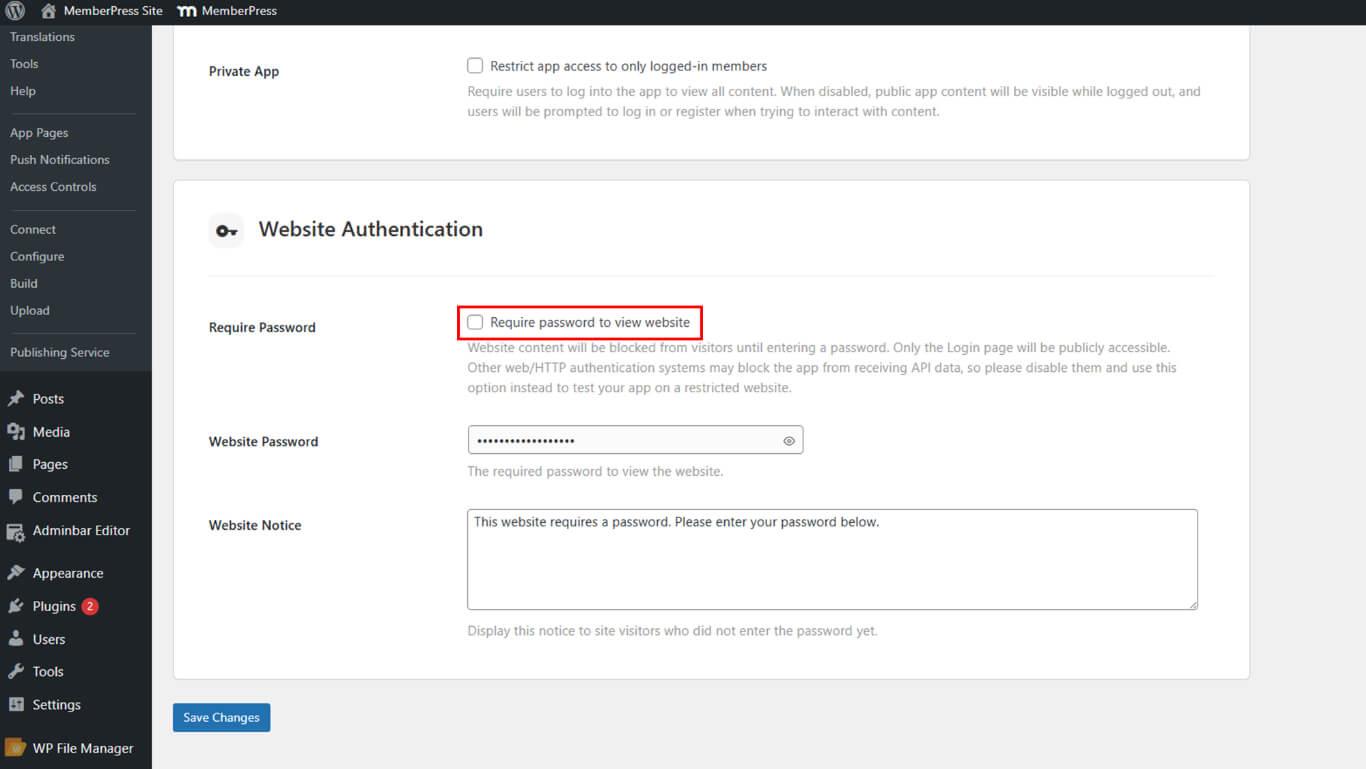
- Clique em Salvar alterações.
Verificando o prompt de login
A verificação do prompt de login confirma que a autenticação é exibida corretamente para visitantes não autenticados do site.
- Abra seu site em uma janela anônima do navegador.
- Verifique se há uma solicitação de senha e o aviso do seu site.
- Teste com uma senha incorreta e uma correta para confirmar o comportamento.
Atualização da senha ou aviso
As atualizações de senha e avisos modificam as credenciais de autenticação e as mensagens aos visitantes para acesso a sites protegidos.
- Ir para Painel de controle > MP AppKit > Configurações > Geral > Autenticação de site.
- Clique no ícone do olho para visualizar a senha atual.
- Atualize o Senha do site e Aviso do site.
- Clique em Salvar alterações e verifique no modo de navegação anônima.










 PT
PT  EN
EN  ES
ES  FR
FR  DE
DE 