

As CDNs (Content Delivery Networks, redes de distribuição de conteúdo) melhoram o desempenho dos aplicativos servindo arquivos de mídia por meio de servidores de borda distribuídos globalmente. Essa abordagem reduz a carga do servidor e acelera a entrega de conteúdo para usuários em todo o mundo.
Este documento explica como ativar a API CDN, definir as configurações de CDN e otimizar a entrega de mídia no aplicativo MP.
Entendendo a API CDN
A API CDN roteia arquivos de mídia, como imagens, documentos e vídeos, por meio de servidores CDN em vez do servidor de hospedagem do WordPress. A primeira solicitação carrega a mídia para a CDN, e as solicitações subsequentes servem o conteúdo do domínio da CDN. Esse processo reduz a latência e melhora o tempo de carregamento para os usuários do aplicativo.
Pré-requisitos
Antes de configurar a API CDN, verifique se os seguintes requisitos foram atendidos:
- MemberPress AppKit plug-in instalado e ativado;
- Serviço de CDN ativo (CloudFront, StackPath, BunnyCDN ou outro provedor semelhante);
- URL de base da CDN obtido do provedor de serviços CDN;
- Acesso ao administrador do WordPress para gerenciar as configurações do plug-in.
Habilitando o componente de desempenho da API
O componente API Performance deve ser ativado antes do início da configuração da CDN.
- Navegue até Painel de controle > MP AppKit > Componentes.
- Localizar Desempenho da API na lista de componentes.
- Clique em Ativar..
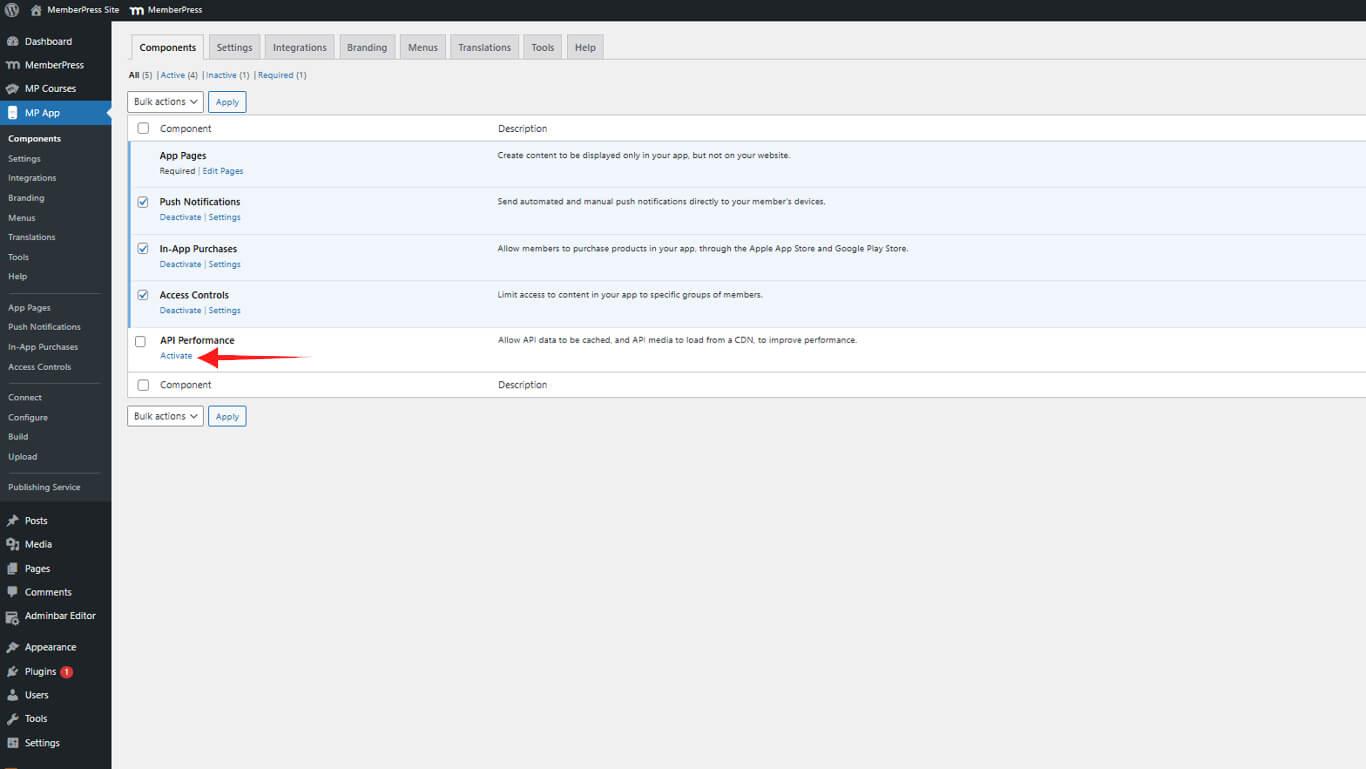
O componente API Performance oferece recursos de otimização, incluindo integração de CDN e recursos de cache.
Configuração de definições de CDN
A configuração da CDN requer a URL de base fornecida pelo provedor de serviços da CDN.
- Navegue até Painel de controle > MP AppKit > Configurações > API CDN.
- Verifique o Ativar a API CDN caixa de seleção.
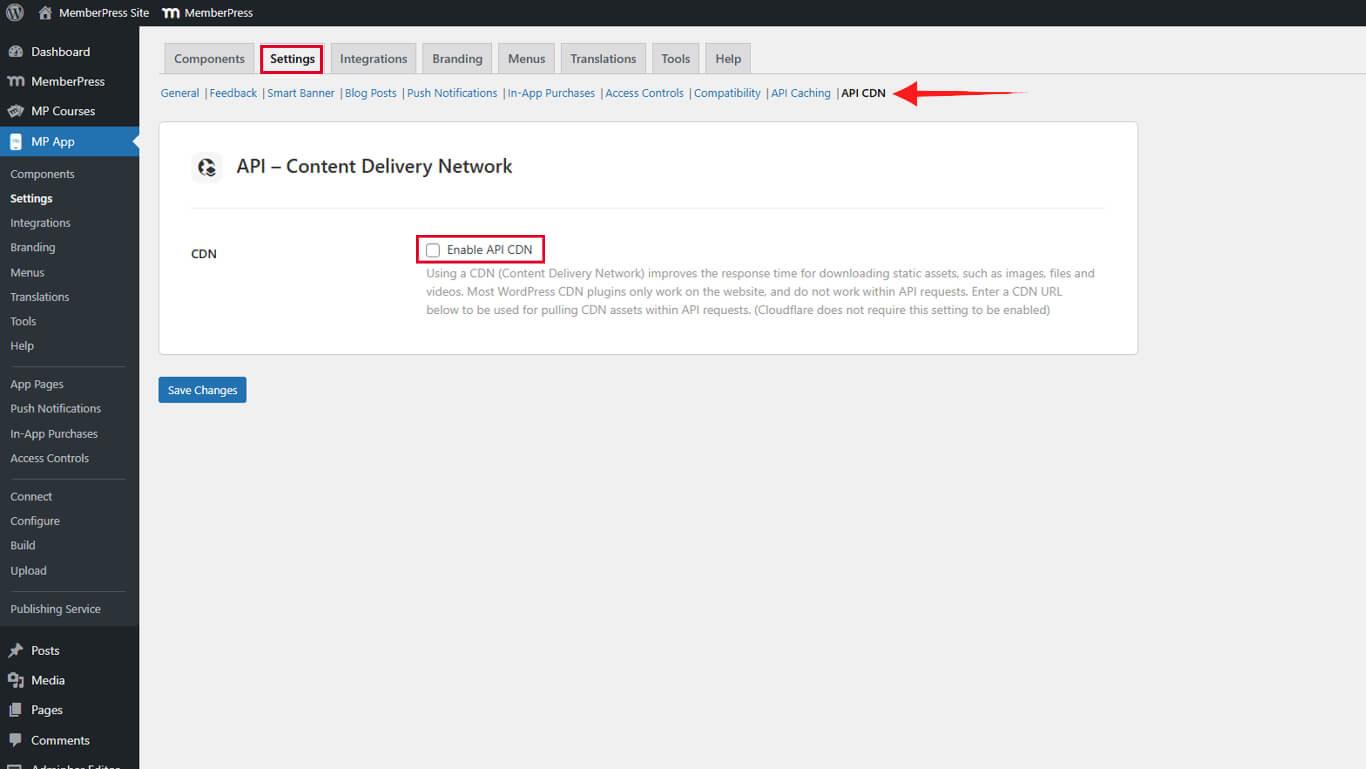
- Digite o URL de base da CDN no campo URL de base da CDN sem uma barra no final.
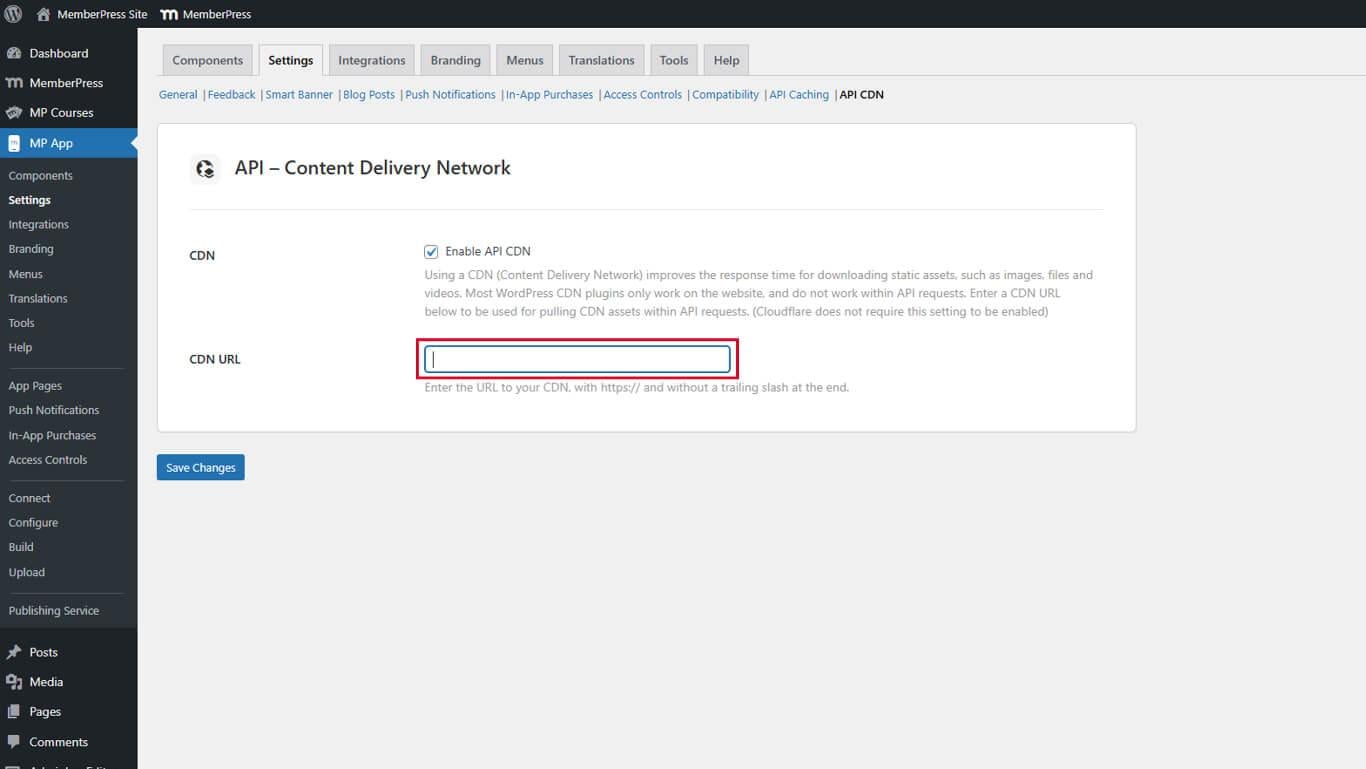
- Clique em Salvar alterações.
Exemplo de URLs de base de CDN:
- CloudFront: https://d123456789abcd.cloudfront.net;
- StackPath: https://cdn.example.stackpathcdn.com;
- BunnyCDN: https://example.b-cdn.net.
Entendendo o fornecimento de mídia CDN
A API CDN processa solicitações de mídia por meio de um sistema de entrega em dois estágios que otimiza o desempenho após a configuração inicial.
Primeiro processo de solicitação
Quando um usuário solicita conteúdo de mídia pela primeira vez, ocorre a seguinte sequência:
- O aplicativo envia uma solicitação ao site do WordPress para o arquivo de mídia.
- O site do WordPress recupera a mídia do armazenamento local.
- O arquivo de mídia é carregado automaticamente na CDN.
- A CDN retorna a mídia para o usuário.
Essa solicitação inicial pode ter tempos de carregamento padrão à medida que a mídia é carregada na CDN.
Processo de solicitação subsequente
Após o upload inicial, as solicitações futuras seguem um caminho otimizado:
- O aplicativo solicita mídia diretamente do domínio CDN.
- A CDN serve a mídia em cache a partir do servidor de borda mais próximo.
- Os usuários recebem tempos de carregamento mais rápidos por meio da entrega baseada em proximidade.
A CDN armazena em cache os arquivos de mídia de acordo com as configurações de duração do cache definidas no serviço CDN.
Otimização do desempenho com o cache de API
O cache de API complementa a funcionalidade da CDN, reduzindo as consultas ao banco de dados e acelerando os tempos de resposta da API. A combinação de ambos os recursos maximiza o desempenho do aplicativo.
- Navegue até Painel de controle > MP AppKit > Configurações > Cache de API.
- Configure as definições de cache com base no conteúdo.
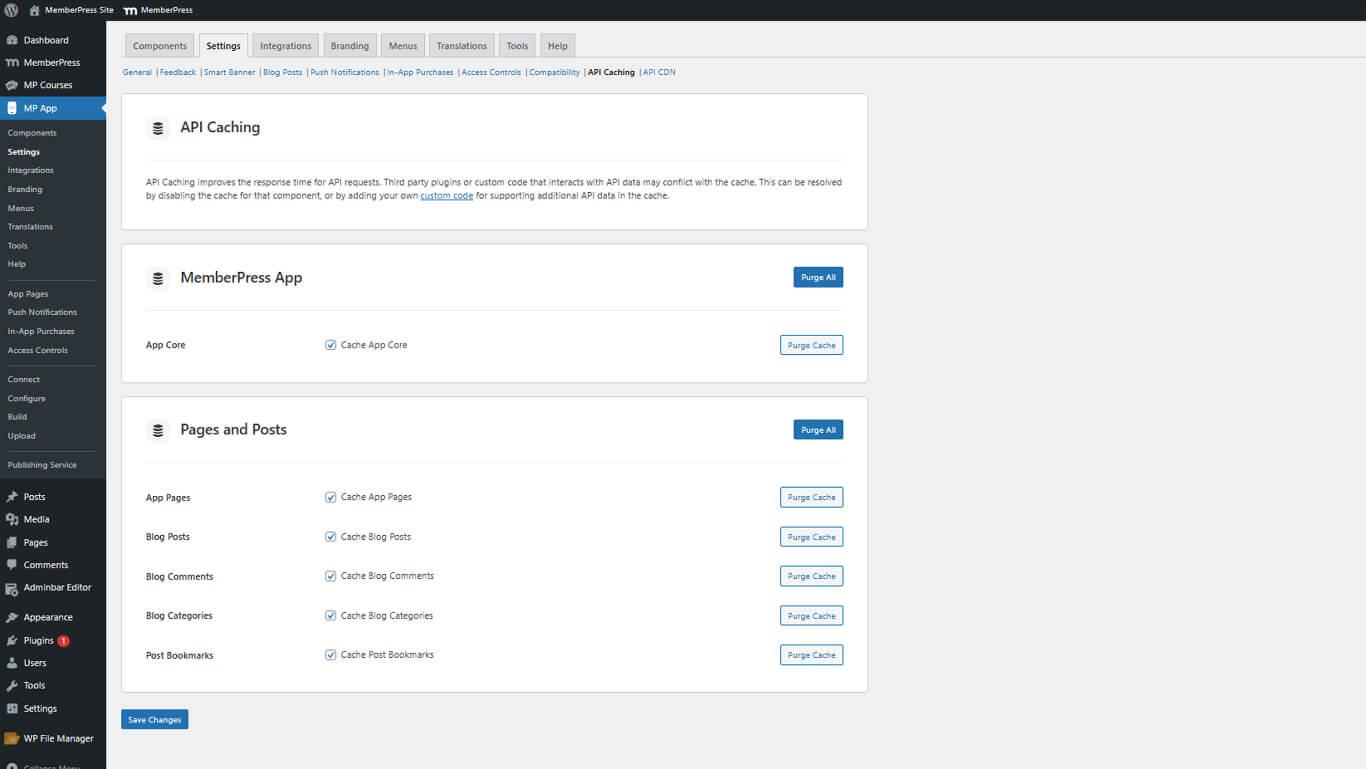
- Clique em Salvar alterações.
As configurações de cache devem equilibrar os ganhos de desempenho com os requisitos de atualização do conteúdo. Revise as Guia de configuração do cache da API para estratégias de otimização.










 PT
PT  EN
EN  ES
ES  FR
FR  DE
DE 