

As traduções de texto personalizam o idioma e os rótulos do aplicativo para atender às necessidades de idioma da comunidade ou às preferências de voz da marca. O painel de traduções permite atualizar os rótulos padrão e o texto da interface.
Este documento explica como encontrar, editar e verificar traduções de texto no aplicativo.
Entendendo a tradução de textos
A tradução de texto modifica os rótulos da interface, as mensagens e o conteúdo em todo o aplicativo. As traduções podem alterar o idioma ou reformular o texto para corresponder à voz da marca. As alterações de tradução se aplicam globalmente em todas as telas do aplicativo onde o texto original aparece.
Painel de traduções
A configuração da tradução está disponível no painel Traduções em Painel de controle > MP AppKit > Traduções.
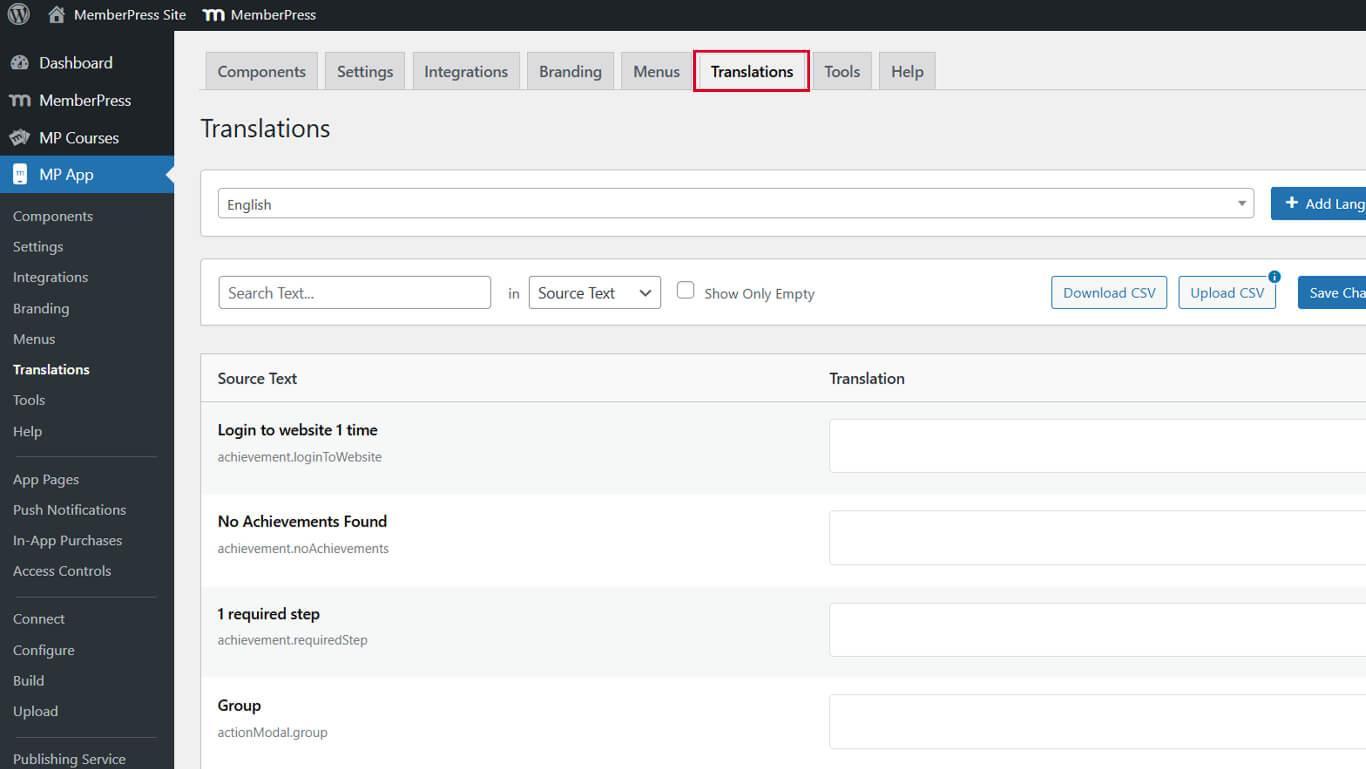
Aqui, você pode usar a ferramenta de pesquisa para encontrar sequências de texto disponíveis e adicionar ou modificar traduções.
Pesquisando por sequências de texto
A pesquisa de texto identifica cadeias de caracteres específicas que exigem tradução ou personalização.
- Navegue até Painel de controle > MP AppKit > Traduções.
- Digite uma palavra ou frase na barra de pesquisa no topo.
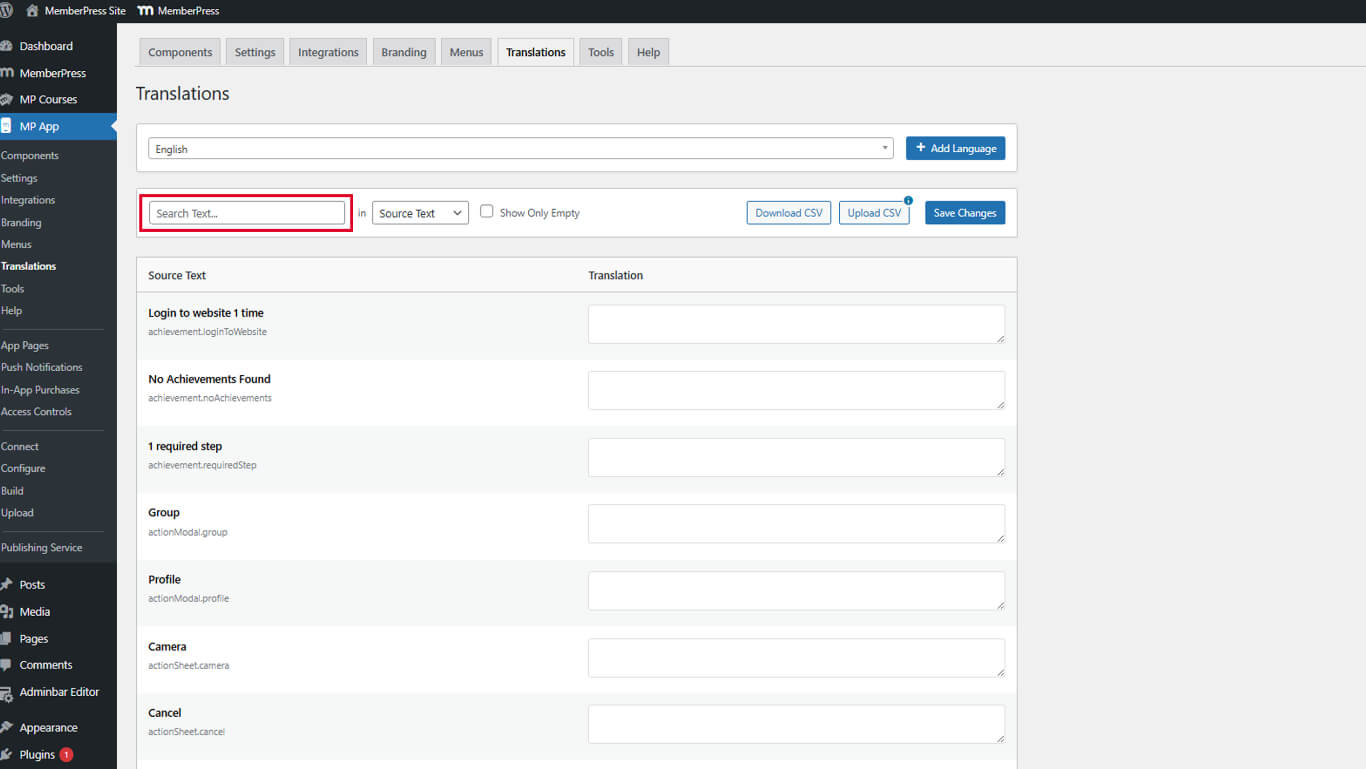
- Revise a lista filtrada de strings que contêm o termo de pesquisa.
- Identifique as sequências relevantes que requerem tradução ou modificação.
Os resultados da pesquisa mostram todas as ocorrências em que o termo aparece em todo o aplicativo.
Adicionando traduções
Os campos de tradução aceitam texto personalizado em qualquer idioma ou redação modificada.
- Navegue até Painel de controle > MP AppKit > Traduções.
- Localize a string você deseja traduzir.
- Clique no campo de tradução ao lado do texto original.
- Insira a tradução ou qualquer texto personalizado.
- Clique em Salvar alterações para aplicar a tradução.
- Repita os passos 2 a 5 para todas as sequências que deseja traduzir.
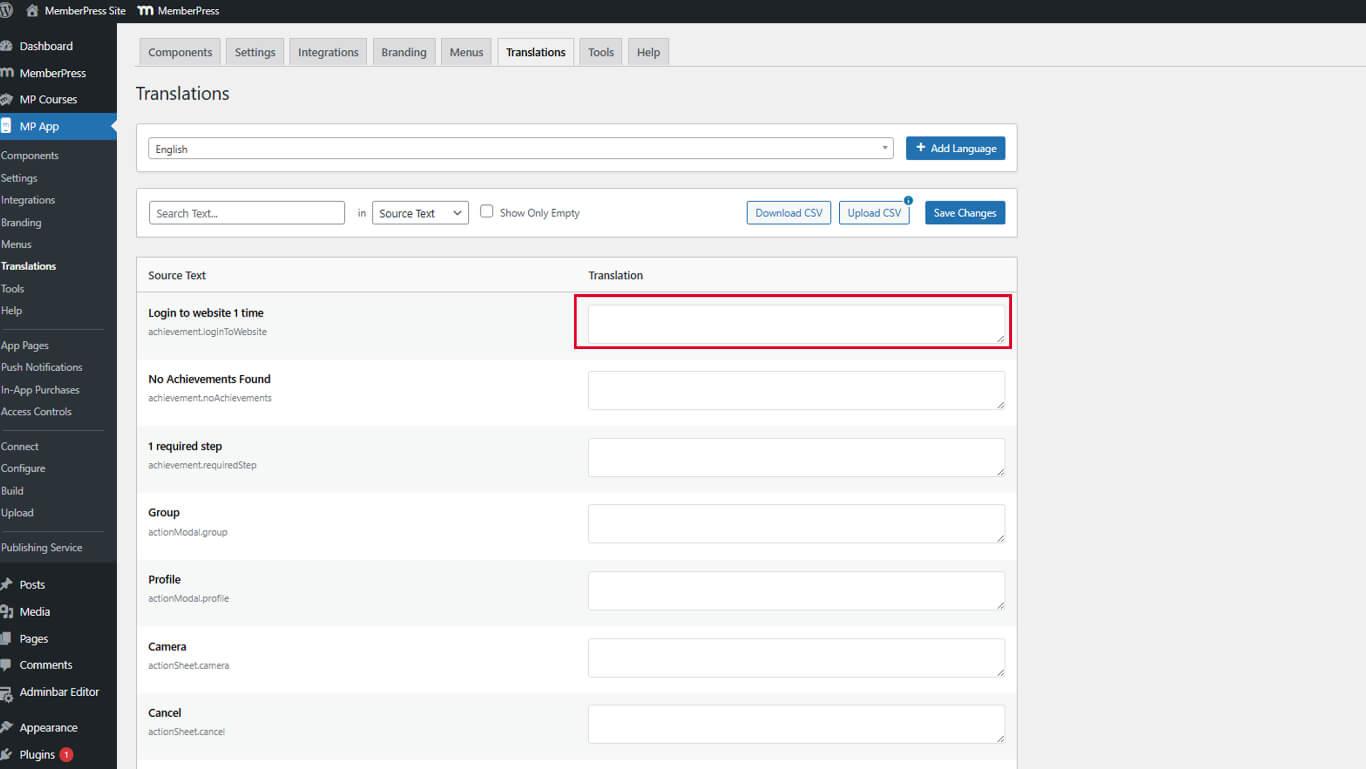
As traduções podem alterar a linguagem ou ajustar a redação para corresponder à voz da marca.
Verificação de traduções no aplicativo móvel
A verificação da tradução confirma a exibição correta em todas as telas do aplicativo.
- Abra o aplicativo MemberPress para iOS/Android em um dispositivo móvel.
- Navegue até as telas onde o texto traduzido deve aparecer.
- Verifique se a tradução personalizada é exibida em vez do texto original.
- Verifique se o texto traduzido se encaixa corretamente nos elementos da interface.
- Teste várias telas para confirmar a aplicação consistente da tradução.
As traduções são aplicadas imediatamente após salvar e reabrir o aplicativo.










 PT
PT  EN
EN  ES
ES  FR
FR  DE
DE 