

Das MemberPress AppKit Add-on erweitert die von MemberPress betriebenen Websites auf mobile Geräte, so dass die Mitglieder über spezielle Apps auf die Inhalte zugreifen können. MemberPress bietet einen Done-For-You (DFY) Service an, bei dem das MemberPress-Team die Erstellung und Einrichtung der mobilen App übernimmt.
Um die Android-App zu erstellen und zu veröffentlichen, benötigt das MemberPress-Team Administratorzugriff auf die Google Play Console. Dieses Dokument enthält eine Schritt-für-Schritt-Anleitung, wie Sie MemberPress als Administratorbenutzer einladen können.
Anforderungen für den Teamzugang verstehen
Durch die Gewährung von Administratorrechten für die Google Play Console erhält das MemberPress-Team folgende Möglichkeiten:
- App-Einstellungen verwalten,
- In-App-Käufe konfigurieren,
- andere wichtige Dienste für die Android-App verwalten.
Das MemberPress-Team benötigt bestimmte Berechtigungen für die Google Play Console, um einen umfassenden App-Support und eine umfassende App-Verwaltung anbieten zu können:
- Administratorzugriffsebene bietet vollständige Kontrolle über die Konfiguration und Einstellungen der App. Mit Administratorrechten können Teammitglieder alle Aspekte der Einrichtung und Wartung der App verwalten.
- Verwaltung von In-App-Käufen Erfordert Administratorzugriff für die Produktkonfiguration und Synchronisierung. Das Team konfiguriert Abonnementstufen, Preise und Abrechnungseinstellungen.
- App-Konfigurationssteuerung Ermöglicht Branding, Metadaten und die Einrichtung von Funktionen. Der Administratorzugriff ermöglicht eine umfassende Anpassung und Optimierung der App.
- Überwachung des Abonnements bietet die Verwaltung wiederkehrender Abrechnungen und des Mitgliederzugangs. Das Team überwacht den Status der Abonnements und löst Probleme bei der Abrechnung.
- Kontinuierliches Management sorgt für den laufenden Betrieb und die Aktualisierung der App. Der Teamzugriff ermöglicht proaktiven Support und Konfigurationsanpassungen.
Der Einladungsprozess umfasst Hinzufügen der E-Mail-Adresse des MemberPress-Teams (appsup@memberpress.com) als Admin-Benutzer über die Google Play Console.
Voraussetzungen
Bevor Sie fortfahren, müssen die folgenden Anforderungen erfüllt sein:
- Ein aktives Google Play Developer-Konto;
- Zugriff für Eigentümer oder Administratoren auf die Google Play Console.
Einladen von MemberPress mit Administratorrechten
Die Einladung zum Administratorzugriff gewährt dem MemberPress App-Team die erforderlichen Berechtigungen für die Verwaltung und Konfiguration der App.
- Navigieren Sie zum Google Play-Konsole und melden Sie sich mit den Anmeldedaten des Eigentümers oder Administrators an.
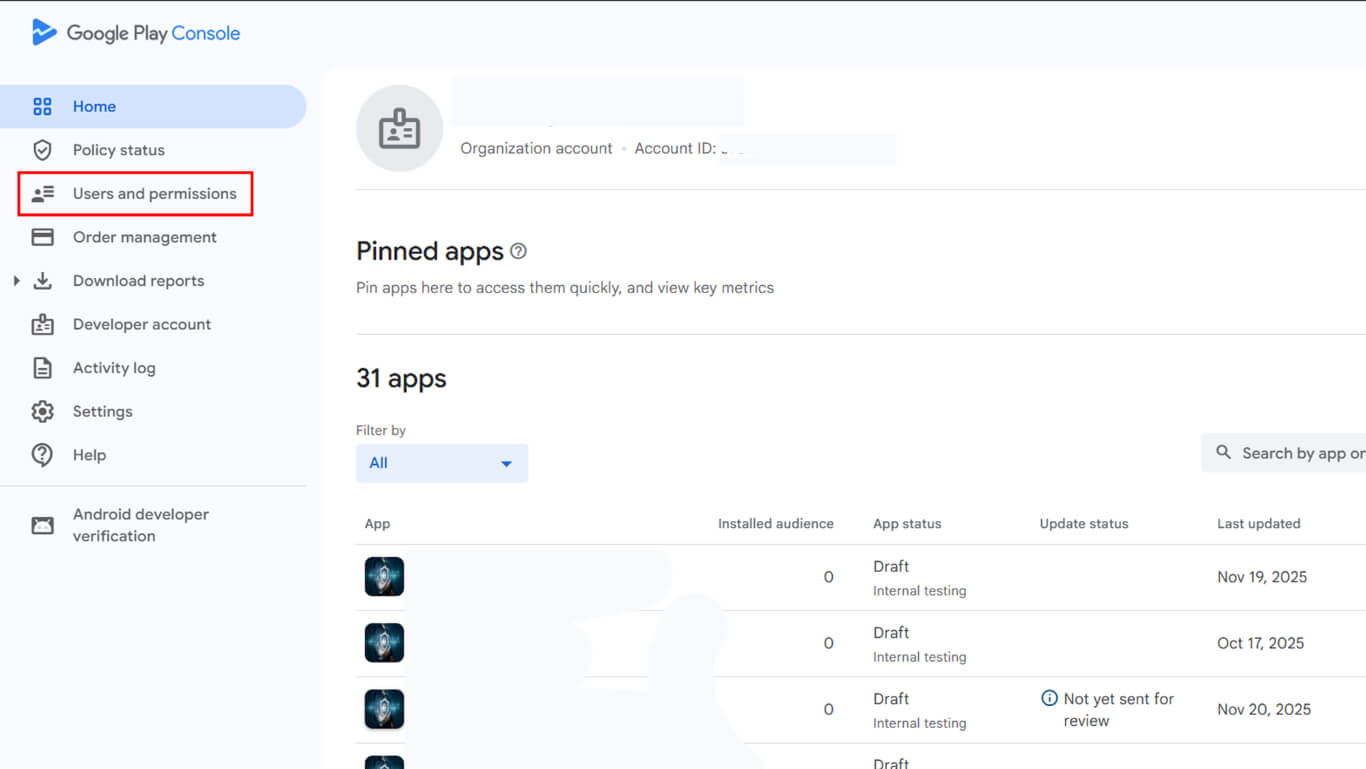
- Klicken Sie in der linken Seitenleiste auf Benutzer und Berechtigungen.
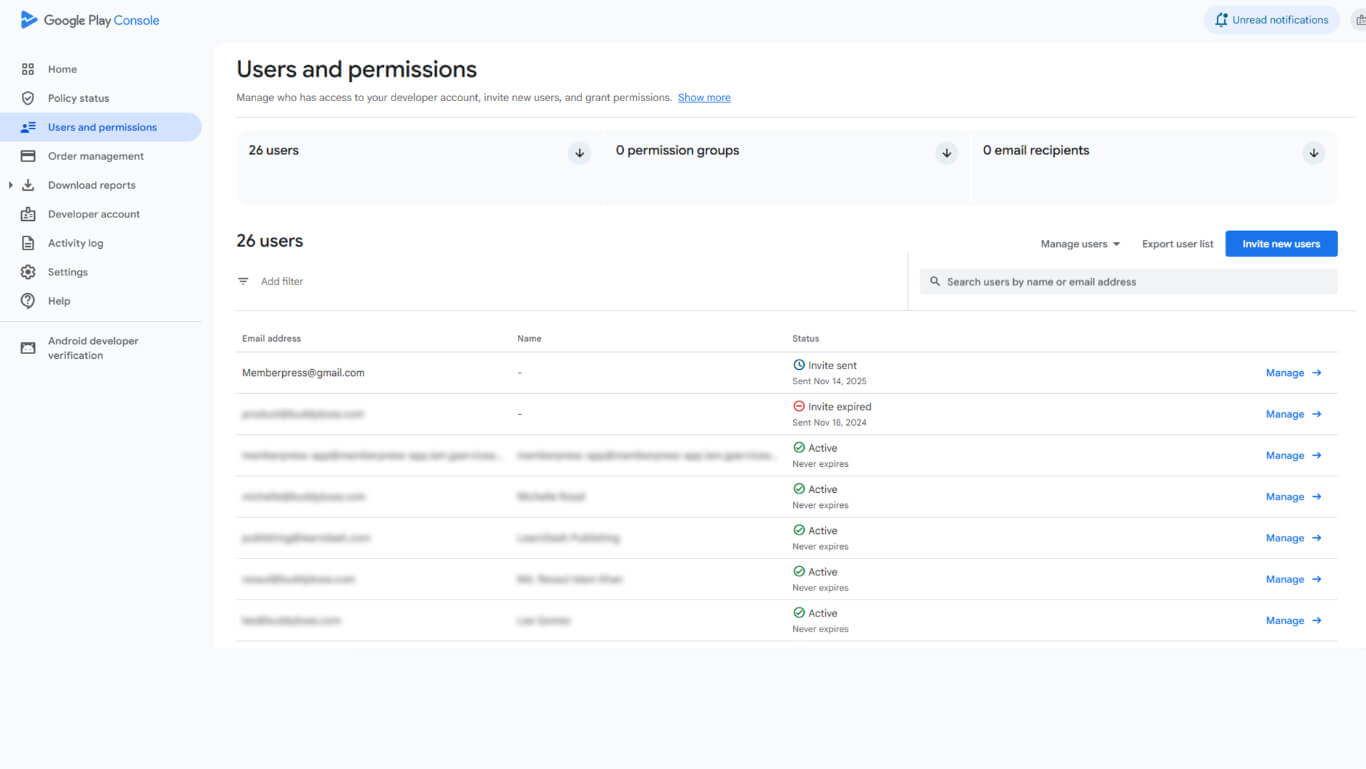
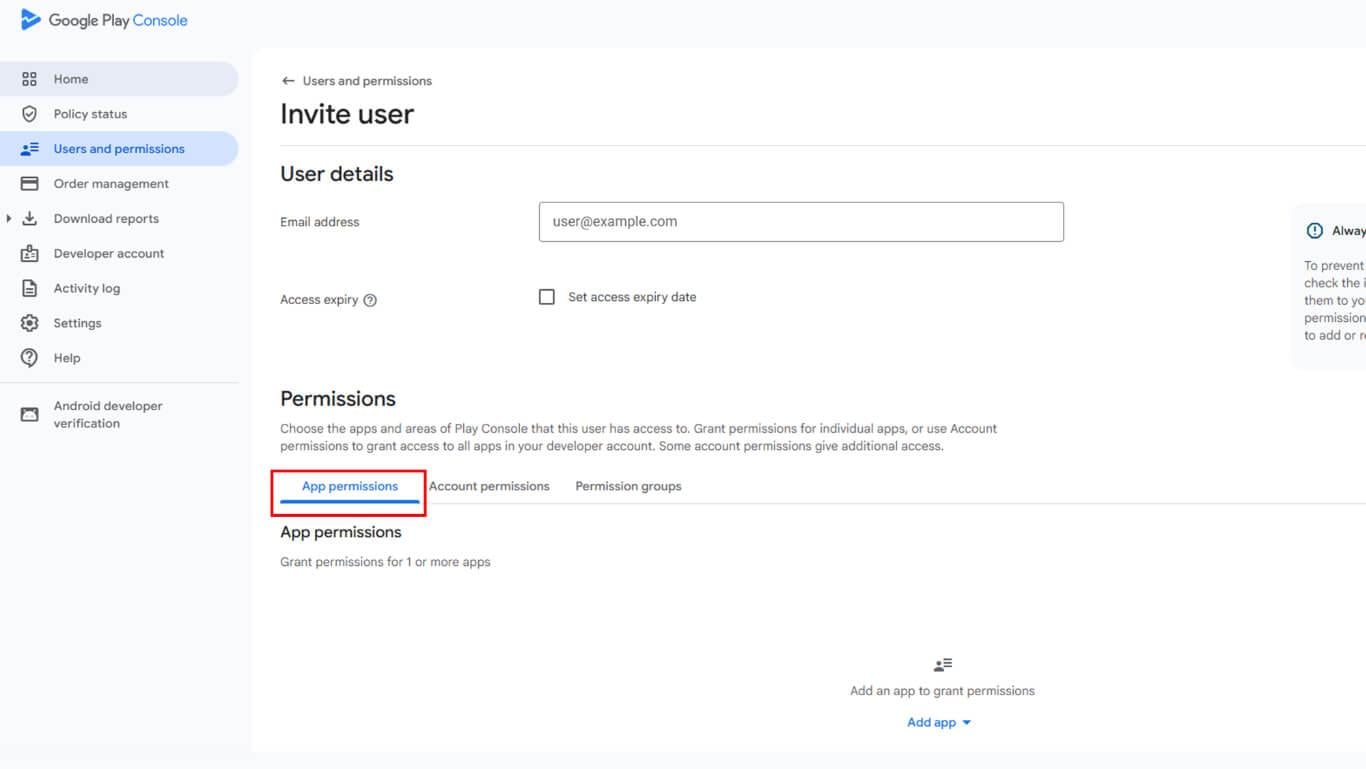
- Klicken Sie auf die Neue Benutzer einladen in der oberen rechten Ecke.
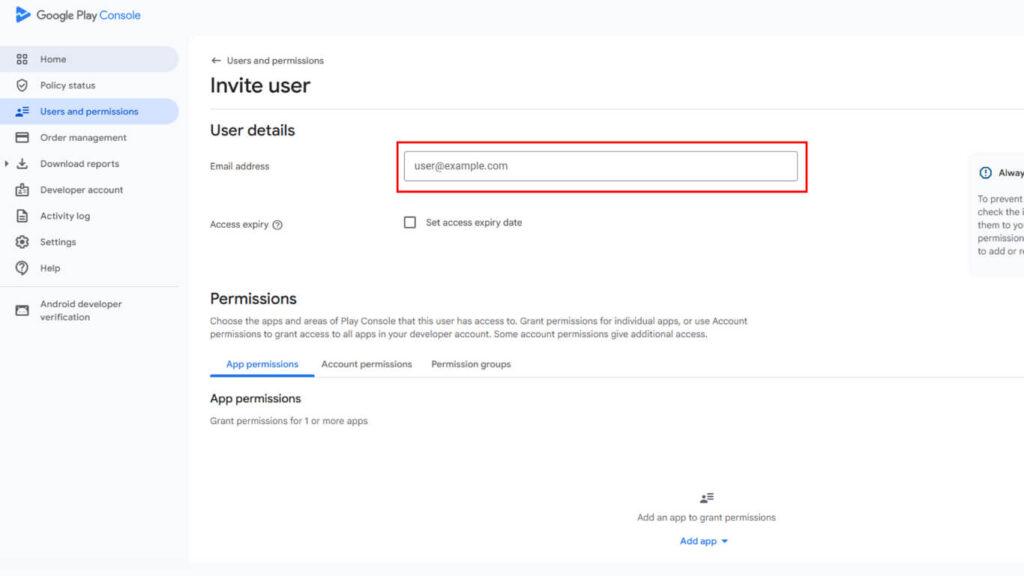
- In der E-Mail Adresse Feld, geben Sie das
appsup@memberpress.comAdresse.
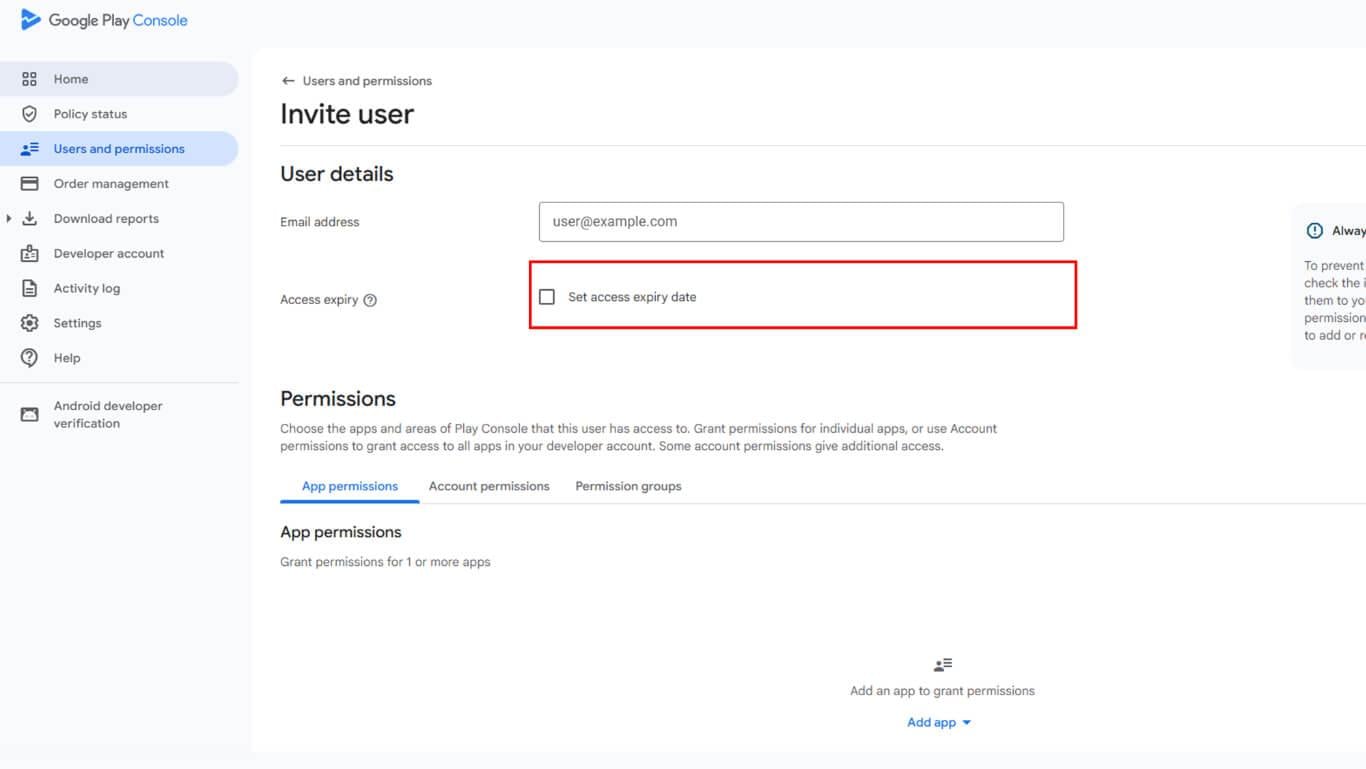
- Stellen Sie sicher, dass Zugriffsablaufdatum festlegen Option ist unkontrolliert um fortlaufenden Zugriff zu gewähren.
- Klicken Sie auf die App-Berechtigungen Tab. Klicken Sie anschließend auf App hinzufügen die App(s) auszuwählen, die von MemberPress verwaltet werden sollen, und dann Bewerbung um die App-Auswahl zu bestätigen.
- Wählen Sie im Berechtigungsmodal Admin (alle Berechtigungen)und klicken Sie auf Bewerbung um die Auswahl der Berechtigung zu bestätigen.
- Klicken Sie auf Benutzer einladen die Einladung zu versenden.
Das MemberPress-Team wird die Einladung annehmen und Zugang zur Google Play Console erhalten.
Wichtige Hinweise
- Die Einladung muss innerhalb von 30 Tagen angenommen werden. Wenn die Einladung abläuft, muss eine neue Einladung verschickt werden.
- Der eingeladene Nutzer muss sich mit genau der E-Mail-Adresse, die die Einladung erhalten hat, bei der Google Play Console anmelden.
- Mit den Administratorrechten kann das MemberPress-Team App-Einstellungen, In-App-Käufe, Abonnements und andere wichtige Dienste verwalten.
Fehlersuche
Der Abschnitt “Benutzer und Berechtigungen” ist in der Konsole nicht sichtbar.
Stellen Sie sicher, dass das verwendete Konto über Eigentümer- oder Administratorrechte für das richtige Google Play-Projekt verfügt.
Die Schaltfläche “Neue Benutzer einladen” ist deaktiviert.
Überprüfen Sie, ob das Konto über das Benutzer verwalten Berechtigung unter den Benutzereinstellungen.
Die E-Mail wurde eingegeben, aber es wurde keine Bestätigung empfangen.
Überprüfen Sie, ob die E-Mail-Adresse genau so eingegeben wurde, wie sie angegeben wurde. Das MemberPress-Team sollte seinen Posteingang einschließlich des Spam-Ordners überprüfen.
Die Berechtigungen müssen nach dem Versenden der Einladung geändert werden.
Unter Benutzer und Berechtigungen, Klicken Sie auf das Drei-Punkte-Menü neben dem Eintrag „MemberPress“, um Bearbeitungsrechte oder Zugriff entfernen.
Zugriff widerrufen
Nach Abschluss des DFY-Dienstes kann der Zugriff auf Wunsch widerrufen werden.
- Navigieren Sie zum Google Play-Konsole und melden Sie sich an.
- Klicken Sie in der linken Seitenleiste auf Benutzer und Berechtigungen.
- Suchen Sie den Benutzer „MemberPress“ in der Benutzerliste.
- Klicken Sie auf das Drei-Punkte-Menü neben dem Benutzereintrag.
Wählen Sie Zugriff entfernen und bestätigen Sie die Entfernung.










 DE
DE  EN
EN  ES
ES  FR
FR  PT
PT 