

Die Vorbereitung von MemberPress Android-Apps für den Google Play Store erfordert die Einhaltung der Google-Richtlinien für das Entwicklerprogramm. Die Konfigurationsschritte gewährleisten die ordnungsgemäße Funktionalität der App und verringern das Risiko einer Ablehnung während der Überprüfung.
In diesem Dokument wird erläutert, wie Sie die App in MemberPress AppKit vorbereiten, die Einstellungen der Google Play Console konfigurieren und alle erforderlichen Erklärungen vor der Einreichung ausfüllen.
Die Anforderungen von Google Play verstehen
Die Einreichung im Google Play Store erfordert bestimmte Konfigurationen und die Einhaltung von Richtlinien, bevor die Überprüfung genehmigt wird. Apps müssen Datenschutzrichtlinien, Inhaltsbewertungen, Datensicherheitserklärungen und angemessene Kontoverwaltungsfunktionen enthalten. Die Konfiguration von In-App-Käufen, Optionen zur Kontolöschung und rechtliche Vereinbarungen sind für die Einreichung obligatorisch. Eine gute Vorbereitung verringert das Risiko einer Ablehnung und beschleunigt die Genehmigungsfristen.
Einrichten von In-App-Käufen
Die Konfiguration von In-App-Käufen ermöglicht die Monetarisierung über die Google Play-Abrechnung, falls zutreffend.
- Navigieren Sie zu Dashboard > MP AppKit > Komponenten.
- Umschalten auf In-App-Käufe zu Auf wenn Sie Inhalte über die App verkaufen.
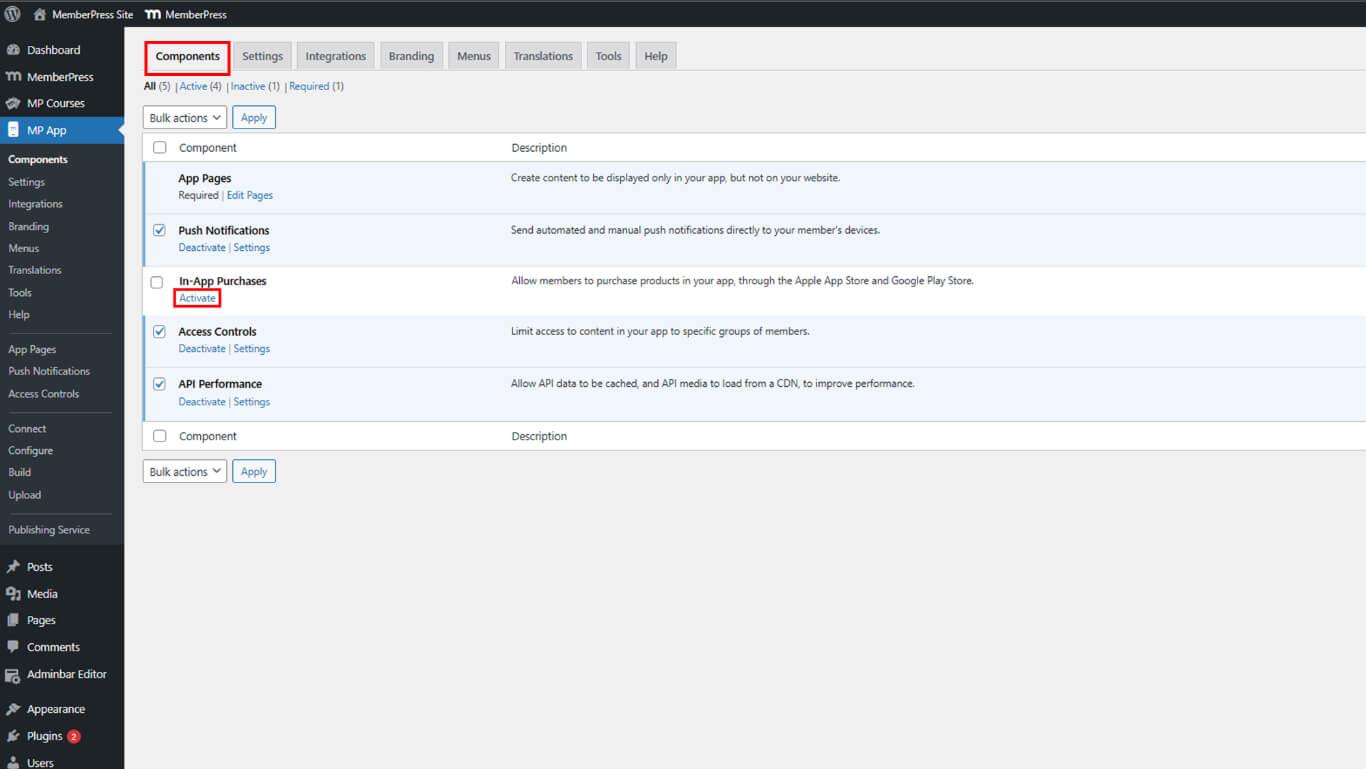
- Klicken Sie auf Änderungen speichern.
- Konfigurieren Sie In-App-Produkte gemäß der Dokumentation zu In-App-Käufen.
Android Release Build generieren
Die Generierung des Release-Builds erstellt das App-Paket für die Einreichung bei Google Play.
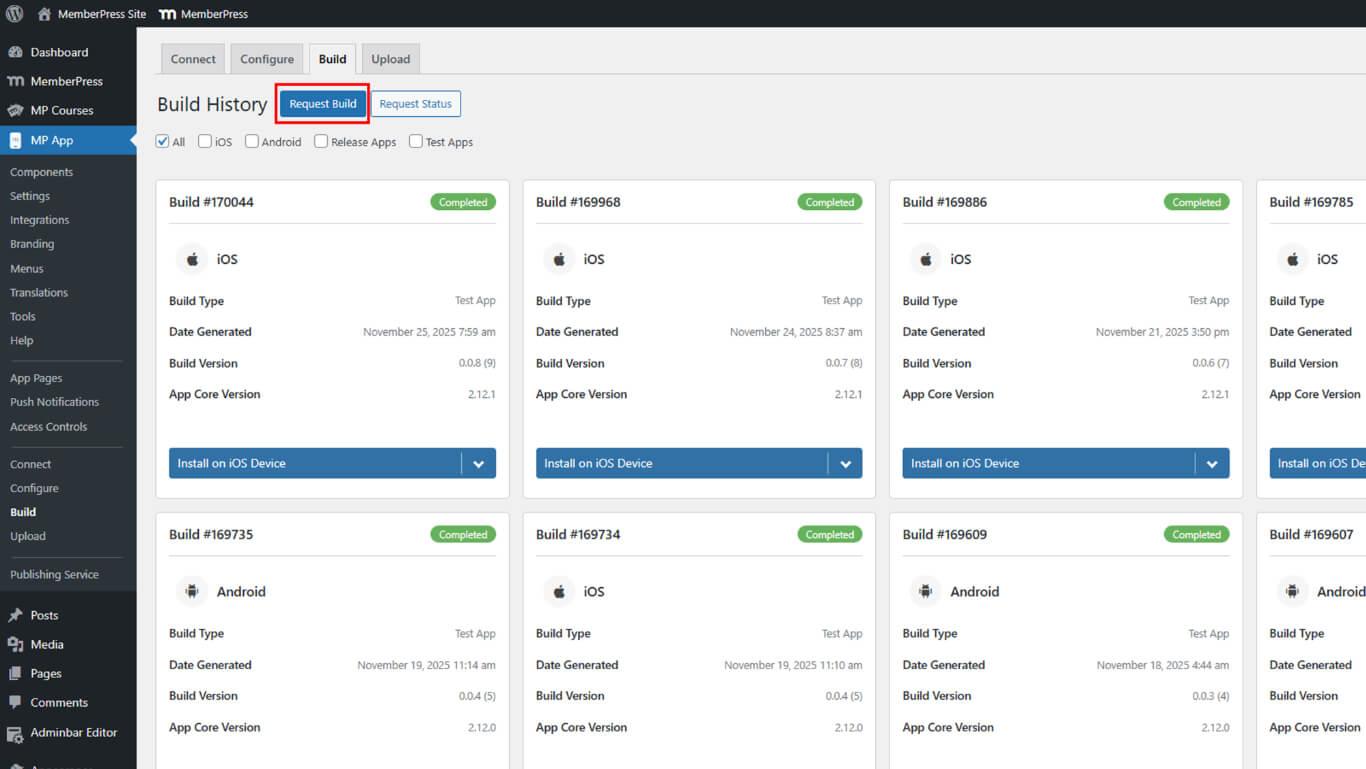
- Navigieren Sie zu Dashboard > MP AppKit > Bauen.
- Klicken Sie auf die Erstellen anfordern Taste.
- Prüfen Sie die Android Kontrollkästchen als Plattform.
- Wählen Sie App veröffentlichen als Build-Typ.
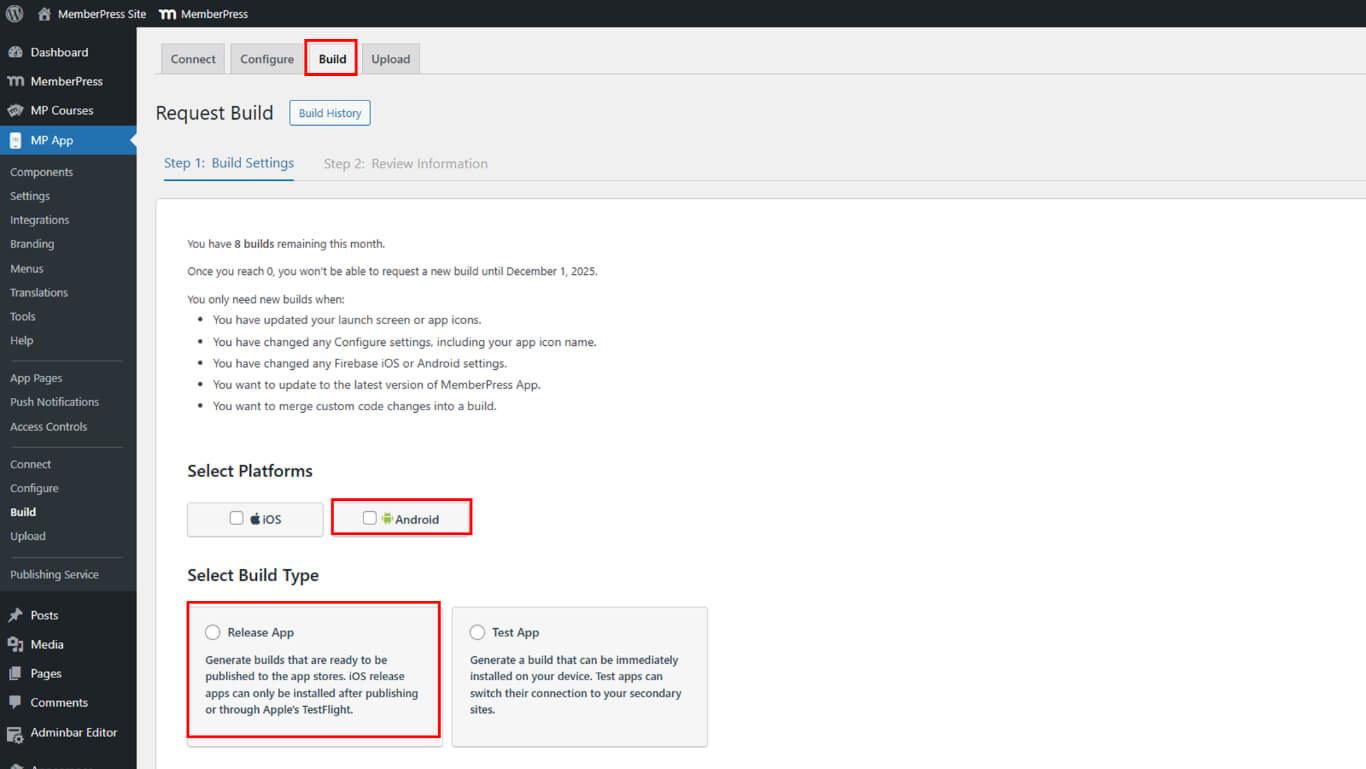
- Klicken Sie auf Weiter um mit der Build-Konfiguration fortzufahren.
- Klicken Sie auf Build-Anfrage senden die Build-Anforderung zu übermitteln.
- Überwachen Sie den Fortschritt der Erstellung unter Entstehungsgeschichte.
- Warten Sie, bis der Build abgeschlossen ist.
Die Fertigstellung erfolgt in der Regel innerhalb von 5 bis 10 Minuten nach Einreichen der Anfrage.
Registrierung der Anwendungs-ID
Die Registrierung der Anwendungs-ID reserviert die Kennung in der Google Play Console.
- Navigieren Sie zu Dashboard > MP AppKit > Konfigurieren > Android-Einstellungen nach Fertigstellung des Baus.
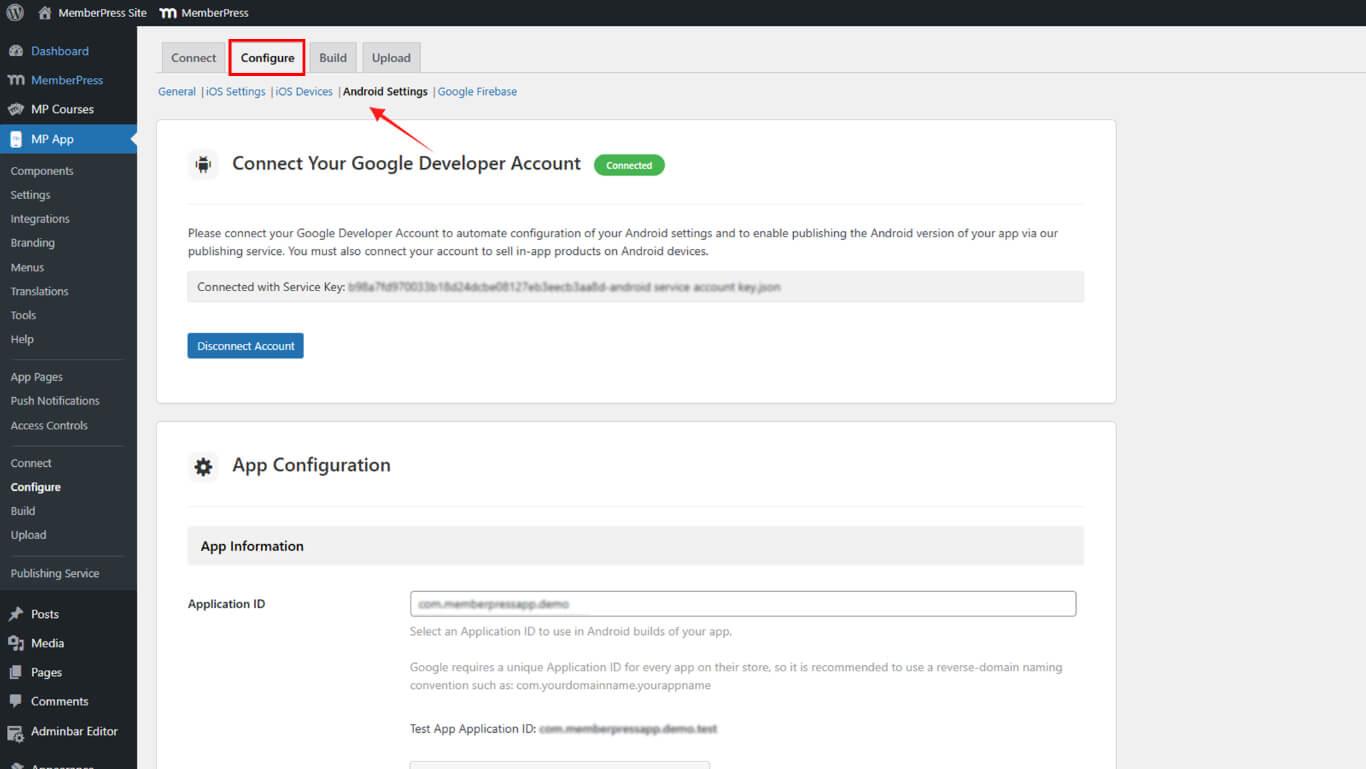
- Suchen Sie die ID der Anwendung Feld.
- Überprüfen Sie die konfigurierte Anwendungs-ID.
- Laden Sie die AAB-Datei herunter von Entstehungsgeschichte.
- Melden Sie sich bei Google Play Console an unter play.google.com/console.
- Navigieren Sie zu Test und Freigabe > Produktion.
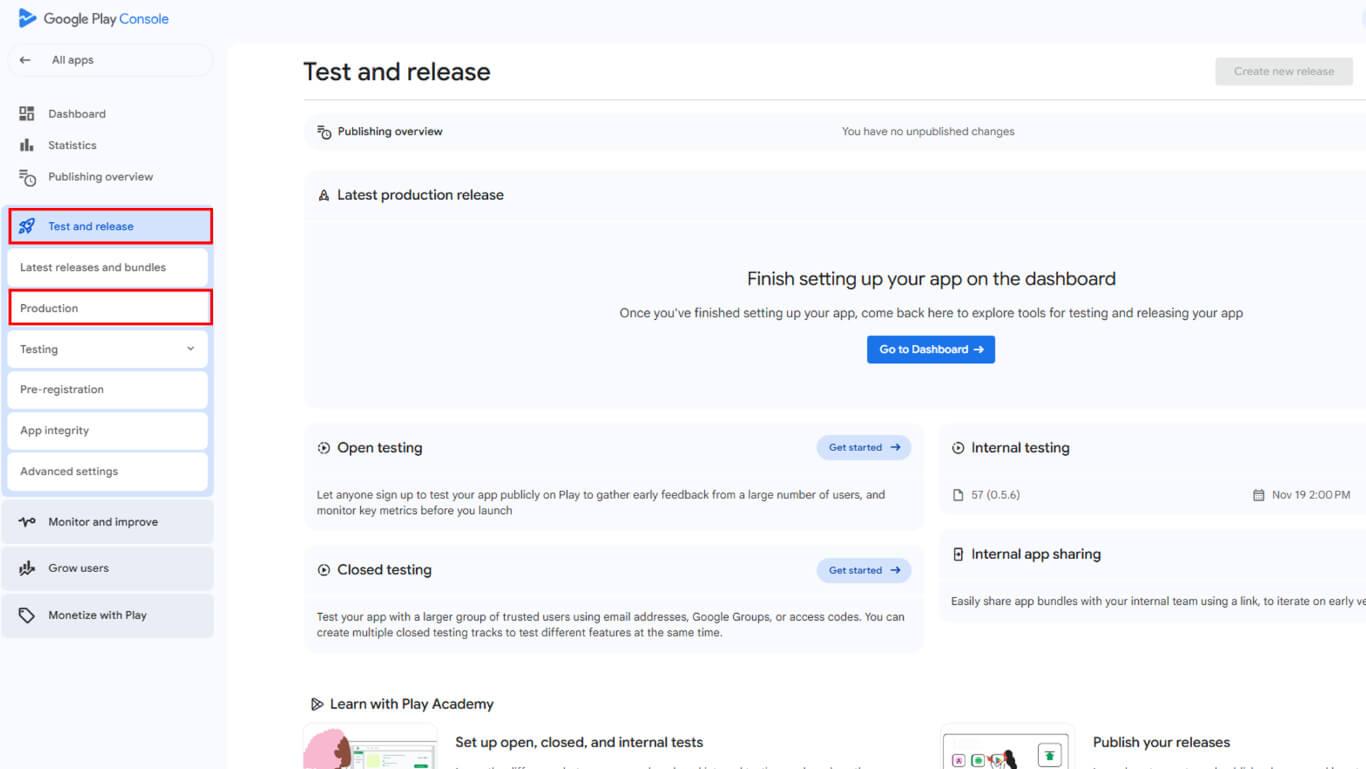
- Klicken Sie auf Neue Version erstellen mit der Erstellung der Veröffentlichung beginnen.
- Laden Sie die AAB-Datei hoch, um die Anwendungs-ID zu registrieren.
- Klicken Sie auf Speichern Sie um die Registrierung der Anwendungs-ID abzuschließen.
Die Registrierung der Anwendungs-ID verhindert Identifizierungskonflikte mit anderen Anwendungen im Google Play Store.
Einladendes Verlagsteam
Die Einladung des Veröffentlichungsteams ermöglicht eine professionelle Überprüfung und Unterstützung bei der Einreichung.
- Melden Sie sich bei Google Play Console an unter play.google.com/console mit Ihrem Entwickler-Konto.
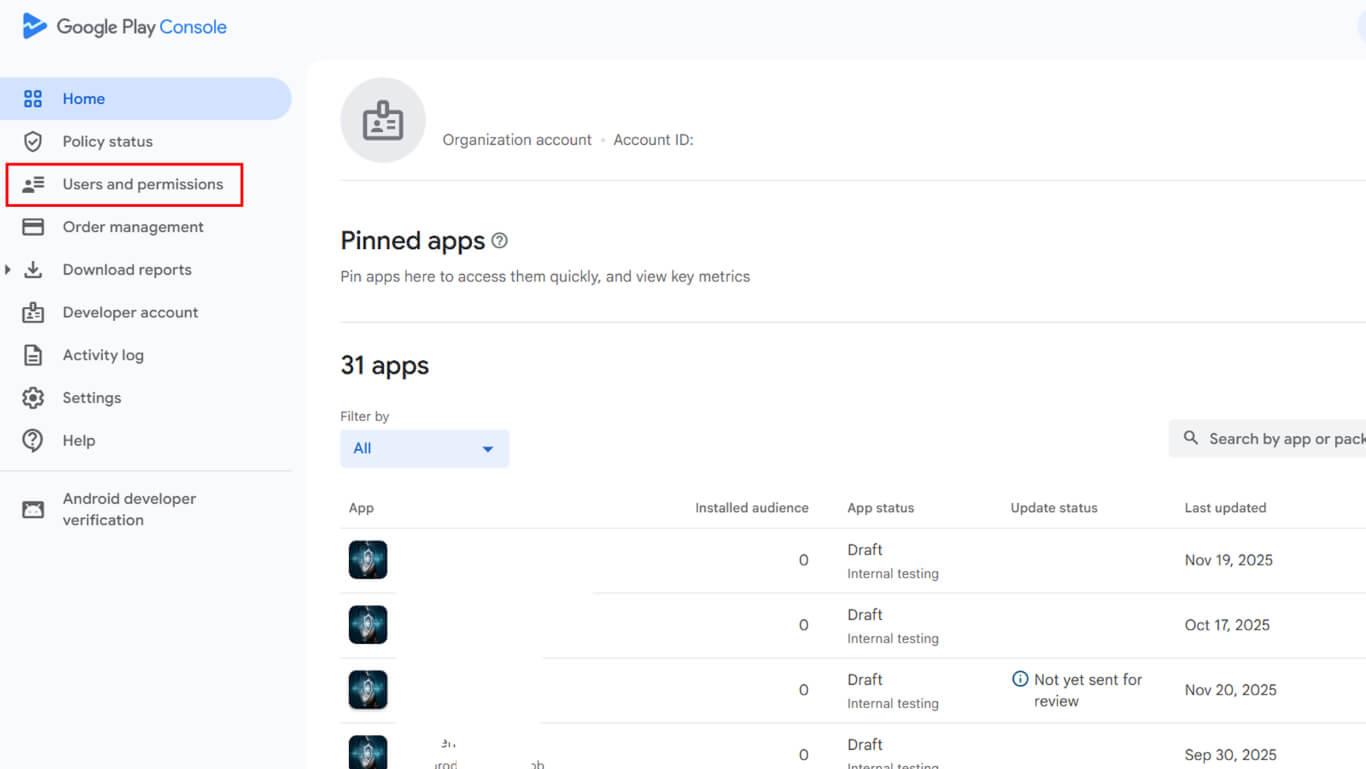
- Navigieren Sie zu Benutzer und Berechtigungen in der Seitenleiste.
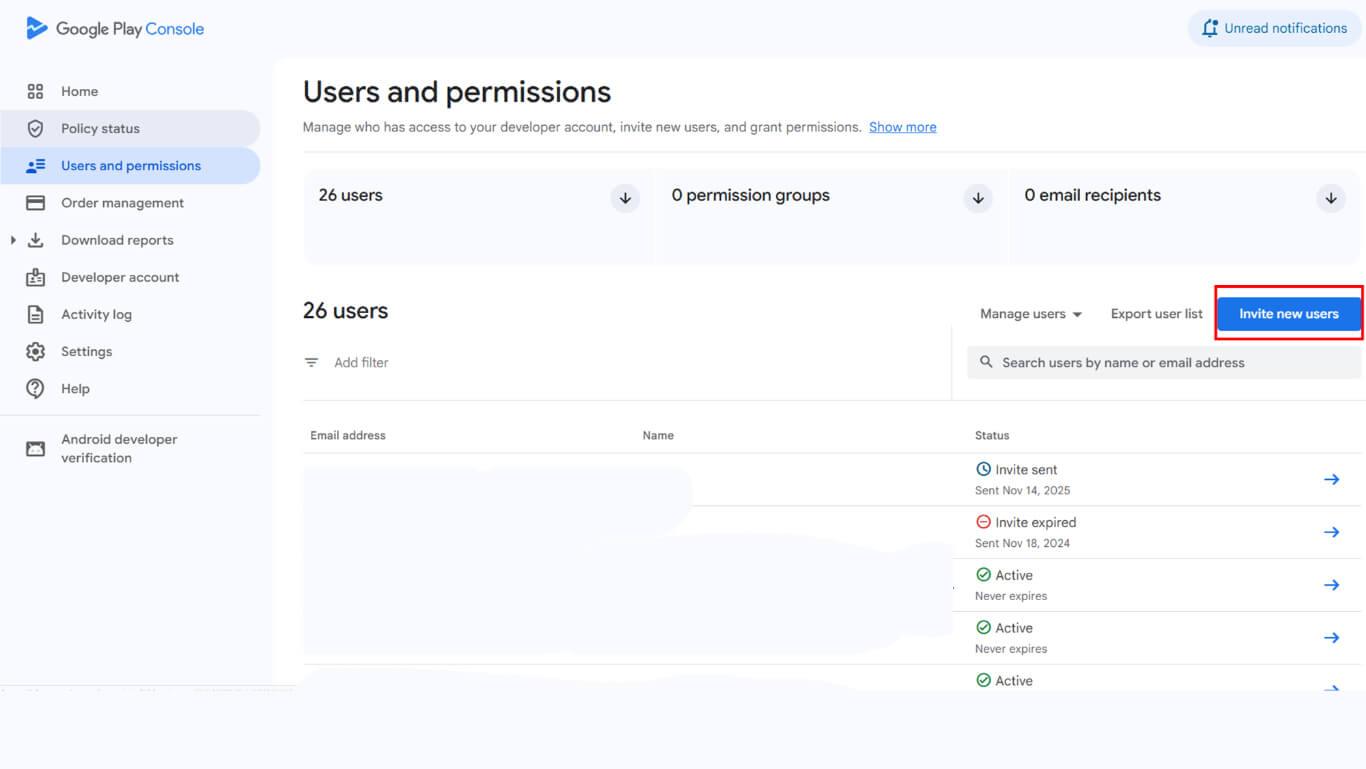
- Klicken Sie auf die Neue Benutzer einladen Taste.
- Eingabe appsup@memberpress.com in das E-Mail-Adressfeld ein.
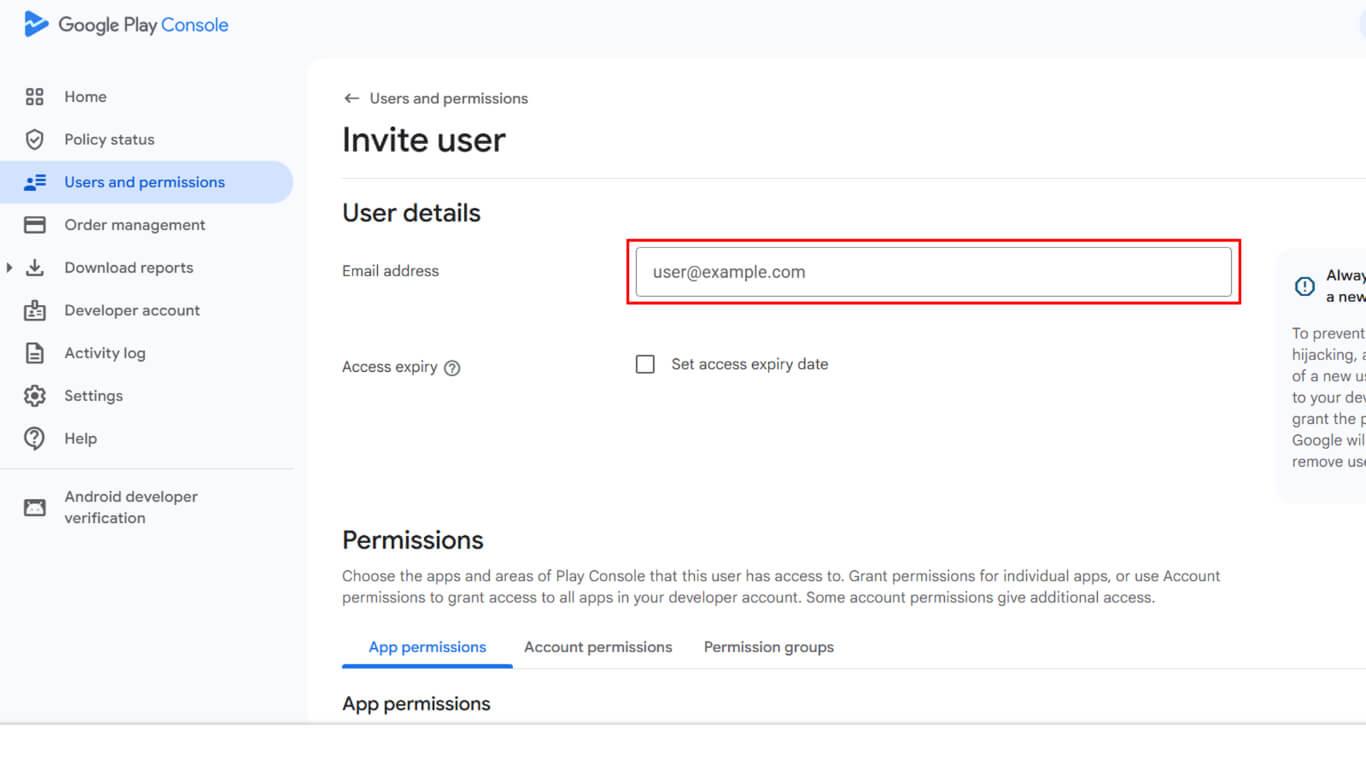
- Überprüfen Sie die Zugang Abgelaufen das Kontrollkästchen nicht markiert ist.
- Navigieren Sie zum App hinzufügen Abschnitt.
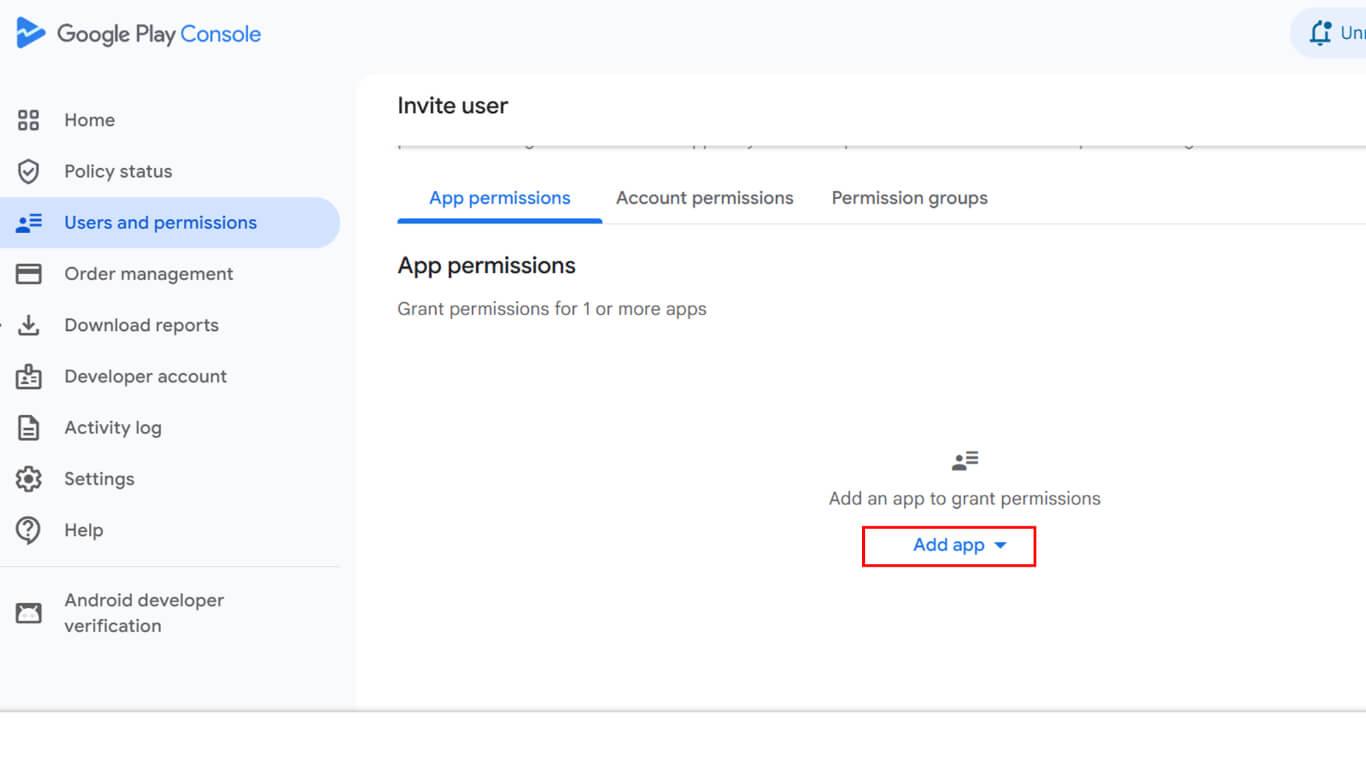
- Wählen Sie die App aus der Liste der verfügbaren Apps aus.
- Wählen Sie Verwaltung Genehmigungen für das Veröffentlichungsteam.
- Klicken Sie auf Benutzer einladen die Einladung zu versenden.
Konfigurieren von App-Inhalten
Unter Google Console Dashboard > Überwachen und Verbessern > Richtlinien und Programme > App-Inhalt:
- Datenschutzbestimmungen - Geben Sie eine gültige öffentliche URL ein und klicken Sie auf Speichern.
- App-Zugriff - Wenn eine Anmeldung erforderlich ist, geben Sie die Testanmeldedaten und Anweisungen für die Prüfer an; andernfalls wählen Sie Voller Zugriff.
- Anzeigen - Geben Sie an, ob Ihre App Werbung enthält.
- Bewertung des Inhalts - Füllen Sie den Fragebogen aus und senden Sie ihn ab.
- Zielpublikum - Wählen Sie die richtige Altersgruppe aus.
- Nachrichten-App - Geben Sie an, ob Ihre Anwendung qualifiziert ist.
- Datensicherheit - Erklären Sie, wie Sie Nutzerdaten sammeln, weitergeben und schützen.
- Regierung Apps - Als zutreffend oder nicht zutreffend markieren.
- Finanzielle Merkmale - Geben Sie alle Finanzdienstleistungen an.
- Gesundheits-Apps - Geben Sie alle gesundheitsbezogenen Merkmale an.
- Sicherheitsstandards für Kinder - Geben Sie bei Bedarf einen öffentlichen Link an.
- Werbe-ID - Für MemberPress-Apps wählen Sie Ja.
Konfigurieren der Shop-Auflistung
Die Konfiguration des Store-Listings liefert Informationen und Assets zur App, die potenziellen Nutzern im Google Play Store angezeigt werden.
- App-Name - Halten Sie sie klar und symbolfrei.
- Kurze und vollständige Beschreibung - Fassen Sie die Merkmale klar zusammen.
- App-Symbol - 512×512 px, PNG/JPG.
- Merkmal Grafik - 1024×500 px, PNG/JPG.
- Screenshots - 2-8 pro Gerätetyp, Verhältnis 16:9 oder 9:16, PNG/JPG. Fügen Sie ggf. Bildschirmfotos von Tablets hinzu.
Konfigurieren der Verfügbarkeit von Ländern und Regionen
Die Konfiguration der regionalen Verfügbarkeit bestimmt, wo die App in den Listen des Google Play Store erscheint.










 DE
DE  EN
EN  ES
ES  FR
FR  PT
PT 