


Añadir vídeos a su sitio web puede fomentar la participación y hacer que los visitantes vuelvan a visitarlo.
Pero, ¿cómo hacerlo?
Por suerte, si utilizas WordPress, no es tan difícil como crees. En esta entrada, te explicaremos cómo insertar un vídeo en WordPress en un santiamén. ¡Empecemos!
Cómo añadir vídeo a páginas o entradas de WordPress
Una de las mejores cosas de WordPress es su función de "autoincrustación". Esta fantástica función permite incrustar vídeos automáticamente en una entrada del blog, por lo que nunca tendrás que preocuparte de buscar y añadir el código de incrustación del vídeo.
Mientras escribes o editas tu entrada o página, busca el lugar dentro de la misma donde te gustaría añadir el vídeo.
A continuación, copia y pega la URL del vídeo. ¡La función de inserción automática de WordPress capturará el código de inserción de ese vídeo y lo insertará por ti en un santiamén!

Incluso puedes editar la anchura y la alineación del vídeo y añadir un pie de foto en el editor de WordPress.
Tenlo en cuenta: Esta función SÓLO funciona con los servicios de vídeo permitidos, como YouTube, Vimeo, Amazon y Hulu.
En el caso de un servicio de vídeo que no figure en la lista de servicios permitidos, tendrás que insertar manualmente el código del vídeo en tu entrada o página.
También puede incrustar un vídeo de YouTube utilizando la función de inserción de YouTube en WordPress:
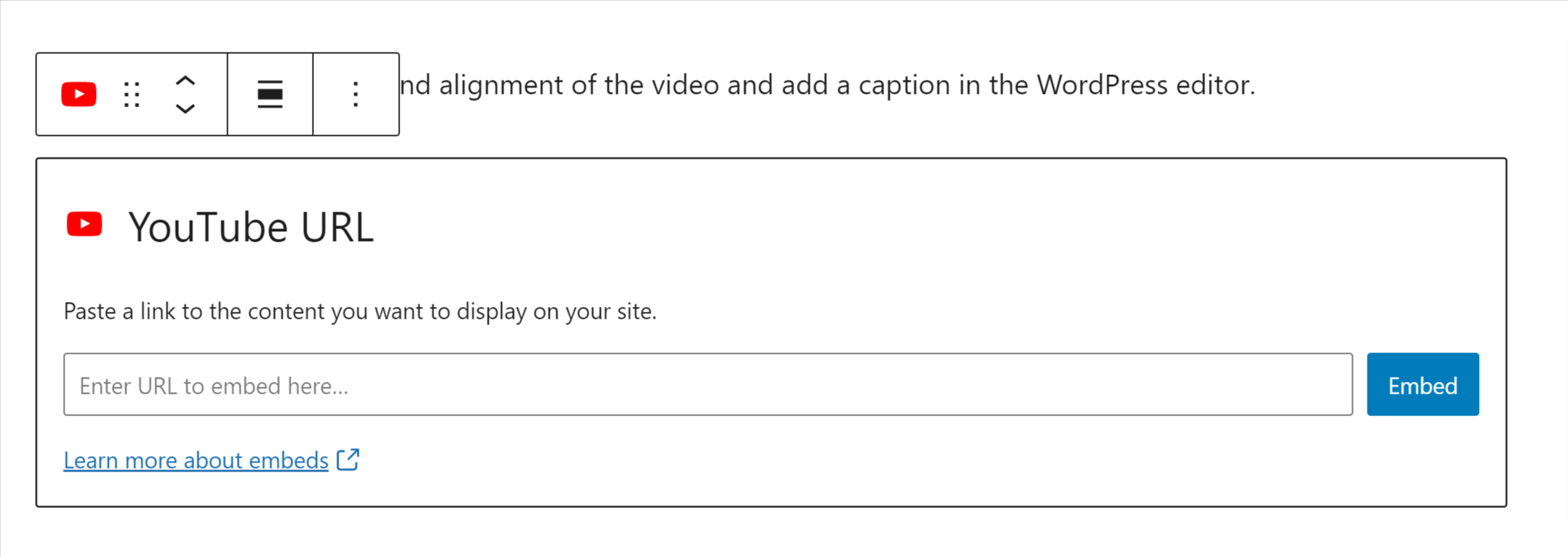
Solo tienes que introducir la URL del vídeo y hacer clic en «Incrustar».
CONSEJO ÚTIL: Si quieres asegurarte de que no aparezcan “vídeos relacionados” al final de tu vídeo, prueba a añadir rel=0 al final de la URL.
Cómo insertar un vídeo en la barra lateral de una página
Incrustar un vídeo en la barra lateral de tu sitio web de membresía de WordPress puede parecer complicado, pero es mucho más fácil de lo que crees.
En tu panel de control de WordPress, ve a Apariencia > Widgets. A continuación, busca la zona de la barra lateral donde quieras que aparezca el vídeo. Arrastra el widget “Texto” a la zona de la barra lateral que elijas y pega la URL del vídeo en la sección de contenido. Al igual que en la entrada del blog, WordPress incrustará automáticamente el vídeo en tu barra lateral.
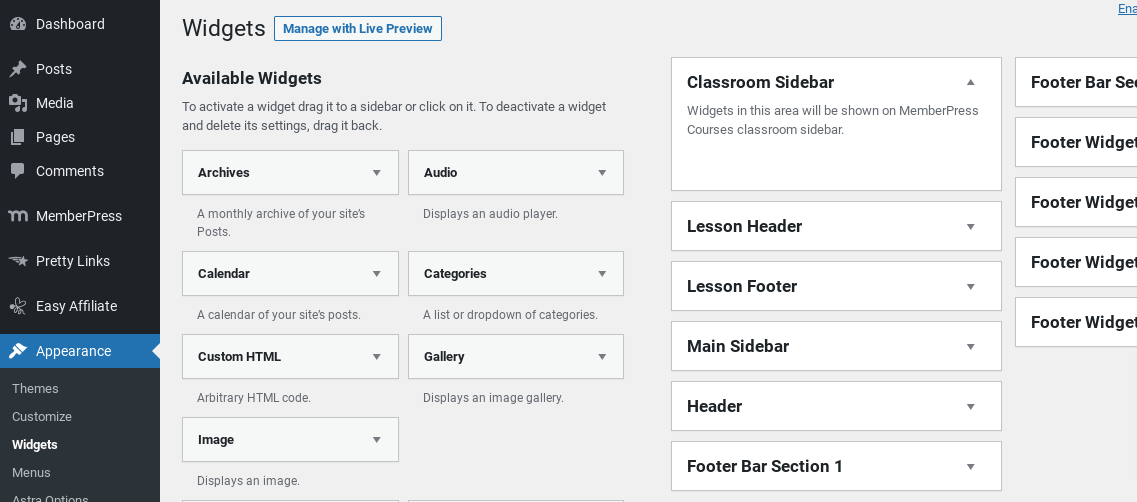
WordPress también generará una vista previa de cómo se verá el vídeo en tu barra lateral para que puedas verlo antes de que se publique. Si te gusta cómo queda el vídeo, haz clic en «Guardar» y ¡ya está todo listo!
Reflexiones finales
Como puedes ver, insertar un vídeo en una entrada del blog, en una página o en la barra lateral de tu sitio de membresía no es tan difícil como podría parecer, sobre todo gracias a la función de inserción automática de WordPress.
Esta función también funciona si sigues utilizando el editor clásico de WordPress. La única diferencia con el editor clásico es que no puedes realizar ajustes significativos en la entrada como lo harías si utilizases el Editor Gutenberg.
Si te ha gustado este artículo, ¡no olvides suscribirte en el recuadro de la parte superior derecha!











 ES
ES  EN
EN  FR
FR  DE
DE  PT
PT 
Añadir un comentario