

Los enlaces profundos dirigen a los usuarios a pantallas específicas de la aplicación mediante URL. Esta funcionalidad permite acceder a contenidos específicos, como entradas de blog, páginas de afiliación, ofertas de productos y pantallas de configuración.
Este documento explica cómo configurar enlaces profundos para varios tipos de contenido e implementarlos en la navegación de la aplicación.
Comprender los enlaces profundos
Los enlaces profundos abren pantallas específicas de la aplicación cuando los usuarios pulsan sobre las URL. Los enlaces funcionan de manera similar a las URL de los sitios web, pero abren pantallas de aplicaciones nativas en lugar de páginas web. Los enlaces profundos mejoran la experiencia del usuario al eliminar los pasos de navegación y dirigir a los miembros inmediatamente al contenido relevante. Los tipos de contenido compatibles incluyen páginas de WordPress, entradas, páginas de aplicaciones y productos dentro de la aplicación.
Acceder a la configuración de enlaces profundos
Los enlaces profundos se configuran a través de los ajustes del menú y las interfaces específicas del contenido.
- En tu panel de control de WordPress, ve a MP AppKit > Menús.
- Elija una de las siguientes opciones: Menú de la barra de pestañas o Más menú de pantalla, dependiendo de dónde desee que aparezca el enlace.
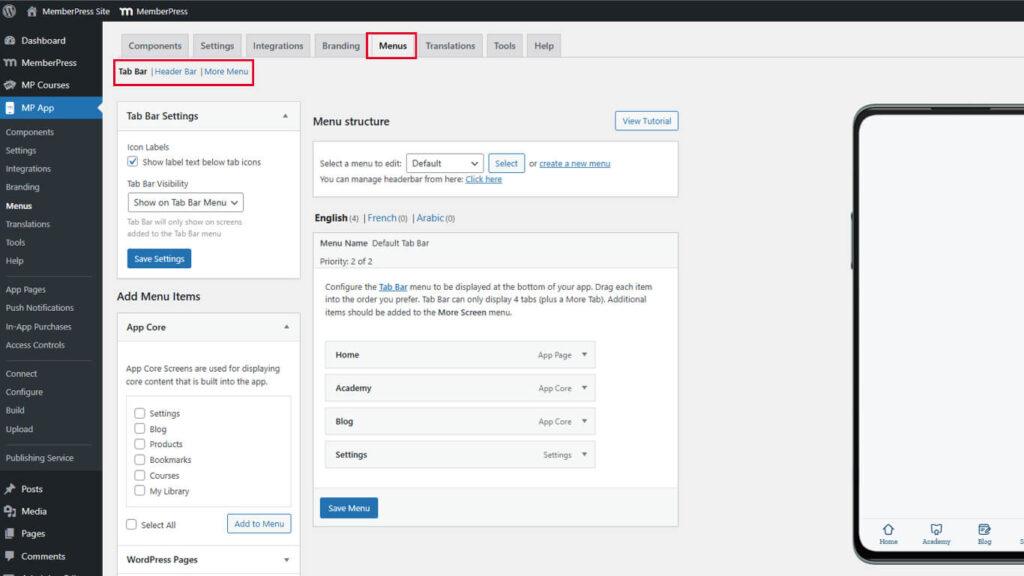
Enlaces a páginas y entradas de WordPress
Las páginas y entradas de WordPress se pueden vincular directamente dentro de los menús de la aplicación.
- Vaya a Panel > MP AppKit > Menús.
- Seleccione el menú para añadir enlaces.
- Localice el Páginas de WordPress o Puestos sección.
- Busca la página o publicación deseada en la lista.
- Marque la casilla situada junto al elemento de contenido.
- Haga clic en Añadir al menú.
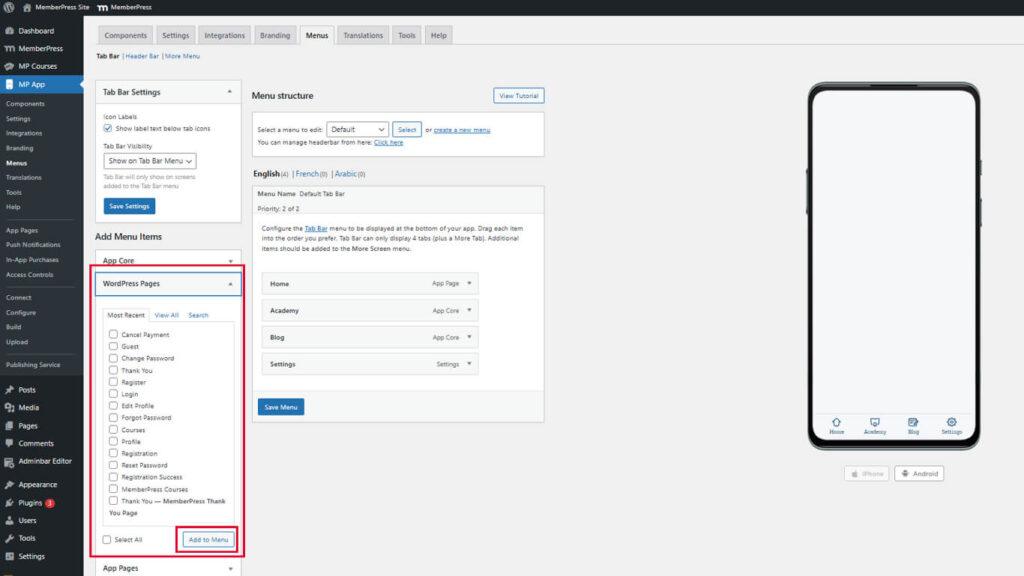
- Arrastra el nuevo elemento del menú a la posición deseada.
- Haga clic en el botón Guardar menú.
Como alternativa, se pueden añadir URL personalizadas para páginas o entradas específicas.
Añadir URL de páginas personalizadas
- Vaya a Panel > MP AppKit > Menús.
- Seleccione el menú para añadir enlaces.
- Localice el Enlaces personalizados sección.
- Introduzca la URL completa de la página o publicación en el campo URL.
- Introduzca el texto que se mostrará en la pantalla en el campo Texto del enlace campo.
- Haga clic en Añadir al menú.
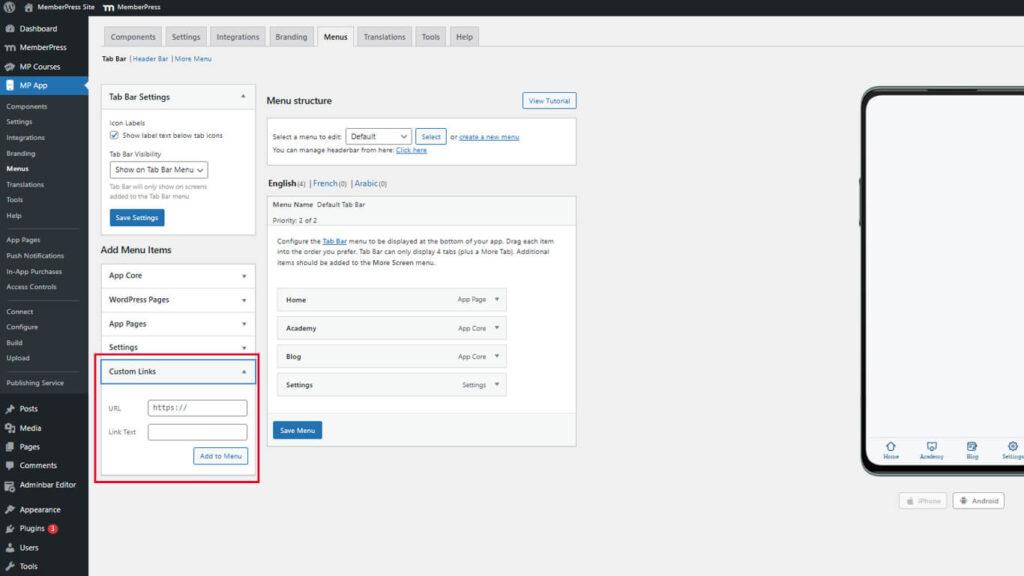
- Arrastra el elemento del menú a la posición deseada.
- Haga clic en el botón Guardar menú.
Las URL personalizadas proporcionan flexibilidad para enlazar con contenido específico que no aparece en la lista de páginas de WordPress.
Enlace a las páginas de la aplicación
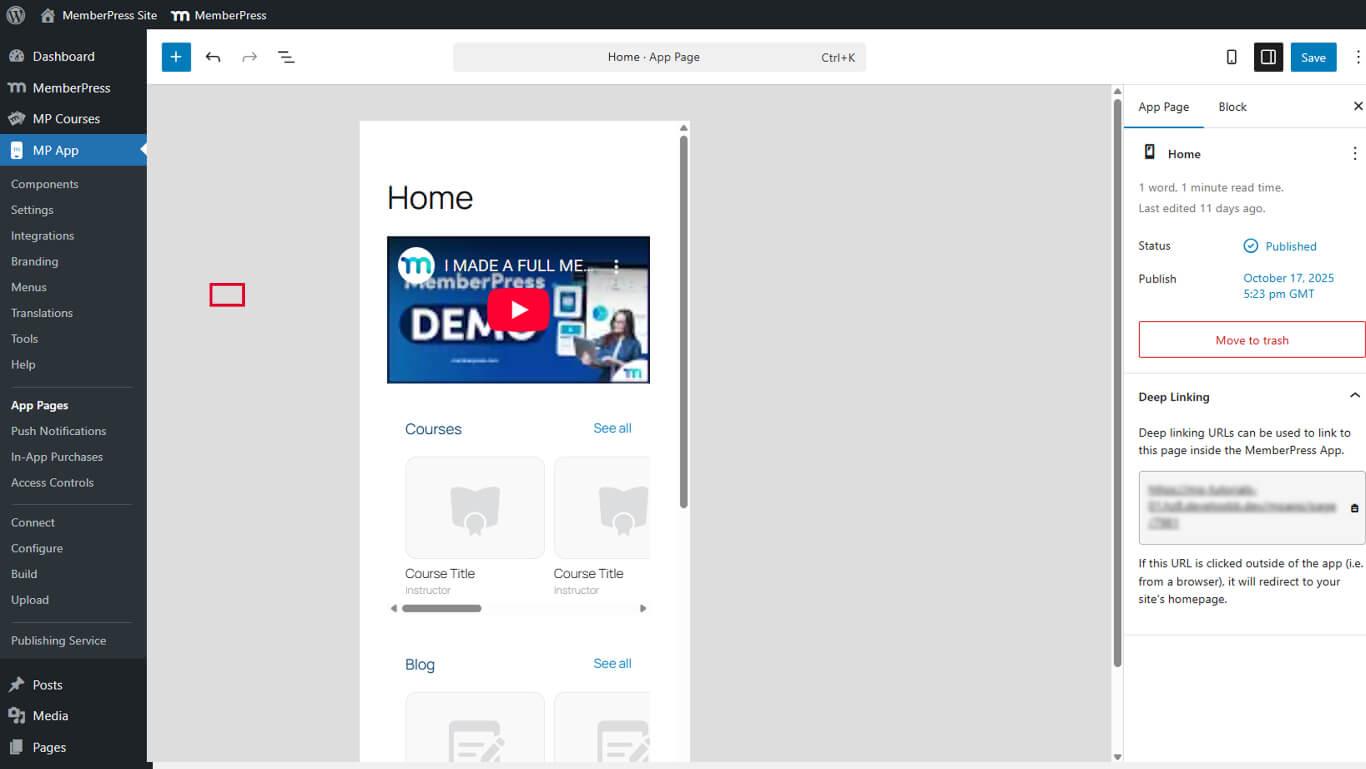
- Ir a Panel > MP AppKit > Páginas de aplicaciones y edita la página deseada.
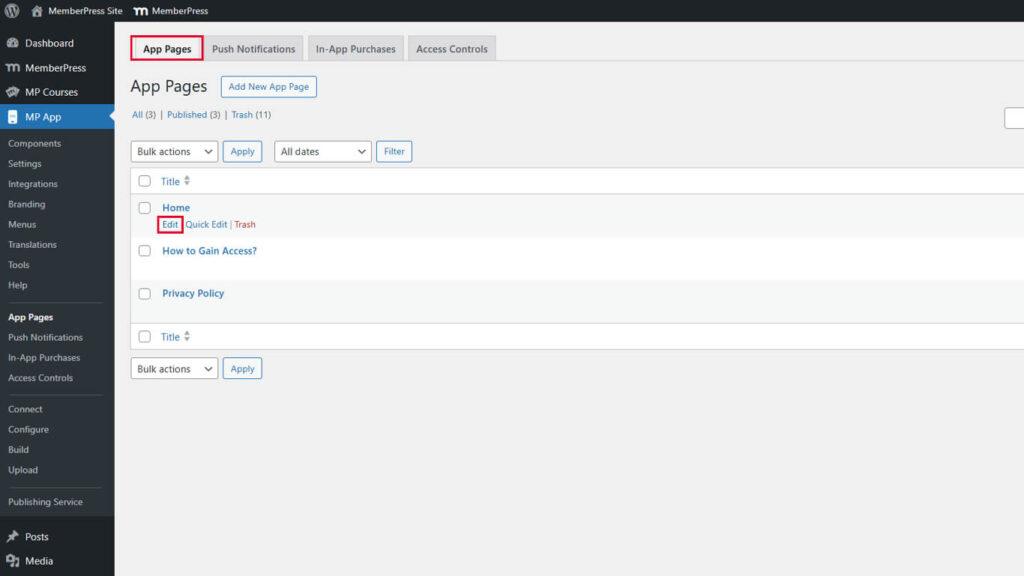
- En la barra lateral, expanda el Página de la aplicación pestaña y busca el Enlaces profundos sección.
- Añade la URL.
Enlace a productos dentro de la aplicación
Los productos dentro de la aplicación representan planes de suscripción u ofertas que se pueden adquirir a través de la aplicación. Cada producto tiene una URL de enlace profundo única.
- Ir a Panel de control > MP AppKit > Compras dentro de la aplicación > Productos y editar un producto.
- Desplácese hasta el Enlaces profundos sección y copie la URL (por ejemplo, https://yourdomain.com/mpapp/products/1).
- Utiliza el enlace de los menús o botones dentro de las páginas de la aplicación.
Las etiquetas de pantalla compatibles incluyen:
- notificaciones
- productos_iap
- Y otros según se defina en la configuración personalizada de la pantalla.
Enlace a las pantallas de configuración
Las pantallas de configuración proporcionan acceso a las preferencias de la cuenta, los controles de notificaciones y las opciones de privacidad. Se puede acceder directamente a secciones específicas de configuración.
- En Enlaces personalizadospulse Añadir al menú.
- Utilice cualquiera de estos formatos para la configuración:
- /mpapp/configuración/
- /mpapp/configuración/información-de-inicio-de-sesión/
- /mpapp/configuración/notificaciones-push/
- /mpapp/configuración/preferencias-de-correo-electrónico/
- /mpapp/configuración/configuración-de-privacidad/
- /mpapp/configuración/
- Guarde el menú para aplicar los cambios.










 ES
ES  EN
EN  FR
FR  DE
DE  PT
PT 