

Los menús de la barra de pestañas y de la pantalla Más proporcionan navegación primaria y secundaria dentro de las aplicaciones móviles. La personalización de los menús crea experiencias de navegación de marca alineadas con la estructura organizativa y las necesidades de los miembros.
Este documento explica cómo configurar los elementos de navegación, organizar las secciones del menú, personalizar los iconos y colores y previsualizar los cambios en la navegación.
Comprender la barra de pestañas y más navegación por la pantalla
La barra de navegación se muestra en la parte inferior de las pantallas de los dispositivos móviles y proporciona un acceso rápido a las secciones principales de la aplicación. La barra de navegación puede contener hasta cuatro elementos, y la quinta posición está reservada para el menú «Más». La navegación de la pantalla «Más» contiene elementos secundarios a los que se accede a través del icono del menú «Más». La organización del menú y la selección de iconos crean experiencias de navegación coherentes que favorecen la participación de los miembros y el descubrimiento de contenidos.
Acceso a la configuración del menú
La configuración de los menús se realiza en la interfaz de configuración de menús.
- Vaya a Panel > MP AppKit > Menús.
- Verifique el Menú de la barra de pestañas La pestaña está activa.
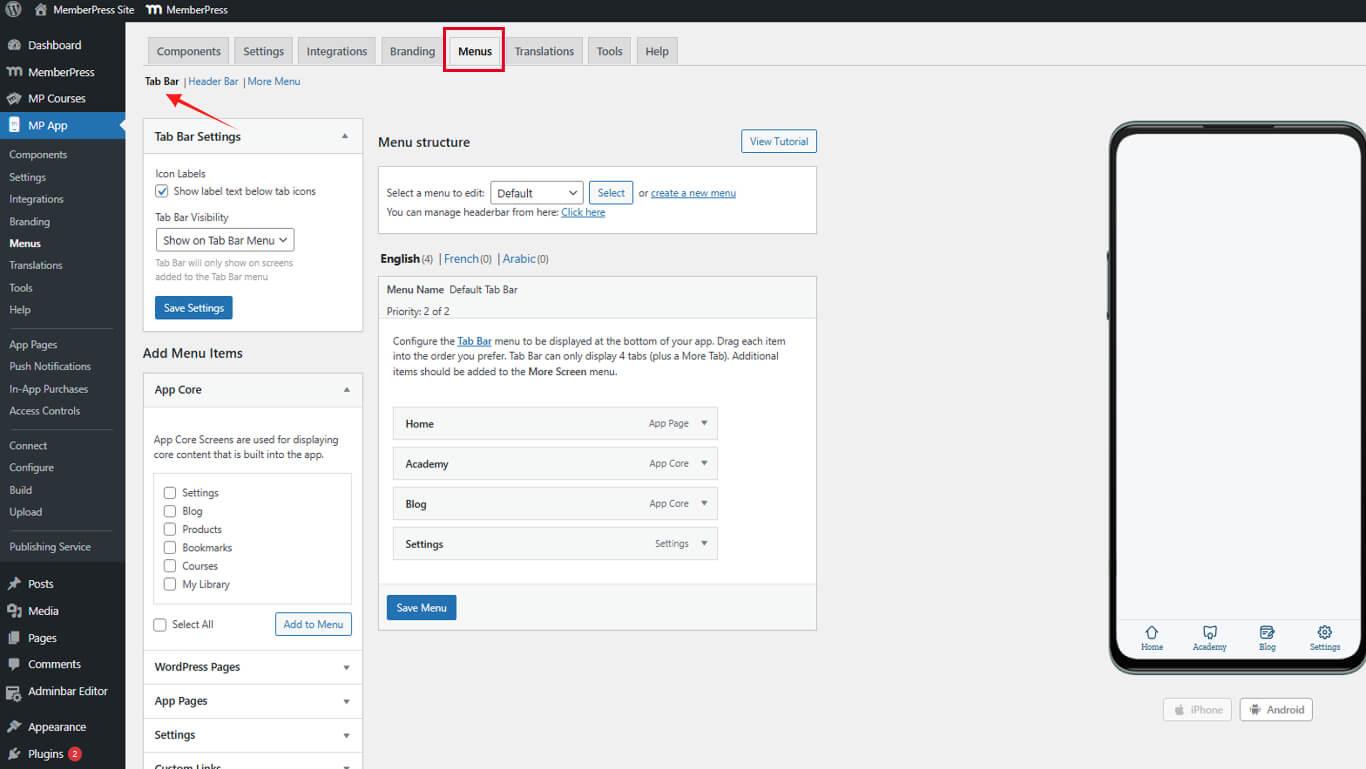
- Haga clic en el botón Más menú de pantalla pestaña para acceder a la navegación secundaria.
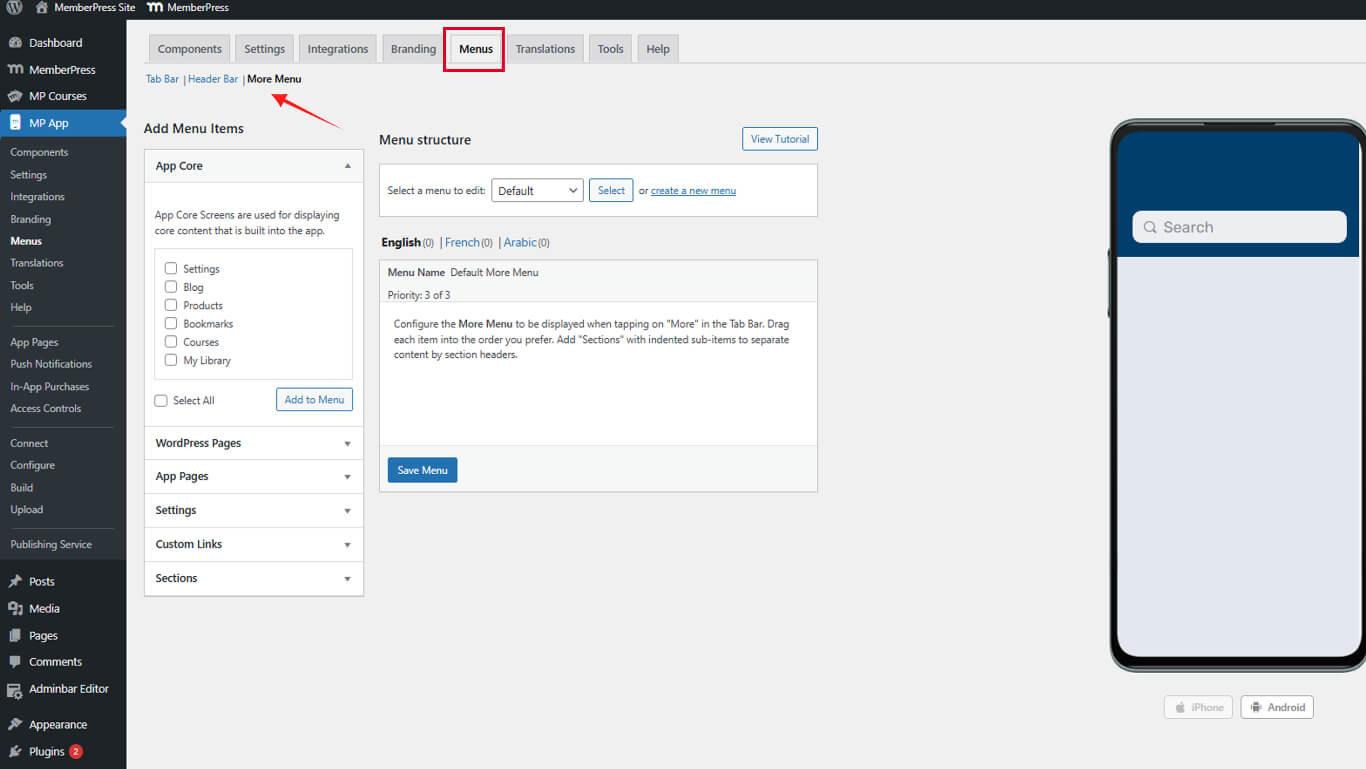
Los menús de la barra de pestañas y la pantalla Más se configuran de forma independiente con diferentes estructuras organizativas.
Borrar elementos de navegación existentes
Empezar con menús vacíos simplifica la reconfiguración de la navegación.
Borrar el menú de la barra de pestañas
- Vaya a Panel > MP AppKit > Menús.
- Haga clic en el botón Menú desplegable, luego seleccione Eliminar por cada artículo.
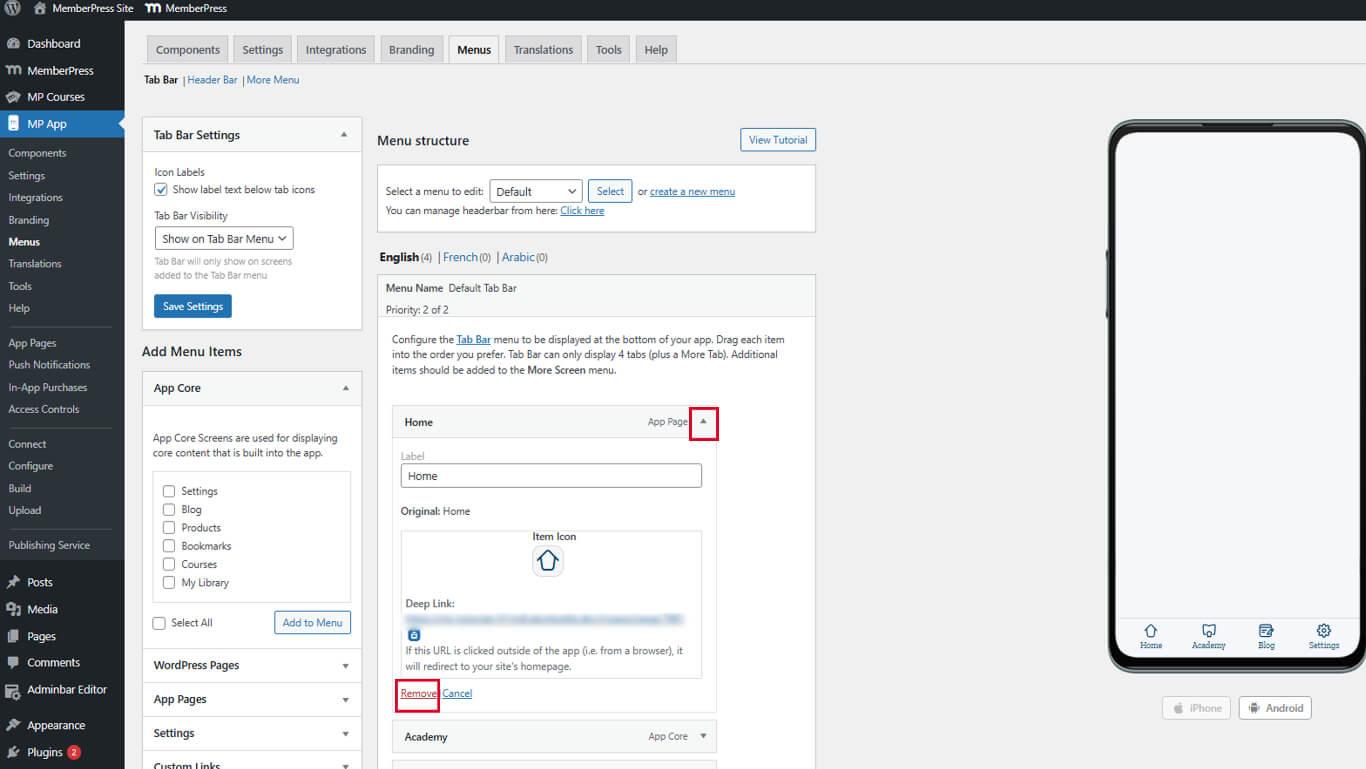
- Repita hasta que el menú de la barra de pestañas esté vacío.
El borrado de los elementos existentes evita conflictos durante la reconfiguración.
Borrar más menú de pantalla
- Haga clic en el botón Más menú de pantalla ficha.
- Localiza cada elemento del menú existente.
- Haga clic en Eliminar junto a cada elemento.
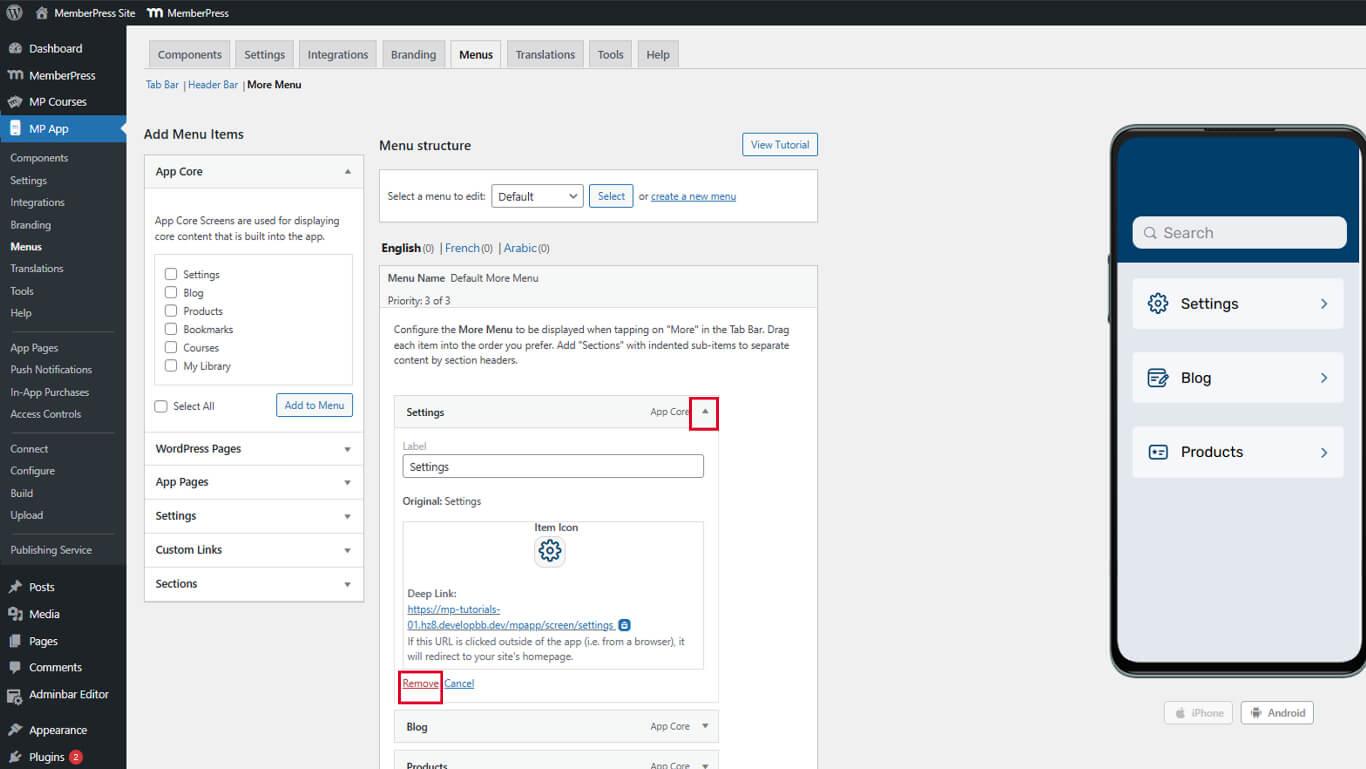
- Repita hasta que el menú Más pantallas esté vacío.
Los menús vacíos proporcionan una base limpia para una estructura de navegación deliberada.
Añadir elementos al menú de la barra de pestañas
Los elementos de la barra de pestañas proporcionan navegación principal a las secciones a las que se accede con frecuencia.
Añadir pantallas de aplicaciones principales
- Vaya a Panel > MP AppKit > Menús.
- Localice el Núcleo de la aplicación sección en los artículos disponibles.
- Encuentre Ajustes y haga clic en Añadir al menú.
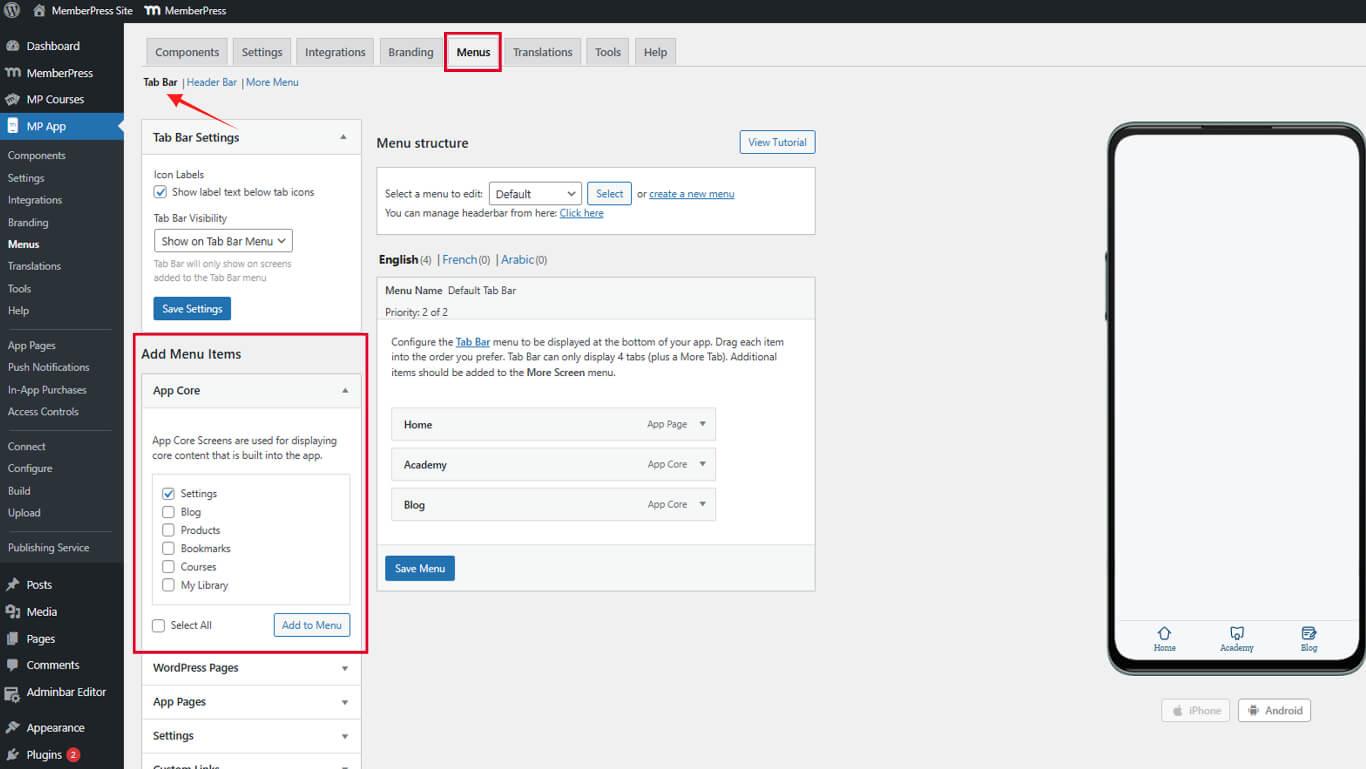
- Arrastra los elementos del menú para organizar el orden de visualización.
- Haga clic en el botón Guardar menú.
Los ajustes deben seguir siendo accesibles para la gestión de la cuenta y la configuración de la aplicación.
Añadir páginas de aplicaciones
- Localice el Páginas de aplicaciones sección en artículos disponibles.
- Busca la página de la aplicación del hogar o del grupo de miembros.
- Marque la casilla situada junto al nombre de la página.
- Haga clic en Añadir al menú.
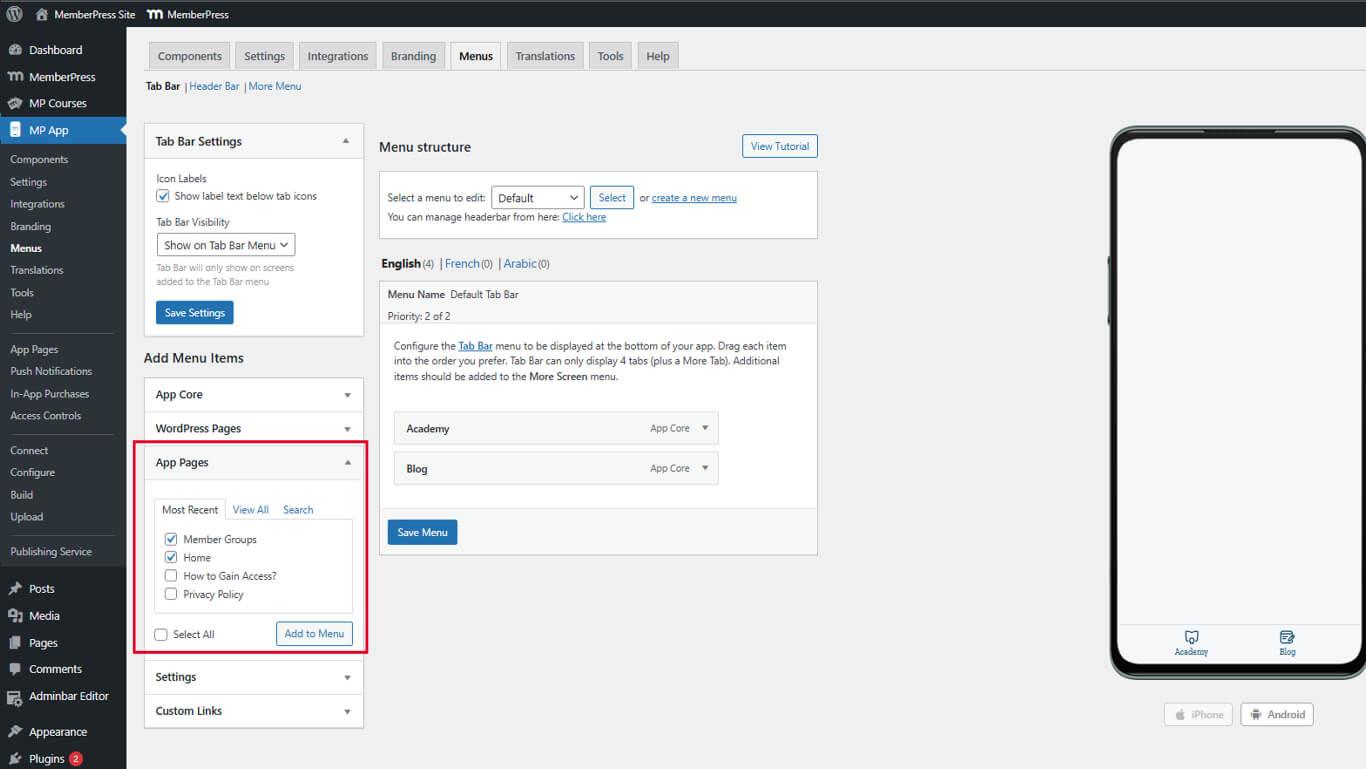
- Arrastra el elemento a la posición deseada en el orden del menú.
- Haga clic en el botón Guardar menú.
Las páginas de aplicaciones proporcionan destinos de contenido personalizados para los elementos de navegación.
Añadir acceso al blog
- Vaya a Panel de control > MP AppKit > Menús y desplácese hasta el Núcleo de la aplicación sección.
- Encuentre Blog en la lista de artículos disponibles.
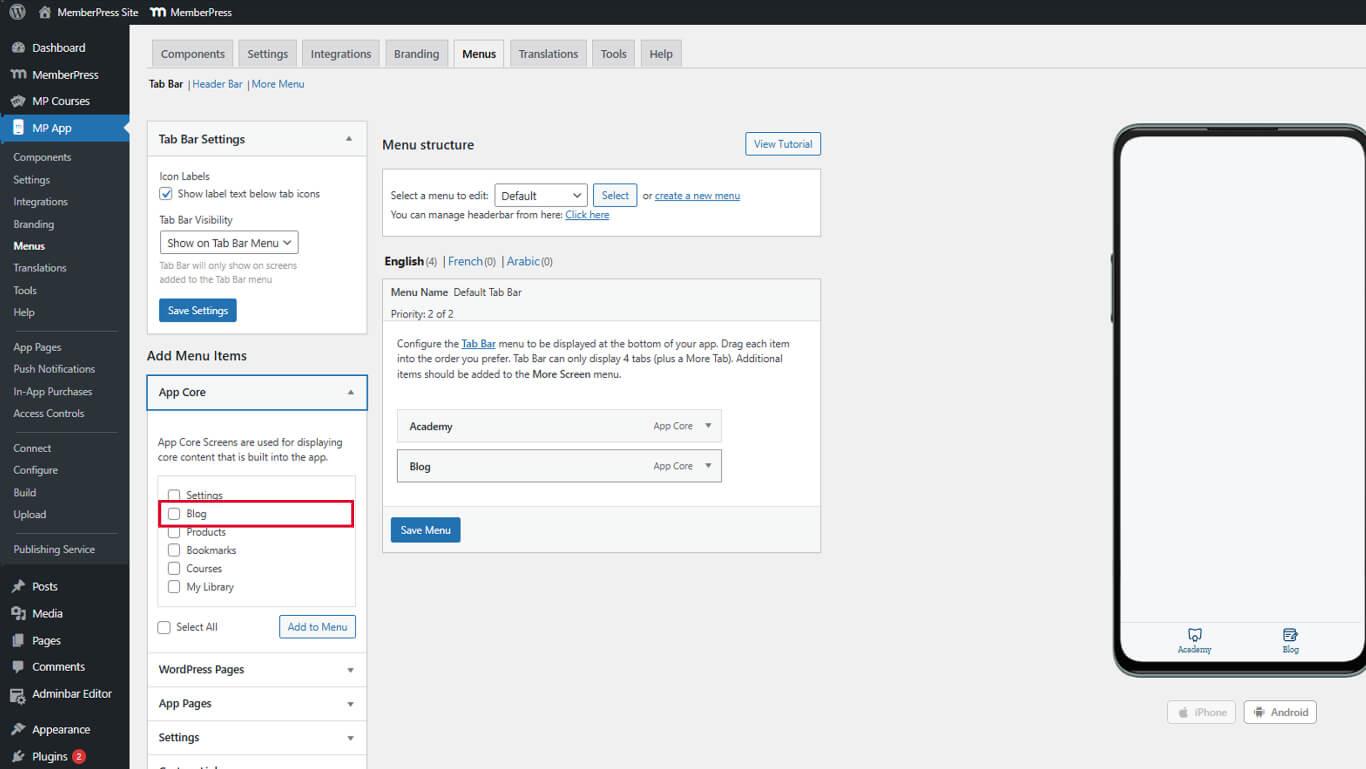
- Haga clic en Añadir al menú.
- Arrastra el blog a la posición deseada en la barra de pestañas.
- Haga clic en el botón Guardar menú.
El acceso al blog favorece la interacción con el contenido y la retención de miembros.
Añadir elementos al menú de la pantalla Más
Más elementos de pantalla proporcionan navegación secundaria a secciones complementarias.
Añadir elementos de gestión de cuentas
- Vaya a Panel > MP AppKit > Menús.
- Haga clic en el botón Más menú de pantalla ficha.
- Localice el Núcleo de la aplicación sección.
- Encuentre Productos o Marcar en los artículos disponibles.
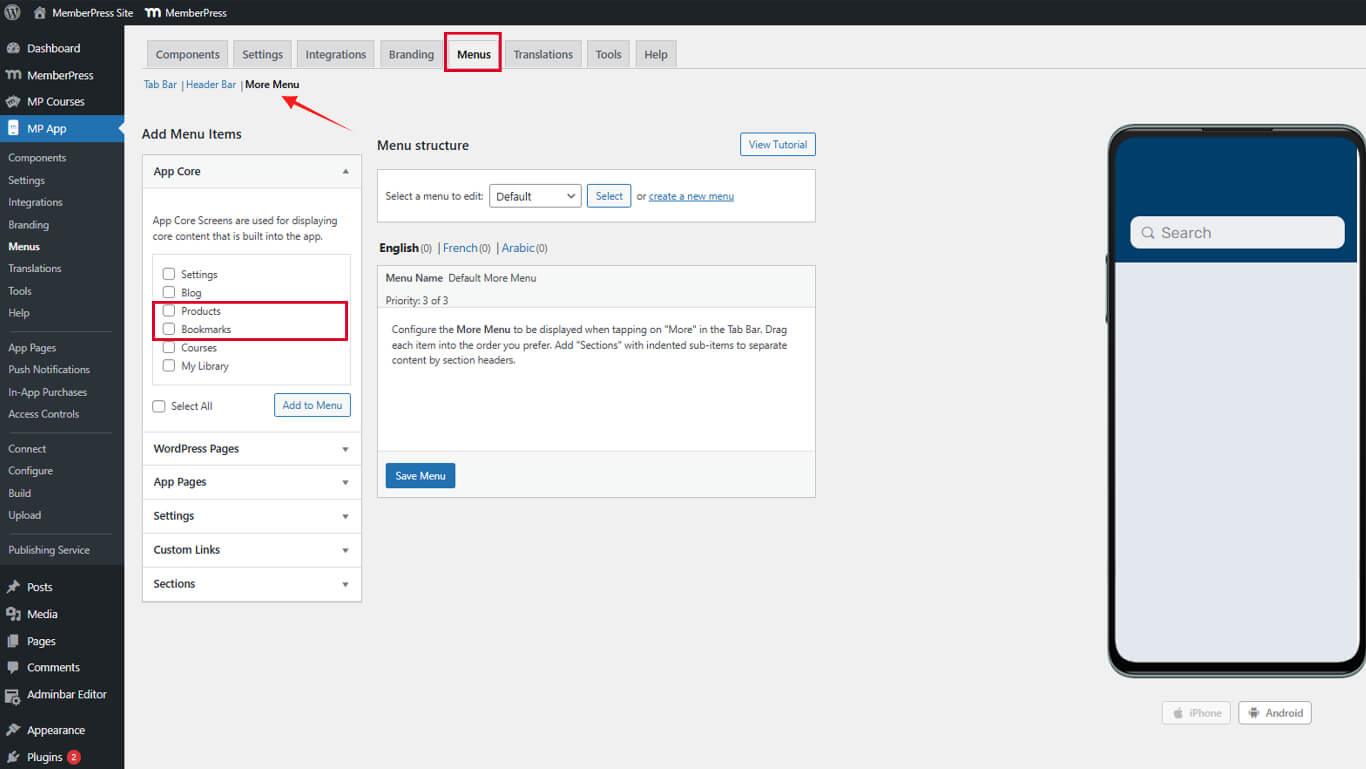
- Haga clic en Añadir al menú.
- Haga clic en Añadir al menú junto a Configuración.
- Haga clic en el botón Guardar menú.
Los elementos de gestión de cuentas deben seguir siendo fácilmente accesibles incluso en la navegación secundaria.
Creación de secciones de menú
Las secciones organizan los elementos de Más pantallas en grupos lógicos.
Añadir encabezados de sección
- Vaya a Panel > MP AppKit > Menús.
- Haga clic en el botón Más menú ficha.
- Localizar Seccionesy haga clic en Añadir sección por encima de la lista de elementos del menú.
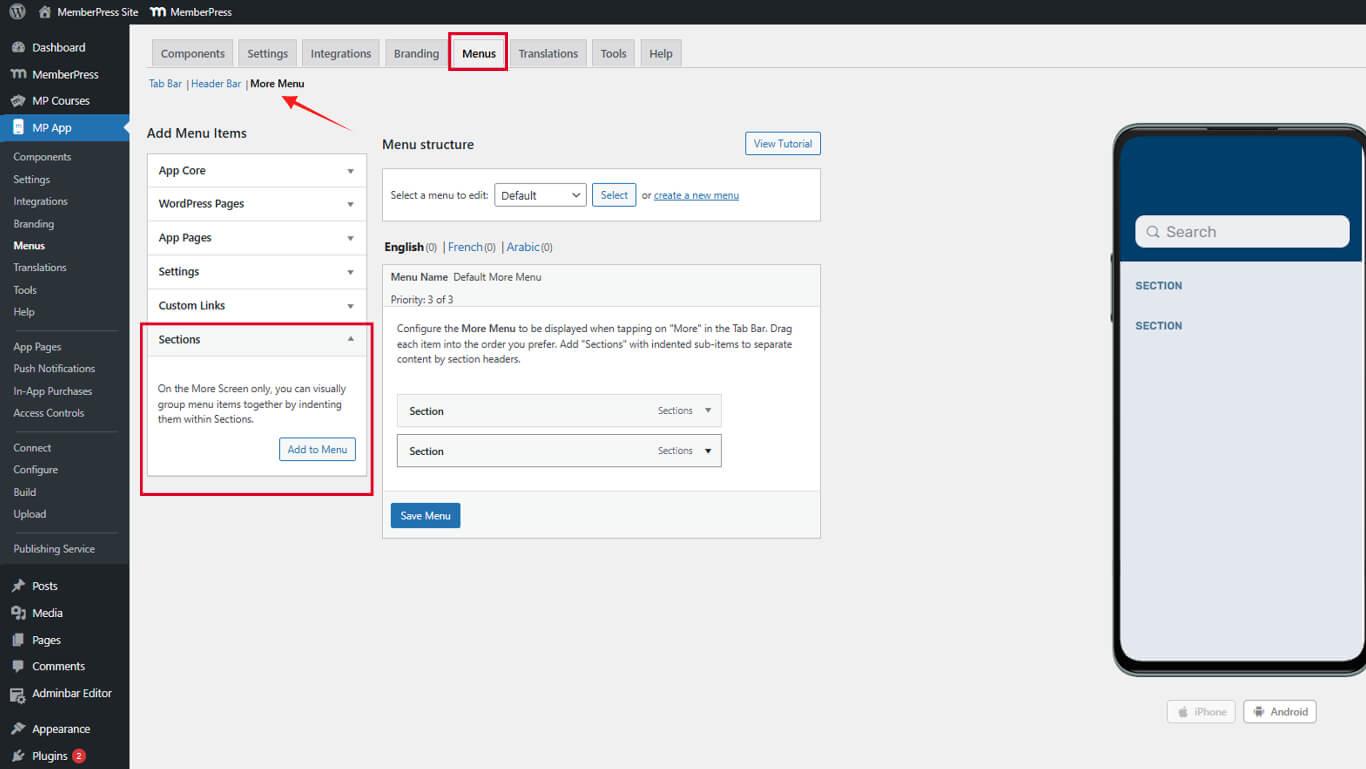
- Introduzca un nombre de sección en el Título de la sección campo.
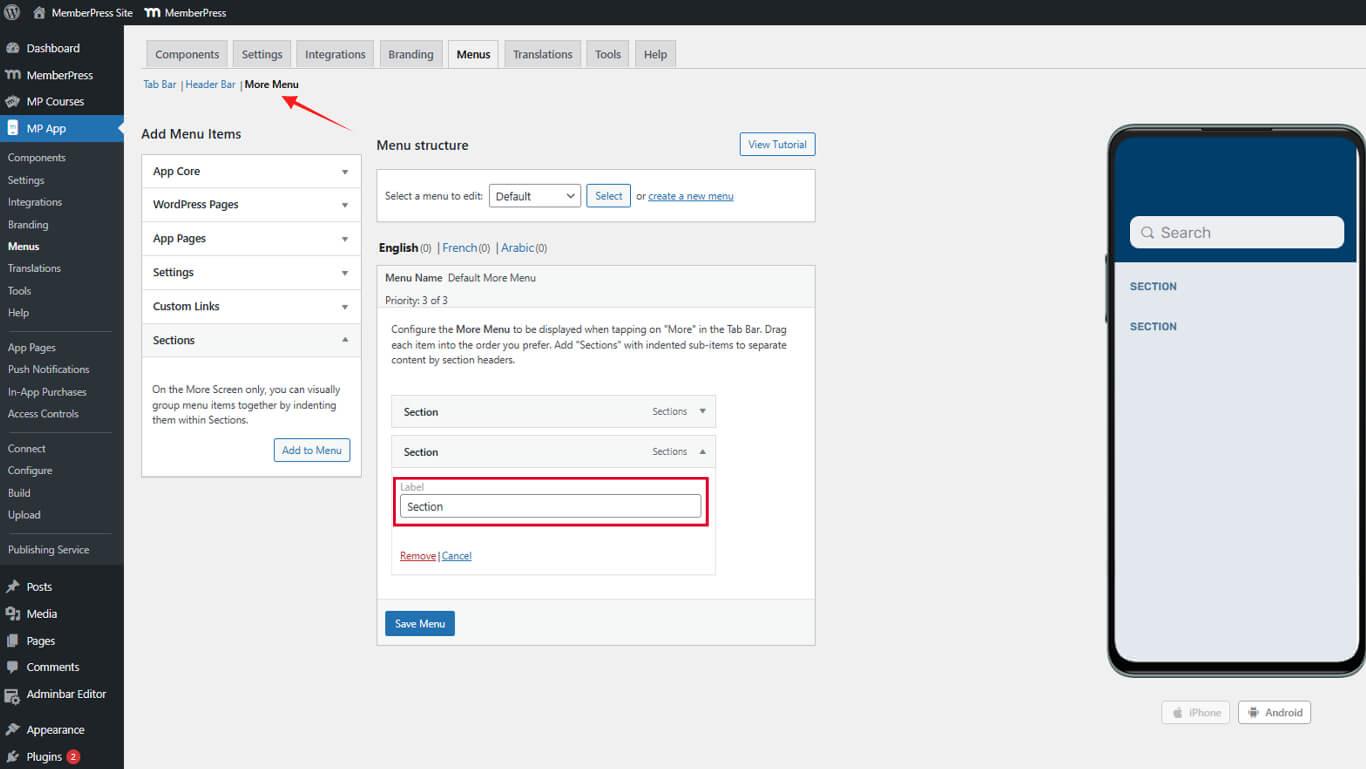
- Haga clic en Añadir sección para crear la sección.
Los encabezados de sección aparecen como etiquetas no clicables en el menú Más.
Organizar elementos por secciones
- Localice los elementos del menú que desea agrupar en una sección.
- Arrastra los elementos debajo del encabezado de la sección correspondiente.
- Repita este proceso para todos los elementos que requieran organización por secciones.
- Haga clic en el botón Guardar menú.
La sangría visual indica las relaciones jerárquicas entre secciones y elementos.
Personalización de los iconos de los elementos del menú
Los iconos proporcionan señales visuales de navegación y consistencia de marca.
Selección de iconos de elementos de la barra de pestañas
- Vaya a Panel > MP AppKit > Menús.
- Busque un elemento del menú que requiera personalización del icono.
- Haga clic en la flecha desplegable situada junto al nombre del elemento.
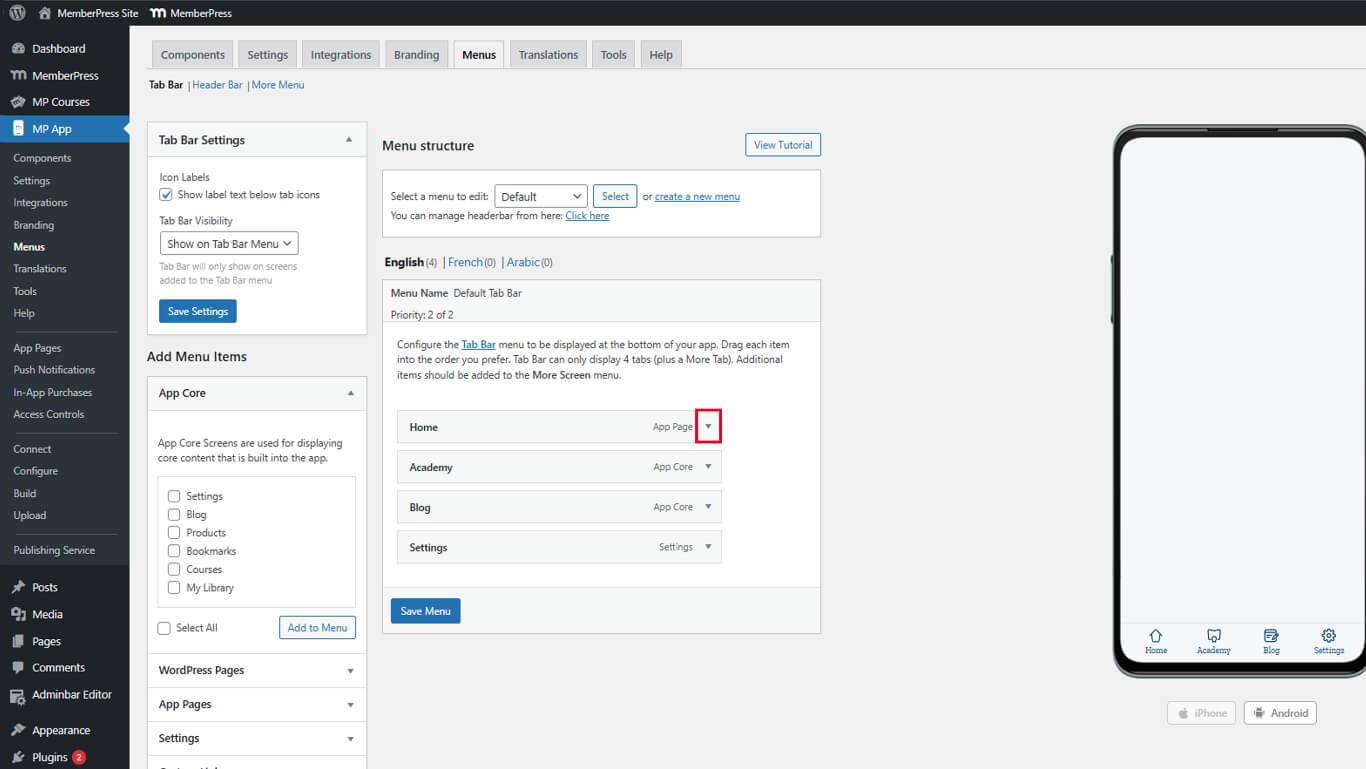
- Encuentra el Icono del elemento sección en la configuración ampliada.
- Haga clic en el cuadro del icono para abrir el panel de selección de iconos.
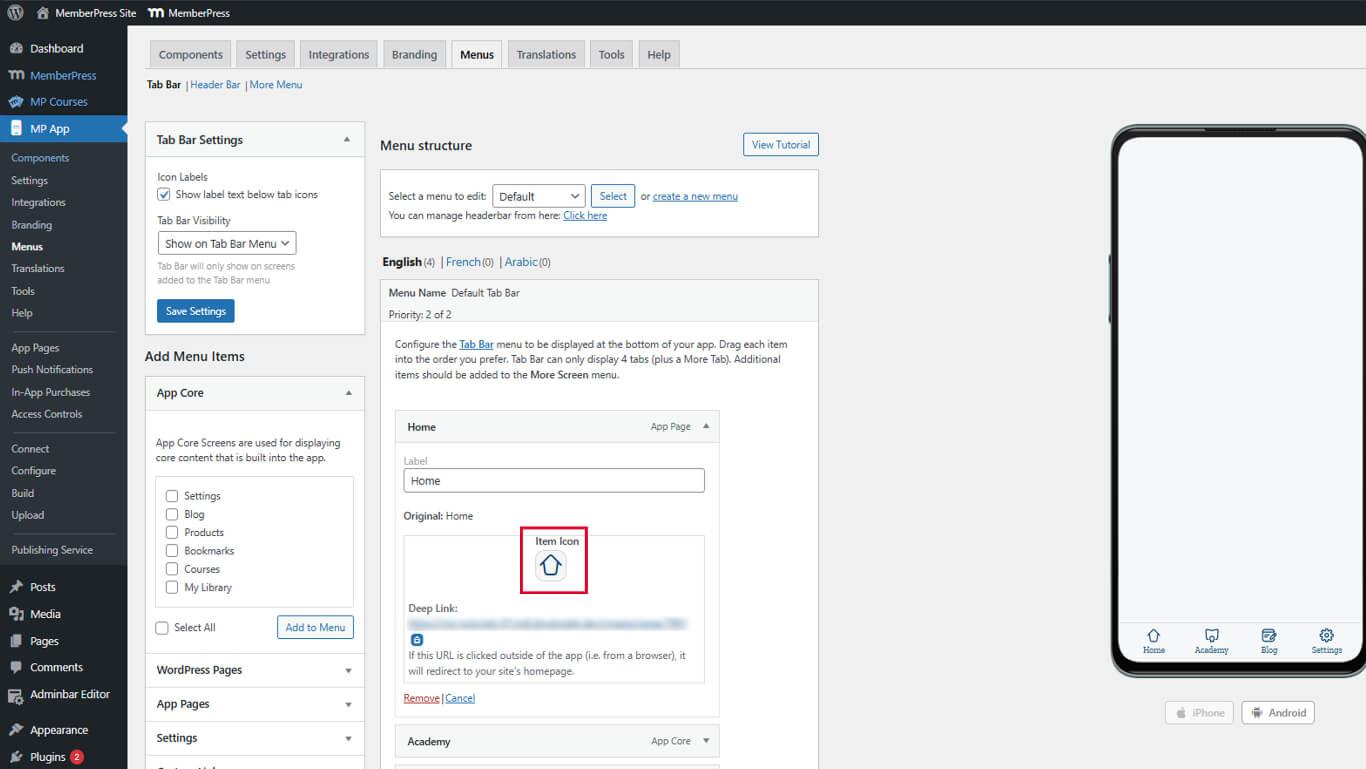
- Explora los iconos disponibles en el paquete de iconos.
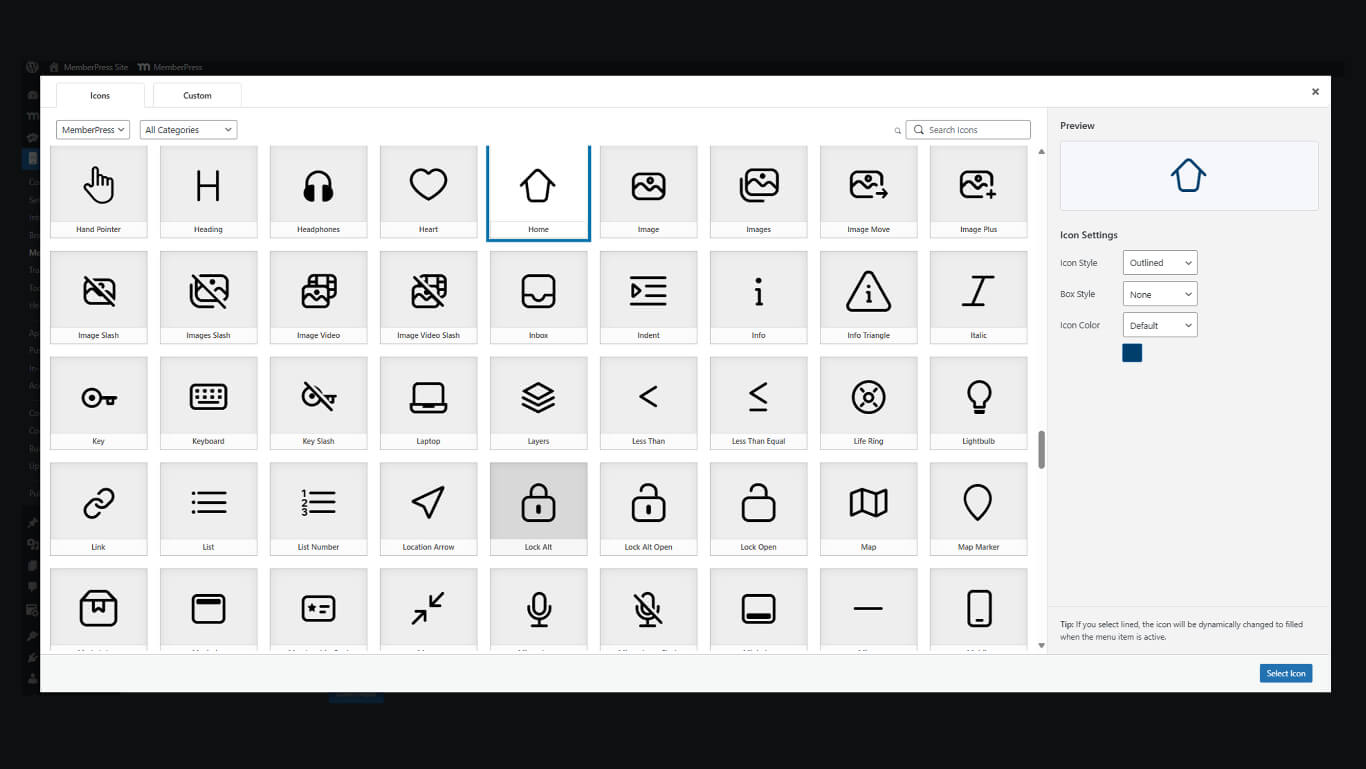
- Haga clic en un icono para seleccionarlo.
- Haga clic en el botón Seleccionar icono para aplicar el icono.
- Haga clic en el botón Guardar menú.
Repita este proceso para todos los elementos de la barra de pestañas que requieran iconos personalizados.
Selección de más iconos de elementos de pantalla
- Haga clic en el botón Más menú de pantalla ficha.
- Busque un elemento del menú que requiera personalización del icono.
- Haga clic en la flecha desplegable situada junto al nombre del elemento.
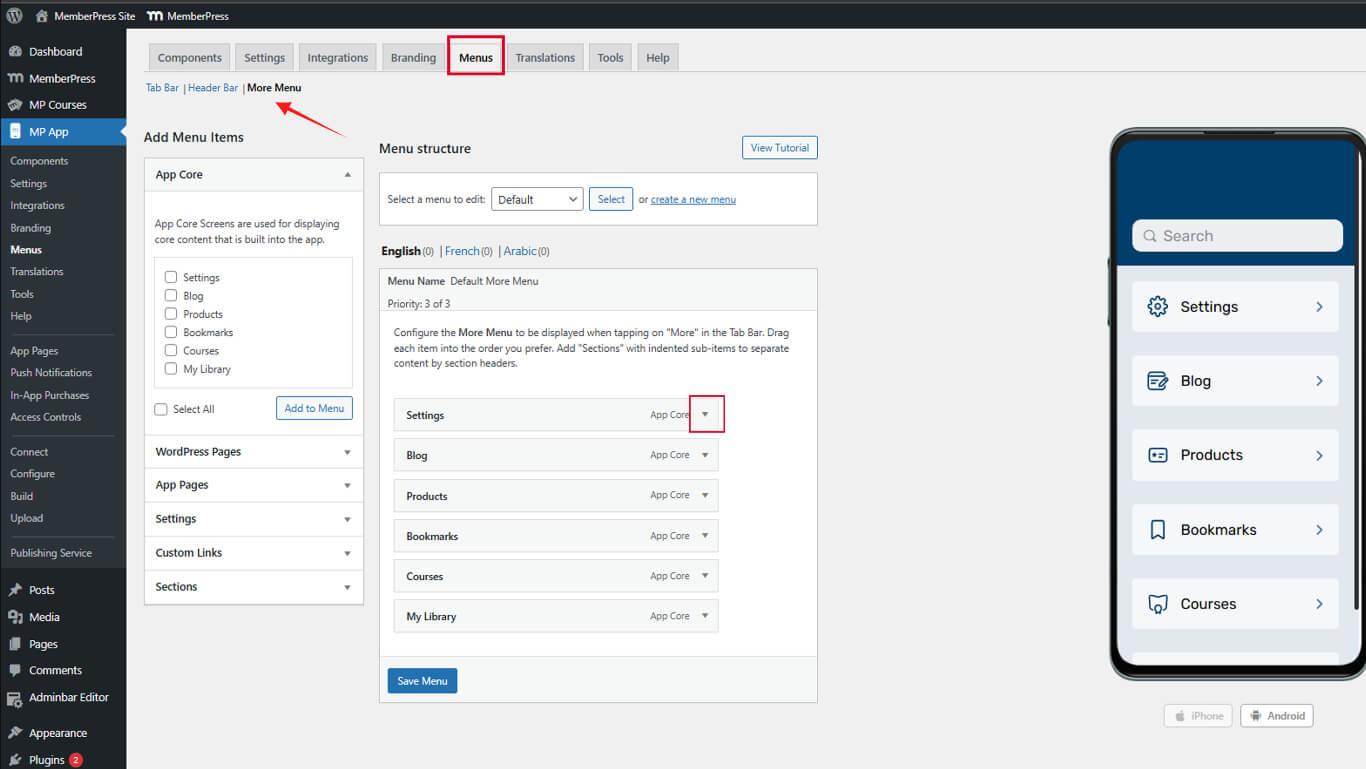
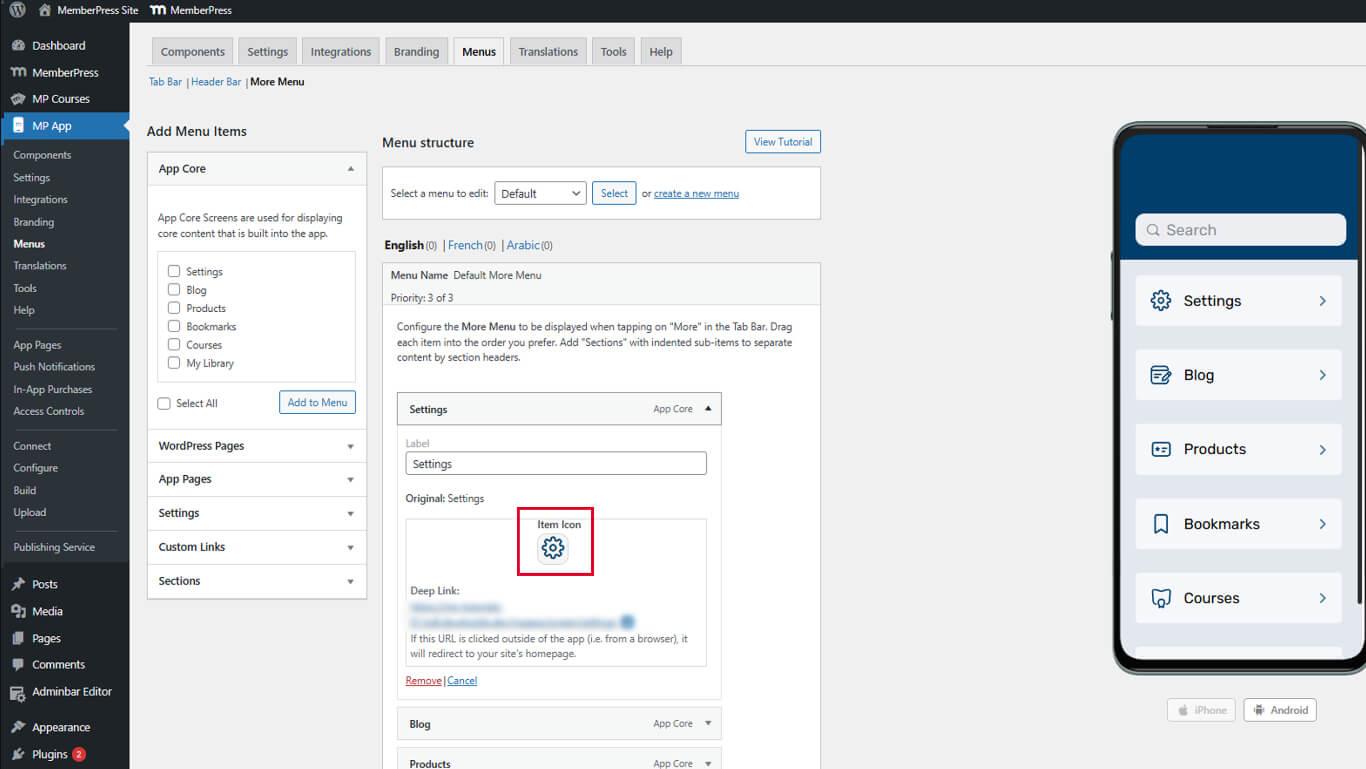
- Encuentra el Icono del elemento sección.
- Haga clic en el cuadro del icono para abrir el panel de selección de iconos.
- Seleccione el icono adecuado.
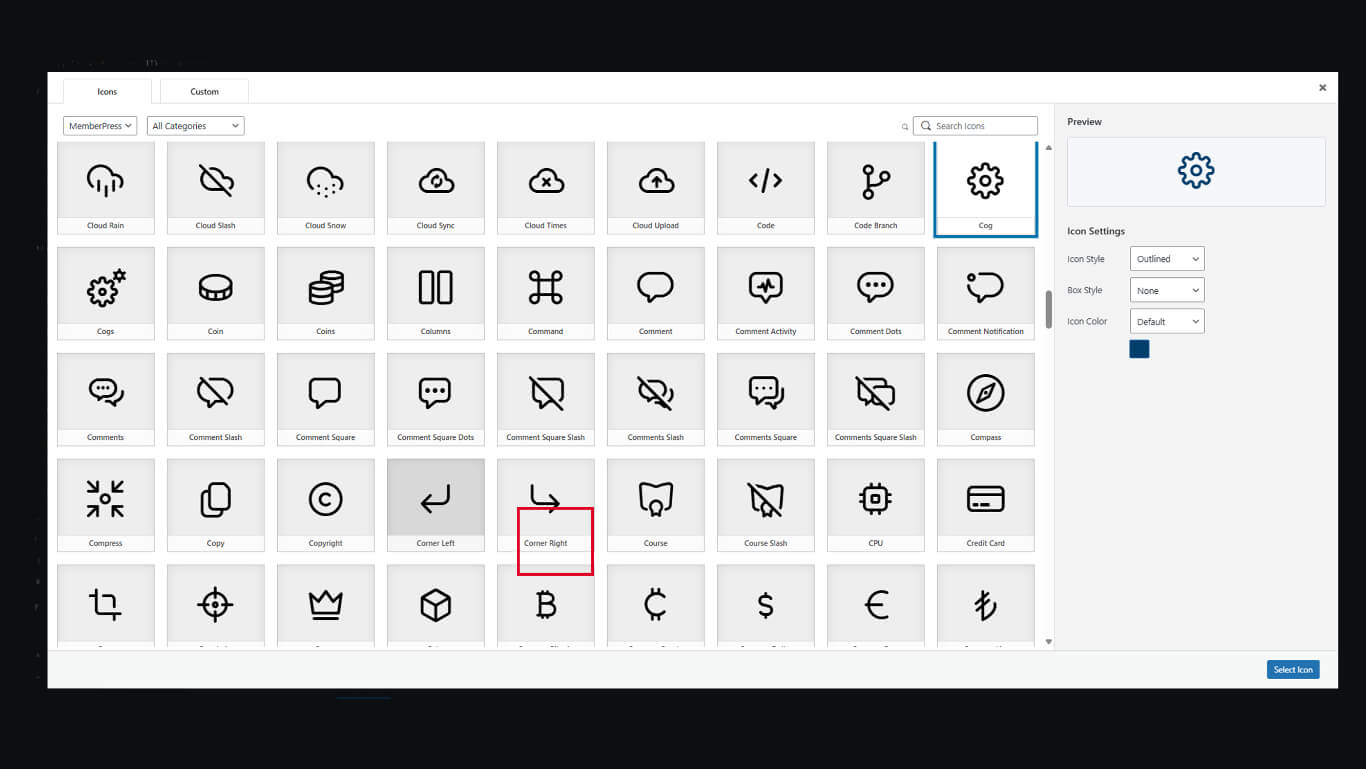
- Haga clic en el botón Seleccionar icono.
- Repita el proceso para los elementos adicionales.
- Haga clic en el botón Guardar menú.
Más iconos en pantalla son opcionales, pero mejoran la claridad visual de la navegación.
Personalización del texto de los elementos del menú
El texto de los elementos del menú proporciona etiquetas de navegación y asistencia para la accesibilidad.
Edición de etiquetas de artículos
- Vaya a Panel > MP AppKit > Menús.
- Busque un elemento del menú que requiera la modificación de la etiqueta.
- Haga clic en la flecha desplegable situada junto al nombre del elemento.
- Encuentra el Etiqueta campo.
- Introduzca el texto de la etiqueta personalizada sustituyendo el texto predeterminado.
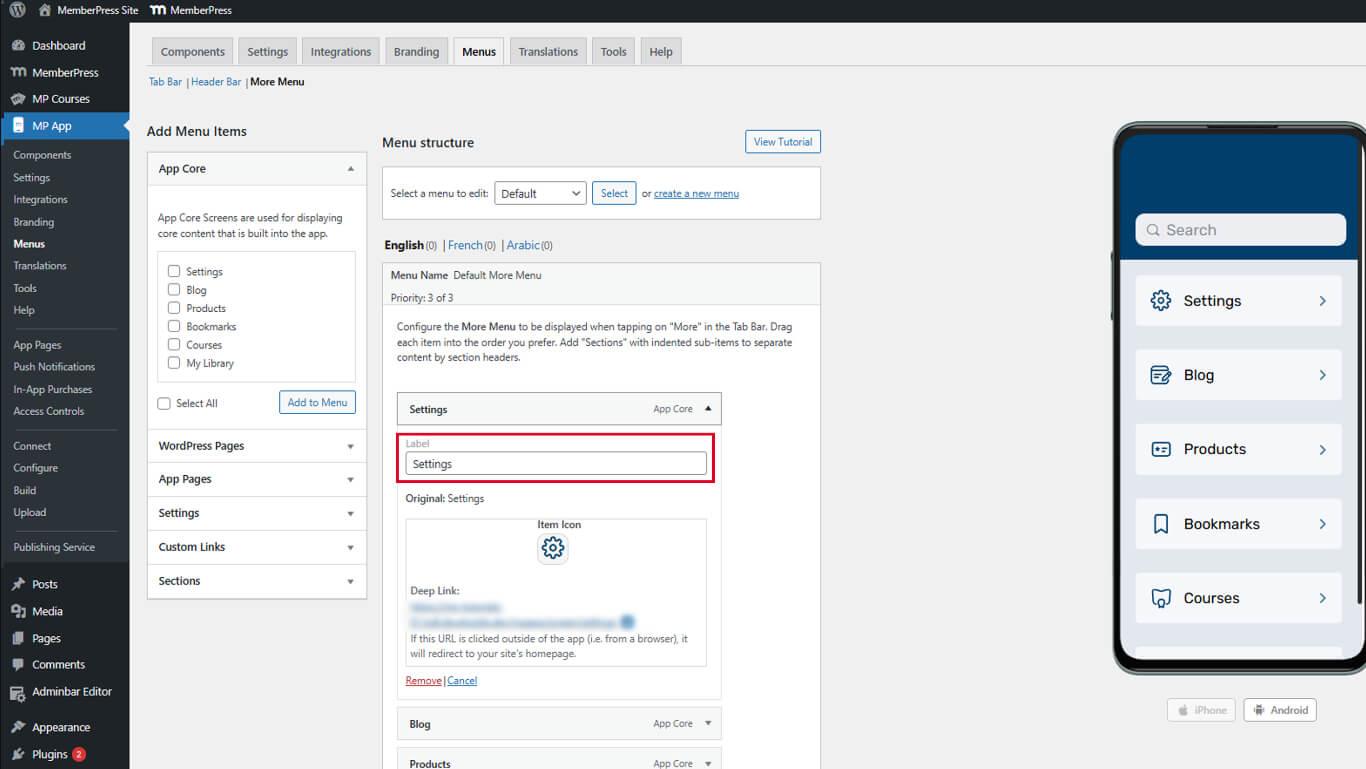
- Haga clic en el botón Guardar menú.
Las etiquetas personalizadas aclaran los propósitos de navegación cuando los nombres predeterminados son ambiguos.
Organizar el orden de los elementos del menú
El orden de los elementos afecta a la accesibilidad de la navegación y al flujo de trabajo de los miembros.
Organizar los elementos de la barra de pestañas
- Vaya a Panel > MP AppKit > Menús.
- Verifique el Menú de la barra de pestañas La pestaña está activa.
- Haga clic y arrastre los elementos del menú para reordenar las posiciones.
- Coloque los elementos a los que accede con más frecuencia en las posiciones más a la izquierda.
- Haga clic en el botón Guardar menú después de ordenar los artículos.
Organizar más elementos de la pantalla
- Haga clic en el botón Más menú de pantalla ficha.
- Haga clic y arrastre los elementos para reordenarlos dentro de las secciones.
- Arrastra las secciones para reordenar los grupos de secciones.
- Ordena los elementos de forma lógica o según su frecuencia.
- Haga clic en el botón Guardar menú.
El orden de las pantallas debe reflejar las relaciones lógicas o la frecuencia de uso.










 ES
ES  EN
EN  FR
FR  DE
DE  PT
PT 