

MemberPress iOS Release Apps permite la preparación de compilaciones listas para producción para el envío a la App Store, la distribución de TestFlight y la validación precisa de compras dentro de la aplicación. Las Release Apps compilan la configuración del sitio, la marca, los menús y las personalizaciones en archivos IPA mediante servidores de compilación basados en la nube.
En este documento se explica cómo crear compilaciones MemberPress de la versión de iOS de la aplicación, cargarlas en App Store Connect, invitar a probadores de TestFlight y gestionar las actualizaciones de las compilaciones.
Aplicaciones de prueba y de lanzamiento
Las aplicaciones de lanzamiento y las aplicaciones de prueba tienen propósitos diferentes en el ciclo de vida de desarrollo y distribución.
Las aplicaciones de lanzamiento son necesarias para enviarlas al App Store y verificar los precios, la duración y los flujos de compra de las suscripciones. Las aplicaciones de prueba sirven para el control de calidad diario y las previsualizaciones de desarrollo rápido, mientras que las aplicaciones de lanzamiento permiten realizar transacciones de compra dentro de la aplicación y pruebas de distribución oficiales. Una configuración adecuada de las aplicaciones de lanzamiento garantiza la precisión de las pruebas previas a la publicación y la fluidez de los procesos de envío al App Store.
Características de la aplicación de prueba
Las aplicaciones de prueba permiten un despliegue rápido de las actividades de desarrollo y control de calidad.
Control de calidad diario permite ciclos de prueba rápidos sin retrasos en la presentación a la tienda de aplicaciones. Las aplicaciones de prueba se instalan mediante código QR sin necesidad de distribuirlas en la App Store.
Avance del desarrollo características y funcionalidades de la aplicación escaparate para los procesos de aprobación. La instalación directa simplifica el intercambio con las partes interesadas y los revisores.
Validación de código personalizado verifica las personalizaciones conectadas a GitHub antes de la implantación en producción. Los equipos de desarrollo prueban los cambios de código sin procedimientos de publicación formales.
Compras simuladas utilizar precios indicativos sin procesar transacciones reales. El entorno de prueba permite verificar el flujo de compras sin implicaciones financieras.
Características de la aplicación de lanzamiento
Las aplicaciones de lanzamiento proporcionan versiones de producción para distribución y pruebas oficiales.
Envío a la App Store Requiere archivos IPA de la versión final de la aplicación para su publicación en la tienda. Solo las aplicaciones en versión final cumplen los requisitos de distribución de Apple para su disponibilidad pública.
Distribución de TestFlight permite realizar pruebas de lanzamiento controladas antes del lanzamiento público. TestFlight proporciona un entorno de pruebas beta estructurado para las aplicaciones de lanzamiento.
Visualización de precios reales muestra a los probadores los costes y condiciones reales de suscripción. La verificación de precios garantiza la exactitud de las expectativas de los miembros antes de su lanzamiento público.
Transacciones de compra auténticas procesar pagos reales de compras dentro de la aplicación a través de la facturación del App Store. Las pruebas de transacciones confirman el correcto procesamiento de los pagos y la validación de los recibos.
Vinculación de ID de paquete conecta las aplicaciones de lanzamiento con las configuraciones de producto de App Store Connect. Apple asocia las compras dentro de la aplicación exclusivamente a los ID de paquetes de aplicaciones de lanzamiento.
Creación de MemberPress iOS Release App Build
La generación de compilaciones de aplicaciones de lanzamiento crea archivos IPA listos para su distribución en el App Store.
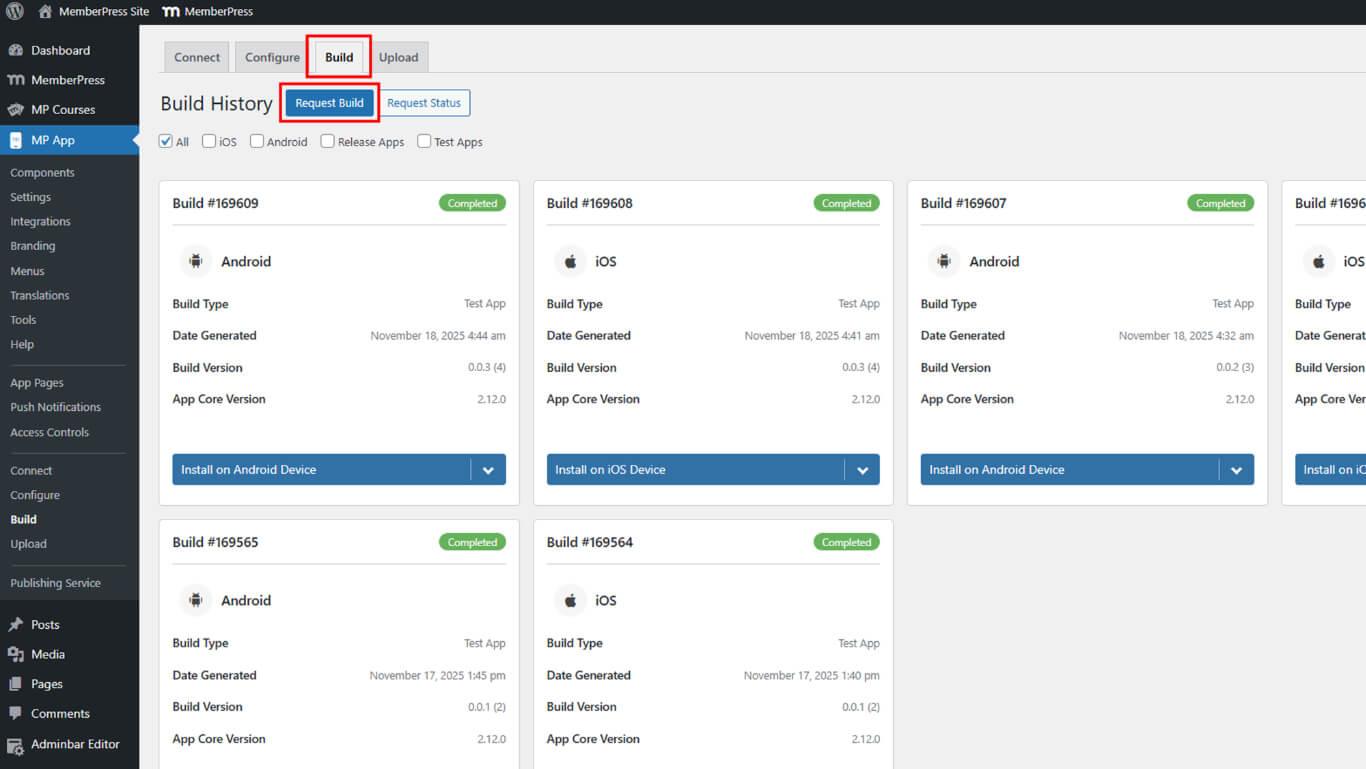
- Vaya a Panel > MP AppKit > Construir.
- Haga clic en el botón Solicitar construir botón.
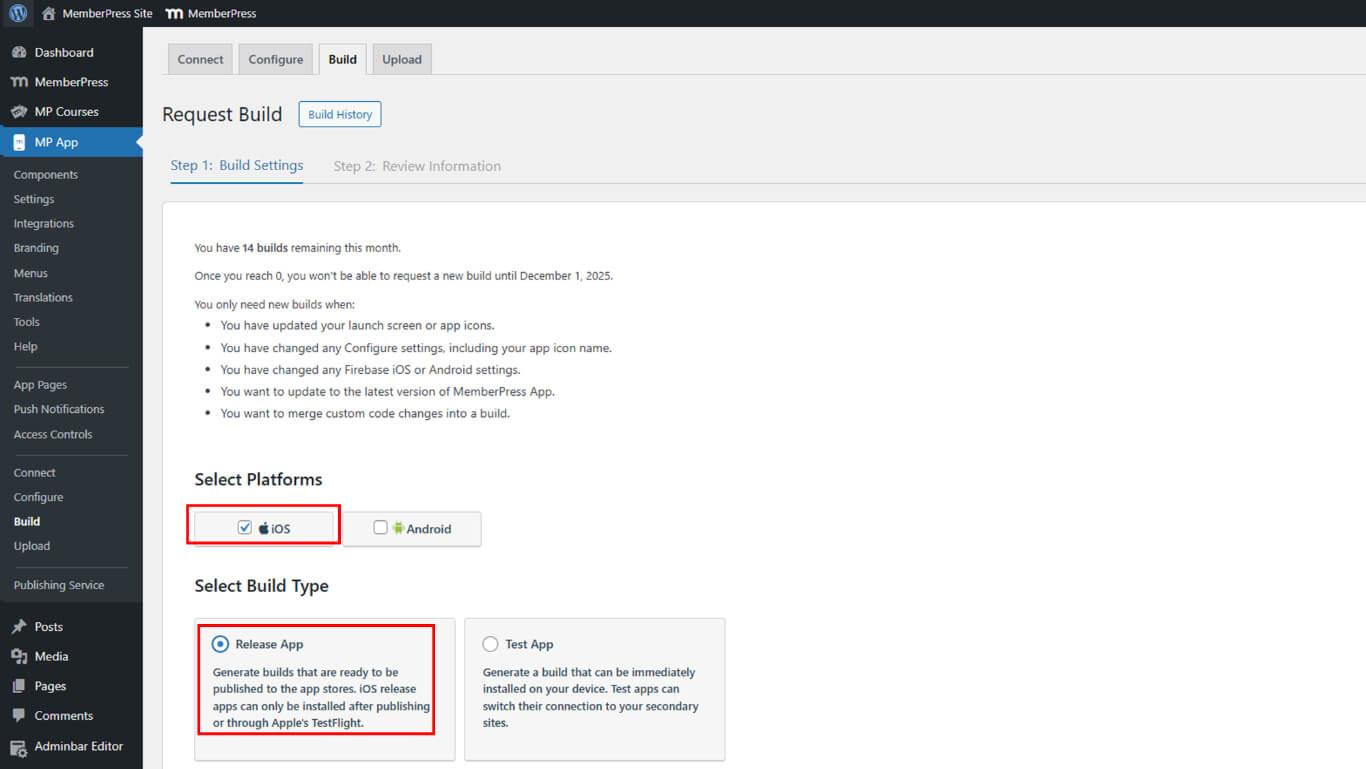
- Seleccione iOS como plataforma entre las opciones disponibles.
- Seleccione Liberar aplicación como tipo de construcción.
- Haga clic en Siguiente para proceder a la revisión de la configuración de la compilación.
- Revise todos los ajustes de construcción que aparecen en la pantalla de confirmación.
- Haga clic en Enviar solicitud de construcción para enviar la solicitud de construcción.
- Espere entre 15 y 60 minutos a que se complete la compilación en la cola de compilación.
- Haga clic en Volver a comprobar el estado ahora para actualizar el estado de la compilación si es necesario.
Descargar archivo IPA
La descarga del archivo IPA prepara el paquete de la aplicación para cargarlo en App Store Connect.
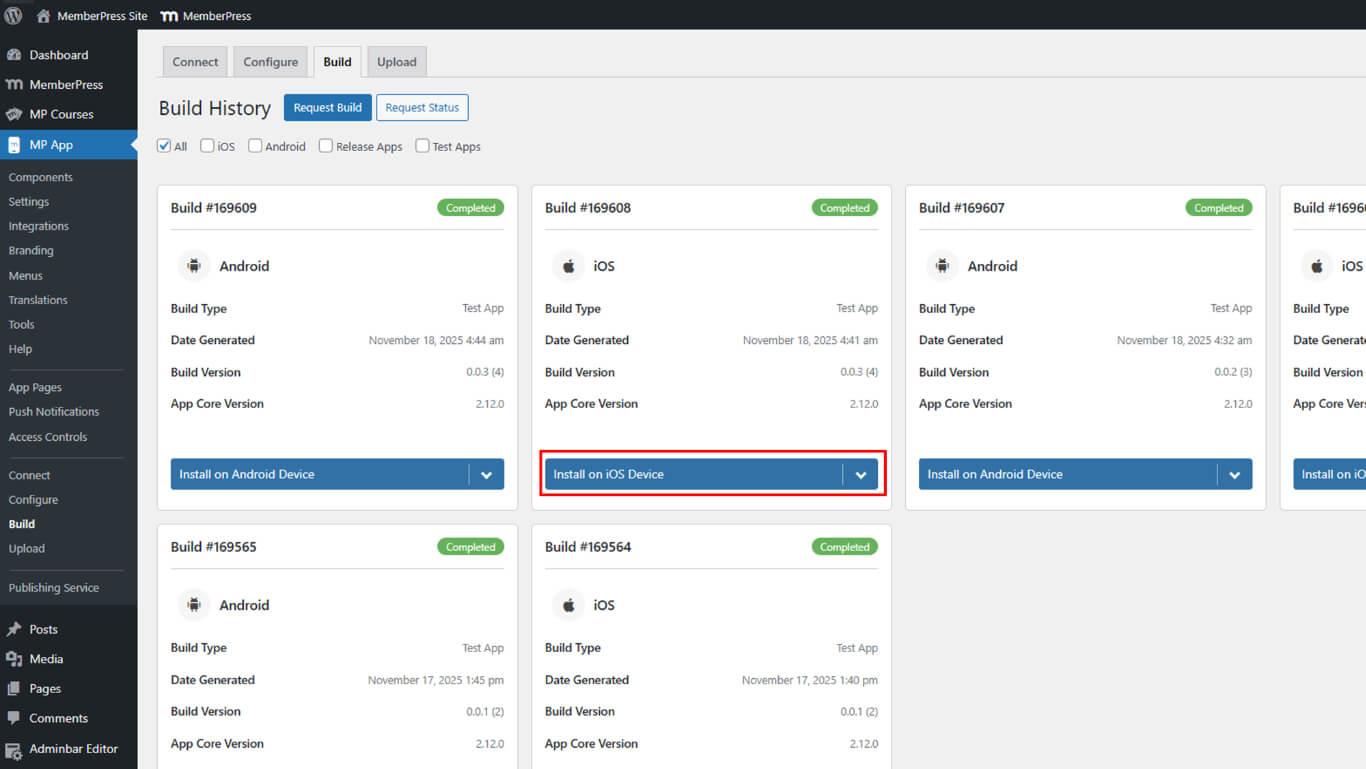
- Vaya a Panel > MP AppKit > Compilación > Historial de compilación una vez finalizada la construcción.
- Localice la versión finalizada en la lista del historial.
- Haga clic en Instalar en dispositivo iOS junto a la versión final.
- Haga clic en Descargar archivo IPA de las opciones de instalación.
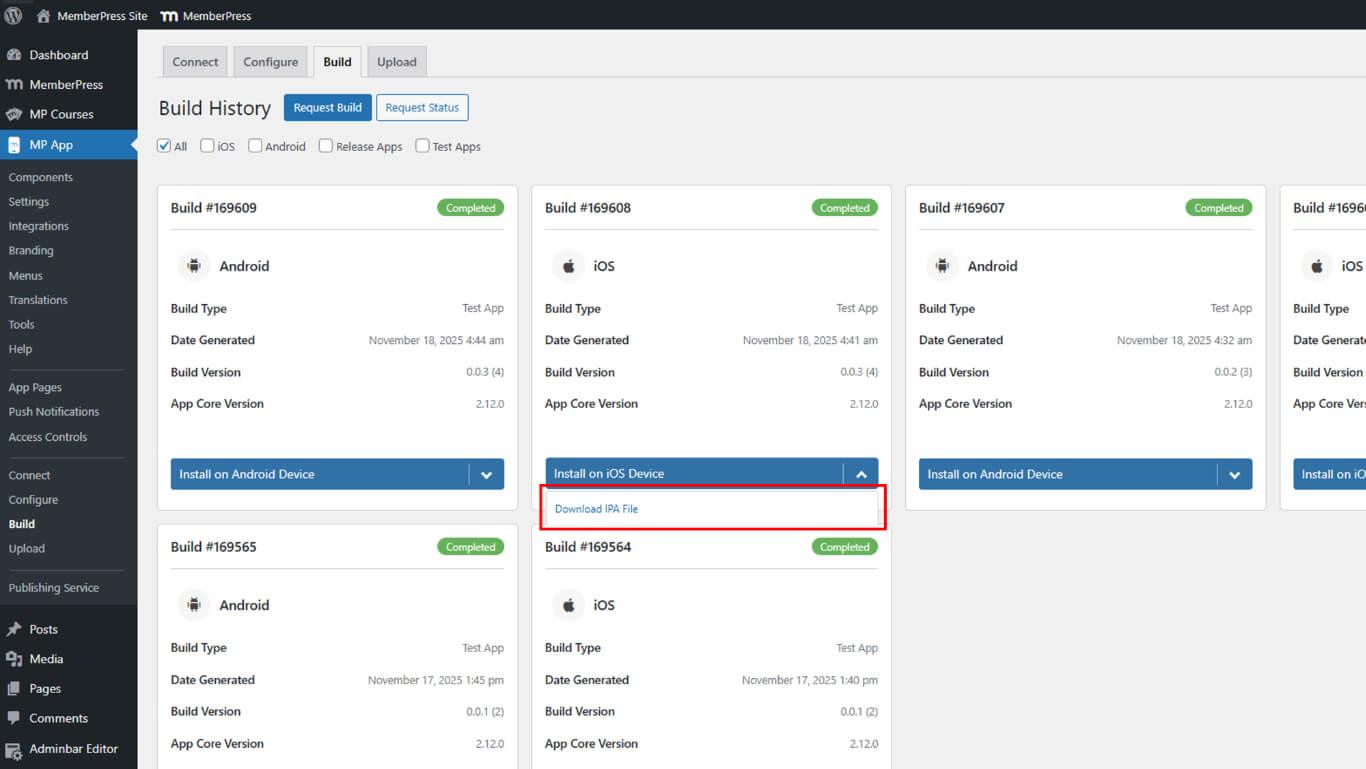
- Guarde el archivo IPA en un lugar seguro del ordenador.
Los archivos IPA contienen la aplicación iOS compilada y lista para su distribución en TestFlight y App Store.
Carga en App Store Connect
La carga de App Store Connect permite la distribución de TestFlight y la preparación del envío a App Store.
- Vaya a Panel > MP AppKit > Sube.
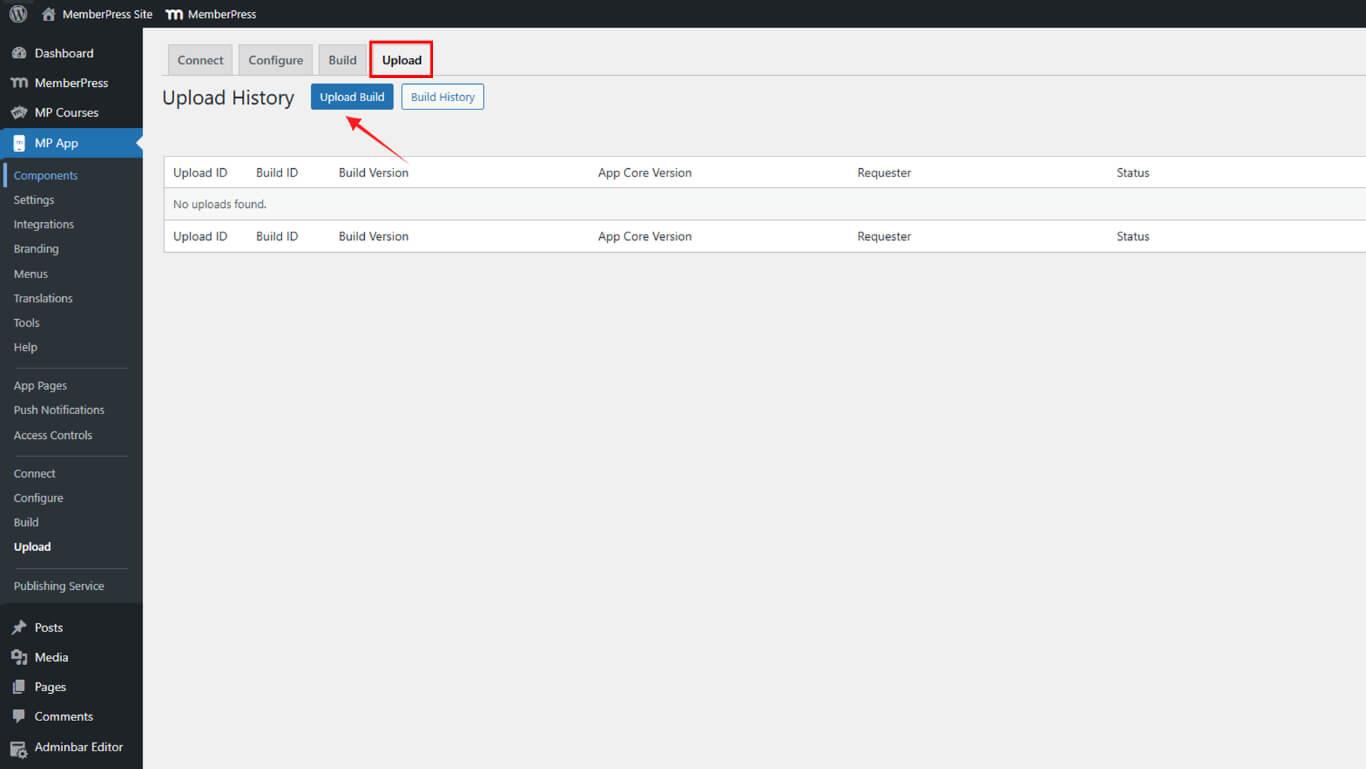
- Vaya a la App Store de Apple.
- Seleccione la versión generada de la lista de versiones disponibles.
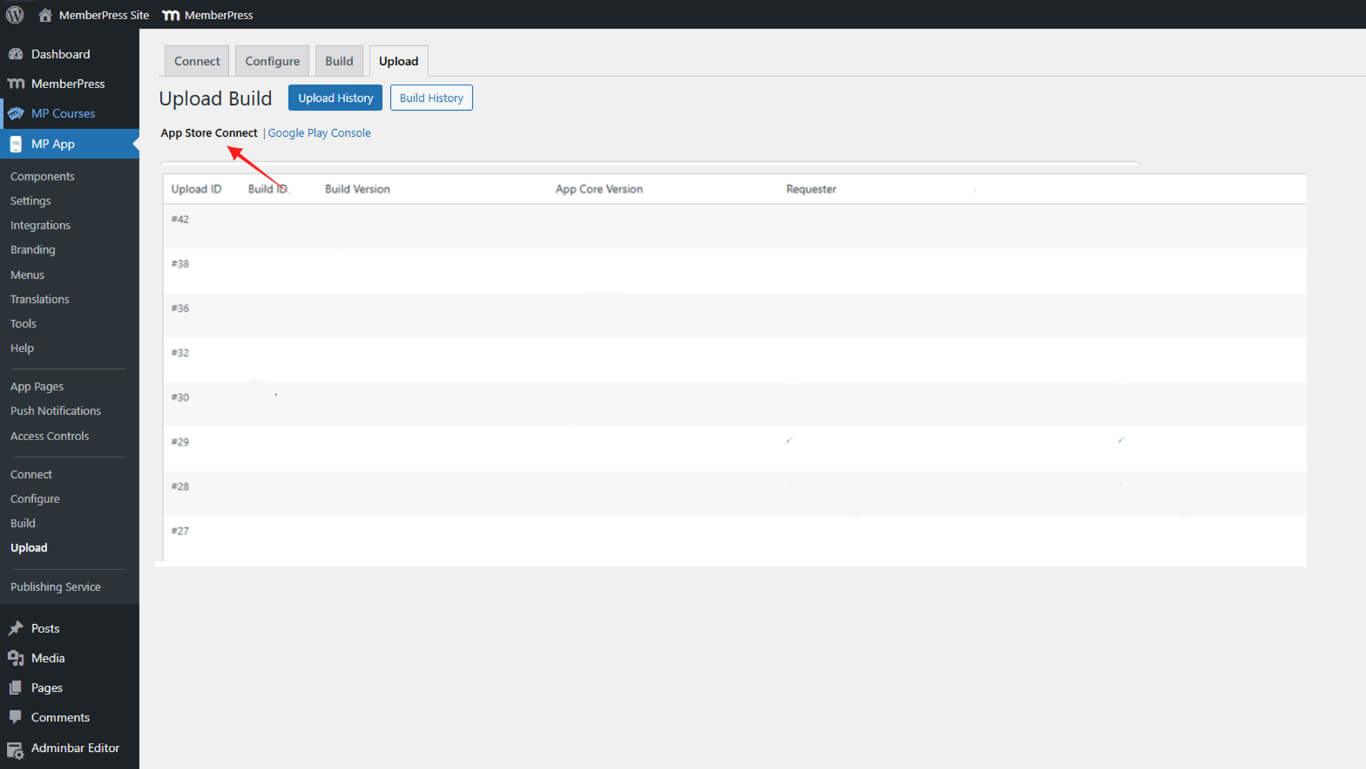
- Comprueba que la aplicación existe en la cuenta App Store Connect antes de continuar.
- Haga clic en Subir compilación para iniciar el proceso de carga.
- Espere aproximadamente 15 minutos a que finalice el proceso de carga.
- Vaya a App Store Connect para comprobar que la compilación aparece en TestFlight.
Añadir evaluadores en TestFlight
La adición del probador TestFlight permite a usuarios específicos acceder a las compilaciones de la aplicación de lanzamiento y probarlas.
- Inicie sesión en App Store Connect en appstoreconnect.apple.com.
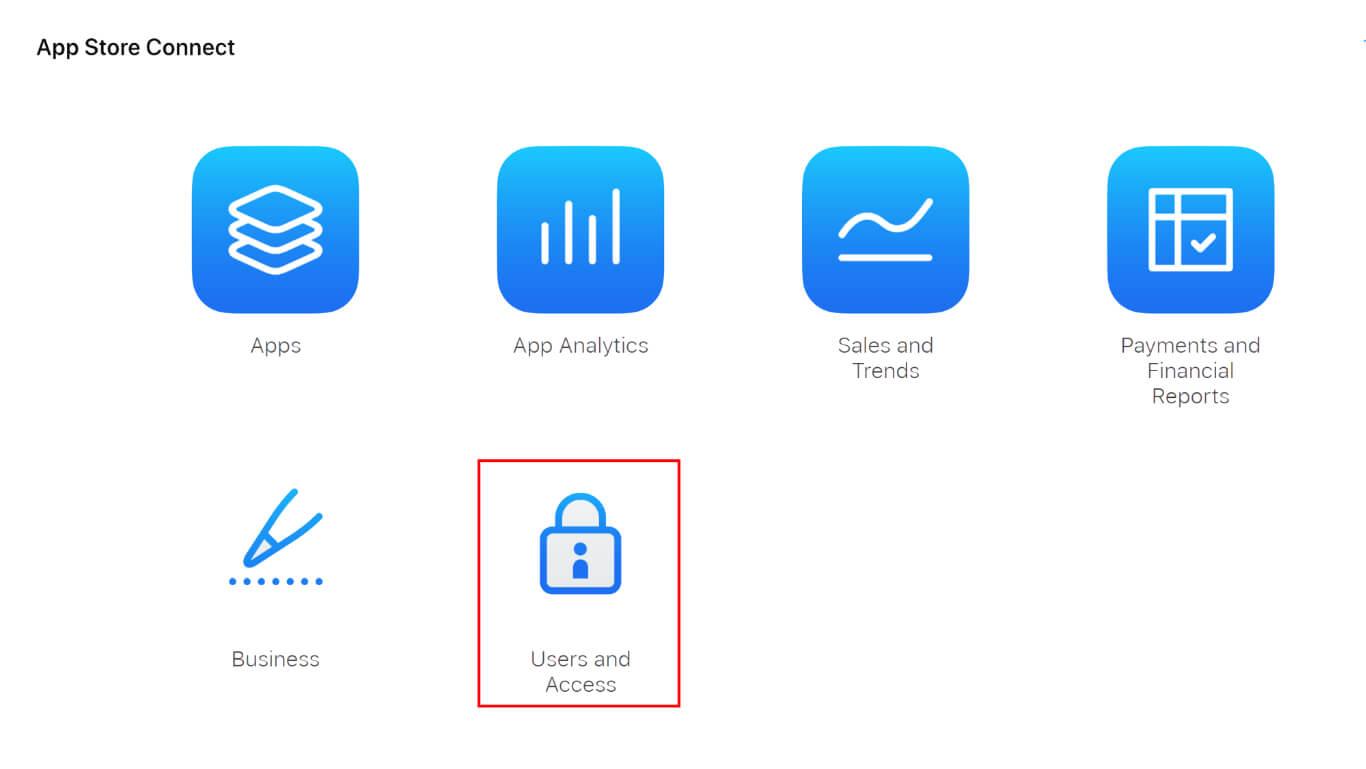
- Vaya a Usuarios y acceso > Personas en la navegación.
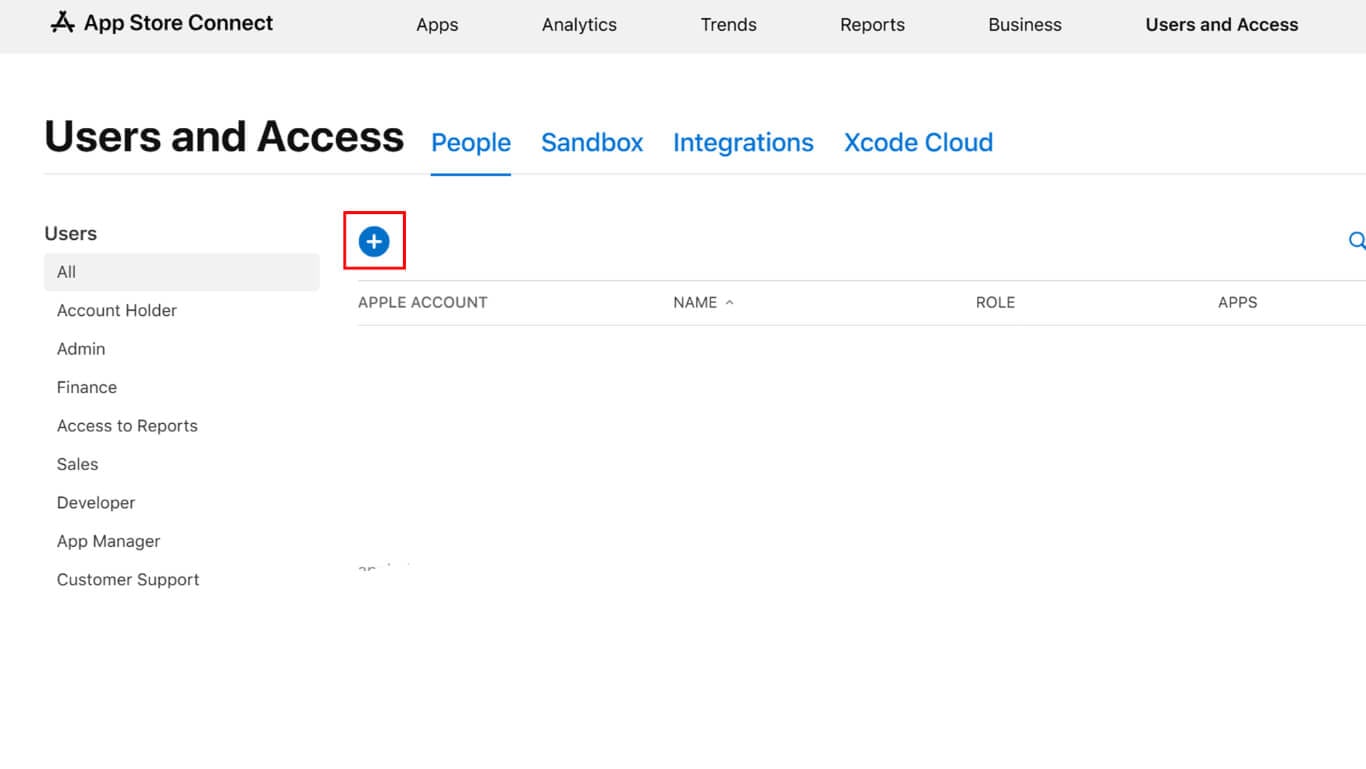
- Haga clic en el botón + para invitar a nuevos probadores.
- Introduzca el nombre del comprobador.
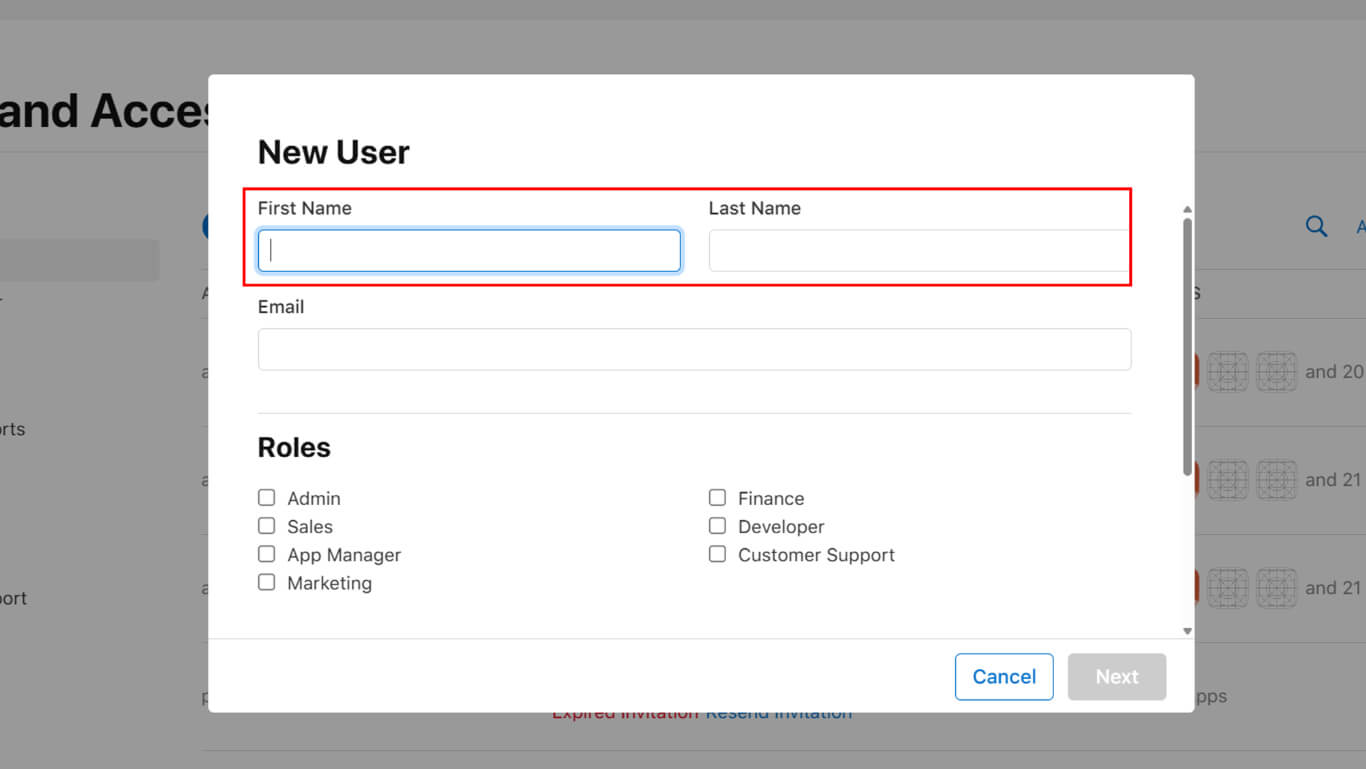
- Introduce la dirección de correo electrónico del ID de Apple del probador en el campo de correo electrónico.
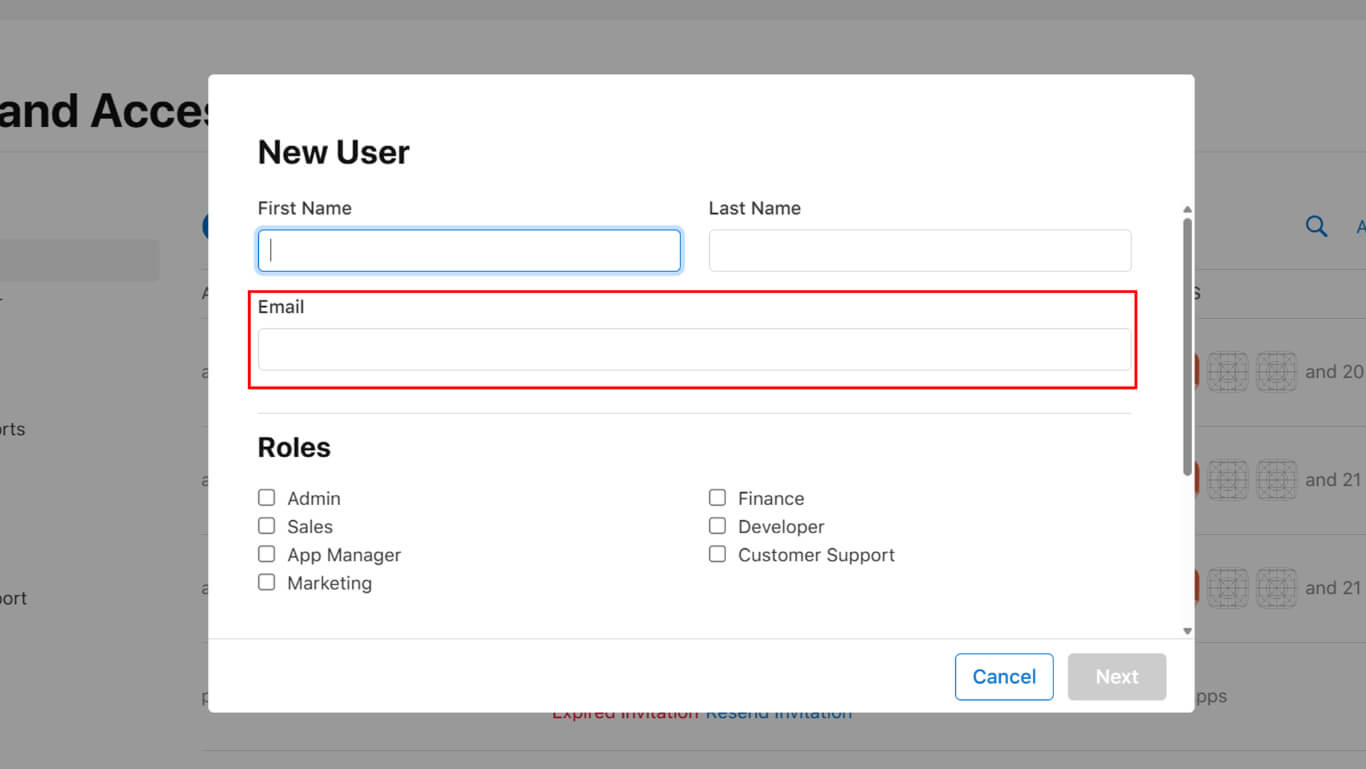
- Asigne un rol apropiado de las opciones disponibles, como Desarrollador.
- Seleccione la aplicación en la lista de acceso a aplicaciones.
- Haga clic en Invitar para enviar la invitación.
- Vaya a Mis aplicaciones y selecciona la aplicación.
- Haga clic en TestFlight en la barra lateral.
- Navegue hasta el Pruebas internas sección.
- Haga clic en Probadores para gestionar la lista de probadores.
- Haga clic en el botón + para añadir usuarios invitados al grupo de prueba.
- Seleccione probadores de la lista de personas.
- Haga clic en Añadir para confirmar las adiciones de los probadores.
Instalación mediante TestFlight
La instalación de TestFlight permite a los probadores acceder a las compilaciones de la aplicación de lanzamiento y utilizarlas.
- Los probadores descargan la aplicación TestFlight del App Store de Apple.
- Los probadores abren la aplicación TestFlight en su dispositivo iOS.
- Los probadores comprueban su correo electrónico para recibir una invitación de App Store Connect.
- Los probadores aceptan la invitación a través del enlace de correo electrónico o de la aplicación TestFlight.
- Release App aparece en la lista de pruebas disponibles de la aplicación TestFlight.
- Grifo de los probadores Instale junto al nombre de la aplicación.
- Espere a que se complete la instalación en el dispositivo.
- Grifo de los probadores Abrir para iniciar la aplicación de publicación.
Las aplicaciones de lanzamiento muestran los precios reales de las compras dentro de la aplicación y el comportamiento de la aplicación de producción que coincide con la funcionalidad posterior a la publicación.
Carga de nuevas versiones
Lanzamiento de actualizaciones de compilación, despliegue de nuevas versiones a los probadores de TestFlight existentes.
- Vaya a Panel de control > MP AppKit > Crear en WordPress.
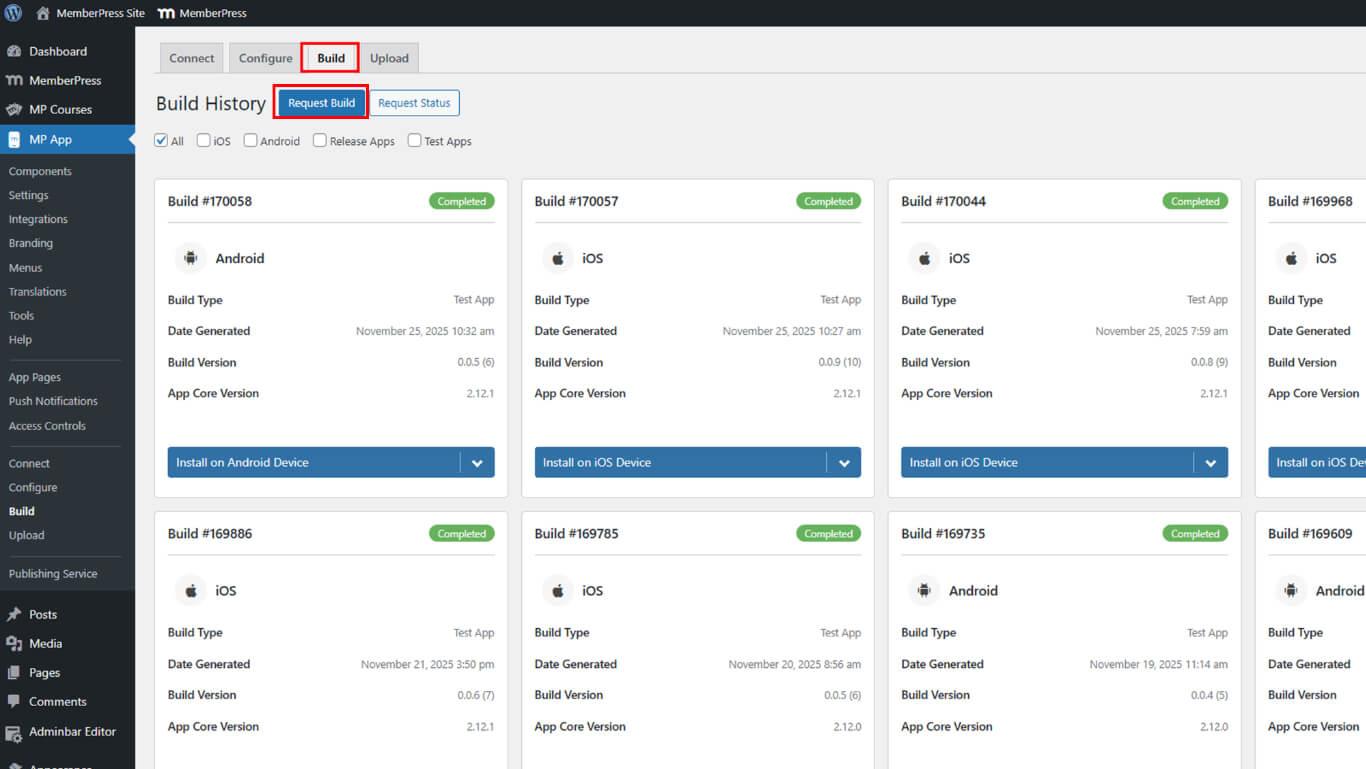
- Haga clic en Solicitar construir para crear una nueva versión.
- Seleccione iOS plataforma y Liberar aplicación tipo de construcción.
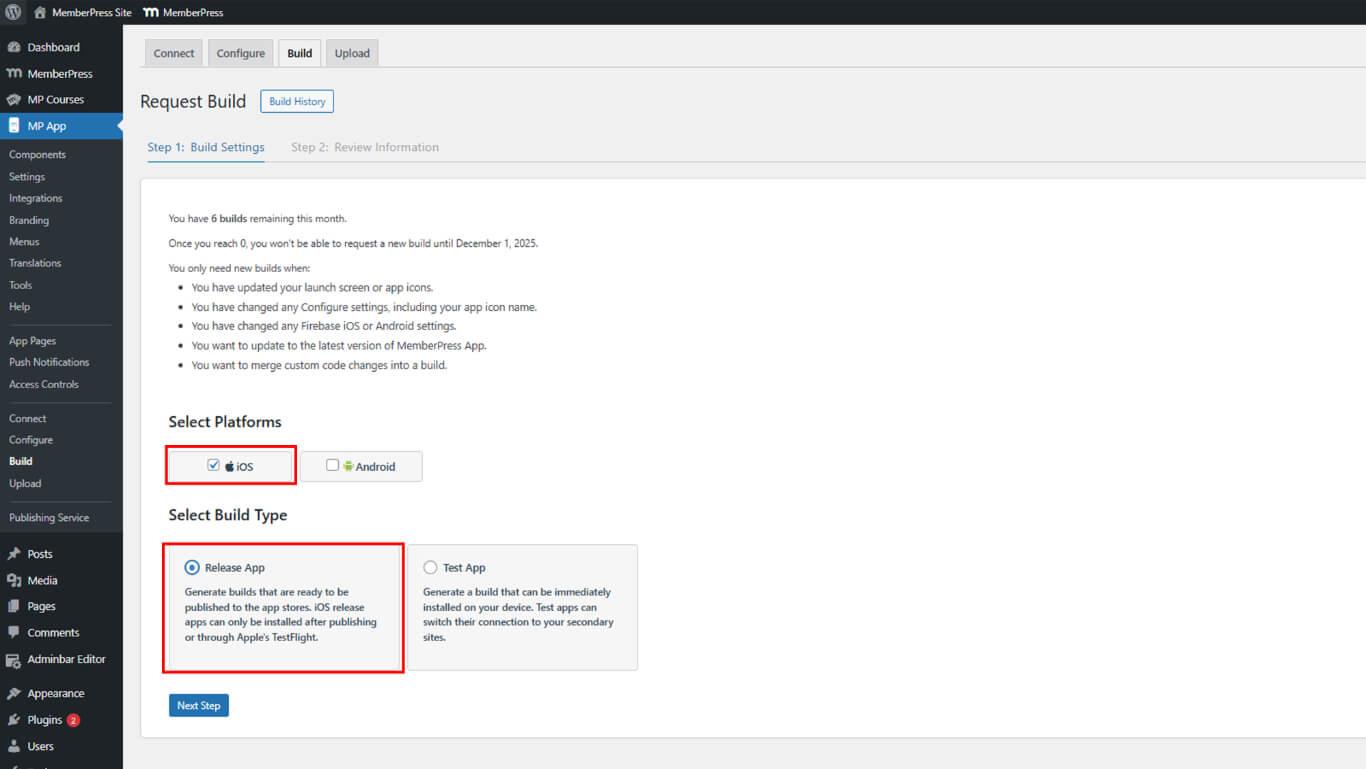
- Complete la solicitud de construcción y espere a que se complete.
- Descargue el nuevo archivo IPA desde Historia de la construcción.
- Vaya a Panel > MP AppKit > Subir > Apple App Store.
- Seleccione la nueva versión de la lista de versiones.
- Haga clic en Subir compilación para iniciar el proceso de carga.
- Espere a que finalice el proceso de carga.
- Los probadores reciben una notificación de actualización en la aplicación TestFlight.
- Grifo de los probadores Actualización en TestFlight para instalar la nueva versión.
TestFlight notifica automáticamente a los evaluadores cuando hay nuevas versiones disponibles para las pruebas.
Comprender la distribución de TestFlight
TestFlight proporciona un entorno de pruebas beta estructurado para aplicaciones de lanzamiento de iOS.
Pruebas internas permite una rápida distribución a un máximo de 100 probadores del equipo de desarrollo. Los probadores internos reciben acceso inmediato sin retrasos en la revisión de Apple.
Pruebas externas distribuye compilaciones a un máximo de 10.000 probadores beta externos. Las pruebas externas requieren la revisión de Apple antes del acceso de los probadores.
Actualizaciones automáticas notificar a los evaluadores cuando haya nuevas versiones disponibles. TestFlight agiliza la distribución de actualizaciones sin necesidad de coordinar manualmente a los evaluadores.
Notificación de accidentes proporciona registros detallados de fallos y datos de diagnóstico. Los análisis de TestFlight ayudan a identificar y resolver problemas de estabilidad antes del lanzamiento público.
Duración de las pruebas permite periodos de prueba de 90 días por versión. Las compilaciones caducan a los 90 días, por lo que es necesario cargar nuevas versiones para continuar con las pruebas.










 ES
ES  EN
EN  FR
FR  DE
DE  PT
PT 