

Unos colores de marca coherentes mejoran el diseño de la aplicación, refuerzan la identidad y mejoran la usabilidad. La configuración de colores de MemberPress AppKit permite personalizar fondos, botones, elementos de navegación y contenidos destacados.
En este documento se explica cómo configurar esquemas de color para todas las secciones de la aplicación y previsualizar los cambios en las plataformas iOS y Android.
Comprender la configuración del color
La configuración de colores controla el aspecto visual de toda la aplicación, incluidos los fondos, el texto, los botones, las barras de navegación y los elementos interactivos. Cada configuración de color afecta a componentes específicos de la interfaz. Las vistas previas en tiempo real muestran los cambios de color en las maquetas de iOS y Android. Una configuración de colores adecuada garantiza la coherencia de la marca y mantiene la legibilidad en diferentes contextos de pantalla.
Acceso a la configuración de color
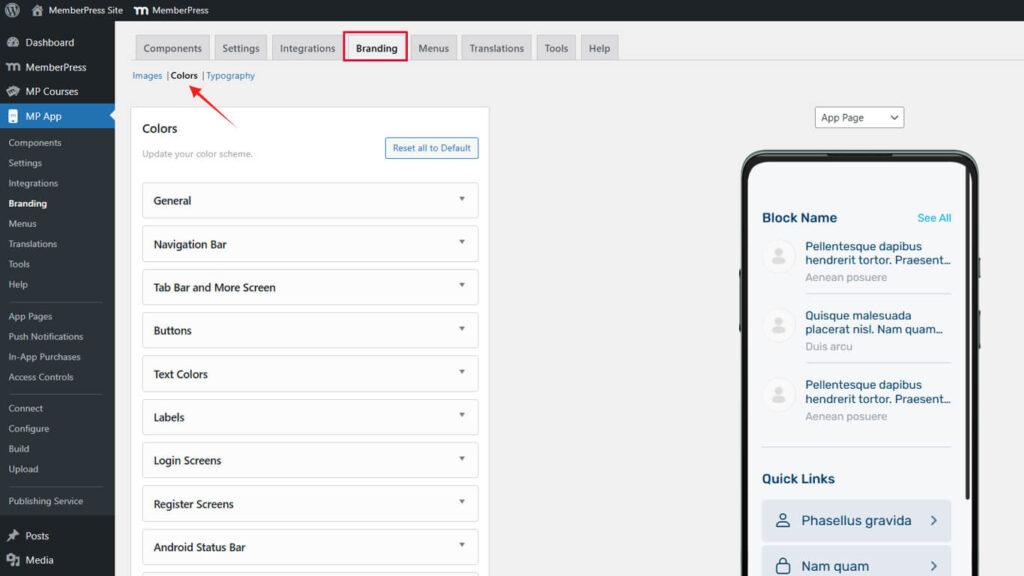
Toda la configuración de colores se realiza dentro de la interfaz de colores de la marca.
- Vaya a Panel > MP AppKit > Marca > Colores.
Configuración de colores generales
Los colores generales definen los elementos principales de la interfaz en toda la aplicación.
- Vaya a Panel > MP AppKit > Marca > Colores.
- Localice el General sección.
- Haga clic en el botón Color de fondo muestra.
- Seleccione un color con el selector de colores o introduzca un código hexadecimal.
- Haga clic en el botón Color de fondo alternativo muestra.
- Seleccione un color contrastante para las secciones de contenido alternativo.
- Haga clic en el botón Fondo de imagen en color muestra.
- Selecciona un color para los fondos de los marcadores de posición de las imágenes.
- Haga clic en el botón Color del borde muestra.
- Seleccione un color sutil para los bordes y separadores de los elementos.
- Haga clic en el botón Color de acento muestra.
- Seleccione un color llamativo para resaltar y enfatizar.
Los cambios se muestran inmediatamente en las maquetas de la página de la aplicación, la página del directorio y la página del menú.
Comprensión de los propósitos generales del color
Cada color general cumple funciones específicas en la interfaz.
Color de fondo rellena las áreas y páginas de contenido principal. Este color debe proporcionar un contraste óptimo con los colores del texto para facilitar la lectura.
Color de fondo alternativo diferencia secciones o tarjetas dentro de las páginas. Este color debe contrastar sutilmente con el fondo principal, manteniendo al mismo tiempo una apariencia cohesionada.
Fondo de imagen en color Se muestra detrás de las imágenes durante la carga o cuando las imágenes no están disponibles. Este color debe complementar el contenido típico de la imagen sin crear transiciones discordantes.
Color del borde define los límites y divisores de los elementos. Este color debe ser lo suficientemente sutil como para no dominar, pero lo suficientemente visible como para proporcionar estructura.
Color de acento destaca los elementos interactivos y la información importante. Este color debe destacar de forma prominente, al tiempo que complementa la combinación de colores general.
Personalización de los colores de la barra de navegación
Los colores de la barra de navegación afectan a los encabezados de las aplicaciones y a los elementos de navegación superiores.
- Vaya a Panel de control > MP AppKit > Marca > Colores.
- Localice el Barra de navegación sección.
- Haga clic en el botón Color de fondo muestra.
- Selecciona un color para el fondo de la barra de navegación.
- Haga clic en el botón Color del texto muestra.
- Seleccione un color que garantice la legibilidad sobre el fondo.
- Haga clic en el botón Color del enlace muestra.
- Seleccione un color para los enlaces de navegación y el texto interactivo.
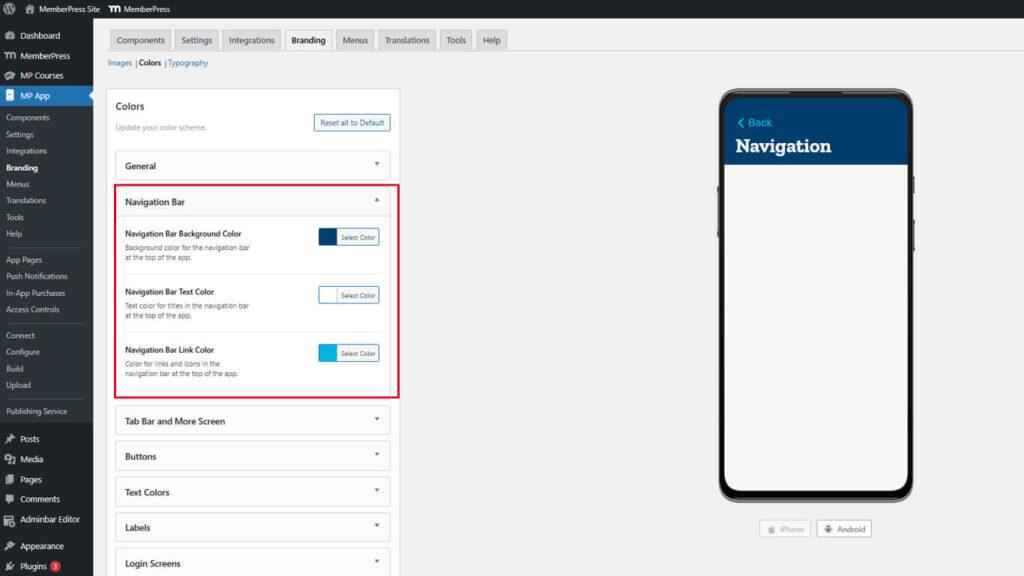
La vista previa de la barra de navegación se actualiza inmediatamente en la maqueta del encabezado.
Garantizar la legibilidad de la navegación
Los colores de navegación deben mantener un contraste suficiente para garantizar la accesibilidad.
Diseño de la barra de pestañas y la pantalla «Más»
La barra de pestañas y los colores de la pantalla «Más» controlan la apariencia del menú de navegación inferior y del menú desplegable.
- Vaya a Panel > MP AppKit > Marca > Colores.
- Localice el Barra de pestañas y más sección.
- Haga clic en el botón Color de fondo de la barra de pestañas muestra.
- Selecciona un color para el fondo de la barra de pestañas.
- Haga clic en el botón Color predeterminado del icono muestra.
- Selecciona un color para los iconos de navegación inactivos.
- Haga clic en el botón Icono Color activo muestra.
- Seleccione un color destacado para los iconos de navegación activos.
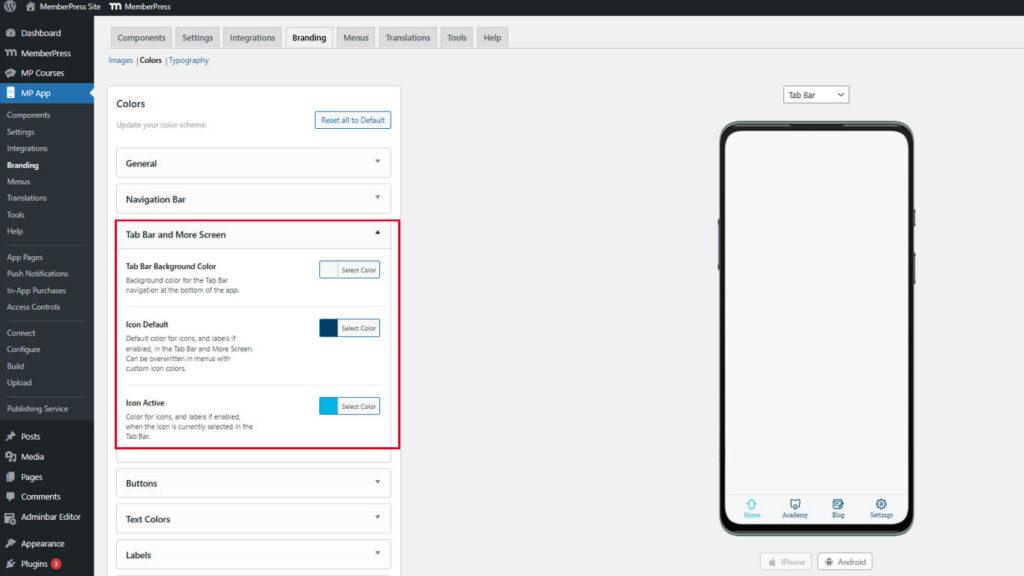
Actualización de las maquetas de vista previa para mostrar el aspecto de la barra de pestañas con los colores seleccionados.
Diferenciar iconos activos e inactivos
Los colores de los iconos deben indicar claramente el estado de navegación.
El color del icono activo debe contrastar fuertemente con el color predeterminado para indicar la ubicación actual. Los miembros deben reconocer inmediatamente qué sección están viendo. Una diferenciación insuficiente provoca confusión en la navegación y una mala experiencia de usuario.
Personalización de estilos de botones
Los colores de los botones definen el aspecto de los elementos interactivos en toda la aplicación.
- Vaya a Panel > MP AppKit > Marca > Colores.
- Localice el Botones sección.
- Haga clic en el botón Color de fondo del botón principal muestra.
- Selecciona un color destacado para los botones de acción principales.
- Haga clic en el botón Color del texto del botón principal muestra.
- Seleccione un color que contraste con el texto del botón.
- Haga clic en el botón Color de fondo del botón secundario muestra.
- Selecciona un color sutil para los botones de acción secundarios.
- Haga clic en el botón Color del texto del botón secundario muestra.
- Seleccione un color de texto adecuado para los botones secundarios.
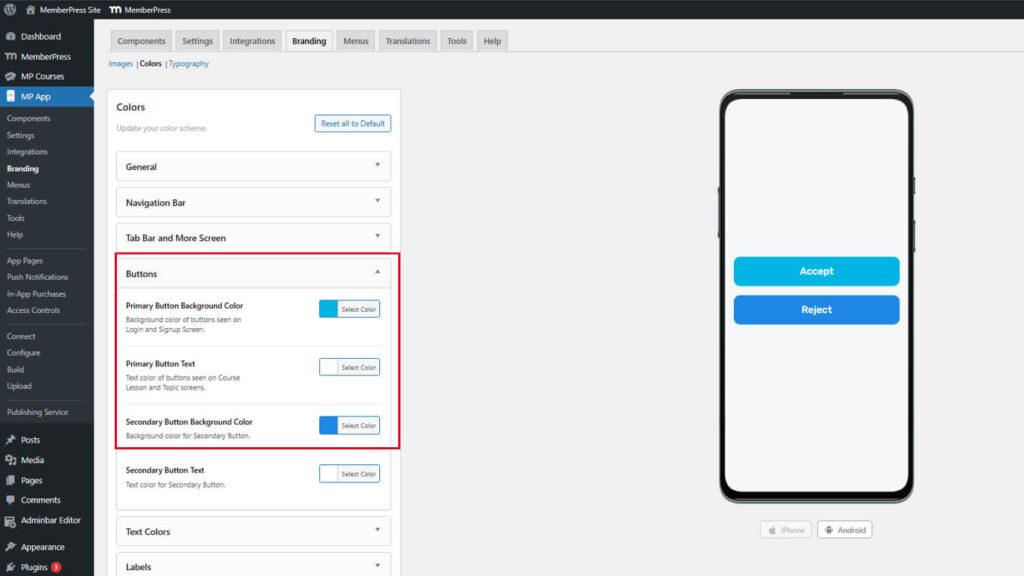
Las actualizaciones de la vista previa de los botones muestran cómo aparecen los botones en diversos contextos.
Distinguir jerarquías de botones
Los botones primarios y secundarios deben indicar claramente la importancia de la acción.
Los botones primarios representan acciones principales como “Comprar”, “Enviar” o “Continuar”. Estos botones deben utilizar colores llamativos y llamativos. Los botones secundarios representan acciones alternativas como “Cancelar” o “Volver”. Estos botones deben utilizar colores más tenues que complementen a los primarios, pero sin competir con ellos.
Ajustar los colores del texto
Los colores del texto controlan la legibilidad y la jerarquía del contenido en toda la aplicación.
- Vaya a Panel > MP AppKit > Marca > Colores.
- Localice el Colores del texto sección.
- Haga clic en el botón Color del texto del encabezado muestra.
- Seleccione un color destacado para los encabezados y títulos de las secciones.
- Haga clic en el botón Color del texto del cuerpo muestra.
- Seleccione un color que sea fácil de leer para el texto del contenido principal.
- Haga clic en el botón Color del texto descriptivo muestra.
- Seleccione un color ligeramente apagado para las descripciones complementarias.
- Haga clic en el botón Color del texto meta muestra.
- Selecciona un color sutil para las marcas de tiempo y los metadatos.
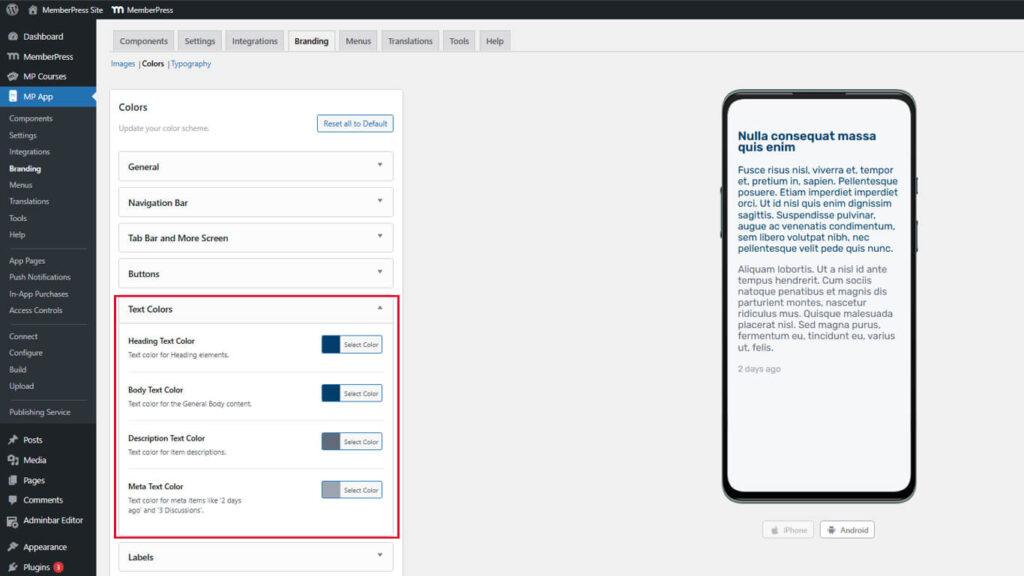
La vista previa del texto muestra cómo se ven los diferentes niveles de texto con los colores seleccionados.
Establecimiento de la jerarquía del texto
Los colores del texto deben crear una jerarquía visual clara para facilitar la lectura del contenido.
El texto del encabezado debe ser el más destacado para indicar el inicio de la sección. El texto del cuerpo debe ofrecer una legibilidad óptima para una lectura prolongada. El texto descriptivo debe ser distinguible, pero menos destacado que el texto del cuerpo. El metatexto debe ser lo suficientemente sutil como para no distraer la atención del contenido principal.
Etiquetas de estilo
Los colores de las etiquetas afectan a las etiquetas, insignias e indicadores de estado en toda la aplicación.
- Vaya a Panel > MP AppKit > Marca > Colores.
- Localice el Etiquetas sección.
- Haga clic en el botón Color de fondo de la etiqueta muestra.
- Seleccione un color para el fondo de las etiquetas.
- Haga clic en el botón Color del texto de la etiqueta muestra.
- Seleccione un color que contraste con el texto de la etiqueta.
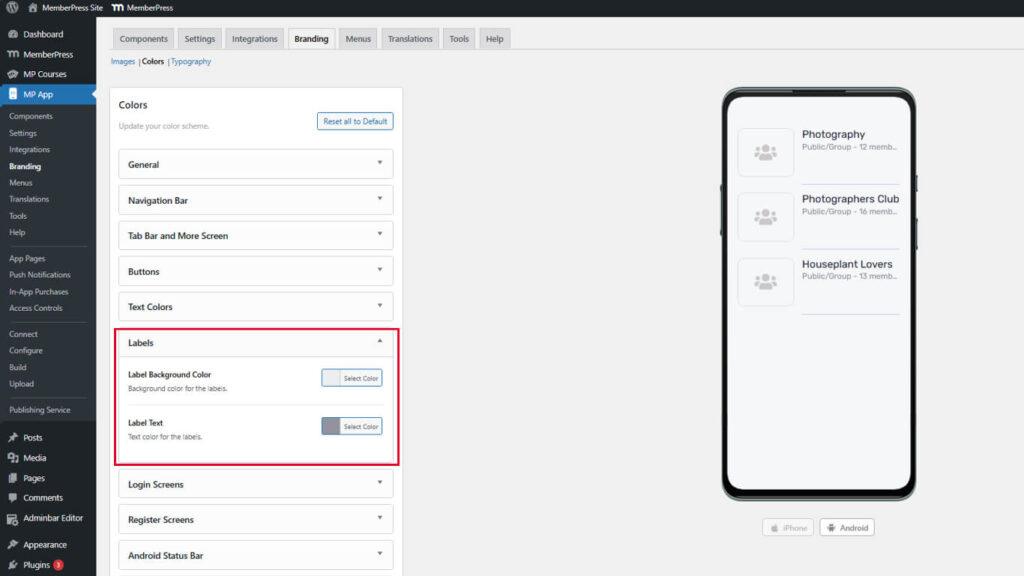
La vista previa de la etiqueta muestra el aspecto tanto en la vista de lista como en la vista detallada.
Garantizar la visibilidad de las etiquetas
Las etiquetas deben permanecer visibles en diferentes fondos de página.
El color de fondo de la etiqueta debe contrastar con el fondo de la página donde aparece. El texto de la etiqueta debe mantener un fuerte contraste con el fondo para facilitar la lectura. Las etiquetas suelen aparecer en fondos variados, por lo que la selección del color debe tener en cuenta múltiples contextos.
Personalización de los colores de la pantalla de inicio de sesión
Los colores de la pantalla de inicio de sesión definen el aspecto de la página de autenticación.
- Vaya a Panel > MP AppKit > Marca > Colores.
- Localice el Pantallas de inicio de sesión sección.
- Configure las siguientes muestras de color:
- Color de fondo para el fondo de la página de inicio de sesión;
- Fondo del campo de entrada para los fondos de los campos de formulario;
- Borde del campo de entrada para los contornos de campo;
- Texto del campo de entrada para el color del texto introducido;
- Fondo del botón para fondos de botones de acción;
- Texto del botón para el color del texto del botón.
- Revise las vistas previas de las pantallas de inicio de sesión y de contraseña olvidada.
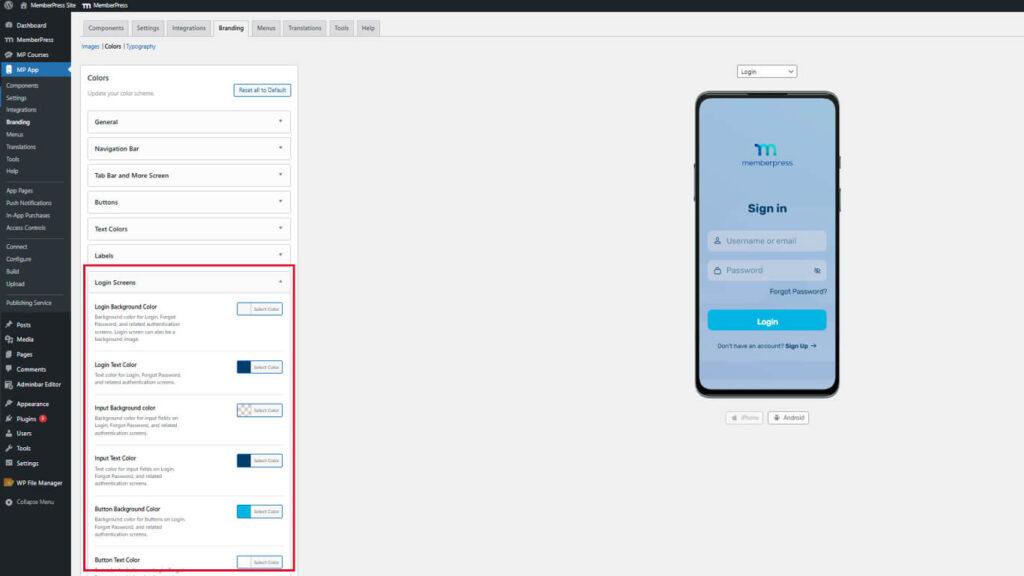
La vista previa de la pantalla de inicio de sesión muestra las páginas de autenticación con los colores seleccionados.
Estilo de los colores de la pantalla de registro
Los colores de la pantalla de registro definen el aspecto de la página de creación de cuentas.
- Vaya a Panel de control > MP AppKit > Marca > Colores.
- Localice el Pantallas de registro sección.
- Configure las siguientes muestras de color:
- Color de fondo para el fondo de la página de registro;
- Fondo del campo de entrada para los fondos de los campos de formulario;
- Borde del campo de entrada para los contornos de campo;
- Texto del campo de entrada para el color del texto introducido;
- Fondo del botón para fondos de botones de acción;
- Texto del botón para el color del texto del botón.
- Revisa la vista previa de la pantalla de registro.
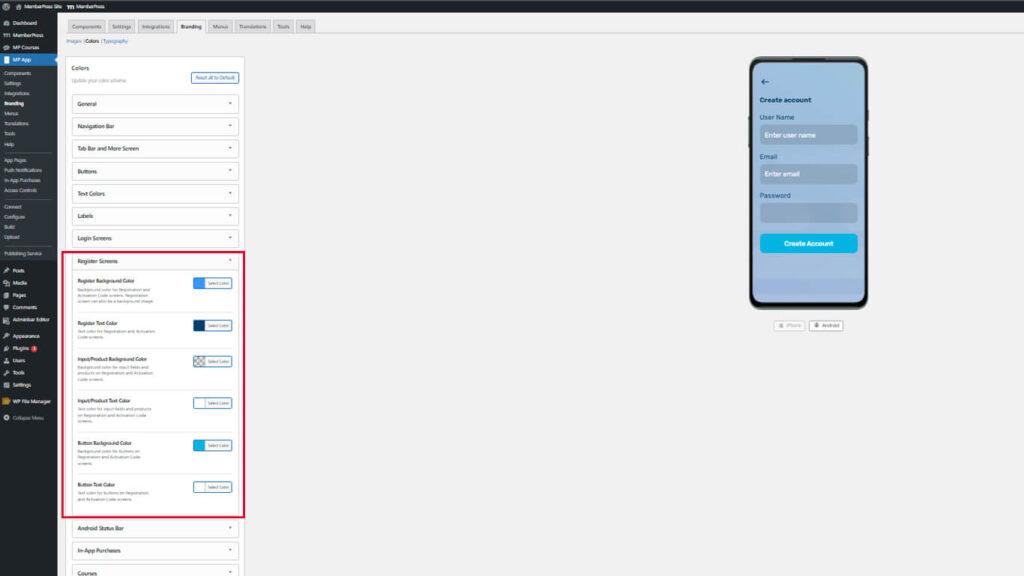
El uso de colores coherentes entre las pantallas de inicio de sesión y registro crea experiencias de autenticación cohesionadas.
Configuración del color de la barra de estado de Android
El color de la barra de estado de Android afecta a la apariencia de la barra de estado del dispositivo en la parte superior de la pantalla.
- Vaya a Panel > MP AppKit > Marca > Colores.
- Localice el Barra de estado de Android sección.
- Haga clic en el botón Color de fondo del estado muestra.
- Selecciona un color que combine o complemente la barra de navegación.
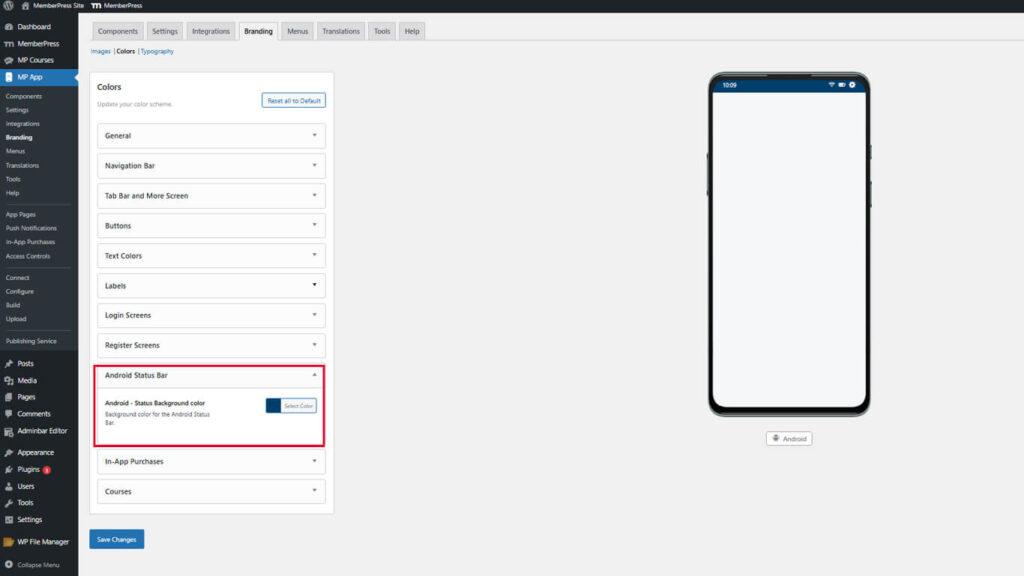
La vista previa del color de la barra de estado solo se actualiza en la maqueta del dispositivo Android. Esta configuración no afecta a los dispositivos iOS.
Personalización de los colores de las compras dentro de la aplicación
Los colores de las compras dentro de la aplicación resaltan los productos y beneficios de la membresía.
- Vaya a Panel > MP AppKit > Marca > Colores.
- Localice el Compras dentro de la aplicación sección.
- Haga clic en el botón Color de la marca de verificación del estado de compra muestra.
- Selecciona un color para las marcas de verificación que indican las suscripciones compradas.
- Haga clic en el botón Beneficios Marca de verificación Color muestra.
- Seleccione un color para las marcas de verificación que enumeran los beneficios de la membresía.
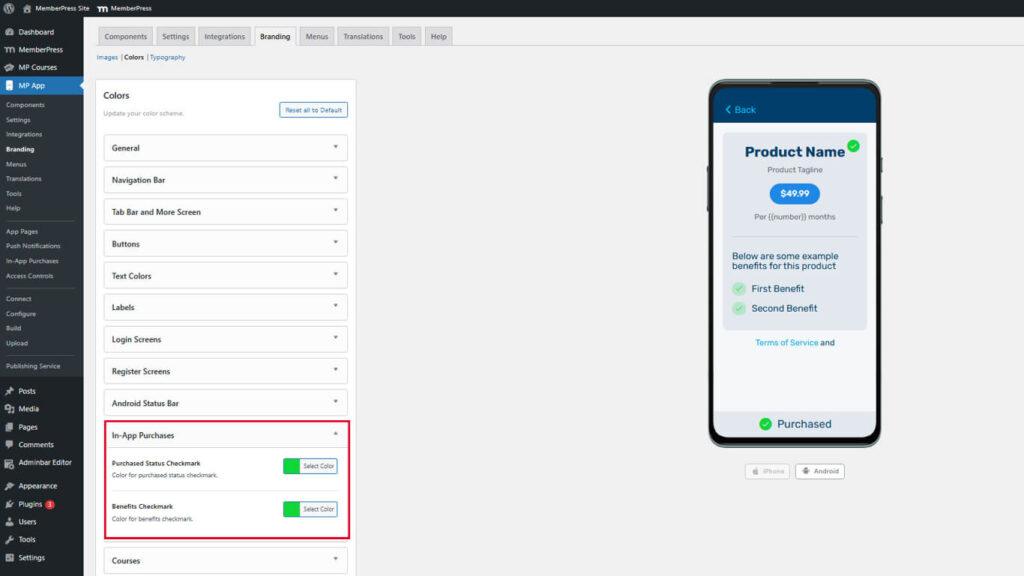
La vista previa de la pantalla de compra muestra los listados de productos con los colores de las marcas de verificación configurados.
Destacar el estado de la compra
Los colores de las marcas de verificación deben indicar claramente la finalización de la compra y la inclusión de beneficios.
Las marcas de verificación del estado de compra deben utilizar colores positivos y afirmativos, como el verde, para indicar que las transacciones se han realizado correctamente. Las marcas de verificación de las ventajas deben complementar el color del estado de compra, pero sin dejar de ser distintivas. Un contraste suficiente con los colores de fondo garantiza la visibilidad en diferentes contextos de pantalla.
Guardar configuración de color
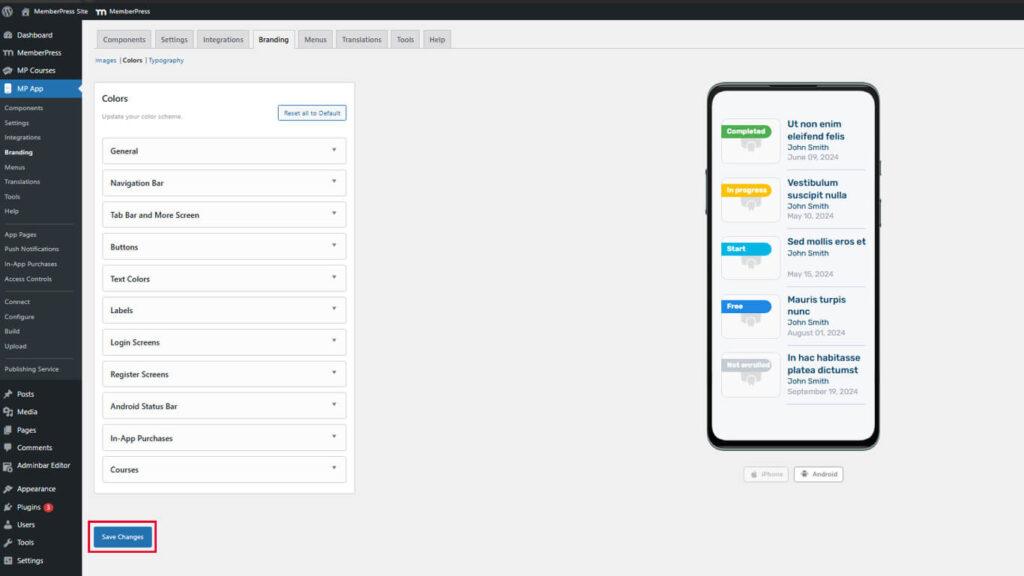
Todas las selecciones de color deben guardarse antes de que surtan efecto.
- Revisa todos los colores configurados en las maquetas de vista previa.
- Desplácese hasta la parte inferior de la Panel de control > MP AppKit > Marca > Colores página.
- Haga clic en Guardar cambios.
- Espere el mensaje de confirmación que indica que el guardado se ha realizado correctamente.










 ES
ES  EN
EN  FR
FR  DE
DE  PT
PT 