

Los logotipos, pantallas de inicio e iconos personalizados mejoran la identidad de la marca y la experiencia del usuario en las aplicaciones móviles. MemberPress AppKit admite la personalización de imágenes para pantallas de inicio, páginas de inicio de sesión, iconos de aplicaciones y pantallas de inicio.
Este documento explica las especificaciones de imagen recomendadas, las directrices de marca y los pasos de configuración para todos los activos visuales.
Comprender los recursos visuales de las aplicaciones
Los activos visuales crean experiencias de marca en las plataformas iOS y Android. Los distintos tipos de activos sirven para fines específicos, como la marca de navegación, las pantallas de autenticación, las animaciones de inicio y los iconos de la pantalla de inicio del dispositivo. Una configuración adecuada de los activos garantiza la coherencia de la marca en todas las interacciones de los usuarios con la aplicación.
Especificaciones de imagen recomendadas
Los distintos elementos visuales requieren dimensiones y formatos específicos para una presentación óptima.
| Elemento | Tamaño (píxeles) | Formato |
| Logotipo de la pantalla de inicio | 1200 × 180 | PNG o PSD |
| Logotipo de inicio de sesión | 1200 × 774 | PNG o PSD |
| Inicio de sesión Antecedentes | 2732 × 2732 | PNG o PSD |
| Registro Antecedentes | 2732 × 2732 | PNG o PSD |
| Fondo de la pantalla de inicio | 2732 × 2732 | PNG o PSD |
| Icono de aplicación iOS | 1024 × 1024 | PNG |
| Icono de aplicación Android | 1024 × 1024 | PNG |
| Icono adaptativo de Android | 1024 × 1024 | PNG |
| Icono de notificación de Android | 256 × 256 | PNG |
Requisitos de los iconos de AppKit
Icono estándar MemberPress AppKit (iOS y Android)
- Talla: 1024 × 1024 px
- Zona segura: 682 × 682 px centro
- Formato: PNG (32 bits), sRGB
- iOS: No hay transparencia
- Android: Transparencia permitida
Icono adaptativo de Android
Requerido en Android 8+ para flexibilidad de forma y parallax.
- Primer plano: Logotipo transparente, 1024 × 1024 px
- Fondo: Imagen opaca, 1024 × 1024 px
- Zona segura: 683 × 683 px centro (170 px margen)
Pantalla de inicio
Se muestra instantáneamente al iniciar la aplicación MemberPress.
- Talla: 2732 × 2732 px
- Zona segura: 1200 × 2732 px centro
- Formato: PNG (32 bits), sRGB
Pantalla de inicio de sesión
- Logotipo: Máximo 200 × 150 px en el fondo
- Fondo: 2732 × 2732 px
- Formato: PNG (32 bits), sRGB
Acceso a la configuración de la marca
Toda la configuración de imágenes e iconos se realiza en la interfaz de configuración de la marca.
- Vaya a Panel > MP AppKit > Marca > Imágenes.
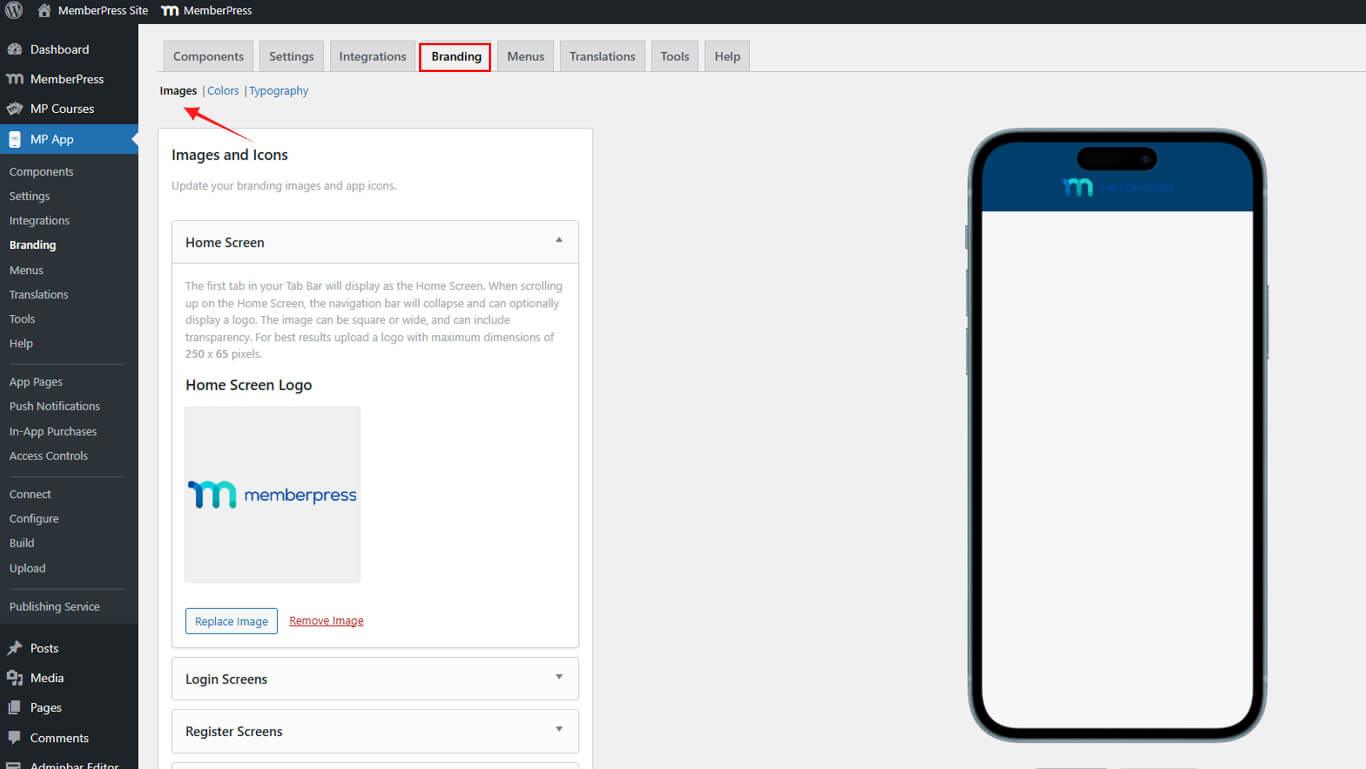
- Compruebe que aparecen todas las secciones de configuración:
- Pantalla de inicio para el logotipo de navegación;
- Pantallas de inicio de sesión para la marca de autenticación;
- Pantallas de registro para la marca de registro;
- Pantalla de inicio para configurar la pantalla de inicio;
- Iconos de la aplicación para los iconos de la pantalla de inicio;
- Iconos adaptativos de Android para capas de iconos adaptables;
- Icono de notificación para la visualización de la bandeja de notificaciones.
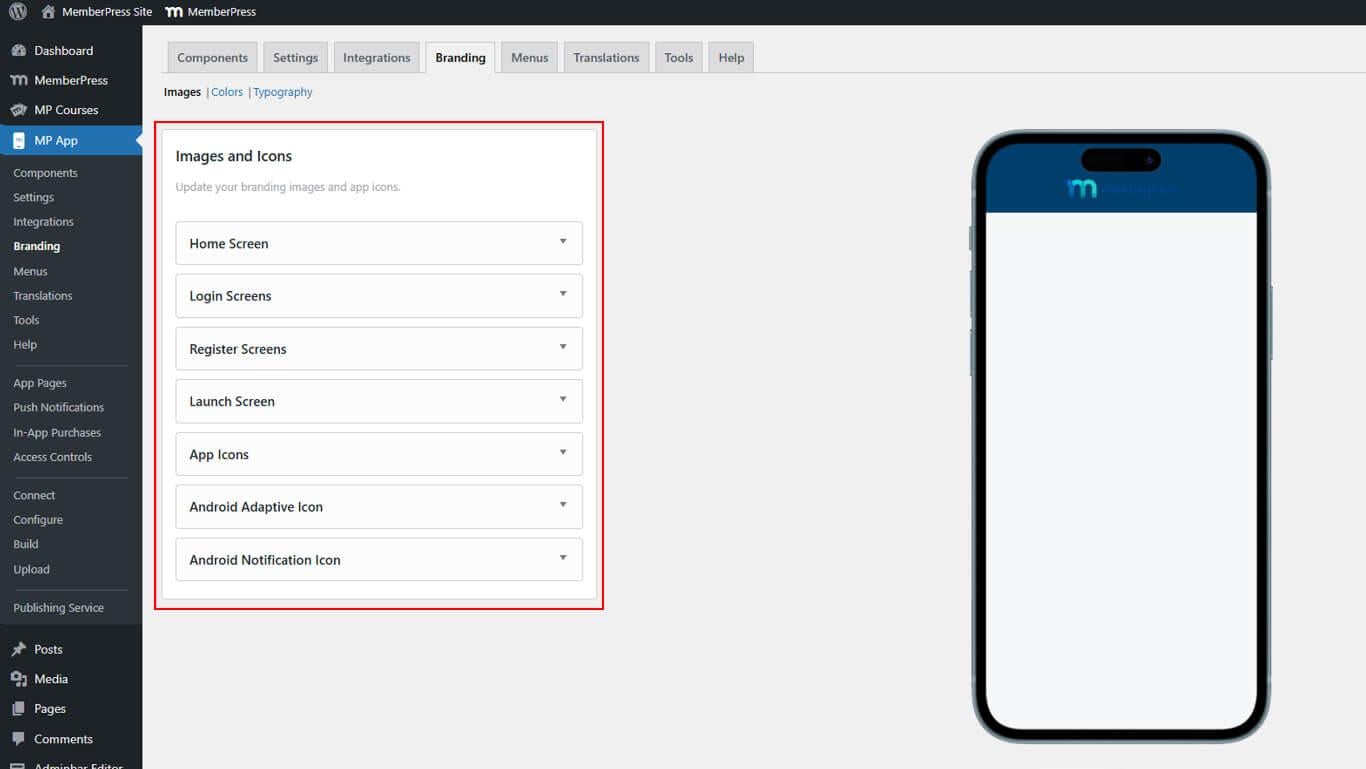
Configuración del logotipo de la pantalla de inicio
El logotipo de la pantalla de inicio aparece en las cabeceras de navegación de las aplicaciones.
- Vaya a Panel > MP AppKit > Marca > Imágenes.
- Localice el Pantalla de inicio sección.
- Haga clic en Cargar imagen.
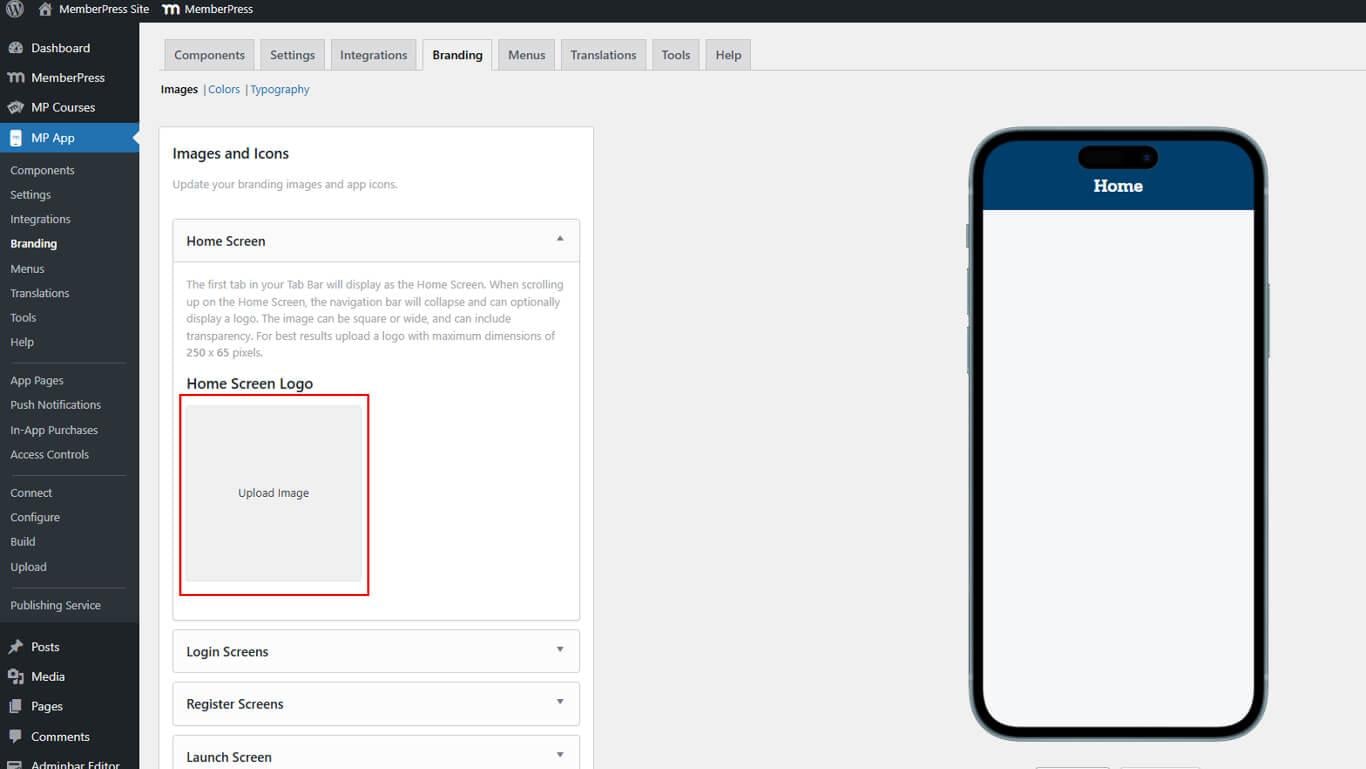
- Seleccione el archivo del logotipo en el dispositivo o en la biblioteca multimedia.
- Cambia el tamaño de la imagen con la herramienta de recorte si es necesario.
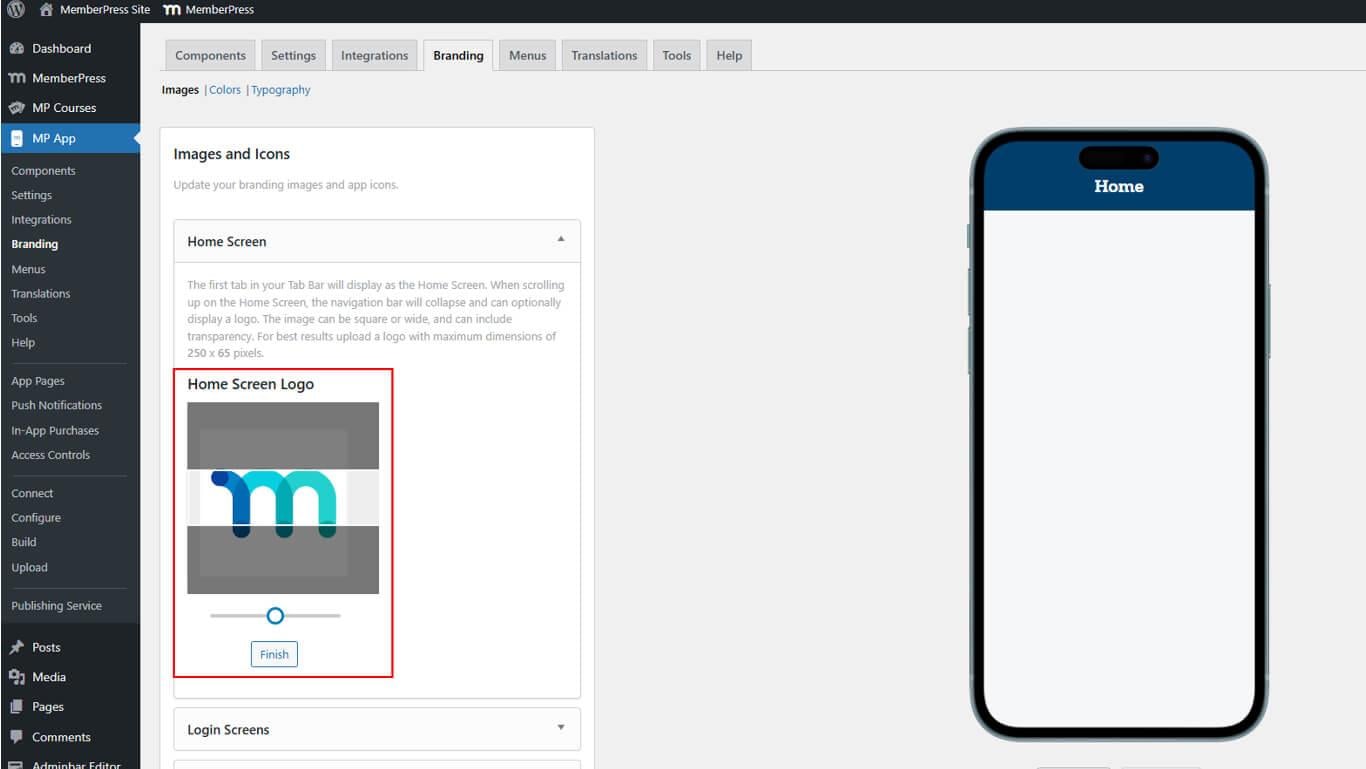
- Haga clic en Acabado para completar la carga.
- Revise el logotipo en maquetas de vista previa de iOS y Android.
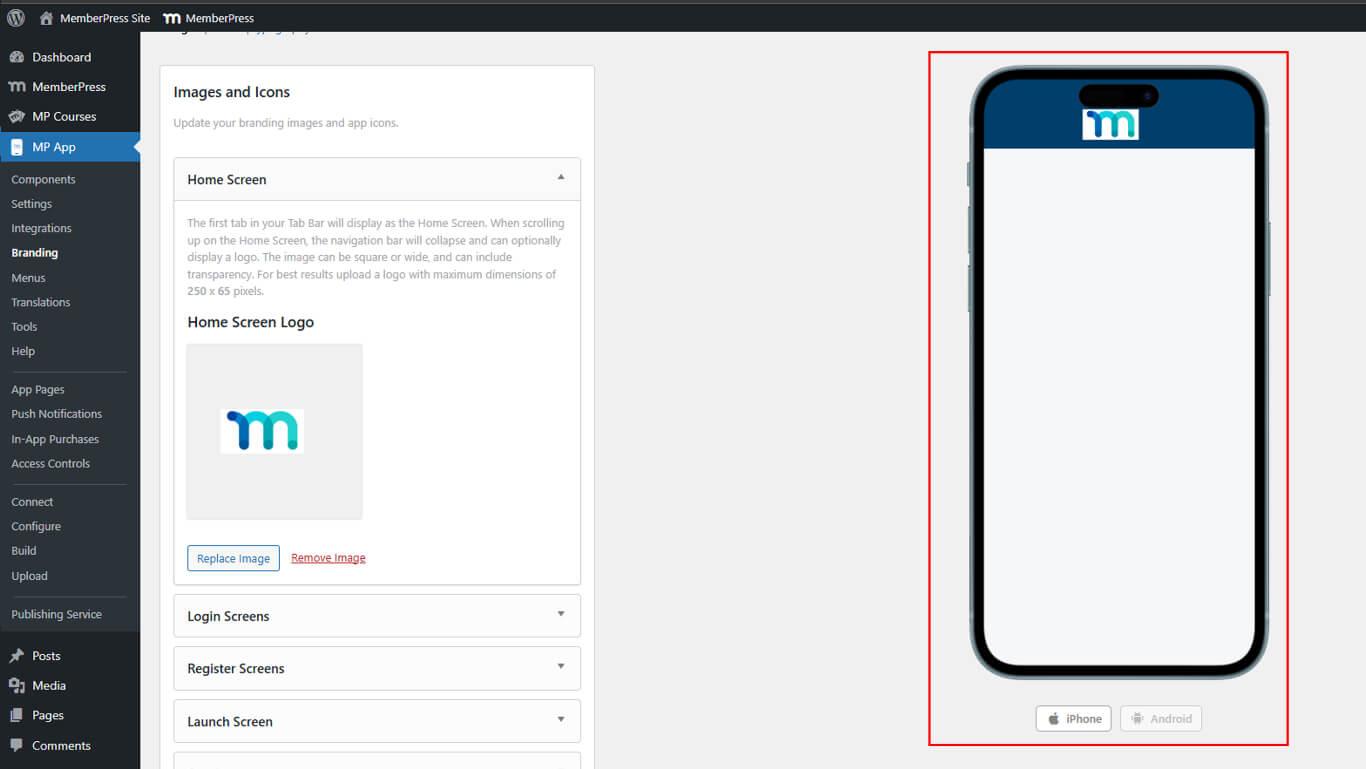
El logotipo de la pantalla de inicio aparece de forma coherente en todas las páginas de la aplicación en la cabecera de navegación.
Configuración de los activos de la pantalla de inicio de sesión
Los activos de la pantalla de inicio de sesión incluyen el logotipo y las imágenes de fondo de las páginas de autenticación.
- Vaya a Panel > MP AppKit > Marca > Imágenes.
- Localice el Pantallas de inicio de sesión sección.
- Haga clic en Cargar imagen junto al logotipo de inicio de sesión.
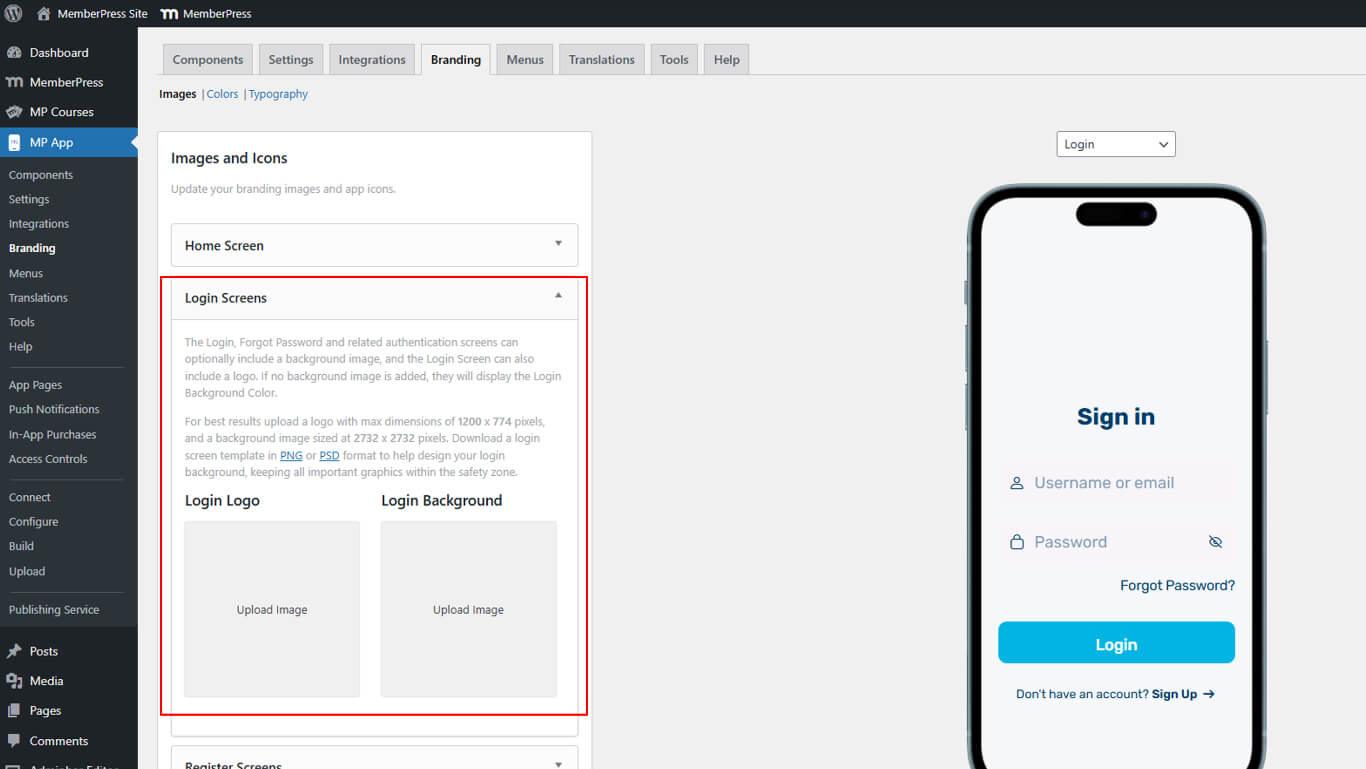
- Seleccione el archivo del logotipo y haga clic en Acabado después de cualquier ajuste.
- Haga clic en Cargar imagen.
- Seleccione el archivo de fondo y haga clic en Acabado después de los ajustes.
- Alternar entre Inicio de sesión y Contraseña olvidada previsualización de páginas.
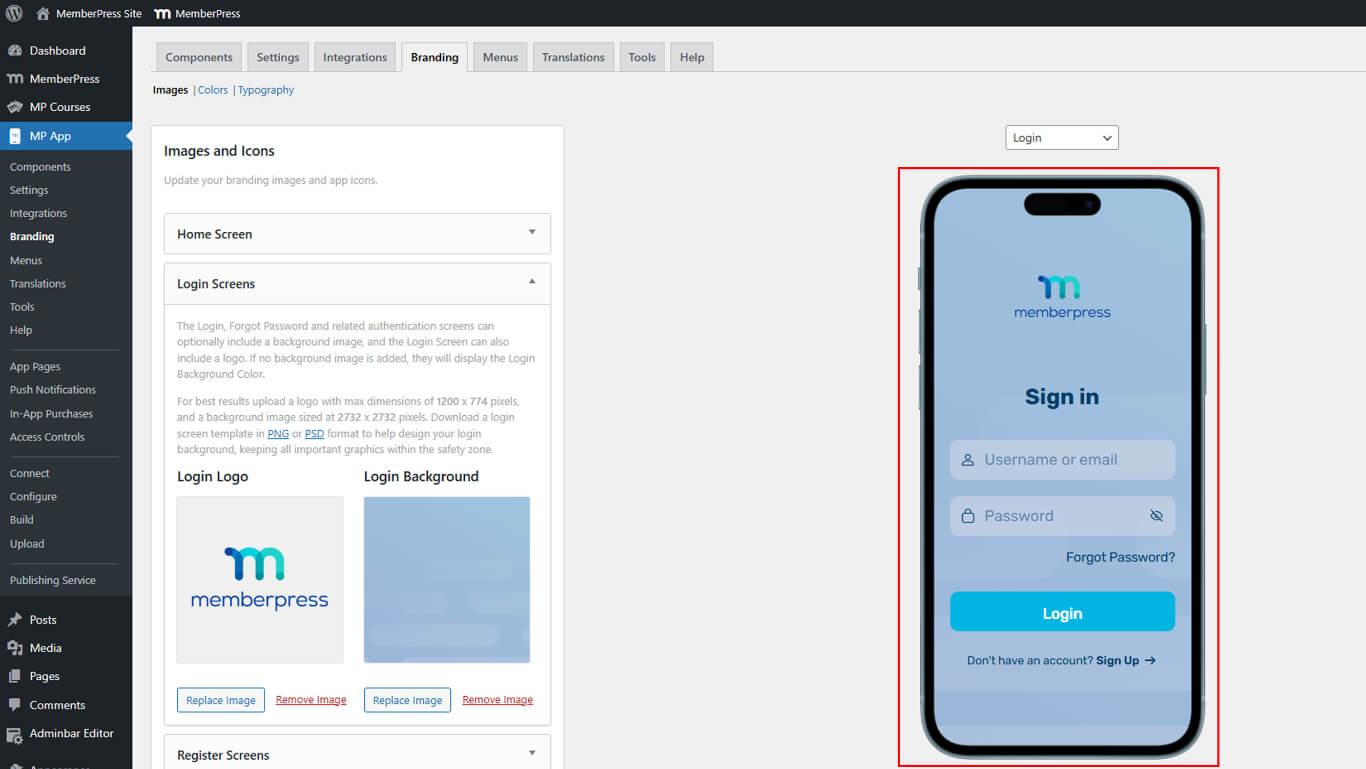
Los activos de inicio de sesión se muestran en las páginas de autenticación, incluidas las pantallas de inicio de sesión, olvido de contraseña y restablecimiento de contraseña.
Configuración de los activos de la pantalla de registro
Los activos de la pantalla de registro incluyen imágenes de fondo para las páginas de creación de cuentas.
- Vaya a Panel > MP AppKit > Marca > Imágenes.
- Localice el Pantallas de registro sección.
- Haga clic en Cargar imágenes.
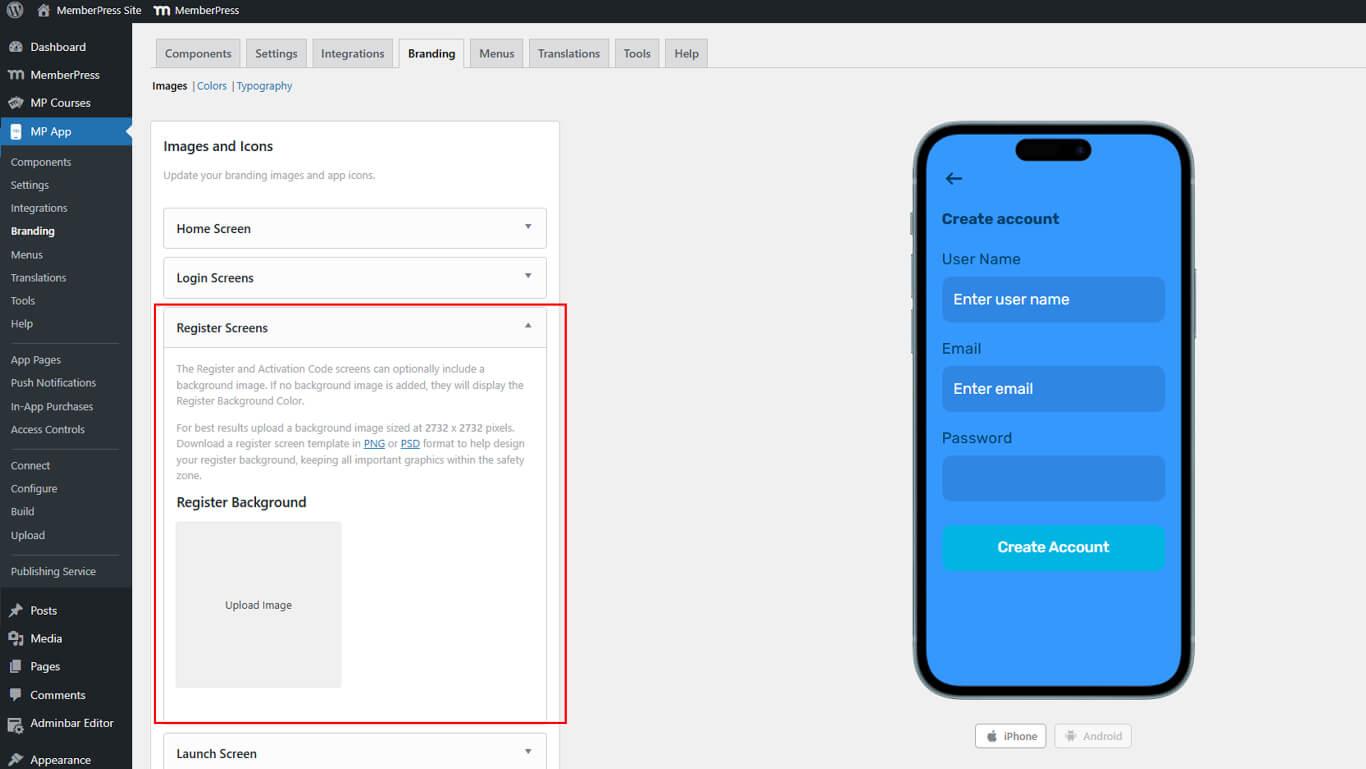
- Seleccione el archivo de fondo y haga clic en Acabado después de los ajustes.
- Revise el fondo en la vista previa de la página de registro.
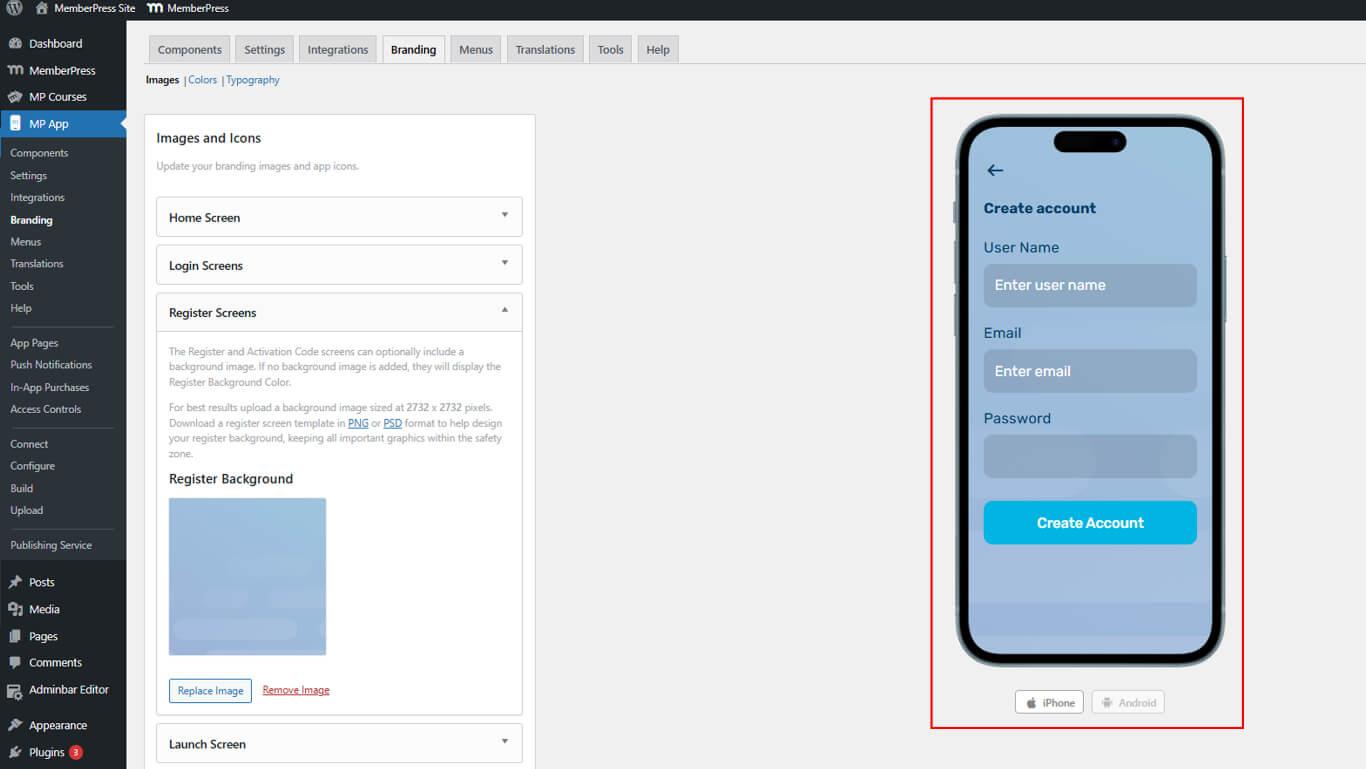
El uso de la misma imagen para los fondos de inicio de sesión y registro crea una marca de autenticación coherente.
Configuración de los activos de la pantalla de inicio
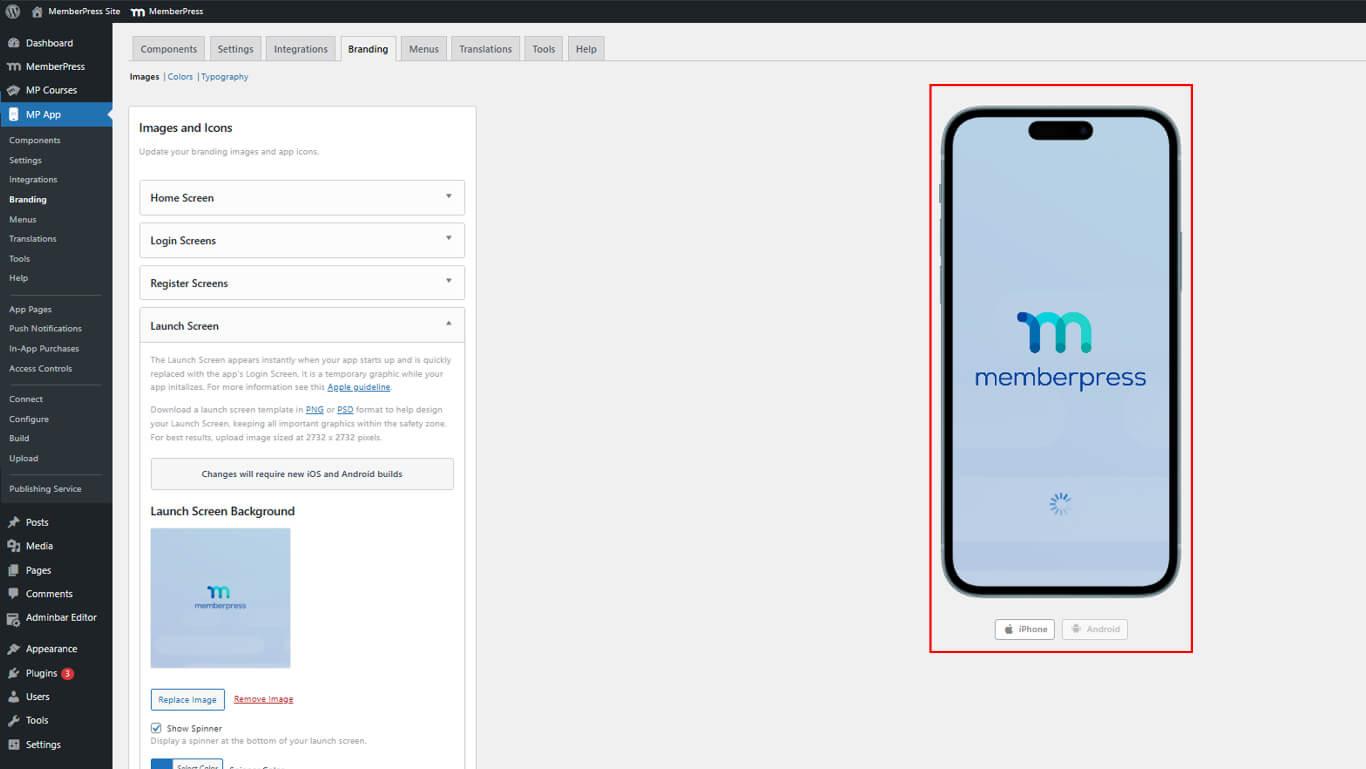
Los activos de la pantalla de inicio se muestran durante la inicialización de la aplicación antes de que se cargue el contenido.
- Vaya a Panel > MP AppKit > Marca > Imágenes.
- Localice el Pantalla de inicio sección.
- Haga clic en Cargar imagen.
- Seleccione el archivo de fondo.
- Compruebe el Mostrar Spinner para activar la animación de carga.
- Seleccione Color de la ruleta utilizando el selector de color.
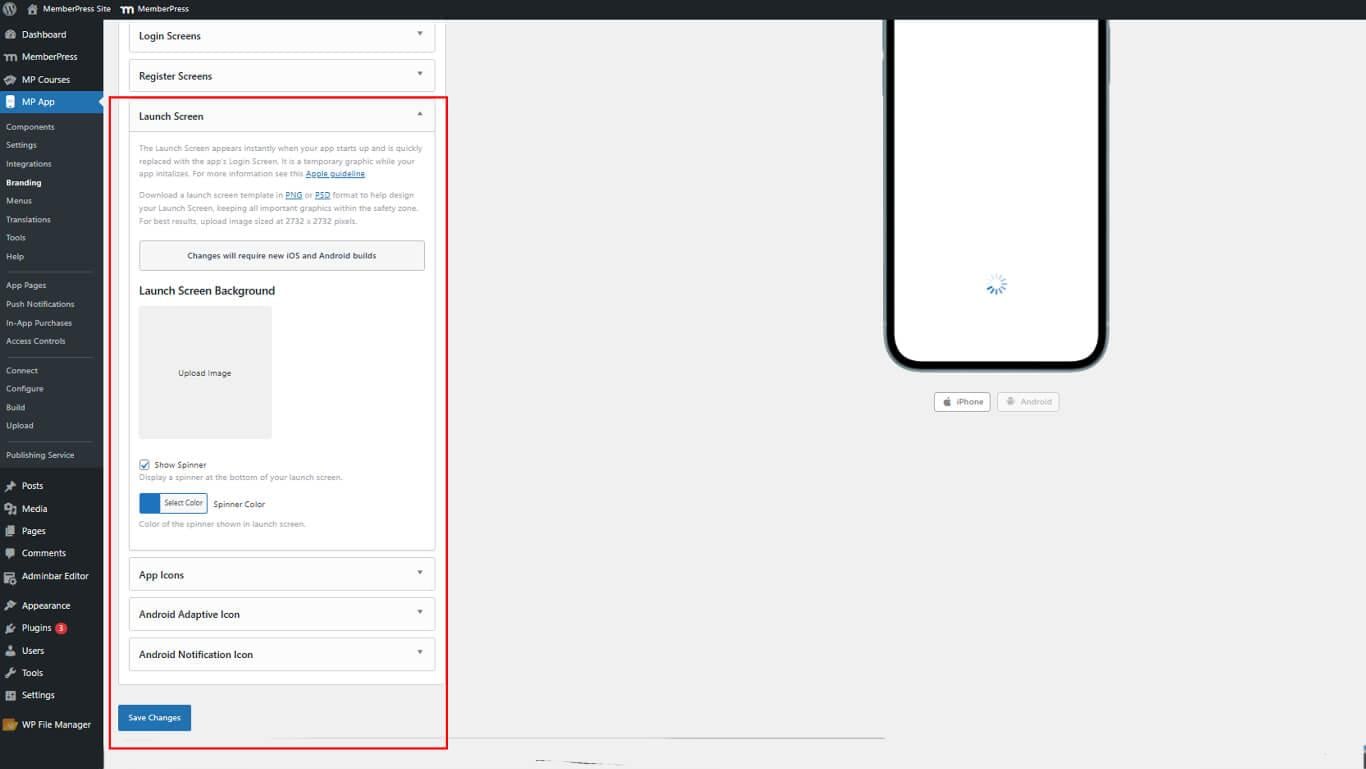
- Revisa la vista previa animada que muestra el comportamiento del spinner.
Configuración de los iconos de la aplicación
Los iconos de las aplicaciones aparecen en las pantallas de inicio de los dispositivos y en las tiendas de aplicaciones.
- Vaya a Panel > MP AppKit > Marca > Imágenes.
- Localice el Iconos de la aplicación sección.
- Haga clic en Cargar imagen.
- Haga clic en el botón Cargar imagen junto al icono de la aplicación Android.
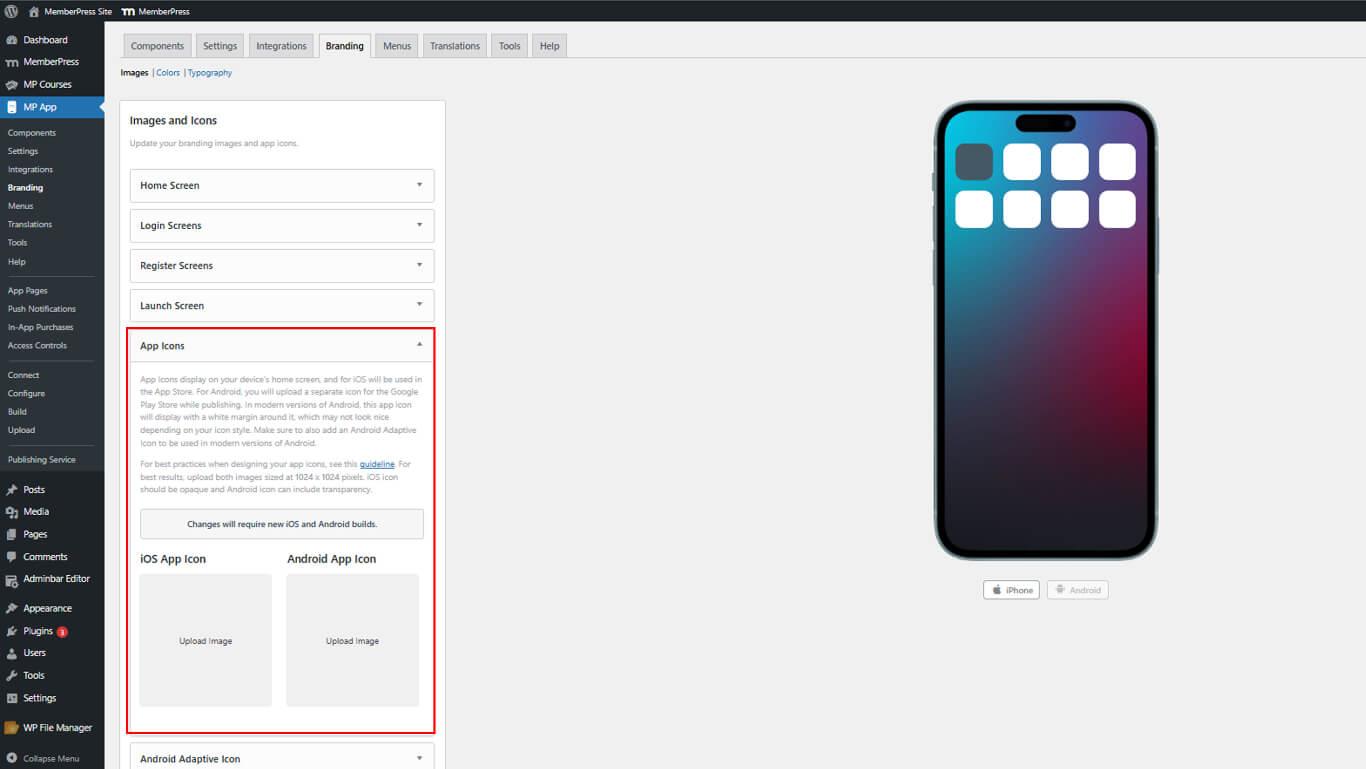
- Cambia el tamaño si es necesario y haz clic en Acabado.
- Revise los iconos en maquetas de dispositivos iPhone y Android.
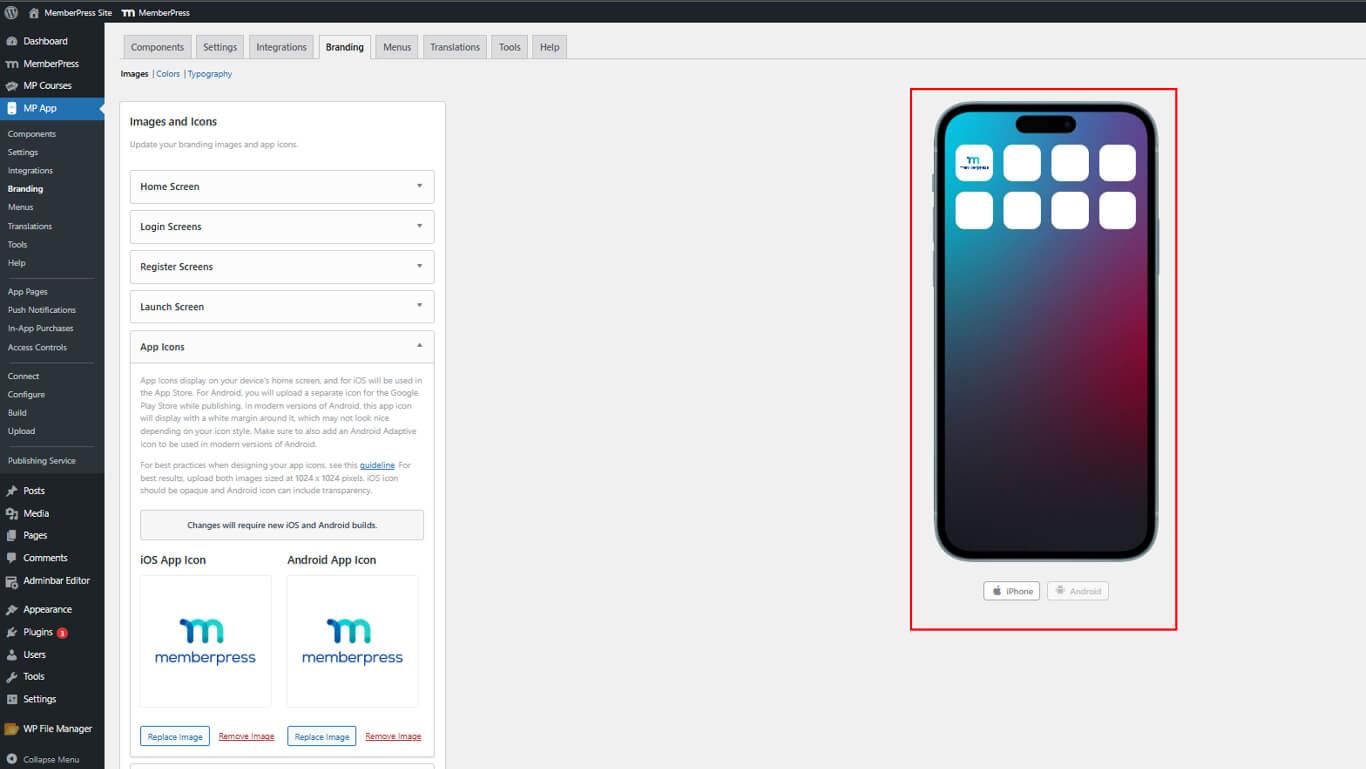
Los iconos separados para iOS y Android permiten un manejo de la transparencia específico para cada plataforma.
Configuración de los iconos adaptativos de Android
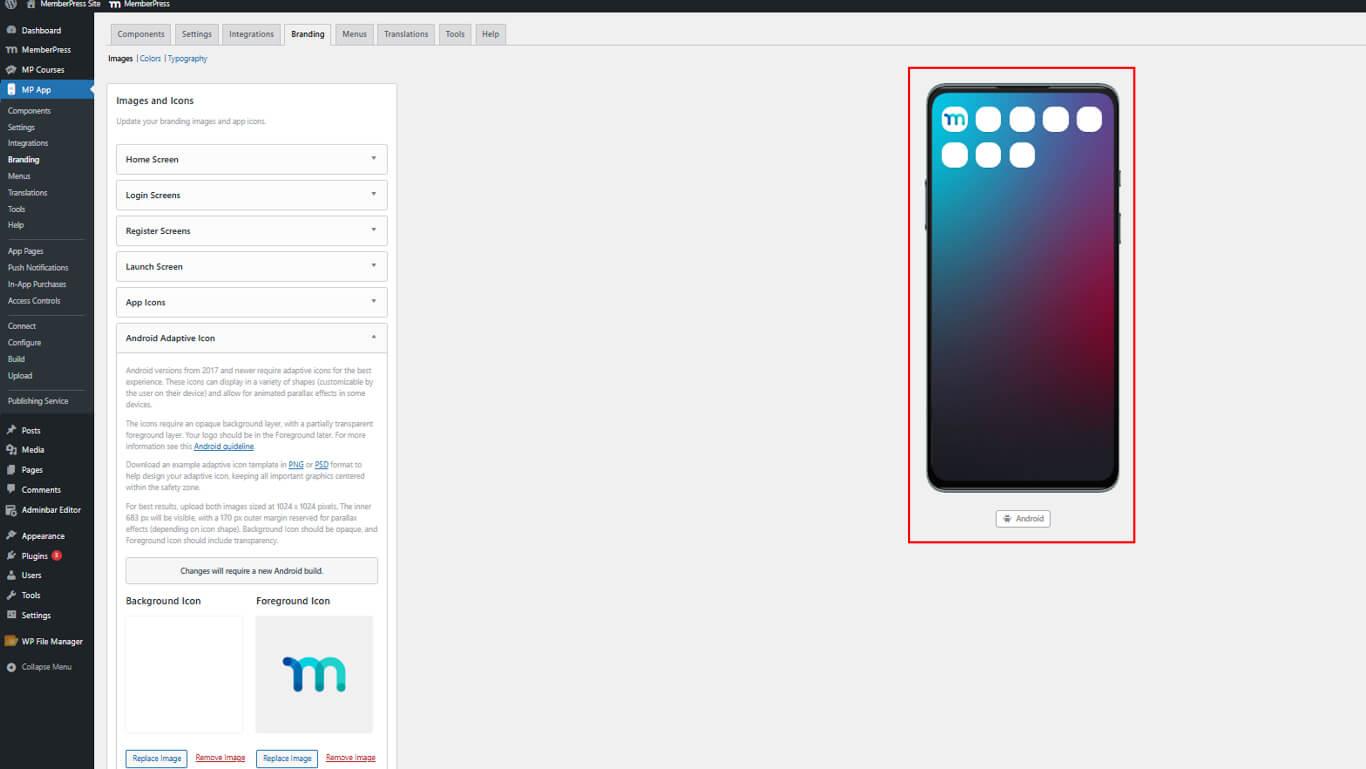
Los iconos adaptables de Android proporcionan capas de primer plano y de fondo para una visualización flexible.
- Vaya a Panel > MP AppKit > Marca > Imágenes.
- Localice el Icono adaptativo de Android sección.
- Haga clic en Cargar imagen.
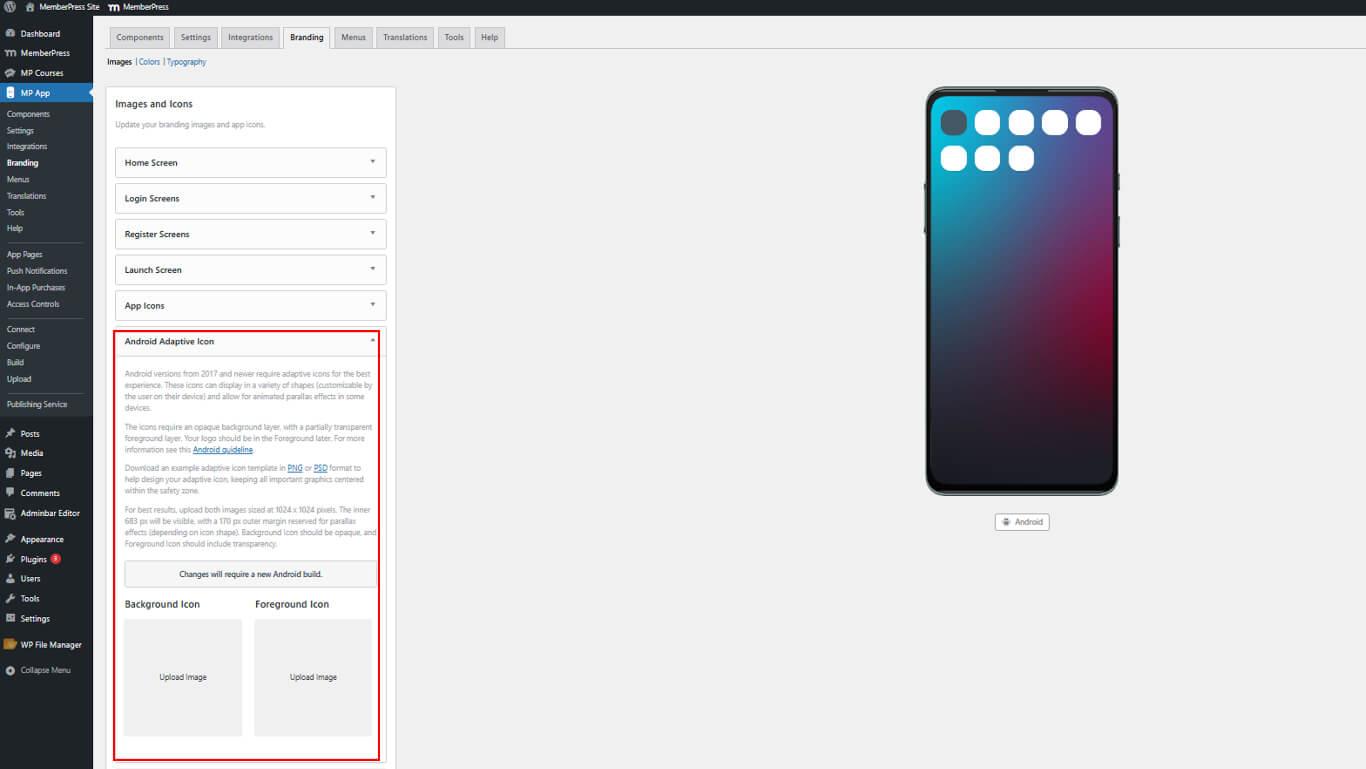
- Haga clic en Acabado después de cualquier ajuste.
- Revise la vista previa del icono adaptativo que muestra el comportamiento de la capa.
Configuración del icono de notificación de Android
Los iconos de notificación se muestran en la bandeja de notificaciones de Android.
- Vaya a Panel > MP AppKit > Marca > Imágenes.
- Localice el Icono de notificación sección.
- Haga clic en Cargar imagen.
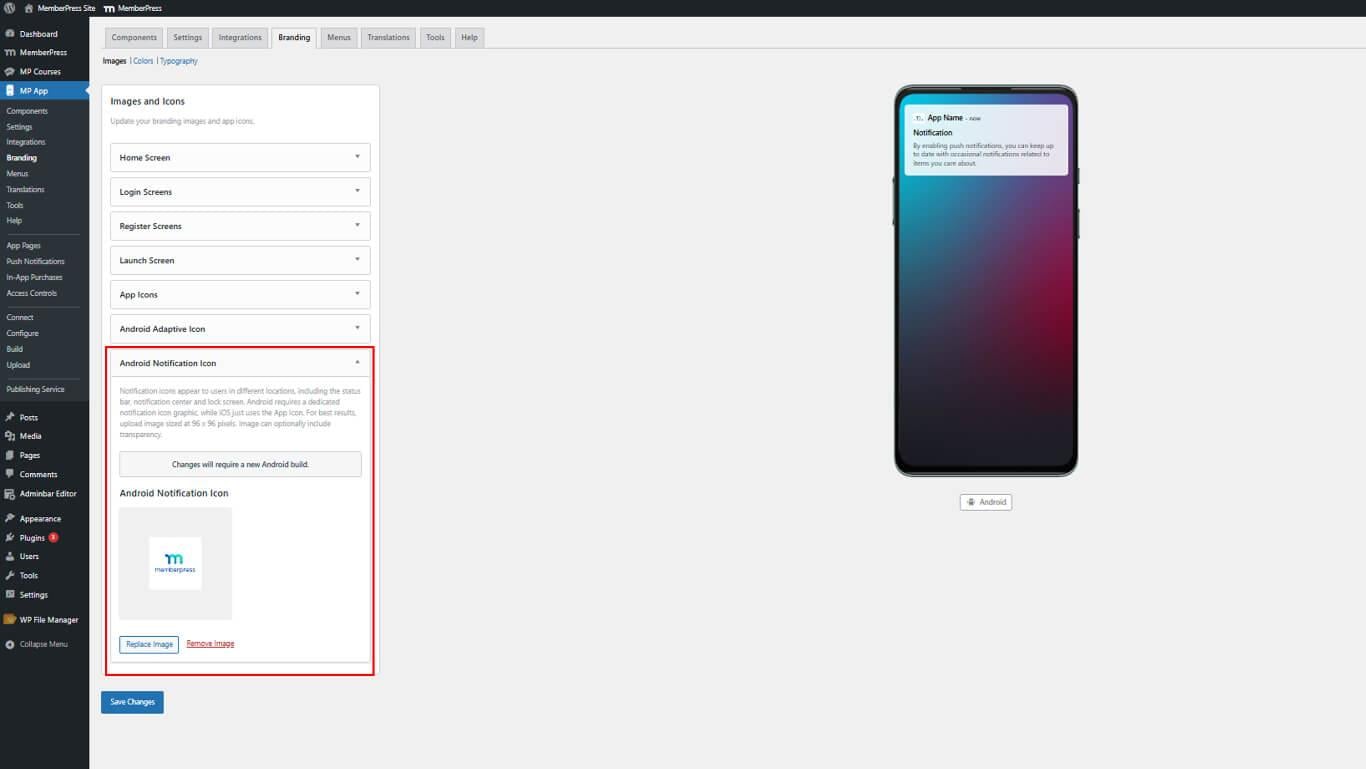
- Haga clic en Acabado después de cualquier ajuste.
- Revisa el icono en la vista previa de la bandeja de notificaciones.
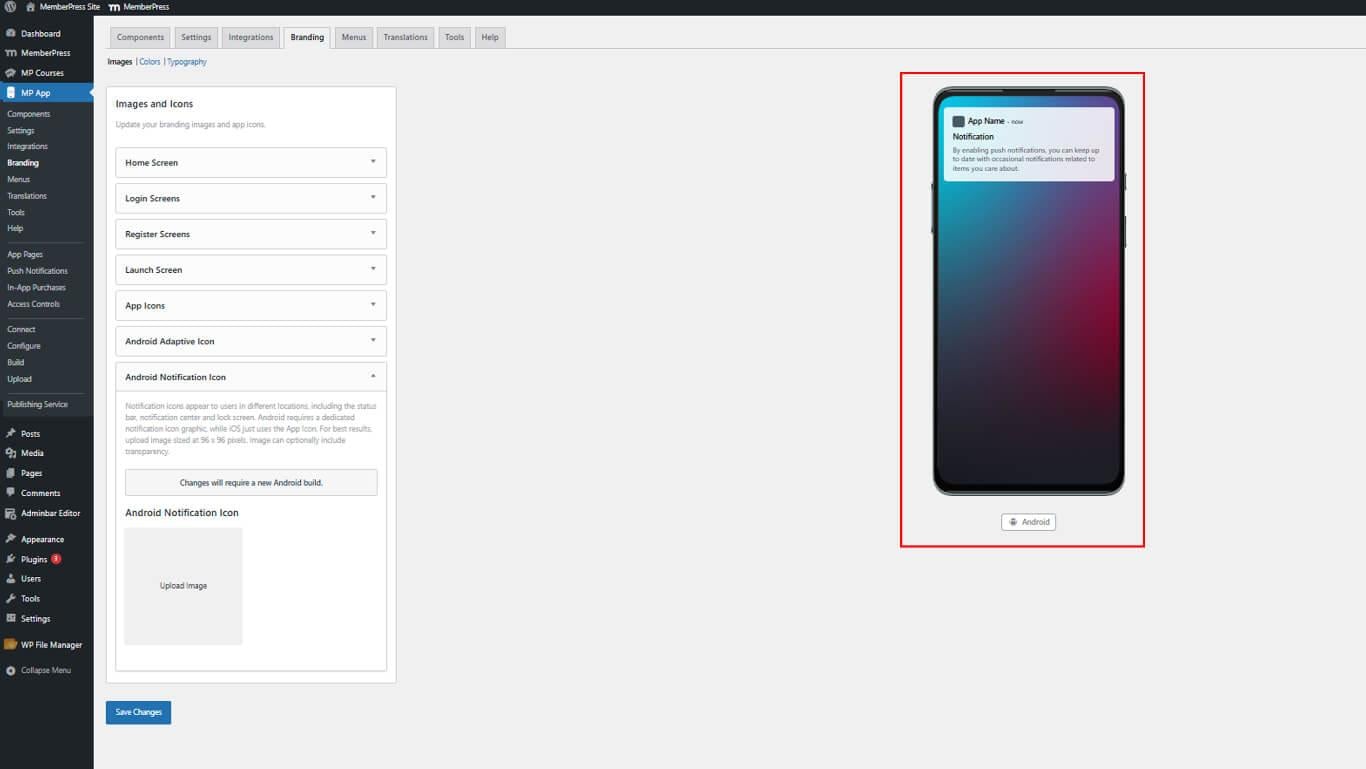
Los iconos de notificación deben utilizar diseños sencillos, reconocibles y visibles en tamaños pequeños.
Guardar cambios de configuración
Todas las cargas de imágenes e iconos deben guardarse antes de que surtan efecto.
- Desplácese hasta la parte inferior de la Panel > MP AppKit > Marca > Imágenes página.
- Haga clic en Guardar cambios.
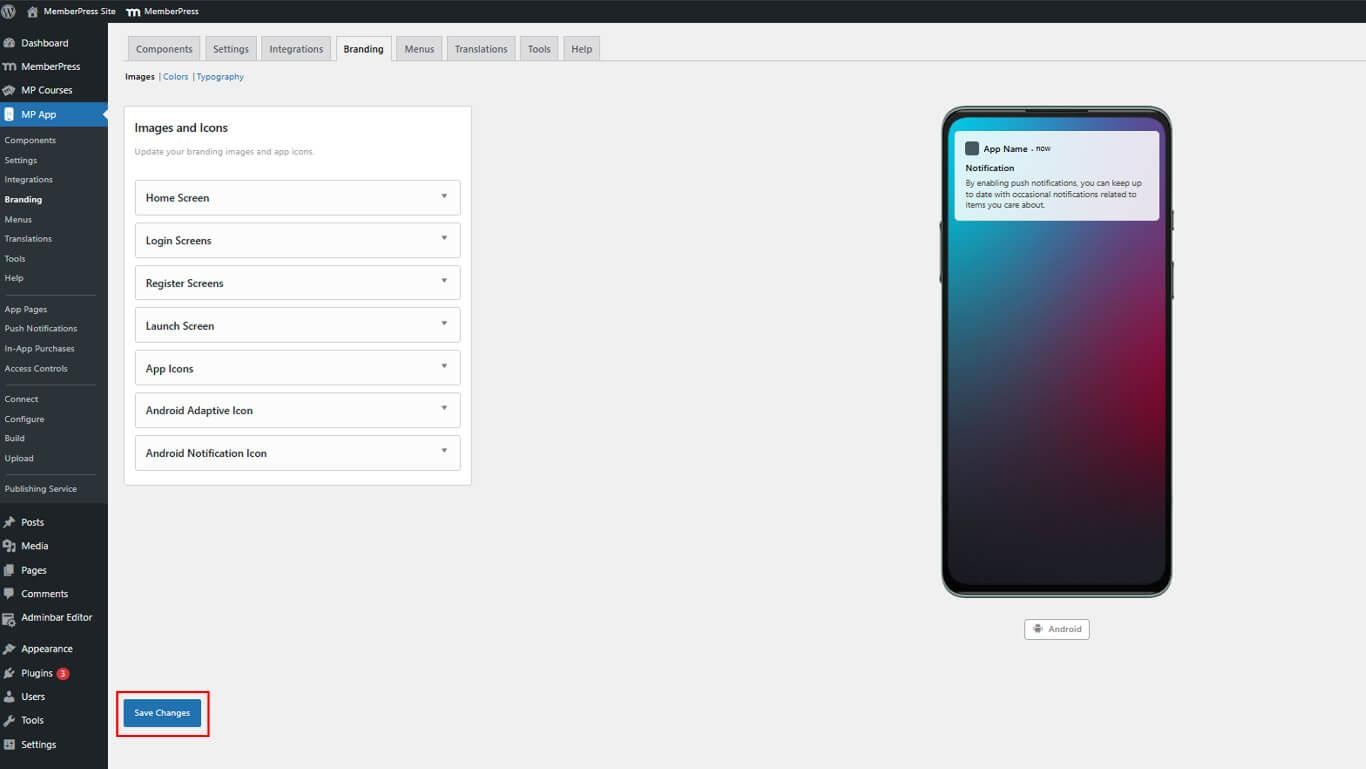
- Espere el mensaje de confirmación que indica que el guardado se ha realizado correctamente.










 ES
ES  EN
EN  FR
FR  DE
DE  PT
PT 