

Los iconos de la barra de pestañas proporcionan la navegación principal dentro de las aplicaciones móviles. La personalización de los iconos mejora la coherencia visual y la alineación de la marca. En este documento se explica cómo personalizar los iconos de la barra de pestañas, aplicar estilos de visualización y obtener una vista previa de los cambios en los iconos dentro de la aplicación.
Comprender la configuración de los iconos de la barra de pestañas
Los iconos de la barra de pestañas se muestran en la parte inferior de las pantallas de los dispositivos móviles para facilitar el acceso rápido a la navegación. El paquete de iconos ofrece múltiples opciones de estilo, incluyendo variaciones rellenas, contorneadas, circulares y cuadradas. Los iconos antiguos siguen estando disponibles para quienes prefieren un aspecto familiar. La personalización de los iconos afecta tanto al aspecto visual como a la experiencia de navegación de los miembros.
Comprender la estructura de la barra de pestañas
La estructura de la barra de pestañas limita el número de elementos de navegación directamente accesibles.
Un máximo de cuatro artículos. se puede mostrar en la barra de pestañas principal. La quinta posición se reserva automáticamente para el menú Más.
Más desbordamiento del menú Contiene elementos de navegación adicionales más allá de las cuatro ranuras de la barra de pestañas. Los miembros tocan el icono Más para acceder a la navegación desbordada.
Consistencia de los iconos Mejora la claridad de la navegación. Utiliza estilos de iconos similares en todos los elementos de la barra de pestañas para lograr una apariencia coherente.
Acceso a la configuración de la barra de pestañas
La configuración del icono de la barra de pestañas se realiza en la interfaz de configuración del menú.
- Vaya a Panel > MP AppKit > Menús.
- Localice el Menú de la barra de pestañas sección.
- Verifica que los elementos de navegación se hayan añadido al menú de la barra de pestañas.
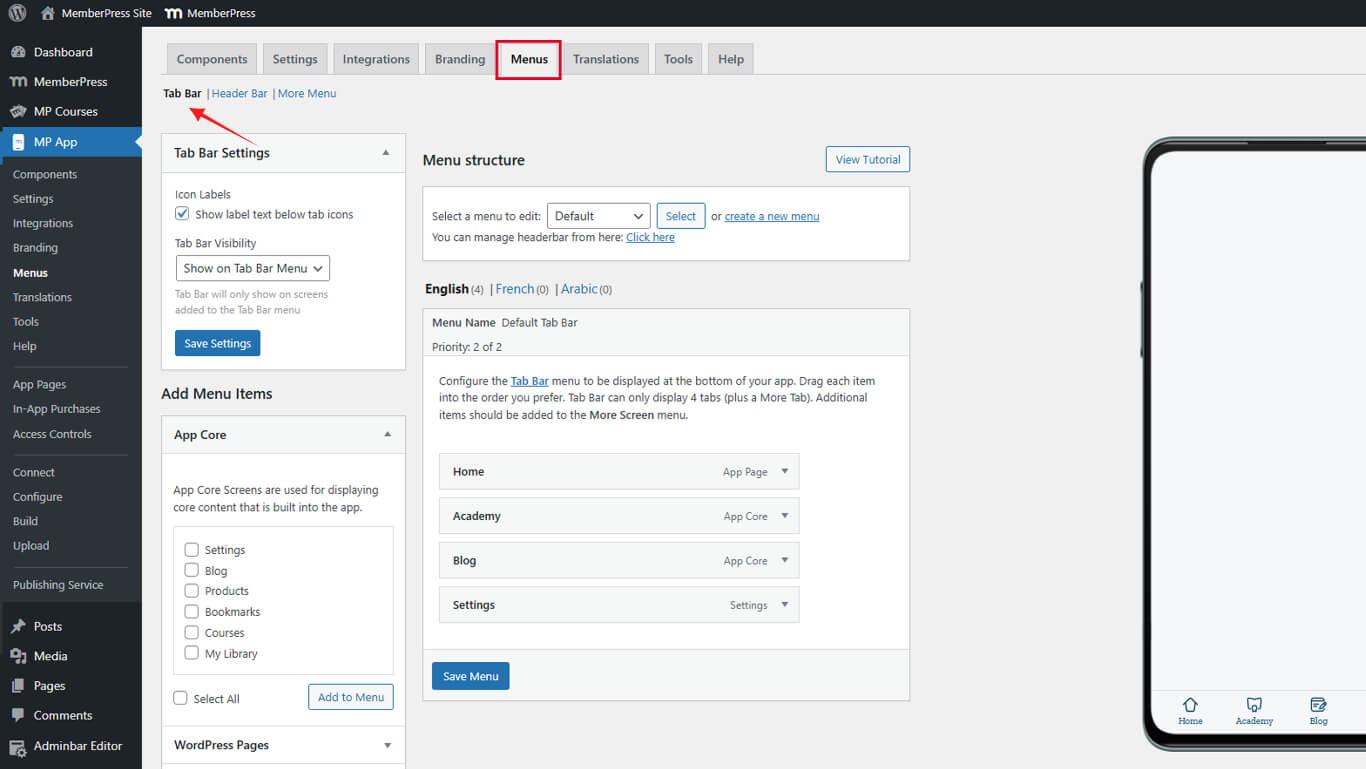
Personalización de los iconos de los elementos del menú de la barra de pestañas
Cada elemento del menú de la barra de pestañas admite la personalización individual de iconos.
- Vaya a Panel de control > MP AppKit > Menús.
- Localice el elemento del menú de la barra de pestañas que requiere la personalización del icono.
- Haga clic en la flecha desplegable situada junto al nombre del elemento del menú.
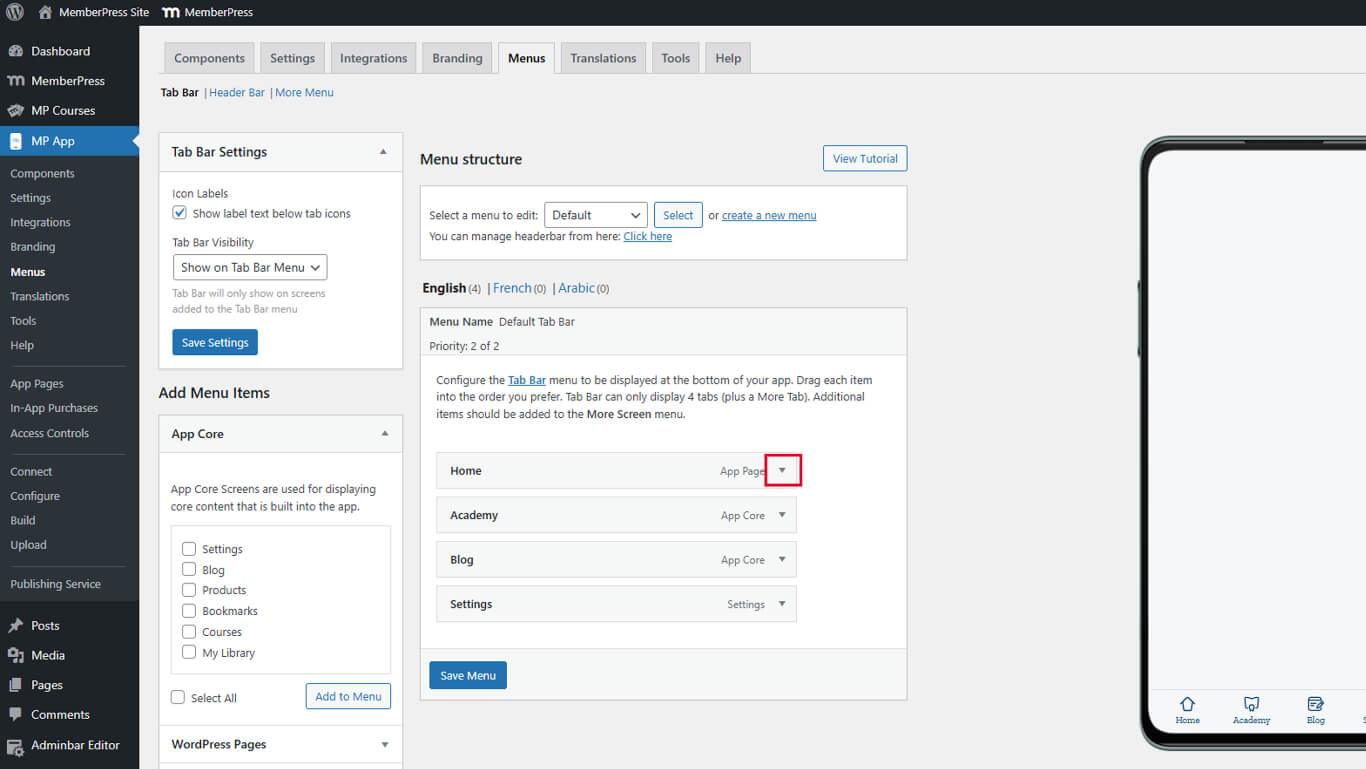
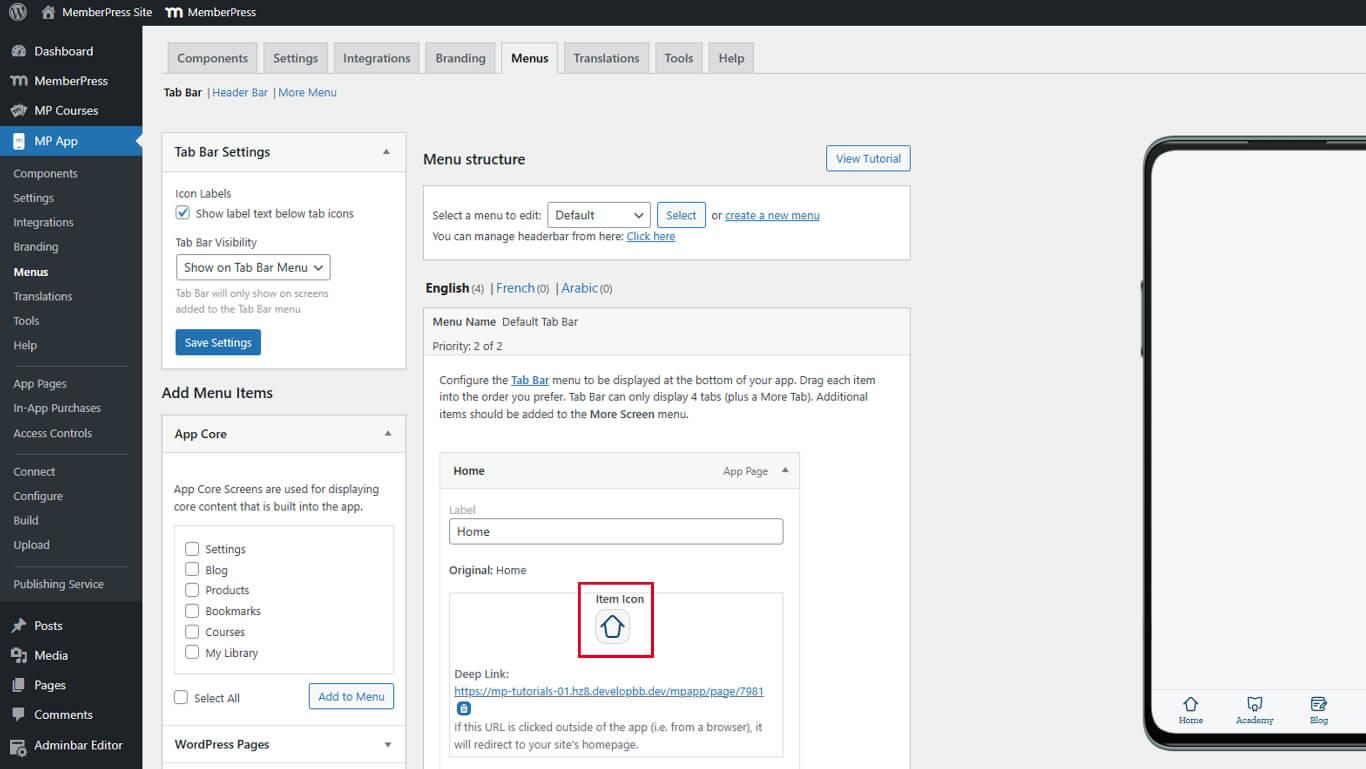
- Encuentra el Icono del elemento sección en la configuración ampliada.
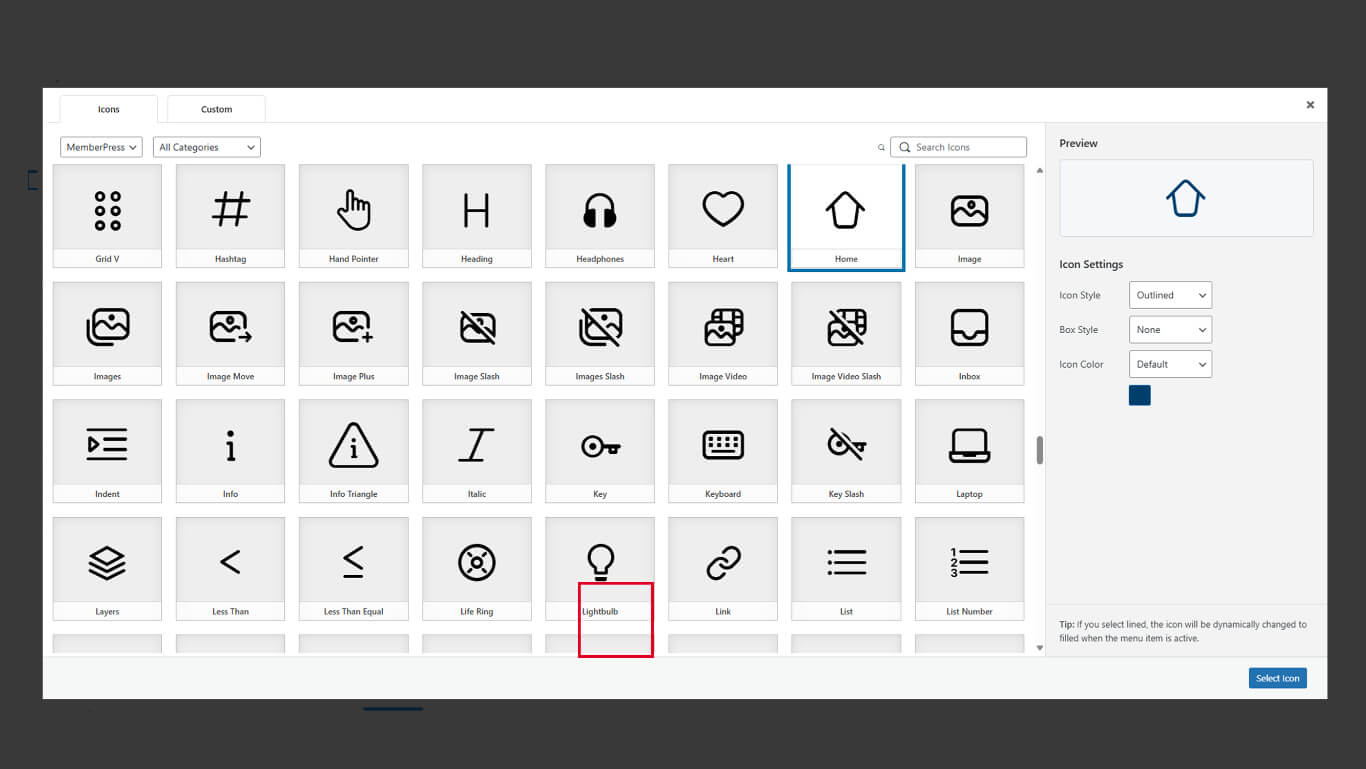
- Haga clic en el cuadro del icono para abrir el Panel de selección de iconos.
- Busque el icono que representa la función del elemento del menú y selecciónelo.
Configuración de los estilos de visualización de iconos
Los estilos de visualización controlan la apariencia de los iconos y el énfasis visual.
Configuración del estilo de los iconos
- Localice el Estilo de icono menú desplegable en el panel de selección de iconos.
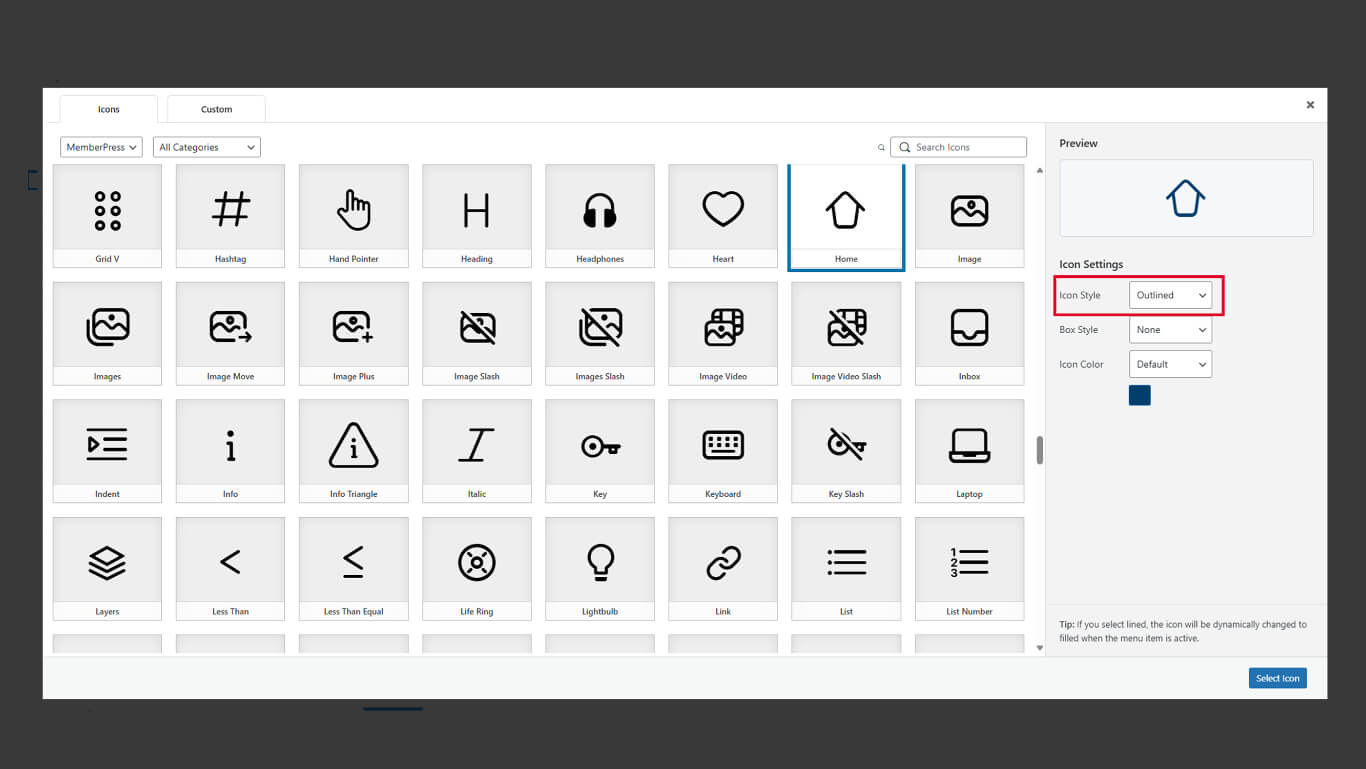
- Seleccione el estilo deseado:
- Relleno para formas de iconos sólidas;
- Esquema para formas de iconos basadas en líneas.
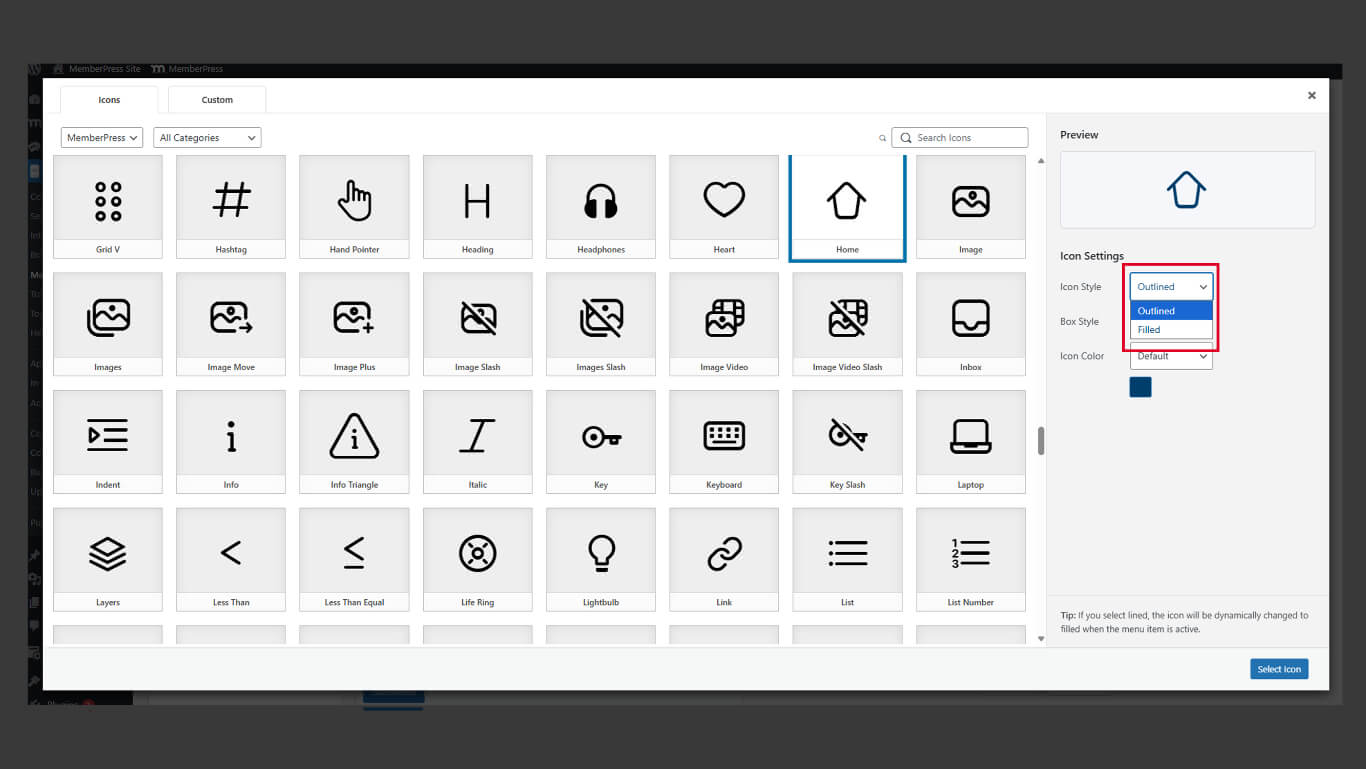
- Revisa la vista previa del icono con el estilo seleccionado.
Los estilos rellenos proporcionan un mayor peso visual para los estados activos. Los estilos de contorno ofrecen una apariencia más ligera para los estados inactivos.
Configuración del estilo del cuadro
- Localice el Estilo de caja menú desplegable en el panel de selección de iconos.
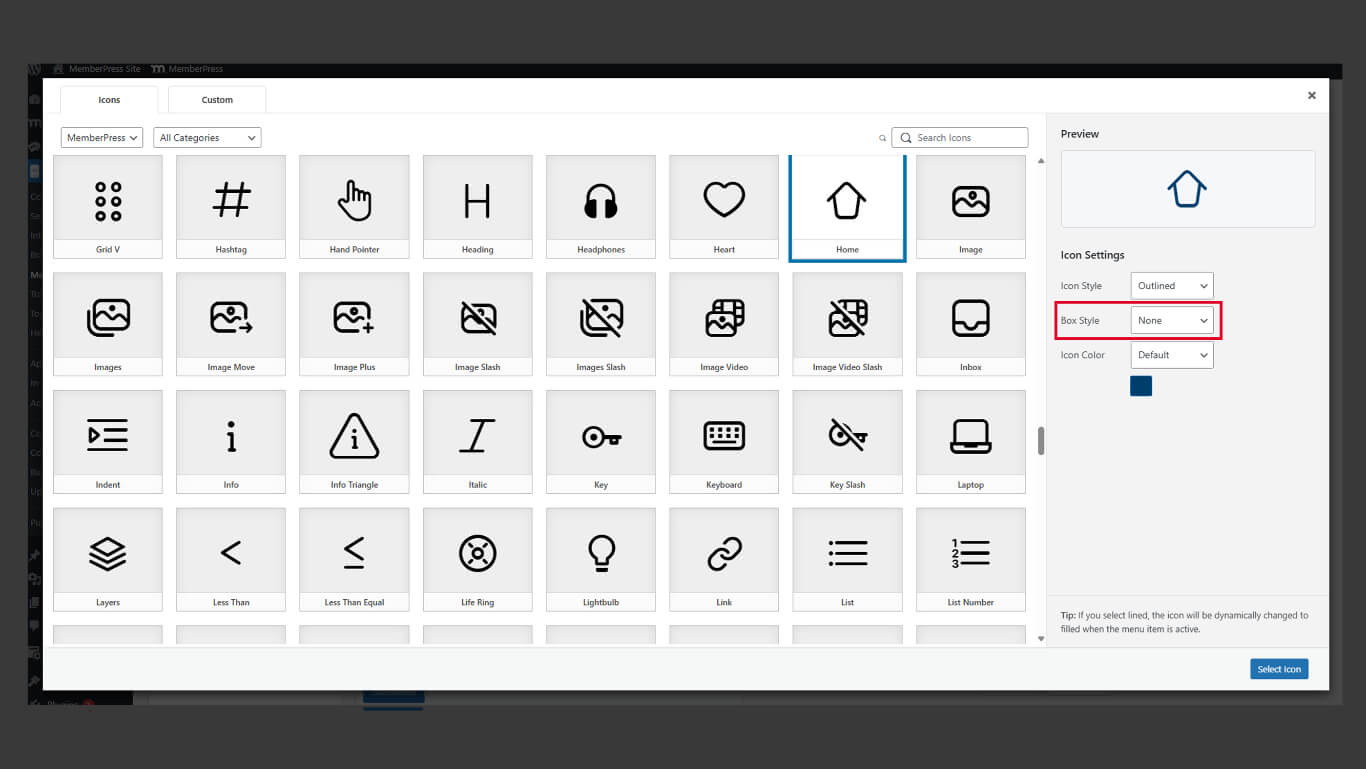
- Seleccione el estilo deseado:
- Circular para fondos de iconos redondos;
- Cuadrado para fondos de iconos rectangulares;
- Ninguno para iconos sin formas de fondo.
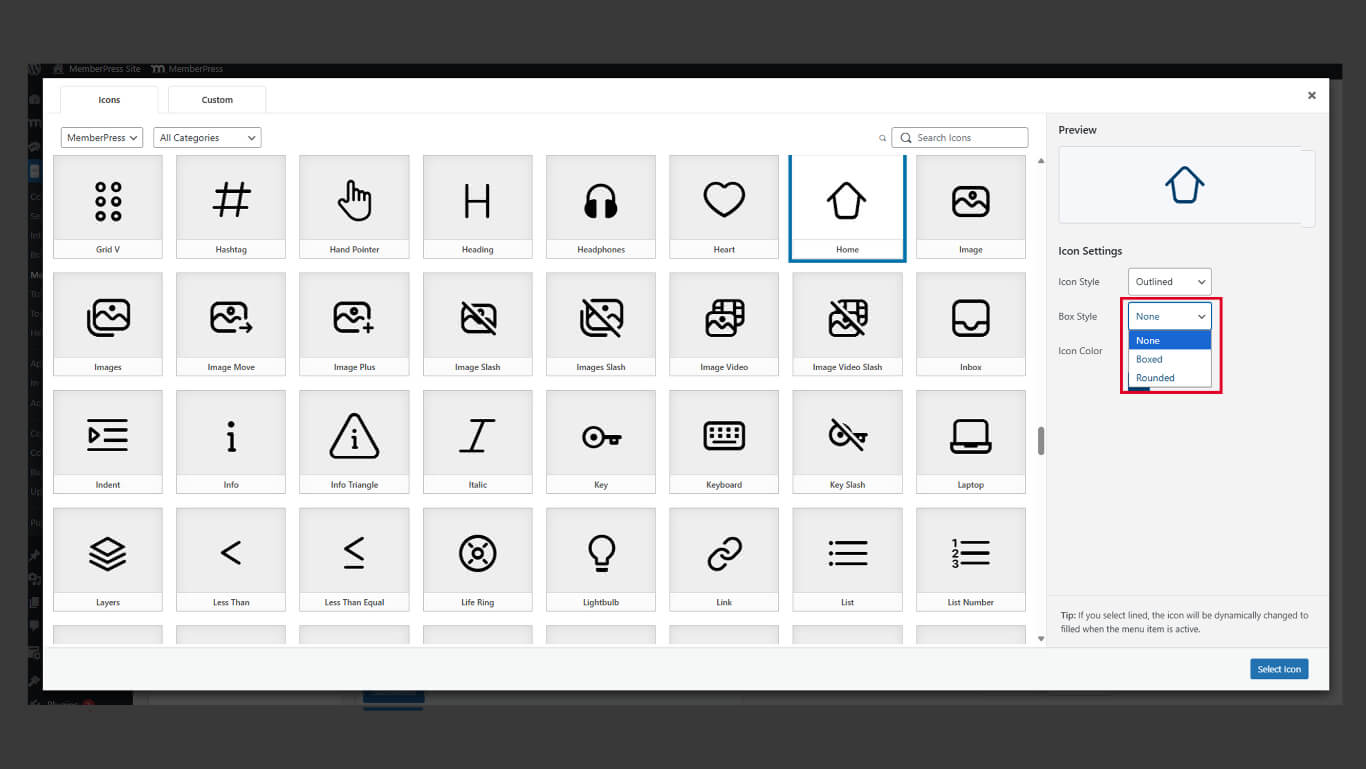
- Revisa la vista previa del icono con el estilo de cuadro seleccionado.
Los estilos de cuadro añaden contenedores visuales alrededor de los iconos. Las formas de fondo mejoran el tamaño del objetivo táctil y la coherencia visual.
Configuración del color del icono
- Localice el Color del icono selector en el panel de selección de iconos.
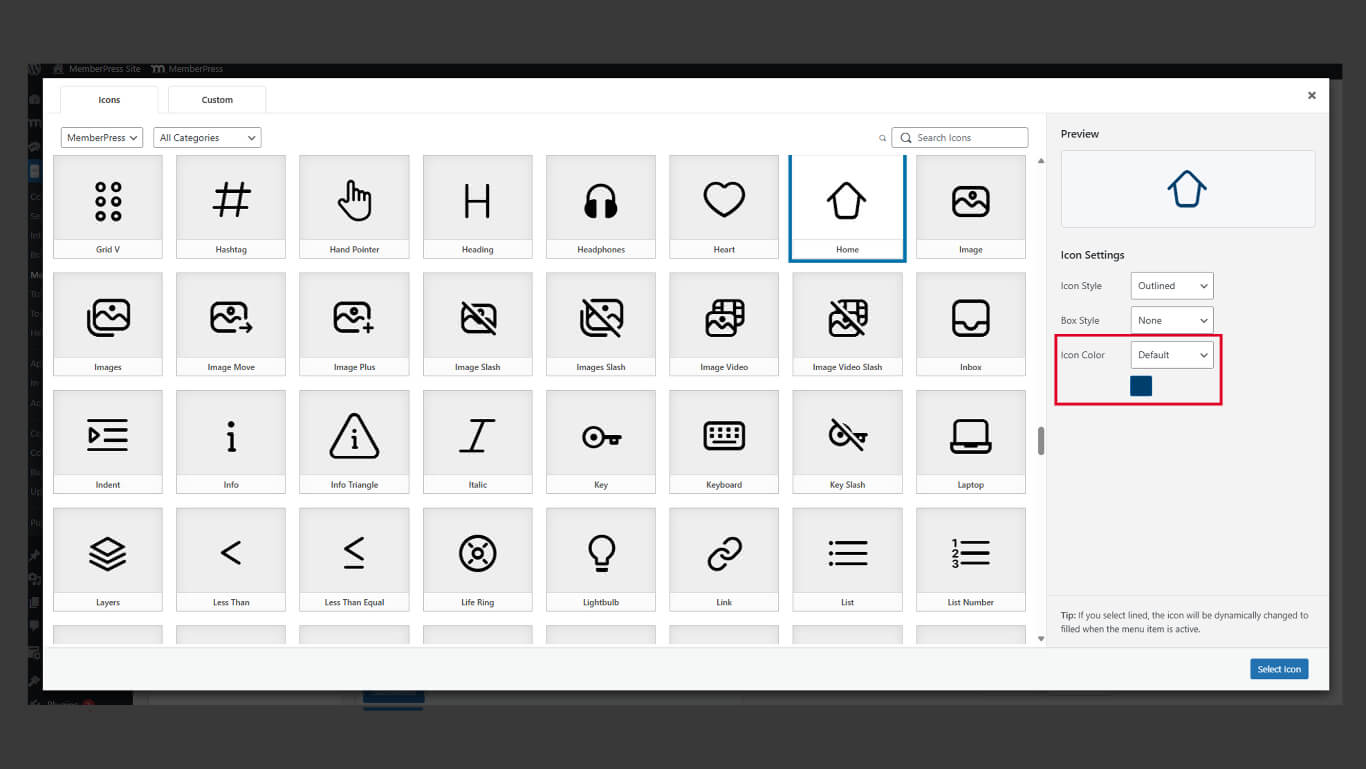
- Seleccione si desea utilizar el estilo de color predeterminado o personalizado.
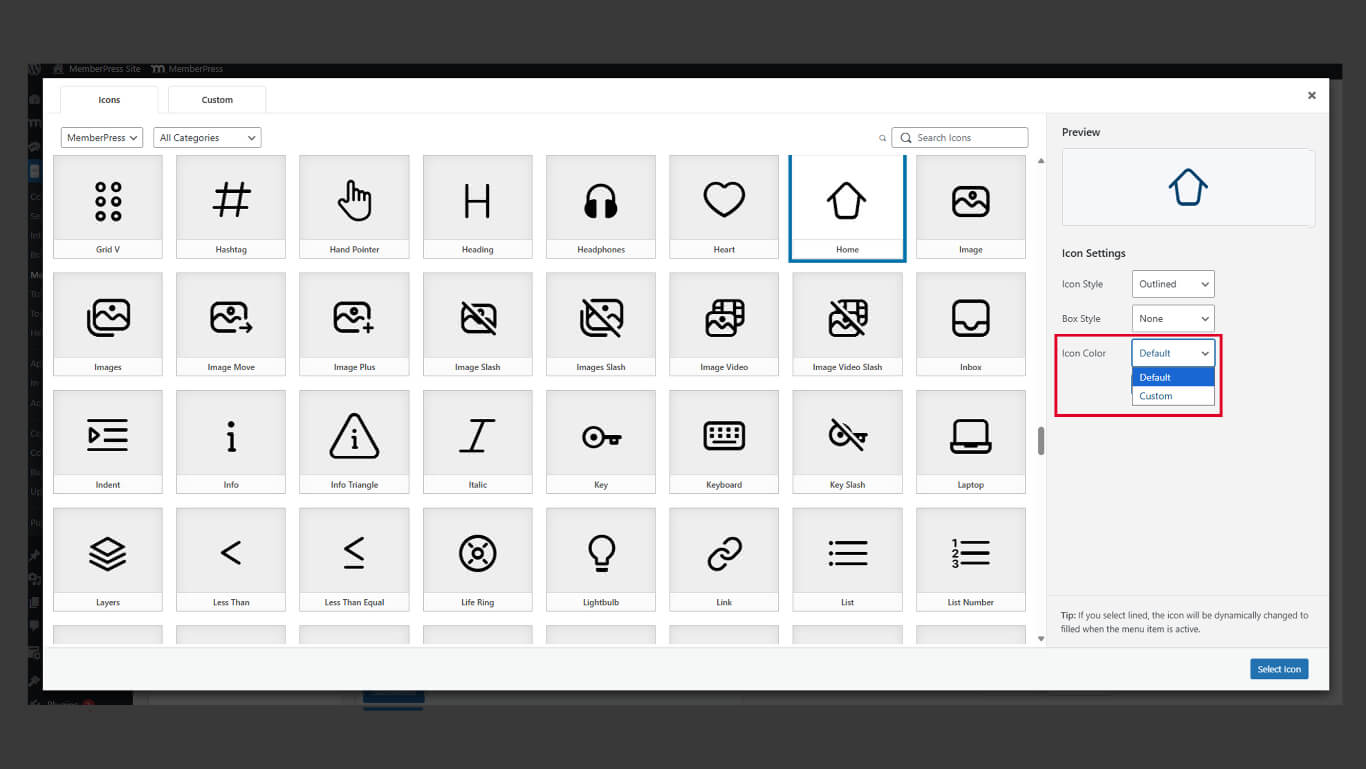
Los colores de los iconos deben mantener un contraste suficiente con los fondos de la barra de pestañas para garantizar su visibilidad.
Uso del paquete de iconos Legacy
Los iconos heredados proporcionan una apariencia familiar a las aplicaciones que utilizan diseños de iconos anteriores.
- Vaya a Panel > MP AppKit > Menús.
- Abre el menú desplegable de elementos.
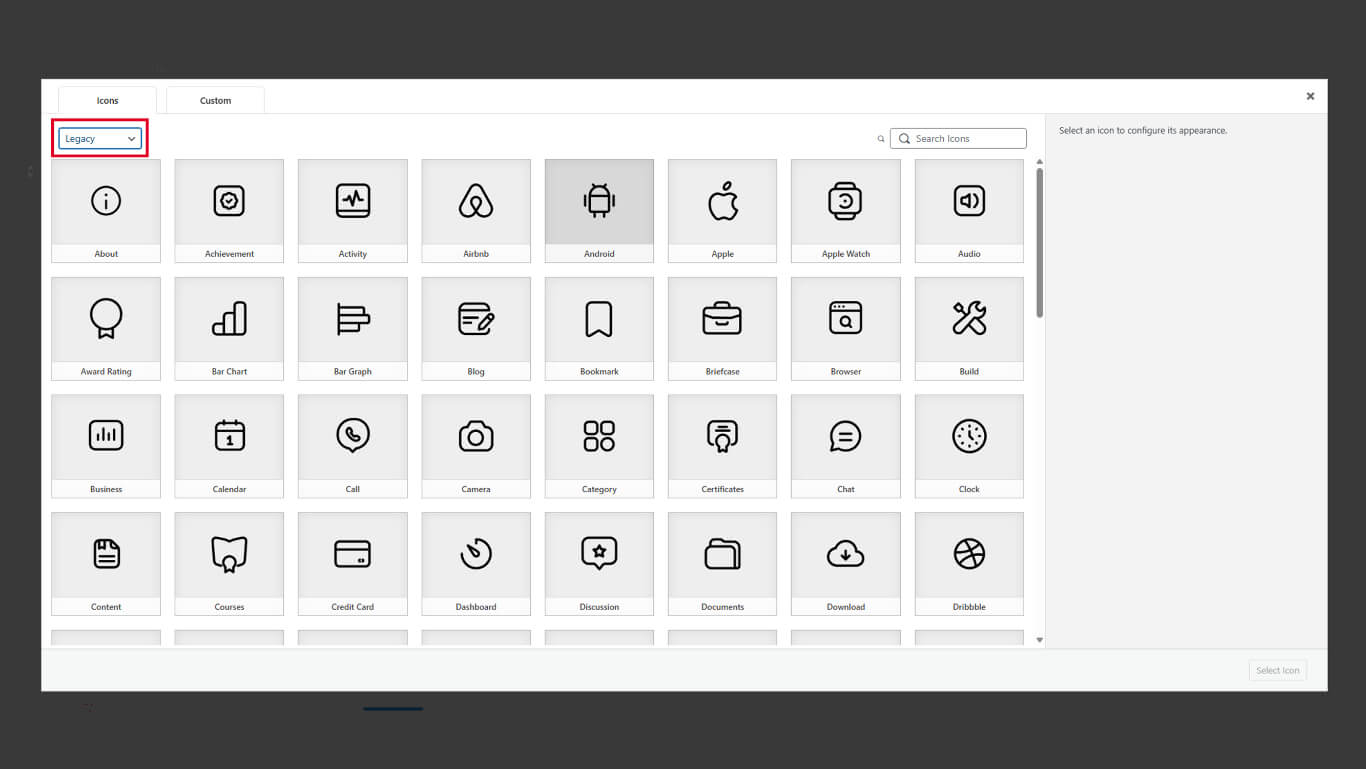
- Haga clic en el botón Legado ficha.
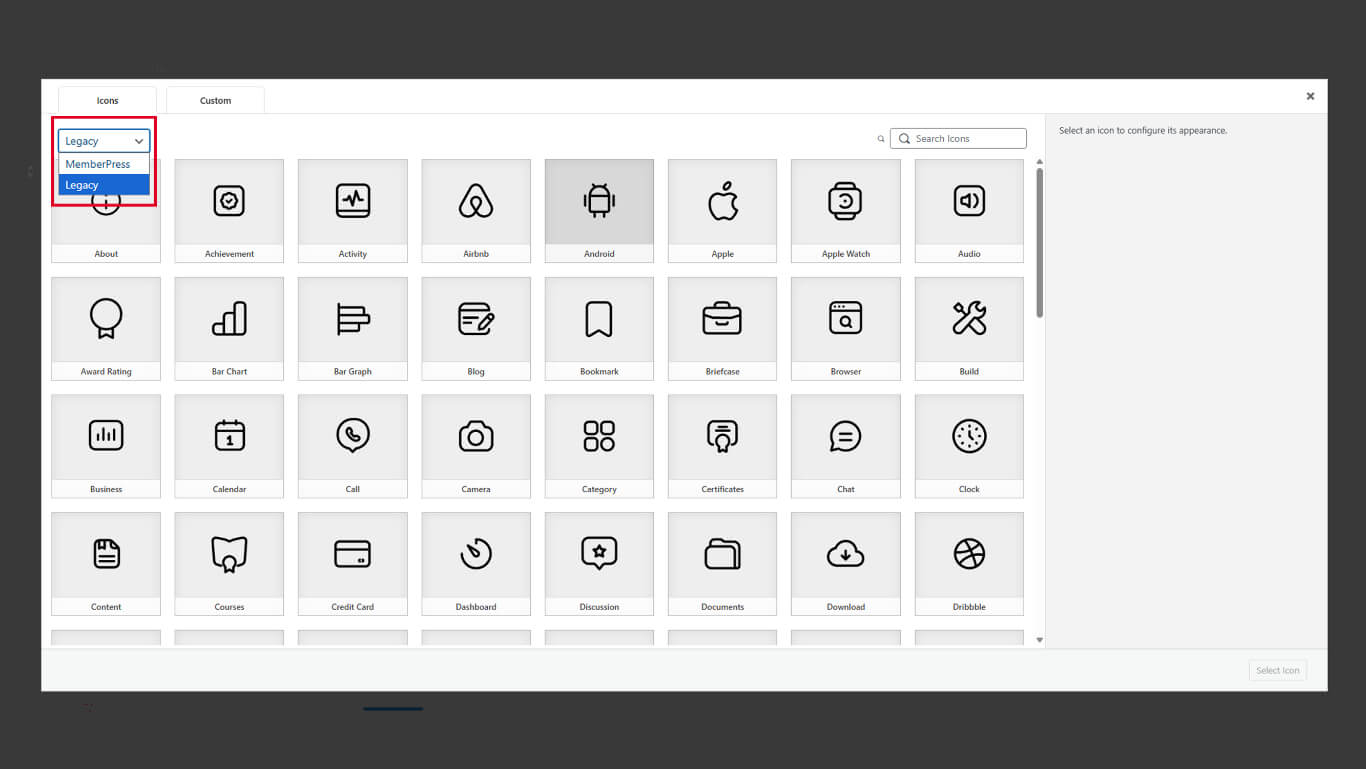
- Seleccione un icono del conjunto de iconos clásicos.
- Haga clic en el botón Seleccionar icono para confirmar la selección.
- Haga clic en el botón Guardar menú para aplicar los cambios.
Los iconos antiguos y actualizados se pueden mezclar dentro del mismo menú de la barra de pestañas. La selección de un estilo coherente mejora la cohesión visual.










 ES
ES  EN
EN  FR
FR  DE
DE  PT
PT 