

El bloque Directorio muestra listados de contenido de WordPress al estilo de un archivo dentro de las páginas de la aplicación. Este bloque crea directorios de contenido organizados con metadatos personalizables, funcionalidad de búsqueda y opciones de filtrado.
Este documento explica cómo añadir el Bloque de directorio, configurar los ajustes de visualización y optimizar los listados del directorio para la participación de los miembros.
Comprender el bloque de directorio
El bloque Directorio presenta colecciones de entradas, páginas o tipos de entradas personalizados de WordPress en formatos de listas estructuradas. Los usuarios pueden examinar, buscar y filtrar el contenido de los directorios. El bloque admite imágenes destacadas, avatares de autor, visualización de metadatos y opciones de clasificación. Los bloques de directorio deben ocupar páginas enteras de la aplicación sin otros bloques debido a los requisitos de diseño a pantalla completa.
Limitaciones del bloque de directorios
Los Bloques de directorio requieren una ocupación exclusiva de la página. No pueden coexistir varios bloques con bloques de directorio en la misma página.
Requisito de bloque único: Los bloques de directorio deben ser el único bloque de una página de aplicación. Si se añaden bloques adicionales, se producen errores de configuración.
Diseño a pantalla completa: Los bloques de directorio utilizan todo el espacio de la pantalla para una navegación óptima por los contenidos. Los diseños mezclados con otros bloques comprometen la funcionalidad del directorio.
Prevención de errores: Elimine todos los demás bloques antes de añadir bloques de directorio. Añada bloques de directorio solo a páginas de aplicación vacías.
Añadir el bloque de directorio
Los bloques de directorio se añaden a través de la interfaz del editor de páginas de aplicaciones.
- Vaya a Panel > MP AppKit > Páginas de aplicaciones.
- Haga clic en Añadir nuevo para crear una nueva App Page o Editar una página vacía existente.
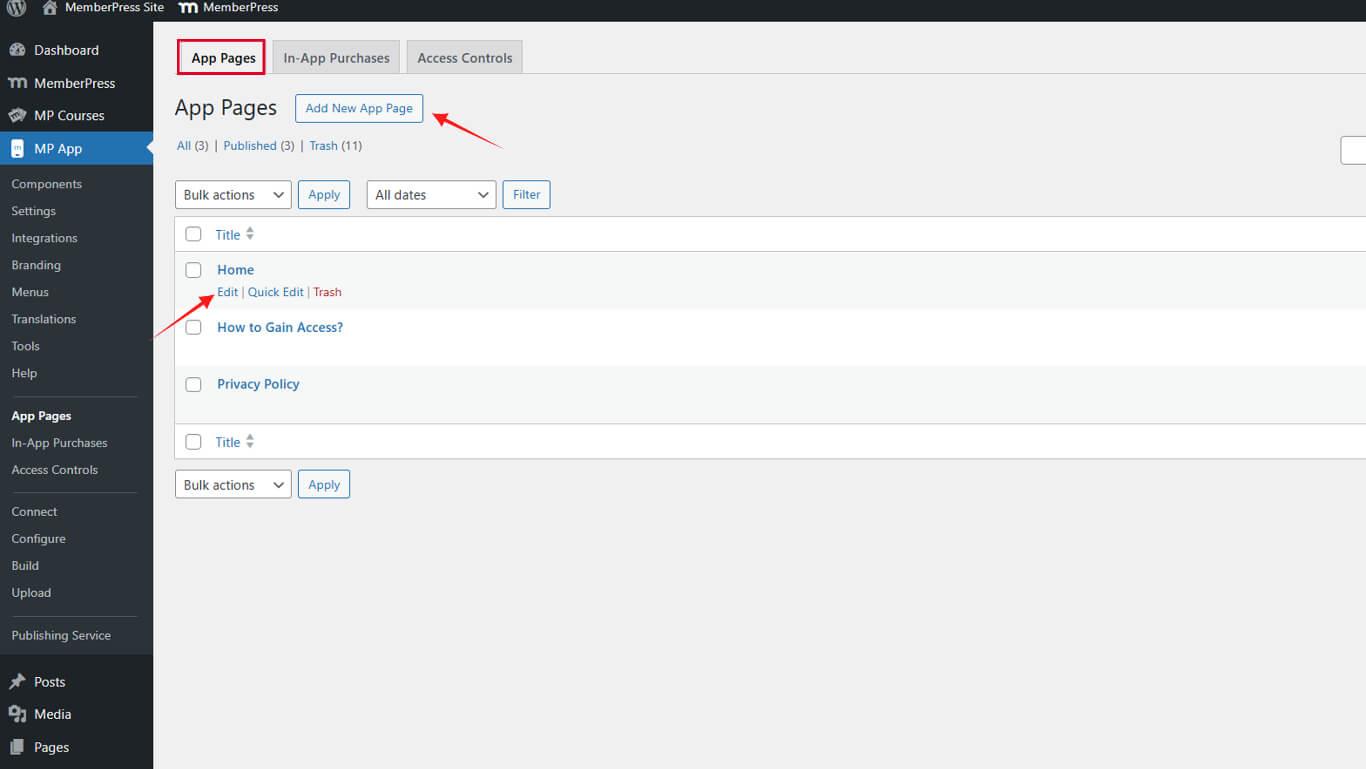
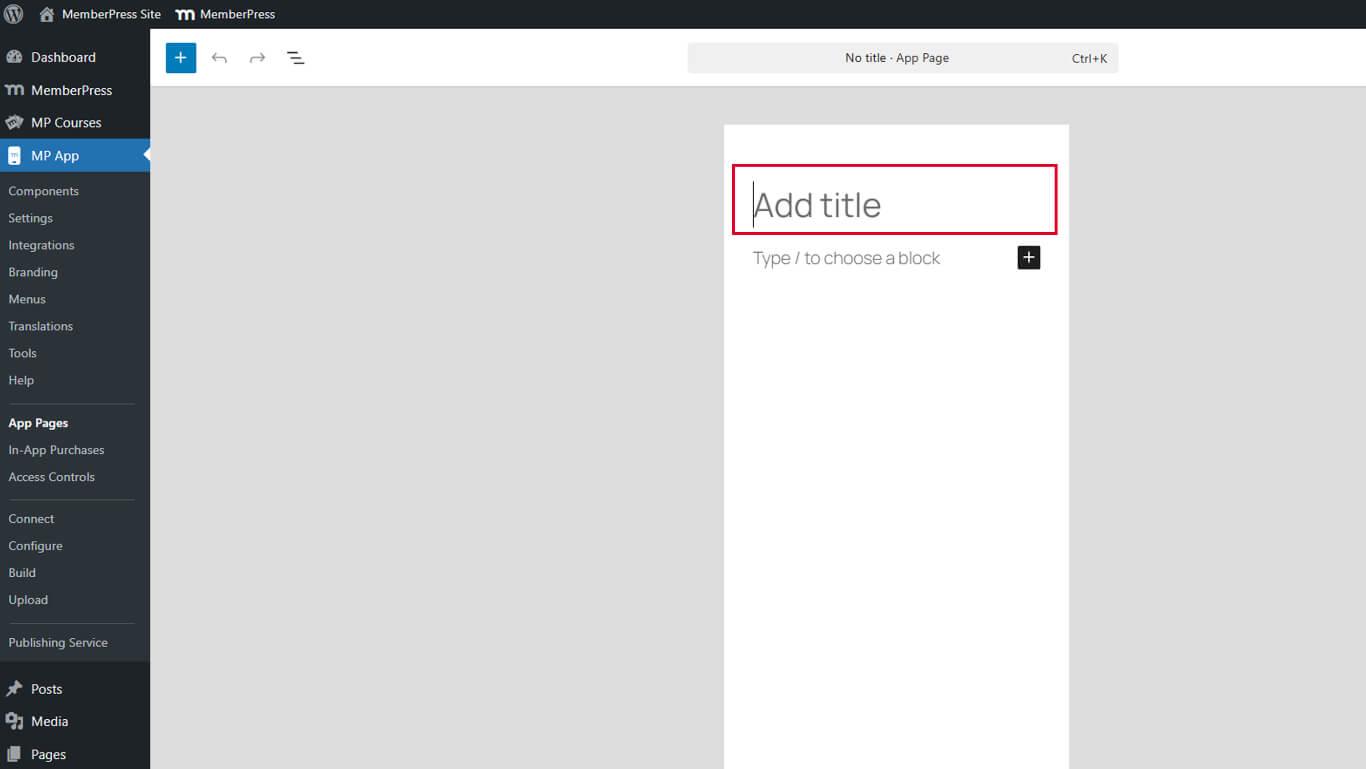
- Introduzca un título de página en el campo Título campo.
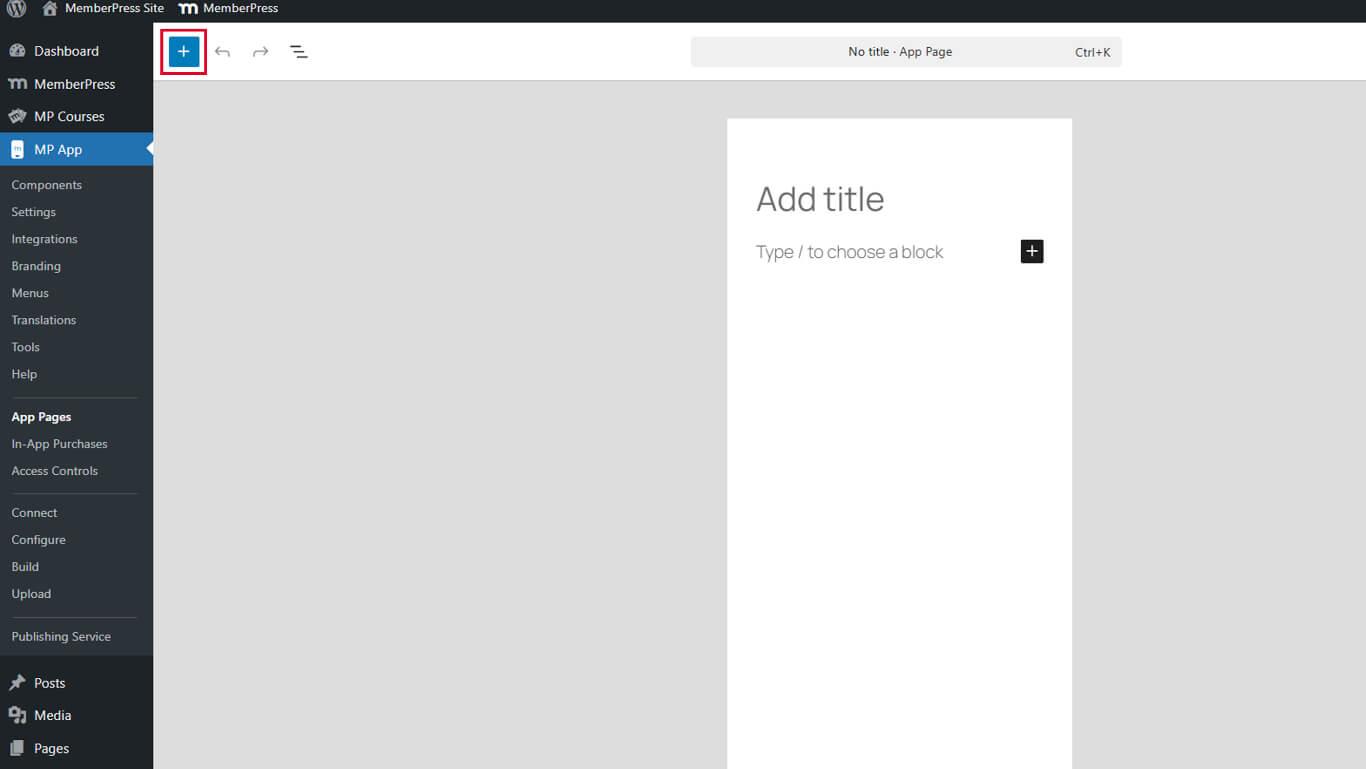
- Haga clic en el botón Insertador de bloques basculantes en la barra de herramientas del editor.
- Entrar “Directorio” en el campo de búsqueda de bloques.
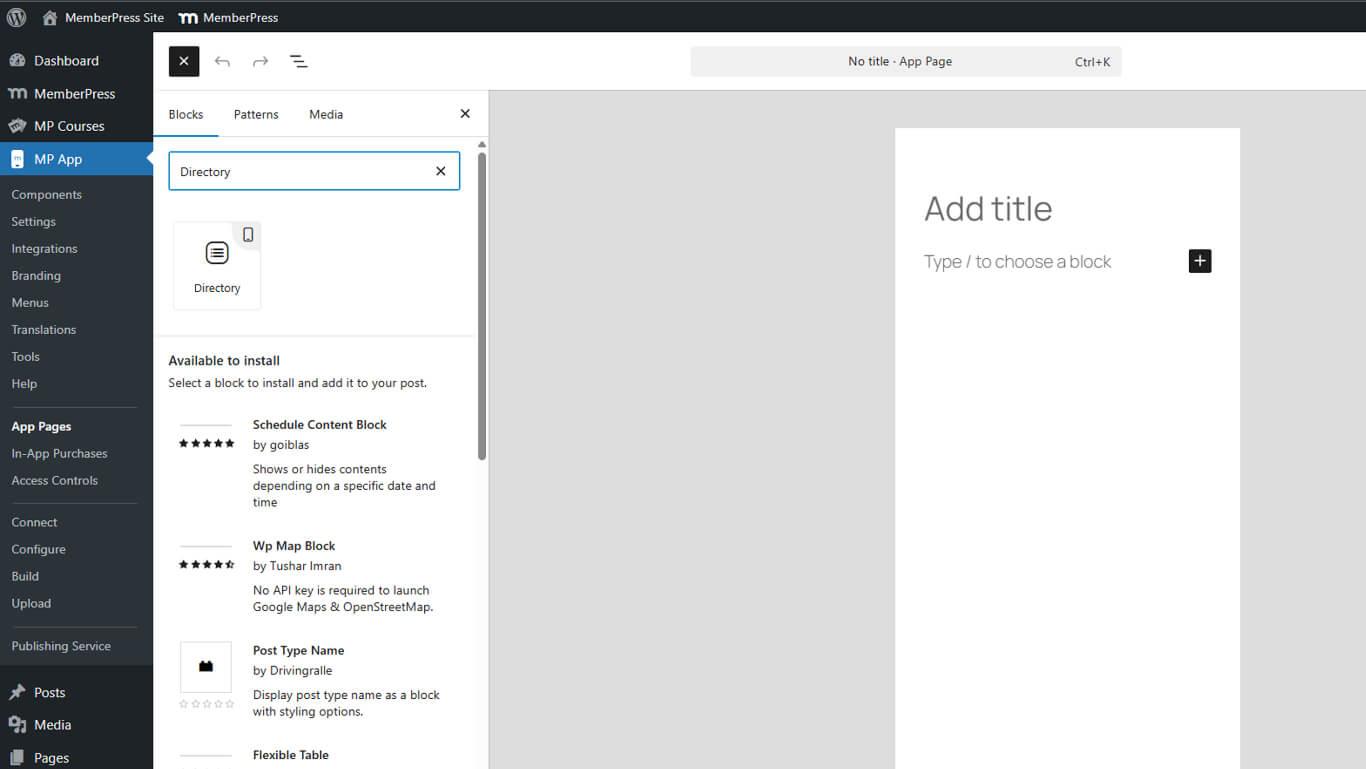
- Arrastre el Bloque de directorio en el lienzo de la página.
- Haga clic en Publique o Actualización para guardar la página.
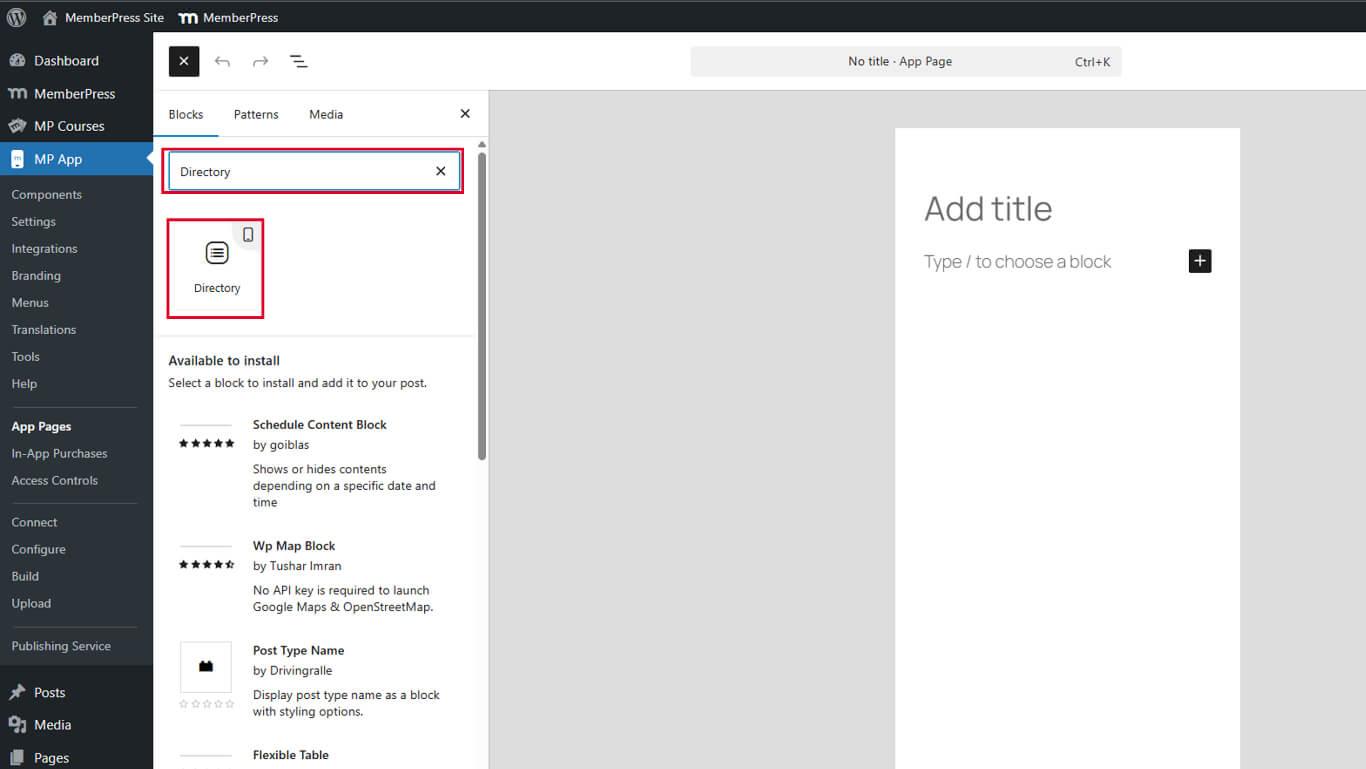
El Bloque Directorio muestra una vista previa del esqueleto con etiquetas de metadatos de marcador de posición después de la inserción.
Comprender la vista previa de directorios
La vista previa del esqueleto muestra la estructura de distribución de directorios durante la configuración.
Marcadores de posición indican las posiciones de los campos de metadatos. Las etiquetas se muestran como “META 1”, “META 2”, “META 3” y “META 4”, que representan las ranuras de metadatos disponibles.
Vista previa del diseño muestra cómo aparecerá el contenido en el directorio. El contenido real rellena estos marcadores de posición en la aplicación publicada.
Guía de configuración ayuda a identificar oportunidades de personalización. Los marcadores de posición indican visualmente dónde se mostrarán los campos de metadatos.
Configuración del bloqueo de directorios
La configuración de los bloques de directorio controla el origen del contenido, las opciones de visualización y el comportamiento de ordenación.
Selección del tipo de entrada
La selección del tipo de entrada determina el contenido del directorio.
- Seleccione el bloque Directorio en el editor de páginas.
- Localice el Ajustes de bloque barra lateral derecha.
- Encuentra el Seleccione el tipo de entrada en Configuración de bloque.
- Elija el tipo de entrada deseado entre las opciones disponibles:
- Puestos para las entradas del blog;
- Páginas para las páginas de WordPress;
- Tipos de entrada personalizados para tipos de contenido especializados.
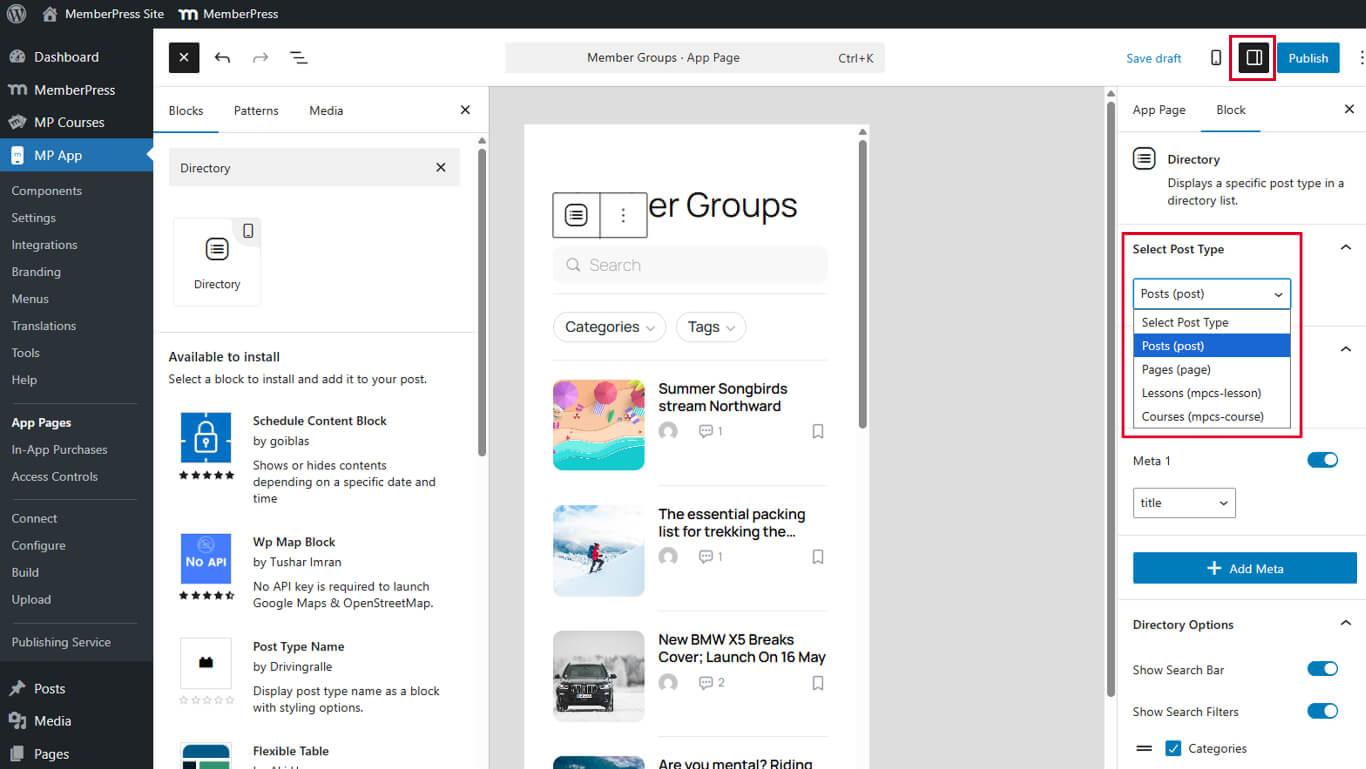
- Haga clic en Actualizar/Publicar para guardar la página.
El contenido del directorio se actualiza inmediatamente en función del tipo de entrada seleccionado.
Activar imágenes destacadas
Las imágenes destacadas proporcionan un contexto visual en los listados de directorios.
- Seleccione el Bloque Directorio en el editor de páginas.
- Localice el Mostrar imagen destacada en la configuración de bloques.
- Conmutar el interruptor a En para activar la visualización de imágenes destacadas.
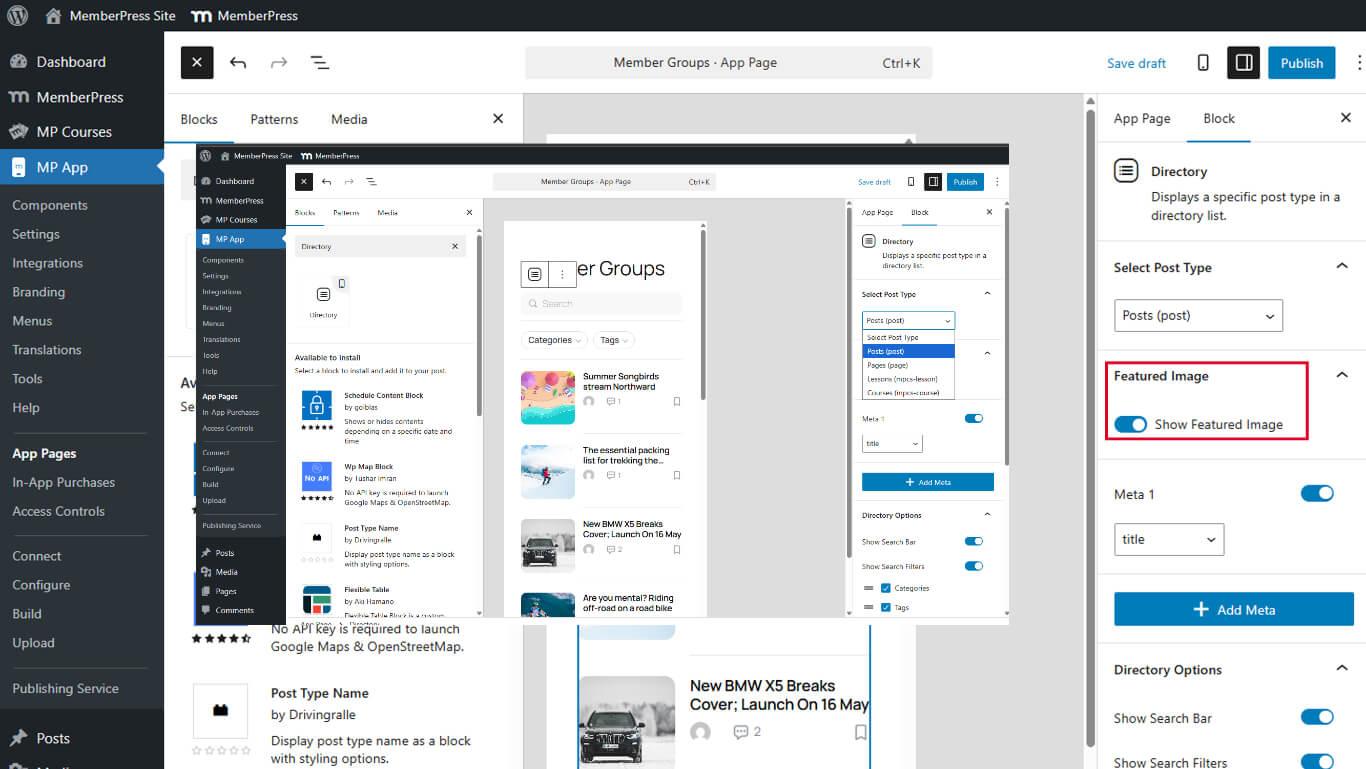
- Haga clic en Actualización para guardar la página.
Las imágenes destacadas se muestran como miniaturas en los elementos de la lista del directorio cuando están disponibles. El contenido sin imágenes destacadas muestra gráficos de marcador de posición.
Configuración de la visualización de metadatos
Los campos de metadatos proporcionan contexto adicional sobre los elementos del directorio. Se pueden mostrar hasta cuatro campos de metadatos por elemento.
Añadir el primer campo de metadatos
- Seleccione el Bloque Directorio en el editor de páginas.
- Desplácese hasta el Metadatos en Ajustes del bloque.
- Toggle Meta 1 a En.
- Seleccione el campo de metadatos deseado en la lista Meta 1 desplegable:
- Título
- Extracto
- Contenido
- Nombre del autor
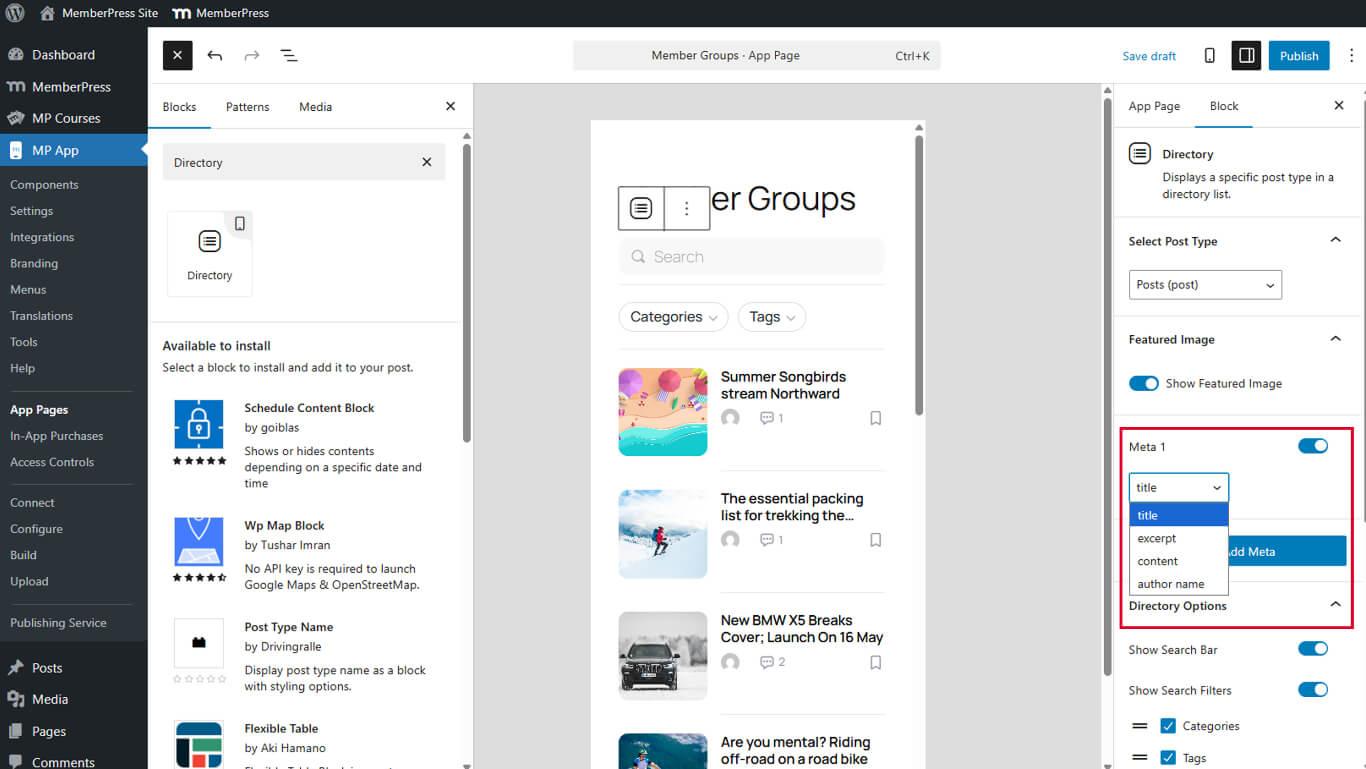
- Haga clic en Actualización para guardar la página.
El primer campo de metadatos se muestra en la posición de marcador de posición META 1.
Añadir campos de metadatos adicionales
- Haga clic en Añadir Meta debajo del primer campo de metadatos.
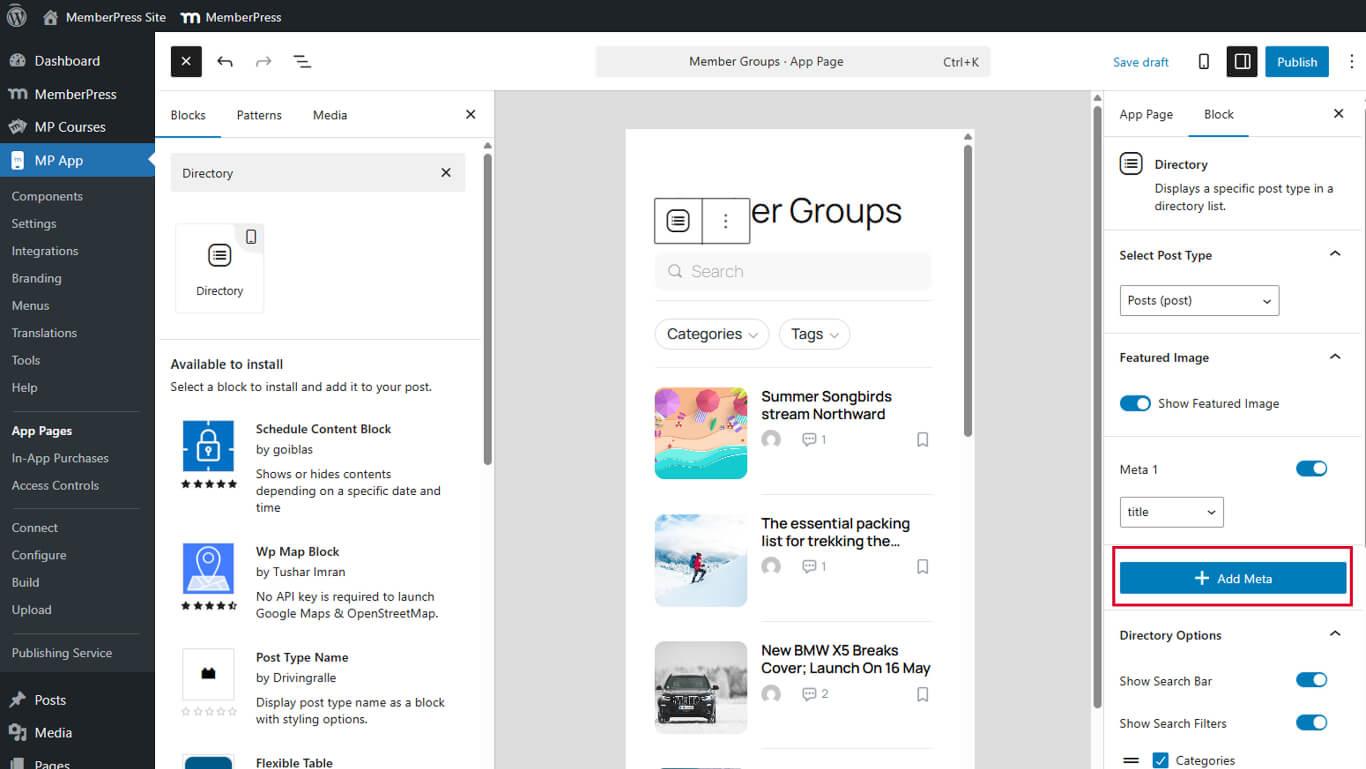
- Seleccione el campo deseado en el desplegable.
- Repita los pasos del 1 al 3 para añadir hasta cuatro campos de metadatos en total.
- Haga clic en Actualización para guardar la página.
Los campos de metadatos se muestran en el orden en que se añaden. Reorganice los campos ajustando su orden de configuración.
Configuración de opciones de directorio
Las opciones de directorio permiten funciones interactivas y mejoras de visualización.
Activar la función de búsqueda
Las barras de búsqueda permiten a los usuarios encontrar contenidos específicos dentro de los directorios.
- Toggle Mostrar barra de búsqueda a En.
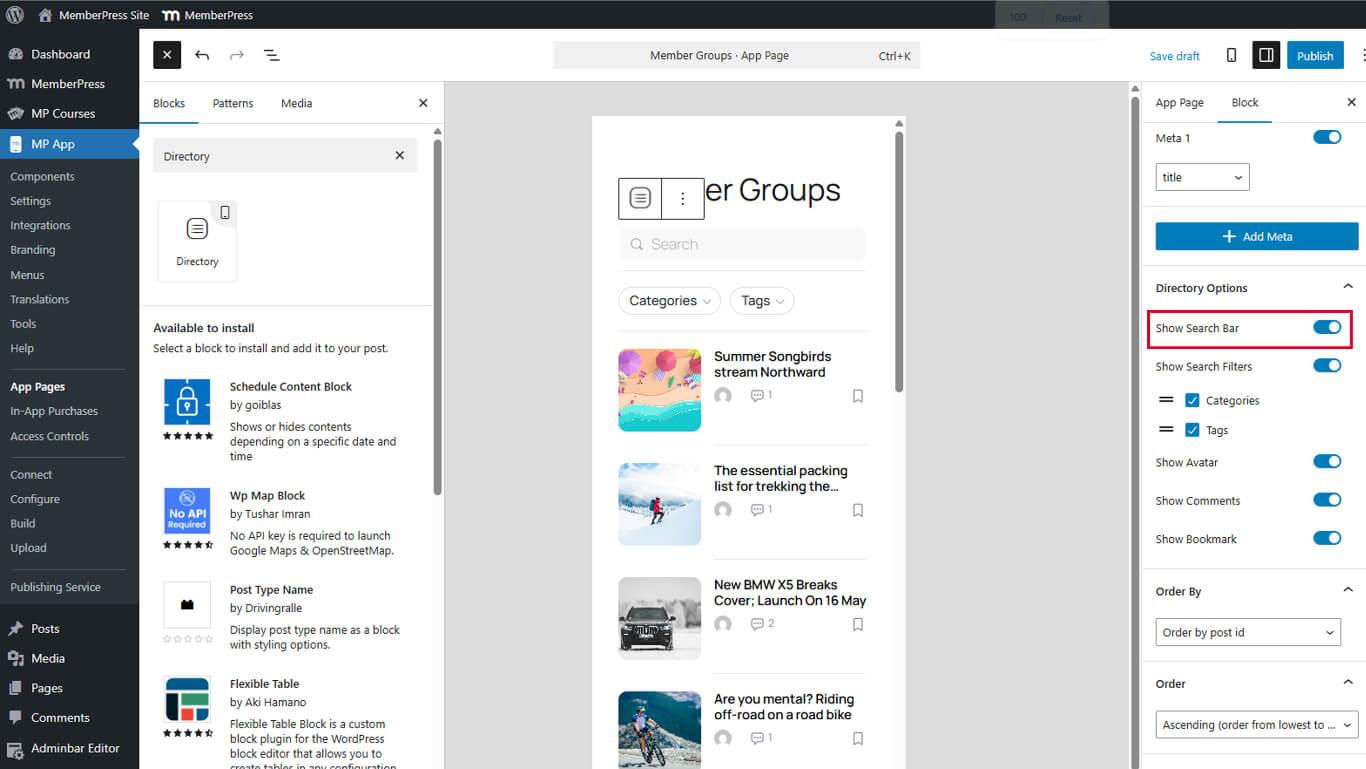
- Haga clic en Actualización para guardar la página.
Las barras de búsqueda aparecen en la parte superior de las pantallas de directorio de la aplicación publicada.
Activar filtros de búsqueda
Los filtros de búsqueda afinan los resultados de la búsqueda por categorías o taxonomías.
- Toggle Mostrar filtro de búsqueda a En en Opciones de directorio.
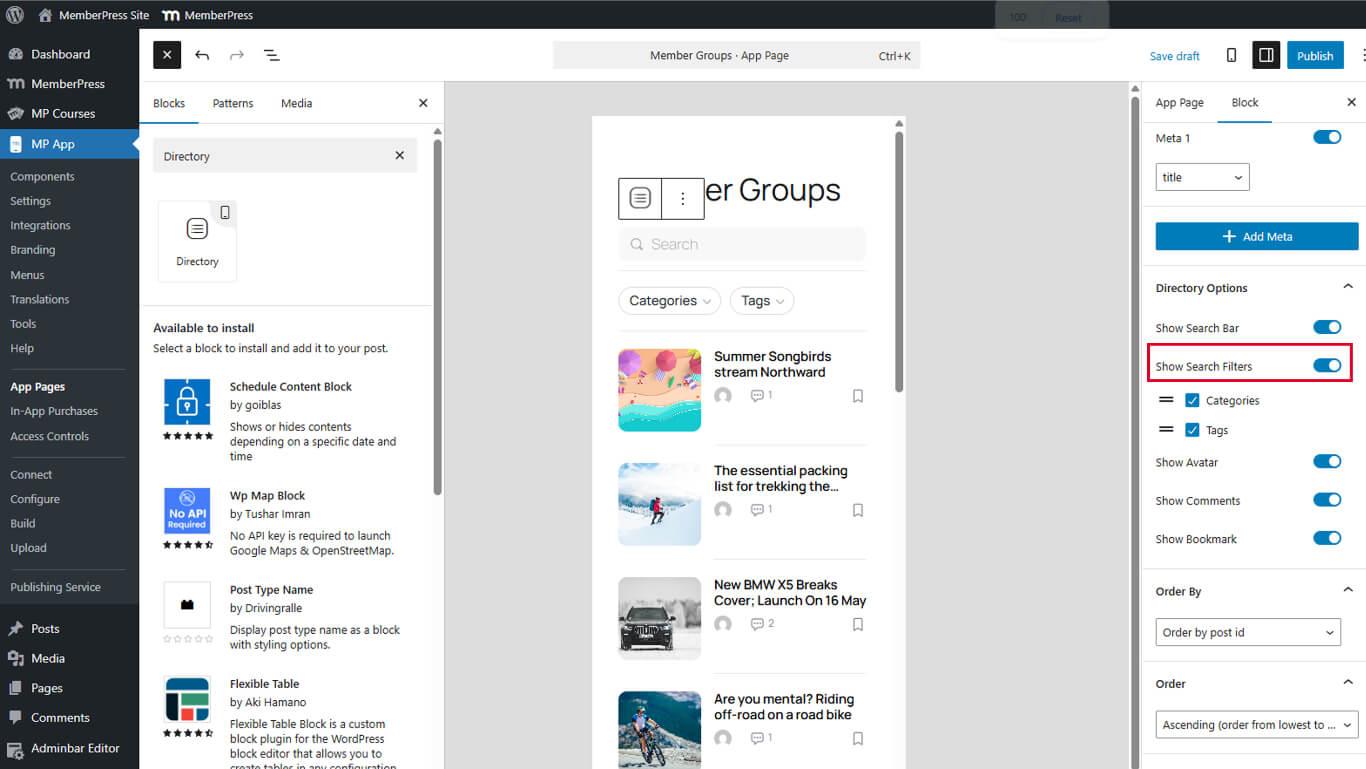
- Haga clic en Actualización para guardar la página.
Los filtros de búsqueda aparecen junto a las barras de búsqueda cuando ambas opciones están activadas. Los filtros permiten seleccionar categorías o etiquetas para limitar los resultados.
Activar avatares de autor
Los avatares de autor identifican visualmente a los creadores de contenidos en los listados de directorios.
- Toggle Avatar a En en Opciones de directorio.
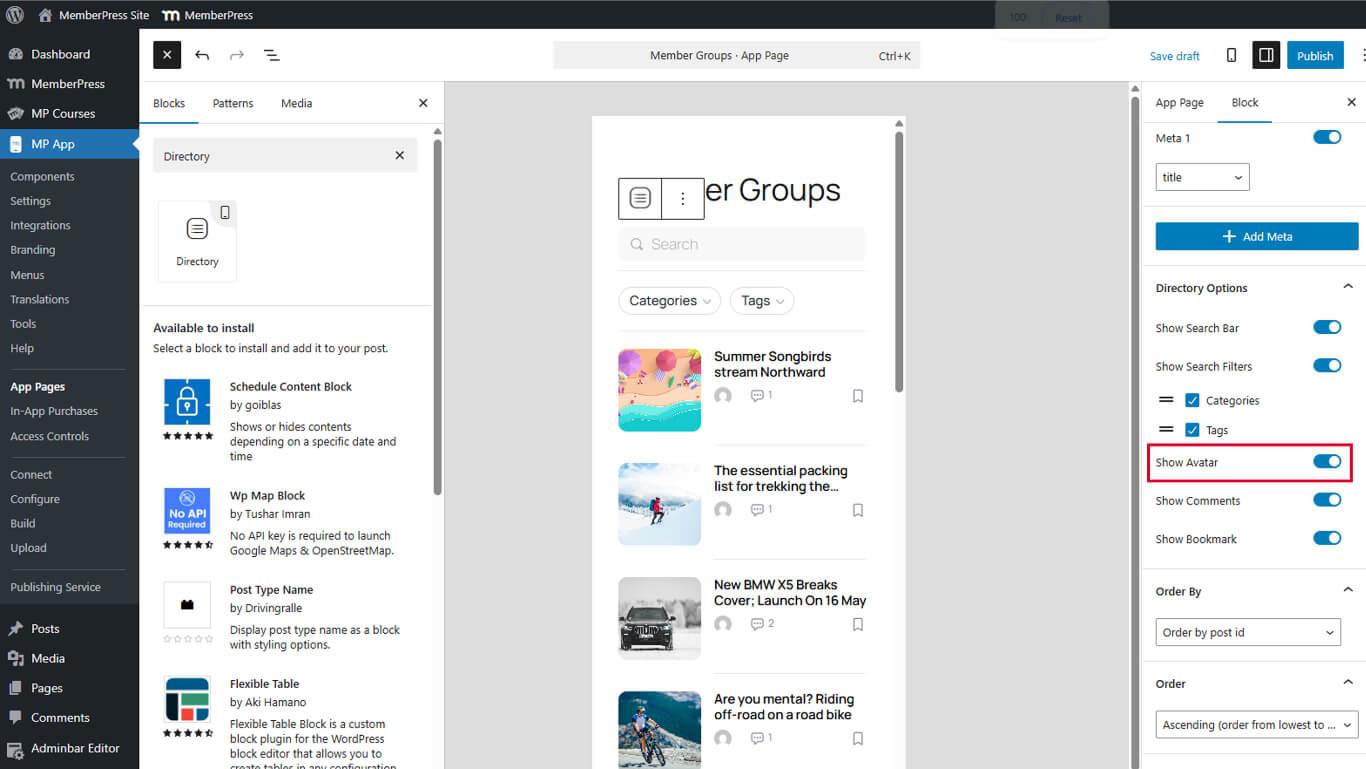
- Haga clic en Actualización para guardar la página.
Los avatares de autor se muestran como pequeñas imágenes circulares junto a los títulos de los contenidos. Los avatares requieren imágenes de perfil de autor configuradas en WordPress.
Activar el recuento de comentarios
El recuento de comentarios indica la actividad de debate sobre los contenidos.
- Toggle Mostrar comentario a En en Opciones de directorio.
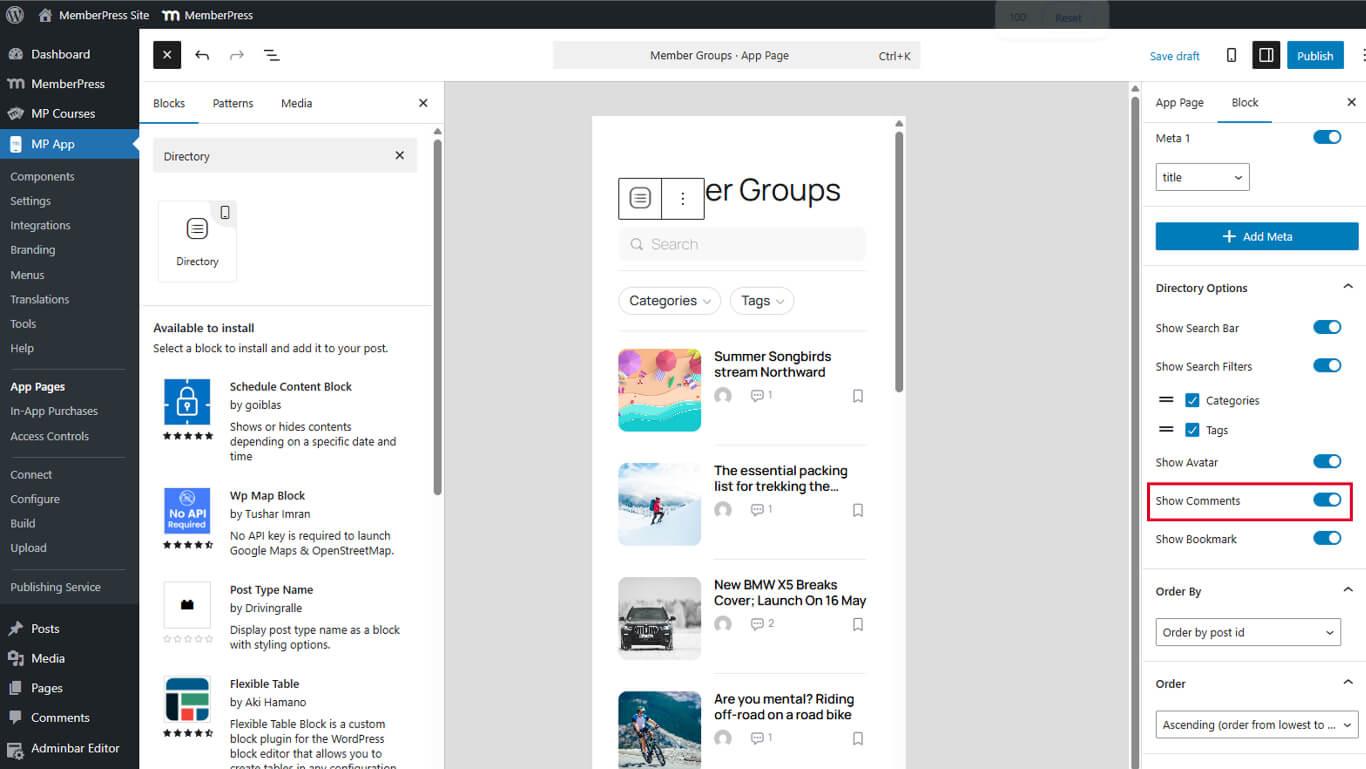
- Haga clic en Actualización para guardar la página.
Los recuentos de comentarios se muestran como números con iconos de comentarios en los listados del directorio. Los recuentos se actualizan a medida que los miembros añaden comentarios.
Activar marcadores
Los marcadores permiten a los usuarios guardar contenidos para acceder a ellos más tarde.
- Toggle Mostrar favoritos a En en Opciones de directorio.
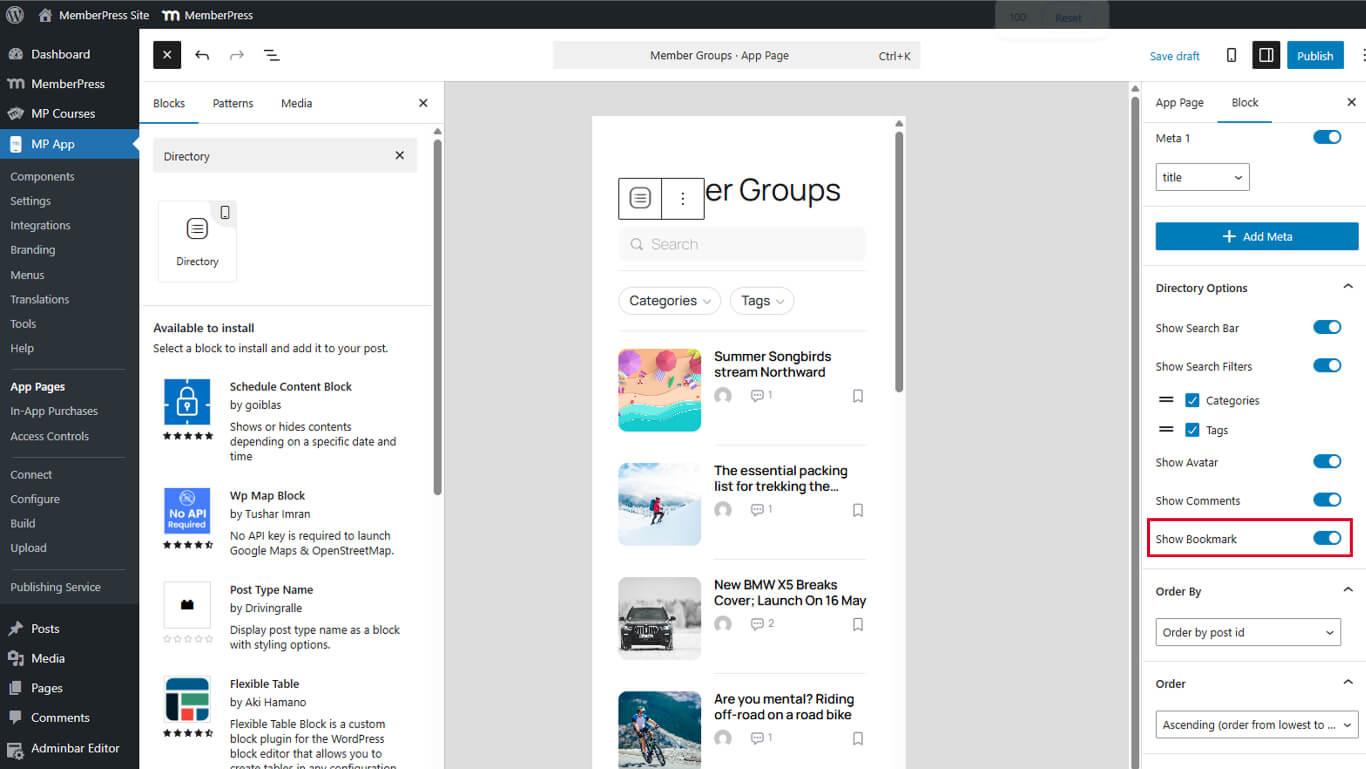
- Haga clic en Actualización para guardar la página.
Los iconos de favoritos aparecen en los listados de directorios. Los miembros tocan los iconos para marcar o desmarcar contenidos.
Configuración de las opciones de clasificación
Las opciones de clasificación controlan el orden de los contenidos dentro de los directorios.
Configuración del campo Ordenar por
- Seleccione el bloque Directorio en el editor de páginas.
- Localice el Pedir por en Configuración del bloque.
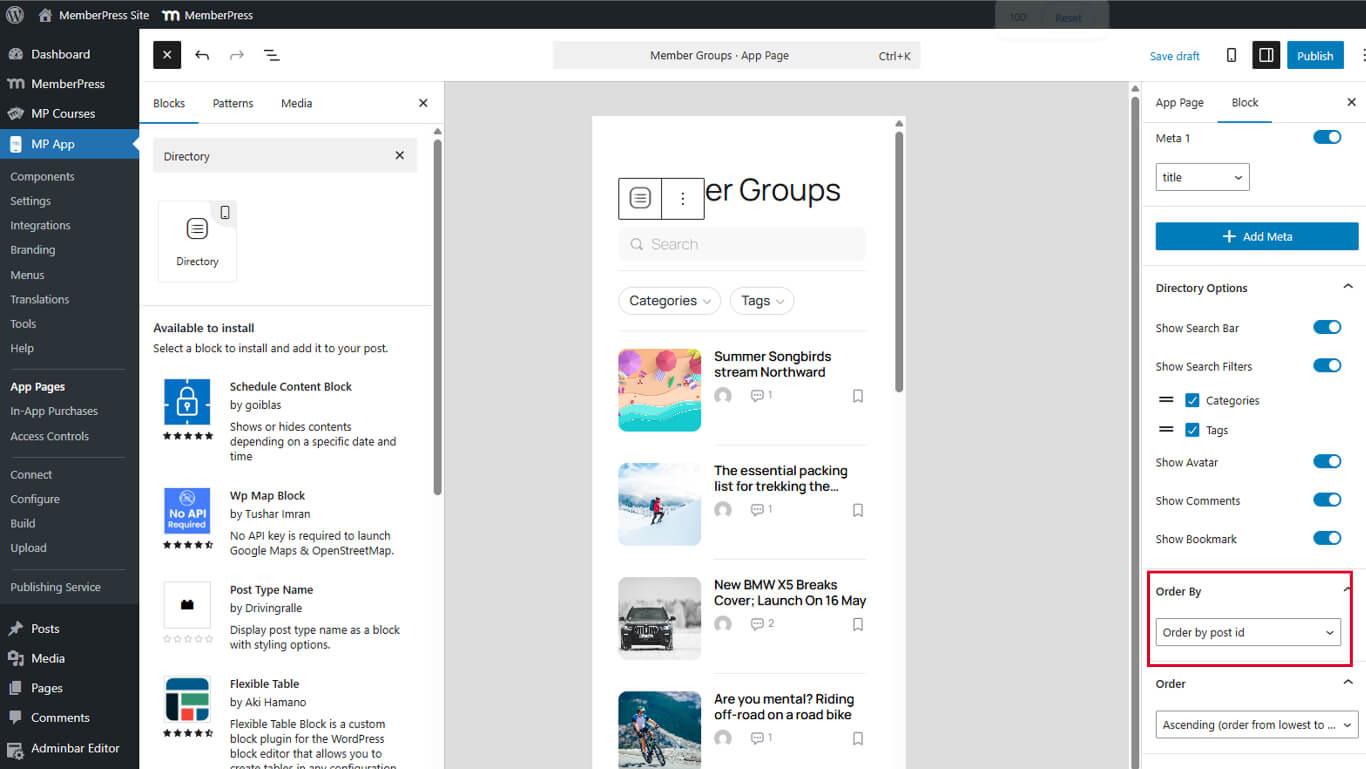
- Seleccione el campo de clasificación:
- Fecha para la clasificación cronológica;
- Título para la ordenación alfabética;
- Modificado para ver los contenidos actualizados recientemente;
- Menú Pedidos para pedidos manuales.
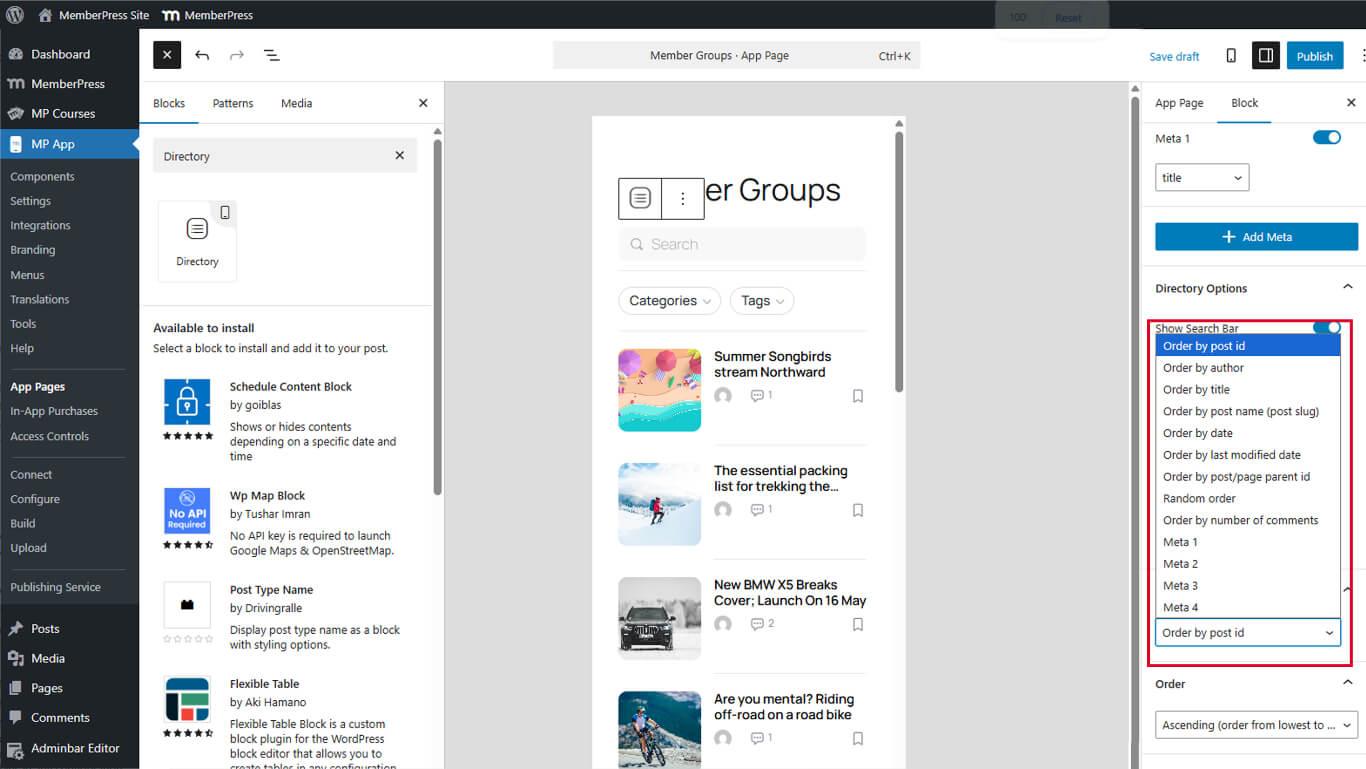
- Haga clic en Actualización para guardar la página.
El campo de ordenación determina qué atributo de contenido controla el orden de visualización.
Fijar la dirección de la orden
- Localice el Pida debajo de Ordenar por.
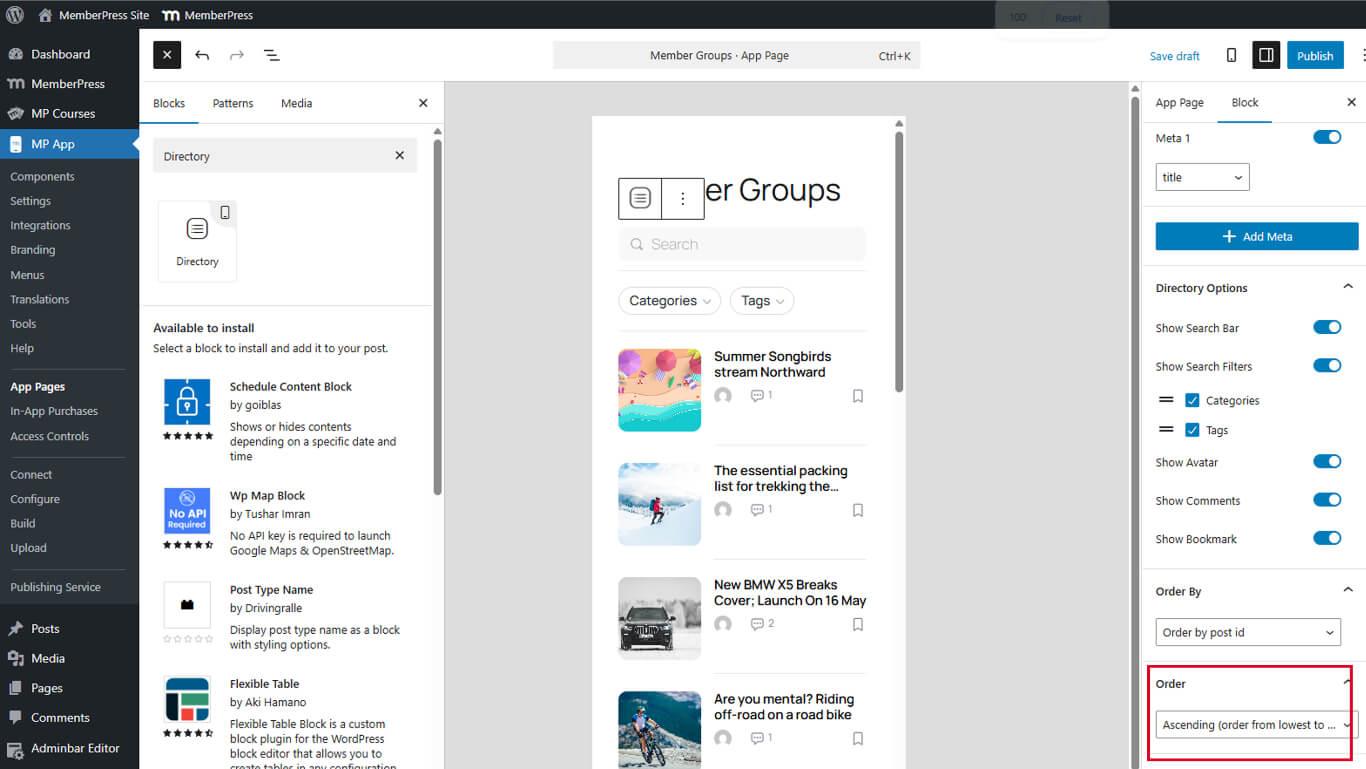
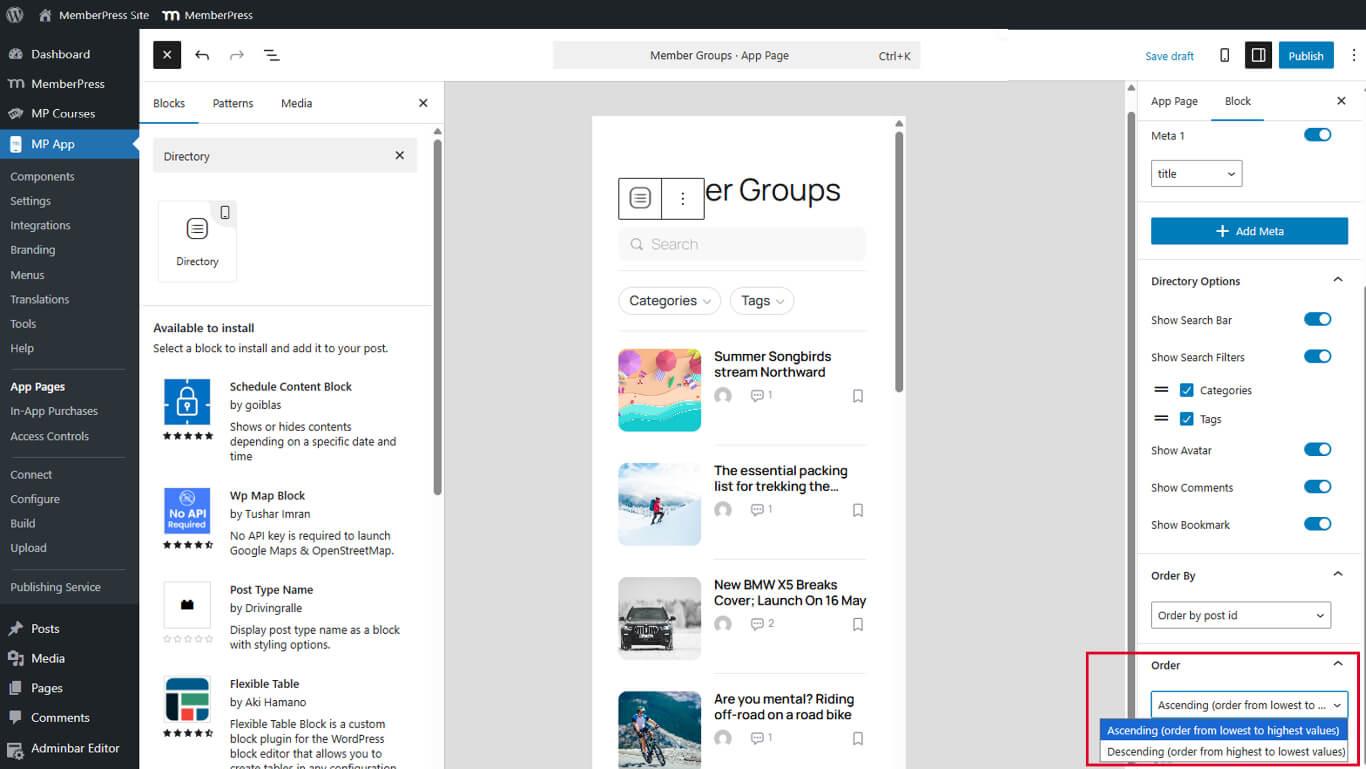
- Seleccione la dirección de clasificación:
- Ascendente para ordenar de la A a la Z o del más antiguo al primero;
- Descendente para el orden Z-A o el más reciente primero.
- Haga clic en Actualización para guardar la página.
La dirección de clasificación (orden) funciona en combinación con el campo de clasificación. La fecha descendente muestra primero el contenido más reciente.
Eliminación de bloques de directorio
Los bloques de directorio pueden eliminarse cuando ya no se necesiten.
- Vaya a Panel > MP AppKit > Páginas de aplicaciones.
- Abrir la página que contiene el bloque de directorio.
- Seleccione el bloque Directorio en el editor.
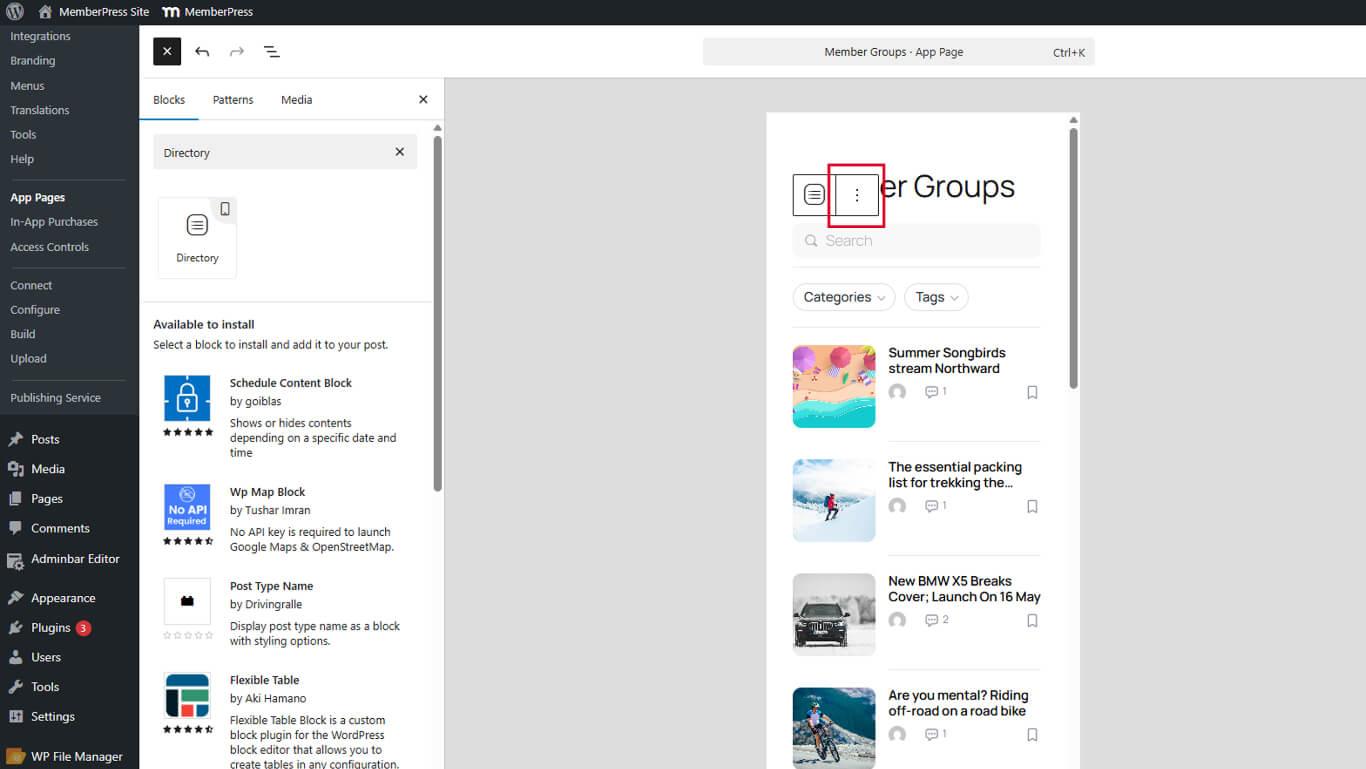
- Haga clic en el botón Opciones (tres puntos verticales) en la barra de herramientas del bloque.
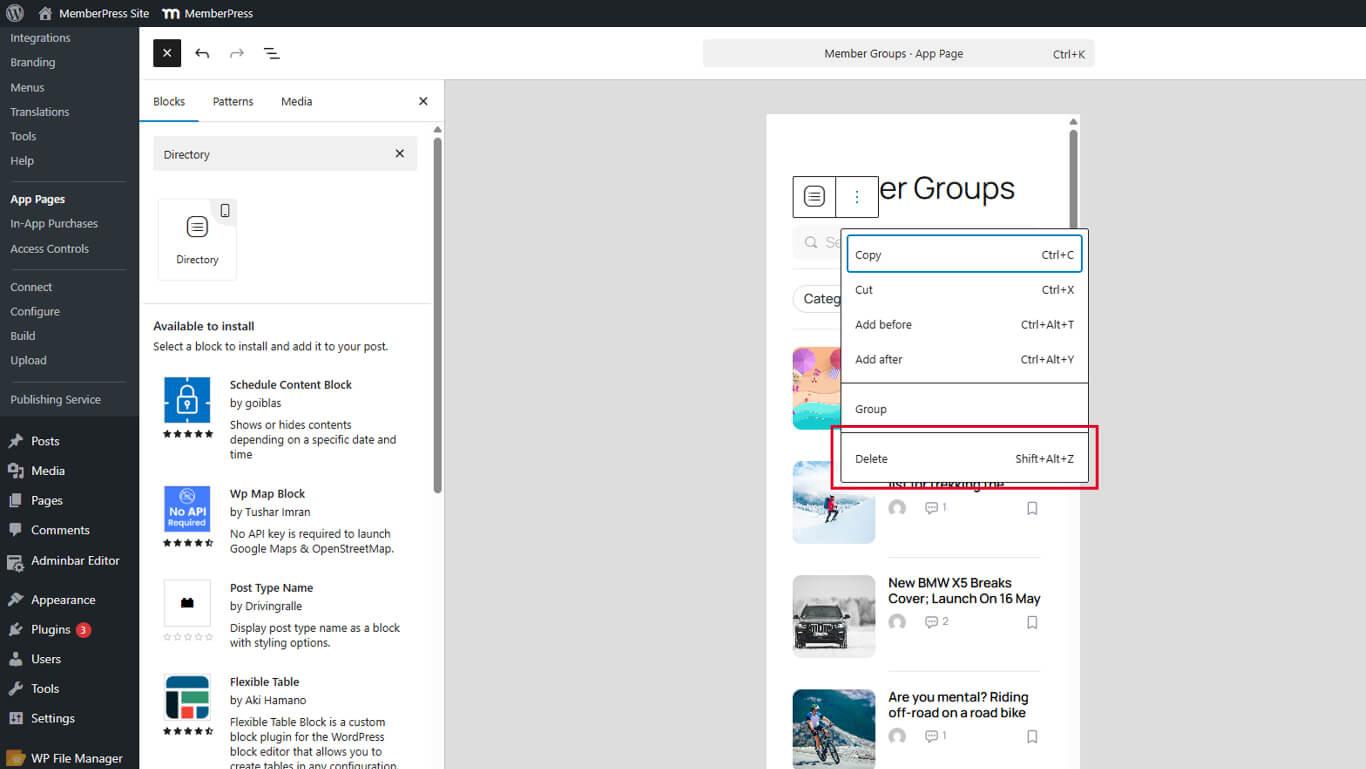
- Haga clic en Borrar.
- Haga clic en Actualización para guardar la página.
La eliminación de los bloques de directorio permite añadir otros tipos de bloques a la página.










 ES
ES  EN
EN  FR
FR  DE
DE  PT
PT 