

La tipografía establece la identidad de la marca y mejora la legibilidad del contenido dentro de las aplicaciones móviles. MemberPress AppKit admite la configuración de fuentes personalizadas mediante Google Fonts o archivos de fuentes cargados.
En este documento se explica cómo importar fuentes, asignar tipografía a las secciones de la aplicación y optimizar la visualización del texto para atraer a los usuarios.
Comprender la configuración tipográfica
La configuración tipográfica controla las familias, los estilos y los tamaños de fuente en toda la aplicación. Las fuentes personalizadas alinean la apariencia de la aplicación con las directrices de la marca y mejoran la coherencia visual. La integración de Google Fonts ofrece amplias opciones tipográficas sin necesidad de gestionar archivos. La posibilidad de cargar fuentes personalizadas permite utilizar tipografías propias de la marca. Una configuración tipográfica adecuada mejora la legibilidad y refuerza la identidad de marca en todas las pantallas de la aplicación.
Comprender las ventajas de la tipografía
La tipografía personalizada ofrece múltiples ventajas en cuanto a la experiencia del usuario y la imagen de marca.
Refuerzo de la identidad de marca se produce mediante el uso coherente de los tipos de letra. Los miembros asocian fuentes específicas con el reconocimiento y la confianza en la marca.
Optimización de la legibilidad Mejora mediante la selección adecuada de la fuente. Los tipos de letra bien diseñados mejoran la comprensión y reducen la fatiga visual.
Coherencia en el diseño surge de una tipografía unificada en todas las pantallas. El uso coherente de las fuentes crea una apariencia profesional y pulida.
Mejora de la accesibilidad resultado de un tamaño y grosor adecuados de la fuente. Una tipografía legible beneficia a los miembros con diferentes capacidades visuales.
Acceder a la configuración tipográfica
Toda la configuración de la tipografía se realiza en la interfaz de tipografía de marca.
- Vaya a Panel > MP AppKit > Marca > Tipografía.
- Localice el Importar fuentes sección.
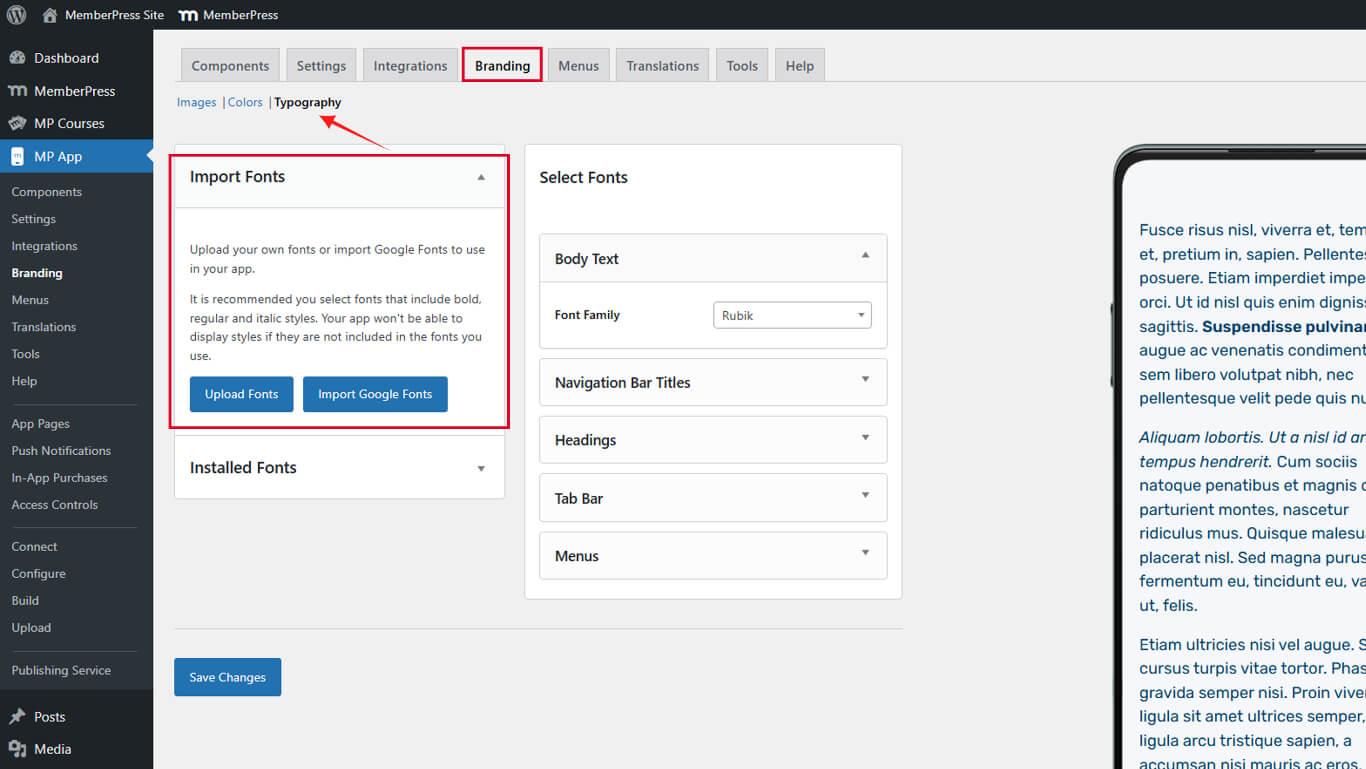
La configuración tipográfica controla tanto las importaciones de fuentes como las asignaciones de fuentes específicas para cada sección.
Carga de fuentes personalizadas
Las fuentes personalizadas añaden tipos de letra propios a la biblioteca de fuentes de la aplicación.
- Vaya a Panel > MP AppKit > Marca > Tipografía.
- Haga clic en Subir fuentes en la sección Importar fuentes.
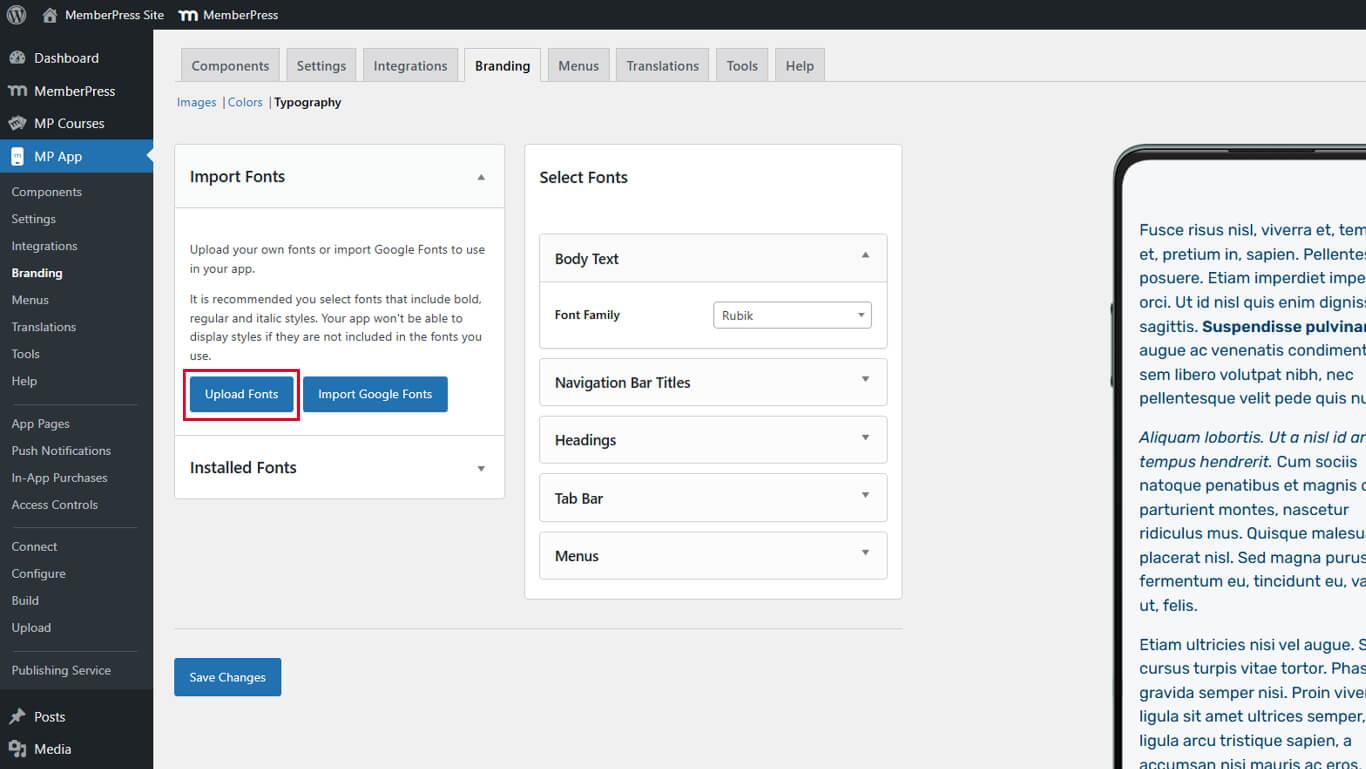
- Haga clic en Elegir archivo en el cuadro de diálogo de carga.
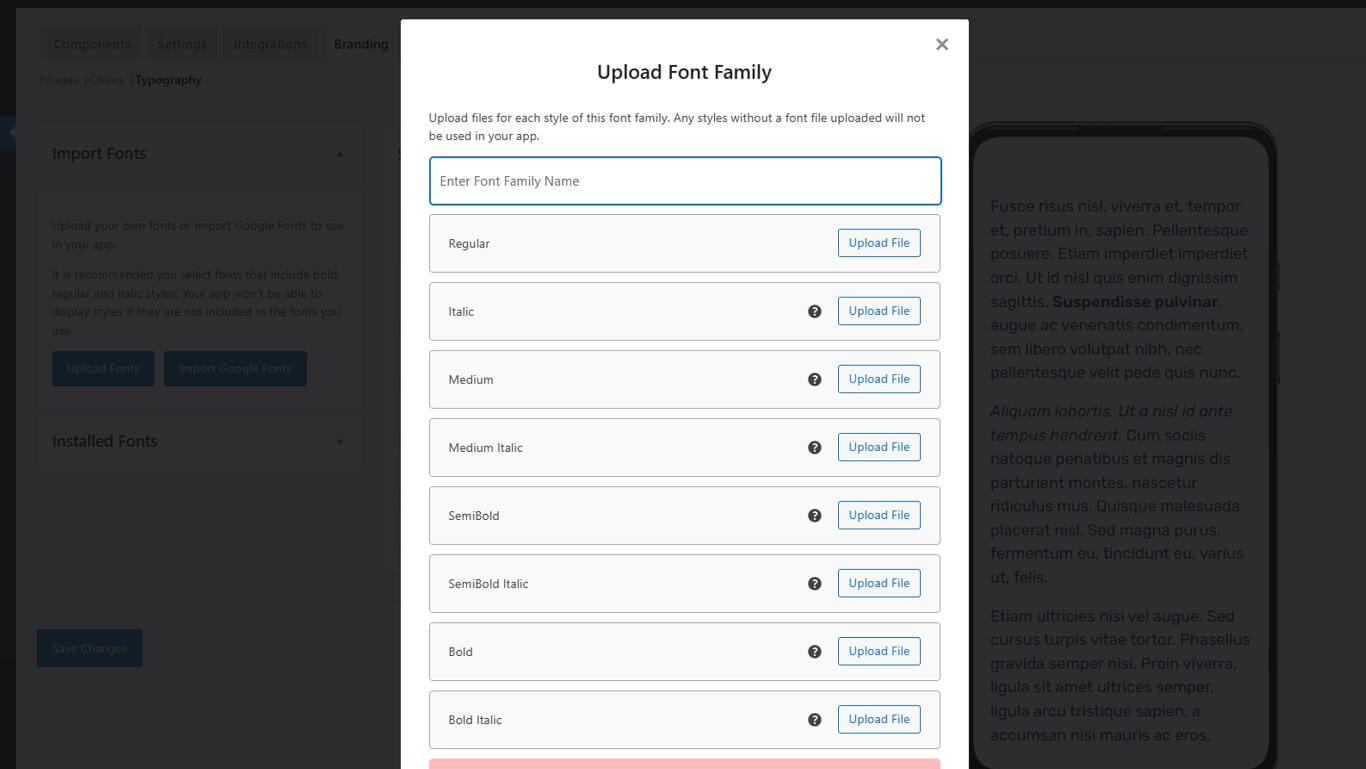
- Seleccione un archivo de fuente del dispositivo.
- Comprueba que el formato del archivo sea TTF, OTF o WOFF.
- Haga clic en Cargar para completar la importación.
- Comprueba que la fuente aparece en Fuentes importadas.
Las fuentes cargadas estarán disponibles inmediatamente para su asignación a secciones de la aplicación.
Formatos de archivo de fuentes compatibles
Los diferentes formatos de fuente ofrecen distintos niveles de compatibilidad y características.
Fuente TrueType (TTF) Ofrece una amplia compatibilidad entre plataformas. Los archivos TTF funcionan de manera fiable en la mayoría de los contextos.
Fuente OpenType (OTF) Ofrece funciones tipográficas avanzadas. OTF admite conjuntos de caracteres ampliados y ligaduras.
Formato de fuente abierto para web (WOFF) Optimiza la entrega de fuentes para contextos web. Los archivos WOFF se comprimen de manera eficiente para obtener tamaños más pequeños.
Sube las fuentes en el formato que coincida con los archivos de origen. Evita convertir entre formatos, ya que esto puede degradar la calidad.
Importación de fuentes de Google
La integración de Google Fonts añade fuentes web a la biblioteca de fuentes de la aplicación.
- Vaya a Panel > MP AppKit > Marca > Tipografía.
- Haga clic en Importar fuentes de Google en la sección Importar fuentes.
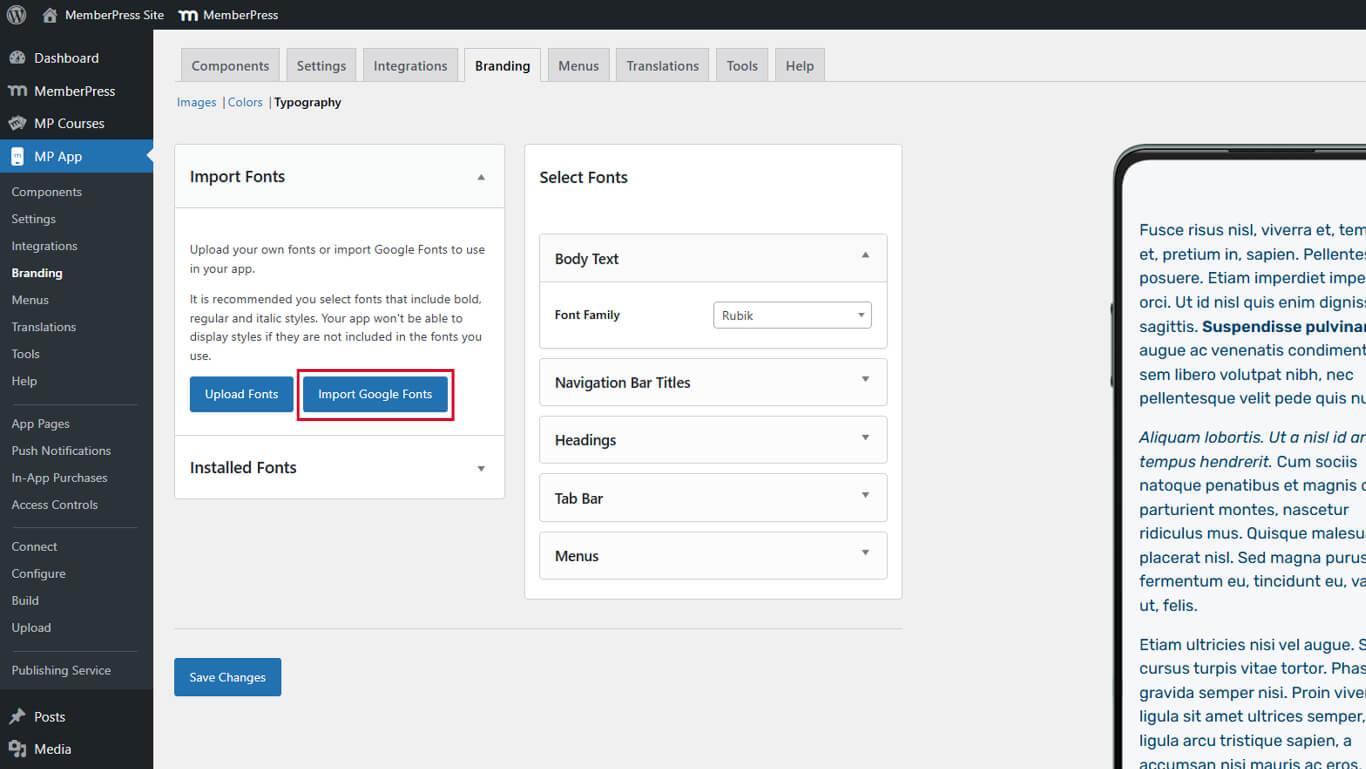
- Explora las fuentes disponibles o utiliza el campo de búsqueda.
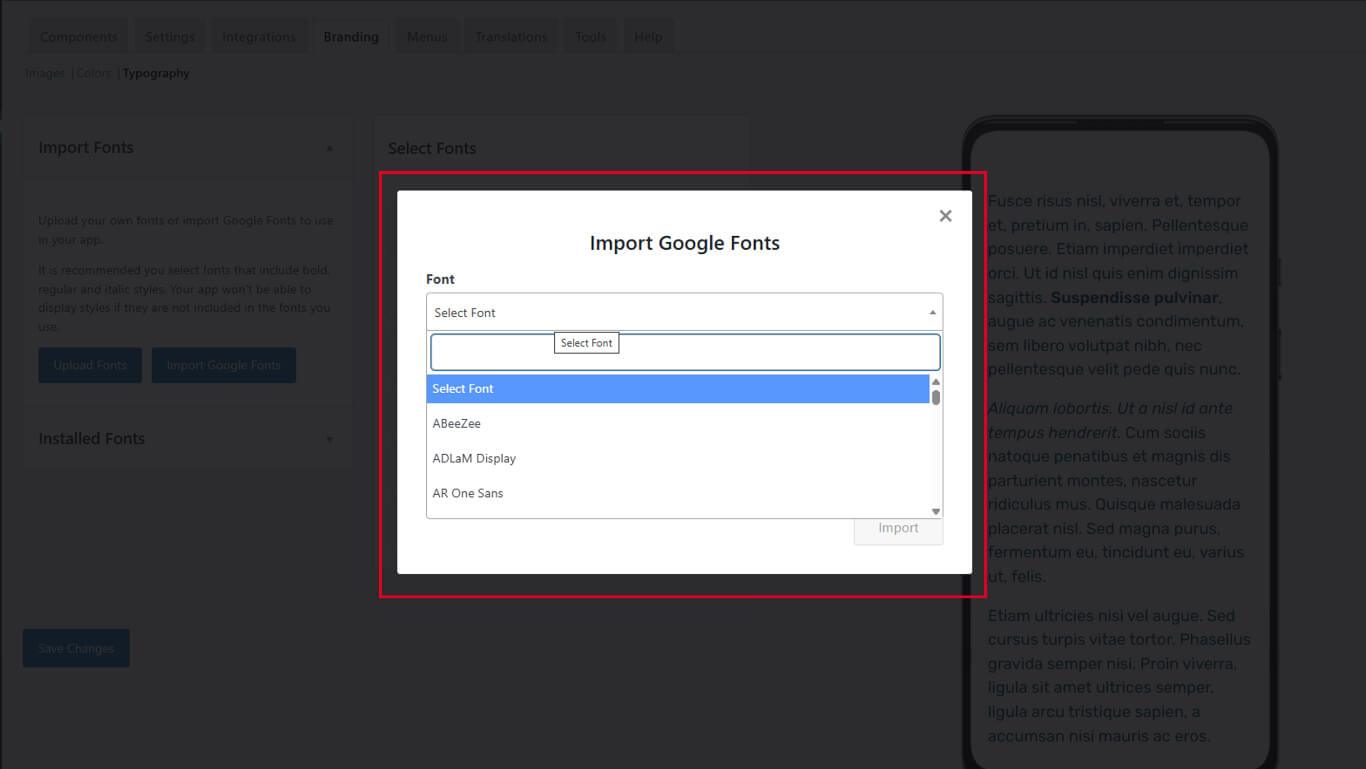
- Introduzca el nombre de una fuente en el campo de búsqueda para filtrar los resultados.
- Haga clic en el nombre de una fuente para obtener una vista previa de los estilos y ver los detalles.
- Revisa los grosores y estilos de fuente disponibles en la vista previa.
- Tenga en cuenta cualquier advertencia de compatibilidad para la fuente seleccionada.
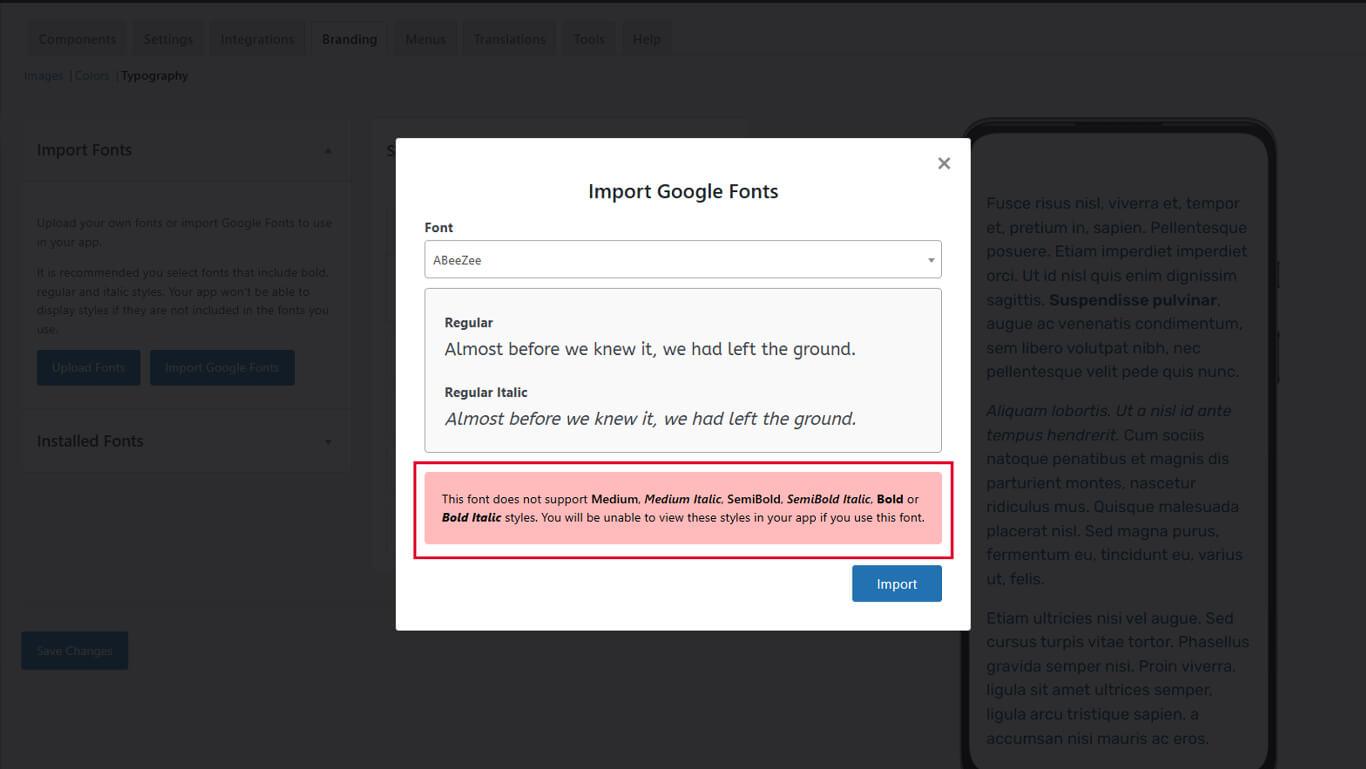
- Haga clic en Importar para añadir la fuente a la biblioteca.
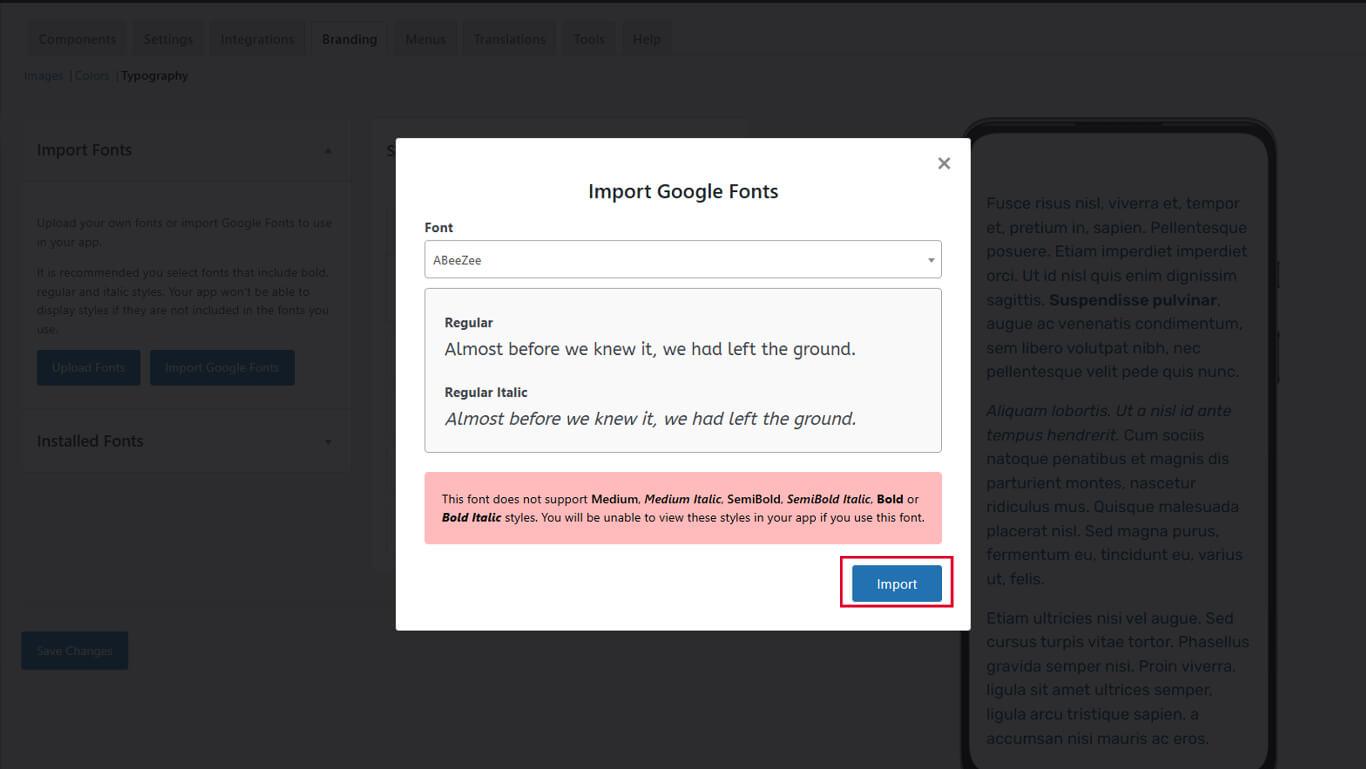
- Comprueba que la fuente aparece en Fuentes importadas.
Las fuentes importadas de Google incluyen automáticamente todos los grosores y estilos disponibles.
Asignación de fuentes a secciones de la aplicación
Las asignaciones de fuentes controlan la tipografía de elementos específicos de la interfaz.
Asignación de fuente para el cuerpo del texto
El cuerpo del texto es el contenido principal de la aplicación.
- Vaya a Panel > MP AppKit > Marca > Tipografía.
- Desplácese hasta el Texto del cuerpo sección.
- Haga clic en el botón Familia tipográfica desplegable.
- Selecciona una fuente.
- Revise el panel de vista previa en vivo para verificar la apariencia.
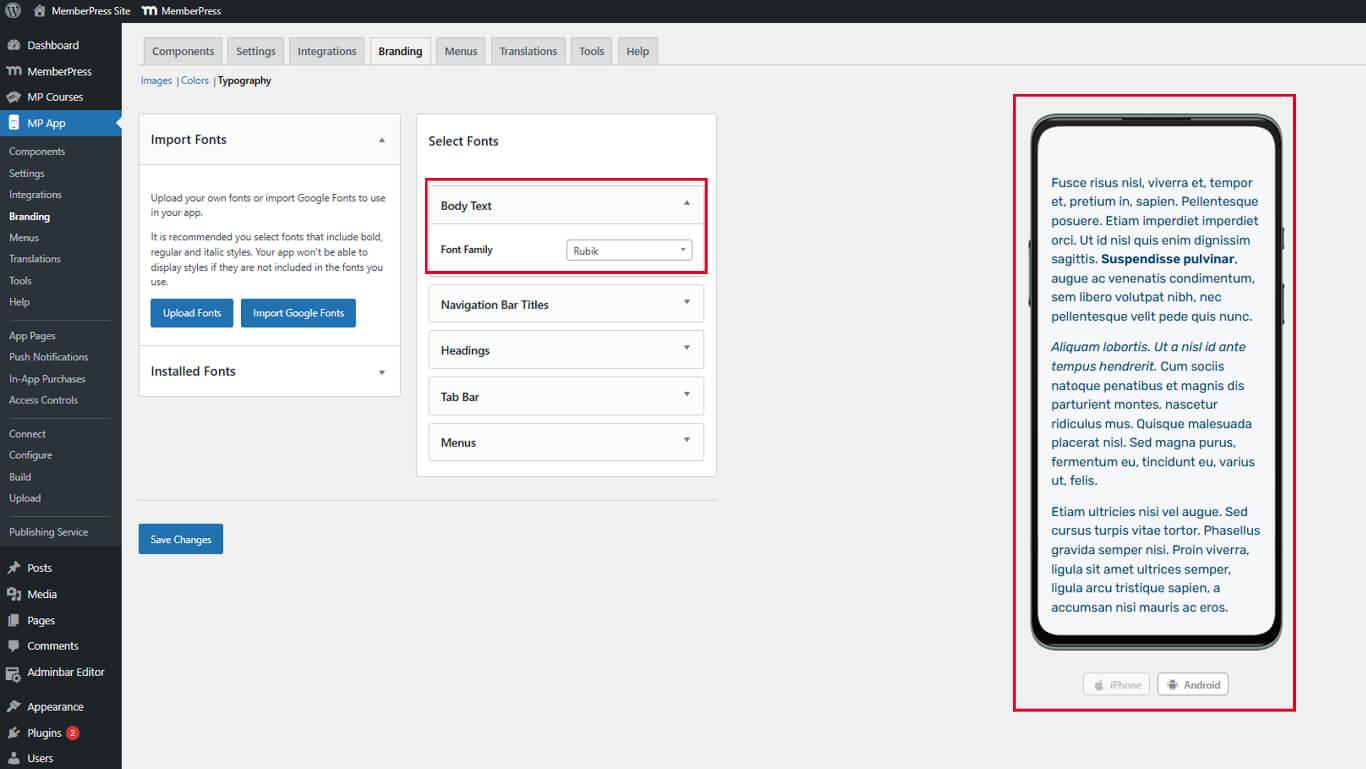
La fuente del texto del cuerpo afecta a las entradas del blog, al contenido de las páginas y al texto general de toda la aplicación.
Asignación de títulos a la barra de navegación Fuente
Los títulos de la barra de navegación aparecen en los encabezados de las aplicaciones y en los títulos de las páginas.
- Localice el Títulos de la barra de navegación sección.
- Haga clic en el botón Familia tipográfica desplegable.
- Selecciona una fuente.
- Revisa la vista previa de la barra de navegación en el panel de vista previa en vivo.
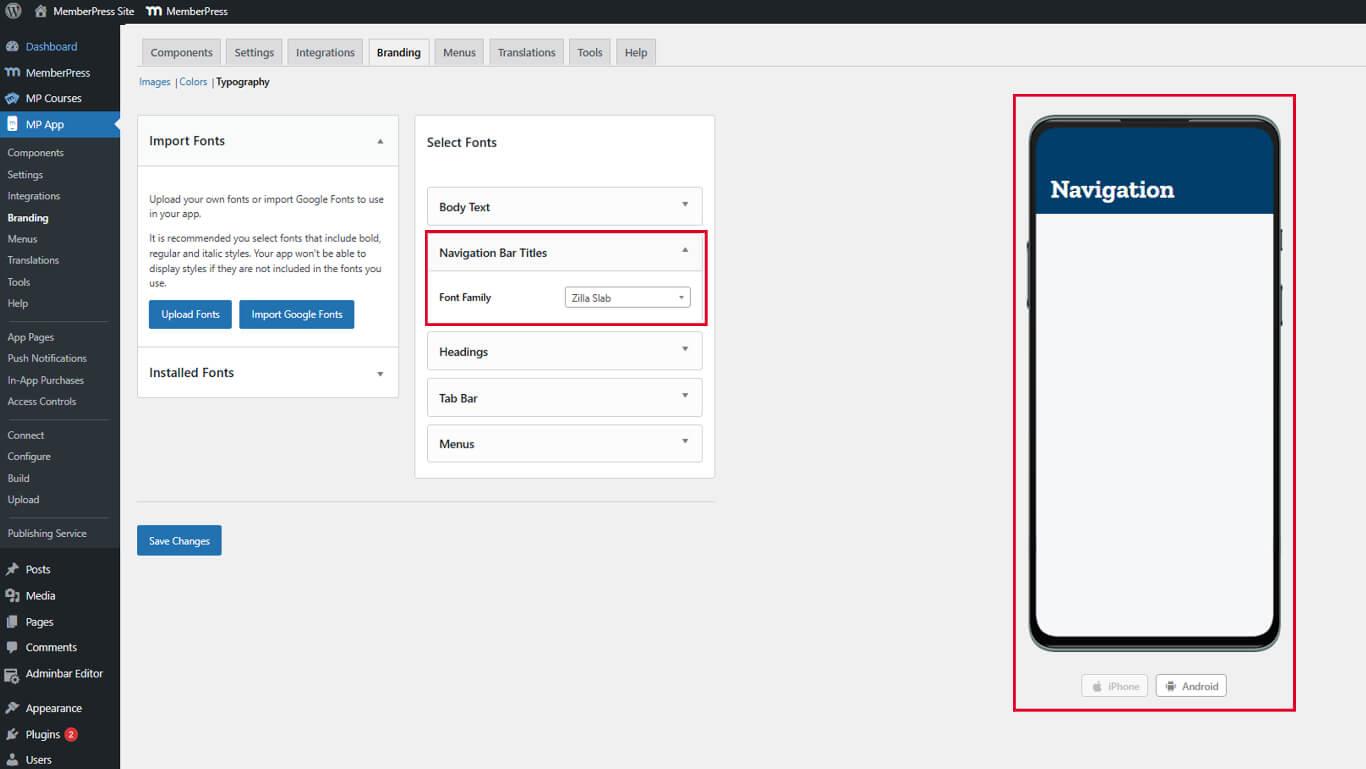
La tipografía de la barra de navegación debe ser clara y legible a distancias de visualización normales.
Asignación de encabezados Fuente
Los encabezados organizan el contenido mediante una presentación visual.
- Localice el Encabezados sección.
- Haga clic en el botón Familia tipográfica desplegable.
- Selecciona una fuente.
- Revisa la jerarquía de los encabezados en el panel de vista previa en vivo.
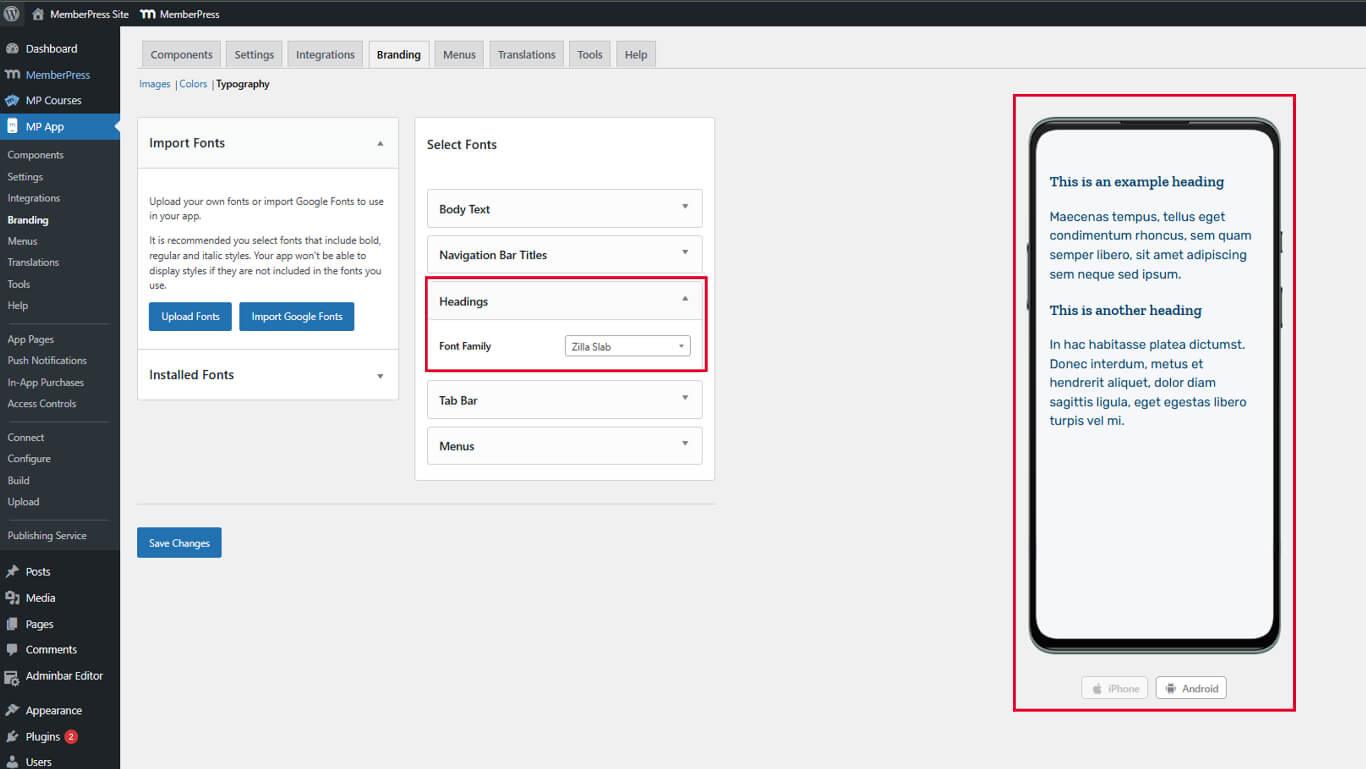
Las fuentes de los encabezados deben proporcionar una diferenciación visual clara con respecto al texto del cuerpo.
Asignación de etiquetas a la barra de pestañas Fuente
Las etiquetas de la barra de pestañas identifican las opciones de navegación inferiores.
- Localice el Etiquetas de la barra de pestañas sección.
- Haga clic en el botón Familia tipográfica desplegable.
- Selecciona una fuente.
- Revise la vista previa de la barra de pestañas en el panel de vista previa en vivo.
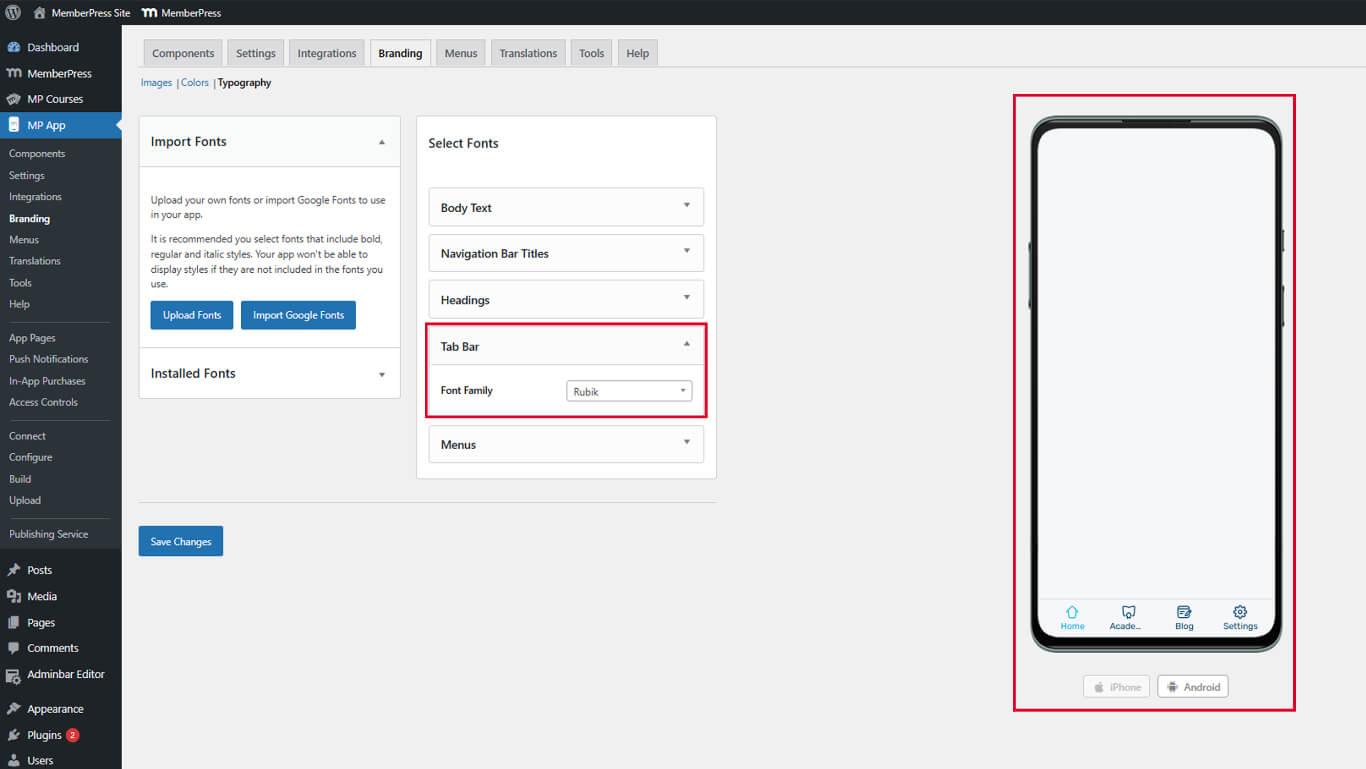
Las fuentes de la barra de pestañas deben seguir siendo legibles en tamaños pequeños en pantallas móviles.
Asignación de fuentes para menús
Las fuentes del menú controlan el texto de los elementos de navegación en la barra de pestañas y en el menú Más.
- Localice el Menús sección.
- Haga clic en el botón Familia tipográfica desplegable.
- Selecciona una fuente.
- Revisa la vista previa del menú en el panel de vista previa en vivo.
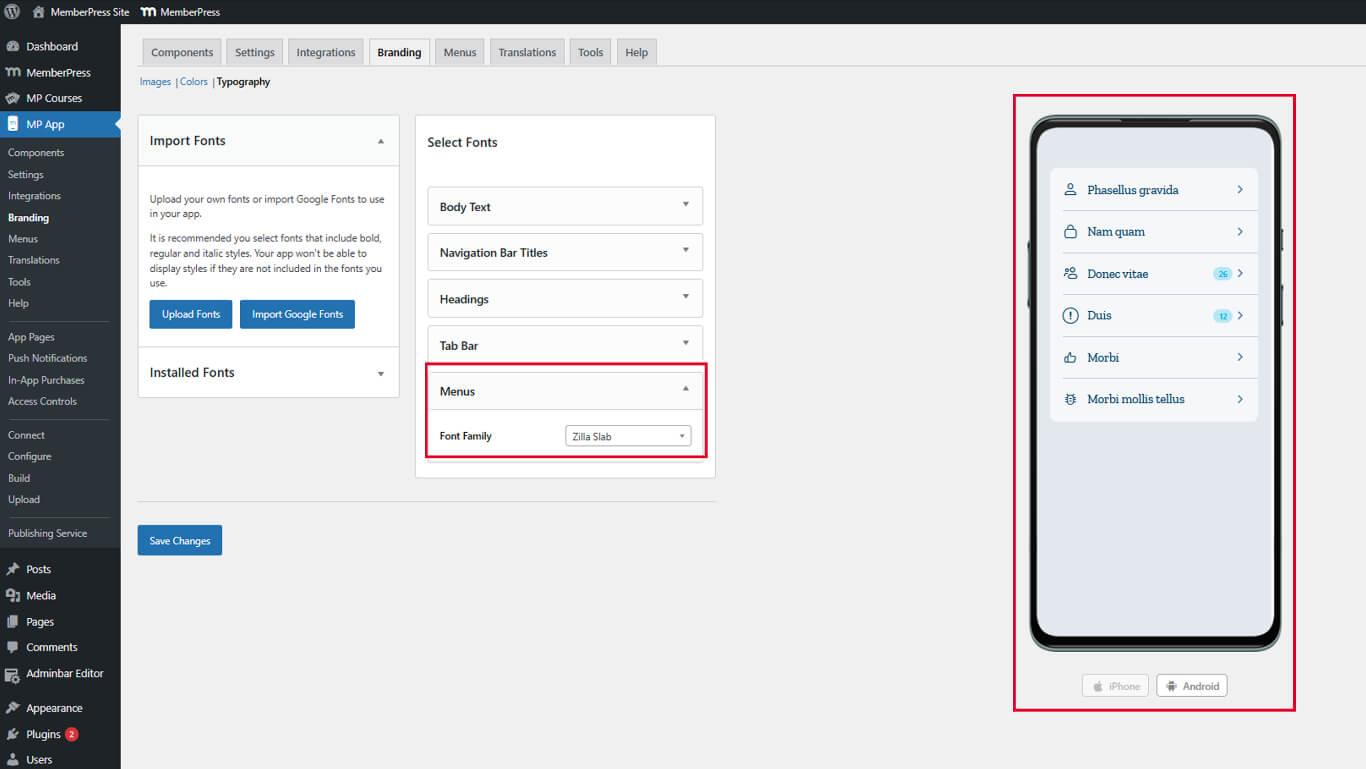
Las fuentes de los menús deben ser legibles para una navegación rápida.










 ES
ES  EN
EN  FR
FR  DE
DE  PT
PT 