

La personalización de la cabecera de navegación mejora la usabilidad y refuerza la imagen de marca en las aplicaciones móviles. La cabecera de navegación de la aplicación admite la colocación flexible de Más menús y la personalización de iconos.
Este documento explica cómo configurar los ajustes de cabecera, reubicar el Menú Más y personalizar los iconos de cabecera para mejorar la experiencia de los usuarios.
Comprensión del encabezado de navegación MemberPress AppKit
La cabecera de navegación aparece en la parte superior de las pantallas de las aplicaciones móviles, mostrando los títulos de las páginas y los elementos de navegación.
La configuración de la cabecera controla la alineación del título, el comportamiento del desplazamiento y la ubicación del menú Más.
Al trasladar el menú Más de la barra de pestañas a la cabecera, se libera un espacio en la barra de pestañas para la navegación principal adicional. Una configuración adecuada de la cabecera equilibra la funcionalidad con un diseño limpio de la interfaz.
Comprender las ventajas de la configuración de cabeceras
La personalización de las cabeceras ofrece múltiples ventajas de usabilidad y branding.
Reubicable Más Menú La flexibilidad afecta a la capacidad de la barra de pestañas. Mover el menú Más a la cabecera libera la quinta posición de la barra de pestañas para los elementos de navegación principales.
Ampliación de la barra de pestañas permite cinco elementos de navegación personalizados cuando Más Menú se desplaza a la cabecera. La capacidad ampliada mejora el acceso a la navegación principal.
Personalización de iconos alinea el aspecto de la cabecera con la identidad de la marca. Los iconos predeterminados pueden sustituirse por selecciones adecuadas a la marca.
Coherencia visual mantiene la accesibilidad al menú Más independientemente de la ubicación. Los miembros acceden a la navegación secundaria desde un icono familiar.
Acceso a la configuración de la barra de cabecera
La configuración de la cabecera está disponible en la interfaz de configuración del menú.
- Vaya a Panel > MP AppKit > Menús.
- Haga clic en el botón Barra de cabecera ficha.
- Localice el Configuración de la barra de cabecera sección.
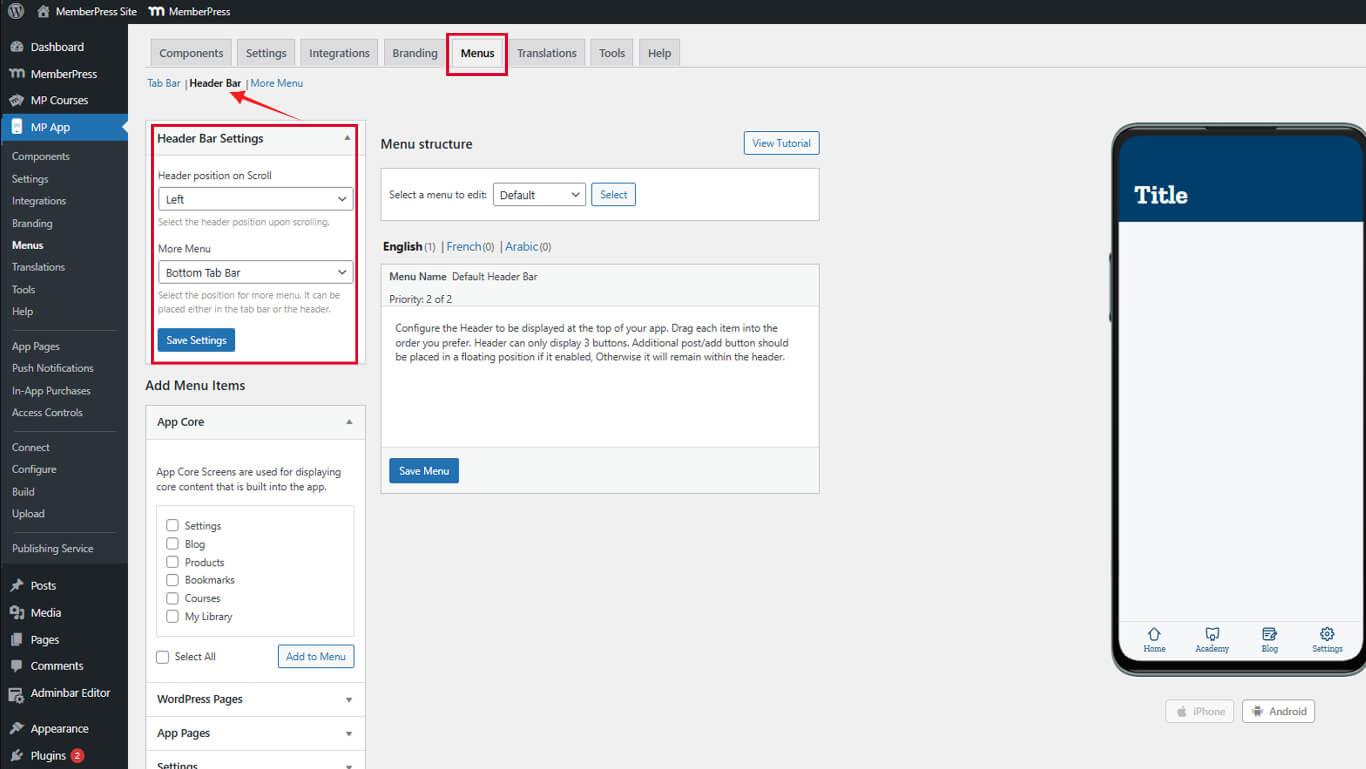
Los ajustes de la barra de cabecera controlan la alineación, la visibilidad y la ubicación de Más menús.
Configuración de la alineación de cabeceras
La alineación de la cabecera afecta a la posición del título y al equilibrio visual.
- Localice el Configuración de la barra de cabecera sección.
- Seleccione la opción de alineación deseada:
- Alineado a la izquierda mantiene los títulos de las páginas alineados a la izquierda;
- Oculto oculta la cabecera se oculta durante el desplazamiento para ampliar el espacio de contenido.
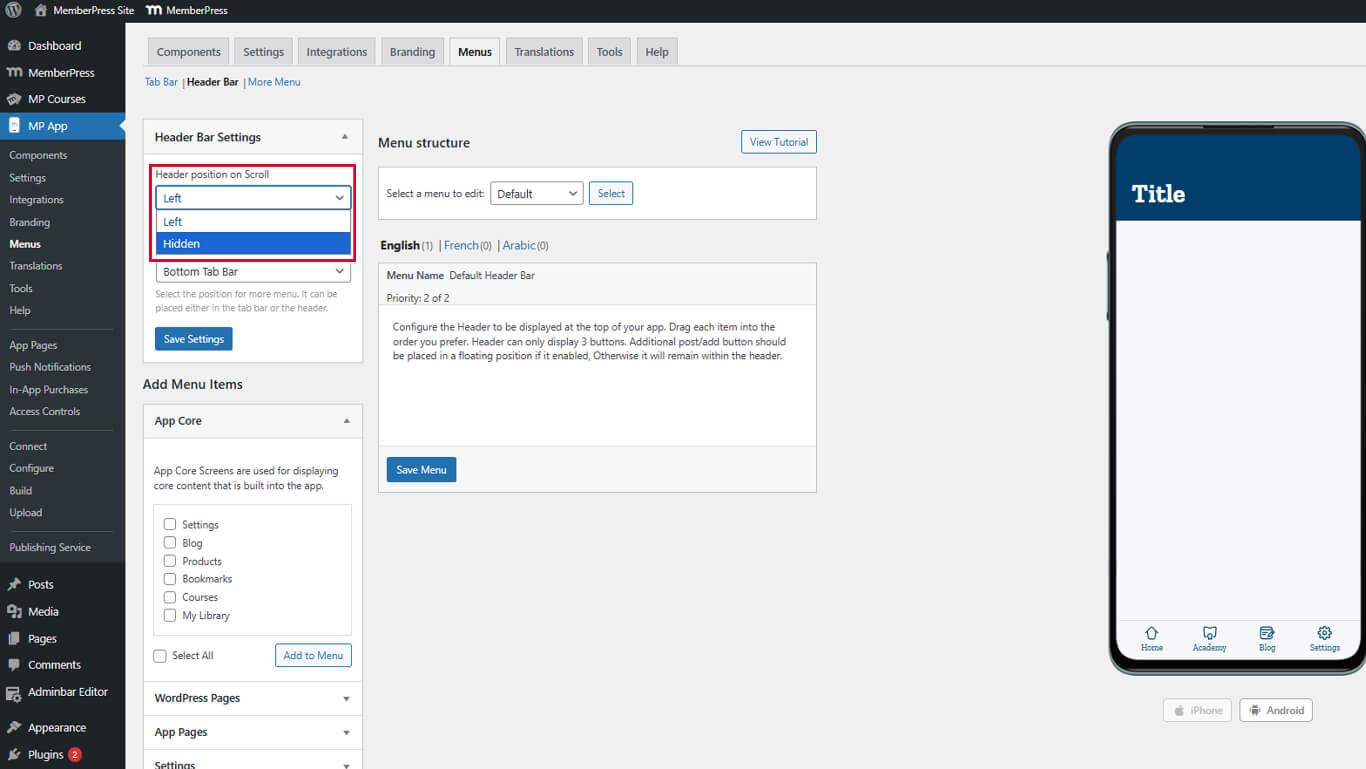
- Haga clic en Guardar configuración.
La alineación a la izquierda mantiene la coherencia con los patrones de diseño estándar para móviles.
Configuración de la ubicación de más menús
Más La ubicación del menú determina si la navegación secundaria aparece en la barra de pestañas o en la cabecera.
- Vaya a Panel > MP AppKit > Menús > Barra de cabecera.
- Localice el Más colocación de menús en la configuración de la barra de cabecera.
- Seleccione la colocación deseada:
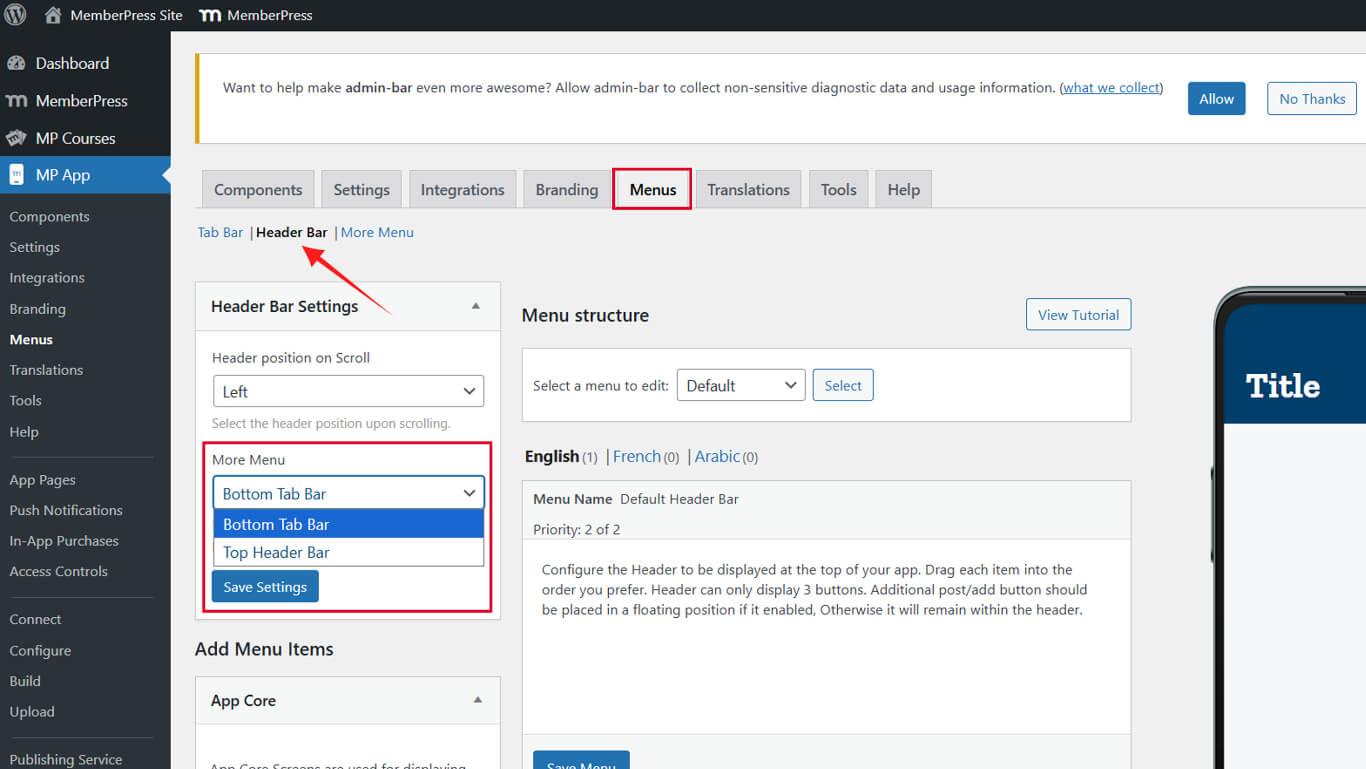
- Barra de pestañas inferior mantiene el menú Más en la quinta posición de la barra de pestañas;
- Barra de cabecera superior desplaza el icono del Menú Más a la cabecera.
- Haga clic en Guardar configuración.
La colocación de más menús afecta a la capacidad de la barra de pestañas y a la organización general de la navegación.
Actualización de los elementos del menú de cabecera
- Ir a la Menú de la barra de cabecera ficha.
- Encuentra el Más menú (normalmente el avatar del usuario).
- Haga clic en la flecha desplegable > Icono del elemento > Seleccionar icono.
- Elige un icono del paquete de iconos o sube el tuyo propio.
- Haga clic en el botón Seleccionar icono, entonces el Guardar menú.
Repetir para cualquier botones de acción (por ejemplo, Crear puesto, Añadir grupo, Enviar mensaje):
- Haz clic en sus flechas desplegables.
- Elija o cargue nuevos iconos.
- Haga clic en el botón Seleccionar icono, entonces el Guardar menú.
Actualizar el menú de la barra de pestañas
- Cambiar a la Menú de la barra de pestañas ficha.
- Haga clic en Añadir al menú para un elemento (por ejemplo, Notificaciones) de los elementos de menú disponibles que figuran en el MemberPress AppKit o Miembro conectado secciones.
- Asegúrese de que hay no más de cuatro total de elementos en la barra de pestañas.
- Haga clic en el botón Guardar menú.
La capacidad de la barra de pestañas aumenta sólo cuando el menú Más se desplaza con éxito a la cabecera.










 ES
ES  EN
EN  FR
FR  DE
DE  PT
PT 