

La compatibilidad con los idiomas de derecha a izquierda permite mostrar correctamente el texto y la orientación de la interfaz para los idiomas RTL. La compatibilidad con RTL garantiza que idiomas como el árabe y el hebreo se muestren correctamente con la dirección de texto adecuada y elementos de interfaz reflejados.
Este documento explica cómo traducir las cadenas de texto de la aplicación, activar el diseño RTL y verificar la dirección correcta en toda la aplicación.
Comprender el soporte del lenguaje RTL
La compatibilidad con idiomas RTL ajusta la dirección del texto y la orientación de la interfaz para idiomas de derecha a izquierda. Activar RTL cambia el flujo de texto, la dirección de navegación y la posición de los elementos visuales. La configuración RTL se aplica globalmente en función de los ajustes de idioma del sitio de WordPress.
Añadir la traducción RTL
Las cadenas de texto de la aplicación deben traducirse al idioma RTL de destino.
- Vaya a Panel de control > MP AppKit > Traducciones.
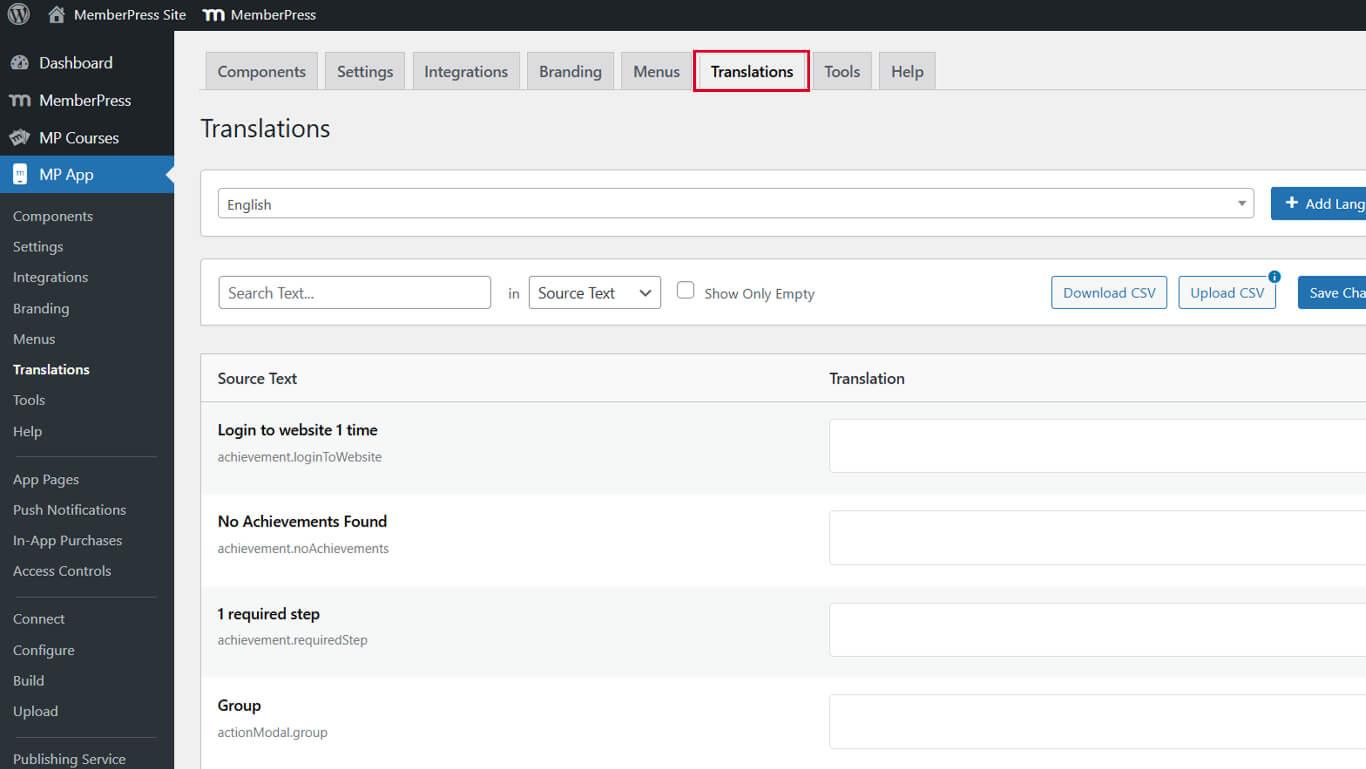
- Introduzca un término de búsqueda en la barra de búsqueda para encontrar cadenas específicas.
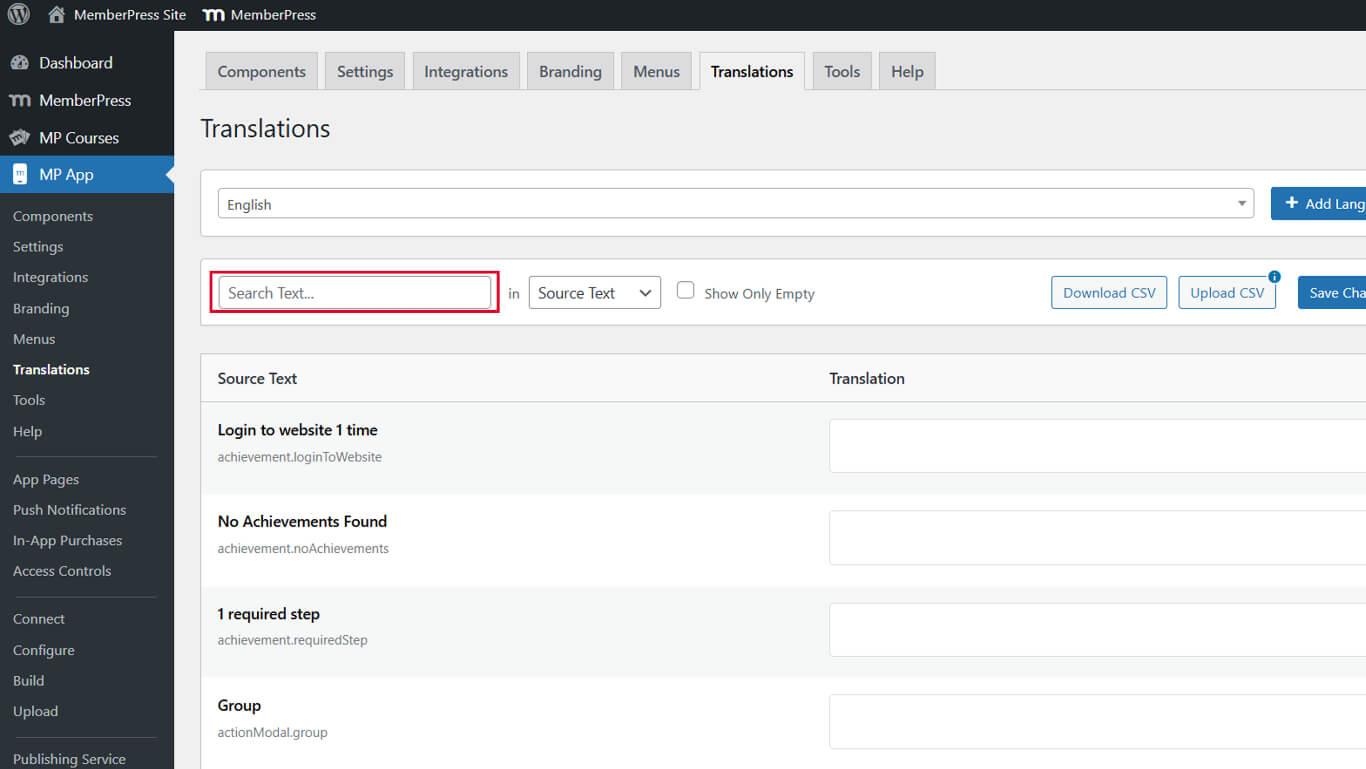
- Localizar la cadena que desea traducir.
- Introduzca el texto de traducción al idioma RTL en el campo Traducción campo.
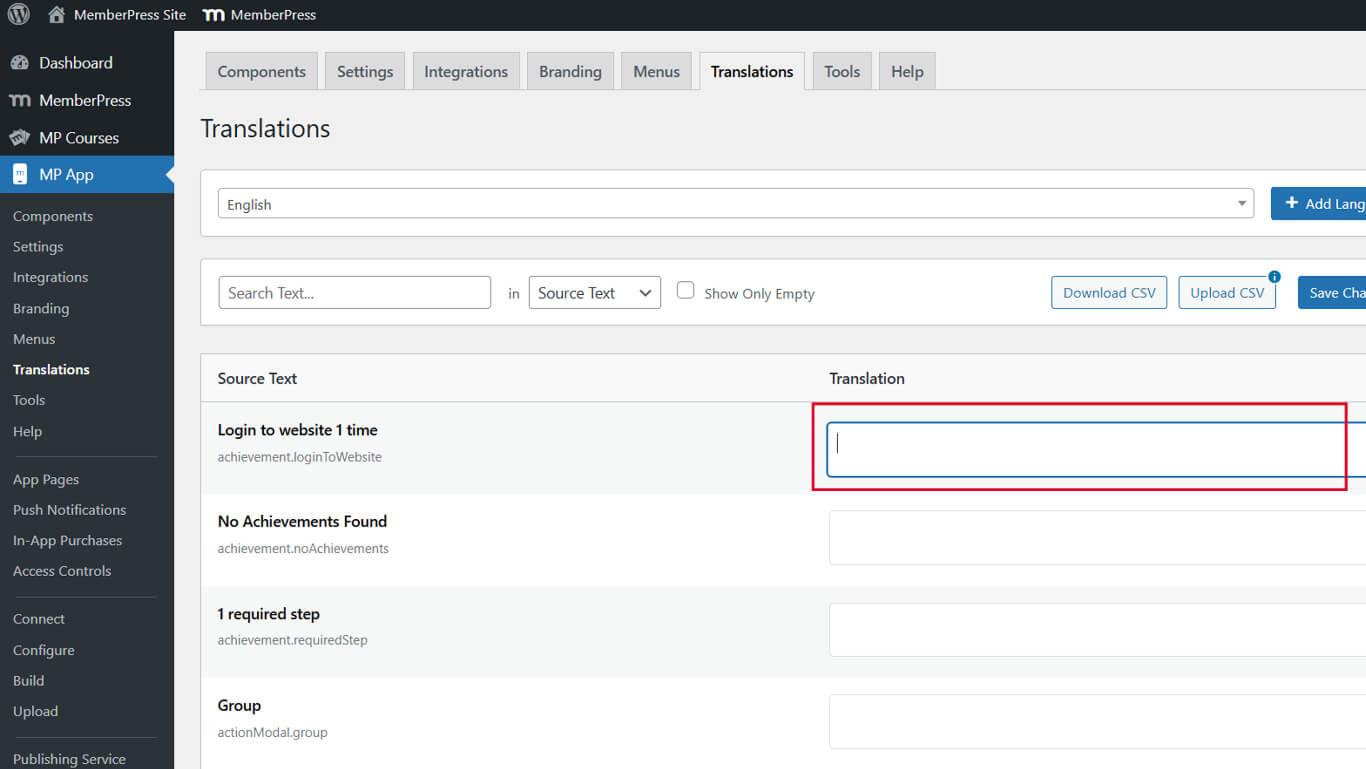
- Haga clic en Guardar cambios.
- Repita los pasos 2-5 para todas las cadenas que desee traducir.
Las cadenas de texto que se suelen traducir son las etiquetas de navegación, el texto de los botones y los mensajes de la interfaz.
Cambiar el idioma del sitio a RTL
La configuración del idioma del sitio de WordPress controla el comportamiento global del diseño RTL.
- Vaya a WordPress Panel de control > Configuración > General.
- Localice el Idioma del sitio desplegable.
- Seleccione una opción de idioma RTL de la lista desplegable.
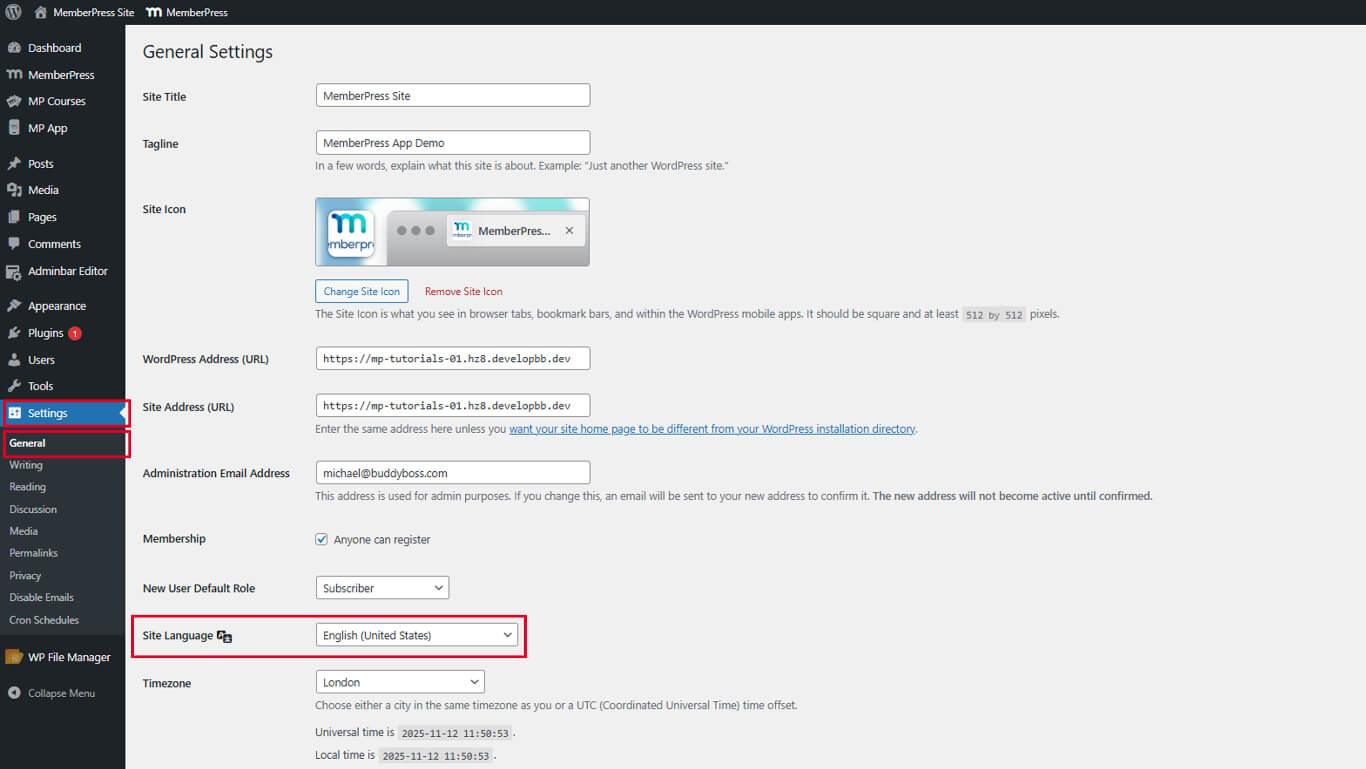
- Haga clic en Guardar cambios.
El panel de administración de WordPress y el tema del sitio cambiarán al diseño RTL después de guardar.
Verificación del diseño RTL en la aplicación móvil
- Forzar cierre y reapertura la aplicación MemberPress iOS/Android en tu dispositivo móvil.
- Compruebe que el barra de pestañas y iconos de cabecera aparecen en orden de derecha a izquierda.
- Abra cualquier pantalla traducida (por ejemplo, Miembros) y compruebe que el texto y los menús son RTL.
- Navegue por la aplicación para confirmar flechas traseras, las animaciones y el flujo de contenidos coinciden con la dirección RTL.










 ES
ES  EN
EN  FR
FR  DE
DE  PT
PT 