

Web Fallbacks muestra páginas de WordPress y tipos de entradas personalizadas dentro de la aplicación móvil. Estas páginas se cargan de forma adaptativa con los encabezados y pies de página ocultos automáticamente.
Este documento explica cómo configurar Web Fallbacks y entender sus casos de uso en comparación con las App Pages nativas.
Comprender los Fallbacks Web
Web Fallbacks integra el contenido existente de WordPress en la interfaz de la aplicación. Las páginas se muestran con el encabezado nativo de la aplicación, mientras que los encabezados y pies de página del sitio web permanecen ocultos. Web Fallbacks admite creadores de páginas y contenido existente sin necesidad de desarrollo personalizado.
Comparación de Fallbacks Web y App Pages
Las Web Fallbacks y las App Pages tienen propósitos diferentes con ventajas distintas.
Características de Web Fallback
Integración de los contenidos existentes permite que las páginas de WordPress se muestren en la aplicación. El contenido creado con creadores de páginas o con el editor estándar de WordPress funciona sin modificaciones.
Se requiere conexión a Internet para la carga de Web Fallback. Las páginas obtienen contenido del servidor cada vez que los usuarios acceden a ellas.
Depende de la velocidad del sitio El rendimiento varía según el alojamiento y la optimización de la página. Las páginas complejas pueden cargarse más lentamente que las alternativas nativas.
Eficacia del desarrollo elimina la necesidad de desarrollar aplicaciones a medida. Las páginas web existentes se integran directamente en la navegación de la aplicación.
Características de la página de la aplicación
Experiencia de pantalla nativa proporciona una navegación fluida con carga instantánea. Las App Pages creadas con App Blocks se cargan desde la caché local.
Disponibilidad offline permite acceder a los contenidos sin conexión a Internet. Los contenidos almacenados en caché siguen siendo accesibles durante los periodos sin conexión.
Optimización del rendimiento ofrece una carga más rápida que el contenido web. El renderizado nativo elimina las peticiones externas al servidor.
Se requiere trabajo a medida para crear una App Page utilizando App Blocks. Las páginas deben crearse específicamente para la visualización de aplicaciones.
Acceso al menú Configuración
Los Web Fallbacks se añaden a través de interfaces de configuración de menús.
- Vaya a Panel > MP AppKit > Menús.
- Seleccione Menú de la barra de pestañas o Más menú de pantalla.
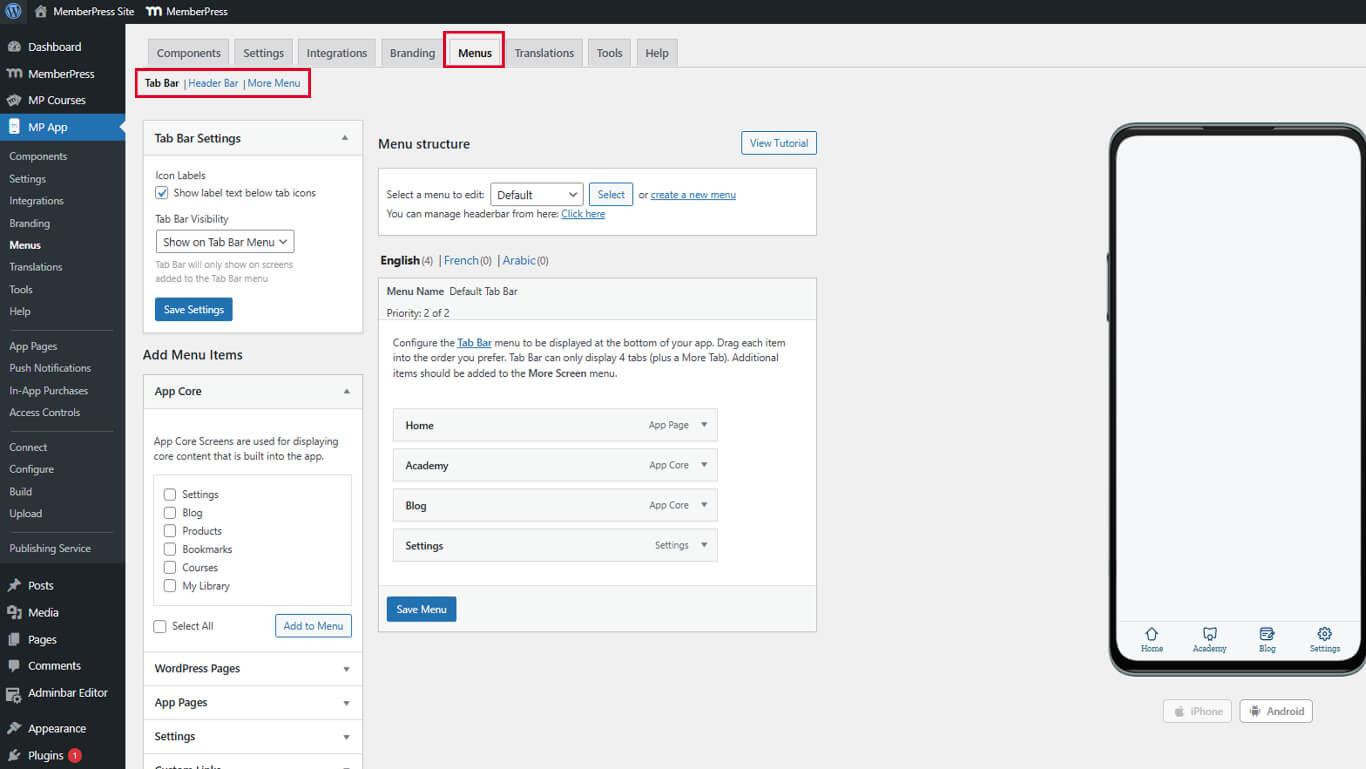
- Haga clic en el botón Guardar menú si es necesario guardar los cambios anteriores.
Añadir páginas web de emergencia a la navegación
Las páginas Web Fallback se añaden como elementos de menú que enlazan con el contenido de WordPress.
- Vaya a Panel > MP AppKit > Menús.
- Seleccione el menú que requiere la adición de Web Fallback.
- Localice las páginas disponibles en Páginas de WordPress o MemberPress AppKit secciones.
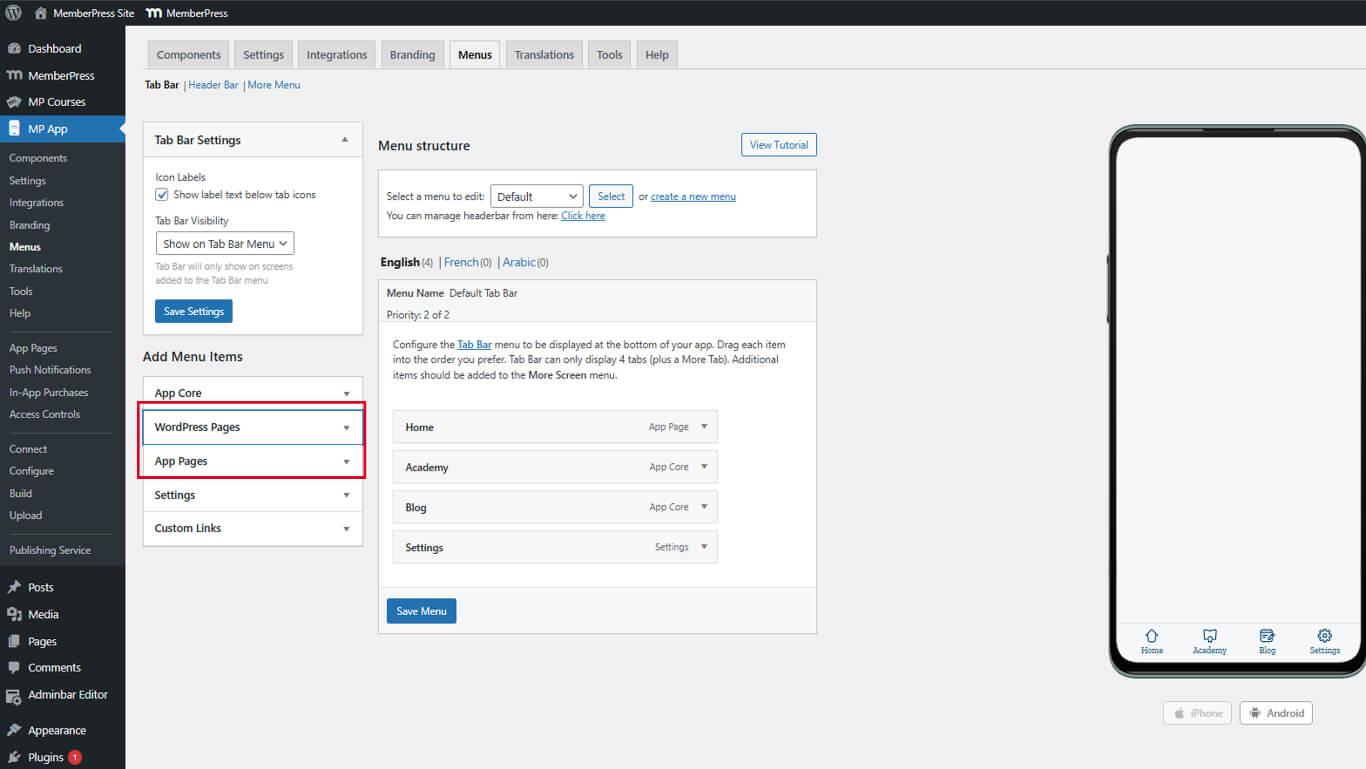
- Busque la página que desea mostrar como Web Fallback.
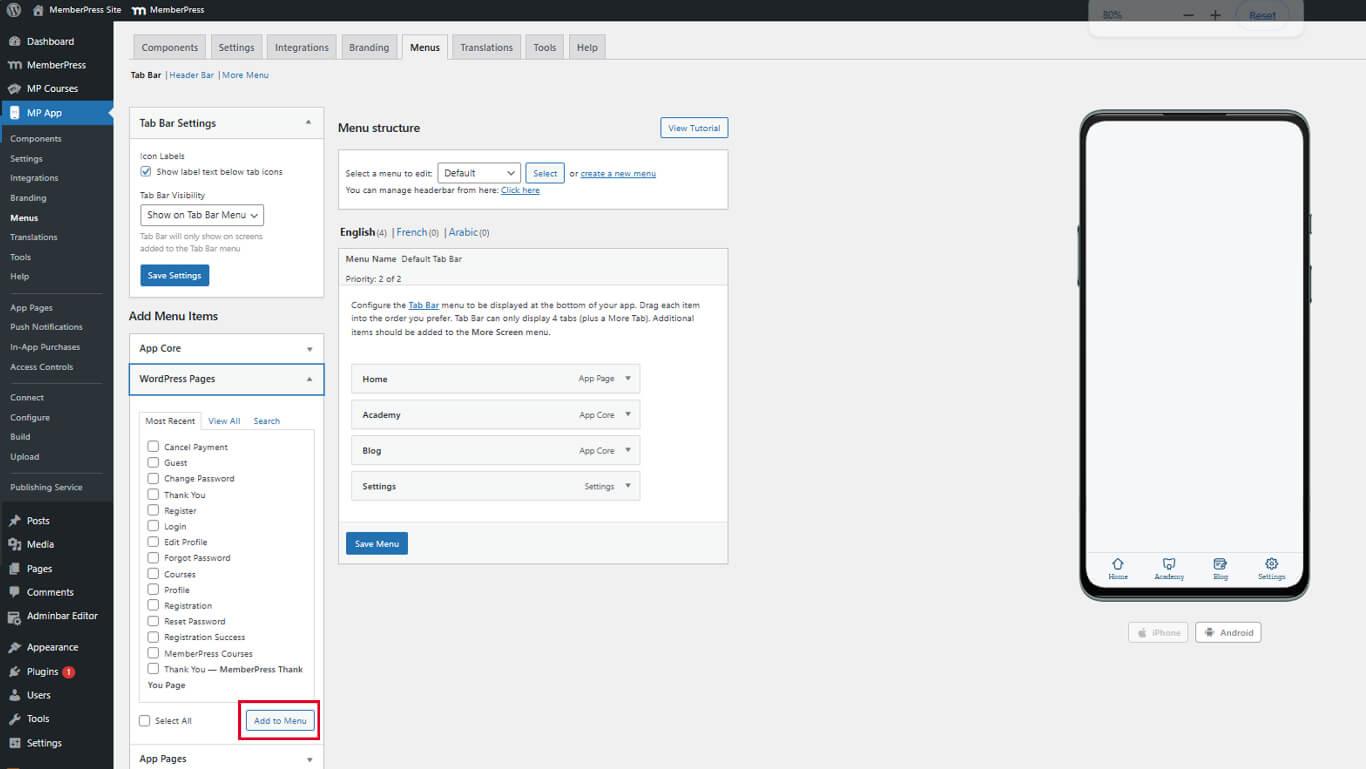
- Haga clic en Añadir al menú junto al nombre de la página.
- Arrastre el elemento de menú a la posición de navegación deseada.
- Haga clic en el botón Guardar menú para finalizar los cambios.
Entre los usos más comunes de Web Fallback se incluyen las páginas de tienda, las bibliotecas de recursos y los archivos de tipos de entrada personalizados.
Vista previa del contenido de Web Fallback
La verificación Web Fallback garantiza la correcta visualización dentro de la interfaz de la aplicación.
- Abrir la aplicación MemberPress iOS/Android en un dispositivo móvil.
- Navegar hasta el menú que contiene el elemento Web Fallback.
- Pulse el elemento de menú Web Fallback para abrir la página.
- Compruebe que la página se carga sin la cabecera ni el pie del sitio.
- Confirme que se muestra el encabezado nativo de la aplicación por encima del contenido.
- Tocar enlaces de contenido para navegar dentro del Web Fallback.
- Utiliza la flecha hacia atrás de la aplicación para volver a las pantallas anteriores.
Las páginas Web Fallback mantienen el diseño responsivo y la optimización para móviles de la página original de WordPress.
Comprender el comportamiento de los enlaces profundos
Los enlaces profundos conectan el contenido de Web Fallback con las pantallas de la aplicación nativa cuando procede.
Detección de pantalla nativa se produce cuando los enlaces Web Fallback coinciden con las URL de pantalla de la aplicación. La aplicación abre la pantalla nativa correspondiente en lugar de cargar el contenido web.
Transiciones fluidas proporcionan una navegación fluida entre los contenidos web y los nativos. Los afiliados disfrutan de una interfaz coherente con independencia de la fuente de contenidos.
Reconocimiento automático de URL identifica las pantallas nativas compatibles a partir de los destinos de los enlaces. No se requiere ninguna configuración adicional para la funcionalidad de enlace profundo.
Comparación de pantallas nativas y Fallbacks web
| Característica | Fallbacks web | Páginas de aplicaciones nativas |
| Complejidad de la instalación | Fácil: utilice las páginas existentes | Avanzado - Requiere API REST + codificación |
| Rendimiento | Más lento, dependiente de Internet | Rapidez y capacidad de respuesta |
| Disponibilidad fuera de línea | No se admite | Totalmente compatible |
| Integración visual | Se ajusta al diseño de la aplicación, pero no es perfecto | Totalmente integrado |
| Constructores de páginas | Compatible (Elementor, Gutenberg) | No aplicable |










 ES
ES  EN
EN  FR
FR  DE
DE  PT
PT 