

As postagens de blog envolvem o público, mostram a experiência e aumentam a retenção de membros nos aplicativos móveis. O AppKit do MemberPress permite que você exiba o conteúdo do blog otimizado para dispositivos móveis.
Este documento explica como adicionar a página Blog aos menus do aplicativo, criar posts de blog e otimizar o conteúdo para exibição em dispositivos móveis.
Entendendo a funcionalidade do blog
O recurso Blog exibe publicações do WordPress na interface do aplicativo. Os membros acessam o conteúdo do blog por meio de itens de navegação dedicados na barra de guias ou no menu Mais. As publicações criadas no WordPress aparecem automaticamente na seção Blog do aplicativo. As imagens em destaque e a formatação do conteúdo aprimoram as experiências de leitura em dispositivos móveis.
Revise o Criação de várias versões de menu documentação para opções avançadas de configuração do menu.
Adição da página do blog à navegação do aplicativo móvel
A página Blog deve ser adicionada à navegação do aplicativo para que os membros possam acessar o conteúdo do blog.
Adição do item de menu Blog à barra de guias
- Navegue até Painel de controle > MP AppKit > Menus > Barra de guias.
- Localize o Núcleo do aplicativo no painel de itens disponíveis.
- Localizar Blog na lista do App Core.
- Marque a caixa de seleção ao lado de Blog.
- Clique em Adicionar ao menu.
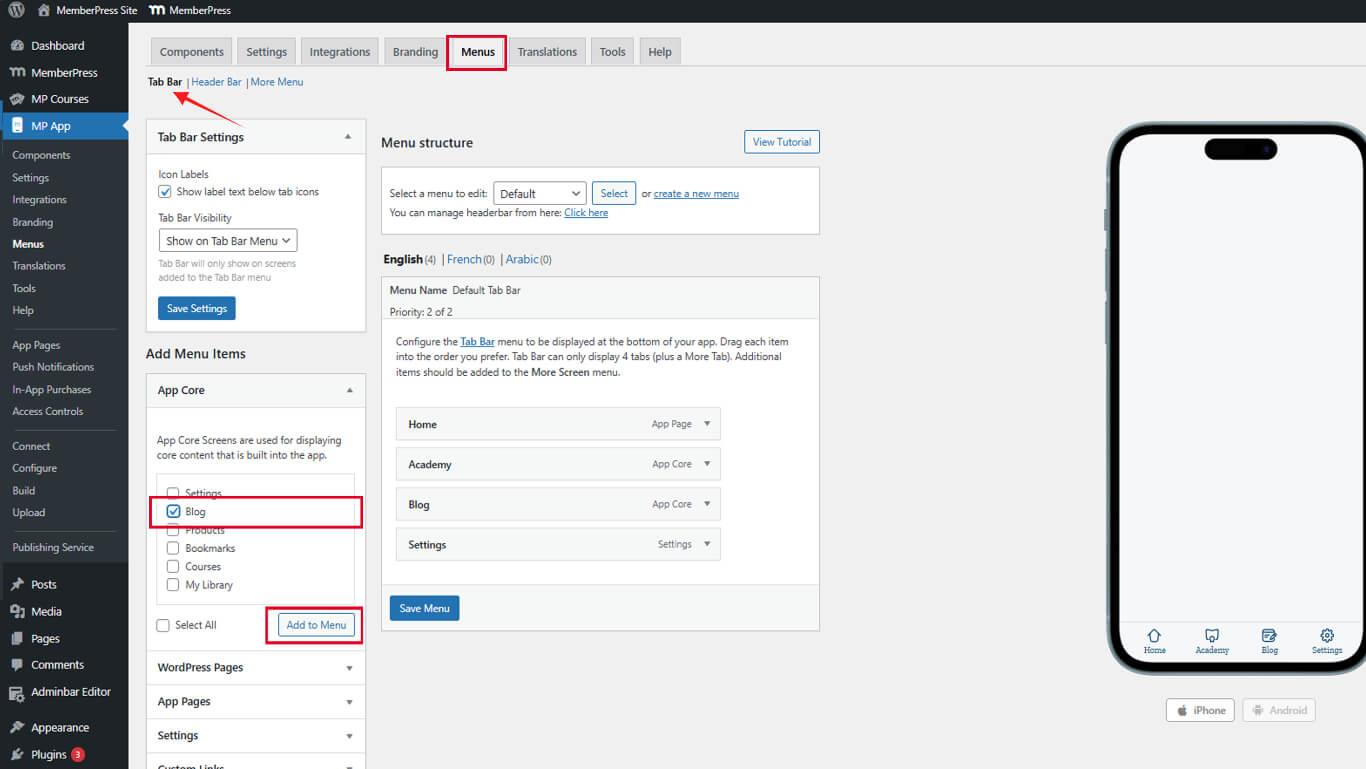
- Arraste o item do Blog para a posição desejada na ordem do menu.
- Clique no botão Salvar menu.
A guia Blog aparece na barra de guias do aplicativo móvel (iOS/Android) depois de ser salva.
Adição do item de menu Blog ao menu More
- Navegue até Painel de controle > MP AppKit > Menus > Menu Mais.
- Localize o Núcleo do aplicativo no painel de itens disponíveis.
- Localizar Blog na lista do App Core.
- Marque a caixa de seleção ao lado de Blog.
- Clique em Adicionar ao menu.
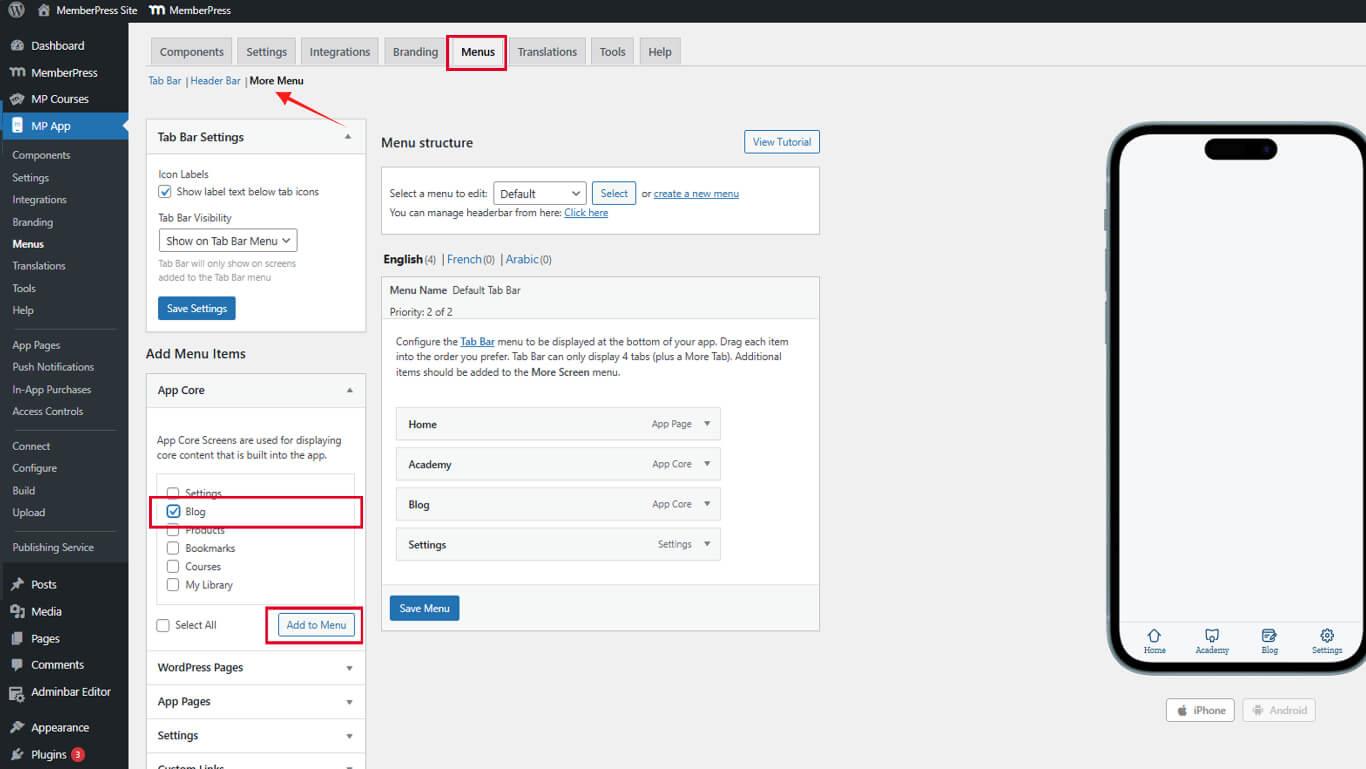
- Arraste o item do Blog para a posição desejada na ordem do menu.
- Clique no botão Salvar menu.
A opção Blog aparece no menu More (Mais) depois de salvar.
Criação de publicações no blog
Os posts do WordPress aparecem automaticamente na seção Blog do aplicativo após a publicação.
- Navegue até Dashboard > Posts > Add New.
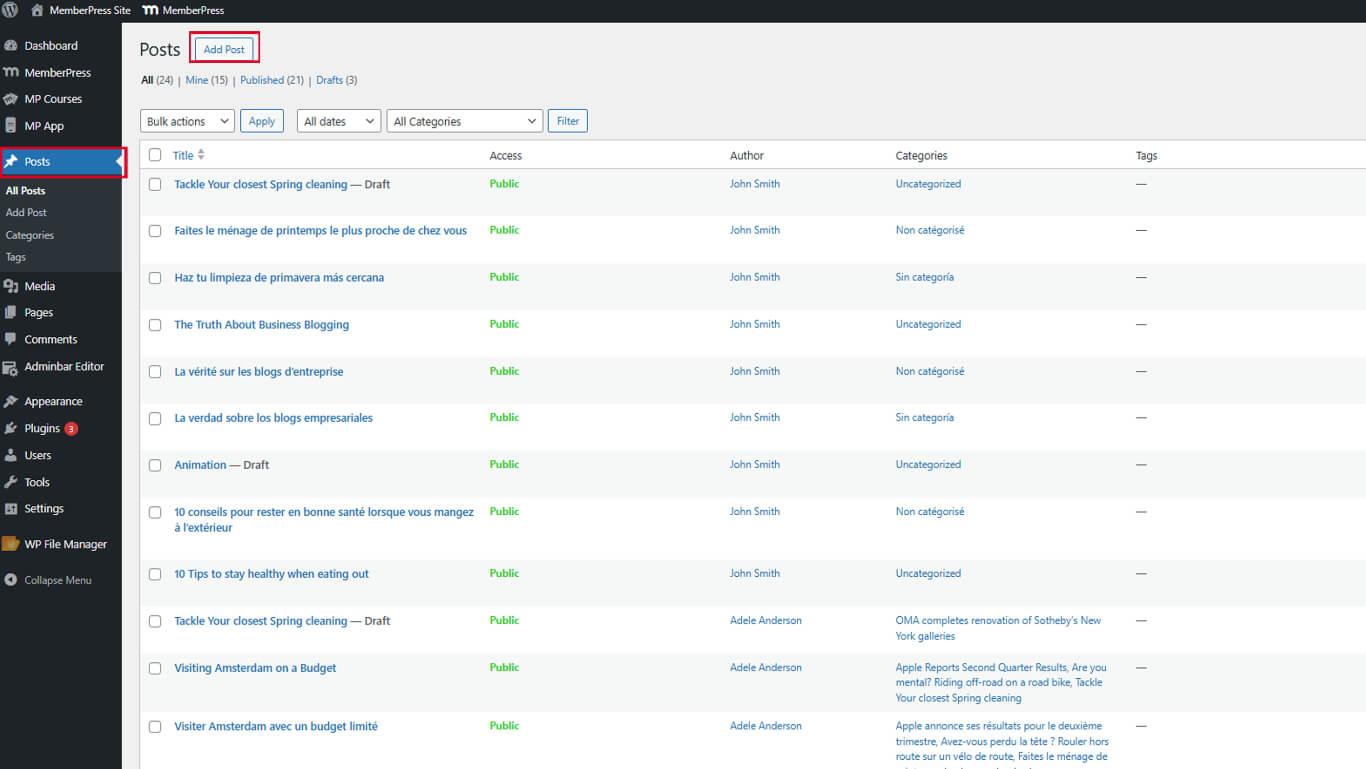
- Digite um título descritivo no campo Título campo.
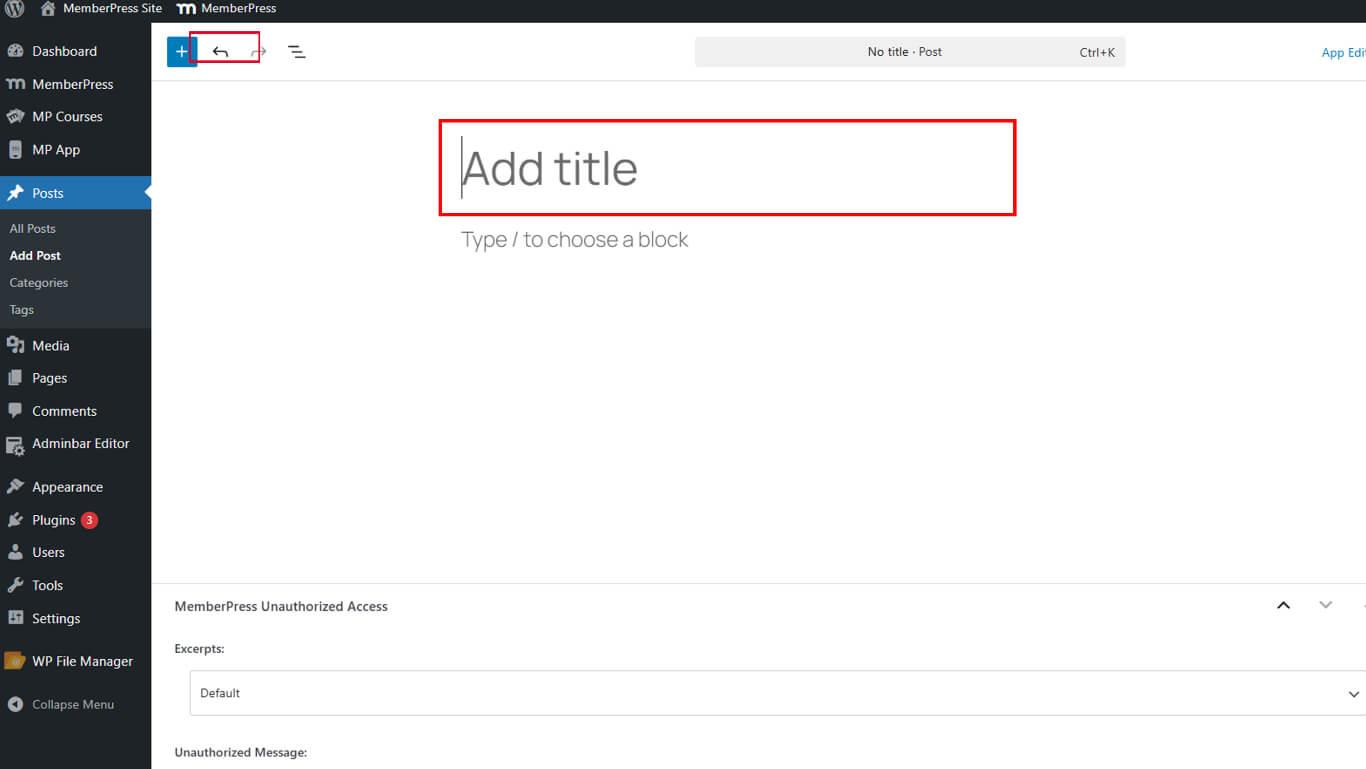
- Escreva o conteúdo do post no editor de blocos.
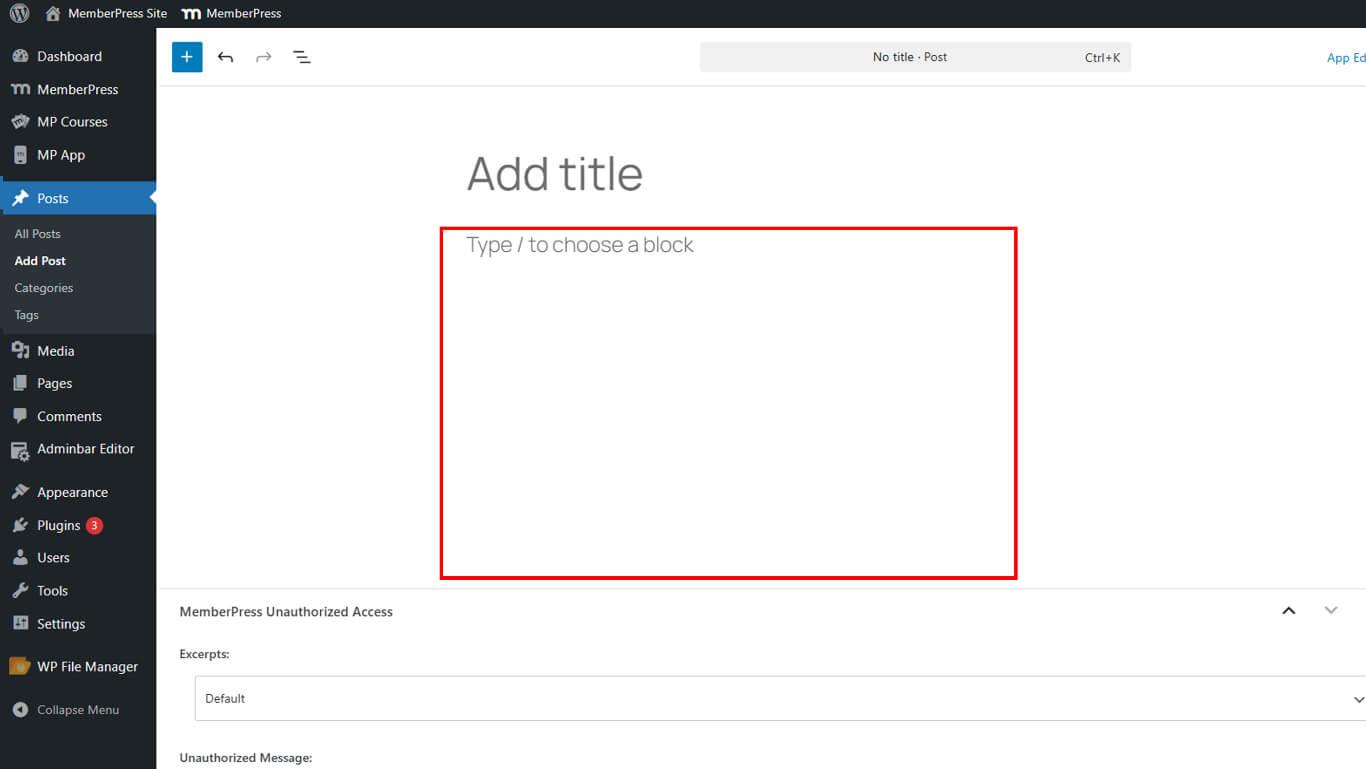
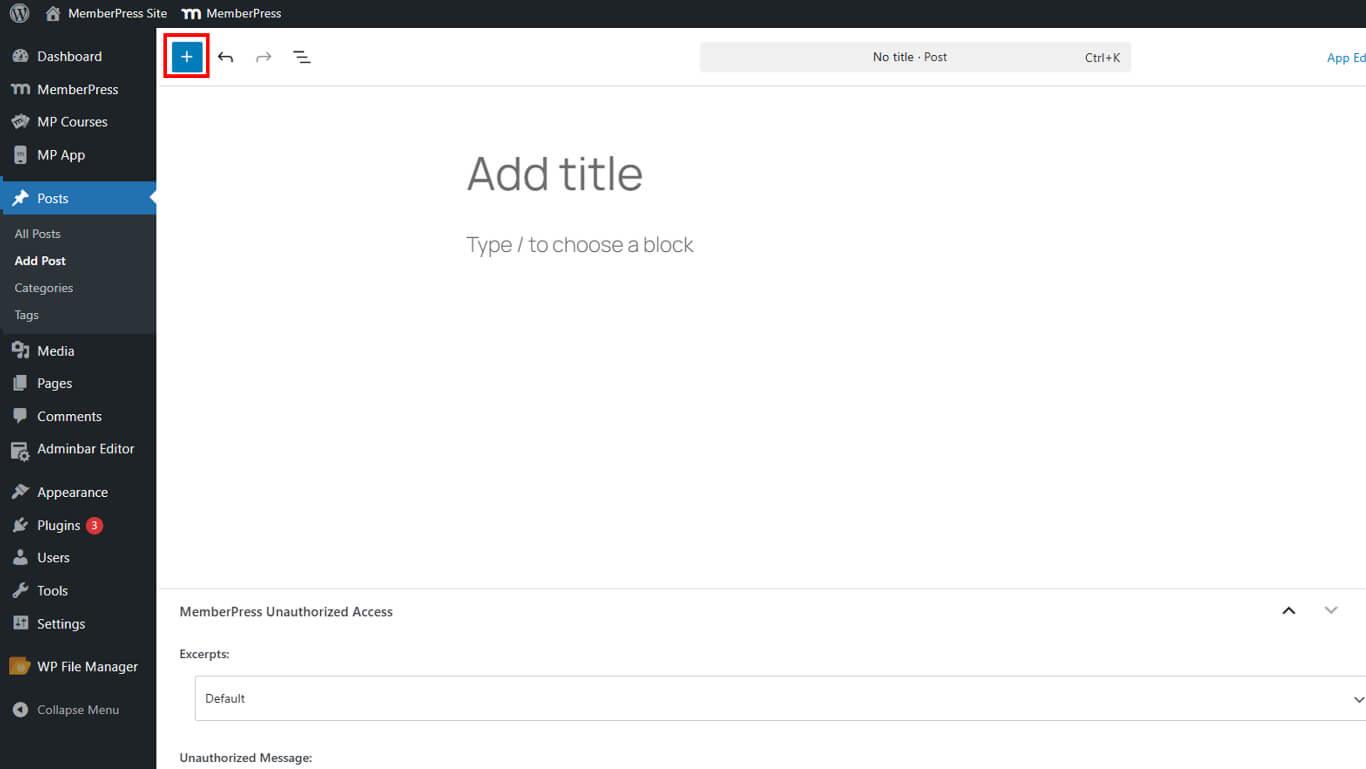
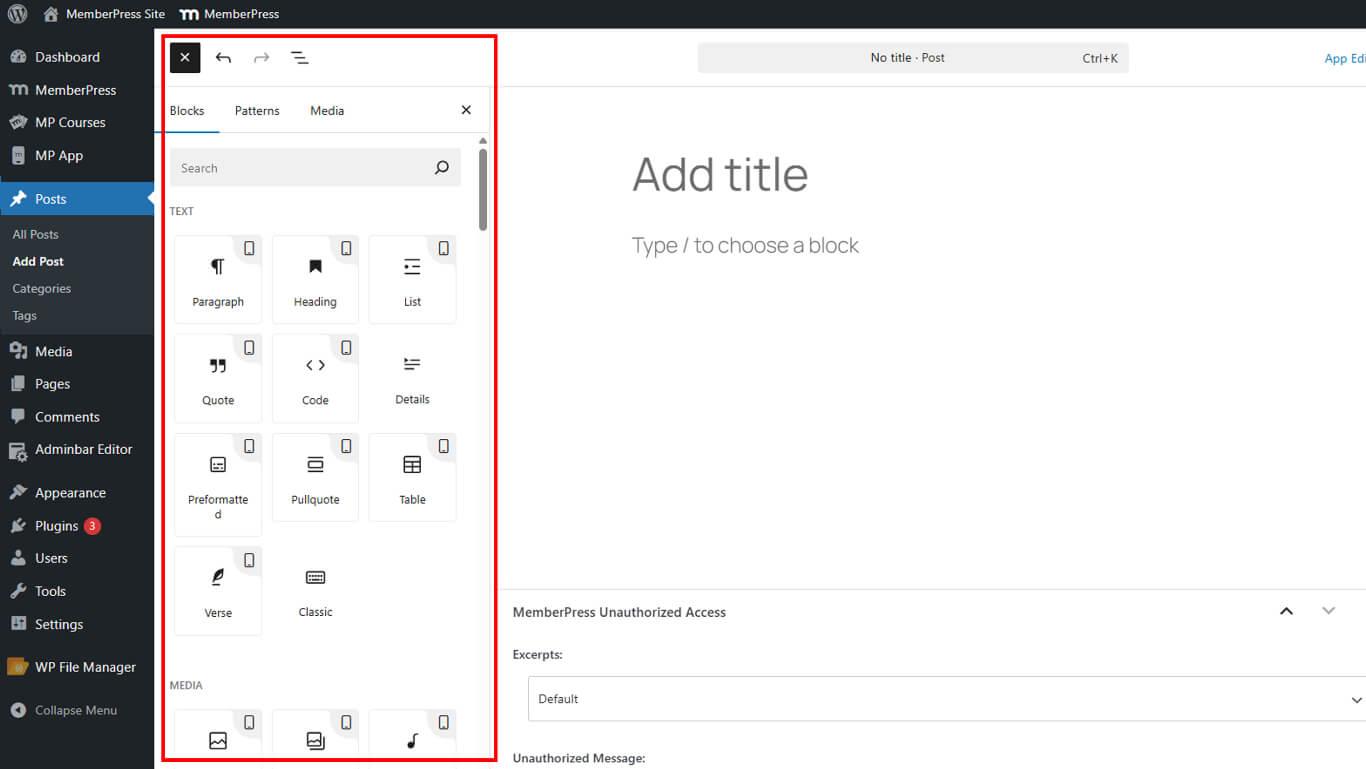
- Use os blocos do Gutenberg para formatar o texto, adicionar imagens e estruturar o conteúdo.
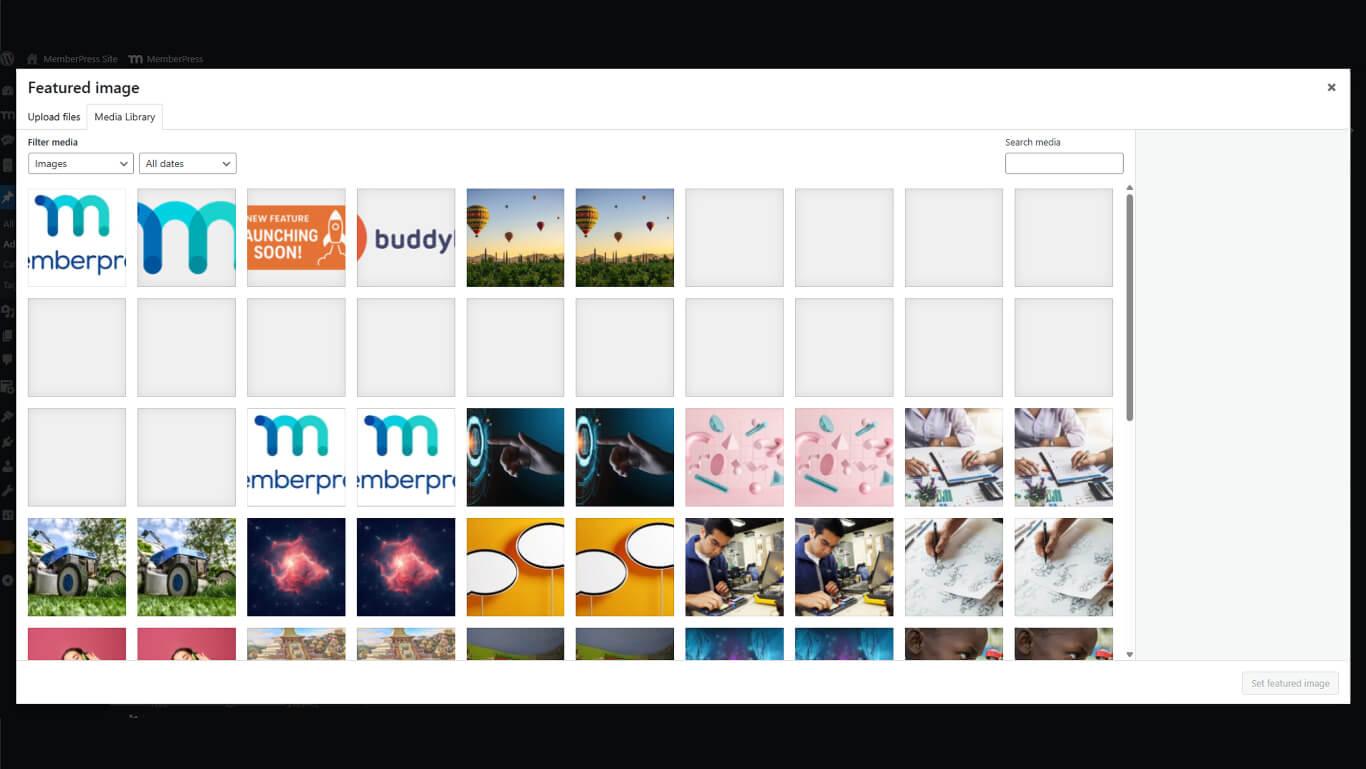
- Clique em Definir imagem em destaque na barra lateral direita.
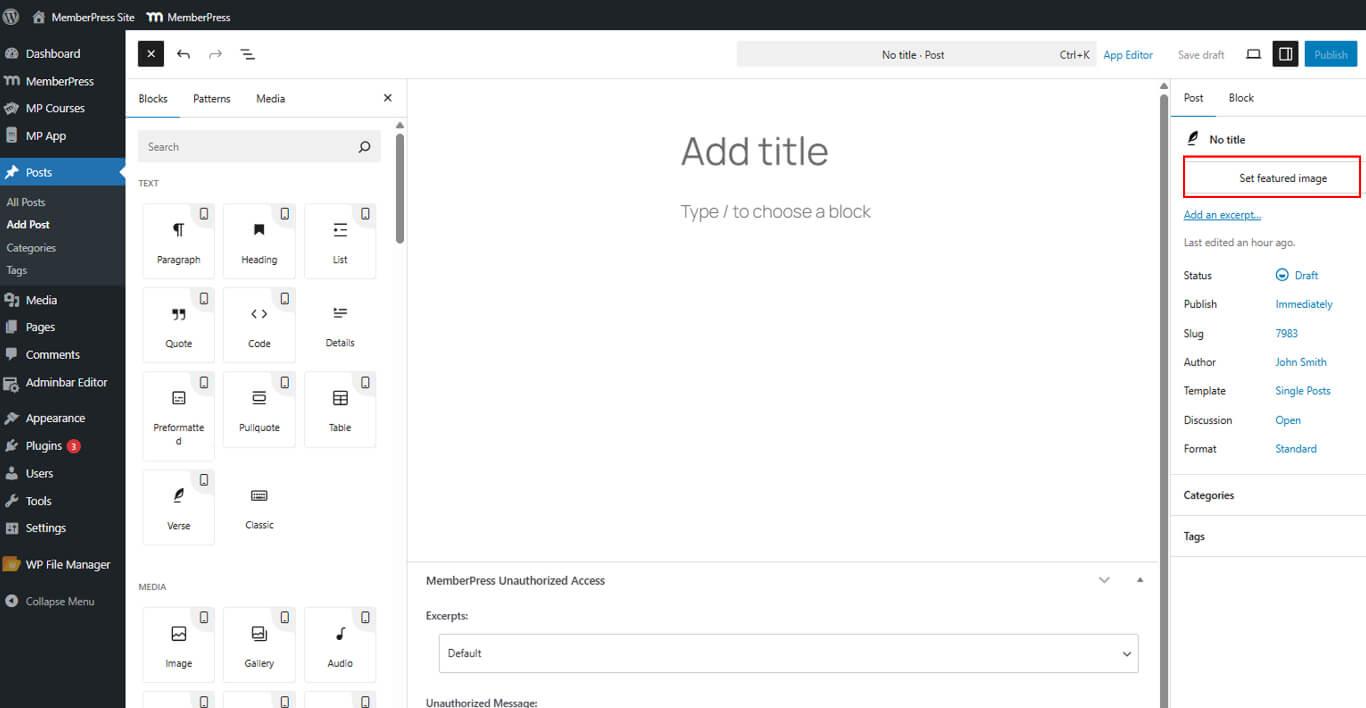
- Carregue ou selecione uma imagem para representar o post nas listagens do blog.
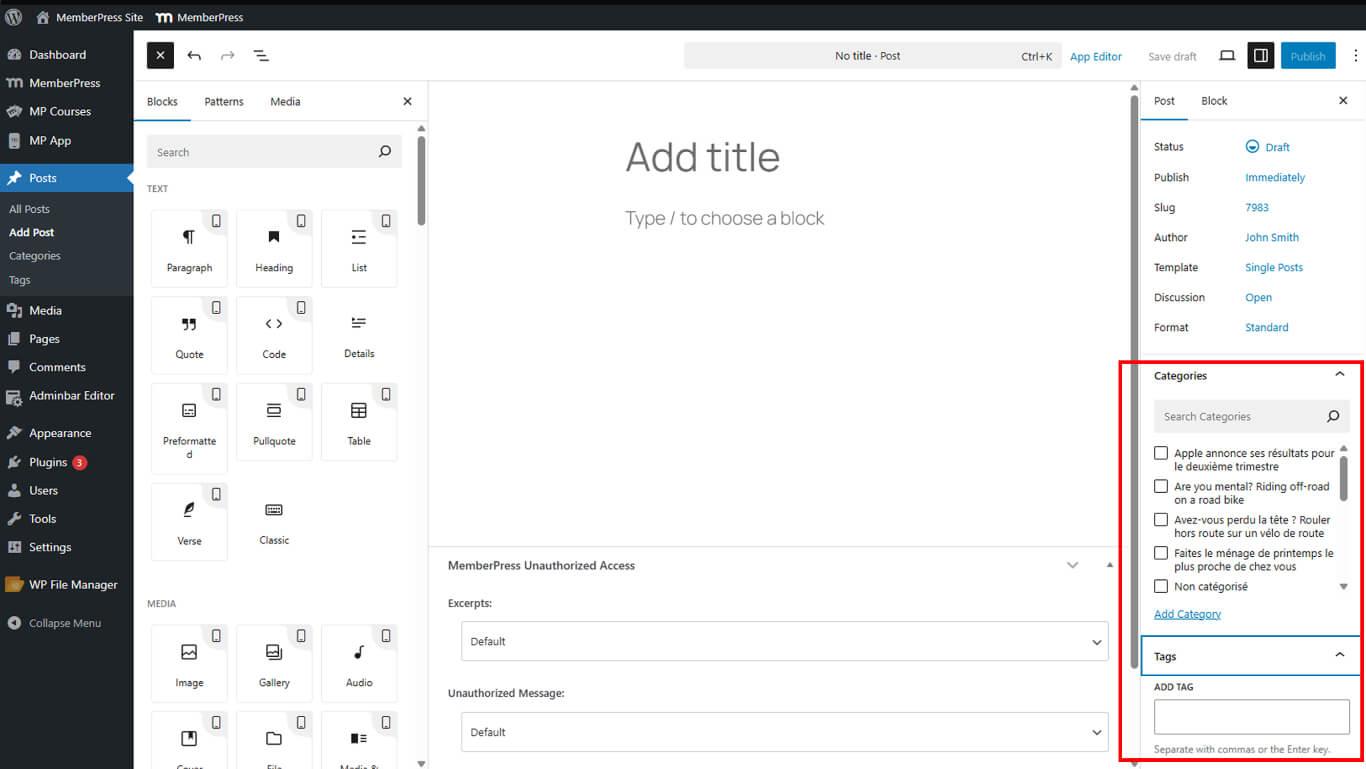
- Configure categorias e tags de postagens, se desejar.
- Clique em Publicar quando o conteúdo estiver completo.
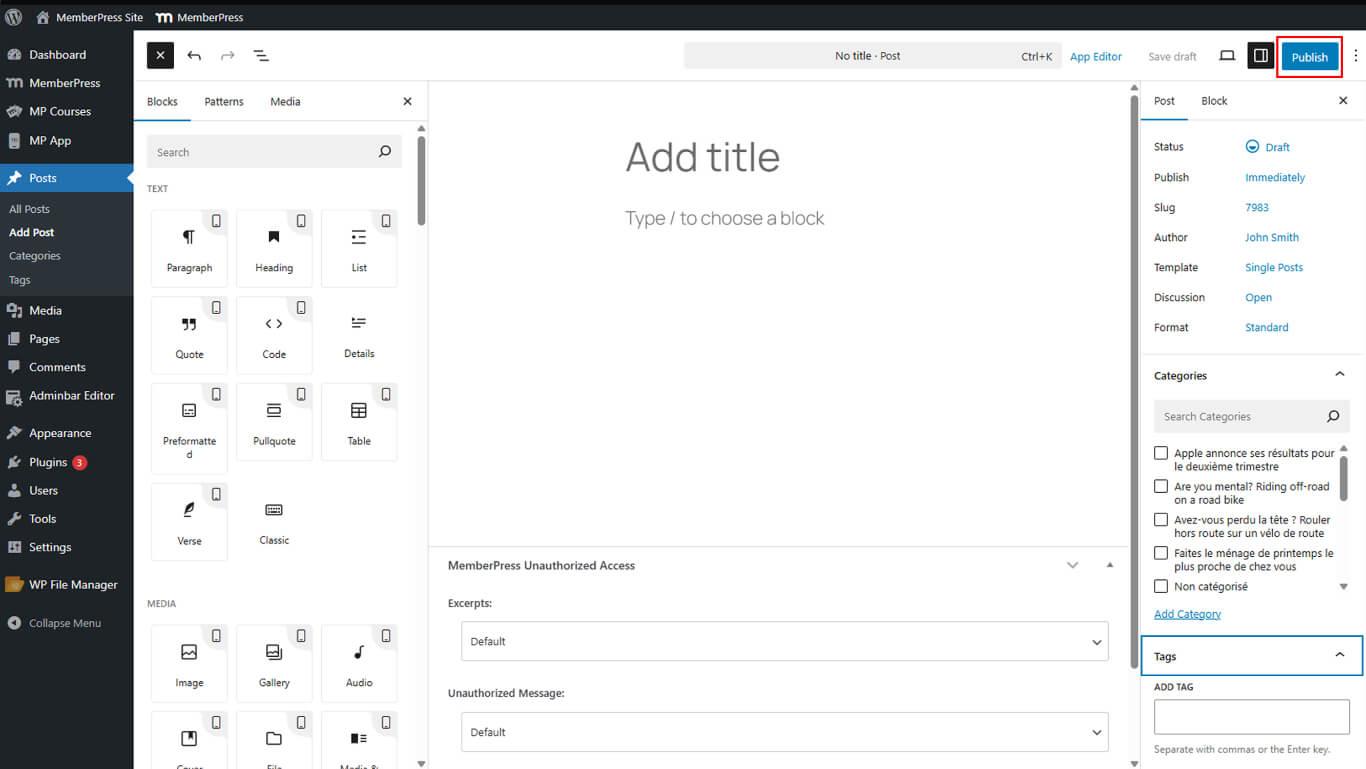
As postagens publicadas aparecem imediatamente na seção Blog do aplicativo, sem configuração adicional.
Otimização de publicações de blog para aplicativos móveis
- Se sua postagem contiver blocos sem suporte, uma mensagem aviso aparecerá na parte superior do editor.
- Para fornecer uma versão otimizada para celular, alterne para a opção Editor de aplicativos e adicionar conteúdo alternativo.
Depois de publicada, a postagem aparecerá automaticamente na seção Guia Blog em seu aplicativo MemberPress para iOS/Android.










 PT
PT  EN
EN  ES
ES  FR
FR  DE
DE 