

A preparação do aplicativo MemberPress iOS para a Apple App Store requer configurações adequadas do MemberPress AppKit e do App Store Connect. As etapas de configuração garantem a conformidade com as diretrizes da Apple e agilizam o processo de revisão.
Este documento explica como preparar o aplicativo no AppKit do MemberPress, definir as configurações no App Store Connect e enviá-lo para análise na App Store.
Compreensão dos requisitos da App Store
O envio para a Apple App Store requer configurações e informações específicas antes da aprovação da análise. Os aplicativos devem estar em conformidade com as diretrizes da Apple, incluindo políticas de privacidade, classificações etárias e restrições de conteúdo. A configuração de compras no aplicativo, a documentação da política de privacidade e as credenciais de acesso do revisor são obrigatórias para o envio. A preparação adequada reduz o risco de rejeição e acelera os prazos de aprovação.
Configuração de compras no aplicativo
A configuração de compras no aplicativo permite a monetização por meio do faturamento da App Store, quando aplicável.
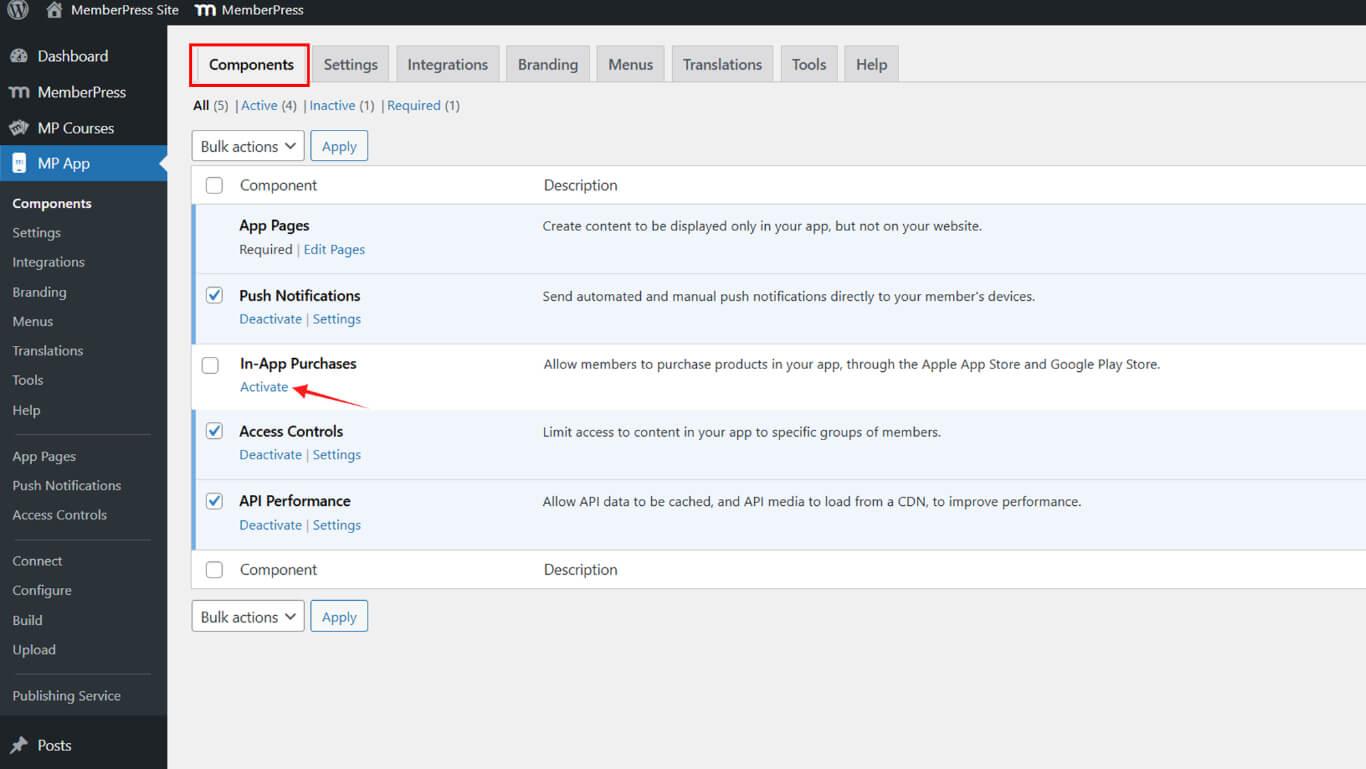
- Navegue até Painel de controle > MP AppKit > Componentes.
- Ativar Compras no aplicativo.
Geração de compilação de versão do iOS
A criação da versão de compilação do iOS prepara o arquivo do aplicativo para o envio à App Store.
- Navegue até Painel de controle > MP AppKit > Construir.
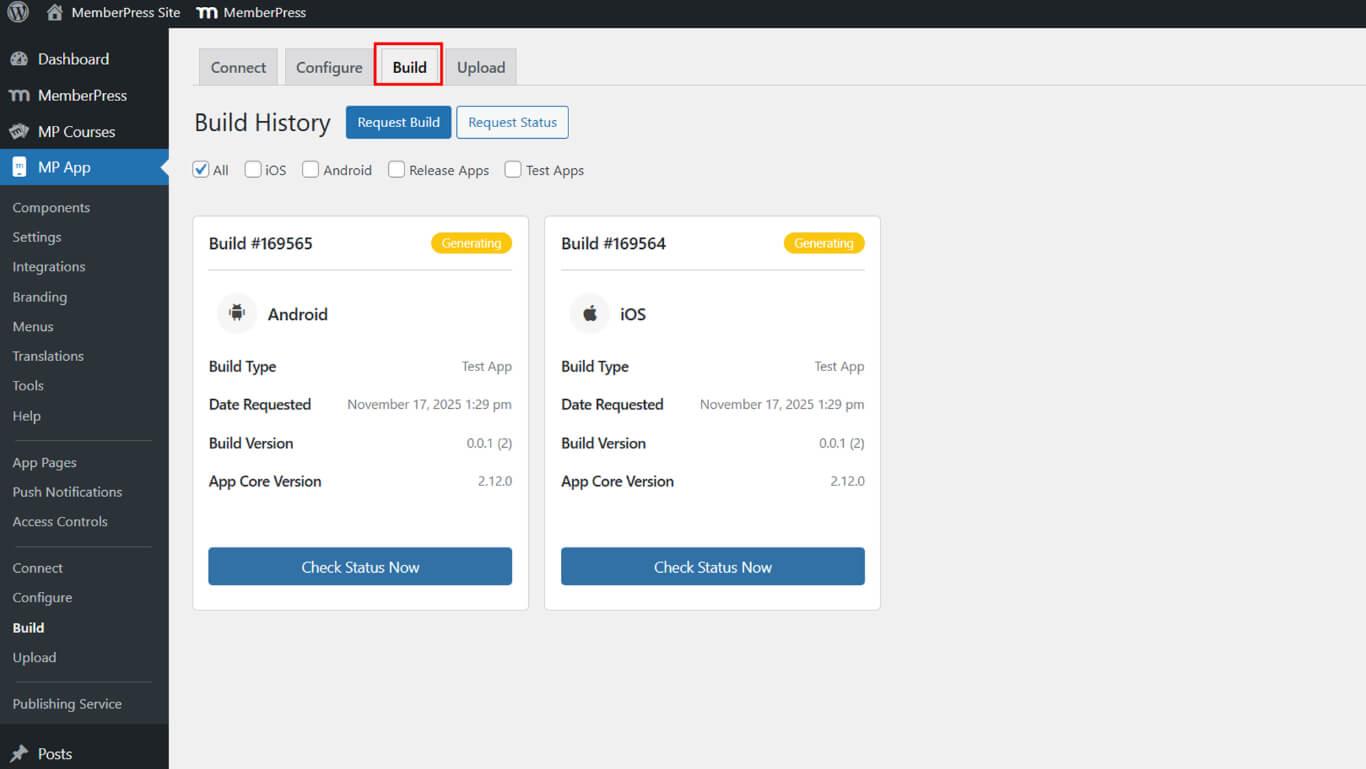
- Clique no botão Solicitação Construir botão.
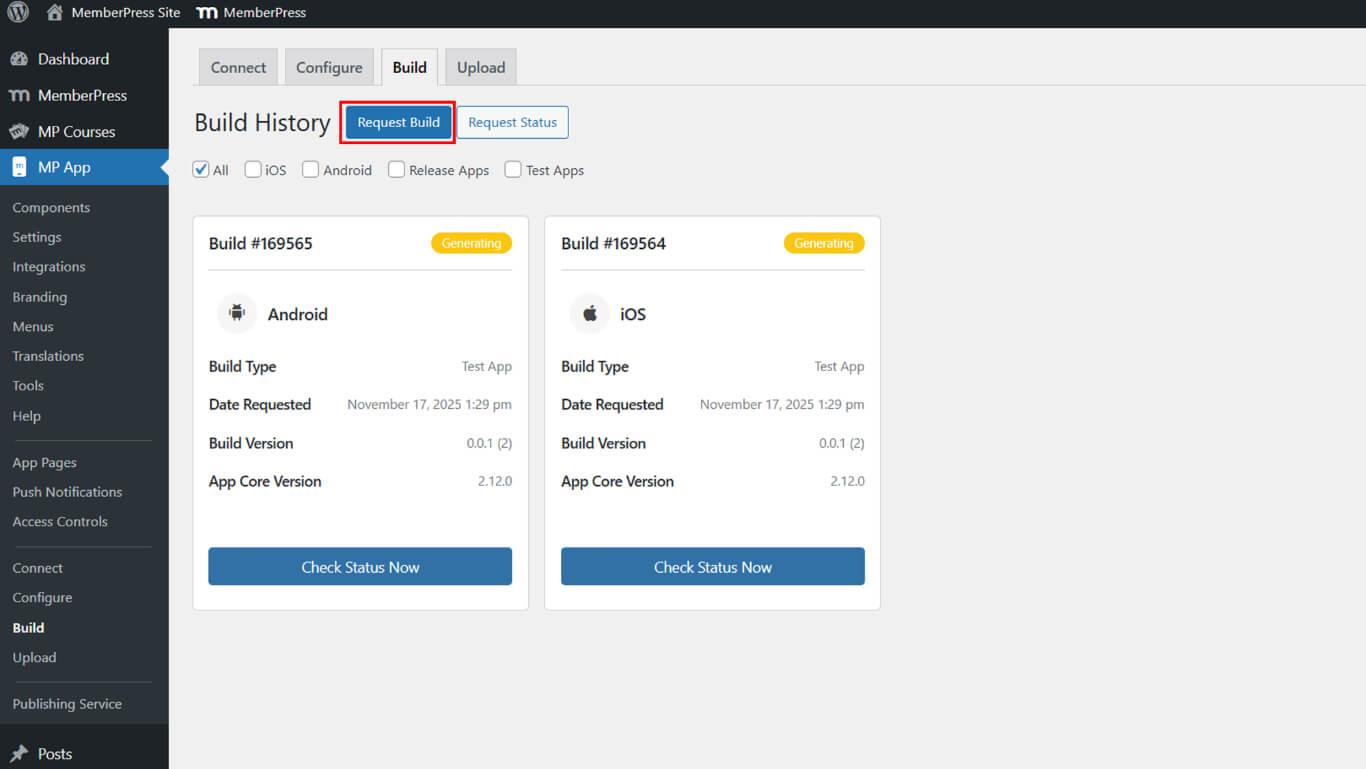
- Verifique o iOS como a plataforma.
- Selecione Lançar aplicativo como o tipo de compilação.
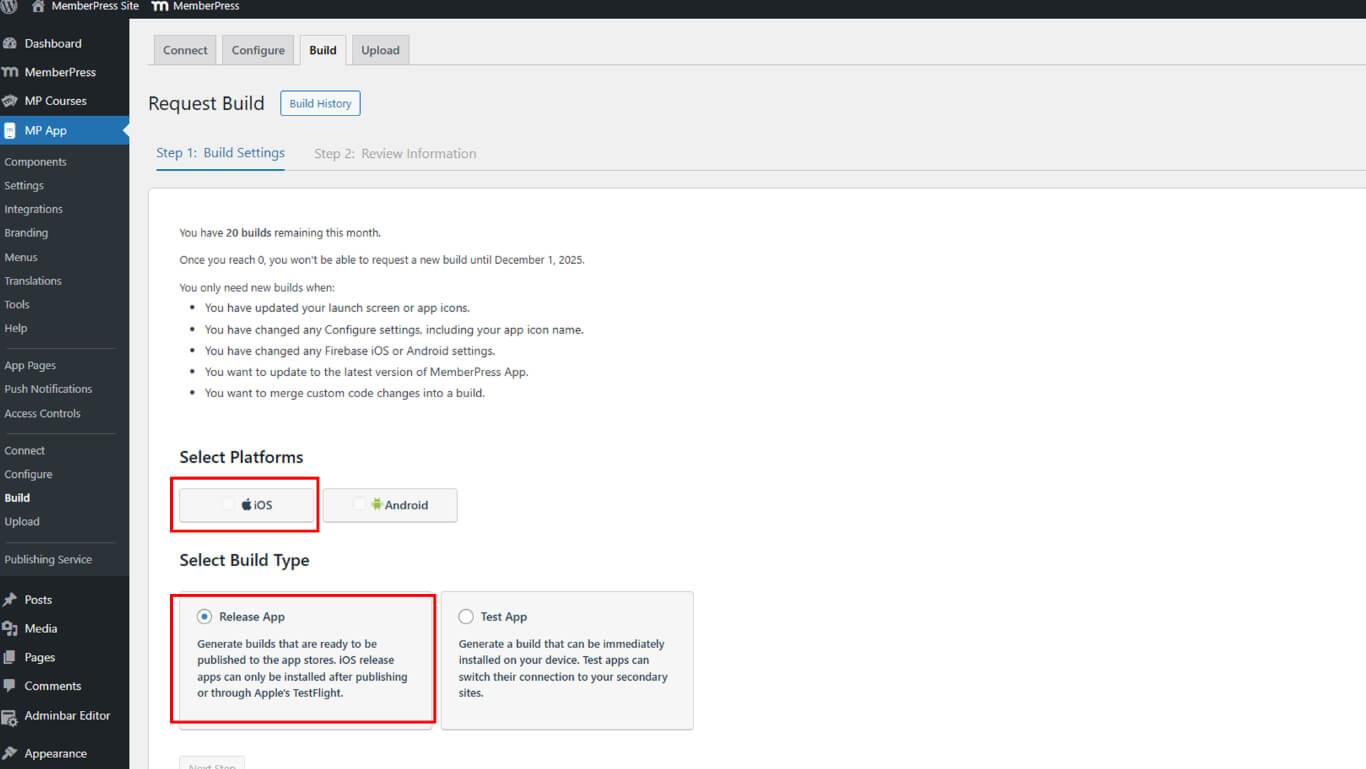
- Clique em Próximo para prosseguir.
- Clique em Enviar solicitação de compilação para enviar a solicitação.
- Monitore o status da compilação em Histórico de construção.
Normalmente, a conclusão da construção ocorre dentro de 5 a 10 minutos após o envio da solicitação.
Acesso às informações do aplicativo
A configuração de informações do aplicativo estabelece detalhes básicos do aplicativo no App Store Connect.
- Faça login no App Store Connect em appstoreconnect.apple.com.
- Clique em Aplicativos na navegação.
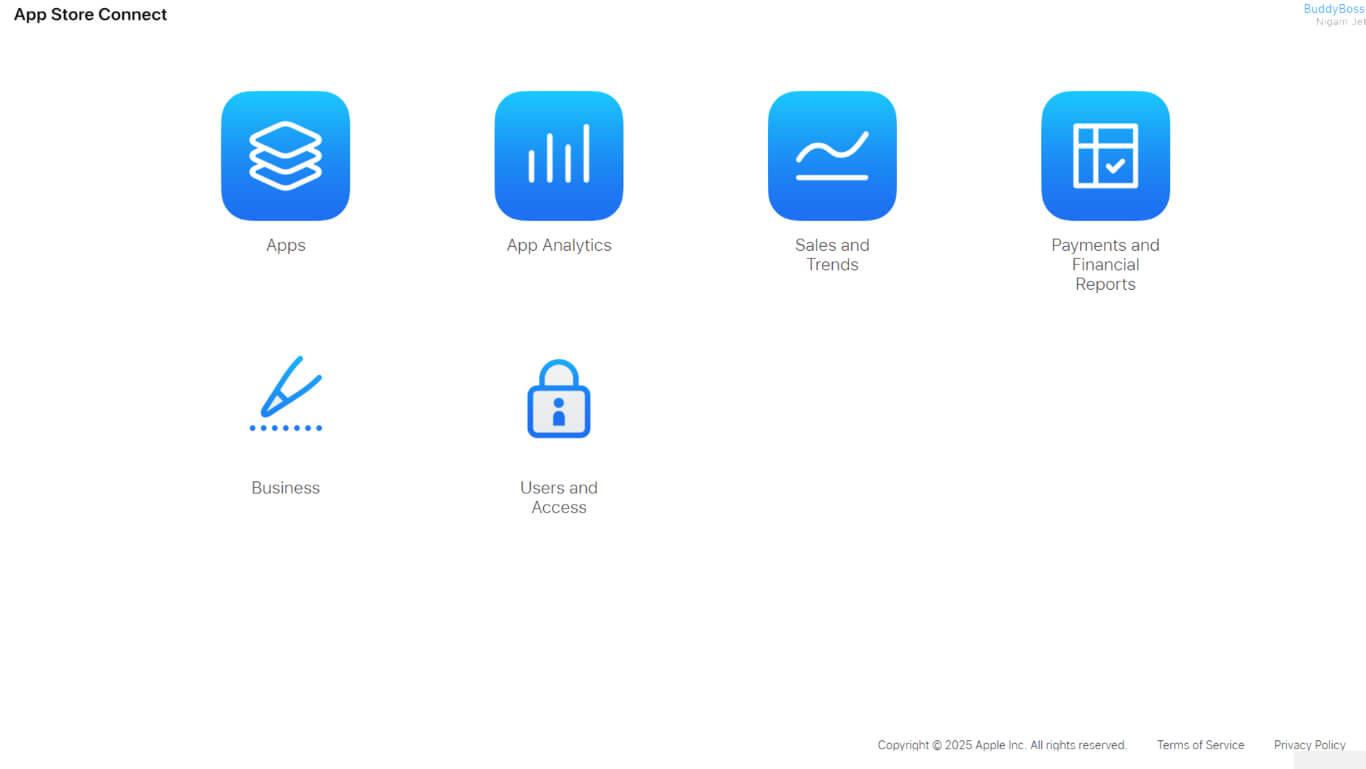
- Selecione o aplicativo na lista de aplicativos.
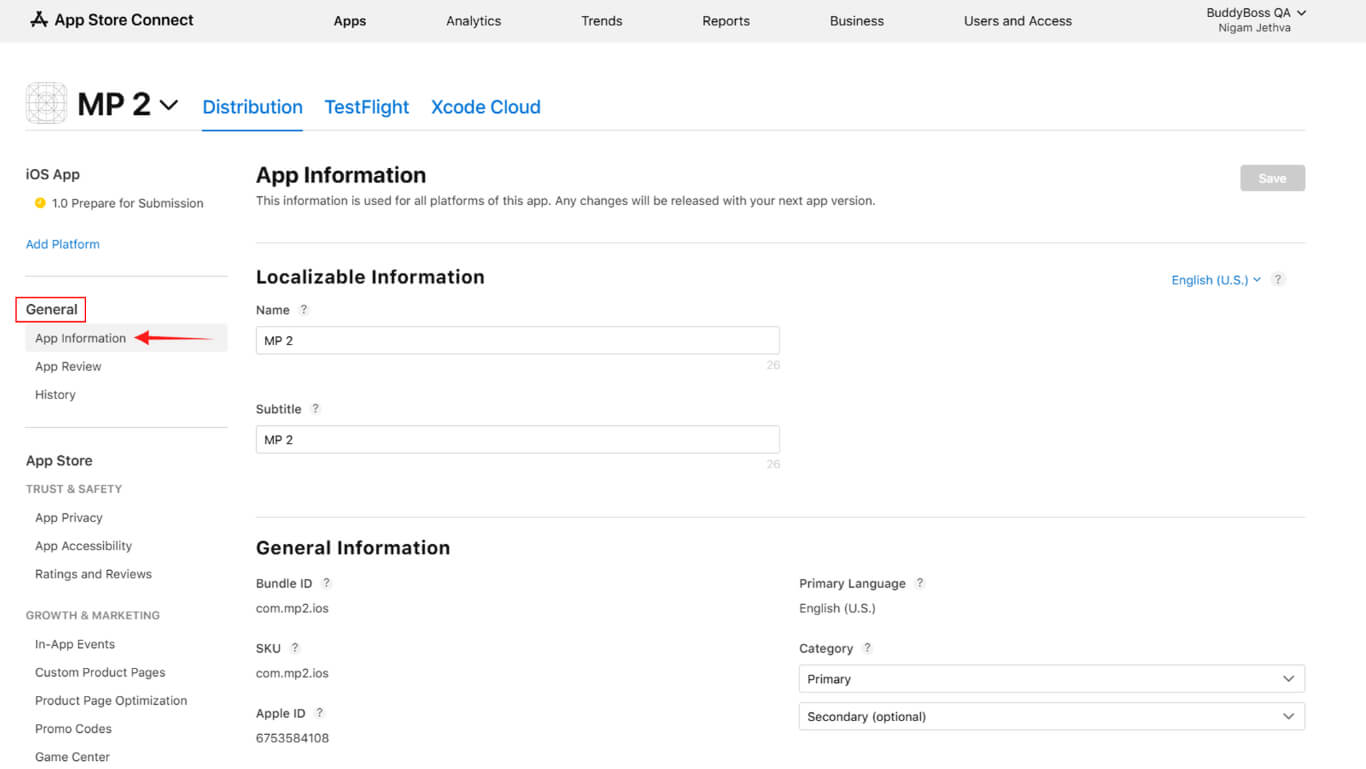
- Clique em Informações sobre o aplicativo na seção Geral.
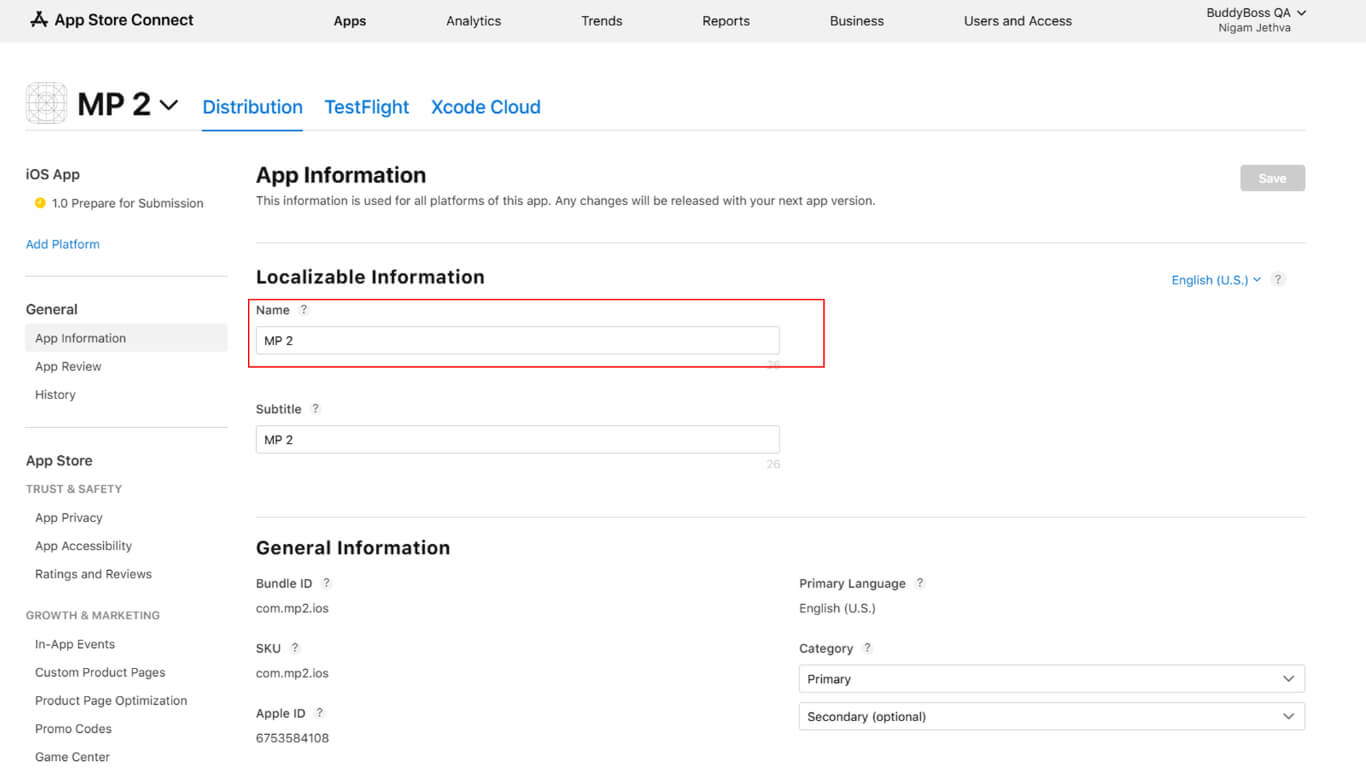
- Confirmar ou atualizar o Nome do aplicativo no campo de nome.
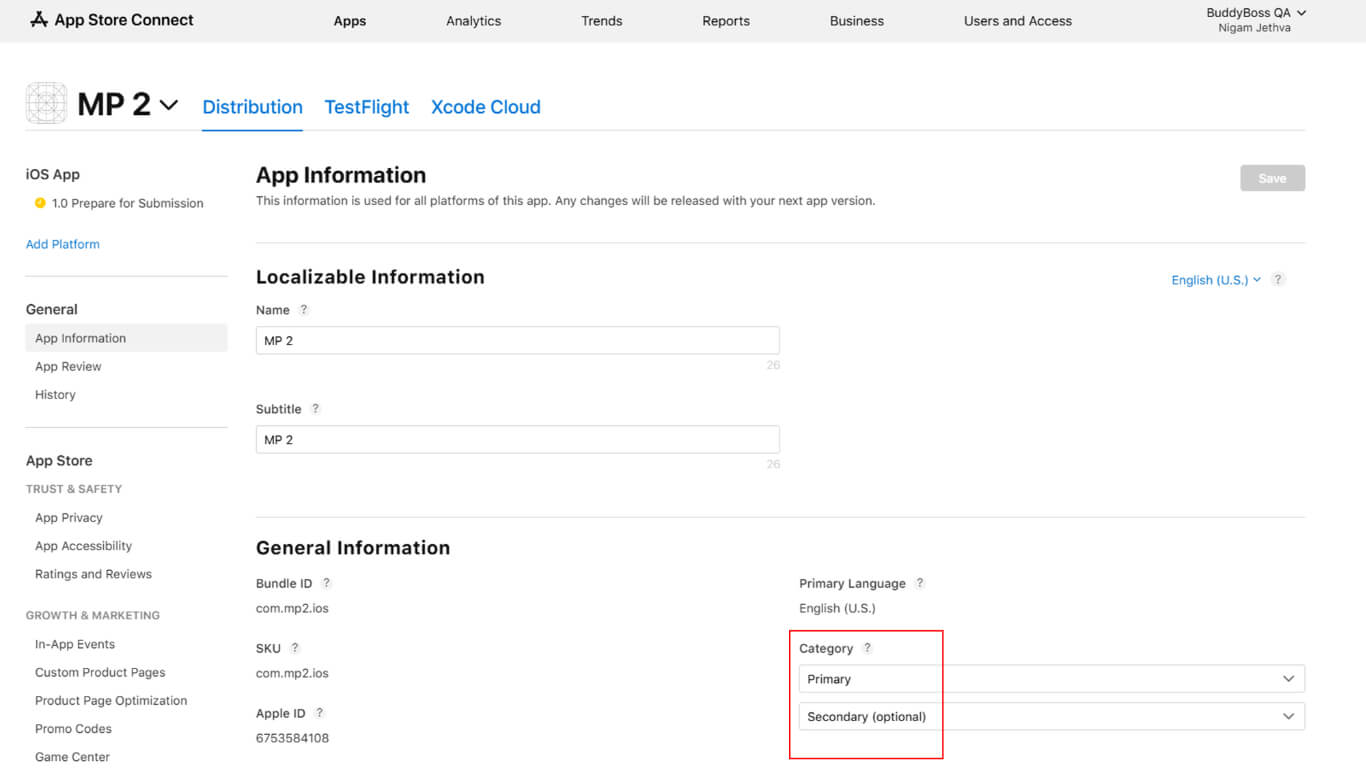
- Selecione o Categoria primária na lista suspensa de categorias.
- Selecione Categoria secundária se aplicável.
- Indique os direitos de conteúdo de terceiros se o aplicativo contiver conteúdo licenciado.
- Selecione o tipo de contrato de licença:
- EULA padrão da Apple para termos padrão;
- EULA personalizado se estiver fornecendo um contrato de licença personalizado.
- Complete o Classificação etária questionário com precisão.
- Clique em Salvar para armazenar informações do aplicativo.
Definição de preços e disponibilidade
A configuração de preços determina o custo do aplicativo e a disponibilidade regional.
- Navegue até Monetização > Preços e disponibilidade na App Store Connect.
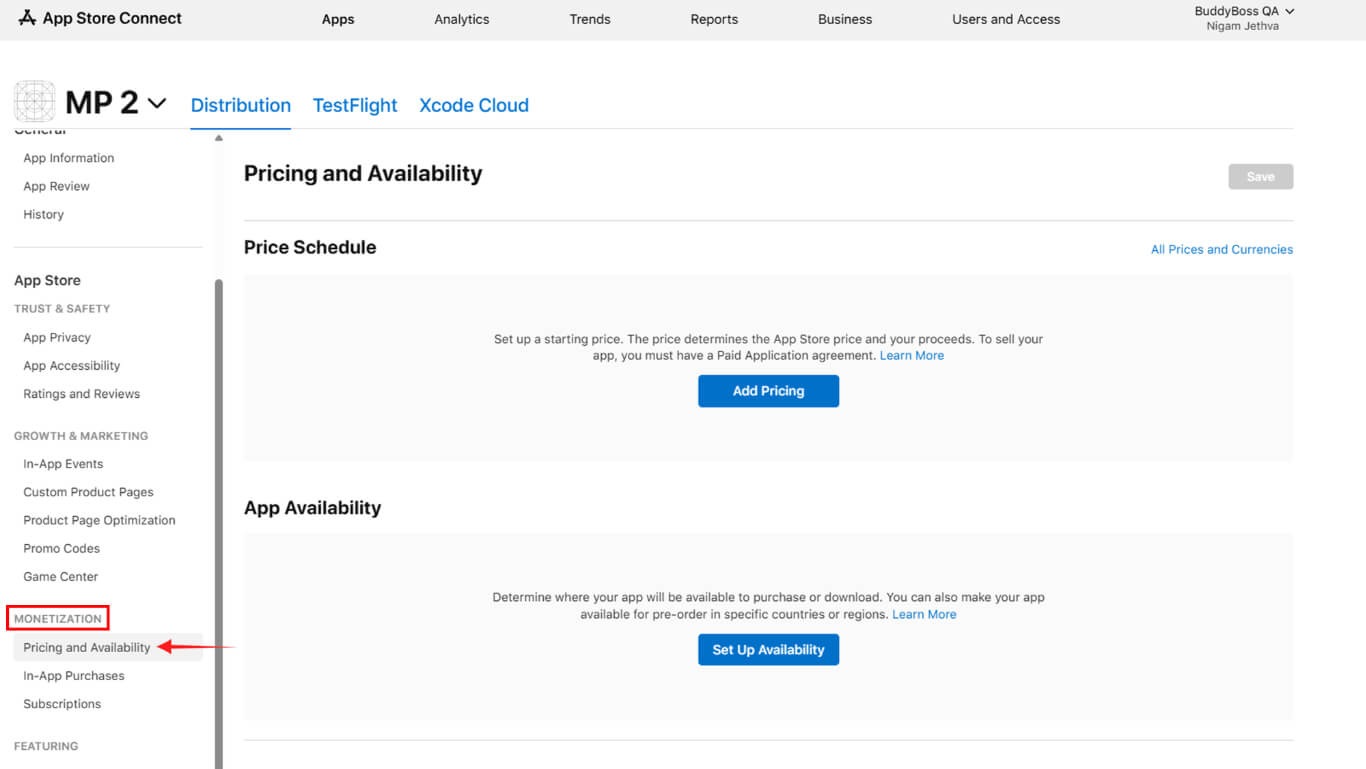
- Selecione o nível de preço:
- Grátis para aplicativos sem custo;
- Pago para aplicativos que exigem compra.
- Preencha o Contrato de Aplicativos Pagos se estiver selecionando preços pagos.
- Configurar opções de disponibilidade:
- Todas as regiões para disponibilidade mundial;
- Regiões selecionadas para países específicos;
- Pré-encomenda se estiver habilitando compras de pré-lançamento.
- Clique em Próximo para revisar as seleções.
- Clique em Confirmar para finalizar a configuração de preços.
Preenchimento das informações de privacidade do aplicativo
A configuração de privacidade do aplicativo divulga as práticas de coleta e uso de dados.
- Navegue até Privacidade do aplicativo > Confiança e segurança na App Store Connect.
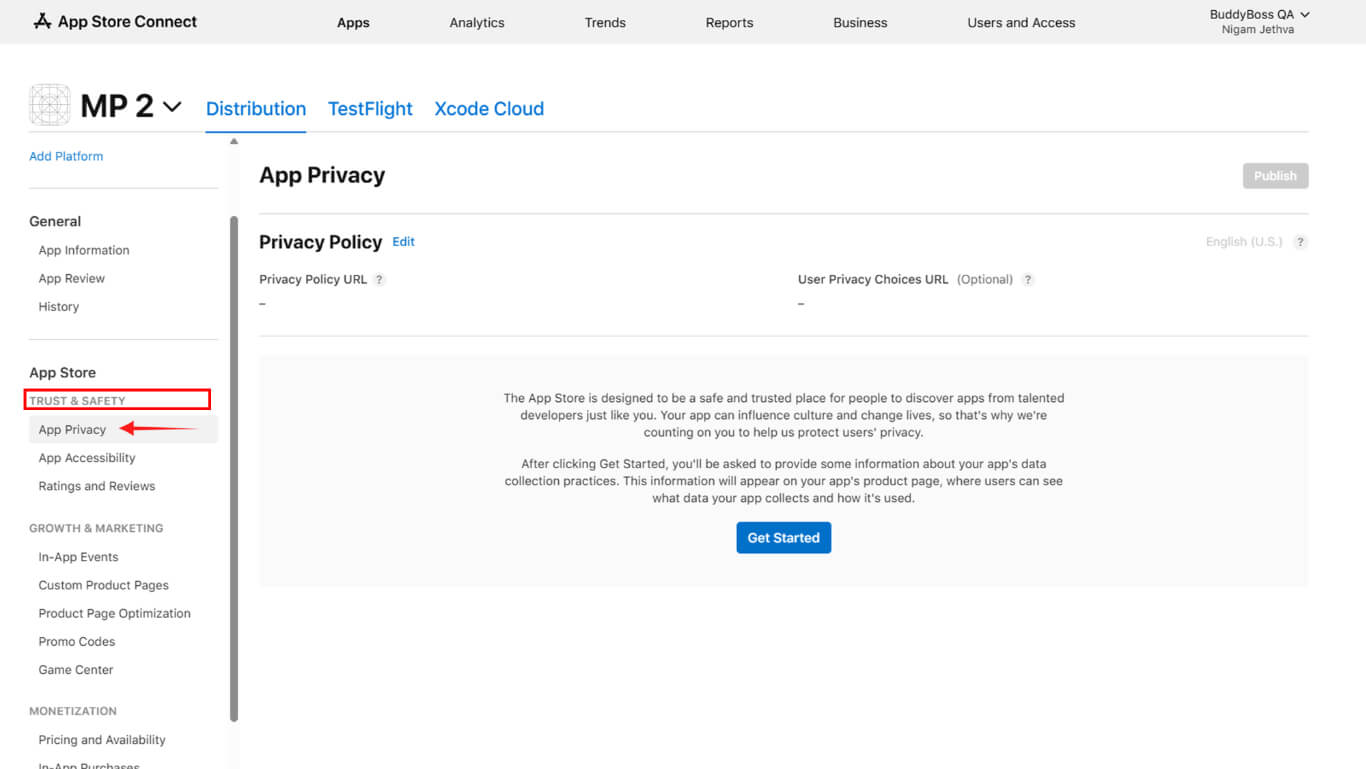
- Digite o número completo URL da política de privacidade no campo URL.
- Clique em Começar a usar para iniciar o questionário de privacidade.
- Indique todos os tipos de dados coletados pelo aplicativo.
- Especifique a finalidade de cada tipo de coleta de dados.
- Indique se os dados estão vinculados à identidade do usuário.
- Indique se os dados são usados para fins de rastreamento.
- Clique em Salvar após o preenchimento de todas as seções do questionário.
Preparando a versão do aplicativo
A preparação da versão do aplicativo cria o contêiner de envio para compilações e metadados.
Os novos aplicativos incluem a versão 1.0, criada automaticamente durante a configuração inicial. Os aplicativos existentes exigem a criação manual da versão para atualizações.
- Navegue até a seção aplicativo na página do App Store Connect.
- Clique no botão + ao lado das versões se estiver criando uma atualização.
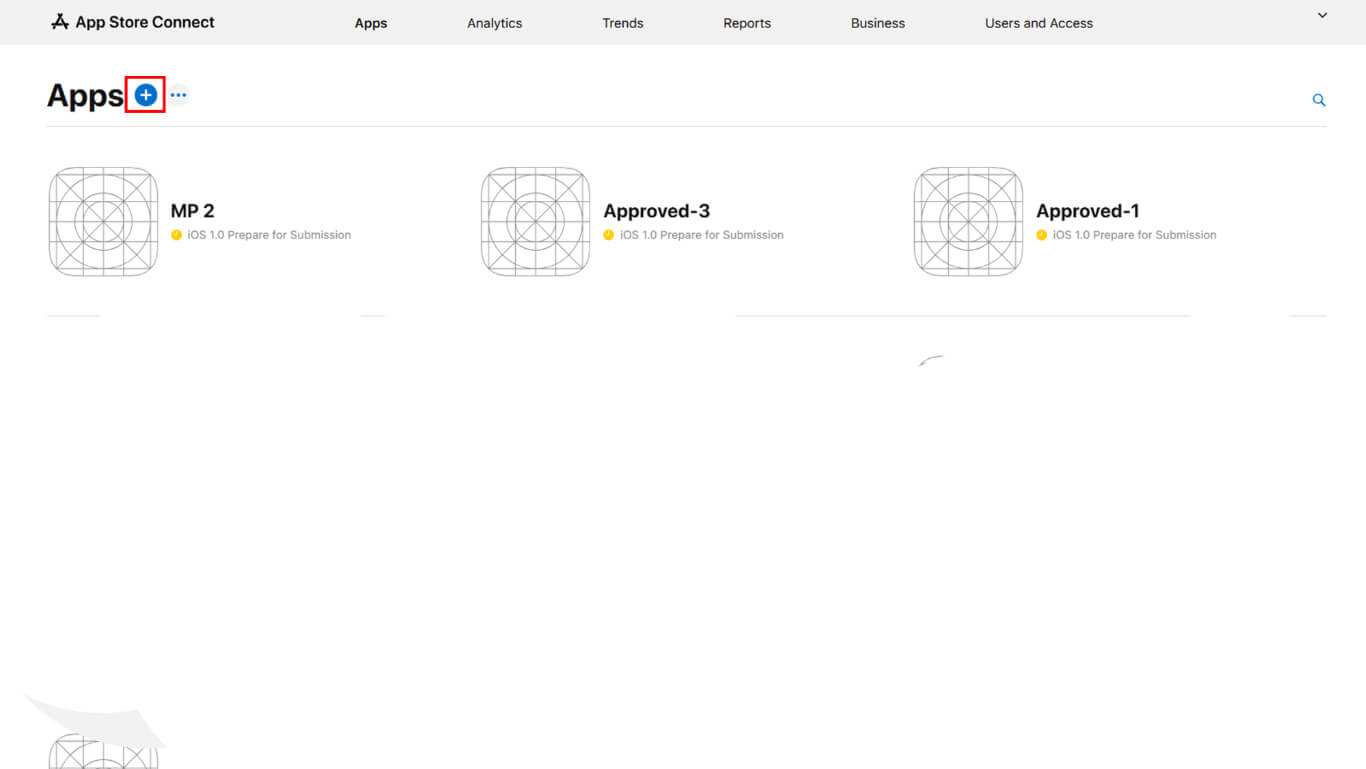
- Digite o número da nova versão, se solicitado.
- Aguarde a conclusão de todas as revisões em andamento antes de criar novas versões.
- Como alternativa, cancele as revisões em andamento antes da criação da versão.
Carregamento de capturas de tela
O upload de capturas de tela exibe a interface do aplicativo para possíveis usuários.
- Navegue até a página da versão no App Store Connect.
- Role até o Visualizações e capturas de tela seção.
- Clique em Adicionar na categoria de tamanho de dispositivo apropriada.
- Carregue pelo menos uma captura de tela para os tamanhos de exibição necessários:
- iPhone de 6,5 polegadas: 1242×2688 pixels retrato ou 2688×1242 pixels paisagem;
- iPhone de 6,9 polegadas: 1290×2796 pixels retrato ou 2796×1290 pixels paisagem.
- Verifique se o formato da captura de tela é JPG ou PNG no espaço de cores RGB.
- Arraste as capturas de tela para reordenar a sequência de exibição se várias capturas de tela forem carregadas.
Adição de detalhes do aplicativo
Os detalhes do aplicativo fornecem conteúdo descritivo para a listagem da App Store.
- Navegue até a página da versão no App Store Connect.
- Entrar Texto promocional destacando os principais recursos do aplicativo no campo de texto promocional.
- Insira um Descrição explicando a funcionalidade do aplicativo no campo de descrição.
- Entrar Palavras-chave separados por vírgulas para otimização da pesquisa.
- Digite o URL de suporte link para recursos de suporte ao cliente.
- Digite a opção URL de marketing com links para o site promocional.
- Digite o Direitos autorais informações, incluindo o ano e o nome da empresa.
- Atualize o Versão se for diferente da versão inicial.
- Clique em Salvar para armazenar detalhes do aplicativo.
Fornecimento de informações sobre a avaliação do aplicativo
O App Review Information permite que os avaliadores da Apple testem todas as funcionalidades do aplicativo.
- Navegue até a página da versão no App Store Connect.
- Role até o Informações sobre a revisão do aplicativo seção.
- Verificar Registro obrigatório se o aplicativo exigir autenticação.
- Insira um número válido Nome de usuário no campo de nome de usuário da conta de demonstração.
- Insira um número válido Senha no campo da senha da conta de demonstração.
- Entrar Notas de revisão explicando as instruções de testes especiais.
- Faça o upload de anexos se a documentação adicional ajudar na revisão.
- Insira o contato Nome para comunicação com o revisor.
- Insira o contato Número de telefone para perguntas urgentes de revisores.
- Insira o contato E-mail Para correspondência com o revisor.
- Clique em Salvar para armazenar informações de revisão.
Seleção de opções de liberação
As opções de lançamento determinam quando o aplicativo fica disponível após a aprovação.
- Navegue até a página da versão no App Store Connect.
- Role até o Lançamento da versão seção.
- Selecione a preferência de tempo de liberação:
- Liberação manual para publicar manualmente após a aprovação;
- Liberação automática para publicação imediata após a aprovação;
- Liberação programada para publicar em uma data e hora específicas.
- Digite a data e a hora da liberação se estiver selecionando uma liberação programada.
- Clique em Salvar para armazenar as preferências de liberação.
A liberação manual oferece controle sobre o momento exato da publicação após a aprovação. A liberação automática publica aplicativos imediatamente após a aprovação, sem nenhuma ação adicional.
Envio para revisão
O envio da revisão envia o aplicativo para a Apple para avaliação.
- Navegue até Painel de controle > MP AppKit > Serviço de publicação > Apple App Store em WordPress.
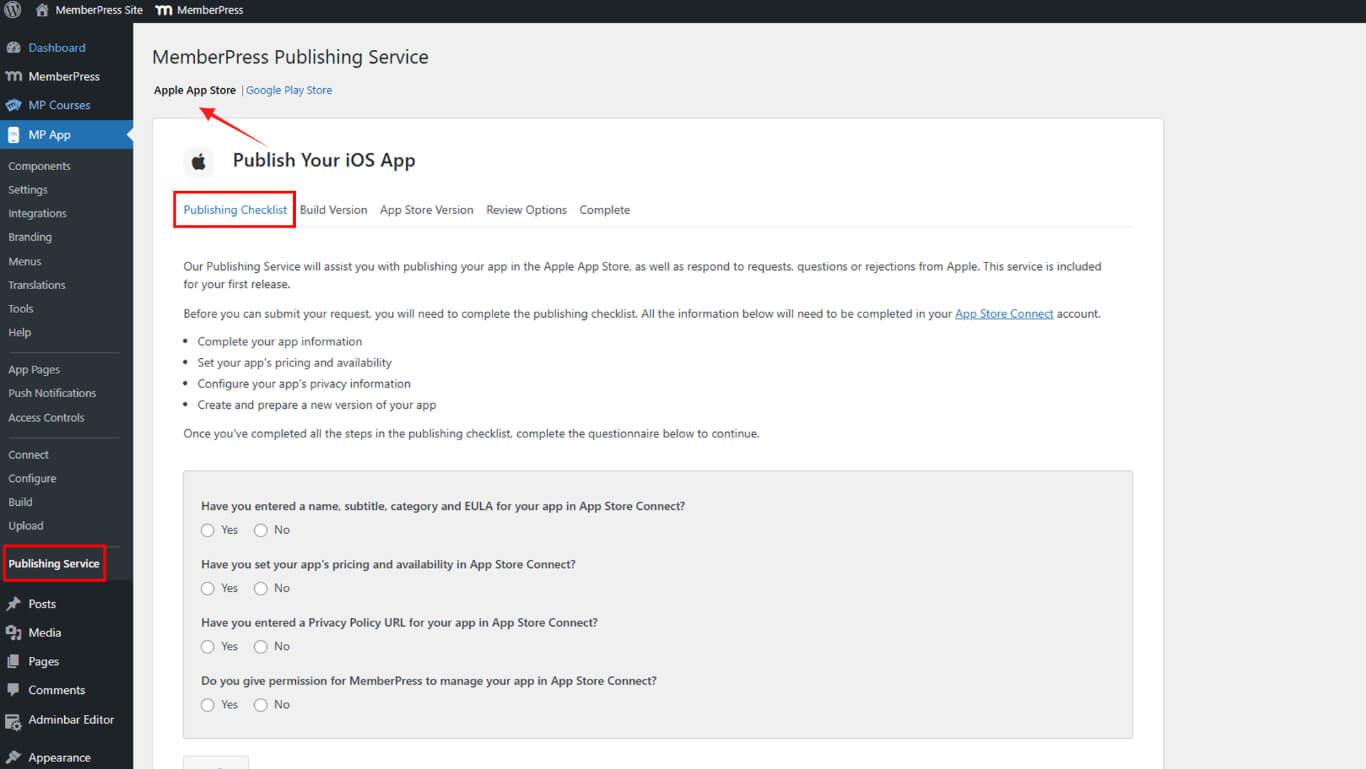
- Revise a lista de verificação de envio para verificar se todos os requisitos foram atendidos.
- Clique em Enviar para iniciar o processo de envio.
- Opcionalmente, solicite uma revisão pré-submissão para aumentar as chances de aprovação.
- A equipe de publicação faz o upload da compilação e prepara a versão.
- A equipe de publicação envia o aplicativo à Apple para análise.
- Monitore o status do envio no App Store Connect.
A equipe de publicação cuida do upload da compilação, da preparação do lançamento e do envio oficial à Apple. As atualizações de status do aplicativo aparecem no App Store Connect durante o processo de revisão.










 PT
PT  EN
EN  ES
ES  FR
FR  DE
DE 