

A integração com o Google Fonts permite uma tipografia personalizada que corresponde às diretrizes de estilo da marca. A importação de fontes requer uma chave de API válida do Google Fonts.
Este documento explica como configurar a chave da API, importar fontes e aplicar a tipografia em todo o aplicativo.
Entendendo a integração do Google Fonts
O Google Fonts oferece amplas opções de fontes para personalização da tipografia do aplicativo. A configuração da chave API conecta o aplicativo à biblioteca do Google Fonts. As fontes importadas podem ser aplicadas a vários elementos da interface, incluindo corpo do texto, títulos e rótulos de navegação.
Configurando a chave da API do Google Fonts
A configuração da chave API permite a navegação e importação de fontes.
- Navegue até Painel de controle > MP AppKit > Integrações > Google Fonts.
- Clique em Obter uma chave ao lado do campo Chave da API do Google Fonts.
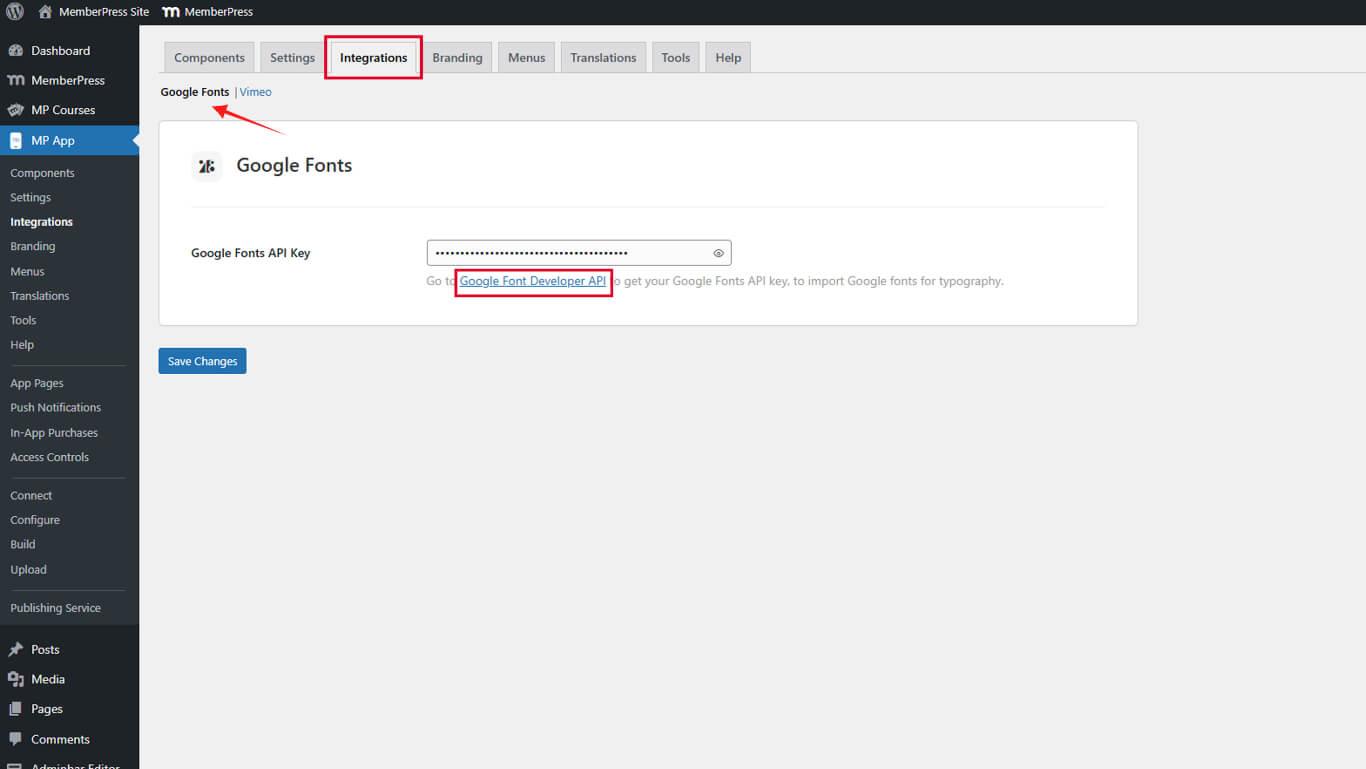
- O Google Developers Console abre em uma nova guia do navegador.
- Role a tela para baixo e clique em Obter uma chave na página Adquirir e usar uma chave API.
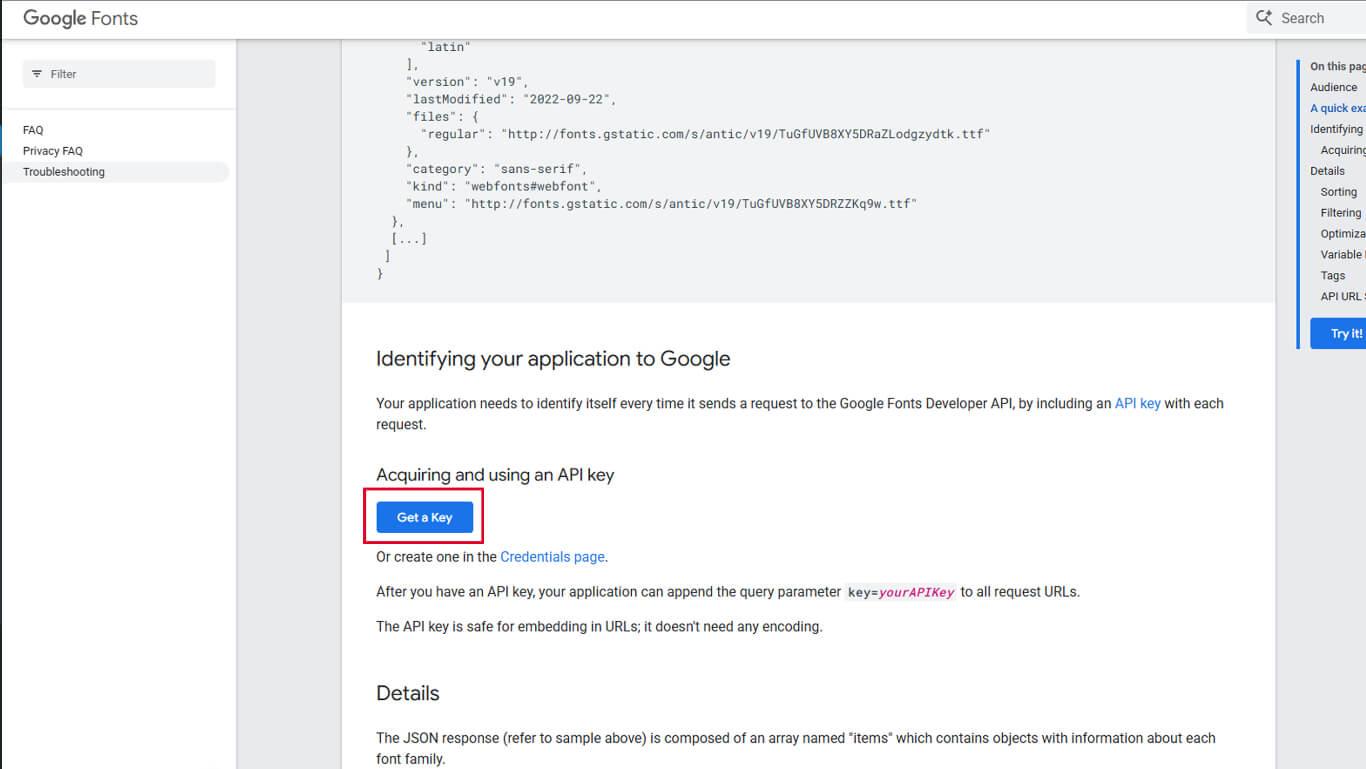
- Faça login com uma conta Google, se solicitado.
- Crie um novo projeto ou selecione um projeto existente na lista.
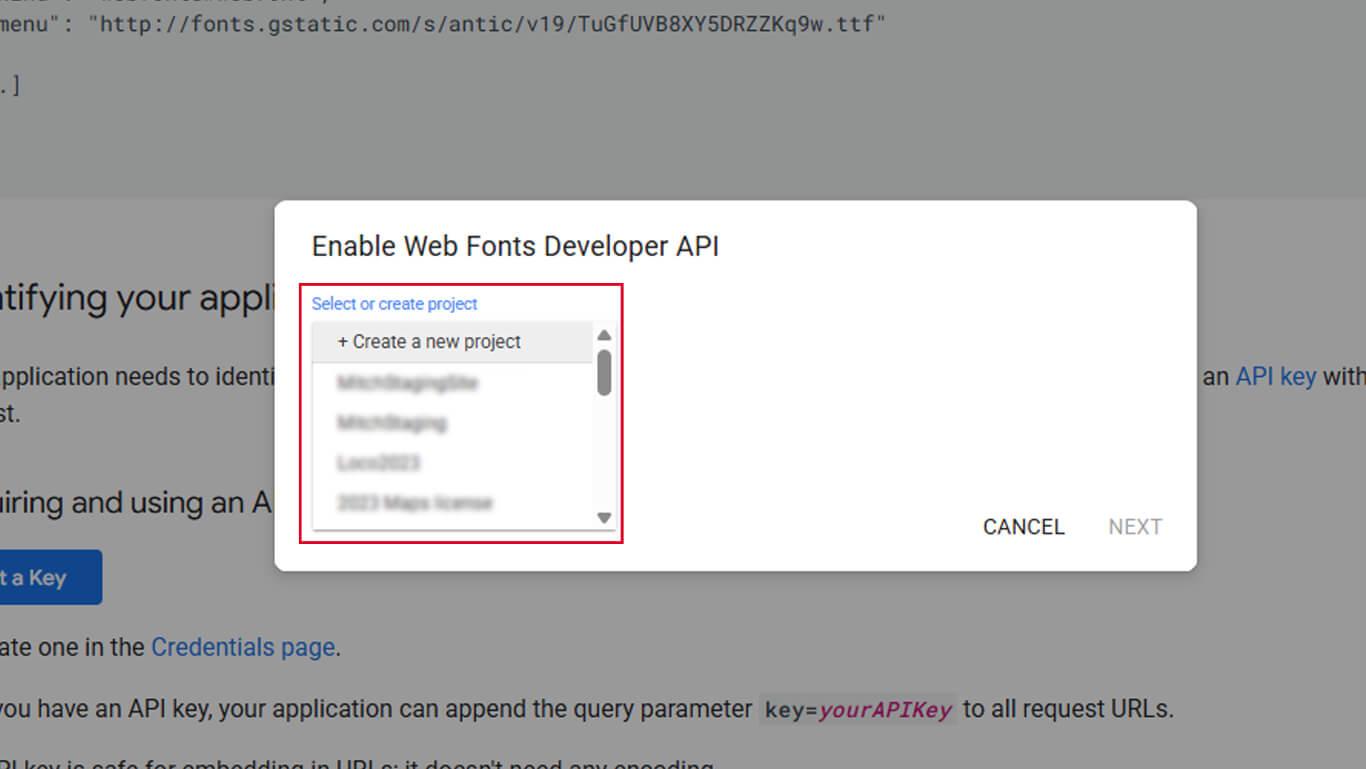
- Insira um nome para o projeto no campo nome do projeto.
- Confirme a ativação da API.
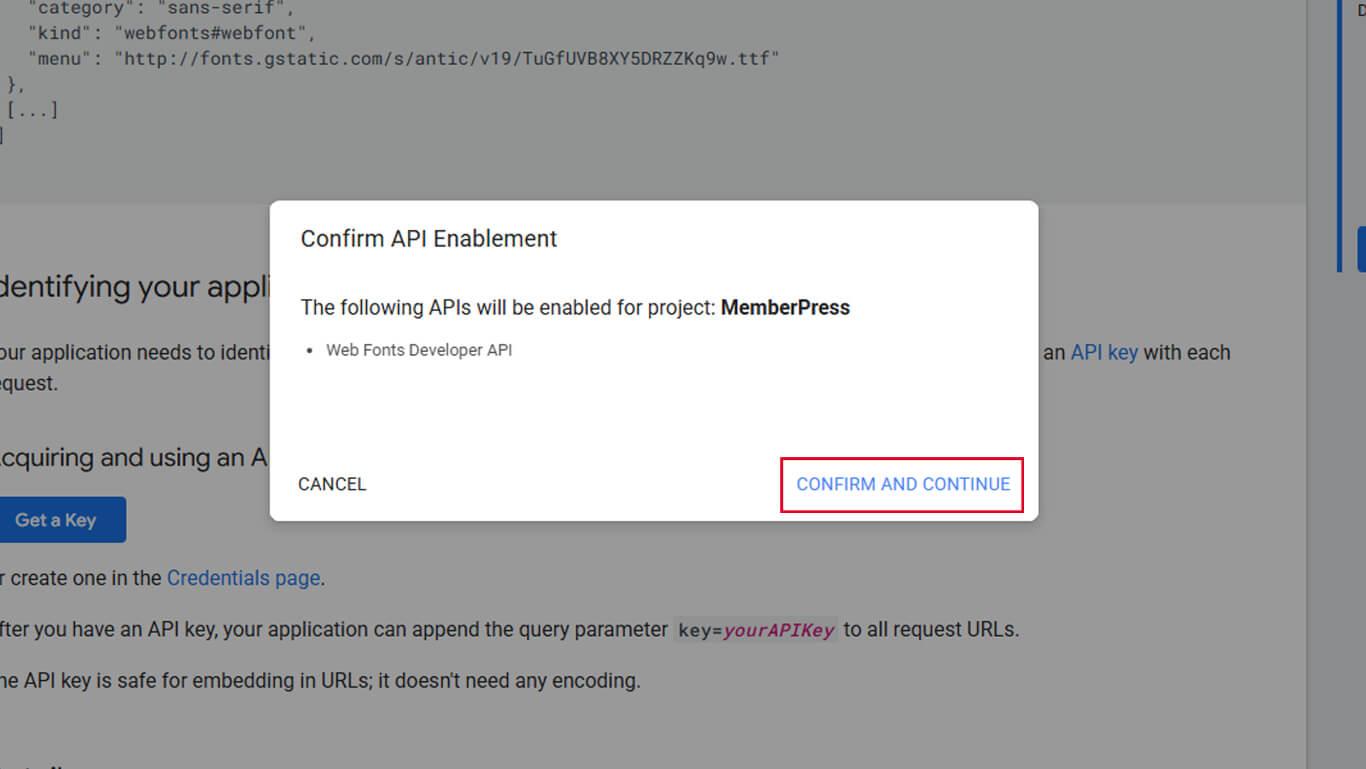
- Clique em Mostrar chave.
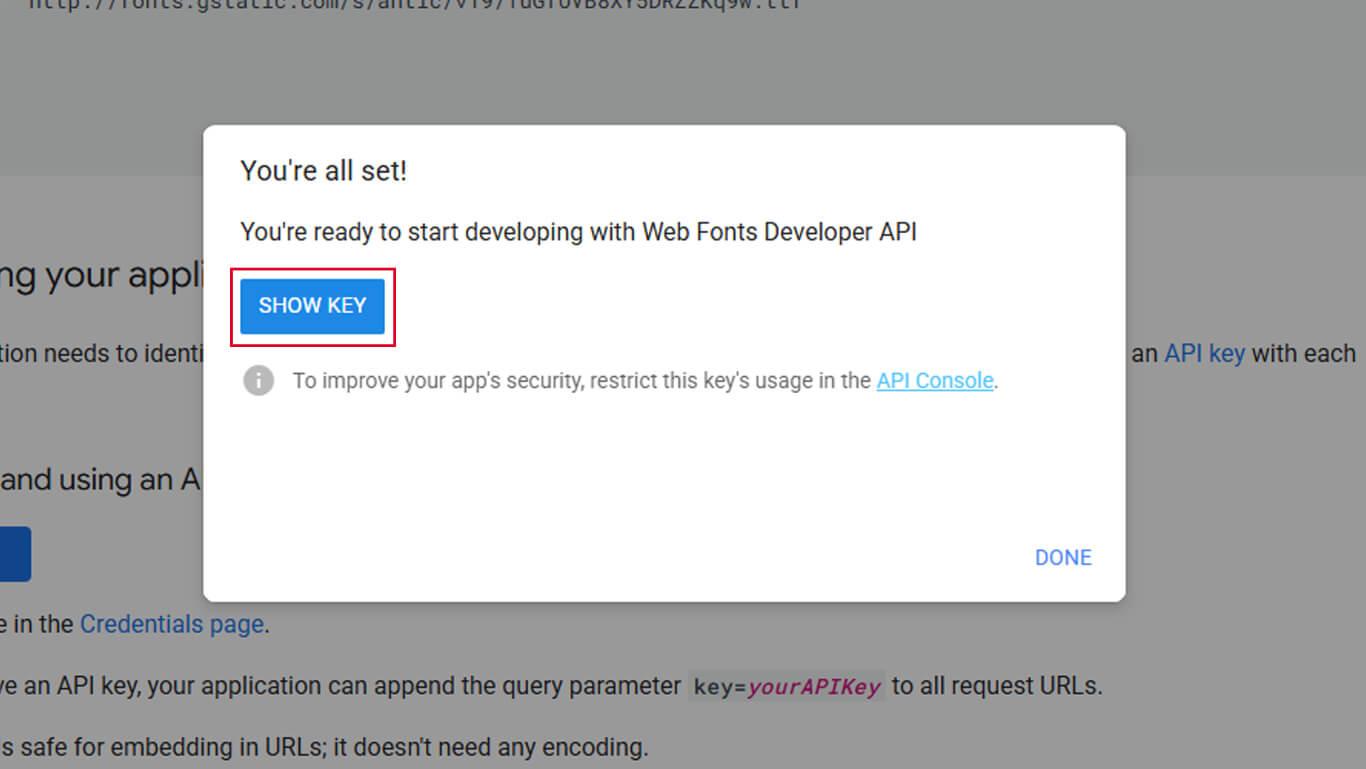
- Copie a chave API gerada do campo exibido.
- Voltar para Painel de controle > MP AppKit > Integrações > Google Fonts.
- Cole a chave API no campo Chave API do Google Fonts.
- Clique em Salvar alterações.
Importando fontes do Google
A importação de fontes adiciona tipos de letra à lista de fontes disponíveis para a tipografia da aplicação.
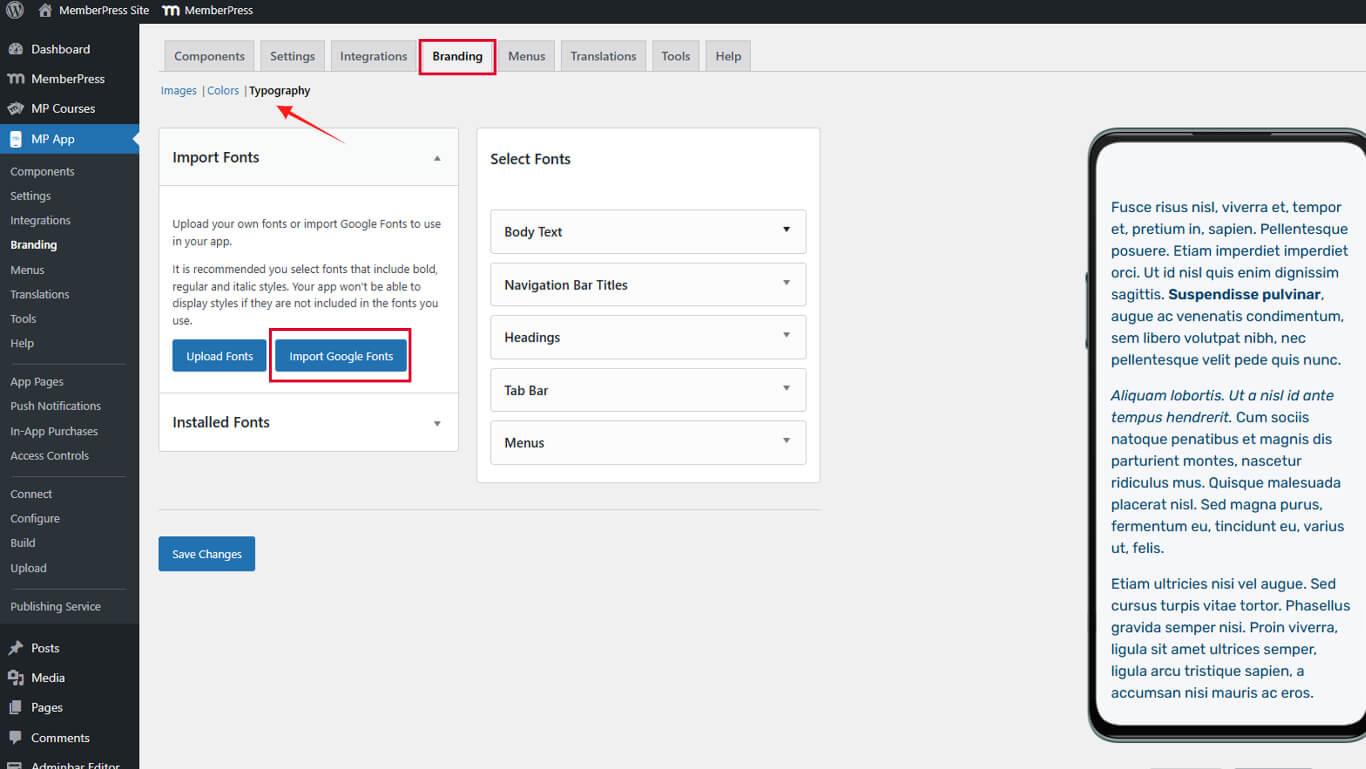
- Navegue até Painel de controle > MP AppKit > Branding > Tipografia.
- Localize o Importar fontes do Google seção.
- Clique em Importar fontes do Google para abrir o navegador de fontes.
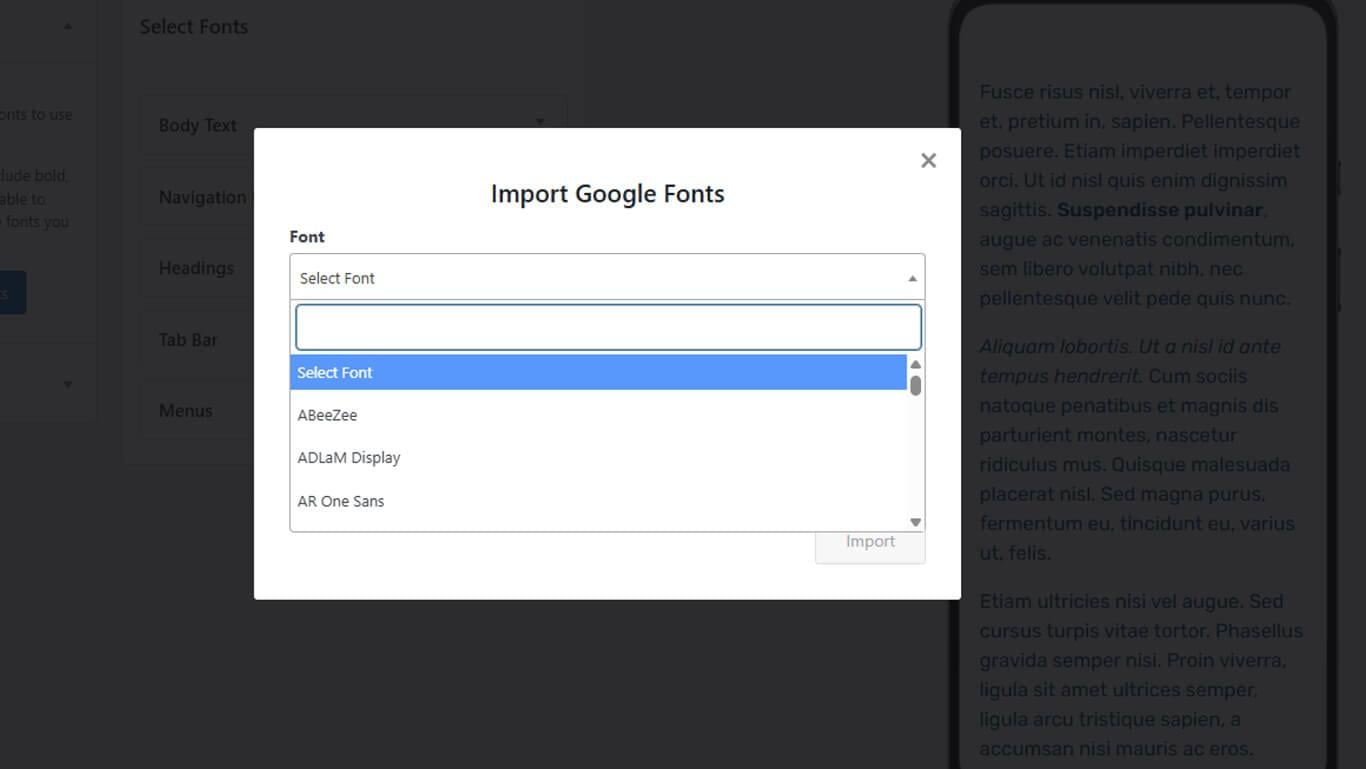
- Navegue pelas fontes disponíveis ou utilize o campo de pesquisa para encontrar tipos de letra específicos.
- Selecione a fonte desejada nos resultados da pesquisa ou na lista.
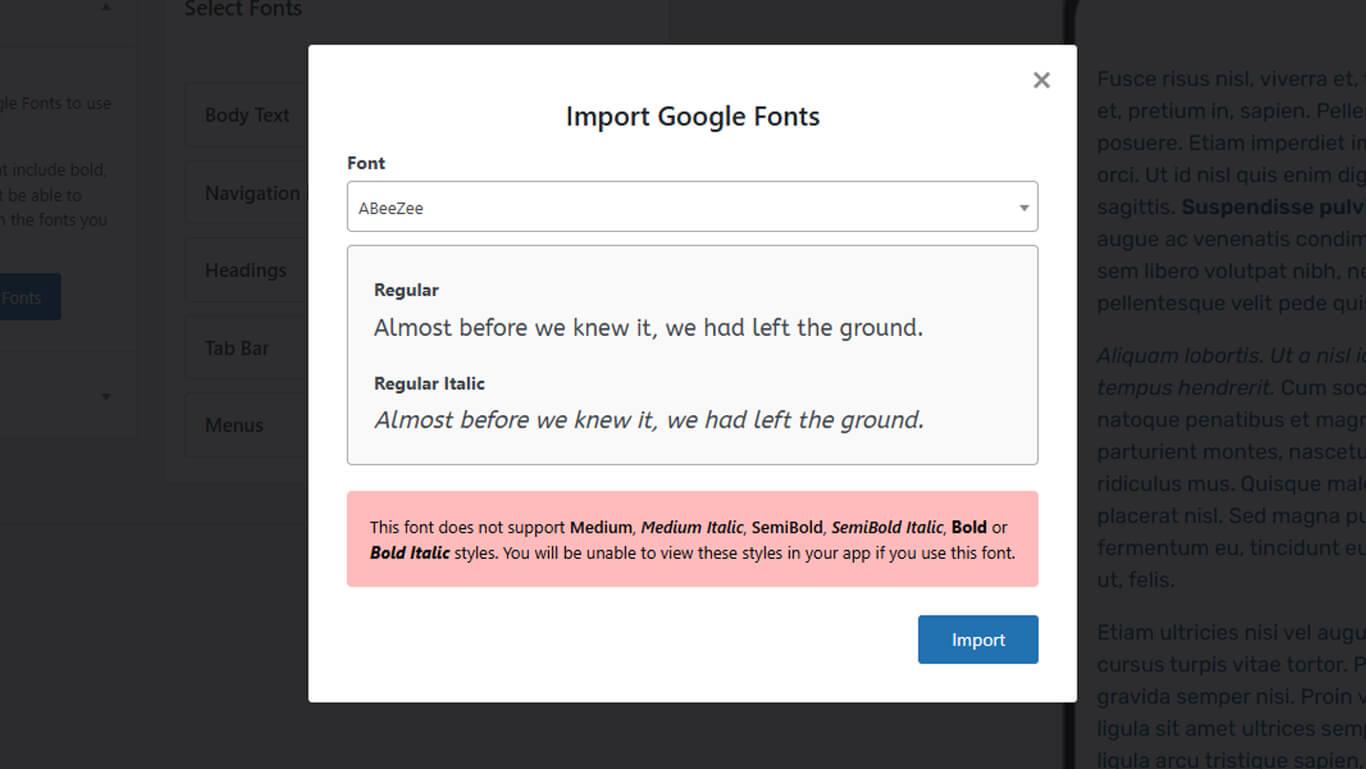
- Clique em Importação para adicionar a fonte às fontes disponíveis.
Aplicando fontes importadas
As fontes importadas aparecem nas configurações tipográficas para atribuição a elementos da interface.
- Navegue até Painel de controle > MP AppKit > Branding > Tipografia.
- Role até o elemento da interface que requer a atribuição de fonte.
- Selecione a fonte desejada no menu suspenso da família de fontes para:
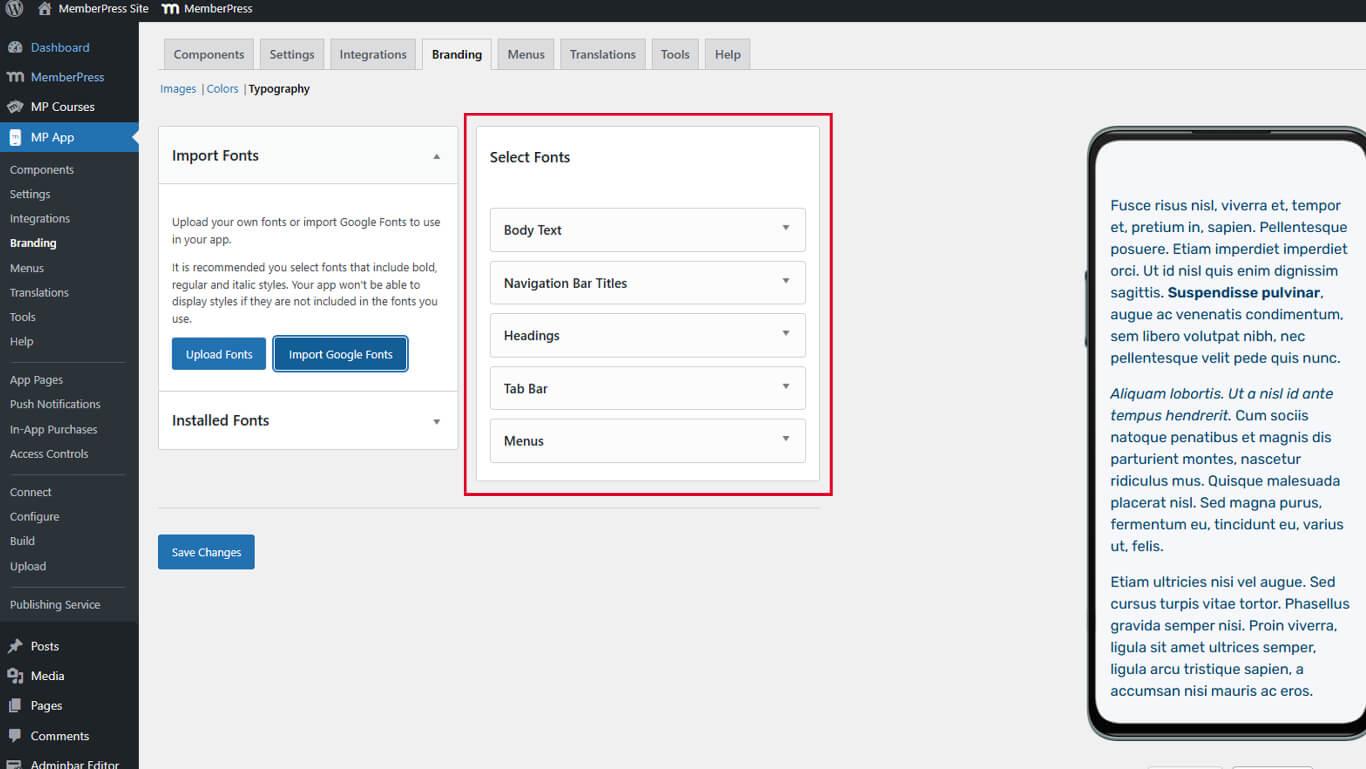
- Texto do corpo para tipografia do conteúdo principal;
- Títulos para os níveis de título H1 a H6;
- Títulos da barra de navegação para o texto do cabeçalho;
- Rótulos da barra de guias para o texto de navegação inferior;
- Menus para o texto do item do menu.
- Ajuste os tamanhos das fontes nos campos de tamanho, se necessário.
- Configure estilos de fonte adicionais conforme necessário.
- Clique em Salvar alterações para aplicar as seleções de fonte.
As alterações de fonte são aplicadas globalmente em todas as telas do aplicativo usando os elementos de interface selecionados.










 PT
PT  EN
EN  ES
ES  FR
FR  DE
DE 