

MemberPress O AppKit permite site de associação para criar aplicativos móveis nativos para iOS e Android. Esses aplicativos mostram o conteúdo da associação e permitem que os membros visualizem itens protegidos em seus telefones e tablets.
Este documento fornece uma visão geral do processo completo de configuração do AppKit do MemberPress. Ele descreve cada fase e explica os requisitos. Os usuários aprenderão as etapas necessárias para publicar aplicativos móveis funcionais para ambas as plataformas.
O que o AppKit do MemberPress faz
O MemberPress AppKit transforma um site alimentado pelo MemberPress em um aplicativo móvel. O aplicativo é vinculado ao site existente e mostra o conteúdo aos membros com base em sua associação. Ele mostra postagens protegidas, páginas e cursos enquanto usa o Regras de acesso MemberPress.
O aplicativo extrai o conteúdo diretamente do site. Qualquer atualização de conteúdo no site é exibida no aplicativo imediatamente.
Escolha de um caminho de registro
O AppKit do MemberPress oferece suporte a duas abordagens para o registro de membros. Essa decisão deve ser tomada antes de iniciar o processo de configuração.
Caminho A: Somente registro no site
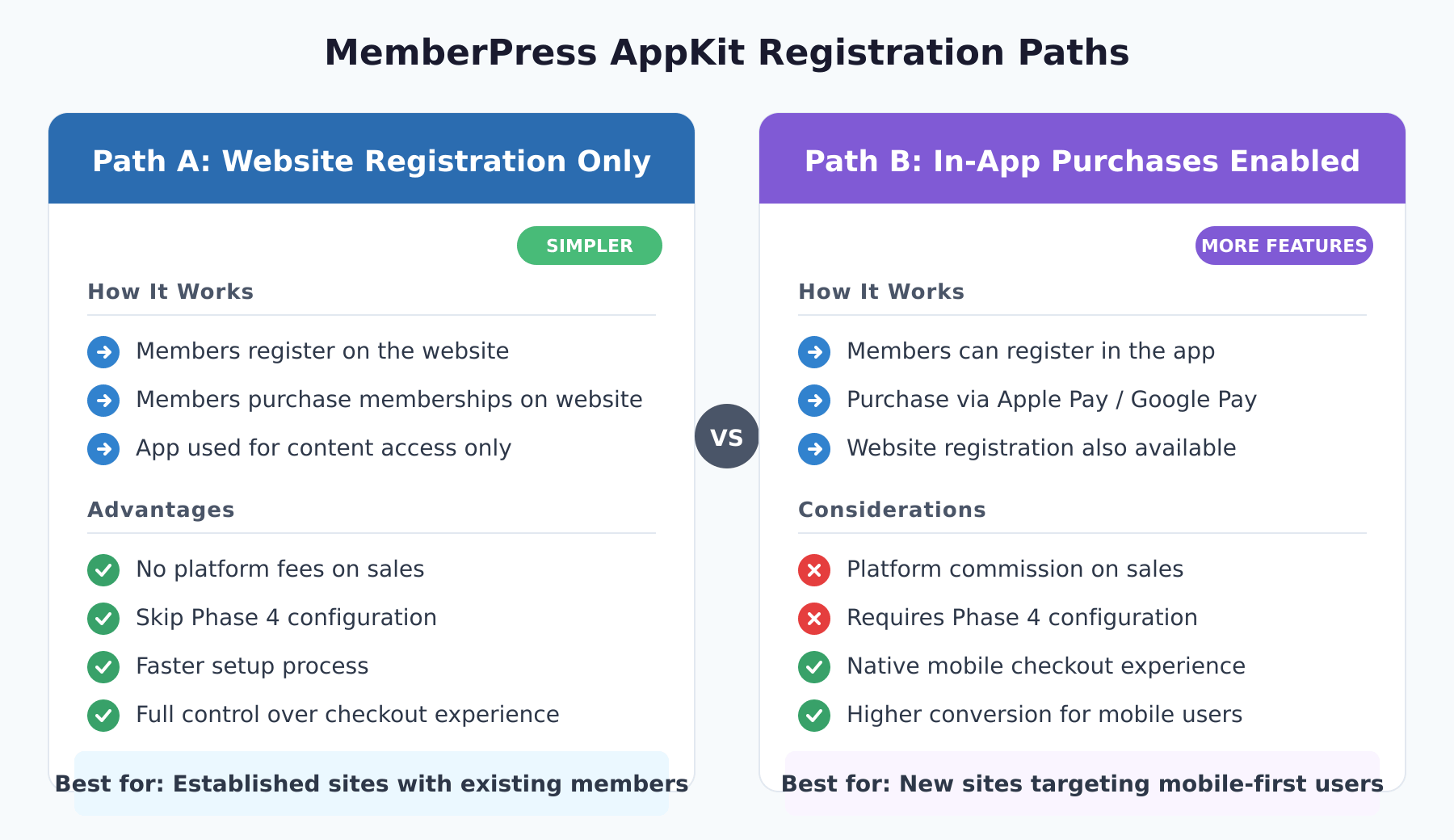
Os membros se registram e comprar associações somente por meio do site. O aplicativo funciona como uma ferramenta de acesso ao conteúdo para os membros existentes. Esse caminho oferece uma configuração mais simples, sem taxas de plataforma sobre as vendas de associação. A Fase 4 (Compras no aplicativo) pode ser totalmente ignorada.
Caminho B: compras no aplicativo ativadas
Os membros podem se registrar e comprar associações diretamente no aplicativo usando o Apple Pay ou o Google Pay. Esse caminho precisa ser mais bem configurado em ambas as lojas de aplicativos. A Apple e o Google cobram uma taxa sobre as compras no aplicativo. Exigir compras no aplicativo durante o registro garante que os novos membros escolham um plano de associação.
Visão geral do processo
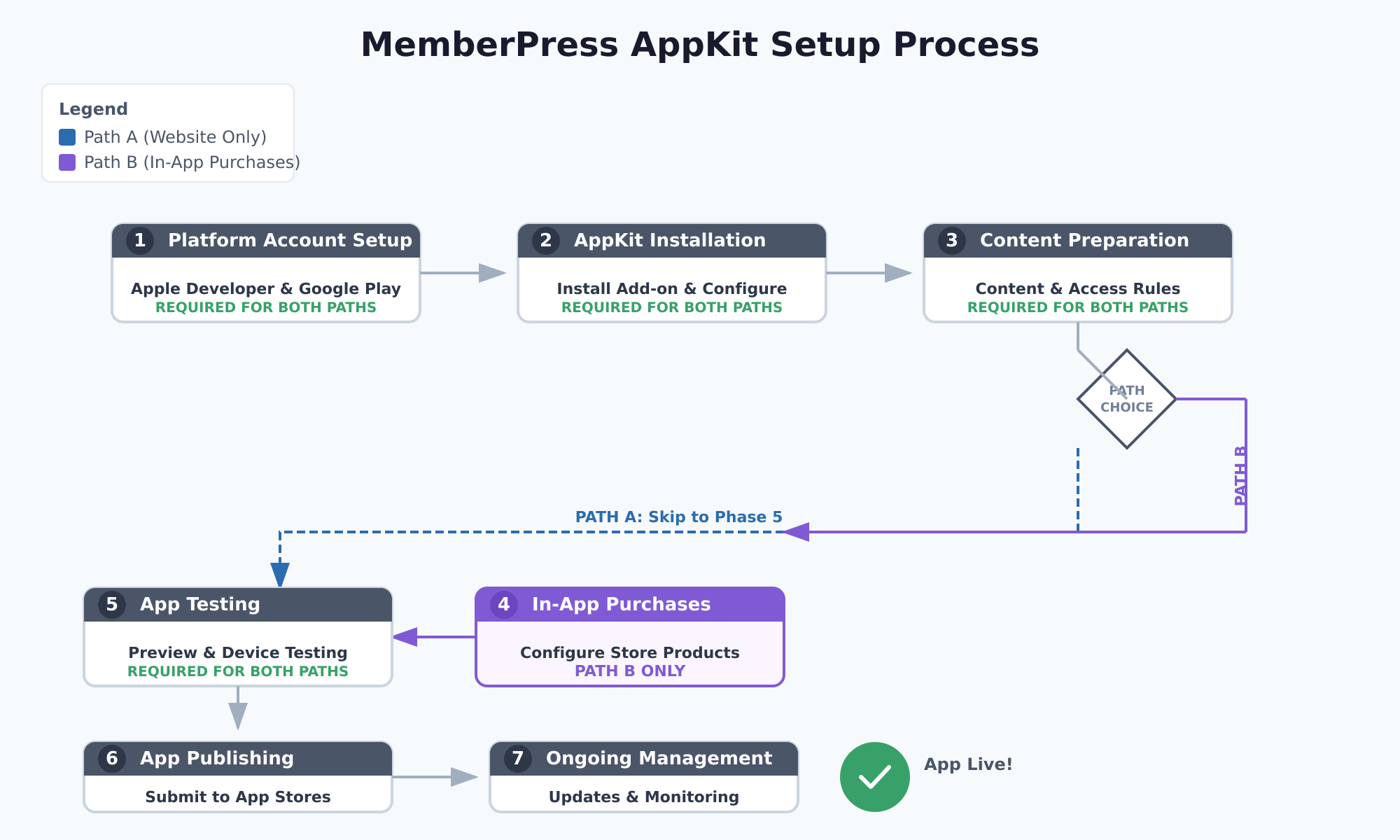
A configuração completa do AppKit MemberPress tem sete fases. Cada fase deve ser realizada para evitar problemas e erros de configuração.
| Fase | Descrição | Caminho A | Caminho B |
|---|---|---|---|
| Fase 1 | Configuração da conta da plataforma | Necessário | Necessário |
| Fase 2 | Instalação e configuração do AppKit | Necessário | Necessário |
| Fase 3 | Preparação de regras de conteúdo e acesso | Necessário | Necessário |
| Fase 4 | Configuração de compras no aplicativo | Pular | Necessário |
| Fase 5 | Teste de aplicativos | Necessário | Necessário |
| Fase 6 | Criação e publicação de aplicativos | Necessário | Necessário |
| Fase 7 | Gerenciamento contínuo de aplicativos | Necessário | Necessário |
Fase 1: Configuração da conta da plataforma
Essa fase configura as contas de desenvolvedor necessárias para a publicação de aplicativos. Ambas as plataformas precisam de contas de desenvolvedor pagas com verificações de identidade.
Configuração da conta de desenvolvedor da Apple
Para publicar um aplicativo iOS, é necessário participar do Programa para Desenvolvedores da Apple ($99/ano). Isso dá acesso ao App Store Connect para uploads de aplicativos. O Configuração da conta de desenvolvedor da Apple abrange as etapas em detalhes.
Para participar do Apple Developer Program:
- Navegue até a seção Programa para Desenvolvedores da Apple página de registro.
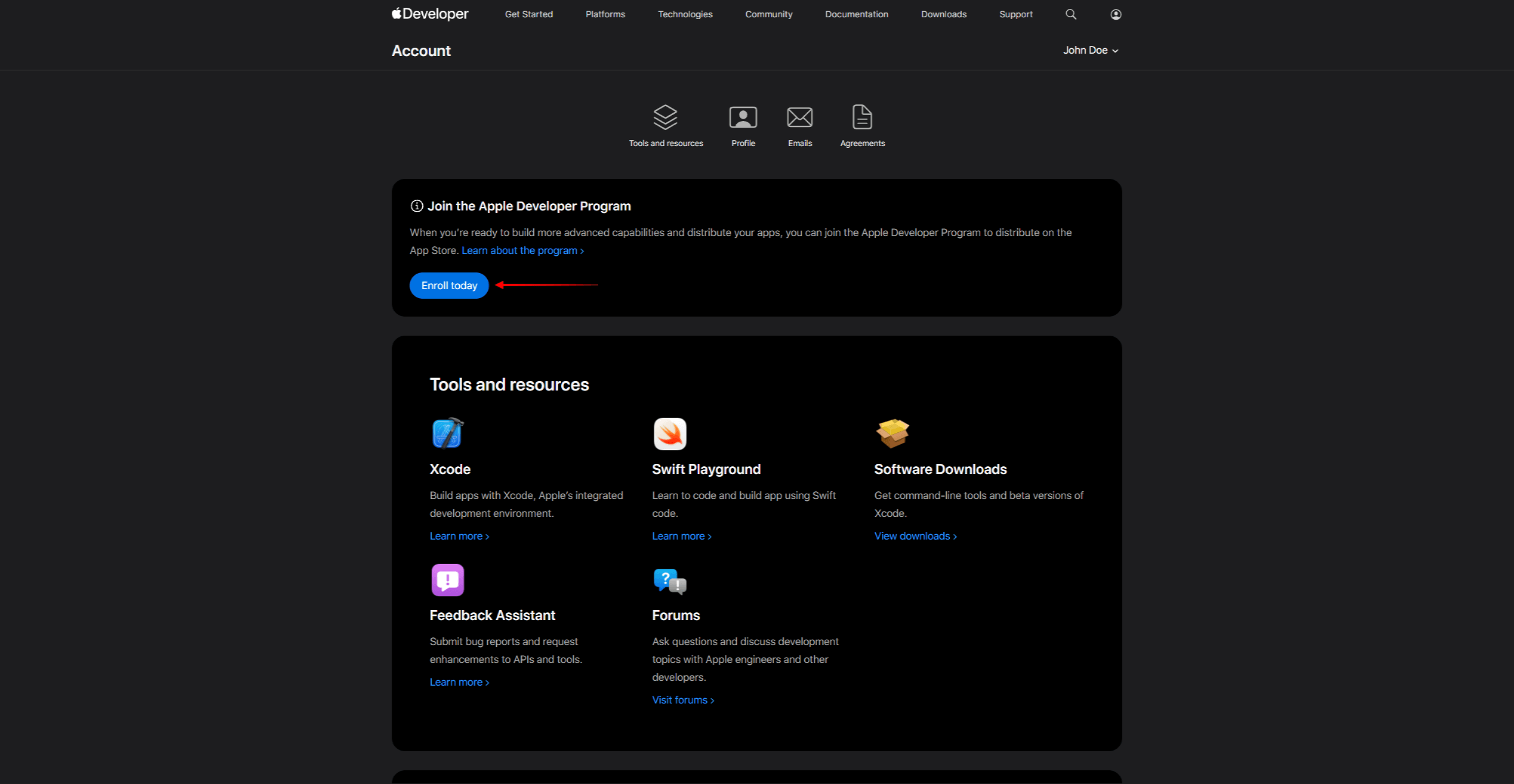
- Clique em Inscrever-se e faça login com um ID Apple.
- Selecione o tipo de conta (Individual ou Organização).
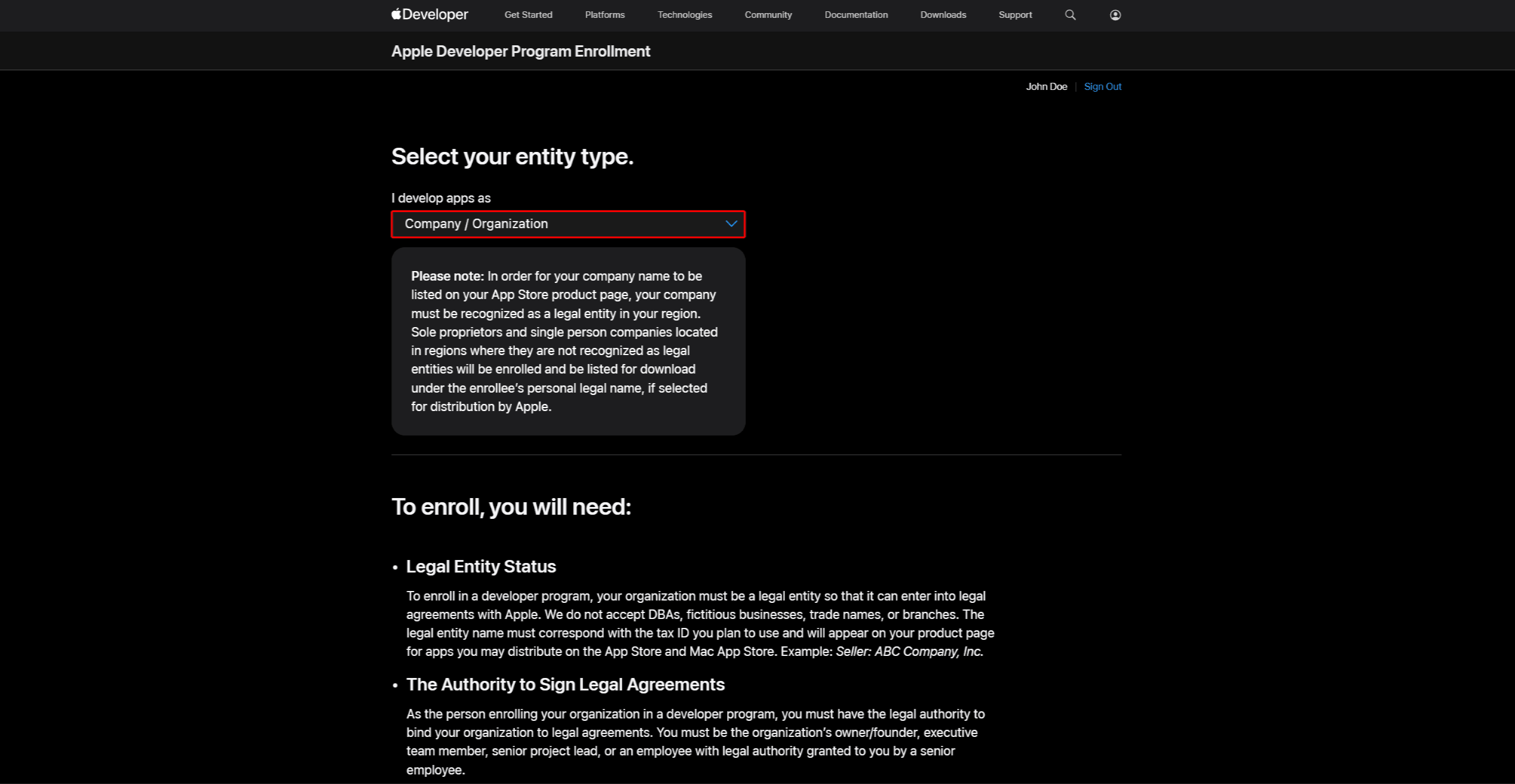
- Concluir a verificação de identidade e pagar a taxa anual $99.
- Após a aprovação, o acesso App Store Connect.
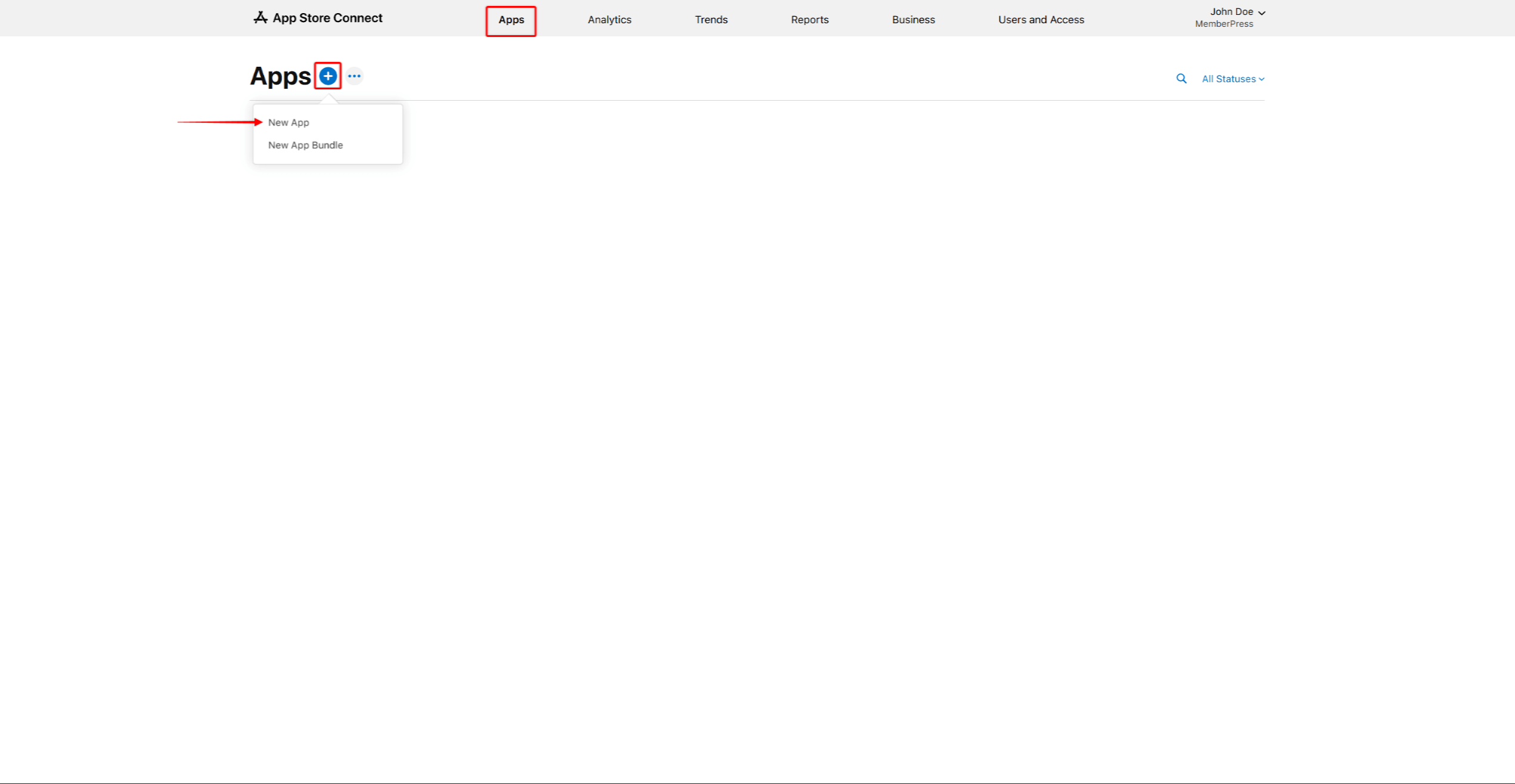
- Registre um Bundle ID na conta de desenvolvedor da Apple (formato: notação de domínio reverso, por exemplo,
com.companyname.appname). - Crie uma listagem de aplicativos no App Store Connect, selecionando a ID do pacote e adicionando um SKU para rastreamento interno.
- Crie os certificados e perfis necessários.
- Conecte a conta de desenvolvedor da Apple para o AppKit.
Configuração da conta de desenvolvedor do Google Play
A publicação de um aplicativo Android precisa de um Conta de desenvolvedor do Google Play (taxa única de $25). Isso dá acesso ao Google Play Console para uploads de aplicativos. O Configuração da conta de desenvolvedor do Google Play abrange as etapas em detalhes.
Para criar uma conta de desenvolvedor do Google Play:
- Navegue até a seção Console Google Play página de registro.
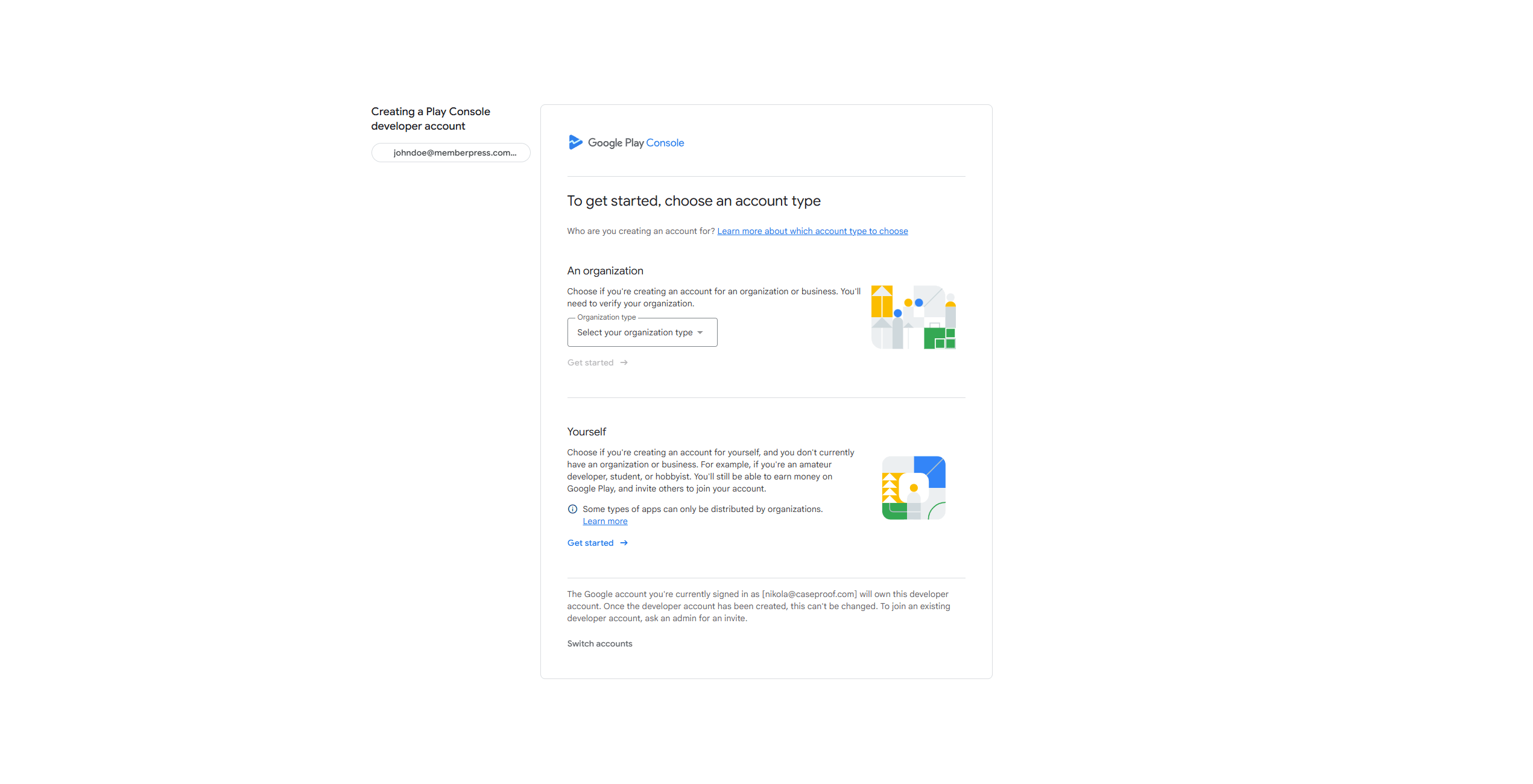
- Faça login com uma conta do Google e aceite os termos.
- Pague a taxa de registro $25 e conclua a verificação de identidade.
- Depois que a verificação for concluída, crie um espaço reservado para a listagem de aplicativos.
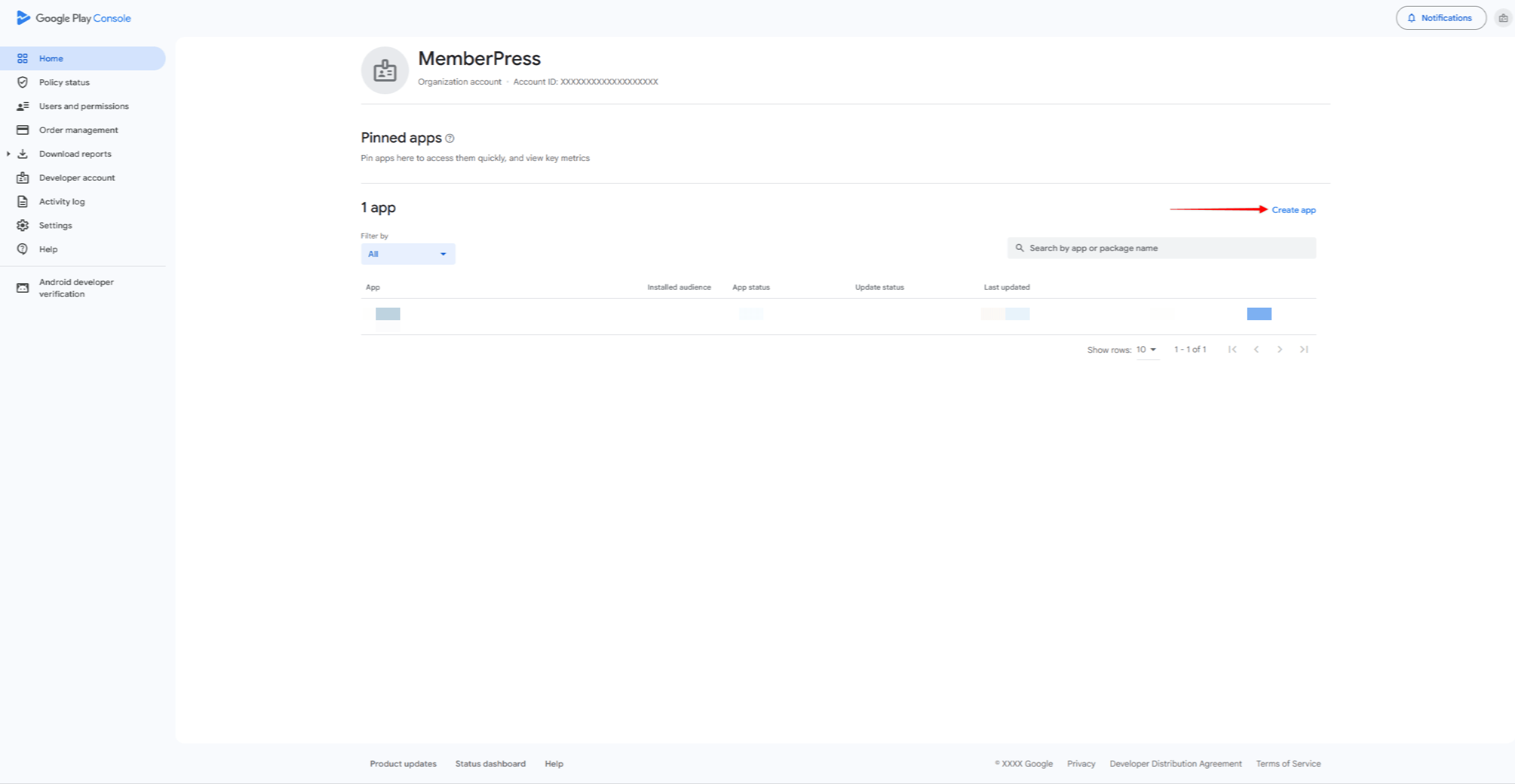
- Crie uma chave de upload para assinatura de aplicativos.
- Conecte a conta de desenvolvedor do Google para o AppKit.
Fase 2: Instalação e configuração do AppKit
Esta fase instala o complemento MemberPress AppKit e define as configurações básicas do aplicativo. Isso inclui marca, cores, tipografia, e opções de login.
Antes de começar, verifique se há um Licença MemberPress (Plano de lançamento, crescimento ou escala). O plano chave de licença deve ser ativado. Uma Certificado SSL é necessário, a API REST deve estar ativada e hospedagem compatível é necessário.
Instalação do AppKit
O AppKit do MemberPress é um complemento separado que requer sua própria assinatura anual. O Guia de conexão do AppKit mostra como instalá-lo e ativá-lo.
- Navegue até a seção MemberPress AppKit e comprar a assinatura do AppKit.
- Faça o download do plug-in do AppKit em Conta > Downloads no site do MemberPress.
- Instalar o plug-in via Painel de controle > Plug-ins > Adicionar novo plug-in > Fazer upload de plug-in.
- Obtenha a chave de licença do AppKit em Conta > Downloads no site do MemberPress.
- Navegue até Painel de controle > MP AppKit > Conectar e digite a chave de licença.
- Verifique se a cor verde “Ativo” O status é exibido para confirmar que o link funciona.
Configurações do aplicativo
O Configurações tem nove subopções para configurar o comportamento do aplicativo.
- Navegue até Painel de controle > MP AppKit > Configurações.
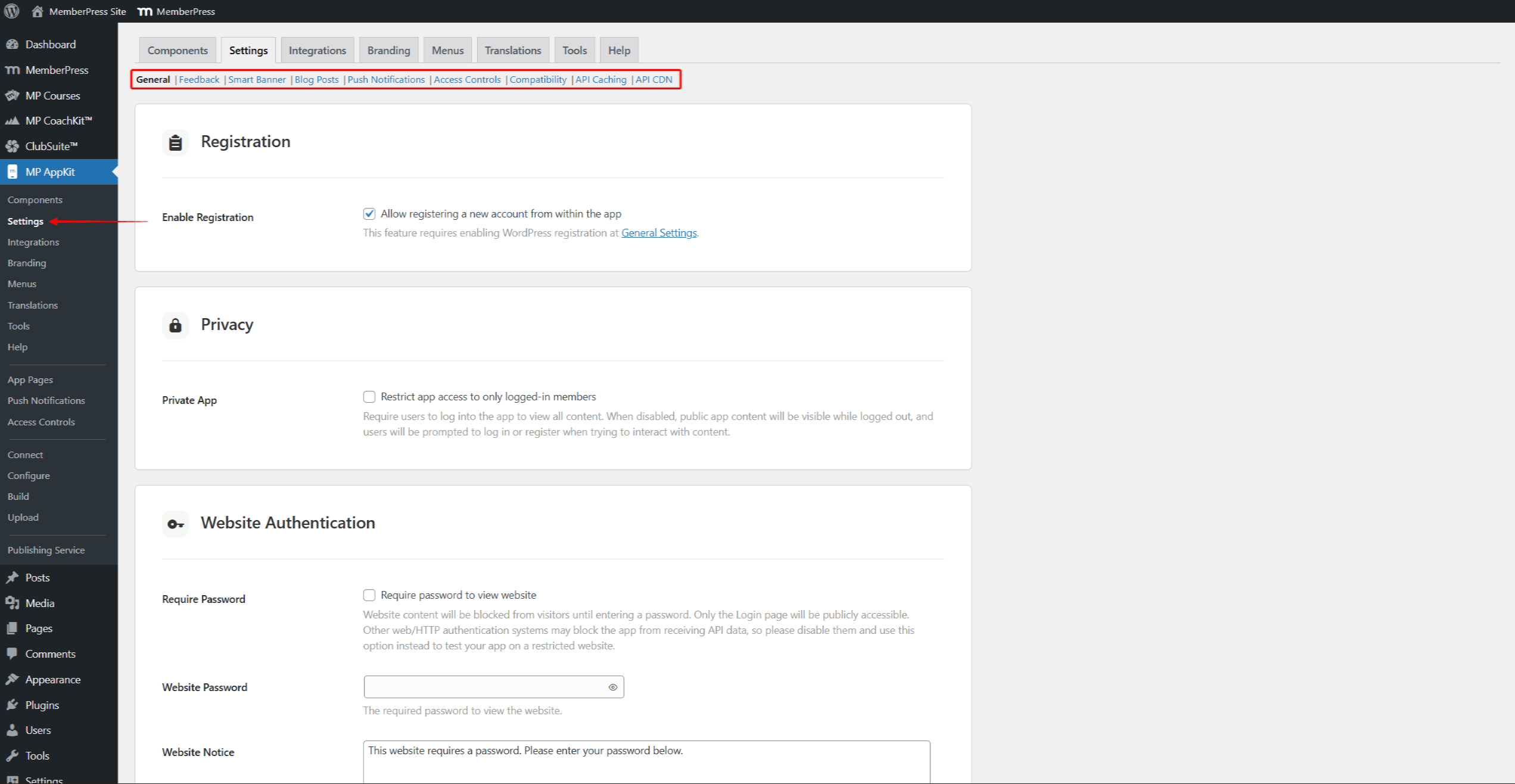
- Configure as opções conforme necessário:
- Geral - registro, privacidade e login;
- Feedback - feedback do usuário e recursos de classificação de aplicativos;
- Banner inteligente - banner do site promovendo o aplicativo;
- Publicações do blog - bookmarking, compartilhamento e publicações relacionadas;
- Notificações push - tipos de notificação e automação;
- Controles de acesso - mensagens de conteúdo restrito;
- Compatibilidade - tratamento de links externos;
- Cache de API - aumento de velocidade;
- API CDN - rede de distribuição de conteúdo.
- Clique em Salvar alterações após a configuração de cada opção.
Componentes do AppKit
O AppKit do MemberPress tem várias partes que podem ser ativadas ou desativadas de acordo com suas necessidades. O Páginas do aplicativo é obrigatório e não pode ser desativado.
- Navegue até Painel de controle > MP AppKit > Componentes.
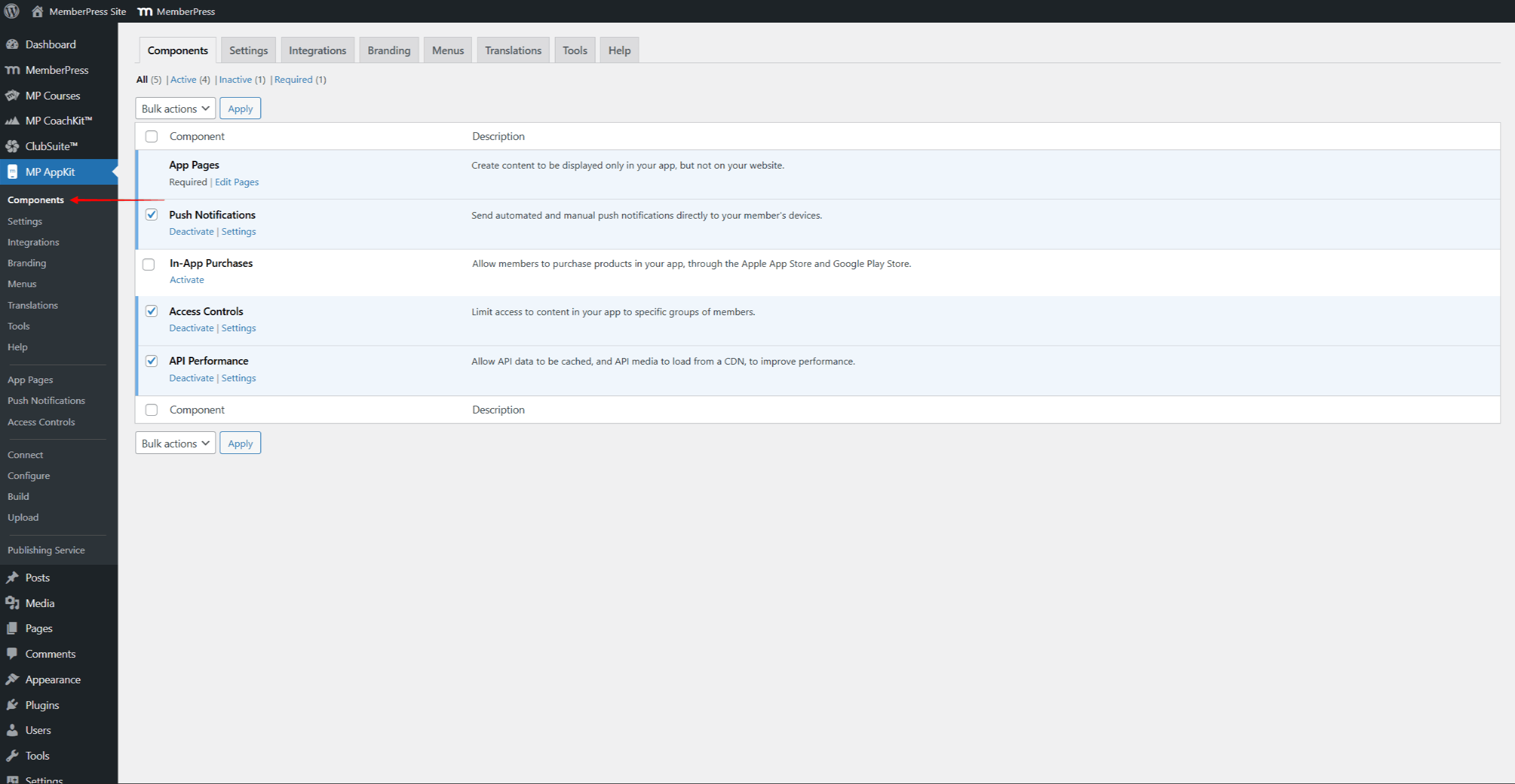
- Analise os componentes disponíveis:
- Notificações push - permite enviar mensagens push aos usuários do aplicativo;
- Compras no aplicativo - permite que os usuários comprem associações no aplicativo;
- Controles de acesso - controla quem pode ver o conteúdo com base na associação;
- Desempenho da API - ativa o armazenamento em cache para um carregamento mais rápido.
- Todos os componentes são ativados por padrão, exceto Compras no aplicativo.
- Habilite ou desabilite os componentes conforme necessário e clique em Salvar alterações.
Conexão da plataforma
As configurações de conexão da plataforma vinculam o AppKit às listagens da loja de aplicativos. Cada plataforma requer identificadores e certificados específicos para criar e publicar aplicativos.
- Navegue até Painel de controle > MP AppKit > Configurare clique no botão Configurações do iOS menu.
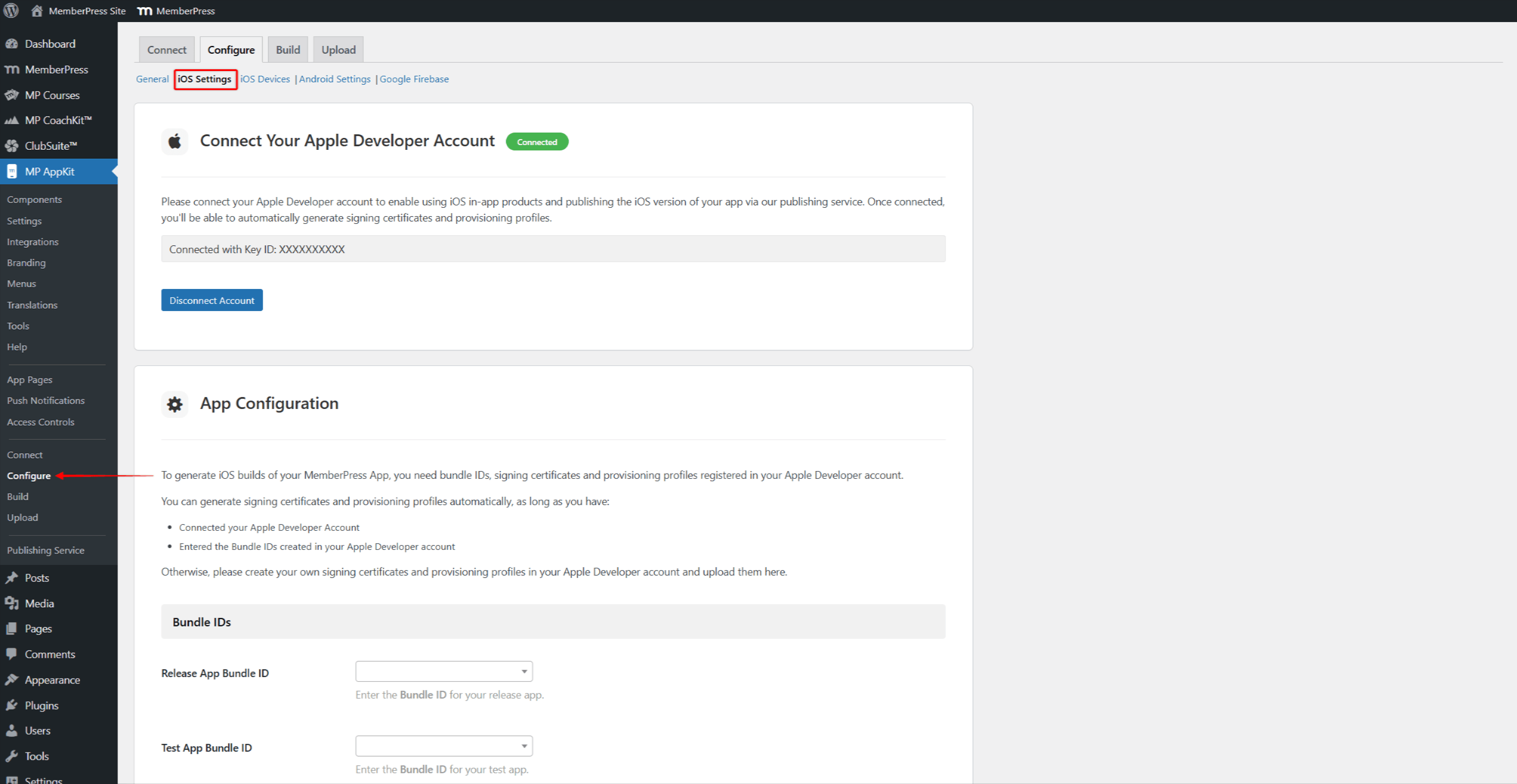
- Siga a Guia de configuração dos Ajustes do iOS para configurar Bundle IDs, Signing Certificates, Provisioning Profiles e App Information.
- Ativar Links universais para links diretos.
- Clique em Salvar alterações.
- Em seguida, conecte o aplicativo que você criou no Google Play Console. Clique no botão Configurações do Android menu.
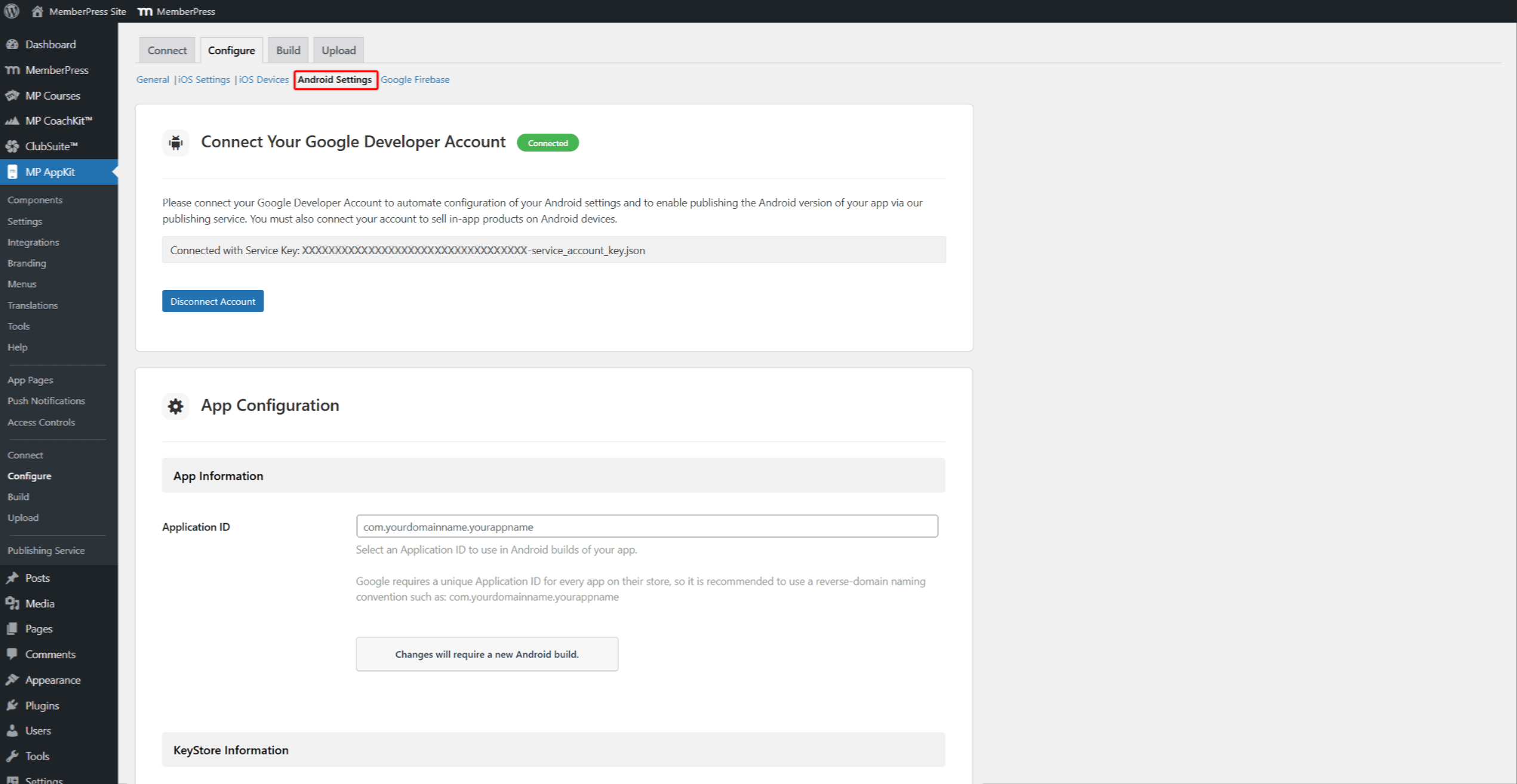
- Siga a Guia de configuração das configurações do Android para configurar a ID do aplicativo e as informações do KeyStore.
- Ativar Links para aplicativos Android para links diretos.
- Clique em Salvar alterações.
- Clique no botão Google Firebase e siga as instruções Guia de configuração do Google Firebase para ativar as notificações por push.
Fase 3: Configuração de conteúdo e navegação
Essa fase configura o conteúdo do aplicativo e os menus de navegação. As postagens e os cursos MemberPress são sincronizados do site por conta própria. As páginas do aplicativo mostram conteúdo personalizado somente no aplicativo. As Configuração da página inicial do aplicativo define a primeira tela que os usuários veem. Traduções de textos permitem traduzir o texto do aplicativo para outros idiomas.
Antes de começar, certifique-se de que pelo menos um filiação existe e Regras do MemberPress são configurados.
Páginas do aplicativo
As páginas de aplicativos são telas personalizadas exibidas somente no aplicativo móvel. Essas páginas são criadas usando o Editor Gutenberg com uma largura feita para telas de celular.
- Navegue até Painel de controle > MP AppKit > Páginas de aplicativos.
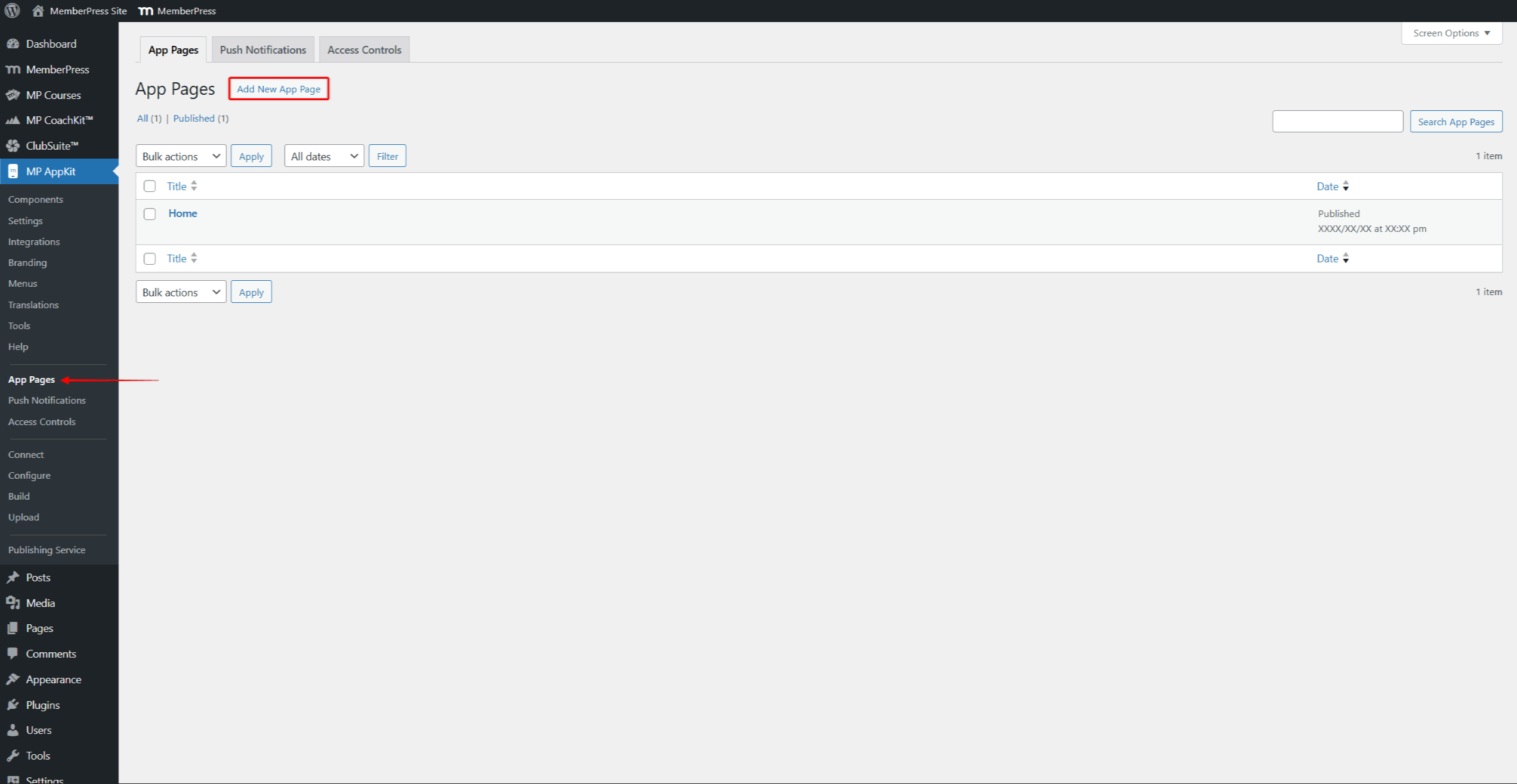
- Clique em Adicionar nova página de aplicativo para criar uma nova página.
- Adicione conteúdo usando blocos do Gutenberg, incluindo MemberPress Blocos do AppKit e o Bloco de cursos.
- Clique em Publicar para salvar a página.
Configuração de menu
As configurações de Menus controlam a navegação do aplicativo. Há três áreas de menu disponíveis: Barra de guias (navegação inferior), Barra de cabeçalho (navegação superior) e More Menu (itens adicionais). Ícones de menu personalizados e várias versões de menu oferecem mais maneiras de configurar a navegação.
- Navegue até Painel de controle > MP AppKit > Menus.
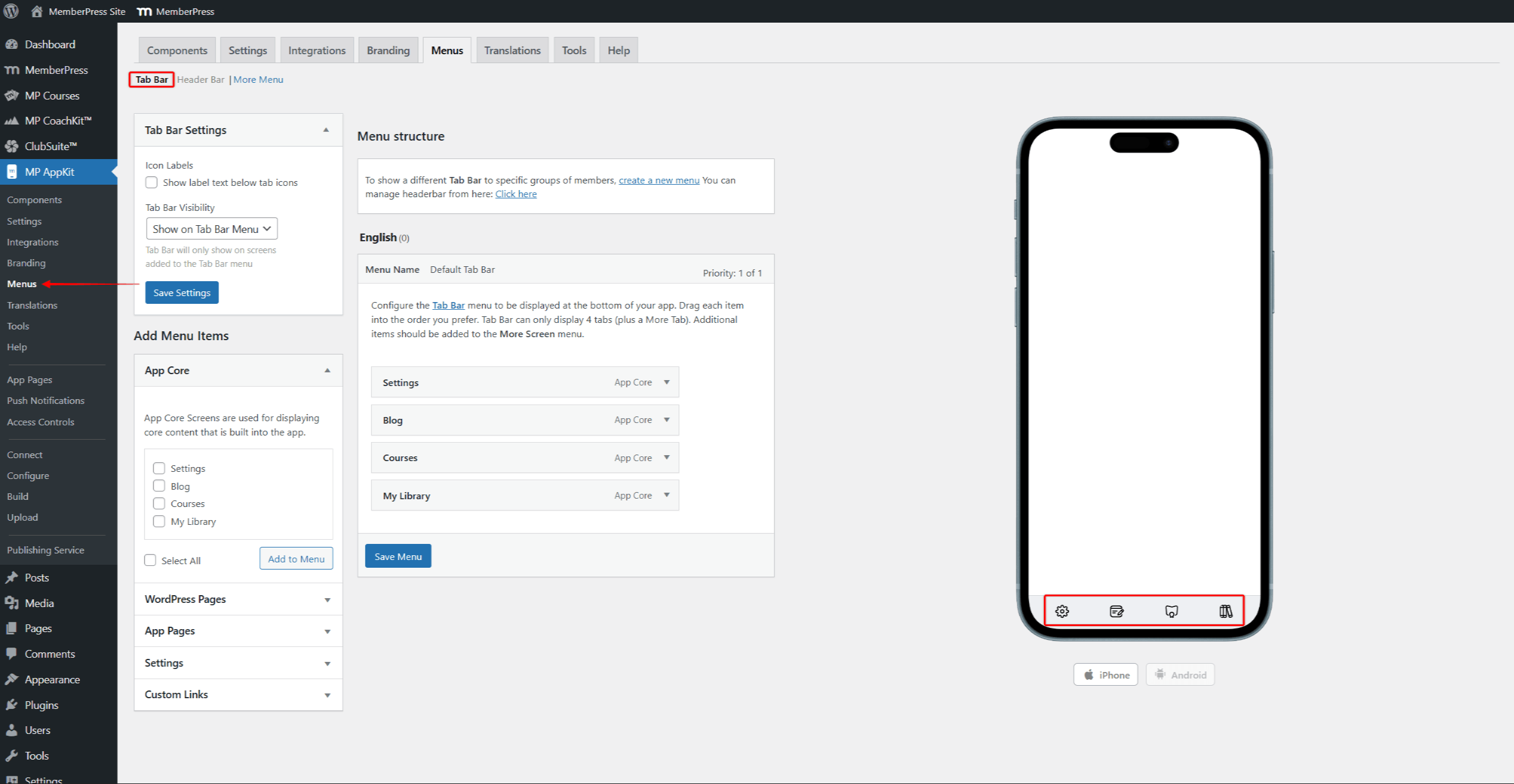
- Configurar o Barra de guias com os principais itens de navegação (até 4 guias mais More).
- Configurar o Barra de cabeçalho com botões de navegação superiores.
- Configurar o Mais Menu com itens de navegação adicionais.
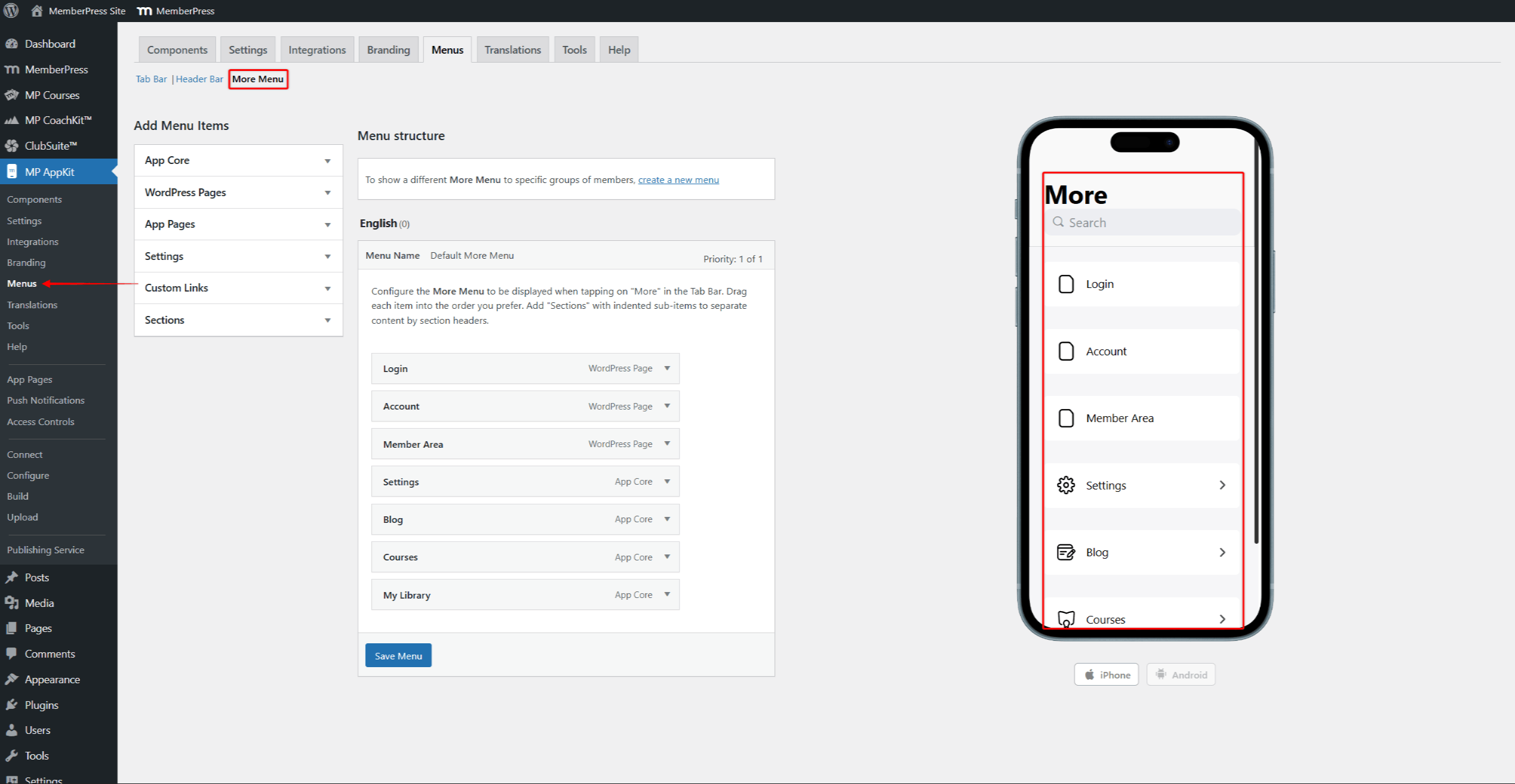
- Clique em Salvar menu após a configuração de cada menu.
Controles de acesso
O aplicativo usa regras de acesso do MemberPress. O aplicativo Página Controles de acesso permite que você adicione regras para conteúdo específico. Grupos de acesso ajudam a organizar o acesso ao conteúdo por nível de associação. O mensagem restrita padrão mostra quando os usuários tentam visualizar conteúdo protegido.
- Navegue até Painel de controle > MemberPress > Regras e revisar as regras existentes.
- Criar regras adicionais se necessário.
- Navegue até Painel de controle > MP AppKit > Controles de acesso.
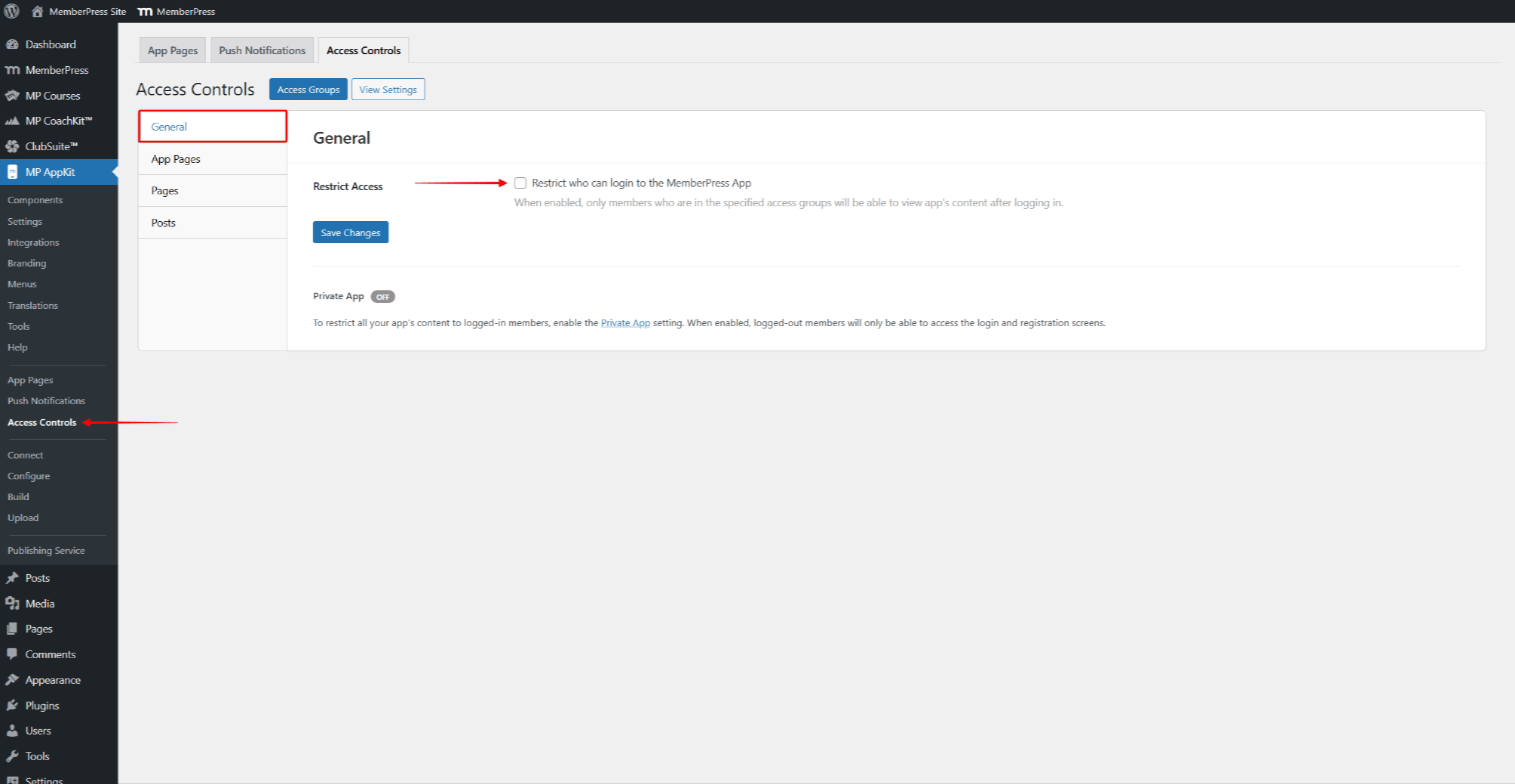
- No Geral localize a guia Acesso restrito seção.
- Ativar “Restringir quem pode fazer login no aplicativo MemberPress” para limitar o acesso ao aplicativo a grupos de acesso específicos.
- Para tornar o aplicativo totalmente privado, ative a opção Configuração do aplicativo privado em Painel de controle > MP AppKit > Configurações > Geral > Privacidade.
- Clique no botão Páginas do aplicativo, Páginasou Publicações para adicionar regras a um conteúdo específico.
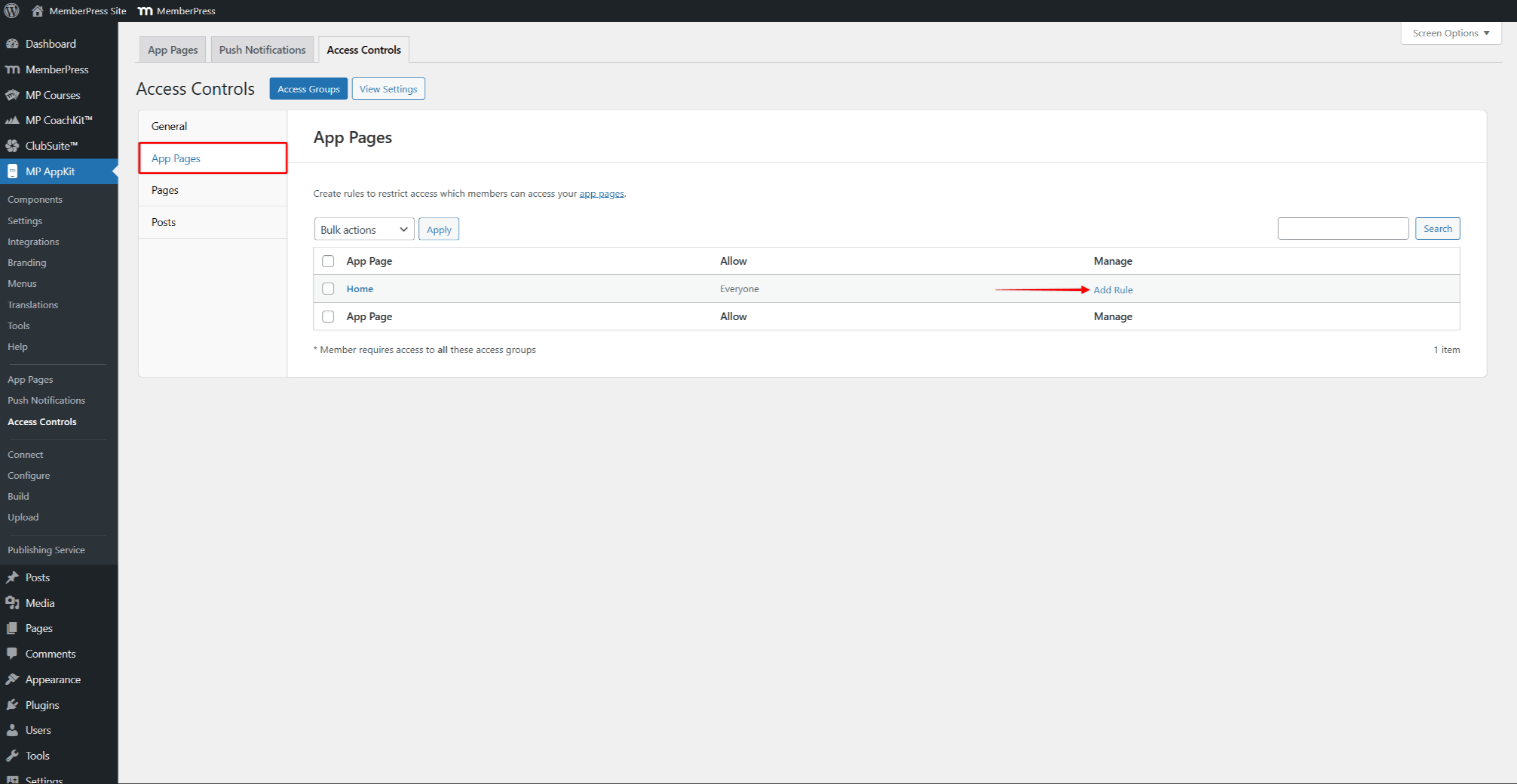
- Nessas páginas, você pode adicionar regras específicas do item. Clique em Adicionar regra ao lado de qualquer item para restringir esse conteúdo a membros conectados ou a grupos de acesso específicos.
- Clique em Salvar alterações.
Fase 4: Configuração de compras no aplicativo
Essa fase é necessária apenas para usuários do Path B. Os usuários do Caminho A devem pular para a Fase 5. O Configuração das compras no aplicativo mostra todas as etapas de configuração.
Antes de iniciar essa fase, verifique se o Compras no aplicativo é ativado em Painel de controle > MP AppKit > Componentes.
Ambas as lojas de aplicativos exigem a criação de produtos de compra no aplicativo antes que o aplicativo possa vender associações. Cada associação ao MemberPress precisa de um produto correspondente em ambas as lojas. Grupos de assinatura organizar produtos de associação relacionados para opções de upgrade e downgrade.
Configuração de produto da App Store
- Em App Store Connect, selecione o aplicativo e clique em Assinaturas na barra lateral.
- Crie produtos que correspondam a cada associação. Selecione Assinatura com renovação automática para associações recorrentes. O Guia de produtos no aplicativo para iOS explica a configuração e os tipos de produtos.
- Em Console Google Play, navegue até Monetize com o Play.
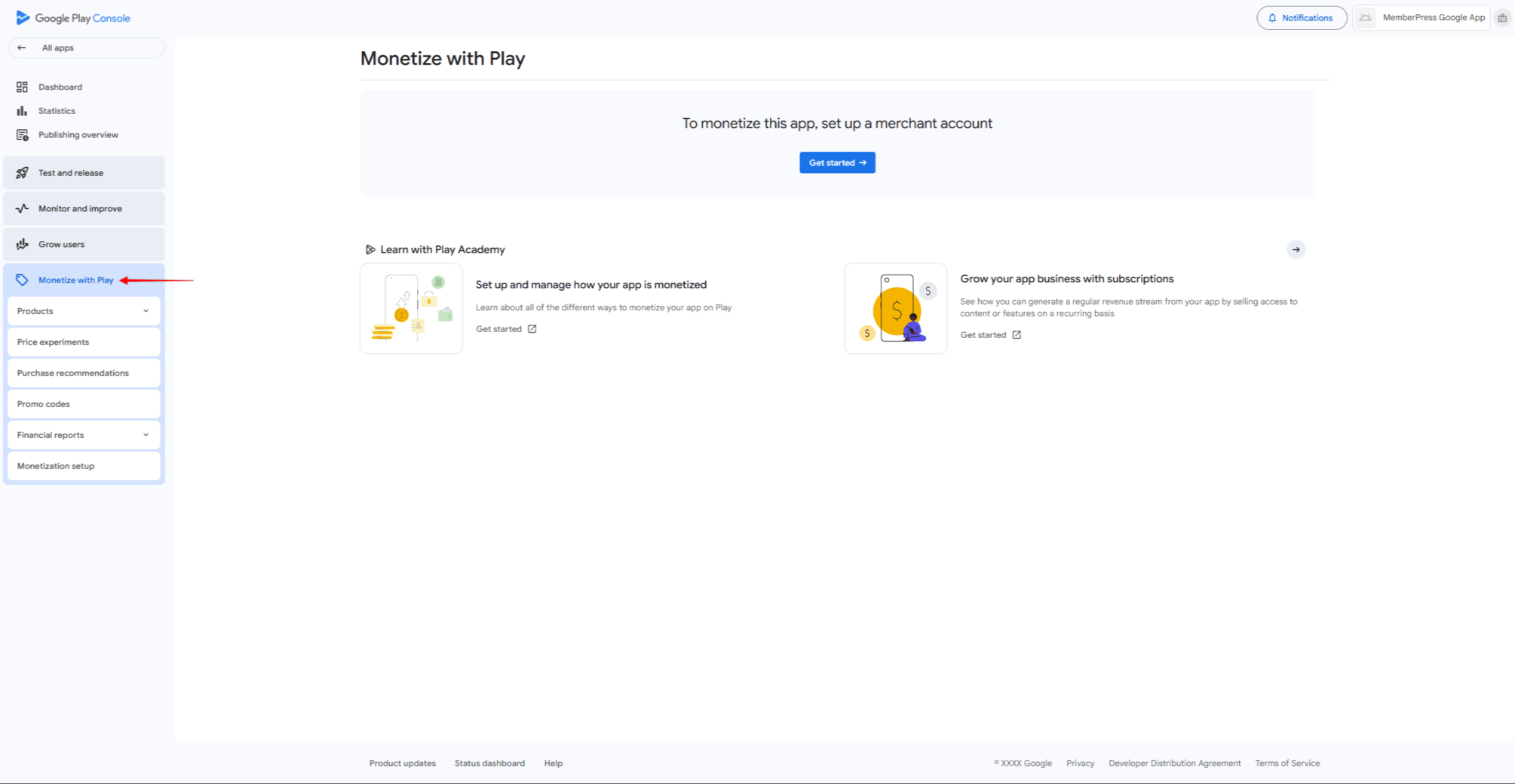
- Após a configuração da conta do comerciante, navegue até Monetizar > Produtos > Assinaturas.
- Crie produtos correspondentes usando os mesmos IDs de produto para facilitar o rastreamento. O Guia de compras no aplicativo para Android mostra as etapas de configuração.
Conectando produtos a MemberPress
Depois de criar produtos em ambas as lojas de aplicativos, vincule-os às associações do MemberPress:
- Navegue até Painel de controle > MP AppKit > Compras no aplicativo > Produtos.
- Clique em Adicionar novo para criar um produto.
- Digite um Nome do produto, opcional Título, Descriçãoe Benefícios.
- Verificar Exibir na tela Produtos e selecione Pago como Tipo de produto.
- Abaixo de Loja iOS, verifique Ativar e clique em Sincronizar com a Apple para recuperar os produtos disponíveis.
- Selecione o produto App Store Connect correspondente na lista.
- Abaixo de Loja Android, verifique Ativar e clique em Sincronizar com o Google para recuperar os produtos disponíveis.
- Selecione o produto correspondente do Google Play na lista.
- Abaixo de Tipo de integração, selecione Associação e escolha o plano de associação a ser vinculado.
- Clique em Publicar para salvar o produto.
- Repita o procedimento para cada associação que precisa de acesso por compra no aplicativo.
Fase 5: Teste de aplicativos
Essa fase testa o funcionamento do aplicativo antes de enviá-lo. Tanto a Apple quanto o Google rejeitam aplicativos com bugs evidentes ou recursos quebrados.
Teste de dispositivos
As compilações de aplicativos de teste permitem testar o aplicativo em dispositivos reais antes do envio. Teste com várias contas de usuário para verificar se as regras de acesso funcionam corretamente.
- Navegue até Painel de controle > MP AppKit > Construir e clique em Solicitar compilação.
- Selecione a plataforma (iOS ou Android) e, em seguida, selecione Aplicativo de teste como o tipo de compilação.
- Depois que a compilação for concluída, ela aparecerá na seção Histórico de construção lista.
Para aplicativos de teste do iOS, primeiro registrar dispositivos de teste em Painel de controle > MP AppKit > Configurar > Dispositivos iOS. Em seguida, clique no botão Instalar no dispositivo iOS para instalar via código QR ou fazer download do arquivo IPA. A Guia de compilações de teste do iOS mostra as etapas completas.
Para aplicativos de teste do Android, clique no botão Instalar em dispositivo Android para instalar via código QR ou baixar o arquivo APK. O Guia de compilações de teste do Android mostra as etapas completas. Os aplicativos de teste do Android não precisam de registro de dispositivo.
Os usuários do caminho B também devem testar compras no aplicativo usando contas de sandbox do iOS e testadores de licença do Android. Antes do envio para a App Store, selecionar uma versão de revisão do iOS para a equipe de avaliação da Apple.
Fase 6: Criação e publicação de aplicativos
Essa fase cria compilações finais de aplicativos e as envia para as lojas de aplicativos. Ambas as plataformas analisam os aplicativos antes de serem lançados. A fase guia de geração de compilação de aplicativos abrange a criação de aplicativos para ambas as plataformas.
Prepare os ativos da listagem da loja de aplicativos (capturas de tela, descrições) e garanta que o URL da política de privacidade esteja acessível. O Serviço de publicação de aplicativos MemberPress oferece ajuda no processo de envio.
Envio de aplicativos iOS
- Navegue até Painel de controle > MP AppKit > Construir e clique em Solicitar compilação.
- Selecione iOS como a plataforma, então Lançar aplicativo como o tipo de compilação. As Geração de aplicativos de lançamento do iOS O guia mostra as etapas.
- Após a conclusão da compilação, clique no botão Enviar para publicação botão no cartão de compilação.
- Clique em Fazer upload para o App Store Connect para fazer upload diretamente do AppKit. O Guia de carregamento de compilações do iOS mostra as etapas.
- Em App Store Connect, completo Informações sobre o aplicativo, carregar capturas de tela, selecionar a compilação e clicar em Enviar para revisão. O Lista de verificação de publicação na App Store lista todos os itens necessários.
Envio de aplicativos para Android
- Navegue até Painel de controle > MP AppKit > Construir e clique em Solicitar compilação.
- Selecione Android como a plataforma, então Lançar aplicativo como o tipo de compilação. As Geração de aplicativos de lançamento para Android O guia mostra as etapas.
- Após a conclusão da compilação, clique no botão Enviar para publicação botão no cartão de compilação.
- Clique em Fazer upload para o Google Play Console para fazer o upload diretamente, ou clique em Baixar o arquivo AAB para upload manual.
- Em Console Google Play, navegue até Release > Testes > Testes fechados e carregue o arquivo AAB. Para rollouts em etapas, use testes fechados antes da produção.
- Completo Listagem de lojas, carregar capturas de tela, concluir Classificação de conteúdoe clique em Iniciar a implementação. O Lista de verificação de publicação no Google Play lista todos os itens necessários.
Fase 7: Gerenciamento contínuo do aplicativo
Os aplicativos publicados precisam de cuidados regulares. Planeje atualizações para correção de bugs e para trabalhar com novas versões do sistema operacional. Os Atualização do aplicativo iOS e Atualização do aplicativo Android mostram as etapas para novas versões. Modo de manutenção permite limitar brevemente o acesso a aplicativos durante grandes atualizações.
Verifique as avaliações da App Store e do Google Play e responda rapidamente aos comentários dos usuários. Acompanhe os relatórios de falhas e observe Desempenho da API para manter o aplicativo funcionando bem.
Resumo
O MemberPress AppKit permite que você crie aplicativos móveis nativos para sites de associação por meio de sete etapas em ordem.
Antes de iniciar a Fase 1:
- Verifique as necessidades do site (HTTPS, PHP 7.4+, WordPress 5.8+).
- Certifique-se de que um plano MemberPress ativo esteja em vigor (plano de lançamento, crescimento ou escala).
- Decida entre o Caminho A (registro no site) ou o Caminho B (compras no aplicativo).
- Reúna ativos visuais (ícone do aplicativo, tela inicial, capturas de tela).
- Preparar informações de cartão de crédito para taxas de conta de desenvolvedor.
Inicie a Fase 1 criando uma conta de desenvolvedor da Apple e uma conta de desenvolvedor do Google Play.










 PT
PT  EN
EN  ES
ES  FR
FR  DE
DE 