

As atualizações do aplicativo Android garantem que os membros acessem os recursos mais recentes, correções de bugs e preços atualizados. As atualizações regulares mantêm a funcionalidade do aplicativo e a conformidade com os requisitos da Google Play Store.
Este documento explica como gerar novas compilações de versão do Android, fazer download de arquivos AAB, enviar atualizações para o Google Play Console e lidar com o feedback de revisão.
Entendendo as atualizações de aplicativos
As atualizações de aplicativos oferecem melhorias e correções para instalações existentes por meio da Google Play Store. As atualizações mantêm o mesmo identificador de aplicativo e a mesma chave de assinatura da publicação original. Os códigos de versão devem aumentar a cada atualização para permitir a detecção e a instalação adequadas da atualização.
Criação de nova compilação de versão do Android
A geração de compilação de versão cria o pacote de aplicativos atualizado para envio ao Google Play.
- Navegue até Painel de controle > MP AppKit > Construir.
- Clique no botão Solicitar compilação botão.
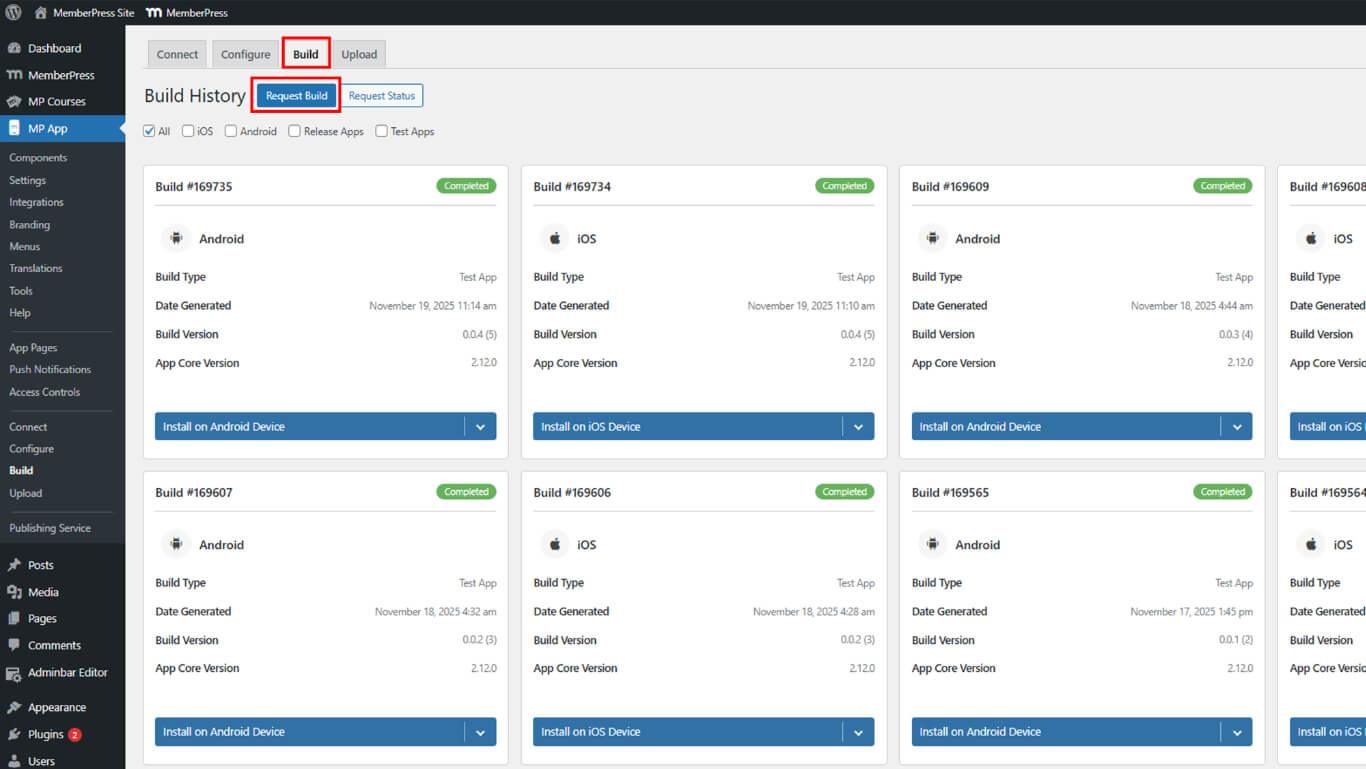
- Verifique o Android como a plataforma.
- Selecione Lançar aplicativo como o tipo de compilação.
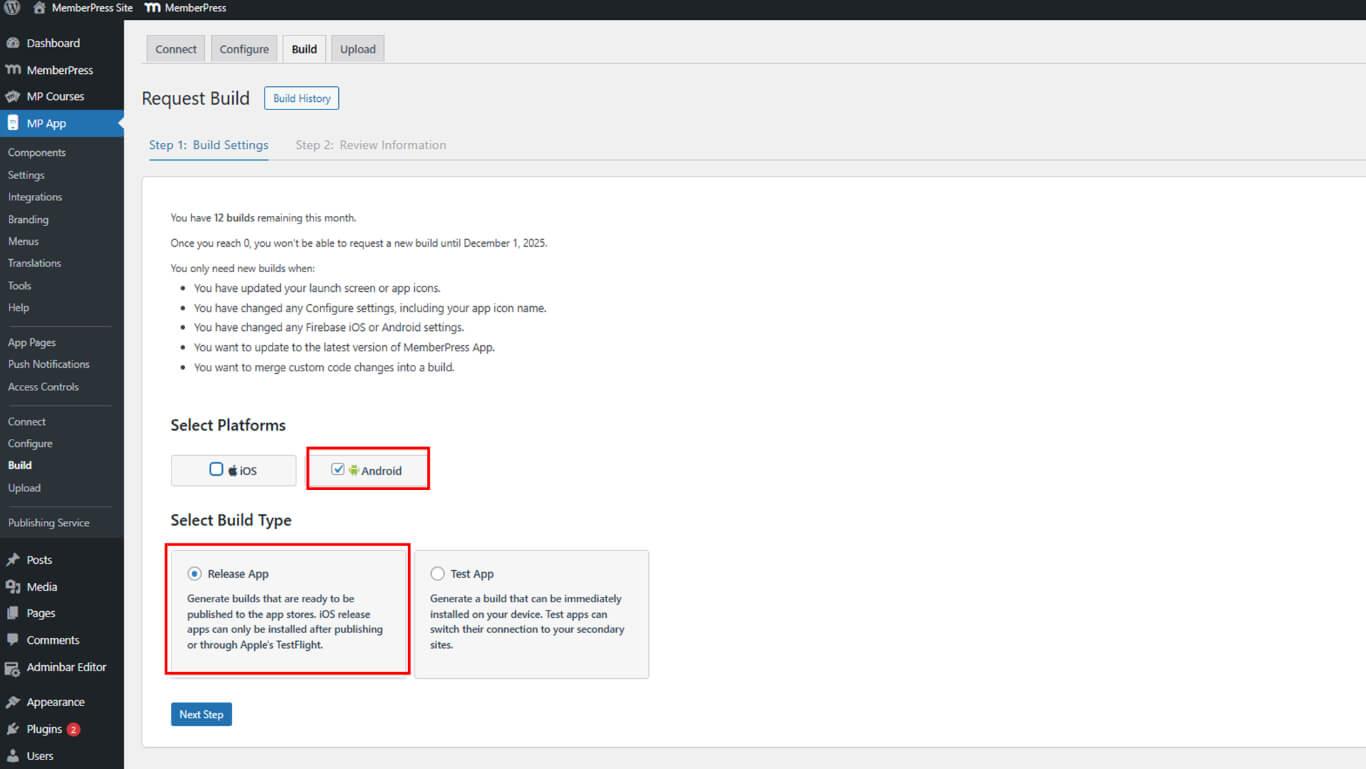
- Clique em Próxima etapa para prosseguir com a configuração da compilação.
- Clique em Enviar solicitação de compilação para enviar a solicitação de compilação.
- Monitorar o progresso da construção em Histórico de construção.
- Aguarde o status de conclusão da compilação.
Normalmente, a conclusão da construção ocorre dentro de 5 a 10 minutos após o envio da solicitação.
Download do arquivo de compilação AAB
O download do arquivo AAB prepara o pacote de aplicativos atualizado para o upload do Google Play Console.
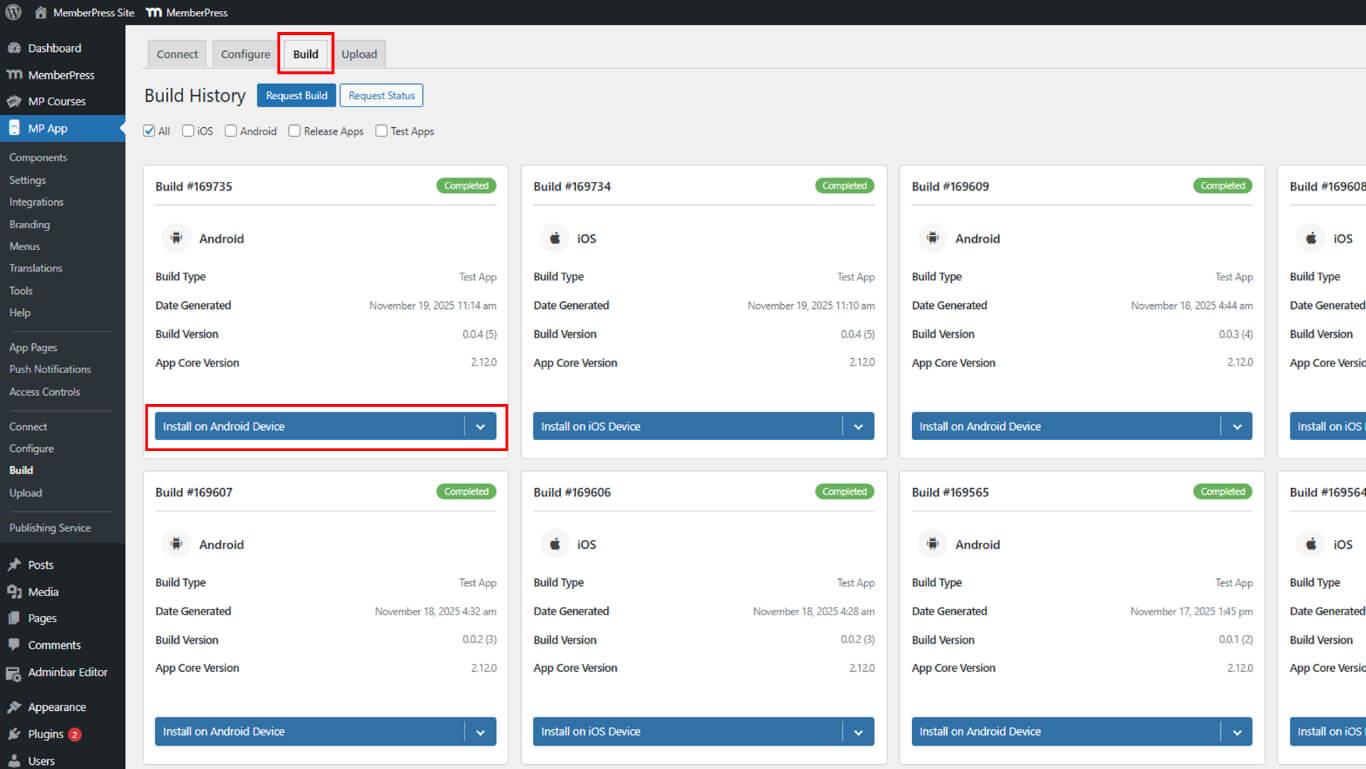
- Navegue até Painel de controle > MP AppKit > Construir.
- Localize a compilação de versão concluída na lista de compilações.
- Clique em Instalar no dispositivo Android.
- Click Baixar o arquivo AAB ao lado da compilação da versão.
- Salve o arquivo AAB em um local seguro no dispositivo.
Envio de atualização para o Google Play Console
O envio da atualização envia a nova versão do aplicativo ao Google para análise.
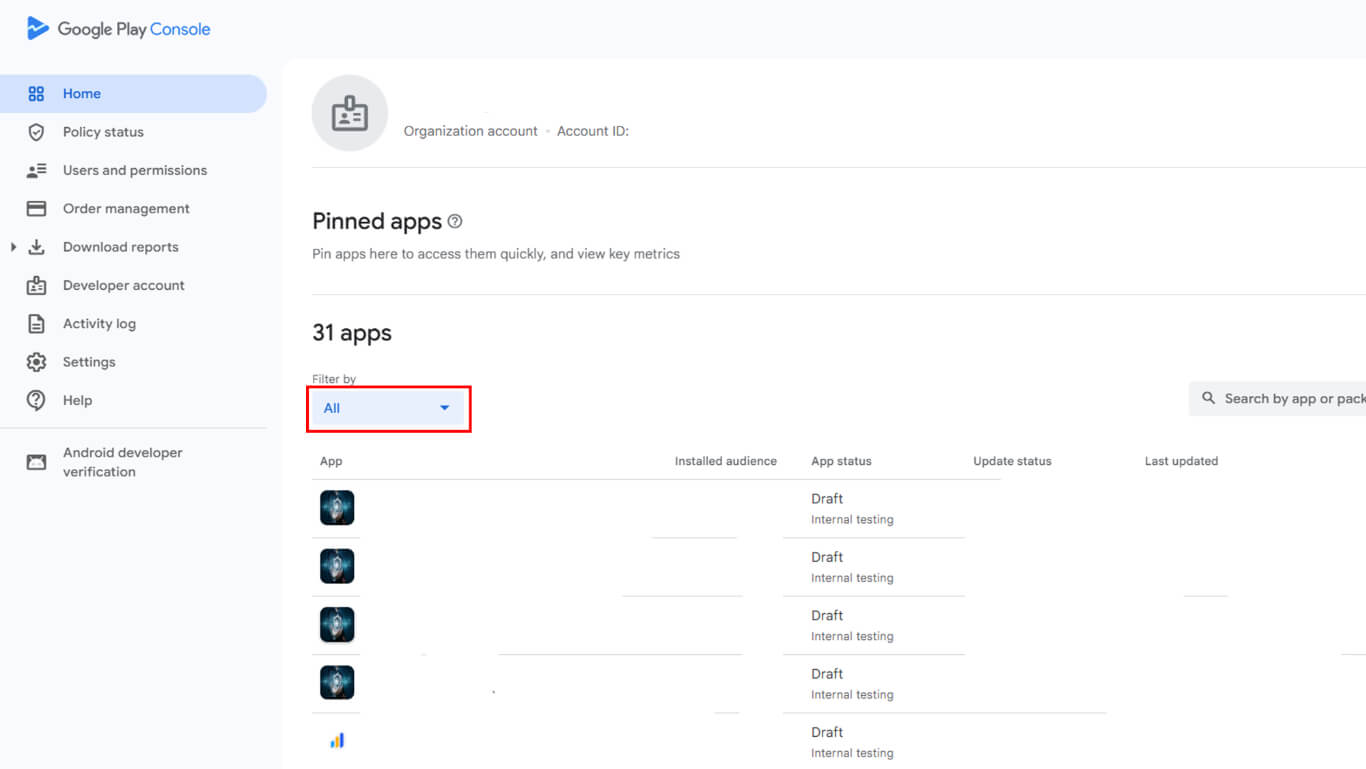
- Faça login no Google Play Console em play.google.com/console.
- Navegue até Todos os aplicativos e selecione o aplicativo na lista.
- Clique em Lançamento > Produção na barra lateral esquerda.
- Clique em Criar nova versão para o envio de novas atualizações.
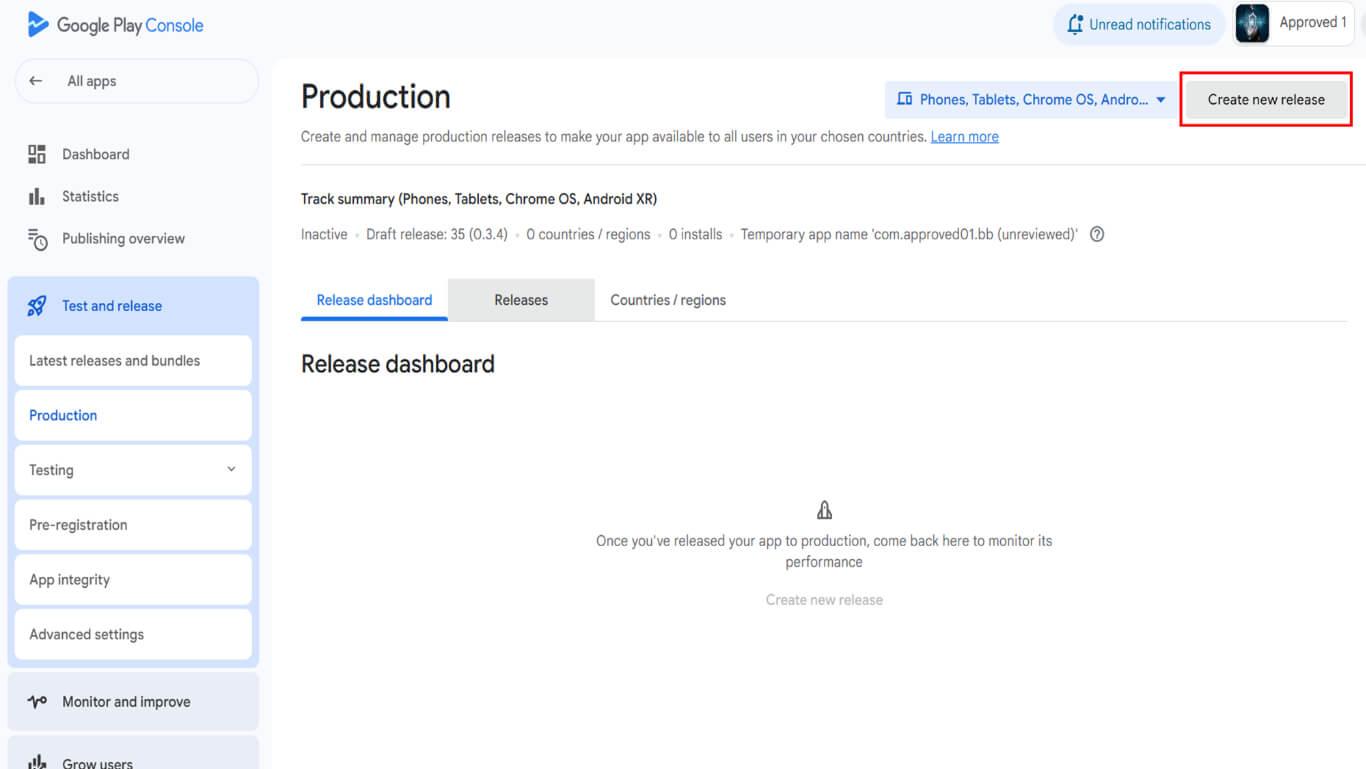
- Clique em Editar liberação se houver uma versão preliminar existente.
- Role até o Pacotes de aplicativos e APKs seção.
- Clique em Carregar para abrir a seleção de arquivos.
- Selecione o arquivo AAB baixado do dispositivo.
- Aguarde a conclusão do upload e o processamento do arquivo.
- Digite um Nome da versão no campo de nome da versão.
- Entrar Notas de versão descrevendo alterações e aprimoramentos.
- Clique em Salvar para armazenar a liberação como um rascunho.
- Clique em Lançamento da revisão para prosseguir com a revisão do envio.
Revisão da configuração de atualização
A revisão da atualização verifica a compatibilidade da versão e os requisitos de lançamento.
- Revise a página de resumo da versão para ver se há erros ou avisos.
- Verifique se o código da versão é superior ao das versões anteriores.
- Resolva todos os erros necessários antes do envio.
- Opcionalmente, resolva os avisos para melhorar a qualidade da atualização.
- Confirme se as notas de versão descrevem as alterações com precisão.
- Analise os países e as regiões quanto à disponibilidade de atualizações.
Envio de atualização para revisão
O envio da atualização envia a versão para a equipe de revisão do Google.
- Veja todos os detalhes atualizados na página de avaliação.
- Verifique se não há erros de bloqueio na configuração.
- Clique em Iniciar a implementação na produção para enviar a atualização.
- Confirme o envio na caixa de diálogo de confirmação.
- Monitore o status do envio no Google Play Console.
Entendendo os tipos de rejeição
O Google pode rejeitar envios de atualizações por questões técnicas ou de conformidade.
Problemas de metadados envolvem conteúdo de listagem da loja, atualizações de política de privacidade ou alterações de classificação de conteúdo. As rejeições de metadados exigem atualizações do Play Console sem novas compilações de aplicativos.
Problemas com o aplicativo envolvem problemas de código, violações de políticas ou defeitos de funcionalidade. As rejeições de problemas de aplicativos exigem correções de código, novas compilações e reenvio completo.
Resolução de problemas de metadados
A resolução de problemas de metadados atualiza as informações do armazenamento sem reconstruir o aplicativo.
- Faça login no Google Play Console em play.google.com/console.
- Navegue até o aplicativo rejeitado na lista de aplicativos.
- Revise o e-mail de rejeição para verificar se há problemas específicos com os metadados.
- Clique em Presença na loja > Listagem de lojas para atualizar o conteúdo da listagem.
- Corrigir os campos problemáticos identificados no feedback de rejeição.
- Atualize o URL da política de privacidade se forem identificados problemas de política.
- Atualizar as classificações de conteúdo se forem identificados problemas de classificação.
- Clique em Salvar depois de concluir todas as alterações necessárias.
- Retornar ao Lançamento > Produção página.
- Clique em Iniciar a implementação na produção para reenviar a versão existente.
Resolução de problemas de aplicativos
A resolução do problema do aplicativo requer correções de código e geração de nova compilação.
- Analise o e-mail de rejeição para identificar problemas e violações específicos do aplicativo.
- Navegue até Painel de controle > MP AppKit em WordPress.
- Resolver problemas de código identificados ou problemas de conformidade com políticas.
- Navegue até Painel de controle > MP AppKit > Construir.
- Clique em Solicitar compilação para criar uma versão corrigida.
- Selecione o Android plataforma e Lançar aplicativo tipo de construção.
- Conclua a solicitação de compilação e aguarde a conclusão.
- Faça o download do novo arquivo AAB em Histórico de construção.
- Navegue até a página de lançamento do Google Play Console Production.
- Clique em Criar nova versão para iniciar um novo envio.
- Carregue o arquivo AAB corrigido.
- Insira notas de versão explicando as correções.
- Clique em Lançamento da revisão e depois Iniciar a implementação na produção.
Entendendo o comportamento pós-aprovação
O comportamento da atualização após a aprovação depende da configuração da publicação gerenciada.
Publicação automática ocorre para aplicativos sem a publicação gerenciada ativada. As atualizações aprovadas entram em vigor imediatamente em todas as regiões configuradas.
Publicação gerenciada requer aprovação manual antes de atualizar a publicação. As atualizações aguardam a ação do editor na página Publicação gerenciada antes da distribuição.
Aprovação de atualizações de publicação gerenciada
As atualizações de publicação gerenciada exigem aprovação manual para distribuição.
- Navegue até o Google Play Console em play.google.com/console.
- Selecione o aplicativo na lista de aplicativos.
- Clique em Visão geral da publicação na barra lateral esquerda.
- Localize a atualização aprovada que está aguardando publicação.
- Revise os detalhes da atualização e o status da aprovação.
- Clique em Entrar em ação para publicar a atualização aprovada.
- Confirme a publicação na caixa de diálogo de confirmação.










 PT
PT  EN
EN  ES
ES  FR
FR  DE
DE 