

A instalação do MemberPress iOS Test Build permite testes rápidos e visualização do desenvolvimento sem o envio à App Store. As compilações de teste incluem a configuração do site, a marca, os menus e o código personalizado dos repositórios do GitHub.
Este documento explica como registrar dispositivos de teste iOS, solicitar a geração de Test Build e instalar builds via código QR.
Noções básicas sobre a instalação da compilação de teste do iOS
MemberPress A instalação do Test Build do iOS requer o registro do dispositivo antes da instalação do build. A Apple restringe a instalação do Test Build a dispositivos registrados identificados por identificadores exclusivos de dispositivos. O registro do dispositivo e a geração do Test Build ocorrem por meio da interface do WordPress, sem o Xcode ou requisitos de compilação manual.
Registro do dispositivo registra identificadores exclusivos de dispositivos que permitem o provisionamento do Test Build. Os dispositivos registrados recebem perfis de provisionamento que autorizam a instalação do Test Build.
Geração de compilação de teste compila o aplicativo com identificadores de dispositivos registrados incluídos. As compilações que contêm provisionamento de dispositivos permitem a instalação somente em dispositivos autorizados.
Instalação do código QR simplifica a distribuição para dispositivos registrados. A instalação direta ignora os requisitos de envio da App Store e do TestFlight.
Inclusão da configuração incorpora todas as configurações do site, branding e configurações do menu. As compilações de teste refletem a configuração atual do WordPress no momento da geração da compilação.
Integração de código personalizado inclui personalizações e modificações conectadas ao GitHub. As compilações de teste compilam alterações de código personalizadas para validação antes da implantação em produção.
Registro de dispositivos de teste iOS
O registro do dispositivo permite a instalação do Test Build em dispositivos iOS específicos.
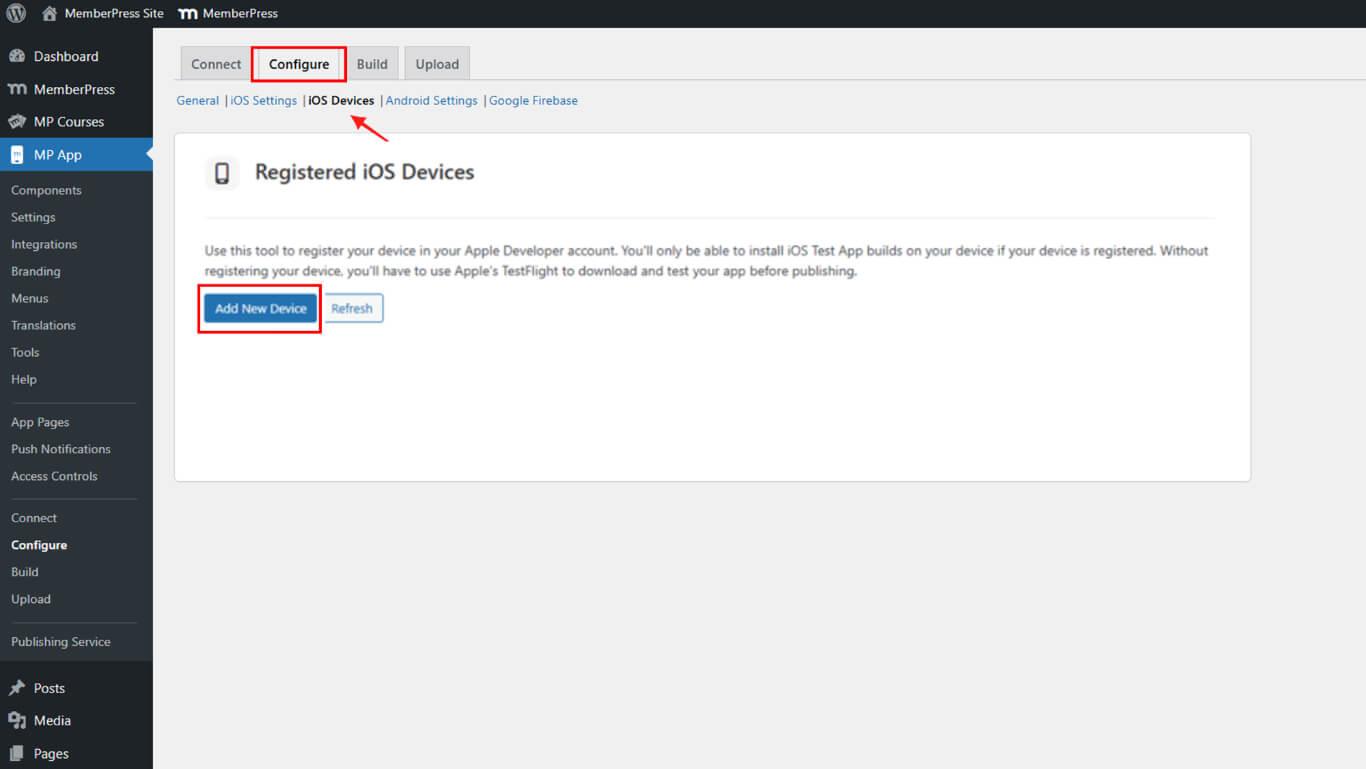
- Navegue até Painel de controle > MP AppKit > Configurar > Dispositivos iOS.
- Clique no botão Adicionar novo dispositivo botão.
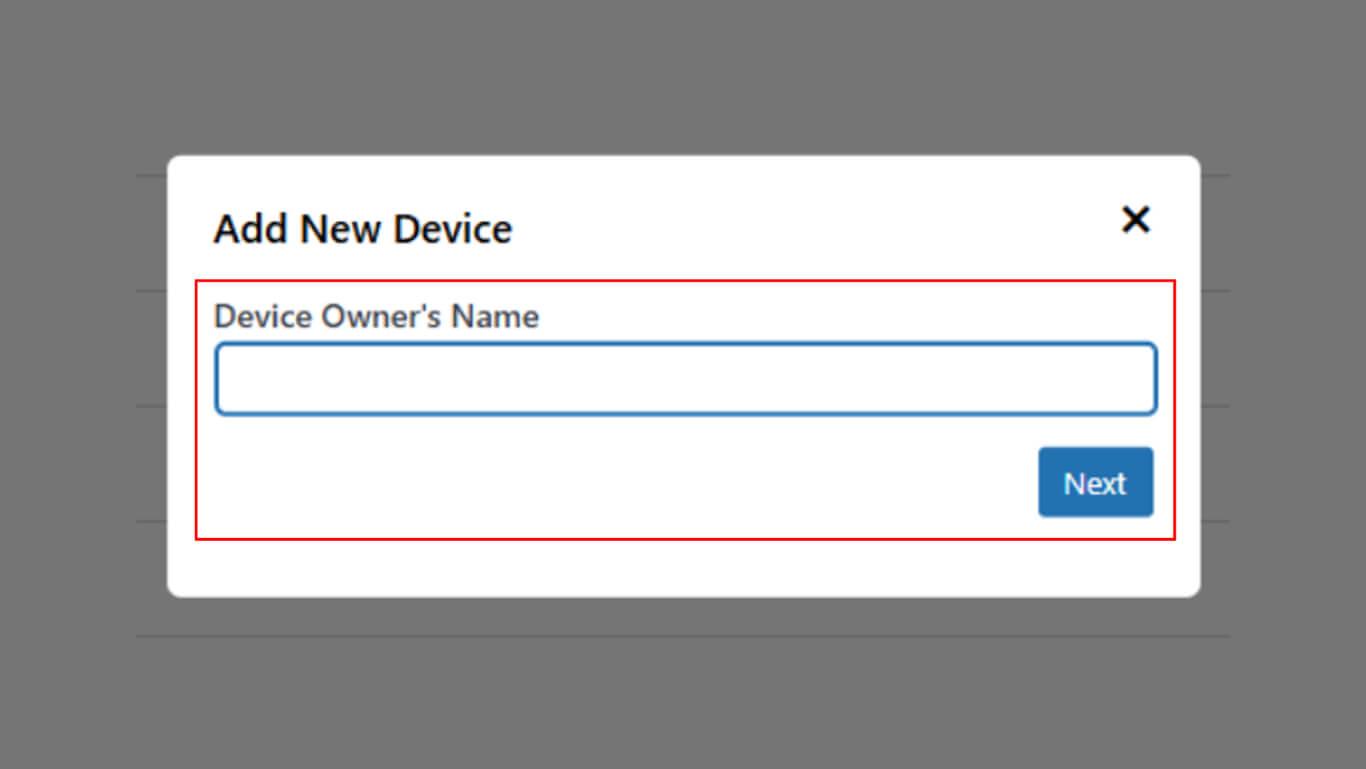
- Insira um nome descritivo no campo Nome do dispositivo campo.
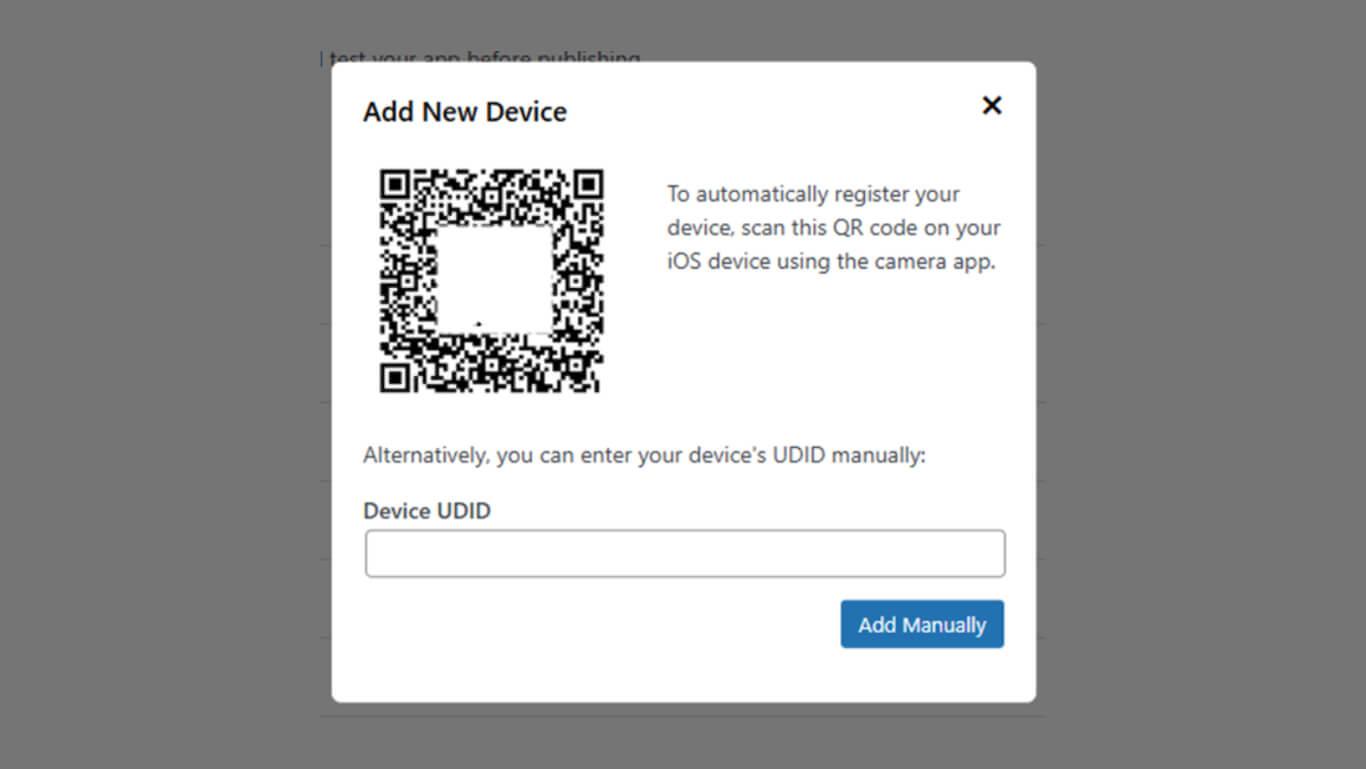
- Abra o aplicativo Câmera no iPhone.
- Digitalize o código QR exibido com a câmera do iPhone.
- Toque na notificação ou no link que aparece após a varredura.
- O navegador é aberto, exibindo a página de instalação do perfil de provisionamento.
- Toque Instalar para instalar o perfil de provisionamento.
- Siga as instruções na tela para concluir a instalação do perfil.
- Retorne à janela do navegador do WordPress.
- Clique em Atualizar para atualizar a lista de dispositivos.
- Verifique se o dispositivo aparece na lista de dispositivos registrados.
Entendendo os requisitos de registro de dispositivos
O registro do dispositivo segue requisitos e limitações específicos da Apple.
Identificador exclusivo do dispositivo distingue dispositivos individuais de outros. O registro do UDID permite que a Apple autorize instalações de dispositivos específicos.
Limite de 100 dispositivos restringe anualmente o total de dispositivos registrados por conta de desenvolvedor. O limite é redefinido anualmente, permitindo novos registros de dispositivos.
Requisito de perfil de provisionamento autoriza a instalação do Test Build nos dispositivos. A instalação do perfil deve ser concluída antes das tentativas de instalação do Test Build.
Requisitos para novas construções aplica-se ao adicionar dispositivos a registros existentes. As compilações de teste geradas anteriormente não incluem dispositivos recém-registrados.
Solicitação de compilação de teste do iOS
A geração do Test Build cria um pacote de aplicativos instalável, incluindo o provisionamento de dispositivos registrados.
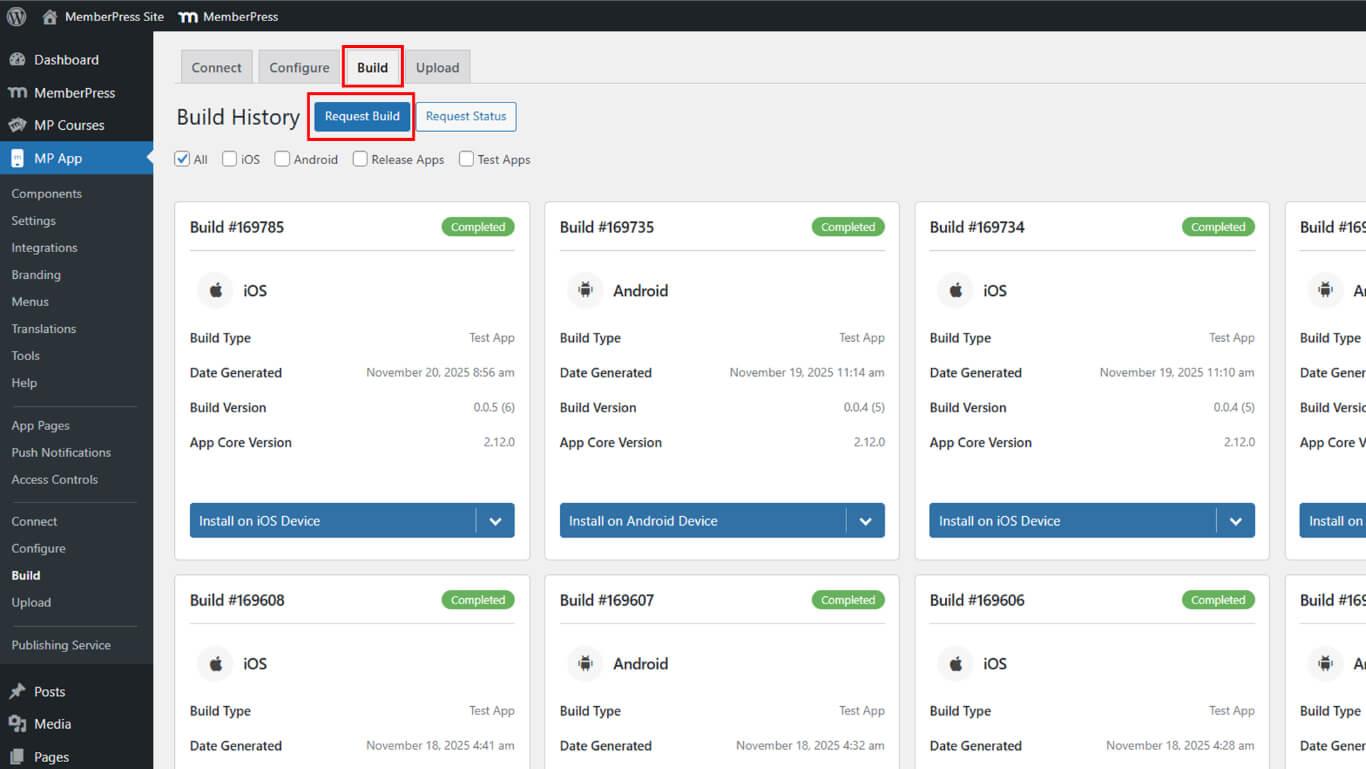
- Navegue até Painel de controle > MP AppKit > Construir.
- Clique no botão Solicitar compilação botão.
- Selecione iOS como a plataforma dentre as opções disponíveis.
- Selecione Aplicativo de teste como o tipo de compilação.
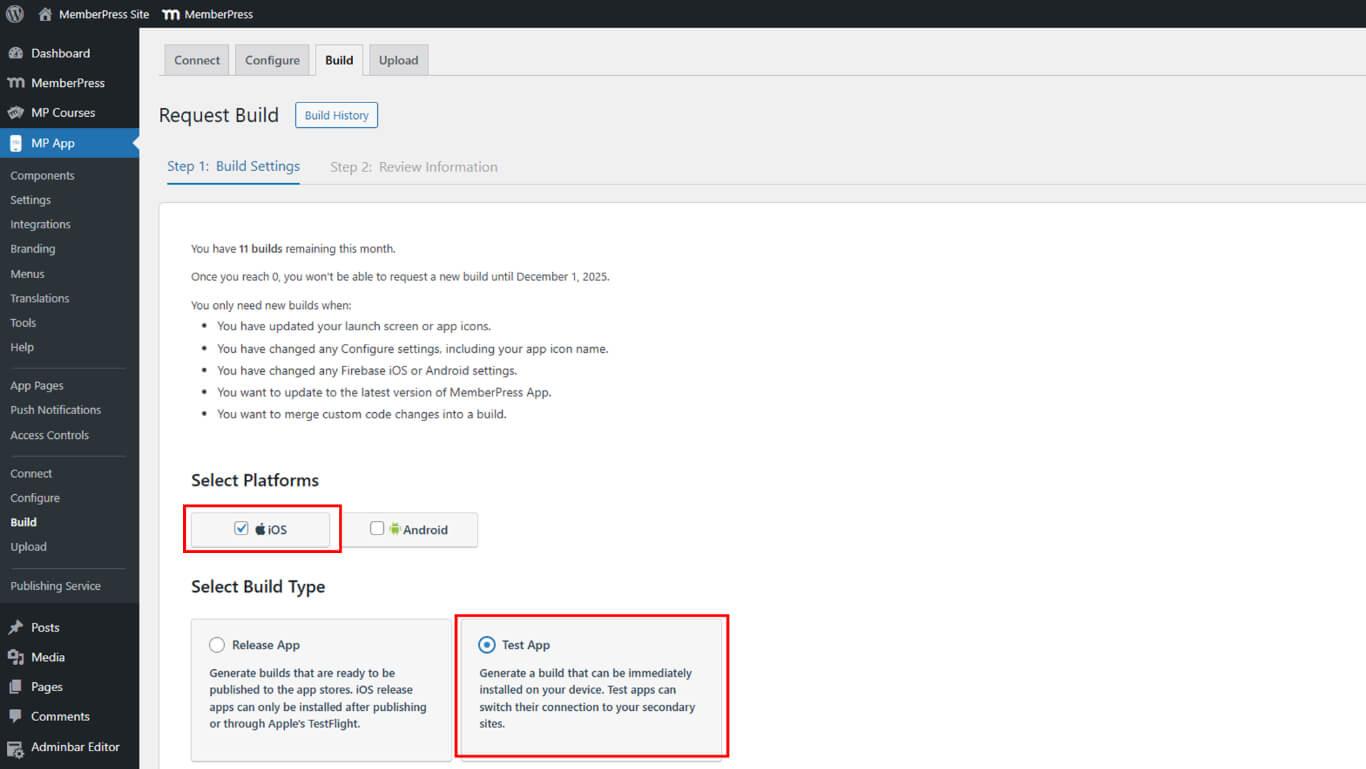
- Clique em Próximo para prosseguir com a revisão da configuração da compilação.
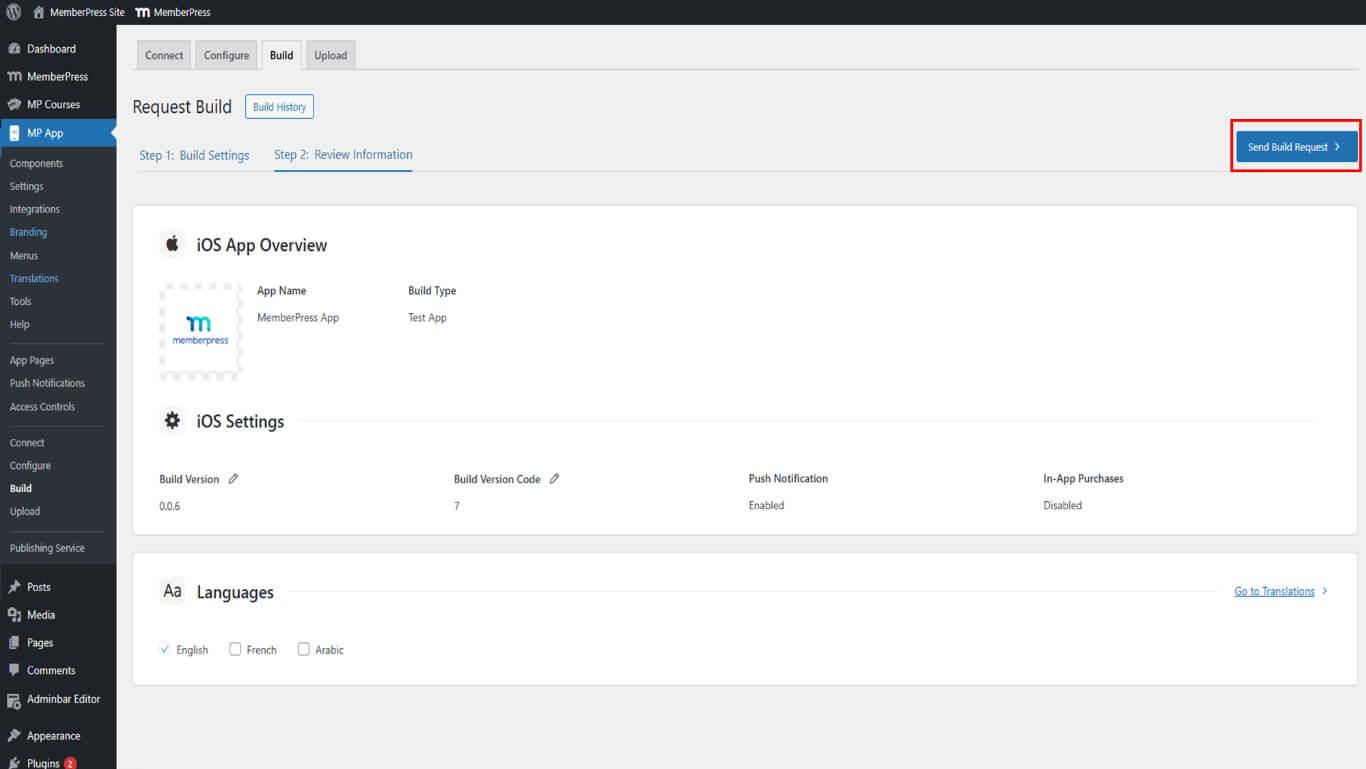
- Revise todas as configurações de compilação exibidas na tela de confirmação.
- Clique em Enviar solicitação de compilação para enviar a solicitação de compilação.
- Aguarde de 15 a 60 minutos para que a compilação seja concluída na fila de compilação.
- Clique em Verifique novamente o status agora para atualizar o status da compilação, se necessário.
Verificação do status da compilação
O monitoramento do status da construção rastreia o progresso da geração através dos estágios de conclusão.
- Navegue até Painel de controle > MP AppKit > Construir.
- Revise a lista de compilações que exibe todas as compilações solicitadas.
- Localize a compilação de teste do iOS desejada na lista.
- Revise as informações do cartão de crédito:
- Número de construção identificando uma construção específica;
- Status de construção mostrando Queued, In Progress ou Completed;
- Plataforma exibindo compilações do iOS para iOS;
- Tipo de construção indicando Aplicativo de teste ou Aplicativo de lançamento;
- Data e hora mostrando quando a compilação foi solicitada;
- Instalar o aplicativo de teste que aparece quando a compilação é concluída.
- Clique em Verifique novamente o status agora para atualizar a exibição do status, se necessário.
Os cartões de construção fornecem informações abrangentes de construção para identificação e verificação de status.
Instalação do aplicativo de teste do iOS
A instalação do aplicativo de teste ocorre por meio da leitura do código QR e do download direto.
- Navegue até Painel de controle > MP AppKit > Construir após a conclusão da construção.
- Localize a compilação de teste do iOS concluída na lista de compilações.
- Verifique se o status da compilação mostra Concluído.
- Clique em Instalar o aplicativo de teste botão no cartão de compilação.
- O código QR é exibido na interface para digitalização.
- Abra o aplicativo Câmera no iPhone.
- Aponte a câmera para o código QR exibido.
- Toque na notificação ou no link que aparece após a digitalização.
- O navegador abre e redireciona para a página de download.
- Toque Baixar aplicativo na página de download.
- Aguarde a conclusão do download do perfil.
- Toque Instalar quando o download estiver concluído.
- Conceda permissões de instalação se solicitado pelo dispositivo.
- Toque Aberto após a conclusão da instalação, inicie o aplicativo.
O processo de instalação exige que o dispositivo seja registrado antes da geração do Test Build. Os dispositivos não registrados não podem instalar Test Builds, mesmo com acesso ao código QR.
No aplicativo de teste:
- Use o alternador de site para acessar qualquer site WordPress conectado
- Para testar o código personalizado do GitHub, faça push das alterações e solicitar uma nova compilação de teste
Entendendo os requisitos de instalação do iOS
A instalação bem-sucedida do Test Build depende do registro e do provisionamento adequados do dispositivo.
Registro do dispositivo deve ser concluído antes da geração da compilação de teste. Os dispositivos adicionados após a geração da compilação não podem instalar essa compilação específica.
Perfil de provisionamento deve ser instalado com êxito no dispositivo. A instalação do perfil autoriza a instalação do Test Build a partir de fontes que não sejam da App Store.
Conectividade de rede permite o download de perfis e aplicativos dos servidores de compilação. Uma conexão WiFi ou de dados móveis deve estar ativa durante o processo de instalação.
Compatibilidade com a versão do iOS requer um dispositivo que esteja executando a versão mínima compatível do iOS. Versões desatualizadas do iOS podem impedir a instalação do Test Build.
Entendendo as diferenças de compilação de teste do Android
As compilações de teste do Android seguem requisitos de instalação diferentes das compilações do iOS.
Nenhum registro de dispositivo necessário para a instalação do Android Test Build. Os aplicativos de teste do Android são instalados sem requisitos de pré-registro.
Instalação direta do QR permite a instalação imediata após a varredura. Não são necessários perfis de provisionamento ou identificadores de dispositivos para o Android.
Distribuição simplificada reduz a complexidade da configuração para testes do Android. Os aplicativos de teste do Android são instalados de forma semelhante aos pacotes de aplicativos padrão do Android.










 PT
PT  EN
EN  ES
ES  FR
FR  DE
DE 