

MemberPress AppKit ermöglicht Mitgliedschaftsseite Eigentümern die Möglichkeit, native iOS- und Android-Mobil-Apps zu erstellen. Diese Apps zeigen Mitgliedsinhalte an und ermöglichen es den Mitgliedern, geschützte Objekte von ihren Telefonen und Tablets aus anzusehen.
Dieses Dokument bietet einen Überblick über den gesamten Einrichtungsprozess des MemberPress AppKit. Es umreißt jede Phase und erläutert die Anforderungen. Die Benutzer erfahren, welche Schritte erforderlich sind, um funktionierende mobile Apps für beide Plattformen zu veröffentlichen.
Was das MemberPress AppKit leistet
MemberPress AppKit verwandelt eine von MemberPress betriebene Website in eine mobile App. Die App ist mit der bestehenden Website verknüpft und zeigt den Mitgliedern Inhalte auf der Grundlage ihrer Mitgliedschaft an. Sie zeigt geschützte Beiträge, Seiten und Kurse unter Verwendung bestehender MemberPress-Zugangsregeln.
Die App bezieht die Inhalte direkt von der Website. Alle Aktualisierungen von Inhalten auf der Website werden sofort in der App angezeigt.
Auswahl eines Registrierungspfads
MemberPress AppKit unterstützt zwei Ansätze für die Mitgliederregistrierung. Diese Entscheidung muss vor Beginn des Einrichtungsprozesses getroffen werden.
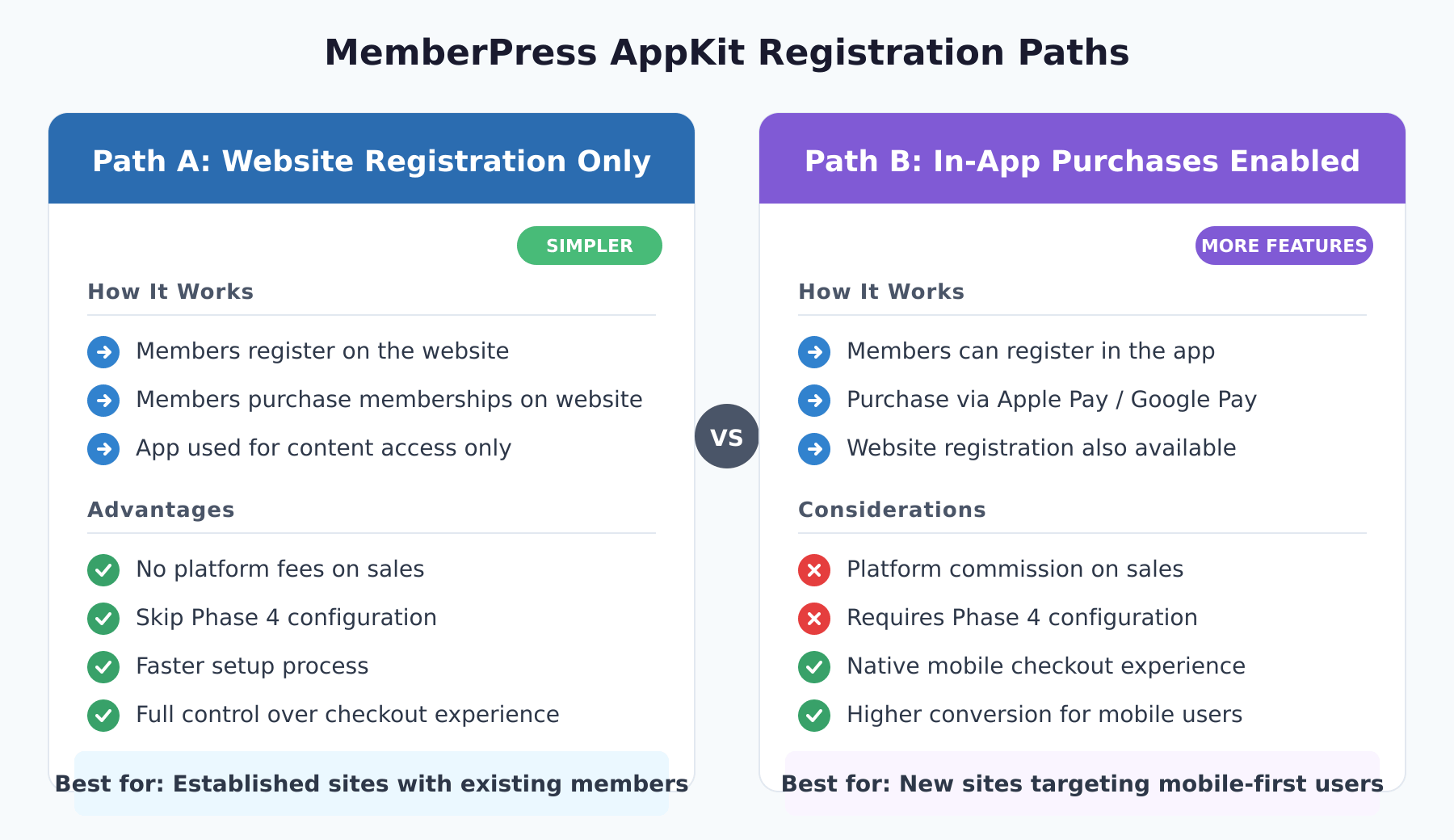
Pfad A: Nur Website-Registrierung
Mitglieder registrieren und Mitgliedschaften erwerben nur über die Website. Die App dient als Zugangstool zu den Inhalten für bestehende Mitglieder. Dieser Weg bietet eine einfachere Einrichtung und keine Plattformgebühren für den Verkauf von Mitgliedern. Phase 4 (In-App-Käufe) kann vollständig übersprungen werden.
Pfad B: In-App-Käufe aktiviert
Mitglieder können sich direkt in der App mit Apple Pay oder Google Pay anmelden und Mitgliedschaften kaufen. Dieser Weg muss in beiden App-Stores noch eingerichtet werden. Apple und Google erheben eine Gebühr für In-App-Käufe. Erfordernis von In-App-Käufen bei der Registrierung stellt sicher, dass neue Mitglieder einen Mitgliedsplan wählen.
Prozess-Übersicht
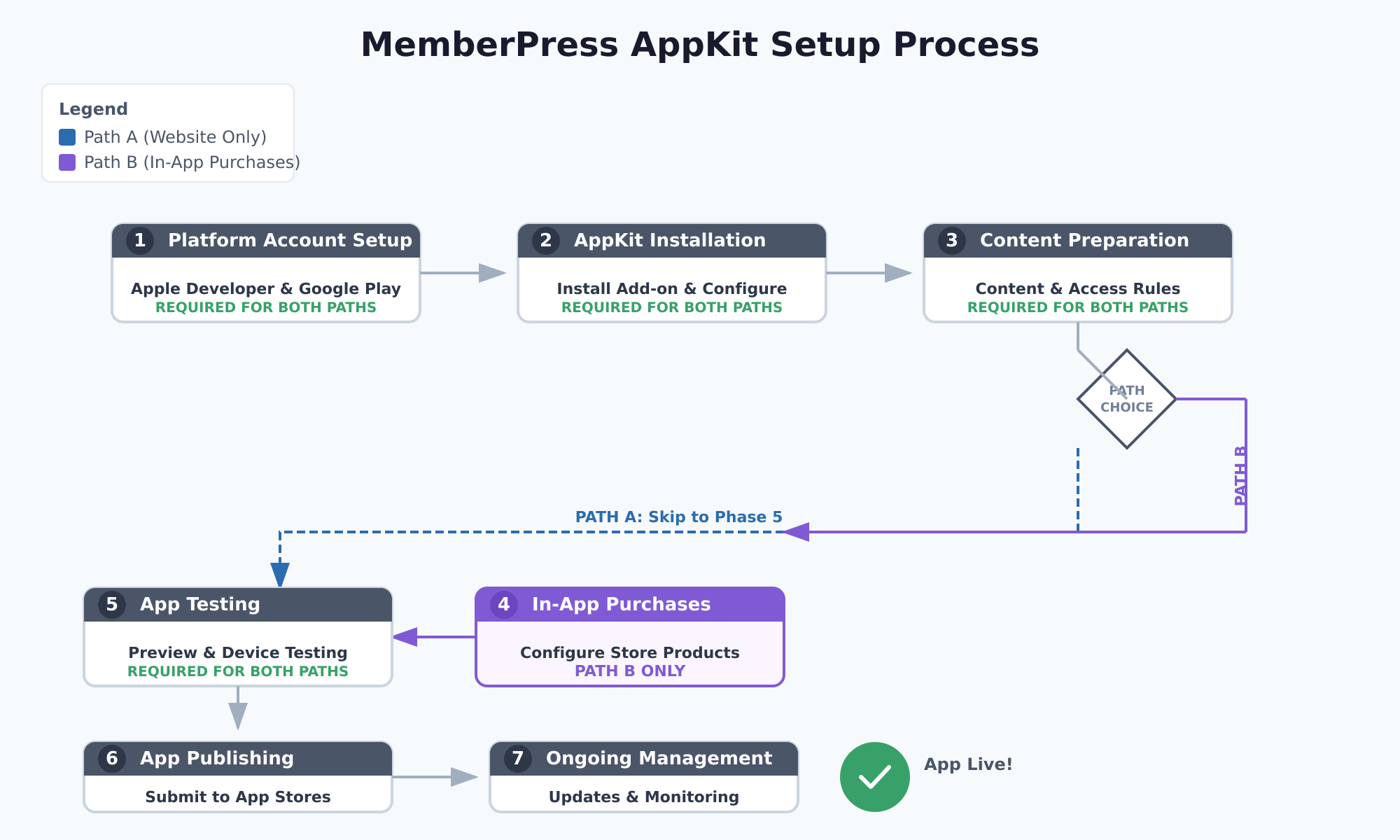
Die vollständige Einrichtung des MemberPress AppKit umfasst sieben Phasen. Jede Phase muss ausgeführt werden, um Probleme und Einrichtungsfehler zu vermeiden.
| Phase | Beschreibung | Pfad A | Pfad B |
|---|---|---|---|
| Phase 1 | Plattform-Konto einrichten | Erforderlich | Erforderlich |
| Phase 2 | AppKit Installation und Konfiguration | Erforderlich | Erforderlich |
| Phase 3 | Vorbereitung von Inhalten und Zugriffsregeln | Erforderlich | Erforderlich |
| Phase 4 | Konfiguration der In-App-Käufe | Überspringen | Erforderlich |
| Phase 5 | App-Tests | Erforderlich | Erforderlich |
| Phase 6 | App-Erstellung und Veröffentlichung | Erforderlich | Erforderlich |
| Phase 7 | Laufendes App-Management | Erforderlich | Erforderlich |
Phase 1: Einrichtung des Plattformkontos
In dieser Phase werden die erforderlichen Entwicklerkonten für die Veröffentlichung von Anwendungen eingerichtet. Beide Plattformen benötigen bezahlte Entwicklerkonten mit Identitätsprüfung.
Apple Entwickler-Konto einrichten
Die Veröffentlichung einer iOS-App erfordert den Beitritt zum Apple-Entwicklerprogramm ($99/Jahr). Dies ermöglicht den Zugang zu App Store Connect für App-Uploads. Die Einrichtung des Apple Developer Accounts werden die Schritte im Detail beschrieben.
Um dem Apple Developer Program beizutreten:
- Navigieren Sie zum Apple-Entwicklerprogramm Einschreibungsseite.
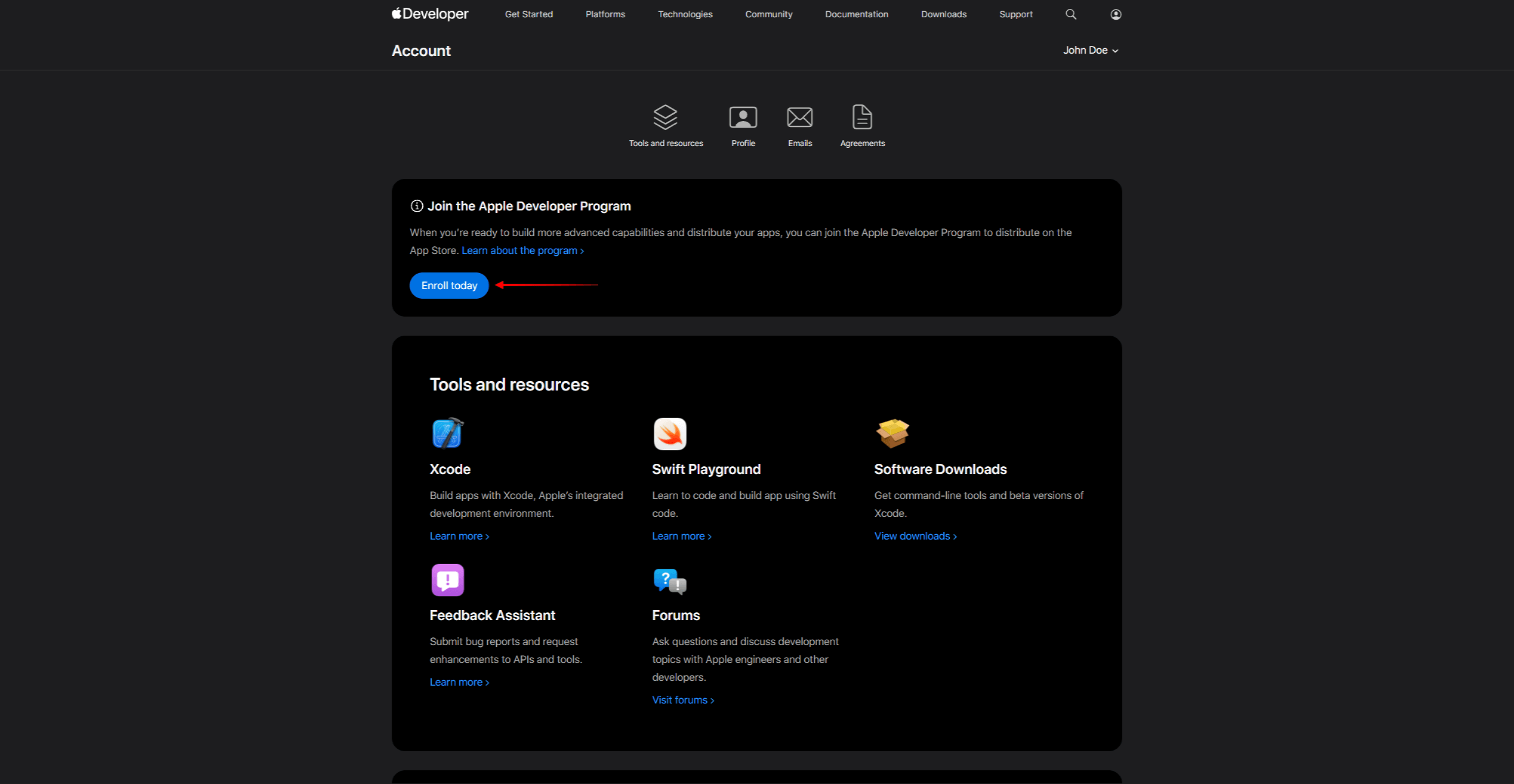
- Klicken Sie auf Anmelden unter und melden Sie sich mit einer Apple ID an.
- Wählen Sie den Kontotyp (Einzelperson oder Organisation).
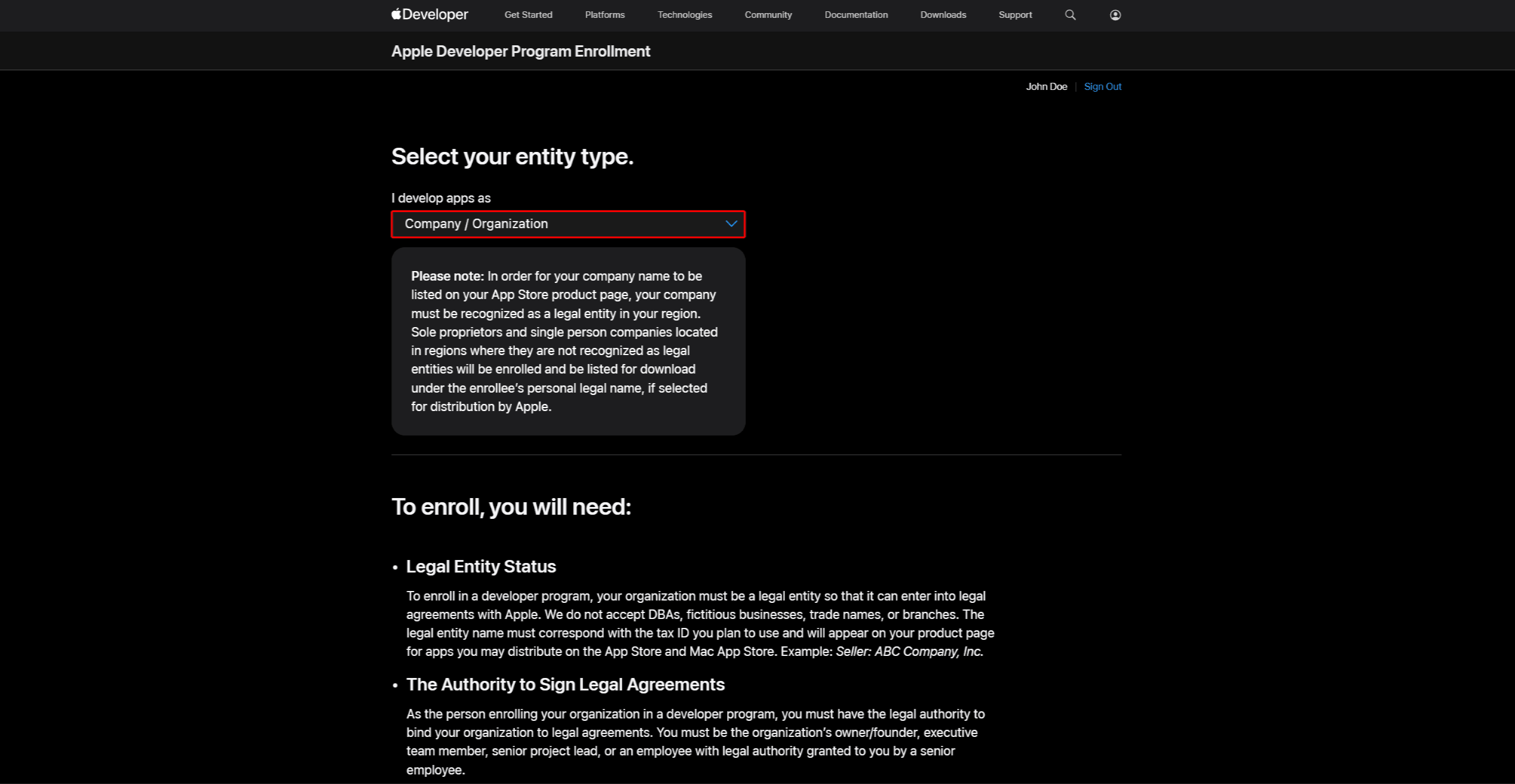
- Führen Sie die Identitätsprüfung durch und zahlen Sie die Jahresgebühr $99.
- Nach der Genehmigung, Zugang App Store Connect.
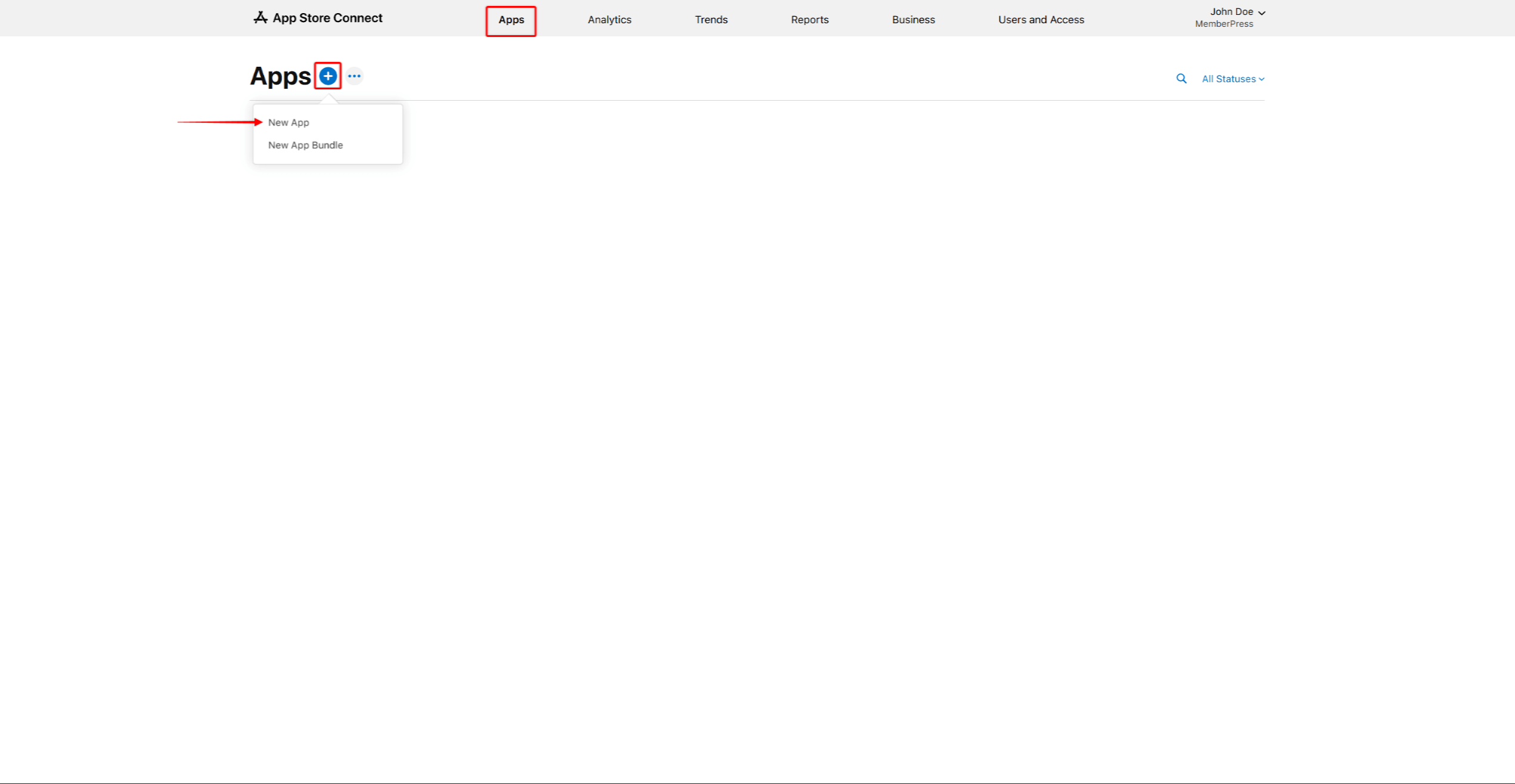
- Registrieren Sie eine Bundle ID im Apple Developer Account (Format: umgekehrte Domain-Notation, z.B.,
com.firmenname.appname). - Erstellen Sie einen App-Eintrag in App Store Connect, wählen Sie die Bundle ID aus und fügen Sie einen Artikelnummer für die interne Verfolgung.
- Erstellen Sie die benötigten Zertifikate und Profile.
- Verbinden Sie das Apple Developer-Konto zu AppKit.
Google Play-Entwicklerkonto einrichten
Die Veröffentlichung einer Android-App erfordert eine Google Play Developer-Konto ($25 einmalige Gebühr). Dies ermöglicht den Zugriff auf die Google Play Console für App-Uploads. Die Google Play Developer-Konto einrichten werden die Schritte im Detail beschrieben.
So erstellen Sie ein Google Play Developer-Konto:
- Navigieren Sie zum Google Play-Konsole Anmeldeseite.
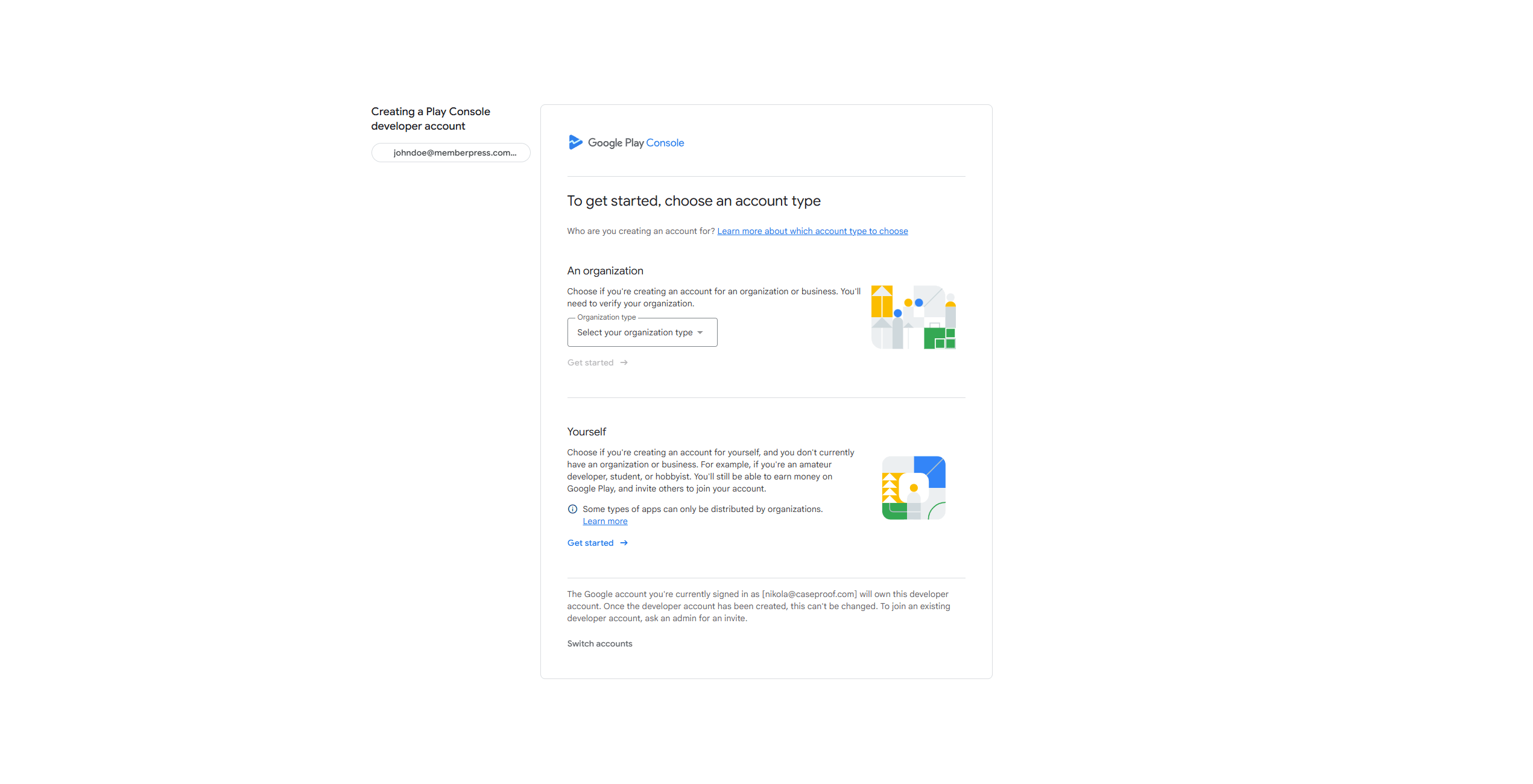
- Melden Sie sich mit einem Google-Konto an und akzeptieren Sie die Bedingungen.
- Bezahlen Sie die Anmeldegebühr $25 und führen Sie die Identitätsprüfung durch.
- Nachdem die Prüfung abgeschlossen ist, erstellen Sie einen Platzhalter für das App-Listing.
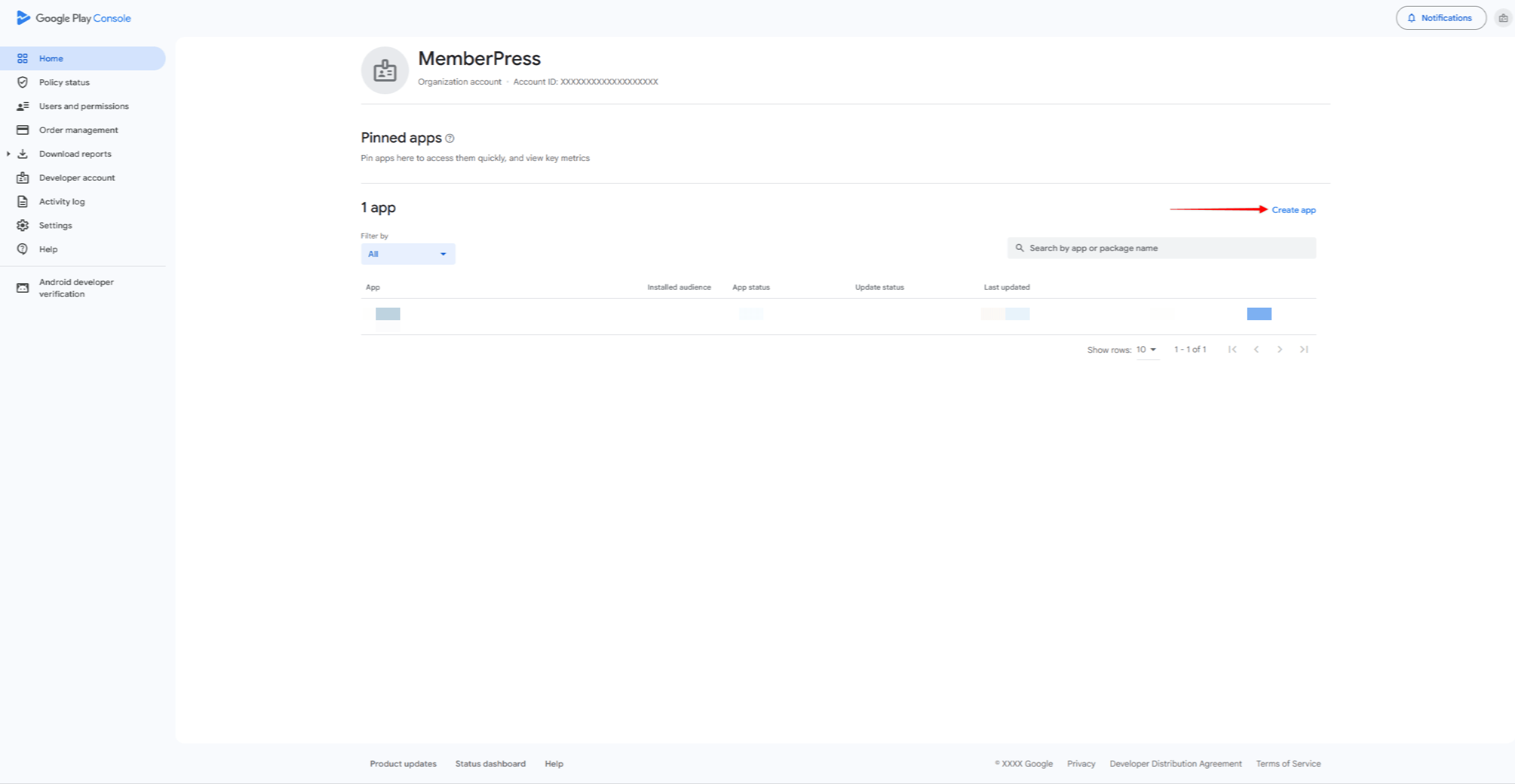
- Erstellen Sie einen Upload-Schlüssel für die App-Signierung.
- Verbinden Sie das Google Developer-Konto zu AppKit.
Phase 2: AppKit Installation und Konfiguration
In dieser Phase wird das MemberPress AppKit-Add-on installiert und die grundlegenden App-Einstellungen werden vorgenommen. Dies umfasst Branding, Farben, Typografie, und Anmeldeoptionen.
Vergewissern Sie sich vor dem Start, dass eine aktive MemberPress-Lizenz (Einführungs-, Wachstums- oder Skalierungsplan). Die Lizenzschlüssel muss aktiviert werden. Eine SSL-Zertifikat erforderlich ist, muss die REST-API aktiviert sein, und kompatibles Hosting erforderlich ist.
AppKit-Installation
MemberPress AppKit ist ein separates Add-on, für das ein eigenes Jahresabonnement erforderlich ist. Die AppKit Verbindungsleitfaden zeigt, wie man es installiert und aktiviert.
- Navigieren Sie zum MemberPress AppKit Seite und erwerben Sie das AppKit-Abonnement.
- Laden Sie das AppKit-Plugin herunter unter Konto > Downloads auf der MemberPress-Website.
- Installieren Sie das Plugin über Dashboard > Plugins > Neues Plugin hinzufügen > Plugin hochladen.
- Holen Sie sich den AppKit-Lizenzschlüssel von Konto > Downloads auf der MemberPress-Website.
- Navigieren Sie zu Dashboard > MP AppKit > Verbinden und geben Sie den Lizenzschlüssel ein.
- Prüfen Sie, ob die grüne “Aktiv” Status an, um zu bestätigen, dass die Verbindung funktioniert.
App-Einstellungen
Die Einstellungen Seite hat neun Unteroptionen zum Einrichten des App-Verhaltens.
- Navigieren Sie zu Dashboard > MP AppKit > Einstellungen.
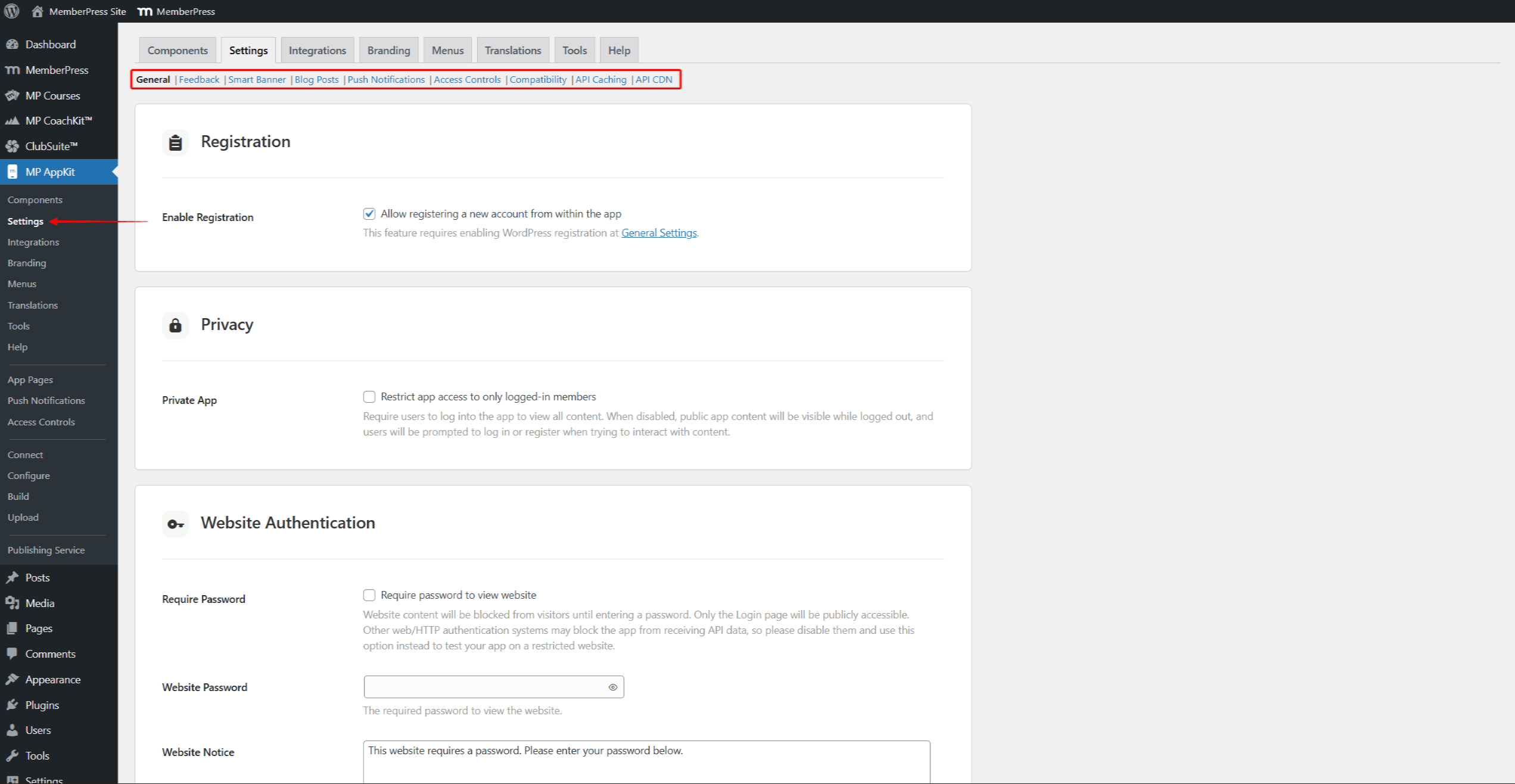
- Richten Sie nach Bedarf Optionen ein:
- Allgemein - Anmeldung, Datenschutz und Login;
- Rückmeldung - Nutzerfeedback und App-Bewertungsfunktionen;
- Intelligente Banner - Website-Banner zur Bewerbung der App;
- Blog-Beiträge - Lesezeichen, gemeinsame Nutzung und verwandte Beiträge;
- Push-Benachrichtigungen - Meldungsarten und Automatisierung;
- Zugangskontrollen - eingeschränkte Inhaltsmitteilungen;
- Kompatibilität - Behandlung externer Links;
- API-Caching - Geschwindigkeitssteigerung;
- API CDN - Content Delivery Network.
- Klicken Sie auf Änderungen speichern nach dem Einrichten jeder Option.
AppKit Komponenten
Das MemberPress AppKit besteht aus mehreren Teilen, die je nach Bedarf ein- oder ausgeschaltet werden können. Die App-Seiten Teil ist erforderlich und kann nicht ausgeschaltet werden.
- Navigieren Sie zu Dashboard > MP AppKit > Komponenten.
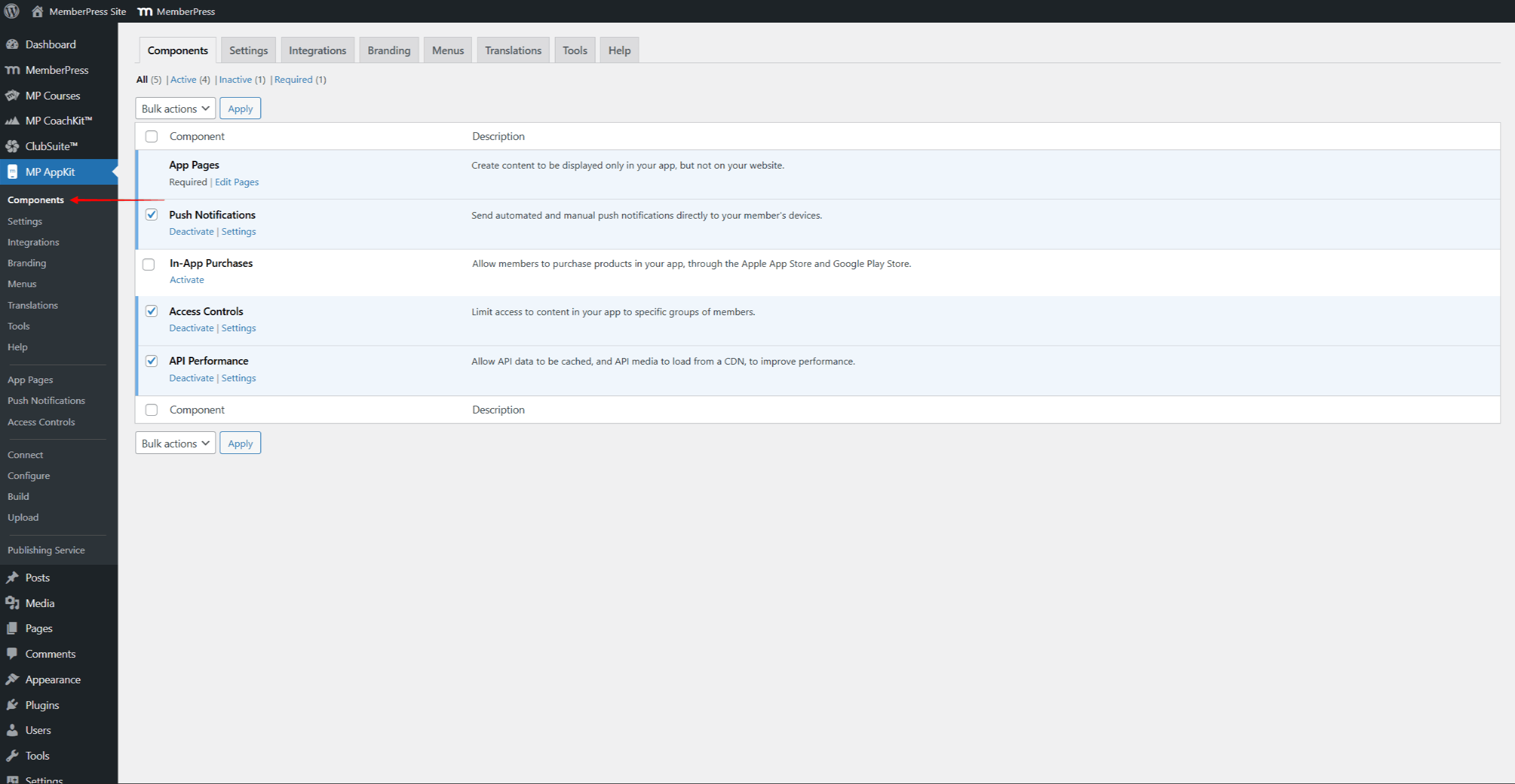
- Überprüfen Sie die verfügbaren Komponenten:
- Push-Benachrichtigungen - können Sie Push-Nachrichten an App-Nutzer senden;
- In-App-Käufe - können Nutzer in der App Mitgliedschaften kaufen;
- Zugangskontrollen - steuert, wer Inhalte je nach Mitgliedschaft sehen kann;
- API-Leistung - schaltet die Zwischenspeicherung für schnelleres Laden ein.
- Alle Komponenten sind standardmäßig aktiviert, außer In-App-Käufe.
- Aktivieren oder deaktivieren Sie die Komponenten nach Bedarf und klicken Sie auf Änderungen speichern.
Anschluss an die Plattform
Die Plattformverbindungseinstellungen verknüpfen AppKit mit den App-Store-Listen. Jede Plattform erfordert spezifische Bezeichner und Zertifikate, um Apps zu erstellen und zu veröffentlichen.
- Navigieren Sie zu Dashboard > MP AppKit > Konfigurierenund klicken Sie auf die Schaltfläche iOS-Einstellungen Menü.
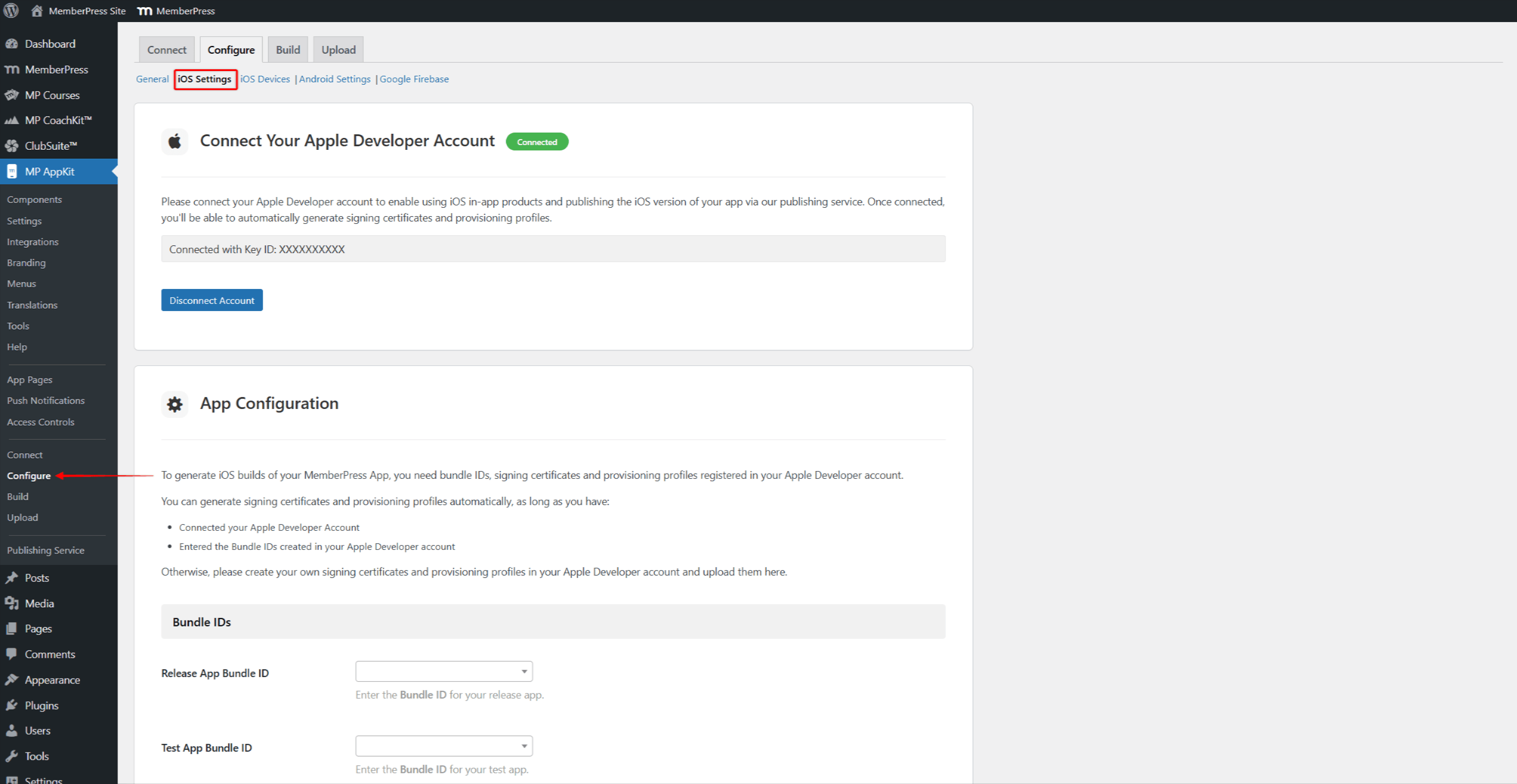
- Folgen Sie der Anleitung zur Konfiguration der iOS-Einstellungen zum Einrichten von Bundle-IDs, Signierzertifikaten, Bereitstellungsprofilen und App-Informationen.
- Aktivieren Sie Universelle Links für Deep Linking.
- Klicken Sie auf Änderungen speichern.
- Verbinden Sie nun die App, die Sie in Ihrer Google Play Console erstellt haben. Klicken Sie auf die Android-Einstellungen Menü.
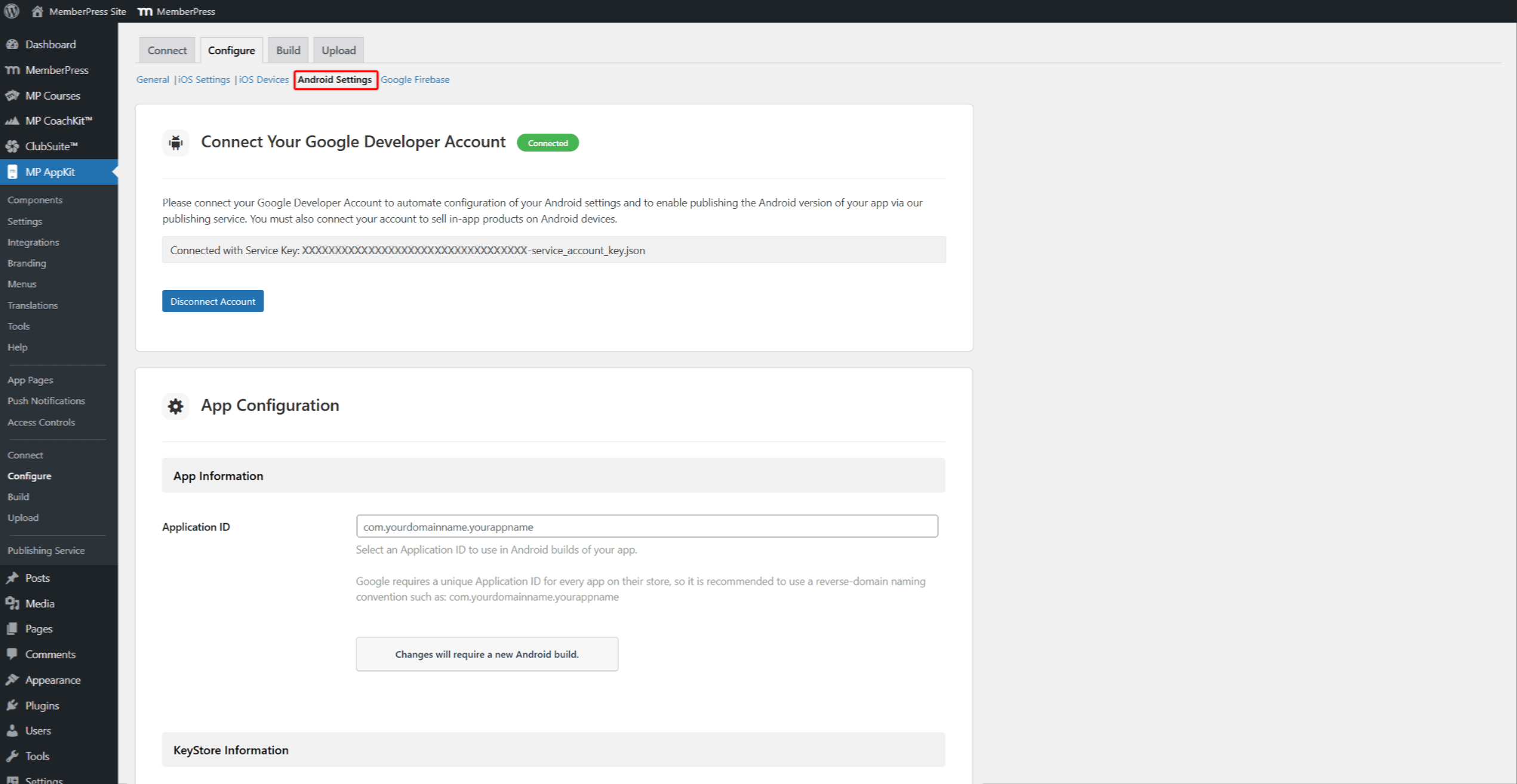
- Folgen Sie der Anleitung zur Konfiguration der Android-Einstellungen um Anwendungs-ID und KeyStore-Informationen einzurichten.
- Aktivieren Sie Links zur Android-App für Deep Linking.
- Klicken Sie auf Änderungen speichern.
- Klicken Sie auf die Google Firebase und folgen Sie den Anweisungen im Untermenü Google Firebase Einrichtungsanleitung um Push-Benachrichtigungen zu aktivieren.
Phase 3: Einrichtung von Inhalt und Navigation
In dieser Phase werden der Inhalt der App und die Navigationsmenüs eingerichtet. Beiträge und MemberPress-Kurse werden eigenständig von der Website synchronisiert. App-Seiten zeigen benutzerdefinierte Inhalte nur in der App an. Die App-Startseite einrichten legt den ersten Bildschirm fest, den die Benutzer sehen. Textübersetzungen können Sie App-Texte in andere Sprachen übersetzen.
Vergewissern Sie sich vor dem Start, dass mindestens ein Mitgliedschaft existiert und MemberPress-Regeln eingerichtet werden.
App-Seiten
App-Seiten sind benutzerdefinierte Bildschirme, die nur in der mobilen App angezeigt werden. Diese Seiten werden mit dem Gutenberg-Editor mit einer für mobile Bildschirme geeigneten Breite.
- Navigieren Sie zu Dashboard > MP AppKit > App-Seiten.
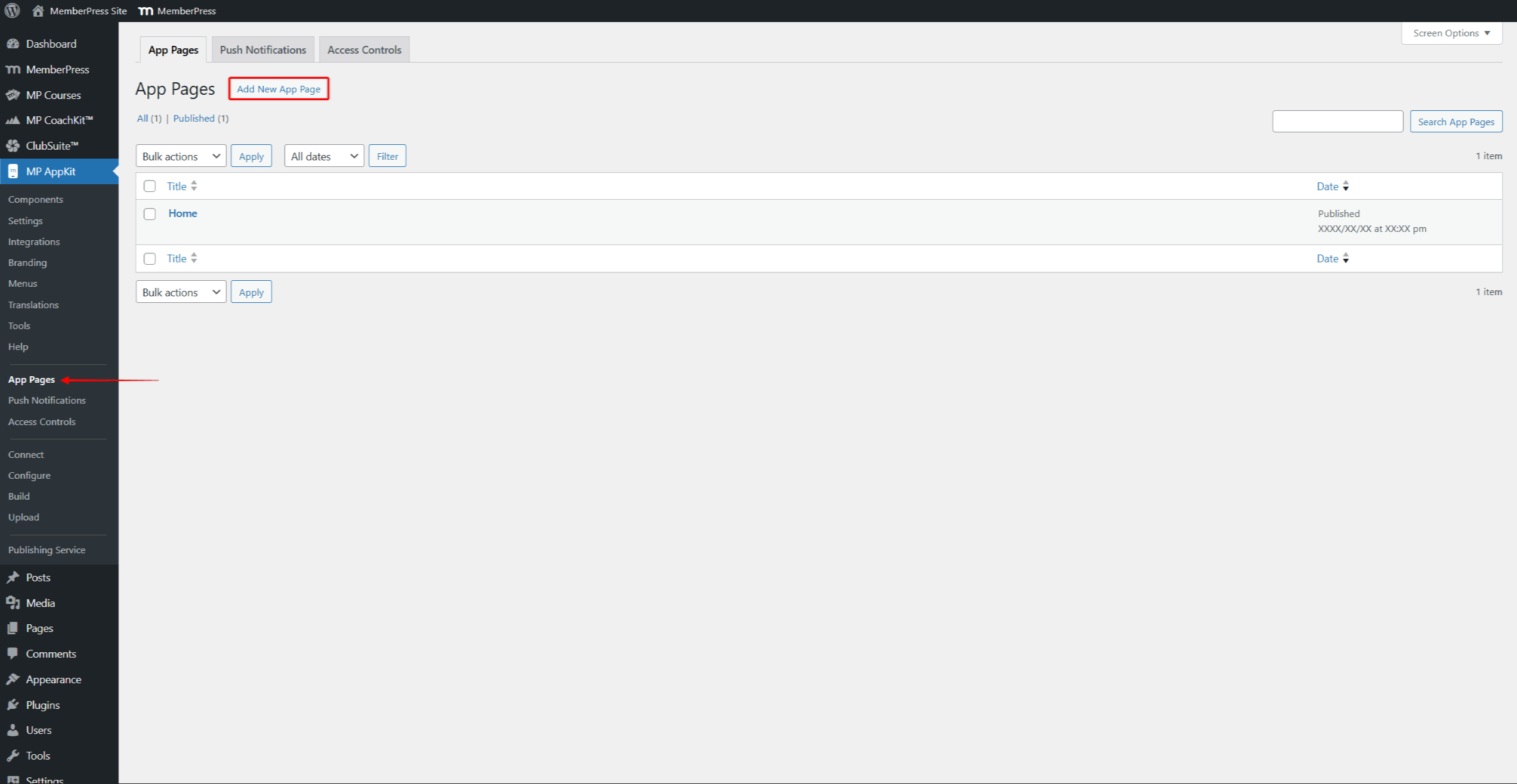
- Klicken Sie auf Neue App-Seite hinzufügen um eine neue Seite zu erstellen.
- Hinzufügen von Inhalten mit Gutenberg-Blöcken, einschließlich MemberPress AppKit-Blöcke und die Block Kurse.
- Klicken Sie auf veröffentlichen. um die Seite zu speichern.
Menü Konfiguration
Die Einstellungen für die Menüs steuern die Navigation der App. Es sind drei Menübereiche verfügbar: Registerkarte Bar (untere Navigation), Kopfleiste (obere Navigation) und Mehr Menü (zusätzliche Elemente). Benutzerdefinierte Menüsymbole und mehrere Menüversionen bieten mehr Möglichkeiten zur Einrichtung der Navigation.
- Navigieren Sie zu Dashboard > MP AppKit > Menüs.
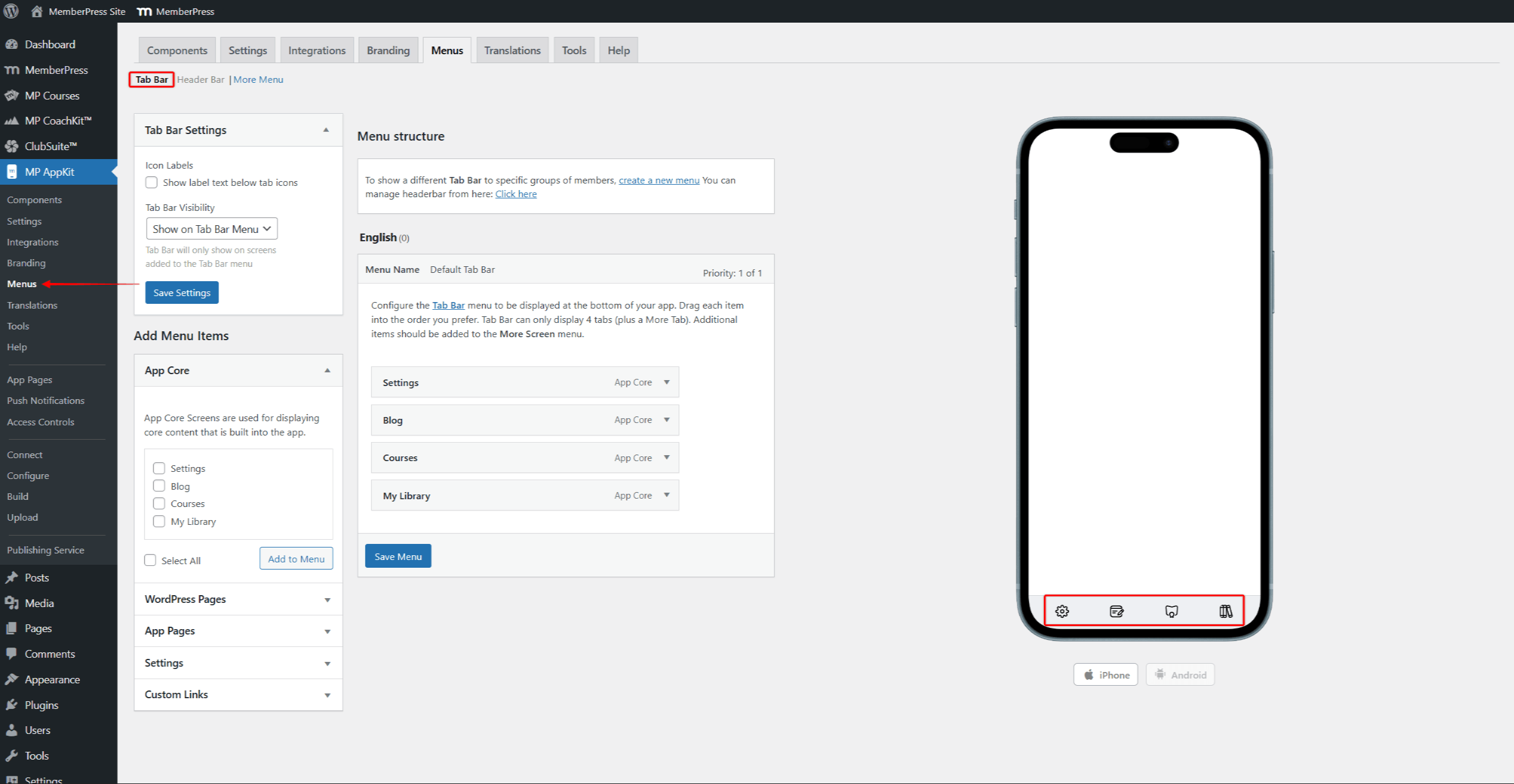
- Richten Sie die Registerkarte Bar mit Hauptnavigationspunkten (bis zu 4 Registerkarten plus Mehr).
- Richten Sie die Kopfleiste mit oberen Navigationstasten.
- Richten Sie die Mehr Menü mit zusätzlichen Navigationselementen.
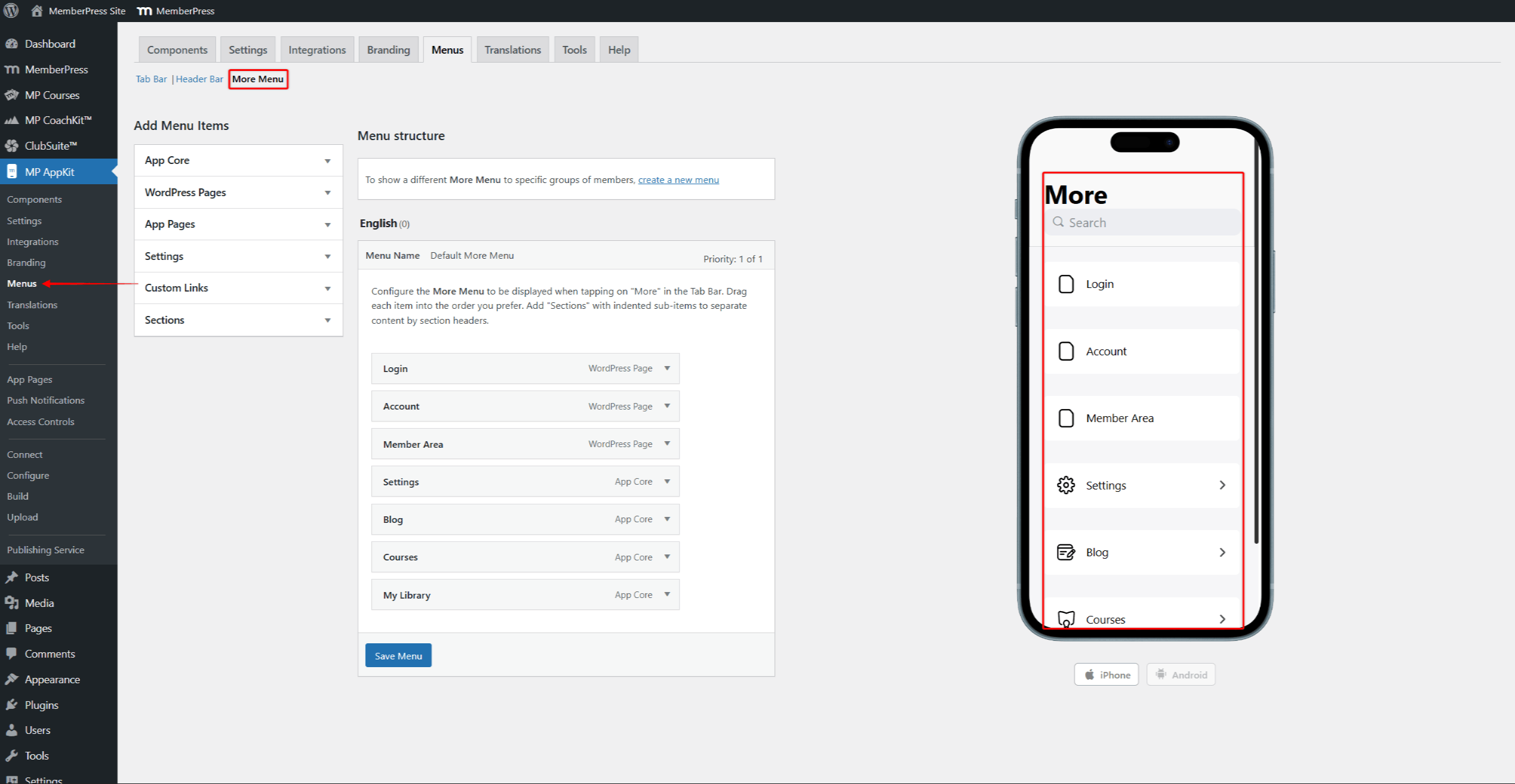
- Klicken Sie auf Menü speichern nachdem Sie jedes Menü eingerichtet haben.
Zugangskontrollen
Die App verwendet Zugriffsregeln von MemberPress. Die Seite Zugangskontrollen können Sie Regeln für bestimmte Inhalte hinzufügen. Zugang zu Gruppen helfen, den Zugang zu den Inhalten nach Mitgliedsstatus zu organisieren. Die standardmäßige eingeschränkte Meldung wird angezeigt, wenn Benutzer versuchen, geschützte Inhalte anzuzeigen.
- Navigieren Sie zu Dashboard > MemberPress > Regeln und Überprüfung der bestehenden Vorschriften.
- Zusätzliche Regeln erstellen falls erforderlich.
- Navigieren Sie zu Dashboard > MP AppKit > Zugriffskontrollen.
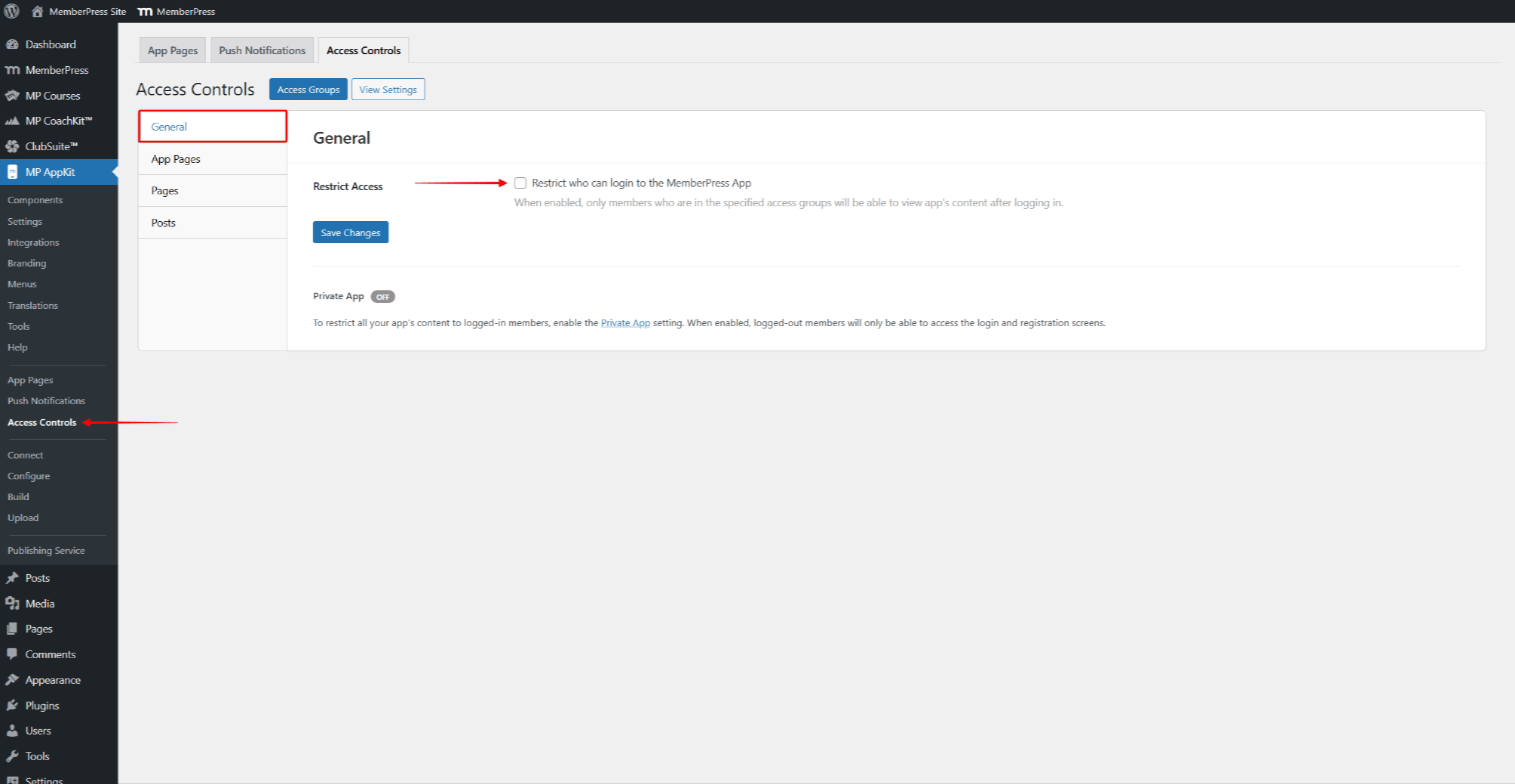
- Auf der Allgemein finden Sie die Registerkarte Zugang einschränken Abschnitt.
- Aktivieren Sie “Einschränken, wer sich bei der MemberPress-App anmelden kann” um den App-Zugriff auf bestimmte Zugriffsgruppen zu beschränken.
- Um die App vollständig privat zu machen, aktivieren Sie die Private App-Einstellung unter Dashboard > MP AppKit > Einstellungen > Allgemein > Datenschutz.
- Klicken Sie auf die App-Seiten, Seiten, oder Beiträge um Regeln für bestimmte Inhalte hinzuzufügen.
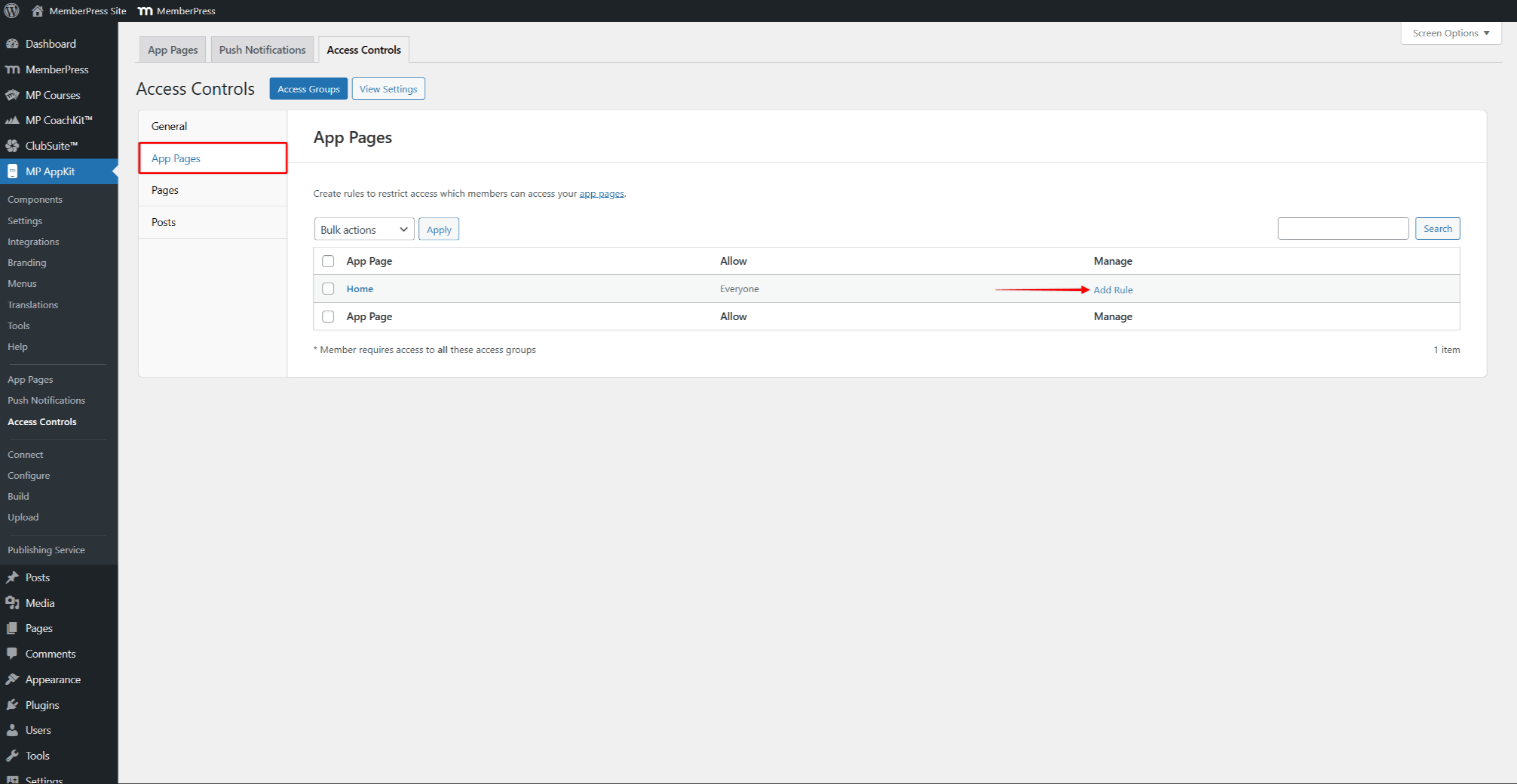
- Auf diesen Seiten können Sie artikelspezifische Regeln hinzufügen. Klicken Sie auf Regel hinzufügen neben einem beliebigen Element, um diesen Inhalt auf angemeldete Mitglieder oder bestimmte Zugangsgruppen zu beschränken.
- Klicken Sie auf Änderungen speichern.
Phase 4: Konfiguration der In-App-Käufe
Diese Phase ist nur für Nutzer der Trasse B erforderlich. Benutzer von Pfad A sollten zu Phase 5 übergehen. Die Website Einrichtung von In-App-Käufen Anleitung zeigt alle Einrichtungsschritte.
Vergewissern Sie sich vor Beginn dieser Phase, dass die In-App-Käufe Komponente ist aktiviert bei Dashboard > MP AppKit > Komponenten.
In beiden App-Stores müssen In-App-Kauf-Produkte erstellt werden, bevor die App Mitgliedschaften verkaufen kann. Jede MemberPress-Mitgliedschaft benötigt ein passendes Produkt in beiden Stores. Abonnement-Gruppen organisieren Sie verwandte Mitgliedschaftsprodukte für Upgrade- und Downgrade-Optionen.
App Store Produkteinrichtung
- Unter App Store Connect, wählen Sie die Anwendung aus und klicken Sie auf Abonnements in der Seitenleiste.
- Erstellen Sie zu jeder Mitgliedschaft passende Produkte. Wählen Sie Automatisch verlängerbares Abonnement für wiederkehrende Mitgliedschaften. Die Anleitung für iOS-In-App-Produkte erklärt den Aufbau und die Arten von Produkten.
- Unter Google Play-Konsolenavigieren Sie zu Monetarisieren mit Play.
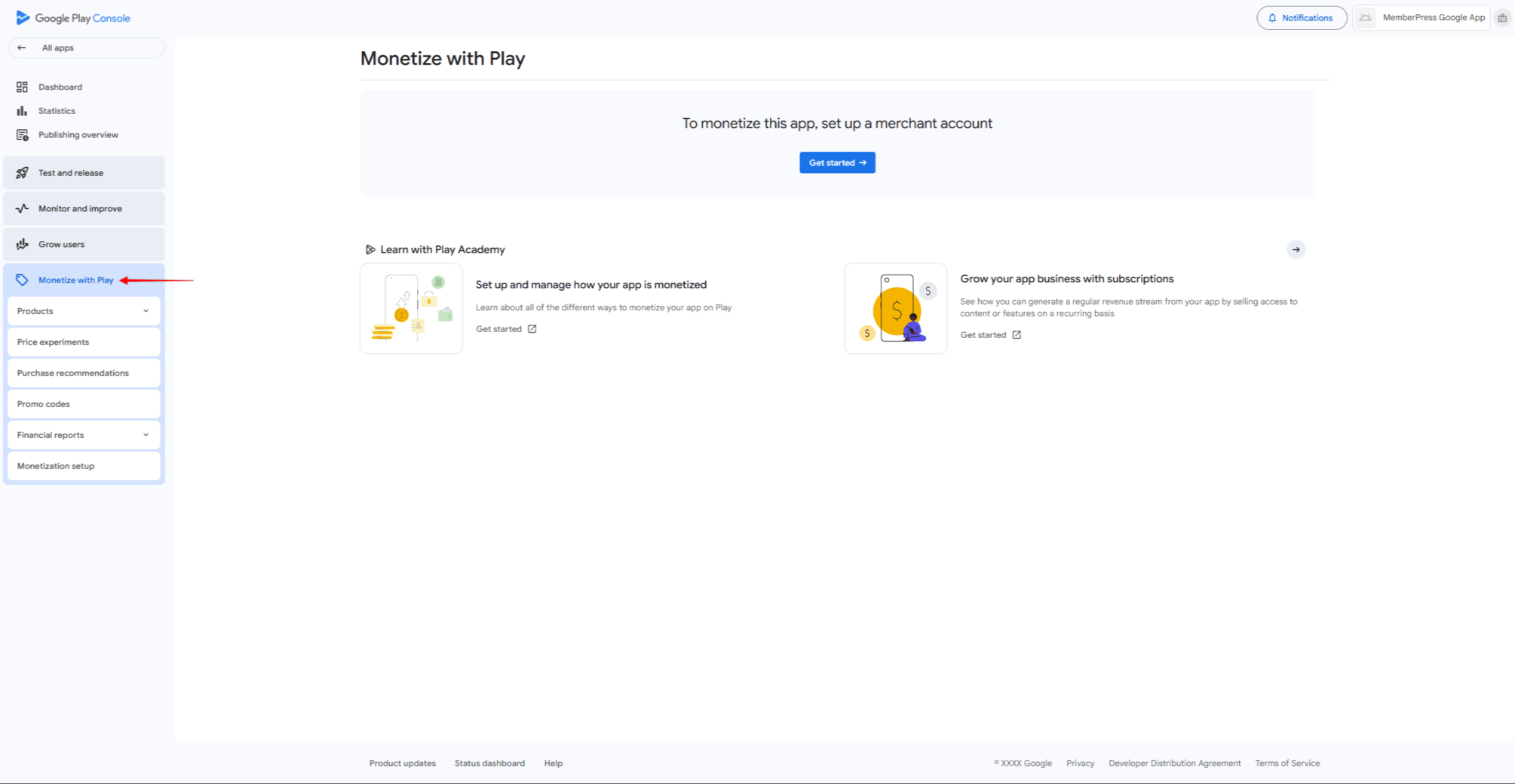
- Nach der Einrichtung des Händlerkontos, navigieren Sie zu Monetarisieren > Produkte > Abonnements.
- Erstellen Sie passende Produkte mit denselben Produkt-IDs, um die Nachverfolgung zu erleichtern. Die Android Anleitung für In-App-Käufe zeigt die Einrichtungsschritte.
Anschluss von Produkten an MemberPress
Nachdem Sie Produkte in beiden App Stores erstellt haben, verknüpfen Sie diese mit MemberPress-Mitgliedschaften:
- Navigieren Sie zu Dashboard > MP AppKit > In-App-Käufe > Produkte.
- Klicken Sie auf Neu hinzufügen ein Produkt zu entwickeln.
- Eingabe einer Produktname, fakultativ Tagline, Beschreibungund Vorteile.
- Siehe Anzeige auf dem Produktbildschirm und wählen Sie Bezahlt als Produkttyp.
- Unter iOS-Store, prüfen Aktivieren Sie und klicken Sie Mit Apple synchronisieren um verfügbare Produkte abzurufen.
- Wählen Sie das passende App Store Connect Produkt aus der Liste aus.
- Unter Android-Store, prüfen Aktivieren Sie und klicken Sie Mit Google synchronisieren um verfügbare Produkte abzurufen.
- Wählen Sie das passende Google Play-Produkt aus der Liste aus.
- Unter Integrationstypauswählen Mitgliedschaft und wählen Sie den zu verknüpfenden Mitgliedsplan.
- Klicken Sie auf veröffentlichen. um das Produkt zu speichern.
- Wiederholen Sie diesen Vorgang für jede Mitgliedschaft, für die ein In-App-Kauf erforderlich ist.
Phase 5: App-Tests
In dieser Phase wird getestet, wie die App funktioniert, bevor sie eingeschickt wird. Sowohl Apple als auch Google lehnen Apps mit offensichtlichen Fehlern oder defekten Funktionen ab.
Geräteprüfung
Test-App-Builds ermöglichen das Testen der App auf echten Geräten vor der Einreichung. Testen Sie mit vielen Benutzerkonten, um zu prüfen, ob die Zugriffsregeln richtig funktionieren.
- Navigieren Sie zu Dashboard > MP AppKit > Erstellen und klicken Sie Erstellen anfordern.
- Wählen Sie die Plattform (iOS oder Android), dann wählen Sie Test-App als Build-Typ.
- Nachdem der Build abgeschlossen ist, erscheint er in der Entstehungsgeschichte Liste.
Für iOS Test Apps, zuerst Testgeräte registrieren unter Dashboard > MP AppKit > Konfigurieren > iOS-Geräte. Klicken Sie dann auf die Auf iOS-Gerät installieren um über einen QR-Code zu installieren oder die IPA-Datei herunterzuladen. Die Anleitung zum Erstellen von iOS-Tests zeigt die vollständigen Schritte.
Für Android-Testanwendungen klicken Sie auf die Schaltfläche Auf Android-Gerät installieren um über den QR-Code zu installieren oder die APK-Datei herunterzuladen. Die Android Test Builds Anleitung zeigt die vollständigen Schritte. Für Android-Test-Apps ist keine Geräteregistrierung erforderlich.
Nutzer der Trasse B müssen außerdem In-App-Käufe testen mit iOS-Sandbox-Konten und Android-Lizenztestern. Vor der Einreichung im App Store, eine iOS-Review-Version auswählen für das Apple-Prüfungsteam.
Phase 6: App-Erstellung und Veröffentlichung
In dieser Phase werden die endgültigen App-Builds erstellt und an die App-Stores gesendet. Beide Plattformen prüfen die Apps, bevor sie online gehen. Die Leitfaden zur Erstellung von Anwendungen behandelt die Erstellung von Anwendungen für beide Plattformen.
Bereiten Sie das App-Store-Verzeichnis vor (Screenshots, Beschreibungen) und stellen Sie sicher, dass die URL der Datenschutzrichtlinie erreichbar ist. Die MemberPress App-Veröffentlichungsdienst bietet Hilfe beim Einreichungsprozess.
iOS App Einreichung
- Navigieren Sie zu Dashboard > MP AppKit > Erstellen und klicken Sie Erstellen anfordern.
- Wählen Sie iOS als Plattform, dann App veröffentlichen als Build-Typ. Die iOS Release App Generation Anleitung zeigt die Schritte.
- Nachdem die Erstellung abgeschlossen ist, klicken Sie auf die Schaltfläche Zur Veröffentlichung einreichen Taste auf der Baukarte.
- Klicken Sie auf Hochladen zu App Store Connect um direkt aus AppKit hochzuladen. Die Anleitung zum Hochladen von iOS-Builds zeigt die Schritte.
- Unter App Store Connect, vollständig App-Informationen, hochladen, wählen Sie den Build aus, und klicken Sie auf Zur Überprüfung einreichen. Die Checkliste für die Veröffentlichung im App Store listet alle benötigten Artikel auf.
Android App Einreichung
- Navigieren Sie zu Dashboard > MP AppKit > Erstellen und klicken Sie Erstellen anfordern.
- Wählen Sie Android als Plattform, dann App veröffentlichen als Build-Typ. Die Erstellung von Android-Freigabe-Apps Anleitung zeigt die Schritte.
- Nachdem die Erstellung abgeschlossen ist, klicken Sie auf die Schaltfläche Zur Veröffentlichung einreichen Taste auf der Baukarte.
- Klicken Sie auf In die Google Play Console hochladen um direkt hochzuladen, oder klicken Sie auf AAB-Datei herunterladen für das manuelle Hochladen.
- Unter Google Play-Konsolenavigieren Sie zu Freigabe > Tests > Abgeschlossene Tests und laden Sie die AAB-Datei hoch. Für gestaffelte Rollouts verwenden Sie geschlossene Prüfung vor der Produktion.
- Vollständig Auflistung der Geschäfte, Bildschirmfotos hochladen, vollständig Bewertung des Inhaltsund klicken Sie auf Start Rollout. Die Checkliste für die Veröffentlichung bei Google Play listet alle benötigten Artikel auf.
Phase 7: Laufendes App-Management
Veröffentlichte Anwendungen müssen regelmäßig gepflegt werden. Planen Sie Aktualisierungen für Fehlerbehebungen und für neue Betriebssystemversionen. Die iOS-App-Update und Android-App-Update Anleitungen zeigen die Schritte für neue Versionen. Wartungsmodus können Sie den App-Zugriff bei großen Updates kurzzeitig einschränken.
Überprüfen Sie App Store- und Google Play-Bewertungen, und antworten Sie schnell auf Nutzerfeedback. Verfolgen Sie Absturzberichte und beobachten Sie API-Leistung damit die App gut läuft.
Zusammenfassung
Mit MemberPress AppKit können Sie native mobile Anwendungen für Mitglieder-Websites in sieben aufeinanderfolgenden Schritten erstellen.
Vor Beginn von Phase 1:
- Überprüfen Sie die Anforderungen der Website (HTTPS, PHP 7.4+, WordPress 5.8+).
- Vergewissern Sie sich, dass ein aktiver MemberPress-Plan vorhanden ist (Einführungs-, Wachstums- oder Skalierungsplan).
- Entscheiden Sie sich zwischen Weg A (Registrierung auf der Website) und Weg B (In-App-Käufe).
- Sammeln Sie visuelle Assets (App-Symbol, Splash-Screen, Screenshots).
- Bereiten Sie die Kreditkarteninformationen für die Gebühren des Entwicklerkontos vor.
Beginnen Sie Phase 1, indem Sie ein Apple Developer-Konto und ein Google Play Developer-Konto anlegen.










 DE
DE  EN
EN  ES
ES  FR
FR  PT
PT 