

MemberPress bietet einen Gutenberg-Block und Shortcodes für die Anzeige von Circles auf jeder Seite oder jedem Beitrag. Der Circle-Block und die Shortcodes bieten volle Kontrolle darüber, wie Circles auf der Website angezeigt werden.
In diesem Dokument wird erklärt, wie Sie den Circle-Archiv-Shortcode, den einzelnen Circle-Block und den einzelnen Circle-Shortcode verwenden. Mit diesen Optionen können Circles überall eingebettet werden, mit anpassbaren Anzeigeeinstellungen.
Kreisarchiv Shortcode
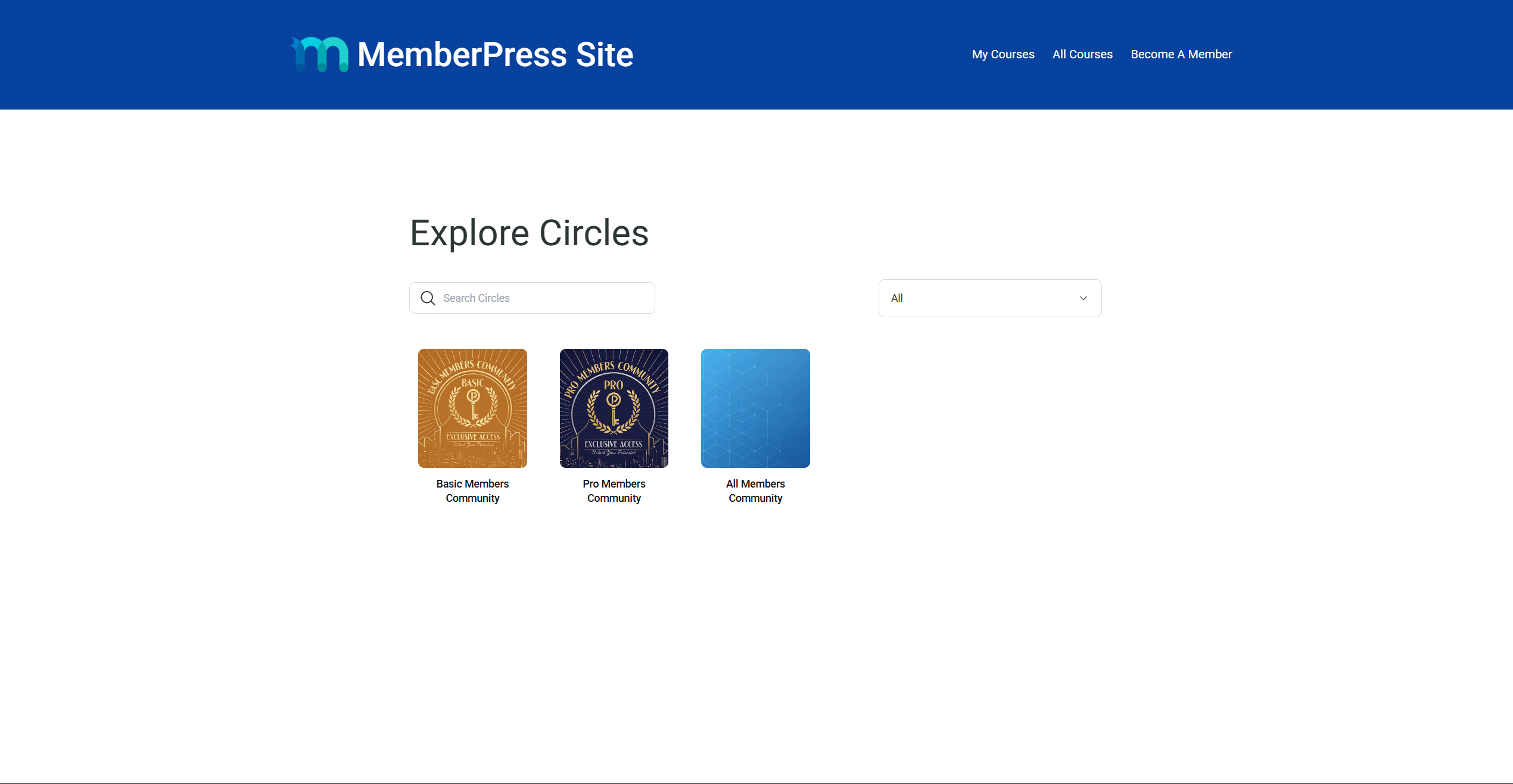
Der Circle-Archiv-Shortcode zeigt das komplette Circles-Archiv auf jeder Seite an. Dies ist die gleiche Auflistung, die auch unter dem Standard /mp-kreis URL auf der Website. Mitglieder können Circles direkt von dieser Seite aus durchsuchen und ihnen beitreten.
Der Shortcode funktioniert mit dem Gutenberg-Block-Editor und beliebte Seitenerstellungsprogramme wie Elementor und Divi.
Hinzufügen des Archiv-Shortcodes mit Gutenberg
Gehen Sie folgendermaßen vor, um das Circles-Archiv zu einer beliebigen Seite oder einem Beitrag hinzuzufügen:
- Navigieren Sie zu Dashboard > Seiten > Neue Seite hinzufügen.
- Fügen Sie einen Titel für die Seite hinzu.
- Hinzufügen einer Kurzcode Block in den Inhaltsbereich der Seite.
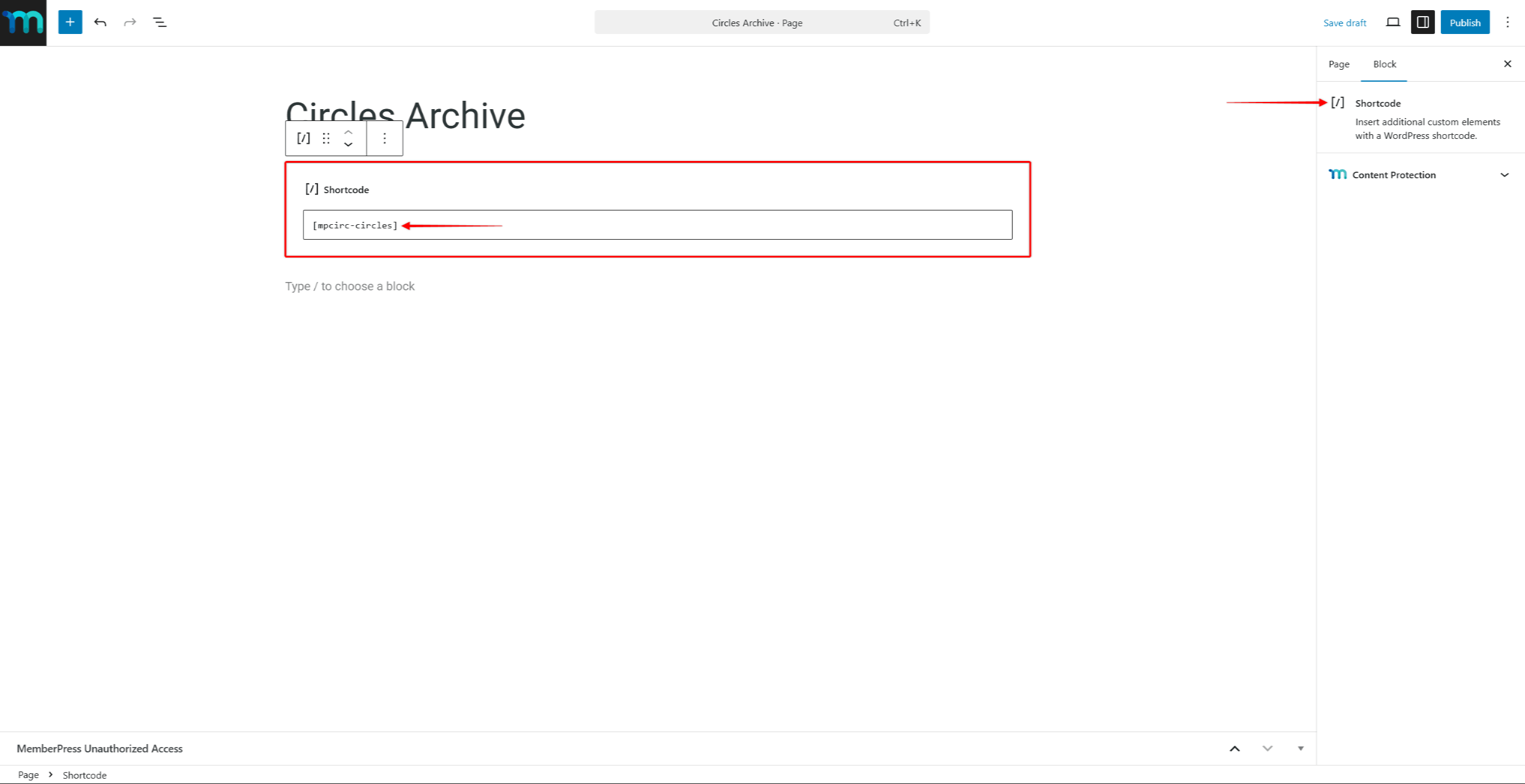
- Geben Sie den folgenden Shortcode ein:
[mpcirc-circles]- Klicken Sie auf veröffentlichen. um die Seite zu speichern.
Auf der Seite wird nun das Circles-Archiv mit allen sichtbaren Circles angezeigt.
Hinzufügen des Archiv-Shortcodes mit Page Builders
Der „Circle“-Archiv-Shortcode kann zu Seiten hinzugefügt werden, die mit fast jedem Page-Builder erstellt wurden. Verwenden Sie dazu das Shortcode-Modul des Page-Builders, um den „Circle“-Archiv-Shortcode zu einer Seite hinzuzufügen.
Fügen Sie zum Beispiel die Shortcode-Widget in Elementor oder die Code-Modul in Divi. Dann fügen Sie den folgenden Circle-Archiv-Shortcode ein:
[mpcirc-circles]Einzelner Kreisblock
MemberPress enthält einen speziellen Gutenberg-Block zur Anzeige eines einzelnen Kreises auf jeder Seite oder jedem Beitrag. Die Kreis-Block bietet eine visuelle Möglichkeit, einen bestimmten Kreis einzubinden, ohne einen Shortcode zu schreiben.
Der Block verwendet das gleiche Rendering-System wie die Circle-Seiten. Er respektiert alle bestehenden Zugangskontrolle und Sichtbarkeitseinstellungen für jeden Kreis konfiguriert.
Hinzufügen des Kreisblocks
Gehen Sie folgendermaßen vor, um den Circle-Block zu einer Seite oder einem Beitrag hinzuzufügen:
- Navigieren Sie zu Dashboard > Seiten und öffnen Sie eine bestehende Seite, oder klicken Sie auf Neue Seite hinzufügen.
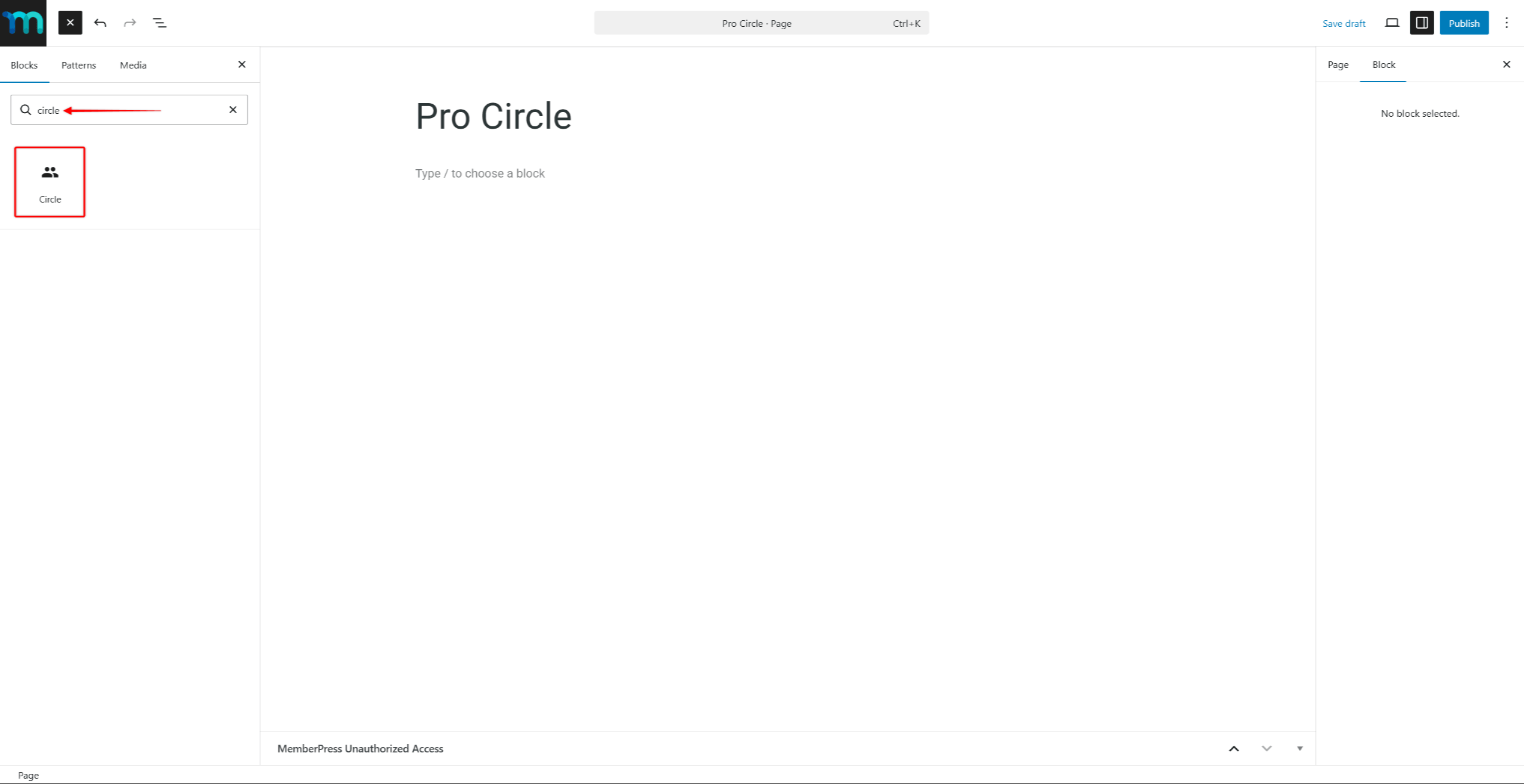
- Klicken Sie auf die Blockeinleger (+) um einen neuen Block hinzuzufügen.
- Suche nach “Kreis” in das Feld für die Blocksuche ein.
- Wählen Sie die Kreis Block aus den Ergebnissen.
- In der Block-Einstellungen auf der rechten Seite, verwenden Sie die Kreis auswählen um den anzuzeigenden Kreis zu wählen.
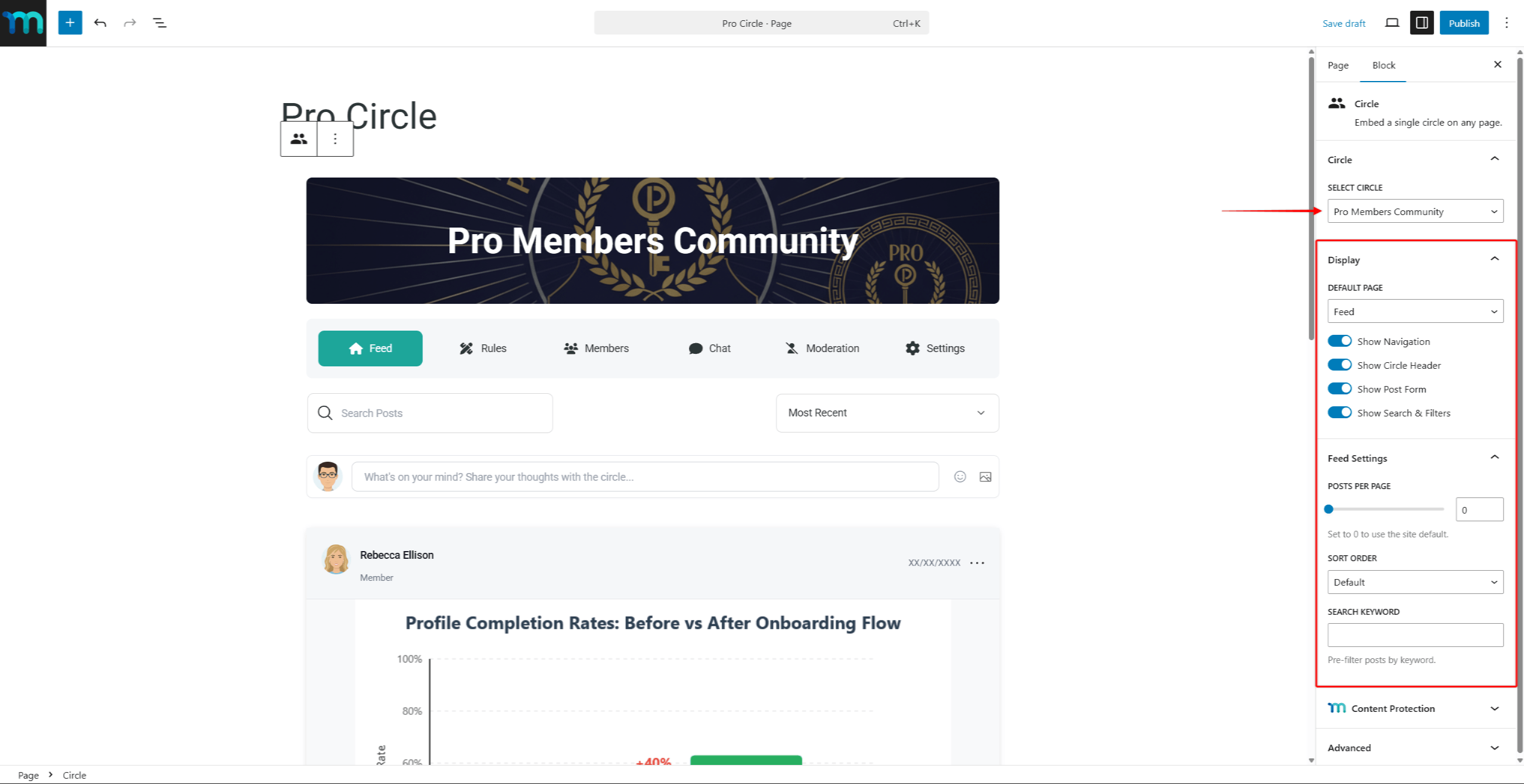
- Optional können Sie die Anzeige und Feed-Einstellungen im Blockbedienfeld, um das Aussehen des Kreises anzupassen.
- Klicken Sie auf veröffentlichen. oder Update um die Seite zu speichern.
Der Editor zeigt eine Live-Vorschau des Kreises, einschließlich des Heldenbildes, der Navigationsregisterkarten, des Feeds und der Beiträge.
Einstellungen für die Anzeige des Kreisblocks
Der Kreis-Block bietet die gleichen Anzeigeoptionen wie der Einkreisige Shortcode-Attribute. Diese Einstellungen sind verfügbar in der Block-Einstellungen wenn der Block Kreis ausgewählt ist:
- Standard Seite - legt fest, welche Seite beim Laden des Blocks angezeigt wird (Feed, Mitglieder, Regeln, Einstellungen oder Moderation);
- Navigation anzeigen - schaltet das Navigationsmenü der Seite um (Feed, Regeln, Mitglieder, Chat, Moderation, Einstellungen);
- Kreisüberschrift anzeigen - schaltet das Bild und den Titel des Kreishelden um;
- Beitragsformular anzeigen - schaltet das Formular zur Erstellung von Beiträgen auf der Feed-Seite um;
- Suche und Filter anzeigen - schaltet die Such- und Sortierfunktionen auf der Feed-Seite um;
- Beiträge pro Seite - legt die Anzahl der pro Seite angezeigten Beiträge fest (auf 0 gesetzt, um die Standardeinstellung der Website zu verwenden);
- Sortierreihenfolge - legt die Standard-Sortierreihenfolge für Beiträge fest (Standard, Zuletzt, Beliebt oder Diskutiert);
- Schlüsselwort suchen - füllt die Suche vor, um nur übereinstimmende Beiträge anzuzeigen.
Einzelner Kreis Shortcode
Der Single Circle Shortcode zeigt einen bestimmten Circle auf einer Seite oder einem Beitrag an. Anders als der Archiv-Shortcode der alle Kreise anzeigt, zeigt dieser Shortcode nur den Kreis an, der der angegebenen ID entspricht.
Dieser Shortcode erfordert die Kreis-ID. Um zum Beispiel den Kreis mit der ID 123 anzuzeigen, sollte der folgende Shortcode verwendet werden:
[mpcirc-circle id="123"]Der einzelne Circle-Shortcode respektiert alle bestehenden Zugangskontrolle und Sichtbarkeitseinstellungen für den Kreis konfiguriert.
Suche nach der Kreis-ID
Gehen Sie folgendermaßen vor, um die ID eines Kreises zu ermitteln:
- Navigieren Sie zu Dashboard > ClubSuite™ > Kreise.
- Bewegen Sie den Mauszeiger über den Namen des Kreises. Die Kreis-ID erscheint in der URL, die in der Statusleiste des Browsers angezeigt wird. Die ID ist die Zahl nach
post=in der URL.
Alternativ können Sie auch auf bearbeiten auf den Kreis. Die Circle ID wird in der Adressleiste des Browsers als URL angezeigt.
Shortcode-Attribute
Der einzelne Circle-Shortcode unterstützt mehrere Attribute, die die Anzeige des Kreises steuern. In der folgenden Tabelle sind alle verfügbaren Attribute aufgeführt:
| Attribut | Standard | Akzeptierte Werte | Beschreibung |
|---|---|---|---|
id | - (erforderlich) | Kreis-ID | Die ID des anzuzeigenden Kreises. |
Seite | Futtermittel | Feed, Mitglieder, Regeln, Einstellungen, Moderation | Die Standardseite, die beim Laden des Shortcodes angezeigt wird. Besucher können weiterhin zu anderen Seiten navigieren. |
show_navigation | ja | ja, nein | Ein- oder Ausblenden des Navigationsmenüs der Seite (Feed, Mitglieder, Regeln, usw.). |
show_hero | ja | ja, nein | Ein- oder Ausblenden der Kreiskopfzeile (Heldenbild und Titel). |
show_post_form | ja | ja, nein | Das Formular zur Erstellung von Beiträgen auf der Feed-Seite anzeigen oder ausblenden. |
show_search | ja | ja, nein | Blenden Sie die Such- und Sortierfunktionen auf der Feed-Seite ein oder aus. |
beiträge_pro_seite | Standardeinstellung der Website | Jede positive Zahl | Anzahl der Beiträge, die pro Seite des Feeds angezeigt werden sollen. |
posts_order | aktuelle | aktuell, populär, diskutiert | Standard-Sortierreihenfolge für Beiträge auf der Feed-Seite. |
posts_search | — | Beliebiger Text | Füllen Sie die Suche mit einem Stichwort aus, um nur passende Beiträge anzuzeigen. |
Überschreibungsverhalten
Wenn ein Besucher die Such- oder Sortiersteuerungen auf der Seite verwendet, setzen die URL-Parameter die Standardwerte des Shortcodes außer Kraft. Zum Beispiel, die Einstellung posts_order="popular" im Shortcode werden die Beiträge nach Beliebtheit sortiert angezeigt. Wenn ein Besucher jedoch die Option “Neueste” Bei Verwendung des Dropdown-Menüs hat die Auswahl des Besuchers Vorrang.
Shortcode Beispiele
Nachfolgend finden Sie Beispiele für verschiedene Attributkombinationen für den einzelnen Circle-Shortcode. In allen Beispielen wird die Dummy Circle ID von 123 verwendet. Ersetzen Sie diese ID durch die tatsächliche Circle ID.
Grundlegende Verwendung - einen Circle-Feed anzeigen:
[mpcirc-circle id="123"]Start auf der Mitgliederseite ohne Heldenbanner:
[mpcirc-circle id="123" page="members" show_hero="no"]Nur-Lese-Einspeisung - das Beitragsformular und die Suchfunktionen ausblenden:
[mpcirc-circle id="123" show_post_form="no" show_search="no"]Kompakter Vorschub - 5 Beiträge pro Seite anzeigen, sortiert nach Beliebtheit:
[mpcirc-circle id="123" posts_per_page="5" posts_order="popular"]Minimal einbetten - nur Feed, keine Navigation oder Held:
[mpcirc-circle id="123" show_navigation="no" show_hero="no"]Vorgefiltertes Futter - nur Beiträge anzeigen, die einem Schlüsselwort entsprechen:
[mpcirc-circle id="123" posts_search="Ankündigung"]Vollständige Anpassung - alle Attribute zusammen:
[mpcirc-circle id="123" page="feed" show_navigation="yes" show_hero="no" show_post_form="no" show_search="yes" posts_per_page="3" posts_order="discussed"]Hinzufügen des Single Circle Shortcodes mit Gutenberg
Folgen Sie diesen Schritten, um einen einzelnen Circle-Shortcode mit dem Gutenberg-Editor hinzuzufügen:
- Navigieren Sie zu Dashboard > Seiten und öffnen Sie eine bestehende Seite, oder klicken Sie auf Neue Seite hinzufügen.
- Hinzufügen einer Kurzcode Block in den Inhaltsbereich der Seite.
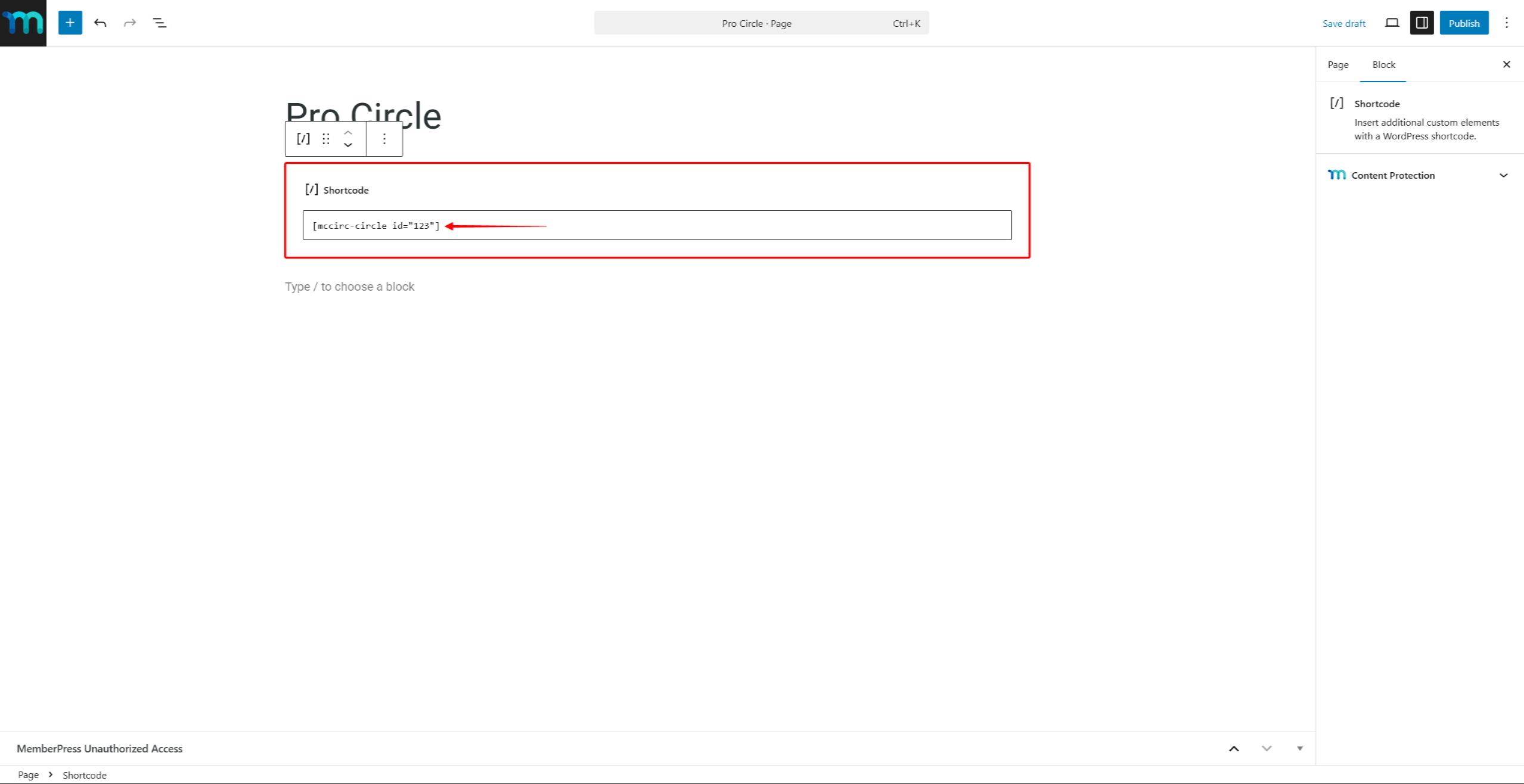
- Geben Sie den Shortcode mit der Circle ID und den gewünschten Eigenschaften. Zum Beispiel:
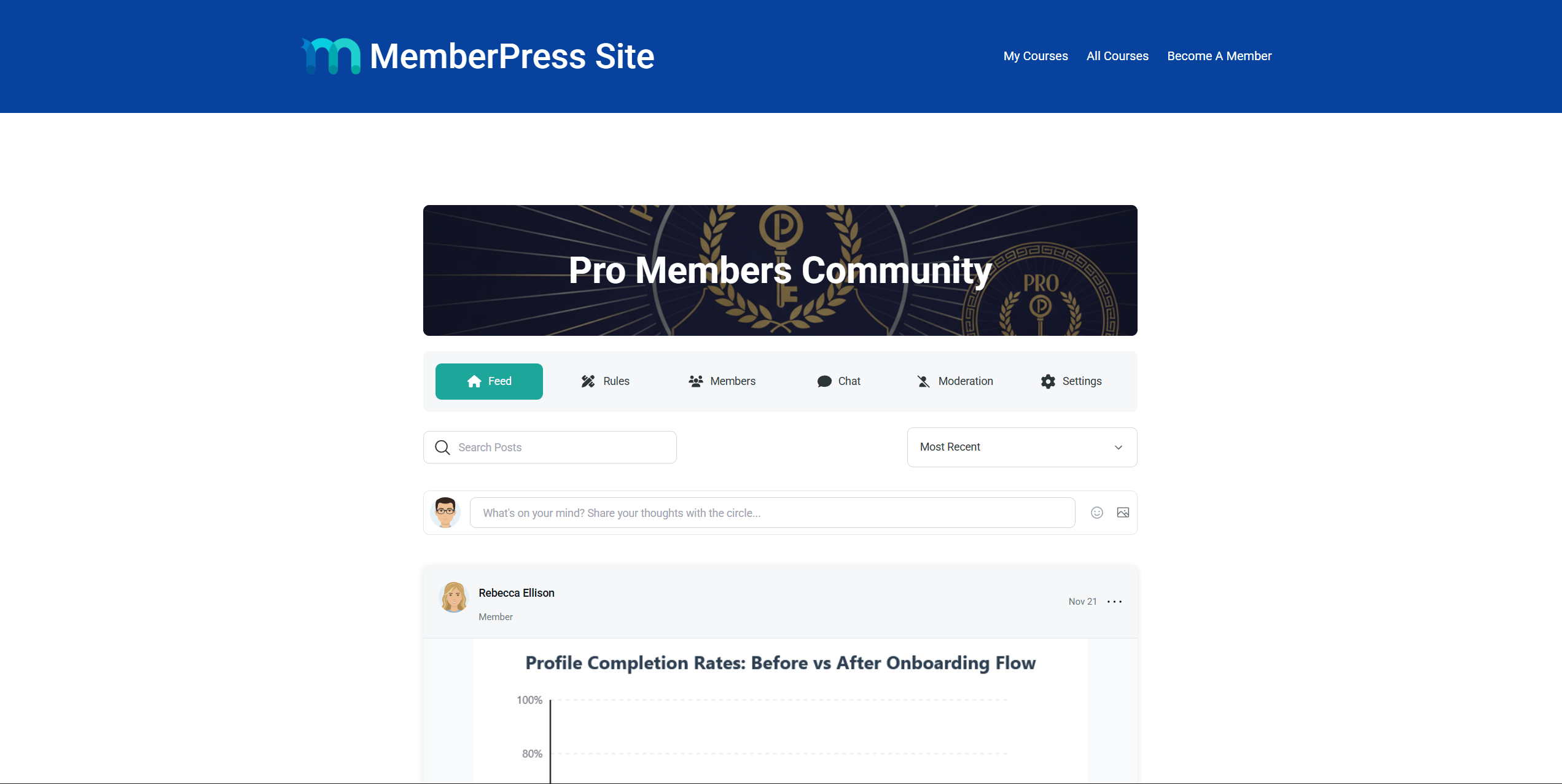
[mpcirc-circle id="123"]- Klicken Sie auf veröffentlichen. oder Update um die Seite zu speichern.
Hinzufügen des Single Circle Shortcodes mit Page Builders
Der Shortcode „Circle“ kann zu Seiten hinzugefügt werden, die mit Page-Buildern erstellt wurden. Verwenden Sie das Shortcode-Modul des Page-Builders, um den Shortcode einzufügen.
Fügen Sie zum Beispiel die Shortcode-Widget in Elementor oder die Code-Modul in Divi. Fügen Sie dann den einzelnen Circle-Shortcode mit Attributen ein.
Bewährte Praktiken für die Anzeige von Kreisen
Wenn Sie Circles auf benutzerdefinierten Seiten einbetten, beachten Sie die folgenden Empfehlungen:
- Verwenden Sie die Einzelner Circle Shortcode oder Block um bestimmte Circles auf Landing Pages oder Mitgliederbereichen zu präsentieren;
- Verwenden Sie die Archiv-Shortcode ein vollständiges Verzeichnis der Zirkel für die Mitglieder zur Verfügung zu stellen;
- Anwenden der
show_navigation="no"undshow_hero="no"Attribute beim Einbetten eines Kreises in eine Seitenleiste oder ein kompaktes Layout; - Verwenden Sie die
posts_searchAttribut, um vorgefilterte Ansichten zu erstellen, die bestimmte Themen innerhalb eines Kreises hervorheben.
Weitere Einzelheiten zum Erstellen und Konfigurieren von Circles finden Sie in der Kreise erstellen und verwalten Dokumentation.










 DE
DE  EN
EN  ES
ES  FR
FR  PT
PT 