

O MemberPress fornece um bloco e códigos de acesso do Gutenberg para exibir círculos em qualquer página ou postagem. O bloco Circle e os códigos de acesso oferecem controle total sobre como os Círculos aparecem no site.
Este documento explica como usar o shortcode de arquivo de Círculo, o bloco de Círculo único e o shortcode de Círculo único. Essas opções permitem que os círculos sejam incorporados em qualquer lugar, com configurações de exibição personalizáveis.
Código curto do Circle Archive
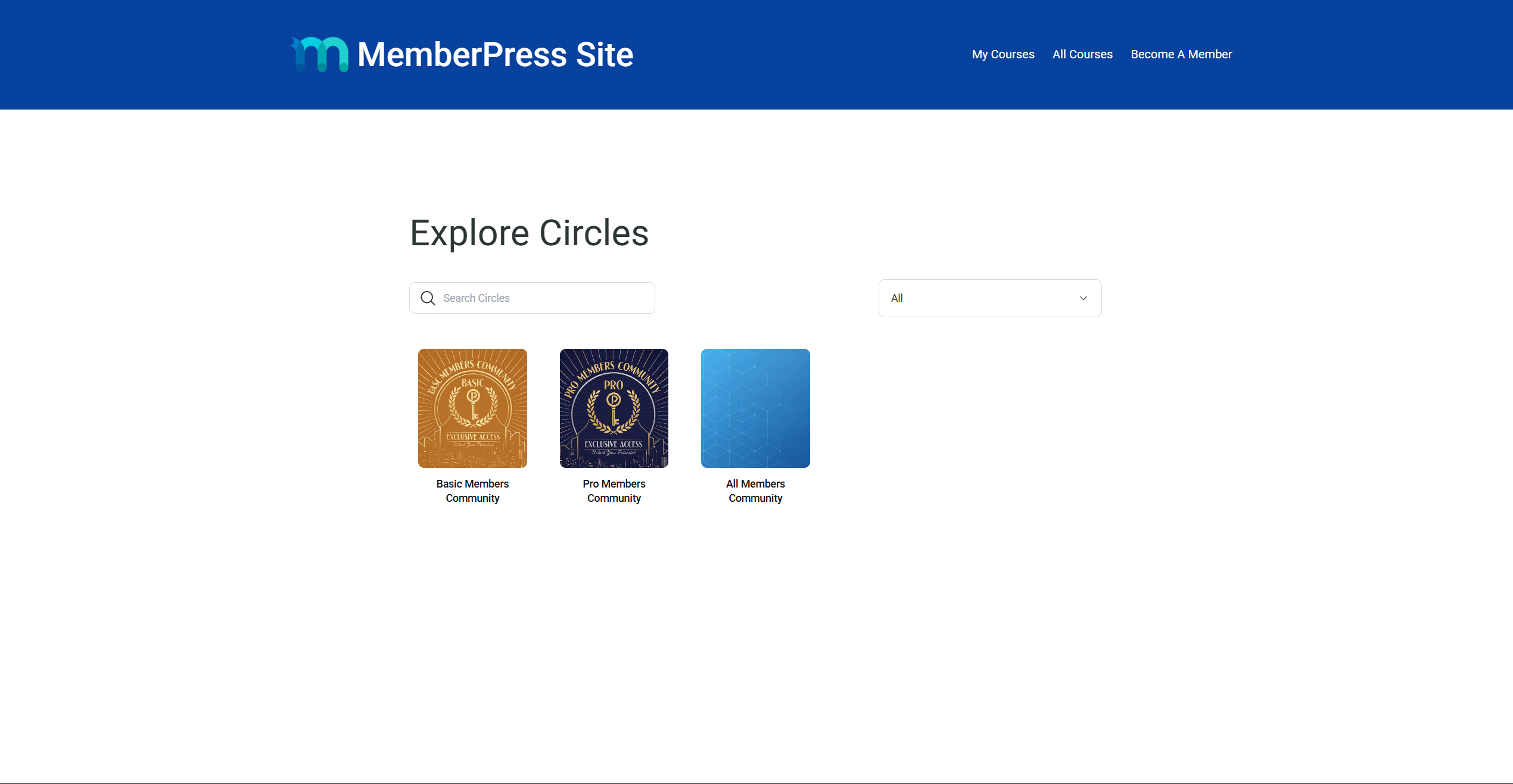
O shortcode do arquivo do Círculo exibe o arquivo completo do Círculo em qualquer página. Essa é a mesma listagem disponível no código padrão /mp-circle URL no site. Os membros podem navegar, pesquisar e participar de círculos diretamente dessa página.
O shortcode funciona com o Editor de blocos do Gutenberg e criadores de páginas populares, como Elementor e Divi.
Adicionar o código curto de arquivo com o Gutenberg
Siga estas etapas para adicionar o arquivo Circles a qualquer página ou publicação:
- Navegue até Painel > Páginas > Adicionar nova página.
- Adicione um título para a página.
- Adicionar um Código curto para a área de conteúdo da página.
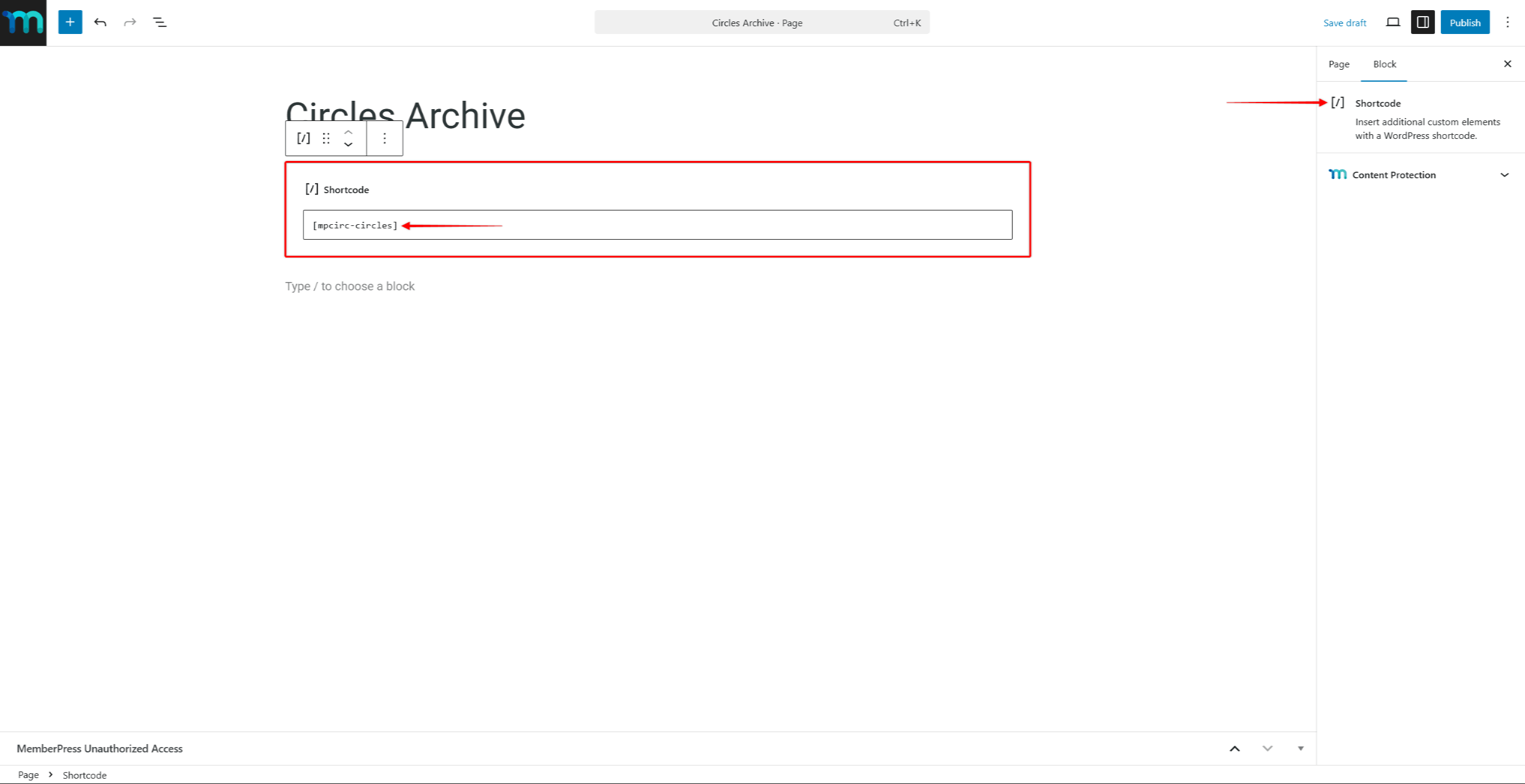
- Digite o seguinte shortcode:
[mpcirc-circles]- Clique em Publicar para salvar a página.
A página agora exibirá o arquivo de círculos com todos os círculos visíveis.
Adição do shortcode Archive com o Page Builders
O shortcode do arquivo do Circle pode ser adicionado a páginas criadas com praticamente qualquer construtor de páginas. Para isso, use o módulo de shortcodes do construtor de páginas para adicionar o shortcode do arquivo do Circle a uma página.
Por exemplo, adicione o Widget de código curto no Elementor ou o Módulo de código no Divi. Em seguida, cole o seguinte shortcode do arquivo Circle nele:
[mpcirc-circles]Bloco de círculo único
O MemberPress inclui um bloco dedicado do Gutenberg para exibir um único Círculo em qualquer página ou postagem. O bloco Bloco de círculos fornece uma maneira visual de incorporar um círculo específico sem escrever um código curto.
O bloco usa o mesmo sistema de renderização das páginas do Círculo. Ele respeita todas as configurações de controle de acesso e visibilidade configurado para cada Círculo.
Adição do bloco de círculos
Siga estas etapas para adicionar o bloco Círculo a uma página ou publicação:
- Navegue até Painel de controle > Páginas e abra uma página existente, ou clique em Adicionar nova página.
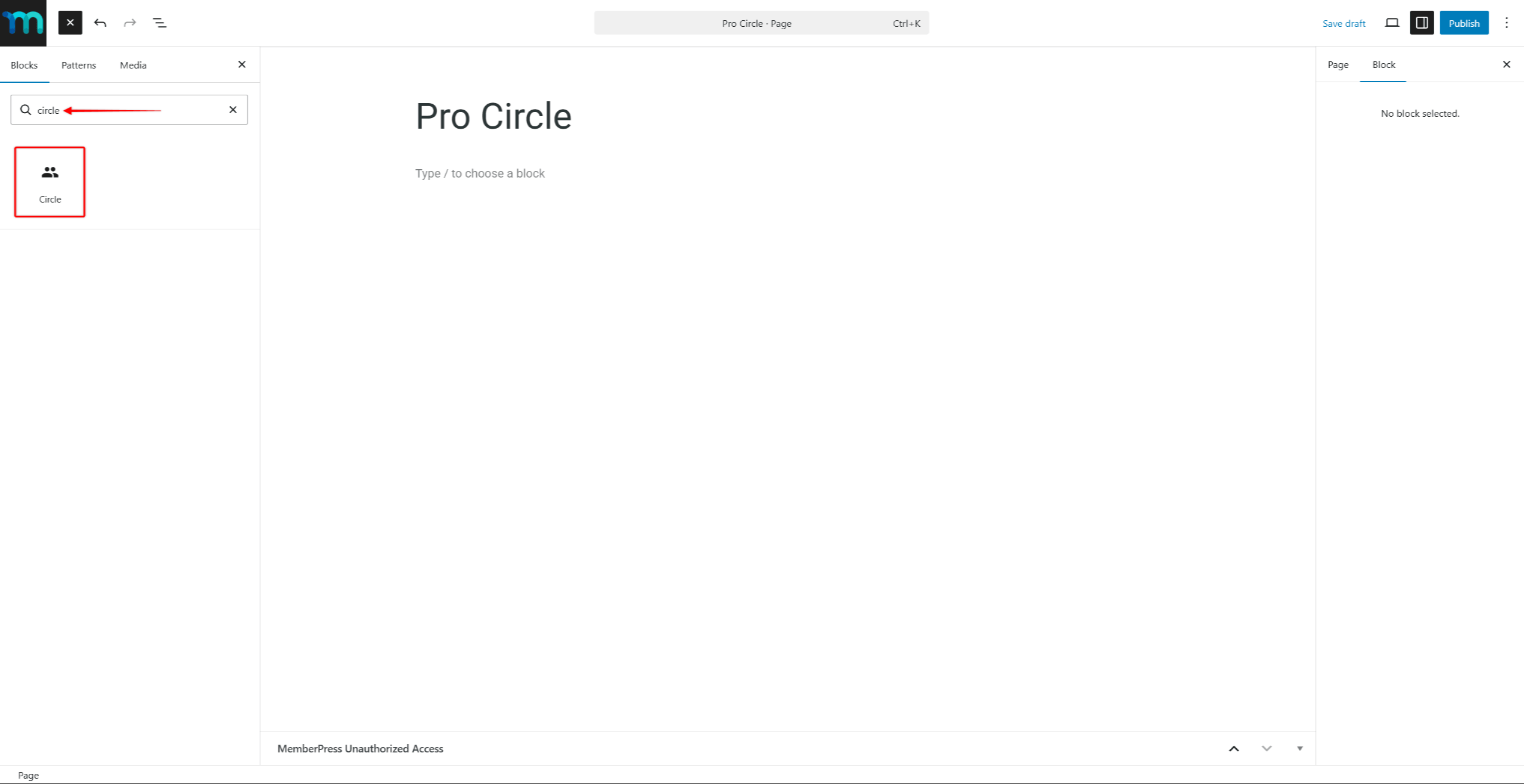
- Clique no botão Inseridor de blocos (+) para adicionar um novo bloco.
- Procurar por “Círculo” no campo de pesquisa do bloco.
- Selecione o Círculo bloco dos resultados.
- No Configurações de bloco no lado direito, use o painel Selecionar círculo para escolher o Círculo a ser exibido.
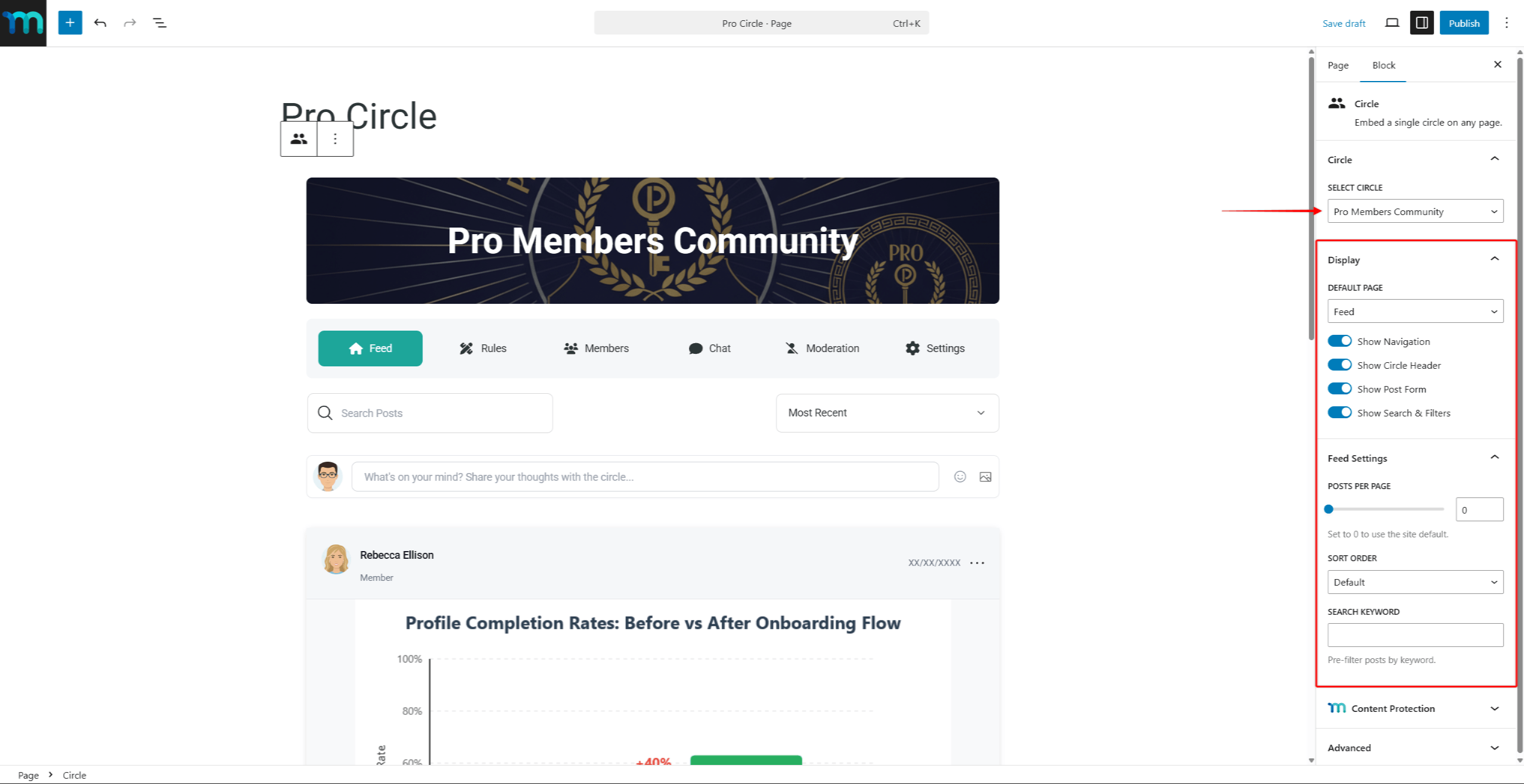
- Opcionalmente, ajuste o Tela e Configurações de alimentação no painel de blocos para personalizar a aparência do Círculo.
- Clique em Publicar ou Atualização para salvar a página.
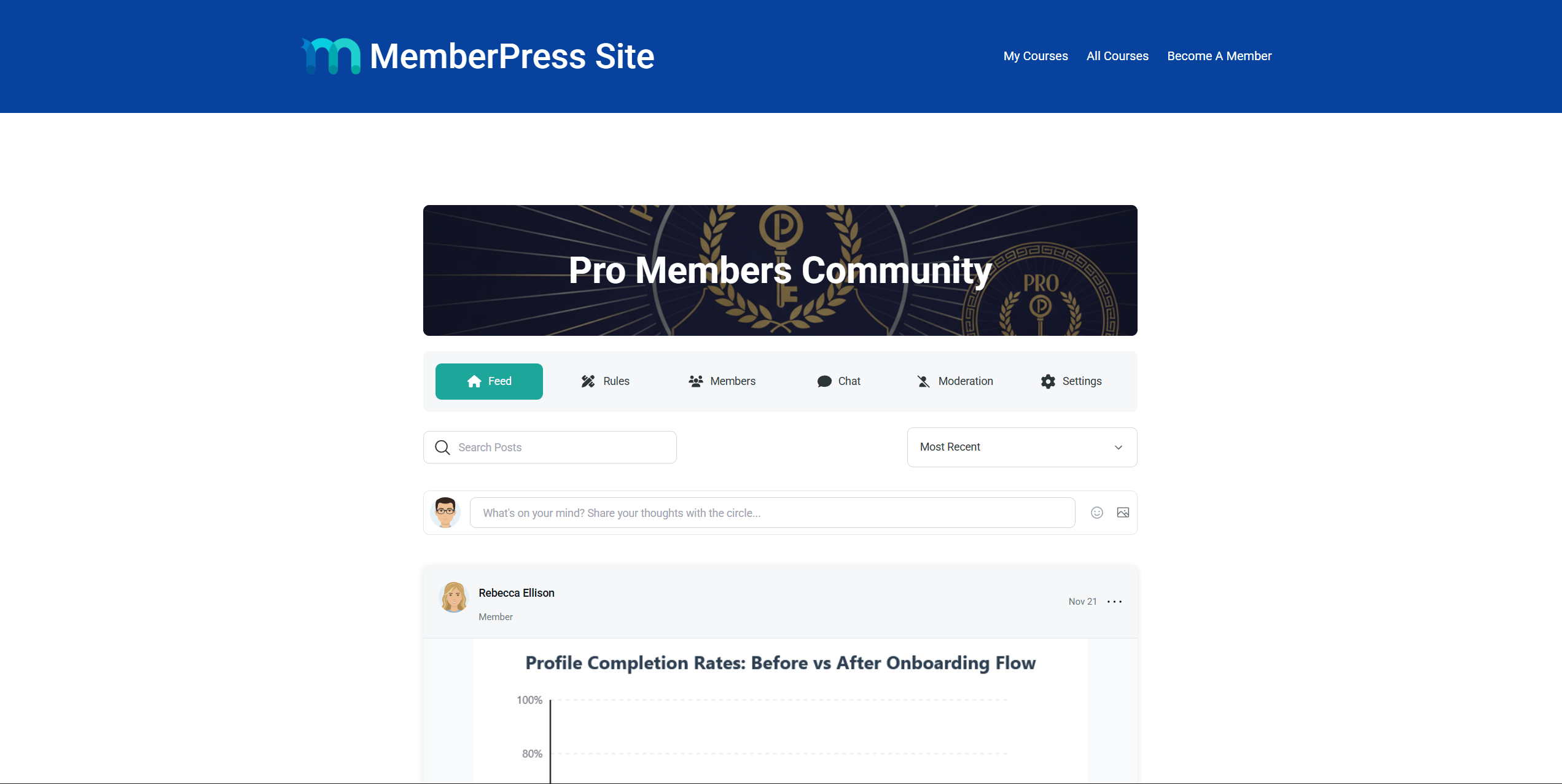
O editor mostrará uma visualização ao vivo do Círculo, incluindo a imagem de herói, as guias de navegação, o feed e as postagens.
Configurações de exibição do bloco de círculos
O bloco Círculo oferece as mesmas opções de exibição que o bloco atributos de shortcode do Círculo único. Essas configurações estão disponíveis na seção Configurações de bloco quando o bloco Circle estiver selecionado:
- Página padrão - define a página exibida quando o bloco é carregado (Feed, Membros, Regras, Configurações ou Moderação);
- Mostrar navegação - alterna o menu de navegação da página (Feed, Regras, Membros, Chat, Moderação, Configurações);
- Mostrar cabeçalho de círculo - alterna a imagem e o título do herói do Círculo;
- Mostrar formulário de postagem - ativa o formulário de criação de posts na página de feed;
- Mostrar Pesquisa e Filtros - alterna os controles de pesquisa e classificação na página de feed;
- Posts por página - define o número de postagens exibidas por página (defina como 0 para usar o padrão do site);
- Ordem de classificação - define a ordem de classificação padrão das postagens (Padrão, Recente, Popular ou Discutido);
- Pesquisar palavra-chave - preenche previamente a pesquisa para mostrar apenas as postagens correspondentes.
Shortcode de círculo único
O shortcode de Círculo único exibe um Círculo específico em qualquer página ou publicação. Ao contrário do código curto de arquivo que mostra todos os Círculos, esse shortcode renderiza apenas o Círculo que corresponde ao ID fornecido.
Esse shortcode requer o ID do círculo. Por exemplo, para exibir o Círculo com o ID de 123, o seguinte shortcode deve ser usado:
[mpcirc-circle id="123"]O shortcode único do Circle respeita todos os configurações de controle de acesso e visibilidade configurado para o Circle.
Como encontrar a ID do círculo
Para encontrar o ID de um Círculo, siga estas etapas:
- Navegue até Painel > ClubSuite™ > Círculos.
- Passe o mouse sobre o nome do Círculo. A ID do círculo aparecerá no URL mostrado na barra de status do navegador. O ID é o número após
post=no URL.
Como alternativa, clique em Editar no Círculo. A ID do Círculo ficará visível no URL da barra de endereços do navegador.
Atributos do código curto
O shortcode Circle único suporta vários atributos que controlam a exibição do Circle. A tabela abaixo lista todos os atributos disponíveis:
| Atributo | Padrão | Valores aceitos | Descrição |
|---|---|---|---|
id | - (obrigatório) | ID do círculo | O ID do círculo a ser exibido. |
página | alimentação | feed, membros, regras, configurações, moderação | A página padrão mostrada quando o shortcode é carregado. Os visitantes ainda podem navegar para outras páginas. |
show_navigation | sim | sim, não | Mostrar ou ocultar o menu de navegação da página (Feed, Membros, Regras, etc.). |
show_hero | sim | sim, não | Mostrar ou ocultar o cabeçalho do Círculo (imagem de herói e título). |
show_post_form | sim | sim, não | Mostrar ou ocultar o formulário de criação de postagem na página de feed. |
show_search | sim | sim, não | Mostre ou oculte os controles de pesquisa e classificação na página de feed. |
posts_per_page | Padrão do site | Qualquer número positivo | Número de publicações a serem exibidas por página no feed. |
posts_order | recente | recente, popular, discutido | Ordem de classificação padrão para publicações na página de feed. |
posts_search | — | Qualquer texto | Preencha previamente a pesquisa com uma palavra-chave para mostrar apenas as postagens correspondentes. |
Comportamento de substituição
Quando um visitante usa os controles de pesquisa ou classificação na página, os parâmetros de URL substituem os padrões do shortcode. Por exemplo, a configuração posts_order="popular" no shortcode exibe postagens classificadas por popularidade. No entanto, se um visitante selecionar “Mais recente” Ao usar o menu suspenso, a escolha do visitante tem prioridade.
Exemplos de códigos curtos
Abaixo estão exemplos que mostram diferentes combinações de atributos para o shortcode de Círculo único. Em todos os exemplos, é usado o ID de círculo fictício 123. Substitua essa ID pela ID real do Círculo.
Uso básico - exibir um feed do Circle:
[mpcirc-circle id="123"]Comece na página de membros sem estandarte de herói:
[mpcirc-circle id="123" page="members" show_hero="no"]Alimentação somente leitura - oculte o formulário de postagem e os controles de pesquisa:
[mpcirc-circle id="123" show_post_form="no" show_search="no"]Alimentação compacta - mostra 5 publicações por página, classificadas por popularidade:
[mpcirc-circle id="123" posts_per_page="5" posts_order="popular"]Incorporação mínima - somente feed, sem navegação ou herói:
[mpcirc-circle id="123" show_navigation="no" show_hero="no"]Alimentação pré-filtrada - mostra apenas as postagens que correspondem a uma palavra-chave:
[mpcirc-circle id="123" posts_search="anúncio"]Personalização completa - todos os atributos combinados:
[mpcirc-circle id="123" page="feed" show_navigation="sim" show_hero="não" show_post_form="não" show_search="sim" posts_per_page="3" posts_order="discutidos"]Adição do código curto de círculo único com o Gutenberg
Siga estas etapas para adicionar um único shortcode de Círculo usando o editor do Gutenberg:
- Navegue até Painel de controle > Páginas e abra uma página existente, ou clique em Adicionar nova página.
- Adicionar um Código curto para a área de conteúdo da página.
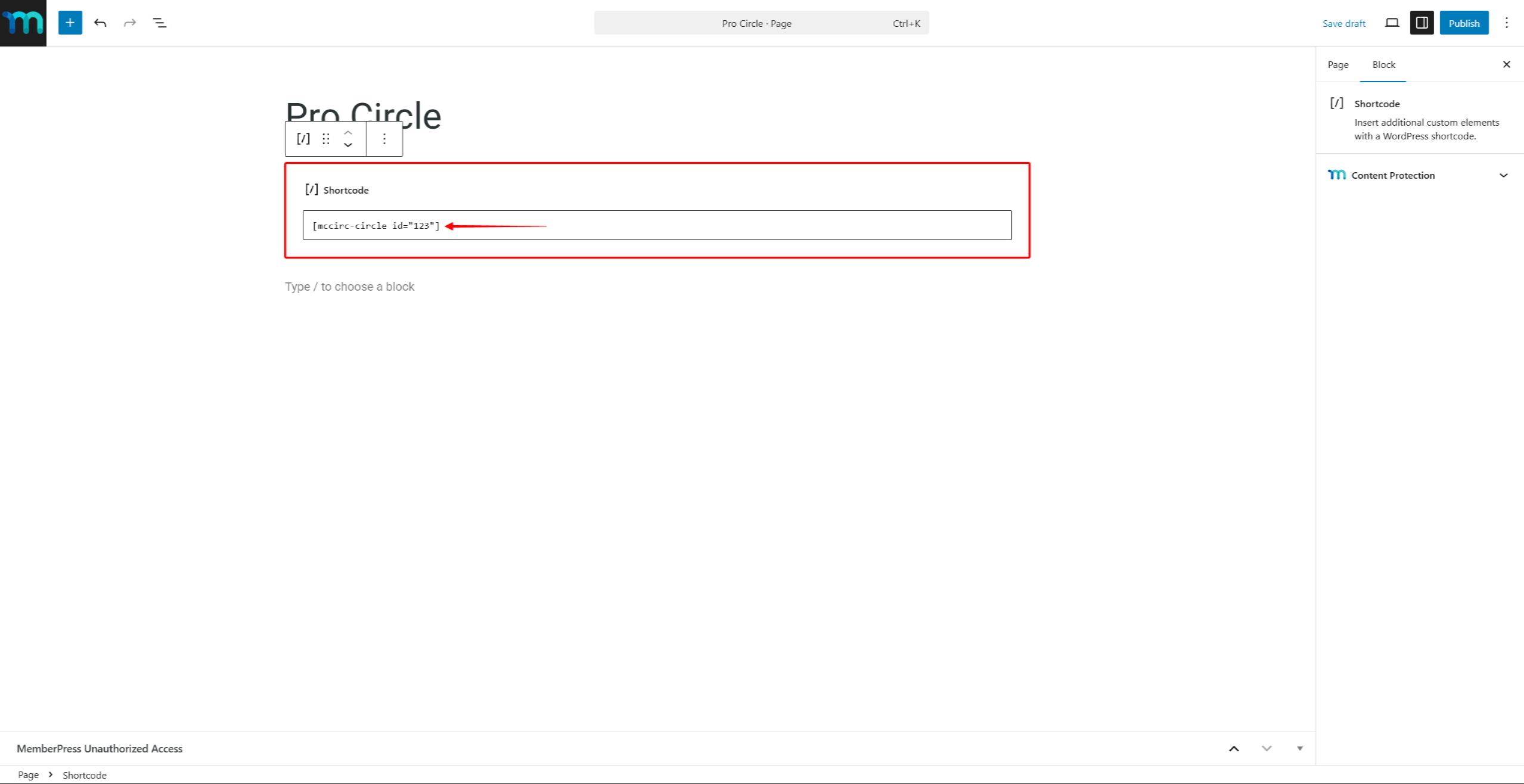
- Insira o shortcode com a ID do círculo e qualquer atributos. Por exemplo:
[mpcirc-circle id="123"]- Clique em Publicar ou Atualização para salvar a página.
Adição do shortcode Single Circle com o Page Builders
O shortcode “Circle” pode ser adicionado a páginas criadas com construtores de páginas. Use o módulo de shortcode do construtor de páginas para colar o shortcode.
Por exemplo, adicione o Widget de código curto no Elementor ou o Módulo de código no Divi. Em seguida, cole o shortcode Single Circle com atributos nele.
Práticas recomendadas para a exibição de círculos
Ao incorporar círculos em páginas personalizadas, considere as seguintes recomendações:
- Use o shortcode ou bloco único do Circle para apresentar Círculos específicos em páginas de destino ou áreas de associação;
- Use o código curto de arquivo para fornecer um diretório completo de Círculos para os membros navegarem;
- Aplicar o
show_navigation="no"eshow_hero="no"ao incorporar um Círculo em uma barra lateral ou em um layout compacto; - Use o
posts_searchpara criar exibições pré-filtradas que destacam tópicos específicos em um Círculo.
Para obter mais detalhes sobre a criação e configuração de Círculos, consulte a seção Criar e gerenciar círculos documentação.










 PT
PT  EN
EN  ES
ES  FR
FR  DE
DE 