

MemberPress provides a Gutenberg block and shortcodes for displaying Circles on any page or post. The Circle block and shortcodes give full control over how Circles appear on the website.
This document explains how to use the Circle archive shortcode, the single Circle block, and the single Circle shortcode. These options allow Circles to be embedded anywhere, with customizable display settings.
Circle Archive Shortcode
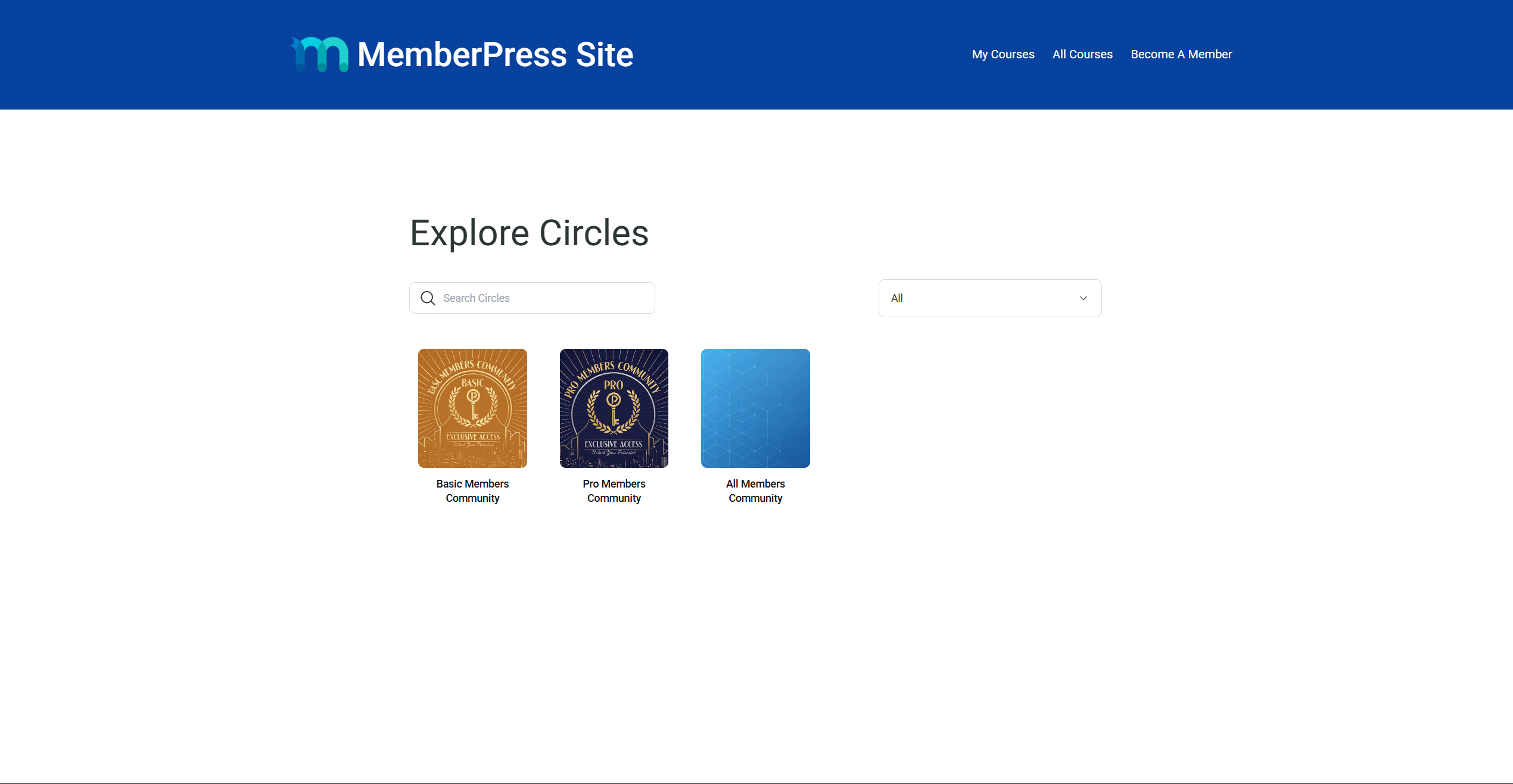
The Circle archive shortcode displays the full Circles archive on any page. This is the same listing available at the default /mp-circle URL on the website. Members can browse, search, and join Circles directly from this page.
The shortcode works with the Gutenberg block editor and popular page builders like Elementor and Divi.
Adding the Archive Shortcode With Gutenberg
Follow these steps to add the Circles archive to any page or post:
- Navigate to Dashboard > Pages > Add New Page.
- Add a title for the page.
- Add a Shortcode block to the page content area.
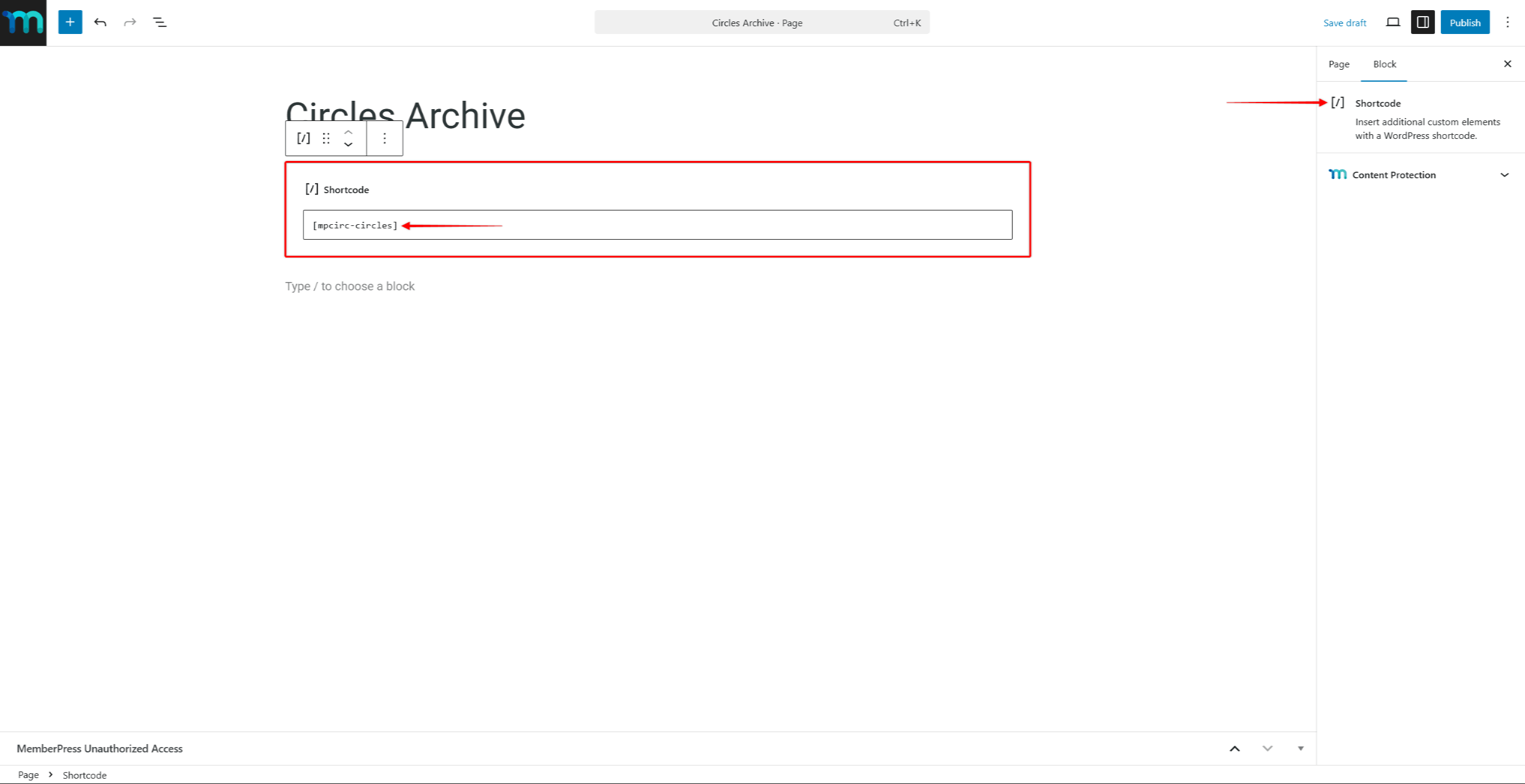
- Enter the following shortcode:
[mpcirc-circles]- Click Publish to save the page.
The page will now display the Circles archive with all visible Circles.
Adding the Archive Shortcode With Page Builders
The Circle archive shortcode can be added to pages created with almost any page builder. To do this, use the page builder’s shortcode module to add the Circle archive shortcode to a page.
For example, add the Shortcode widget in Elementor or the Code module in Divi. Then, paste the following Circle archive shortcode into it:
[mpcirc-circles]Single Circle Block
MemberPress includes a dedicated Gutenberg block for displaying a single Circle on any page or post. The Circle block provides a visual way to embed a specific Circle without writing shortcode.
The block uses the same rendering system as Circle pages. It respects all existing access control and visibility settings configured for each Circle.
Adding the Circle Block
Follow these steps to add the Circle block to a page or post:
- Navigate to Dashboard > Pages and open an existing page, or click Add New Page.
- Click the Block Inserter (+) button to add a new block.
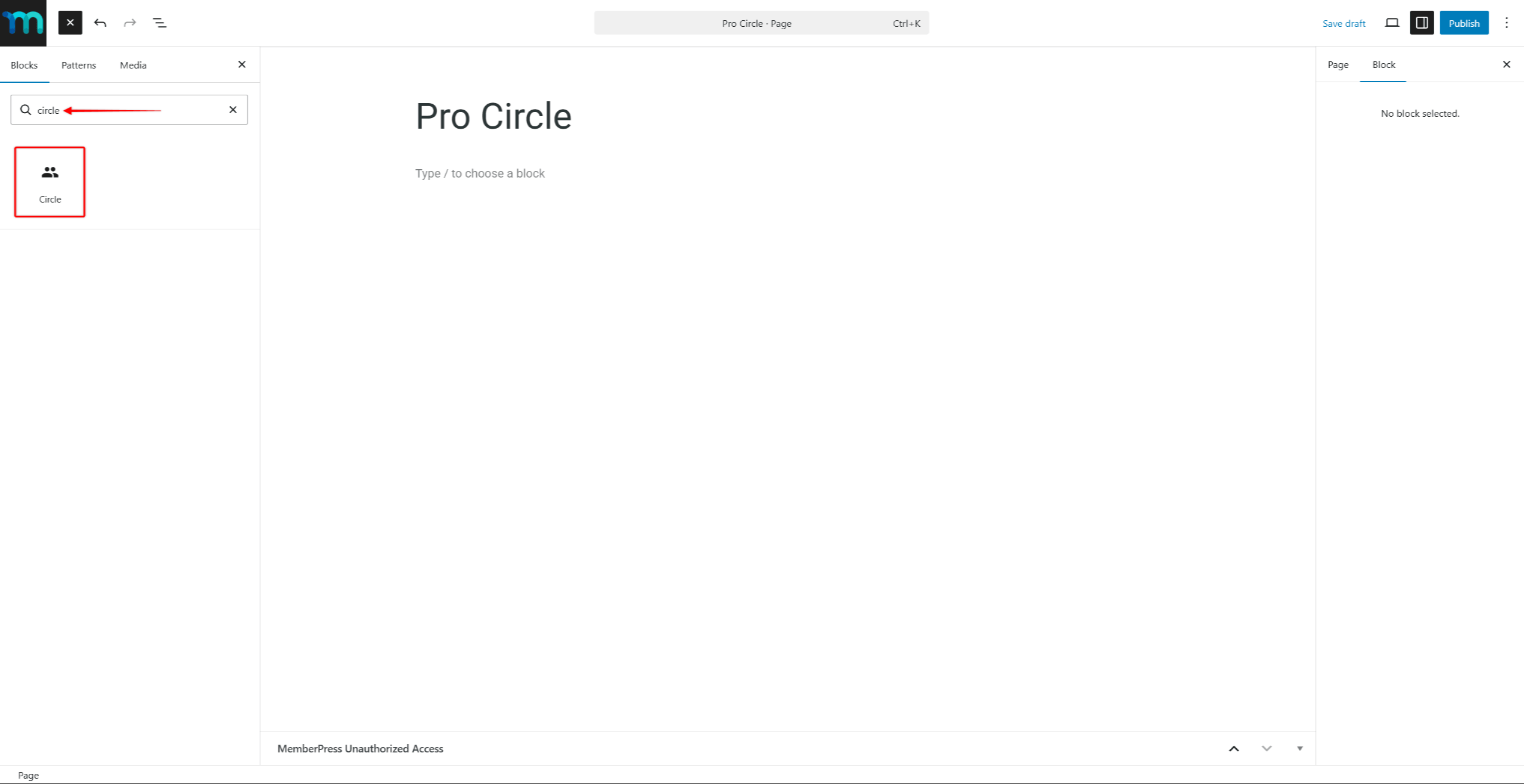
- Search for “Circle” in the block search field.
- Select the Circle block from the results.
- In the Block Settings panel on the right side, use the Select Circle dropdown to choose the Circle to display.
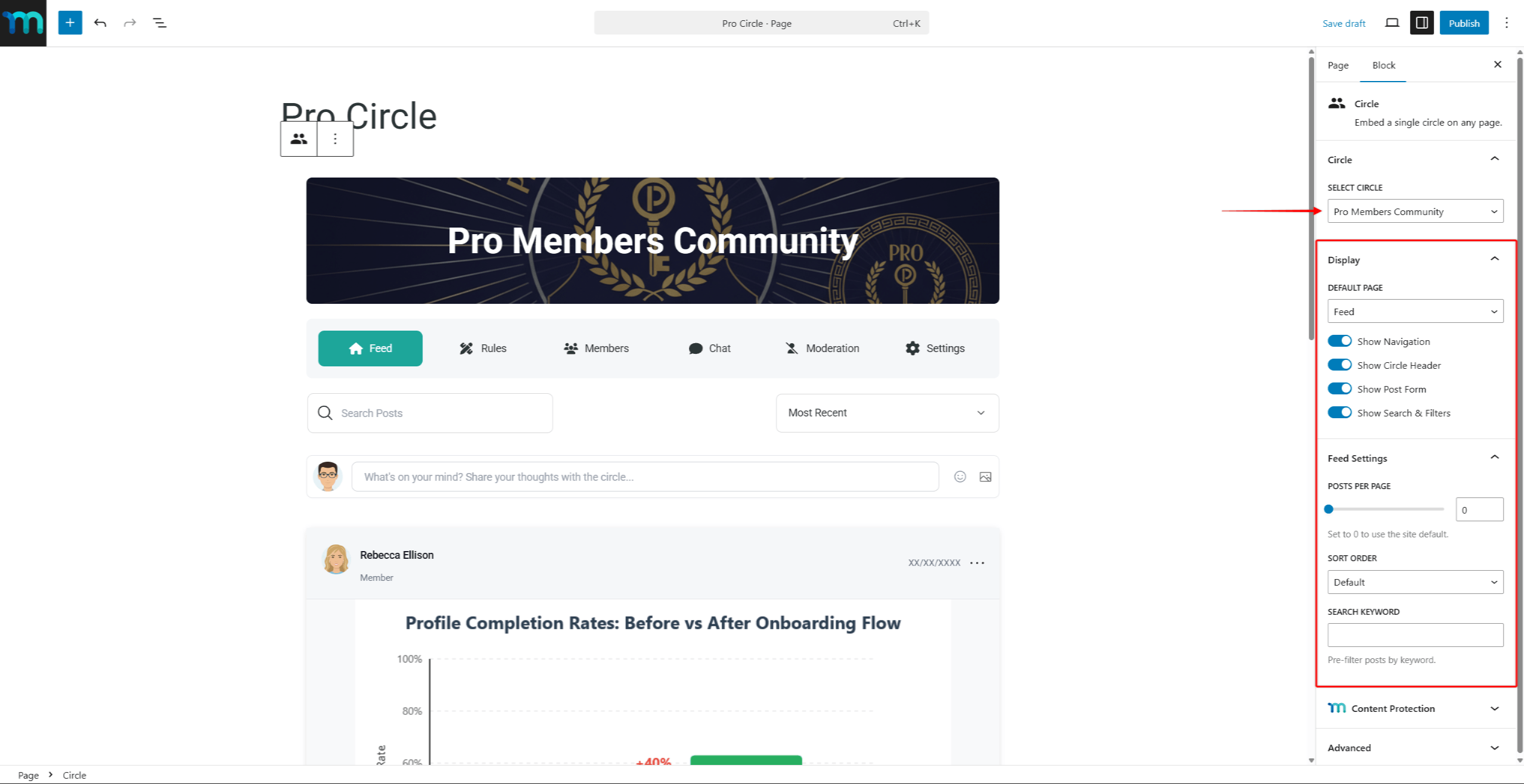
- Optionally, adjust the Display and Feed Settings in the block panel to customize the Circle appearance.
- Click Publish or Update to save the page.
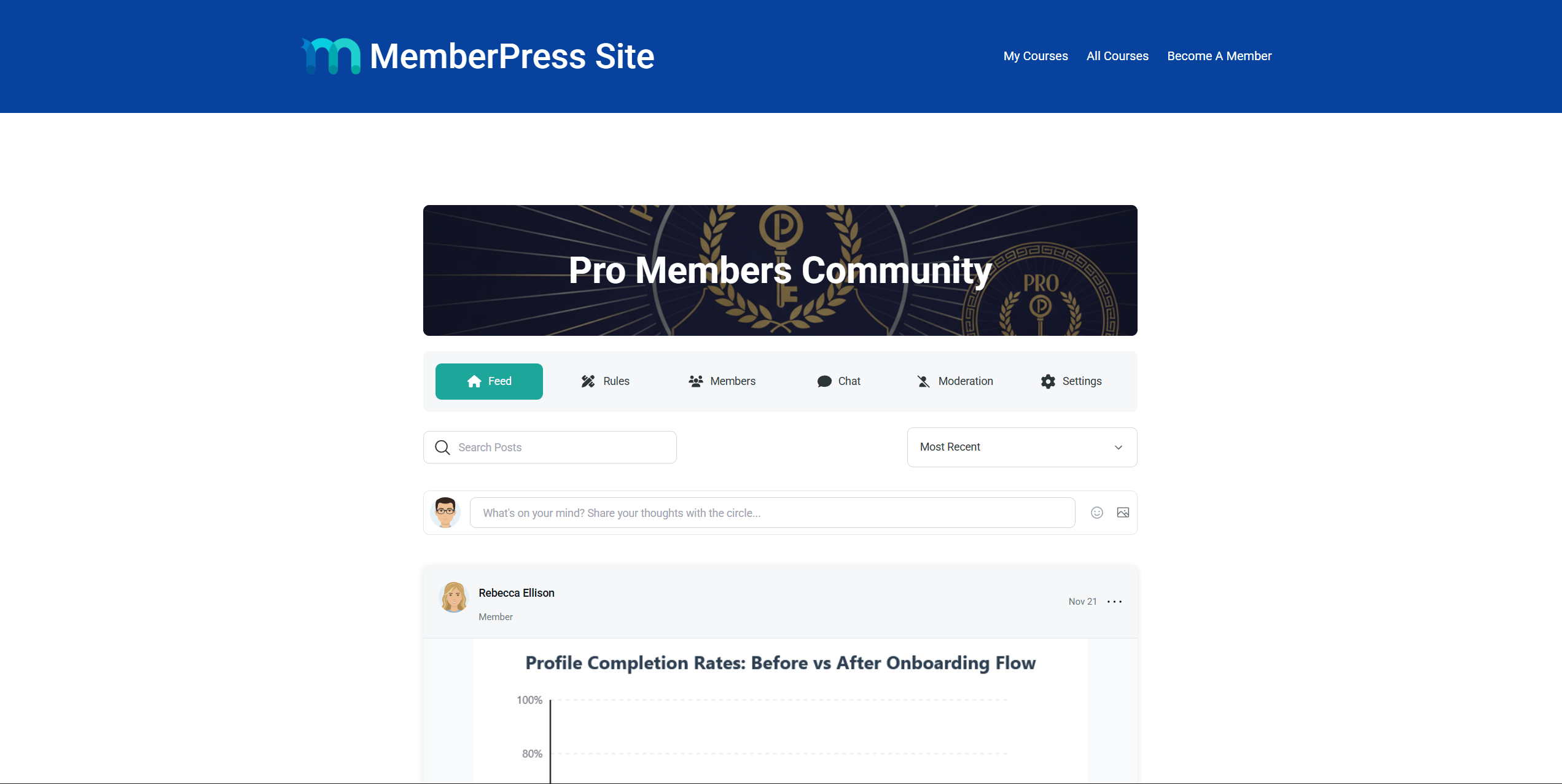
The editor will show a live preview of the Circle, including the hero image, navigation tabs, feed, and posts.
Circle Block Display Settings
The Circle block provides the same display options as the single Circle shortcode attributes. These settings are available in the Block Settings panel when the Circle block is selected:
- Default Page — sets the page shown when the block loads (Feed, Members, Rules, Settings, or Moderation);
- Show Navigation — toggles the page navigation menu (Feed, Rules, Members, Chat, Moderation, Settings);
- Show Circle Header — toggles the Circle hero image and title;
- Show Post Form — toggles the post creation form on the feed page;
- Show Search & Filters — toggles the search and sorting controls on the feed page;
- Posts Per Page — sets the number of posts displayed per page (set to 0 to use the site default);
- Sort Order — sets the default sort order for posts (Default, Recent, Popular, or Discussed);
- Search Keyword — pre-fills the search to show only matching posts.
Single Circle Shortcode
The single Circle shortcode displays one specific Circle on any page or post. Unlike the archive shortcode that shows all Circles, this shortcode renders only the Circle matching the provided ID.
This shortcode requires the Circle ID. For example, to display the Circle with the ID of 123, the following shortcode should be used:
[mpcirc-circle id="123"]The single Circle shortcode respects all existing access control and visibility settings configured for the Circle.
Finding the Circle ID
To find the ID of a Circle, follow these steps:
- Navigate to Dashboard > ClubSuite™ > Circles.
- Hover over the Circle name. The Circle ID will appear in the URL shown in the browser status bar. The ID is the number after
post=in the URL.
Alternatively, click Edit on the Circle. The Circle ID will be visible in the browser address bar URL.
Shortcode Attributes
The single Circle shortcode supports multiple attributes that control the Circle display. The table below lists all available attributes:
| Attribute | Default | Accepted Values | Description |
|---|---|---|---|
id | — (required) | Circle ID | The ID of the Circle to display. |
page | feed | feed, members, rules, settings, moderation | The default page shown when the shortcode loads. Visitors can still navigate to other pages. |
show_navigation | yes | yes, no | Show or hide the page navigation menu (Feed, Members, Rules, etc.). |
show_hero | yes | yes, no | Show or hide the Circle header (hero image and title). |
show_post_form | yes | yes, no | Show or hide the post creation form on the feed page. |
show_search | yes | yes, no | Show or hide the search and sorting controls on the feed page. |
posts_per_page | Site default | Any positive number | Number of posts to display per page on the feed. |
posts_order | recent | recent, popular, discussed | Default sort order for posts on the feed page. |
posts_search | — | Any text | Pre-fill the search with a keyword to show only matching posts. |
Override Behavior
When a visitor uses the search or sorting controls on the page, the URL parameters override the shortcode defaults. For example, setting posts_order="popular" in the shortcode displays posts sorted by popularity. However, if a visitor selects “Most Recent” using the dropdown, the visitor’s selection takes priority.
Shortcode Examples
Below are examples showing different attribute combinations for the single Circle shortcode. In all examples, the dummy Circle ID of 123 is used. Replace this ID with the actual Circle ID.
Basic usage — display a Circle feed:
[mpcirc-circle id="123"]Start on the members page with no hero banner:
[mpcirc-circle id="123" page="members" show_hero="no"]Read-only feed — hide the post form and search controls:
[mpcirc-circle id="123" show_post_form="no" show_search="no"]Compact feed — show 5 posts per page, sorted by popularity:
[mpcirc-circle id="123" posts_per_page="5" posts_order="popular"]Minimal embed — feed only, no navigation or hero:
[mpcirc-circle id="123" show_navigation="no" show_hero="no"]Pre-filtered feed — show only posts matching a keyword:
[mpcirc-circle id="123" posts_search="announcement"]Full customization — all attributes combined:
[mpcirc-circle id="123" page="feed" show_navigation="yes" show_hero="no" show_post_form="no" show_search="yes" posts_per_page="3" posts_order="discussed"]Adding the Single Circle Shortcode With Gutenberg
Follow these steps to add a single Circle shortcode using the Gutenberg editor:
- Navigate to Dashboard > Pages and open an existing page, or click Add New Page.
- Add a Shortcode block to the page content area.
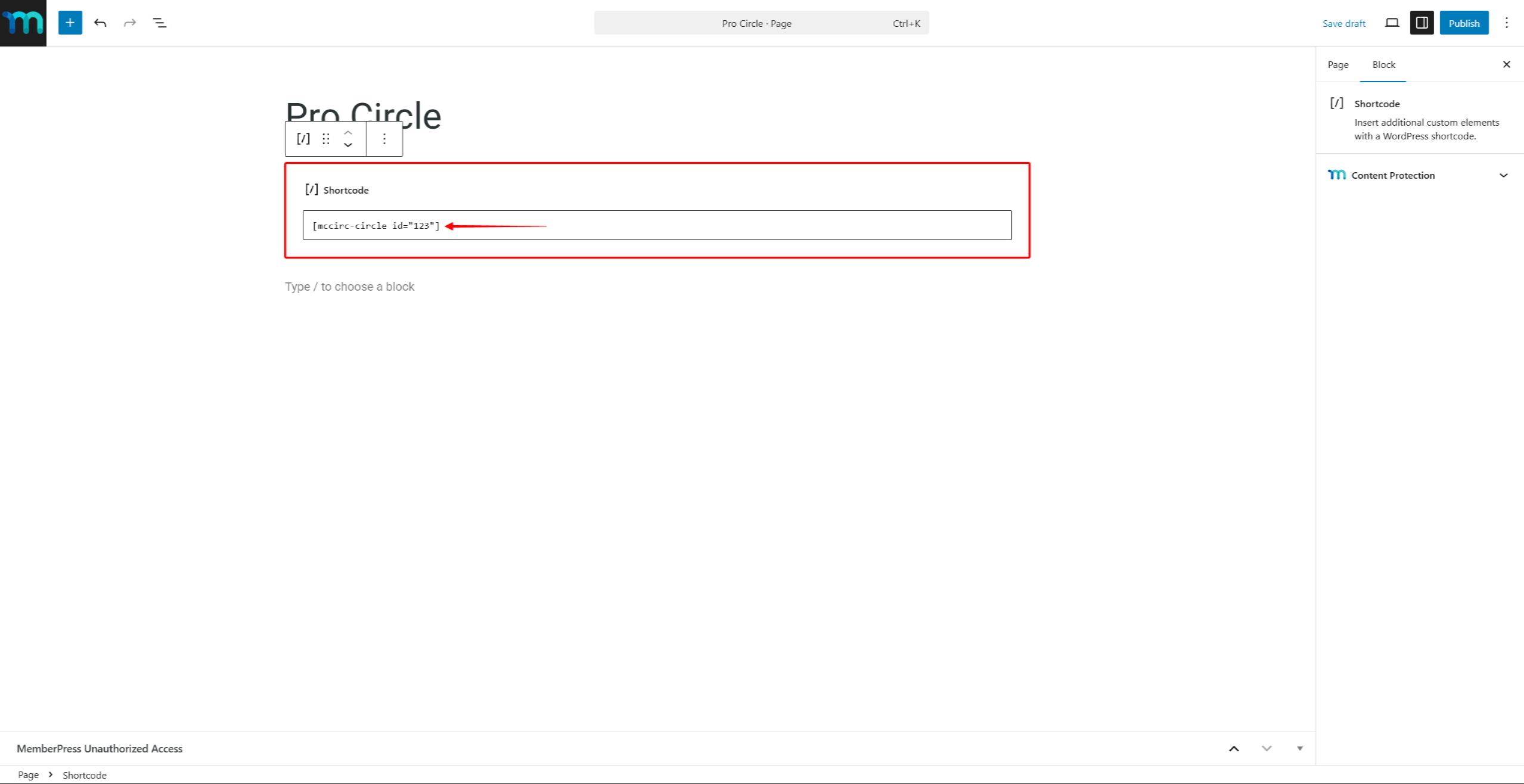
- Enter the shortcode with the Circle ID and any desired attributes. For example:
[mpcirc-circle id="123"]- Click Publish or Update to save the page.
Adding the Single Circle Shortcode With Page Builders
The single Circle shortcode can be added to pages built with page builders. Use the page builder’s shortcode module to paste the shortcode.
For example, add the Shortcode widget in Elementor or the Code module in Divi. Then, paste the single Circle shortcode with attributes into it.
Best Practices for Displaying Circles
When embedding Circles on custom pages, consider the following recommendations:
- Use the single Circle shortcode or block to feature specific Circles on landing pages or membership areas;
- Use the archive shortcode to provide a full directory of Circles for members to browse;
- Apply the
show_navigation="no"andshow_hero="no"attributes when embedding a Circle in a sidebar or compact layout; - Use the
posts_searchattribute to create pre-filtered views that highlight specific topics within a Circle.
For more details on creating and configuring Circles, refer to the creating and managing Circles documentation.










