

Oftmals möchten Sie vielleicht den Standardtext ändern, der auf der Schaltfläche „Registrieren“ am Ende Ihres Anmeldeformulars für die Mitgliedschaft steht.
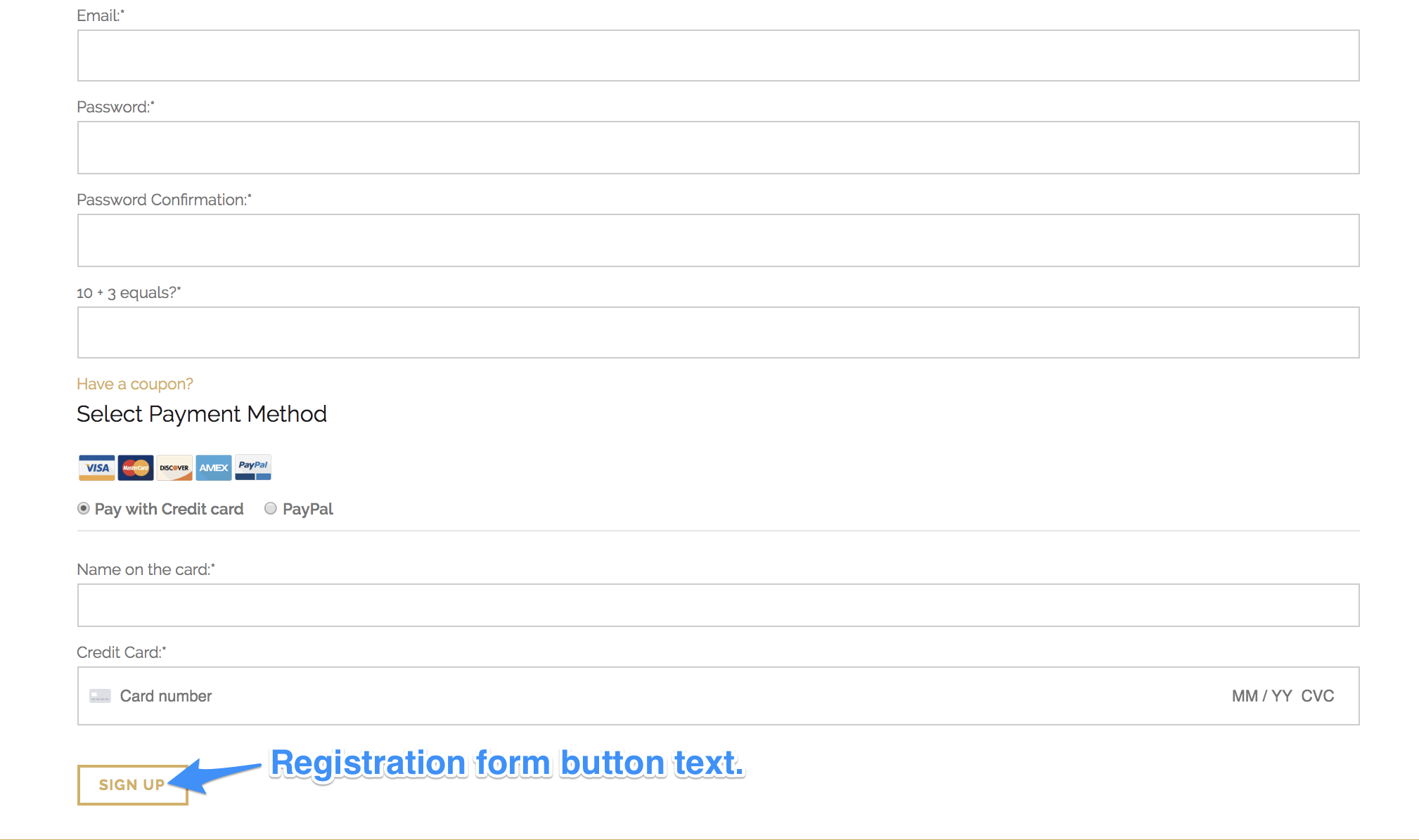
Mit MemberPress lässt sich der Text der Schaltflächen in Ihrem Anmeldeformular ganz einfach ändern. Dazu müssen Sie folgende Schritte ausführen:
1. Klicken Sie auf der linken Seite Ihres Dashboards auf Produkte aus den Menüoptionen des MemberPress.
2. Klicken Sie auf die Mitgliedschaft, deren Schaltflächentext Sie bearbeiten möchten.
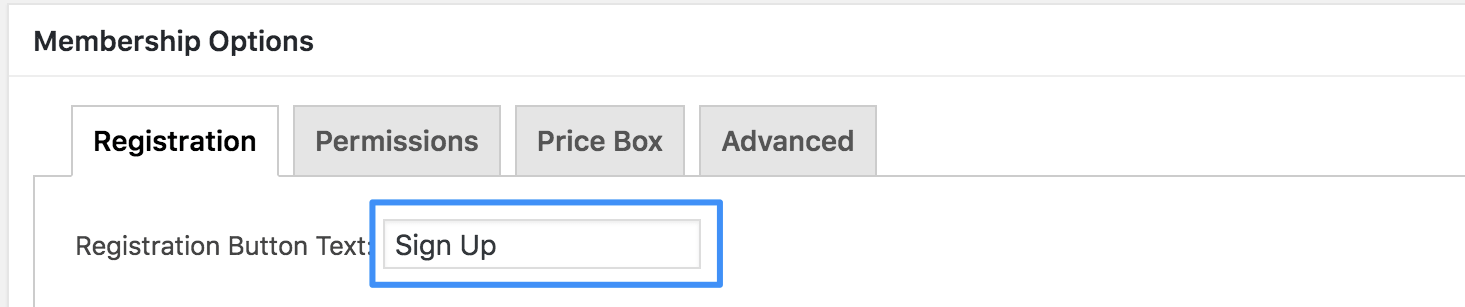
3. Scrollen Sie nach unten zur Registerkarte „Produktoptionen > Registrierung“.
4. Suchen Sie die Text der Registrierungsschaltfläche: wie unten zu sehen, und ändern Sie den Text der Schaltfläche des Registrierungsformulars.
5. Klicken Sie auf ‘Aktualisieren’, um Ihre Änderungen zu speichern.
Anmerkung: Wenn Sie mehr als eine Mitgliedschaft haben und möchten, dass auf jedem der Anmeldeformulare für die Mitgliedschaft derselbe Schaltflächentext angezeigt wird, müssen Sie die Änderungen für jede einzelne Mitgliedschaft in den Produktoptionen vornehmen.










 DE
DE  EN
EN  ES
ES  FR
FR  PT
PT 