

Mit dem MemberPress-Warenkorb können Kunden mehrere Produkte in einem einzigen Bestellvorgang kaufen. Das Plugin fügt Ihrer Website eine Shop-Seite, eine Warenkorb-Seite und einen Warenkorb-Checkout hinzu.
In diesem Dokument wird erläutert, was der Warenkorb ist, wie man ihn aktiviert und welche Produkttypen er anbietet. Außerdem werden die Seiten, Blöcke, Bestellungen und E-Mails beschrieben, die der Warenkorb hinzufügt.
So funktioniert der MemberPress-Wagen
Der Warenkorb funktioniert wie in einem gewöhnlichen Online-Shop. Kunden stöbern auf der Shop-Seite, legen Produkte in den Warenkorb und bezahlen einmalig an der Kasse.
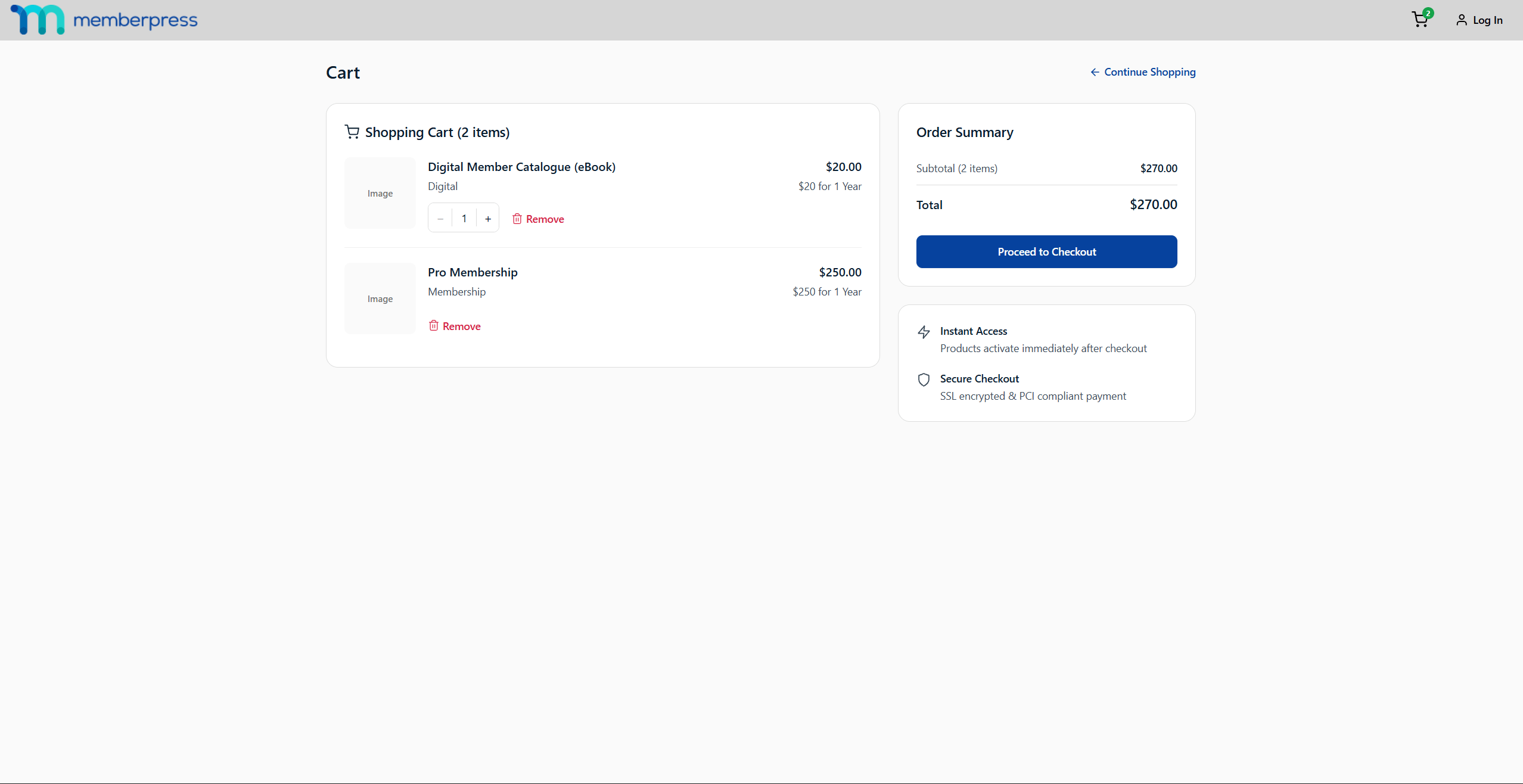
Jeder abgeschlossene Kauf führt zu einer Bestellung. In der Bestellung werden alle gekauften Artikel, die Beträge und die Zahlungsdetails an einem Ort erfasst.
Der Warenkorb ist optional und bei jeder Installation standardmäßig deaktiviert. Produkte werden über ihre eigenständigen Registrierungsseiten verkauft, bis Sie den Warenkorb aktivieren. Die eigenständigen Registrierungsseiten werden unabhängig davon, ob der Warenkorb aktiviert oder deaktiviert ist, weiterhin vollständig unterstützt.
Warenkorb aktivieren
MemberPress zeigt im WordPress-Adminbereich einen ausblendbaren Hinweis an, der auf die Warenkorb-Einstellungen verweist. Sie können den Warenkorb jederzeit aktivieren, indem Sie die folgenden Schritte ausführen:
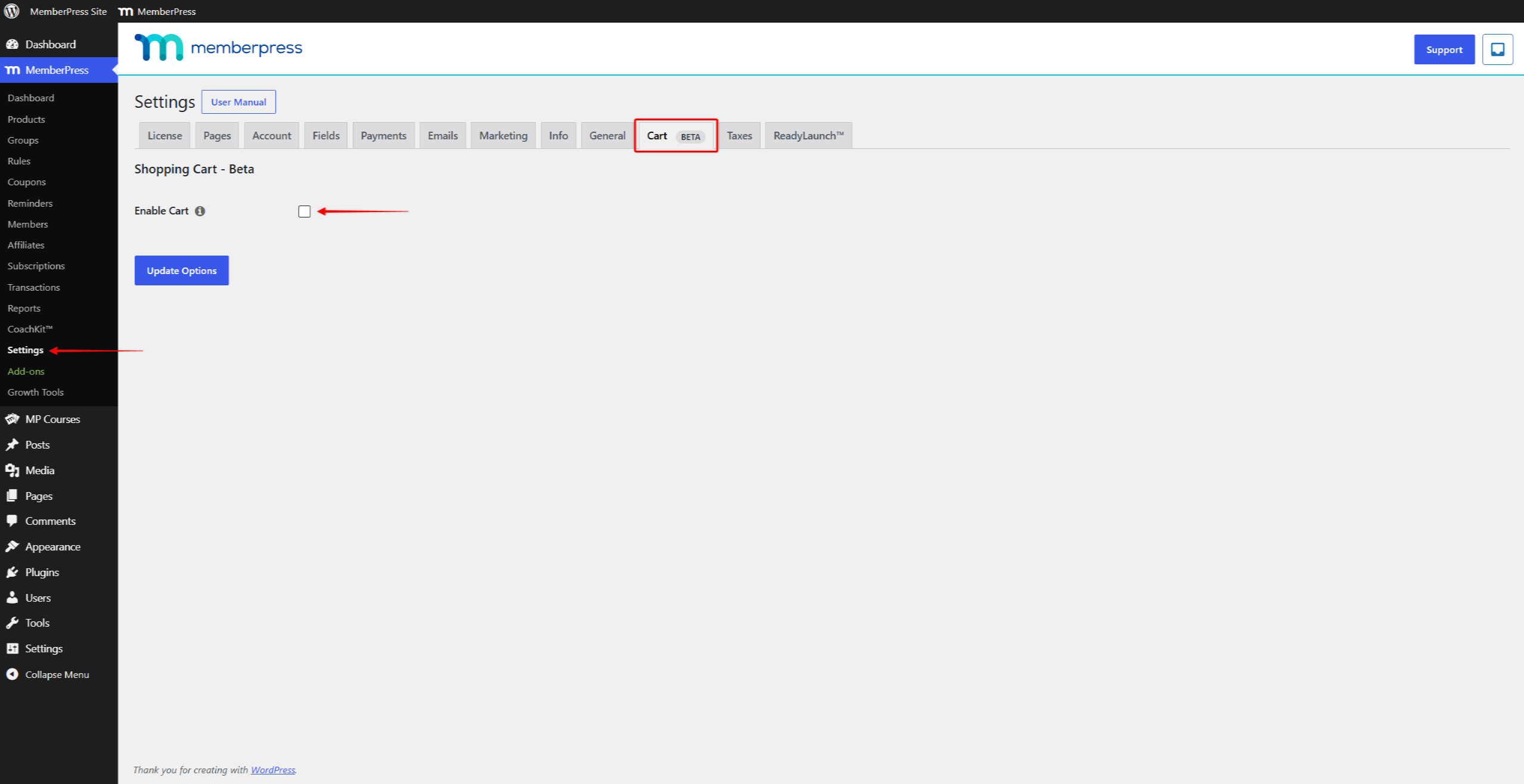
- Navigieren Sie zu Dashboard > MemberPress > Einstellungen, und öffnen Sie die Wagen tab.
- Klicken Sie auf die Warenkorb aktivieren Kontrollkästchen. Es öffnet sich ein Bestätigungsfenster, in dem erklärt wird, welche Funktion der Warenkorb aktiviert.
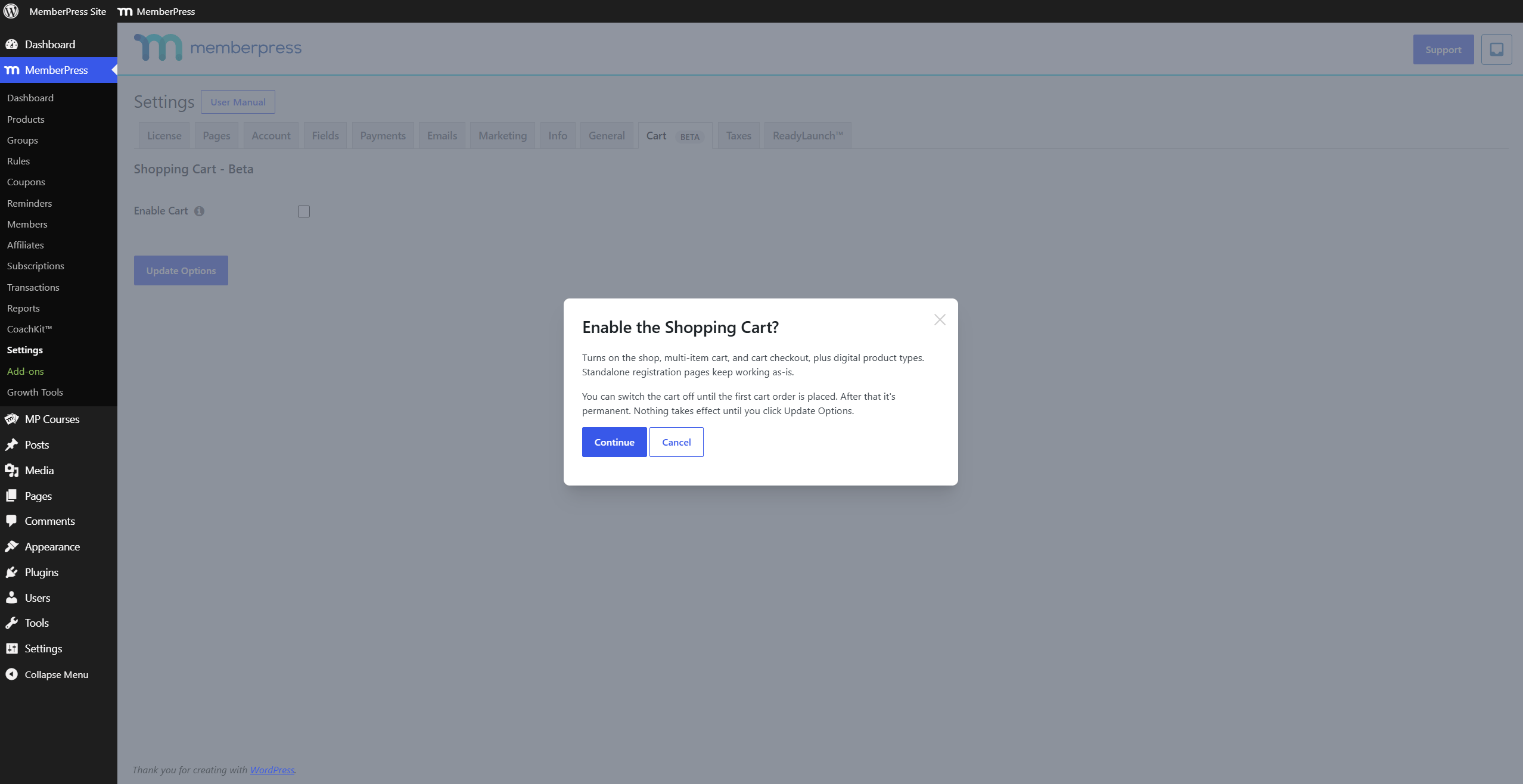
- Überprüfen Sie das Popup-Fenster und klicken Sie auf die Bestätigungsschaltfläche, um fortzufahren. Das Kontrollkästchen wird aktiviert, und die Einstellungen für den Bezahlvorgang Der Abschnitt erscheint darunter.
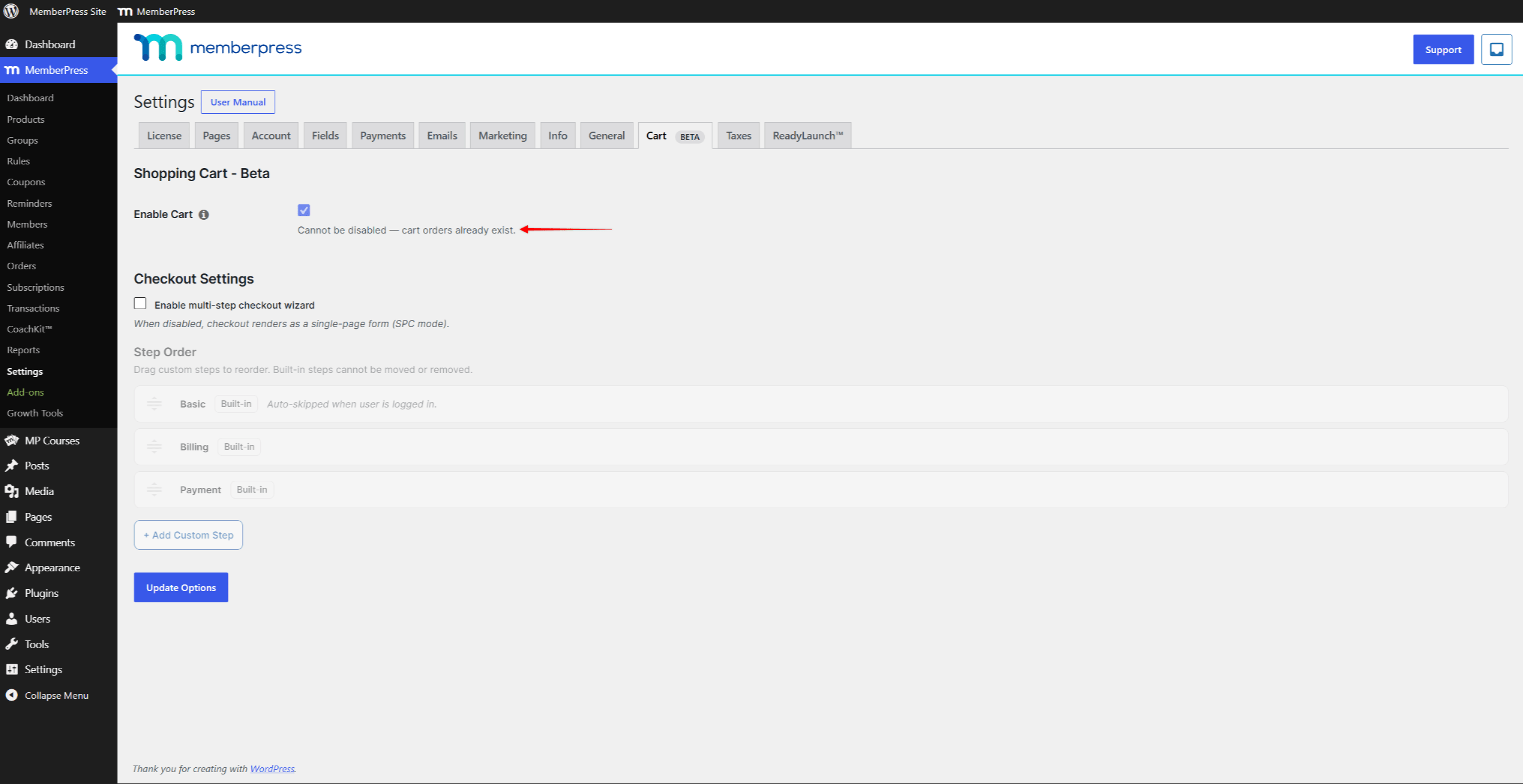
- Überprüfen Sie die Einstellungen für den Bestellvorgang und passen Sie diese bei Bedarf an.
- Klicken Sie auf Optionen aktualisieren am Ende der Seite.
Der Warenkorb ist erst aktiv, wenn Sie darauf klicken Optionen aktualisieren. Nach dem Speichern sind die Seiten „Shop“, „Warenkorb“ und „Kasse“ als Ihr Online-Shop einsatzbereit. Die Bestellungen Der Menüpunkt erscheint unter Armaturenbrett > MemberPress auf der nächsten Seite neu laden.
Den Warenkorb deaktivieren
Sie können den Warenkorb wieder deaktivieren, solange keine Warenkorb-Bestellungen vorliegen. Deaktivieren Sie das Kontrollkästchen Warenkorb aktivierenund klicken Sie auf Optionen aktualisieren. Ihre Mitgliedschaftsprodukte werden dann wieder über deren eigene Registrierungsseiten verkauft.
Ihre Einstellungen für den Bestellvorgang werden gespeichert, wenn Sie den Warenkorb deaktivieren. Sie werden wiederhergestellt, wenn Sie den Warenkorb später wieder aktivieren. Die Bestellungen Der Menüpunkt ist ausgeblendet, solange der Warenkorb deaktiviert ist.
Sobald ein Kunde den ersten Einkauf über den Warenkorb abgeschlossen hat, wird der Warenkorb dauerhaft gespeichert. Der Warenkorb aktivieren Optionssperren mit der “Kann nicht deaktiviert werden – es gibt bereits Bestellungen im Warenkorb.” Nachricht.
Produkte und Produkttypen
Über den Warenkorb verkauft MemberPress Produkte. Eine Mitgliedschaft ist eine Art von Produkt, daher bleiben beide Begriffe weiterhin im Gebrauch.
Navigieren Sie zu Dashboard > MemberPress > Produkte um alle Ihre Produkte zu verwalten. Auf diesem Bildschirm wird die “Typ” In dieser Spalte wird die Produktart der einzelnen Produkte angezeigt.
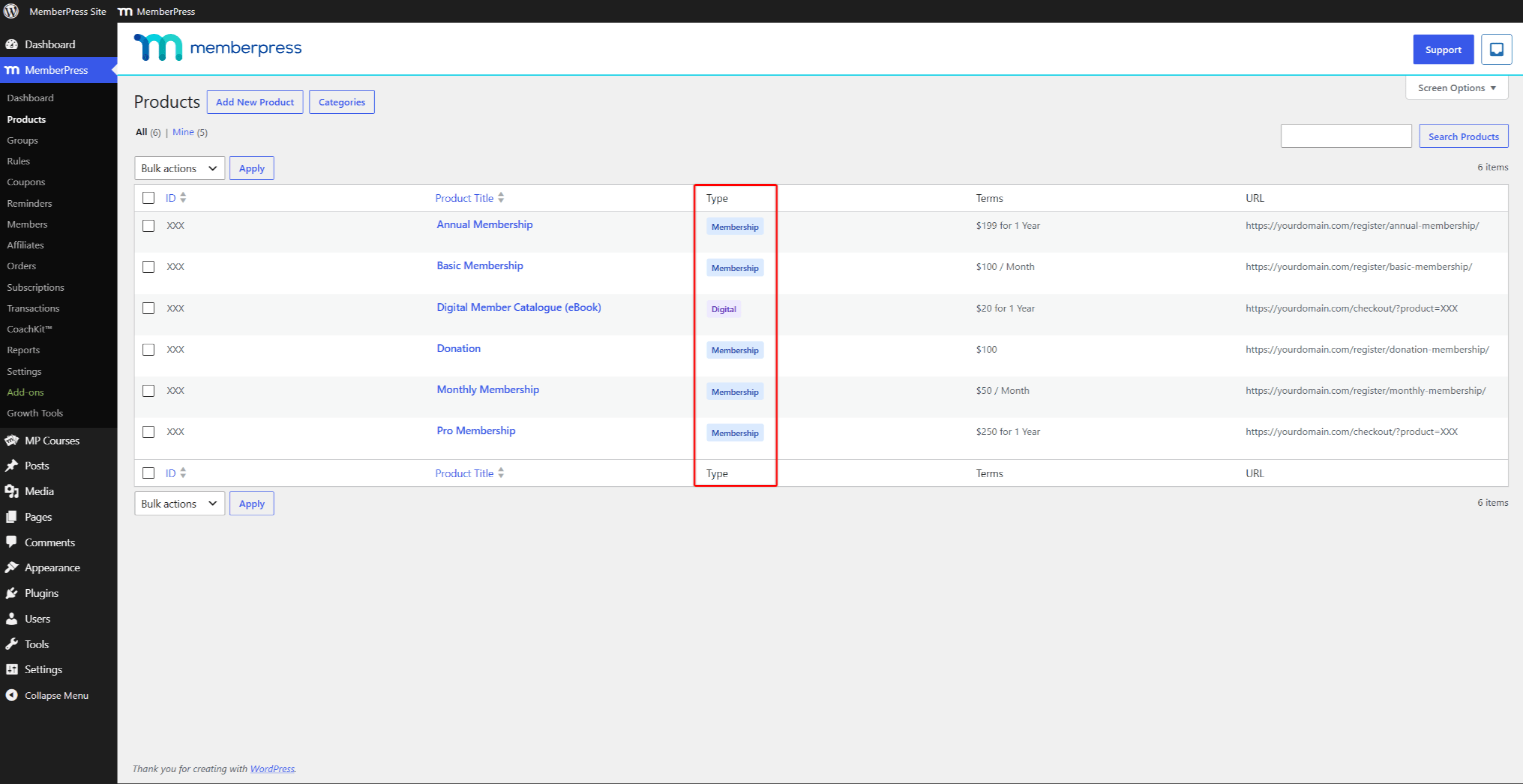
MemberPress bietet zwei Produkttypen an:
- Mitgliedschaft – gewährt Zugriff auf geschützte Inhalte und unterstützt wiederkehrende oder einmalige Abrechnungen;
- Digital – ein einmaliger Kauf, der für herunterladbare oder einmalige Artikel vorgesehen ist.
Den Typ wählen Sie beim Anlegen eines Produkts aus. Der Vorgang der Erstellung von Mitgliedschaften bleibt unverändert.
Einstellungen für Warenkorb und Shop
Jedes Produkt hat eine Warenkorb & Shop Abschnitt im Produkteditor. In diesem Abschnitt wird festgelegt, wie sich das Produkt im Shop verhält. Die verfügbaren Einstellungen hängen vom Produkttyp ab:
- Sichtbarkeit der Shop-Seite – legt fest, ob das Produkt auf der Shop-Seite angezeigt wird, und zwar für alle Produkttypen;
- Eigenständige Registrierungsseite – verkauft eine Mitgliedschaft über eine eigene Registrierungsseite statt über den Warenkorb. Die Option befindet sich unter dem Anmeldung Seite Einstellungen für Mitgliedschaftsprodukte;
- Maximale Menge pro Warenkorb – legt fest, wie viele Einheiten eines digitalen Produkts ein Warenkorb enthalten darf.
Die eigenständige Registrierungsseite ist eine produktbezogene Option für Mitgliedschaftsprodukte und eine feste Funktion von MemberPress. Wenn diese Option aktiviert ist, kaufen Kunden das Produkt über die entsprechende Registrierungs-URL außerhalb des Warenkorb-Prozesses.
Seiten, die der Warenkorb hinzufügt
MemberPress erstellt automatisch drei reservierte Seiten, sobald Sie den Warenkorb aktivieren. Diese Seiten fungieren als Ihr Shop, solange der Warenkorb aktiviert ist.
Sie können diese unter folgendem Link einsehen: Dashboard > MemberPress > Einstellungen, unter dem Seiten tab:
- MemberPress-Shopseite – listet Ihre Produkte zum Durchstöbern auf;
- MemberPress-Warenkorbseite – zeigt die Artikel an, die ein Kunde in den Warenkorb gelegt hat;
- MemberPress – Warenkorb-Checkout-Seite – erfasst die Kunden- und Zahlungsdaten.
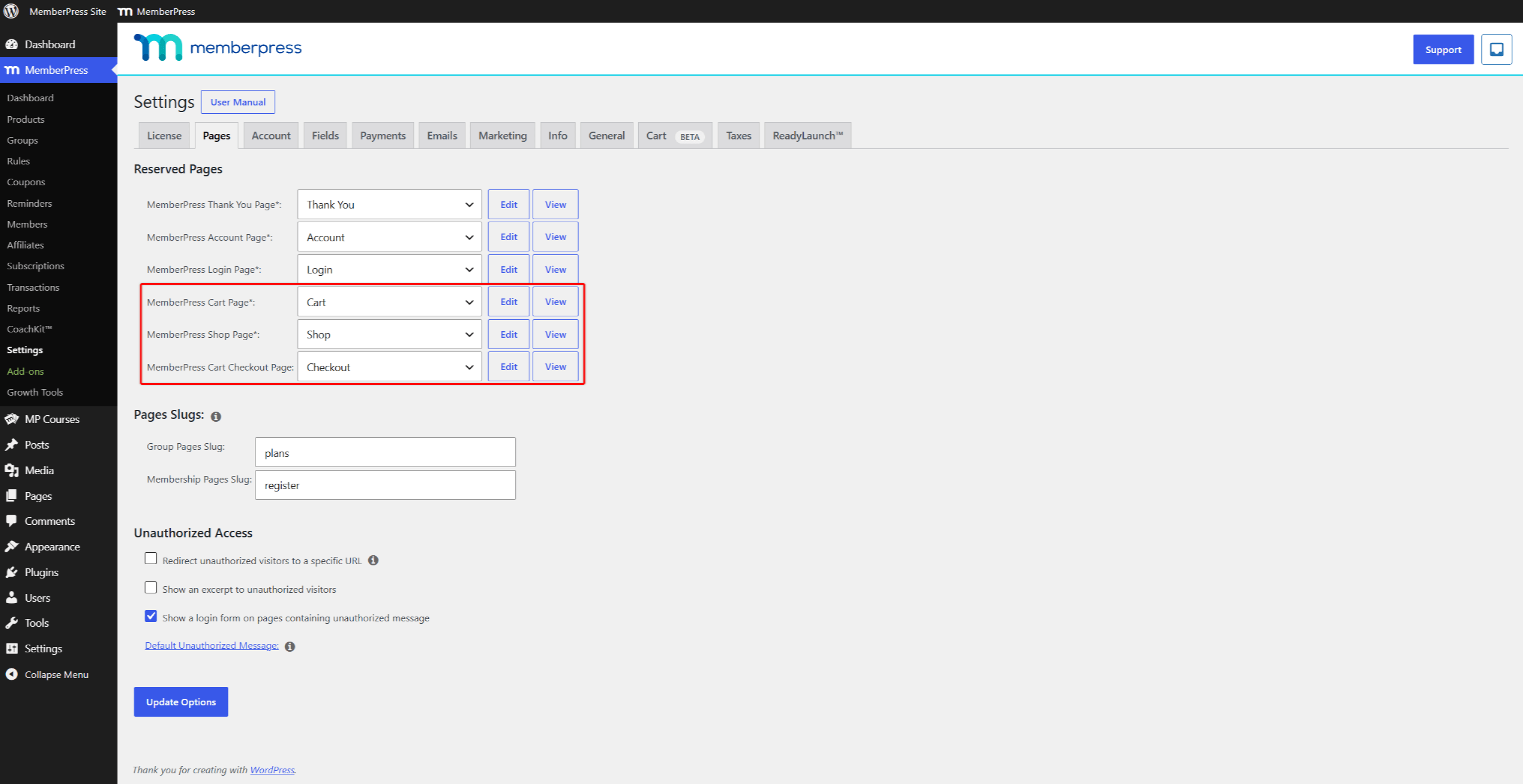
Jede Seite verwendet das ReadyLaunch™-Vorlage standardmäßig. Die ReadyLaunch-Kopfzeile zeigt auf Ihrer Website außerdem ein Warenkorb-Symbol an. Wenn mehrere Währungen aktiviert sind, wird in der Kopfzeile eine Währungsauswahl hinzugefügt.
Warenkorb-Blöcke
Der Warenkorb registriert außerdem vier Blöcke für den WordPress-Editor. Sie können diese auf jeder beliebigen Seite einfügen:
- Wagen – zeigt den Inhalt des Warenkorbs an;
- Shop – zeigt die Produktliste an;
- Warenkorb-Symbol – zeigt das Warenkorb-Symbol mit der Artikelanzahl an;
- Währungsumrechner – zeigt das Steuerelement zur Währungsauswahl an.
Zur Kasse gehen
Standardmäßig wird der Bestellvorgang im Warenkorb als einseitiges Formular dargestellt. Sie können stattdessen den mehrstufigen Bestellassistenten auf der Wagen im Reiter Dashboard > MemberPress > Einstellungen.
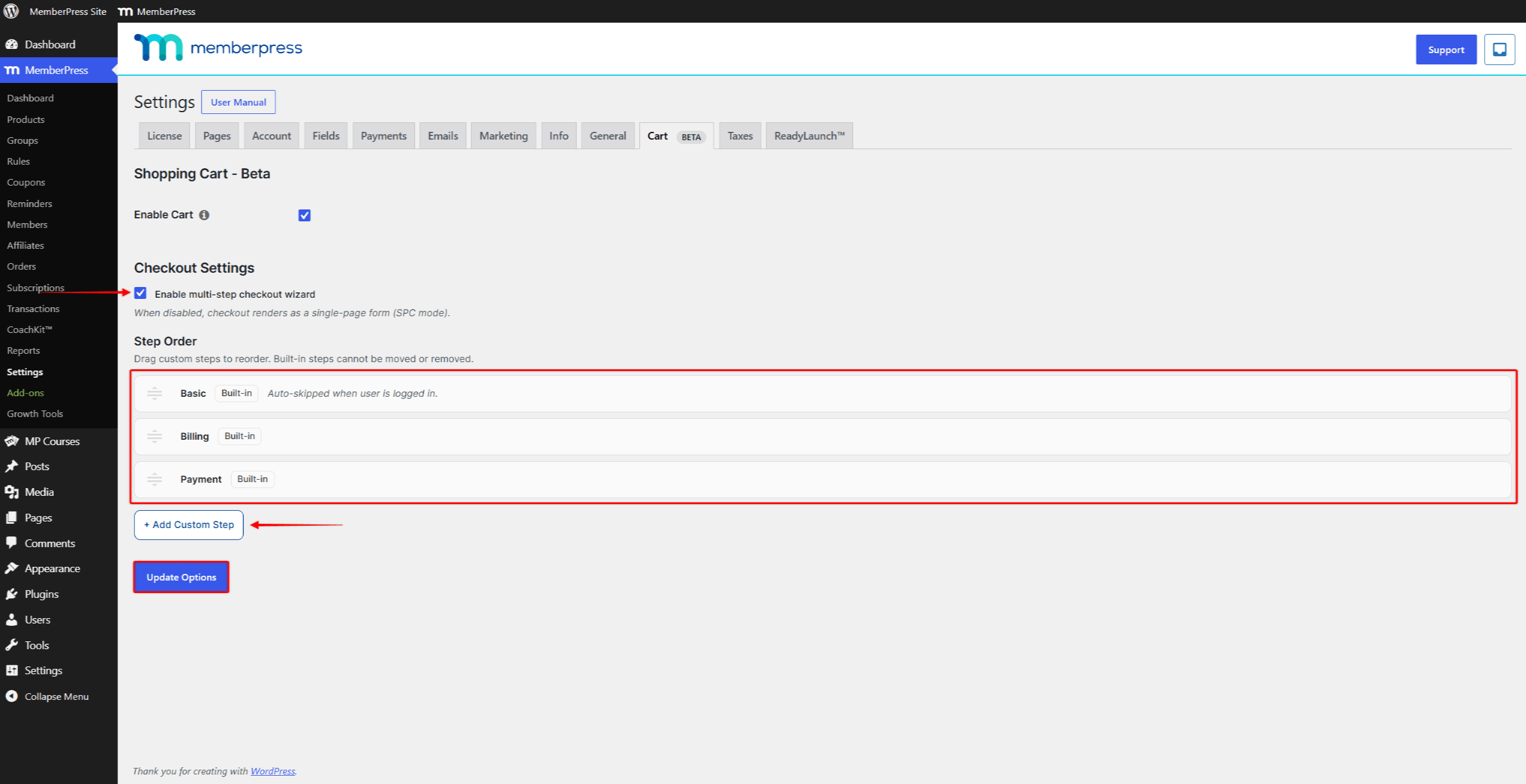
Der Assistent führt die Kunden Schritt für Schritt durch den Zahlungsvorgang. Die integrierten Schritte sind Grundlegend, Rechnungsstellungund Zahlung. Sie können zwischen diesen Schritten auch eigene Schritte einfügen. Auf der Checkout-Seite wird die Grundlegend Der Schritt wird wie folgt dargestellt: “Ihre Angaben”.
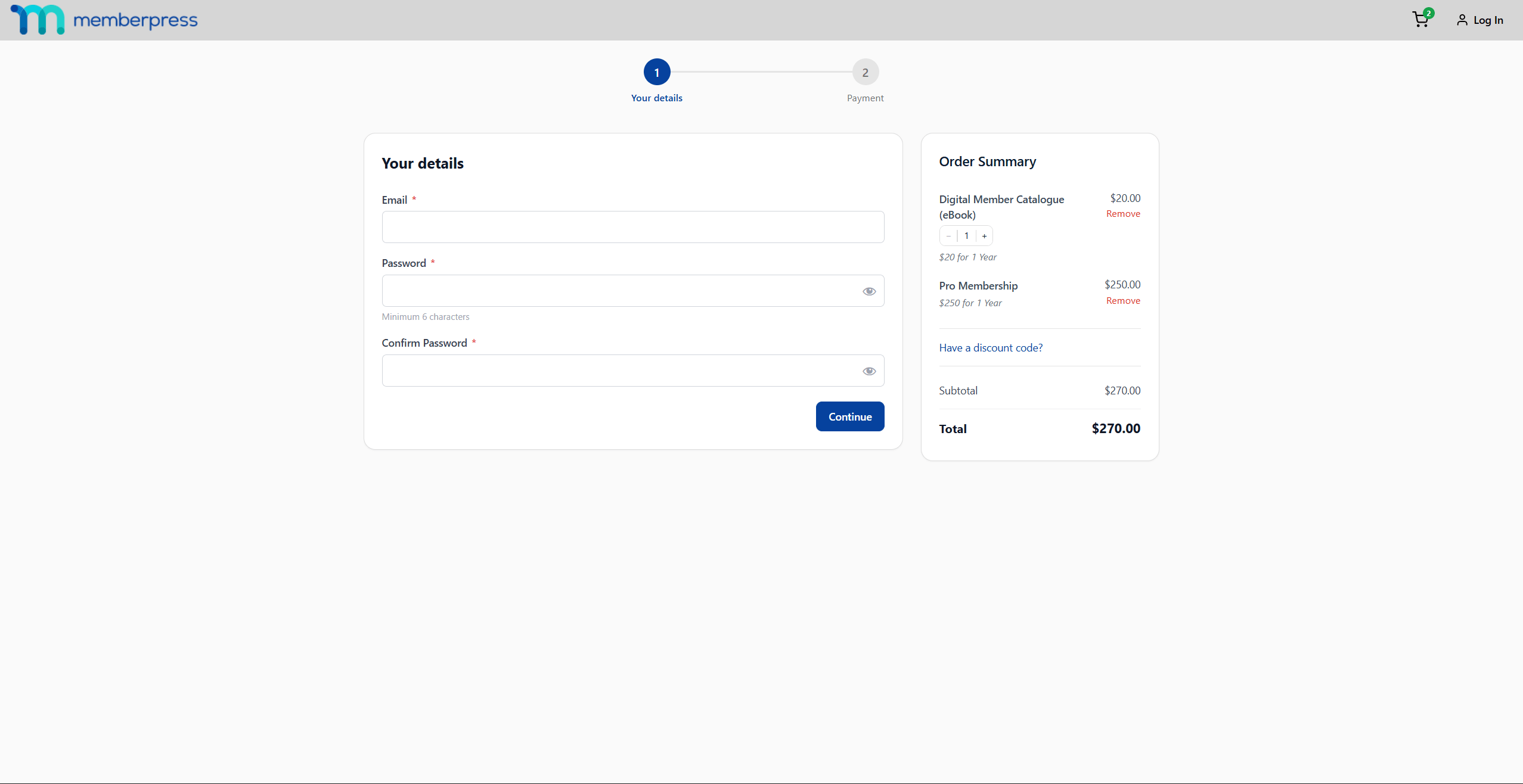
Die Grundlegend In diesem Schritt wird das Kundenkonto angelegt. Der Kunde fährt anschließend angemeldet mit dem Zahlungsschritt fort. Der Assistent überspringt die Schritte, die der Kunde nicht benötigt. Zum Beispiel die Grundlegend Dieser Schritt wird bei Kunden übersprungen, die bereits angemeldet sind.
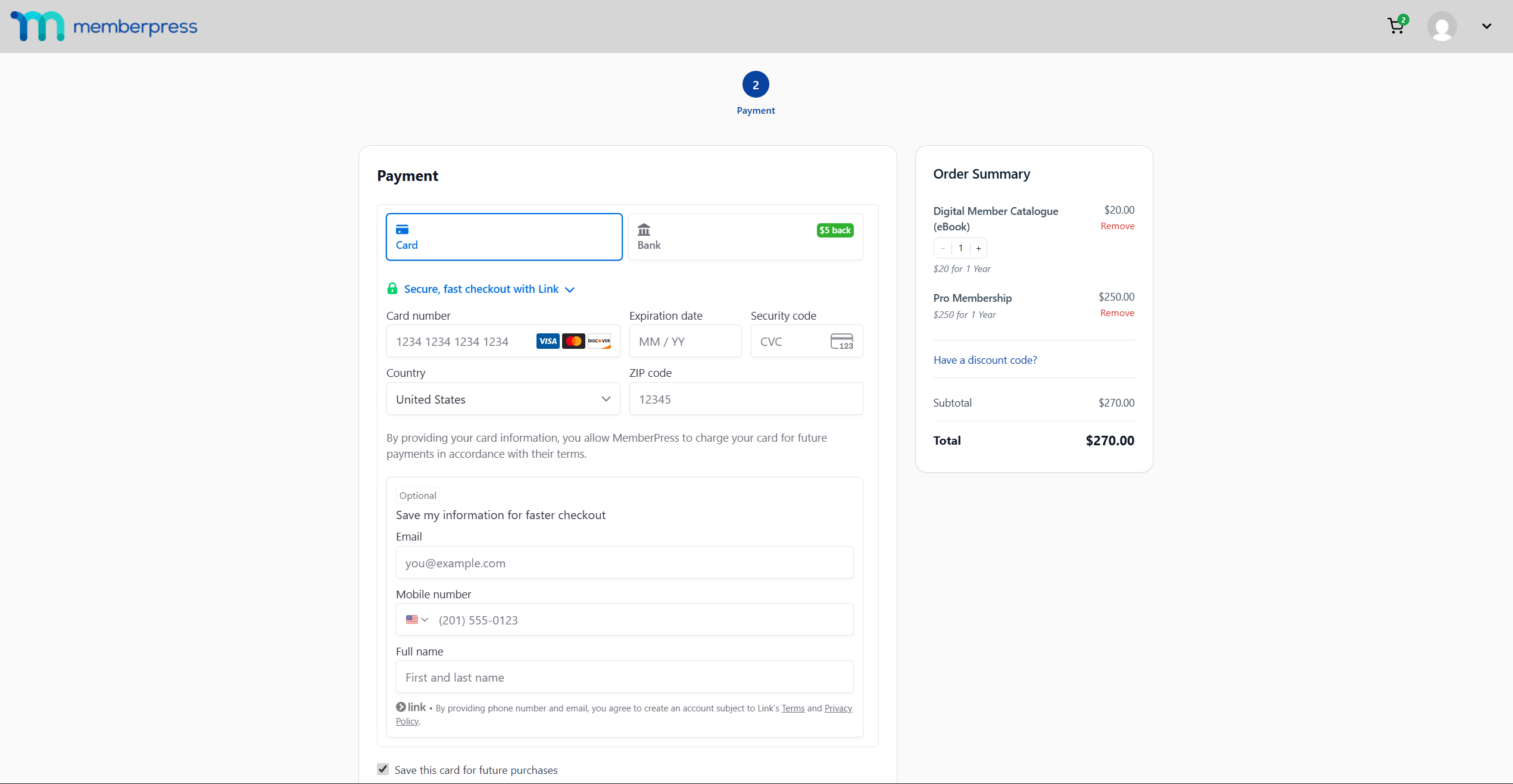
Zwei Zahlungsgateways unterstützen den Bezahlvorgang im Warenkorb:
- Streifen – wickelt Kartenzahlungen direkt auf der Bezahlseite ab;
- Offline-Zahlung – erfasst den Auftrag zur manuellen Zahlungseinziehung.
Jedes Gateway verfügt über ein eigenes “Für den Warenkorb aktivieren” Option in der MemberPress-Zahlungseinstellungen. PayPal, Authorize.net und Square wickeln Zahlungen ausschließlich auf der eigenständigen Registrierungsseite eines Produkts ab.
Bestellungen und E-Mails
Jeder Warenkorbkauf führt zu einer Bestellung. Sie können Bestellungen unter Dashboard > MemberPress > Bestellungen.
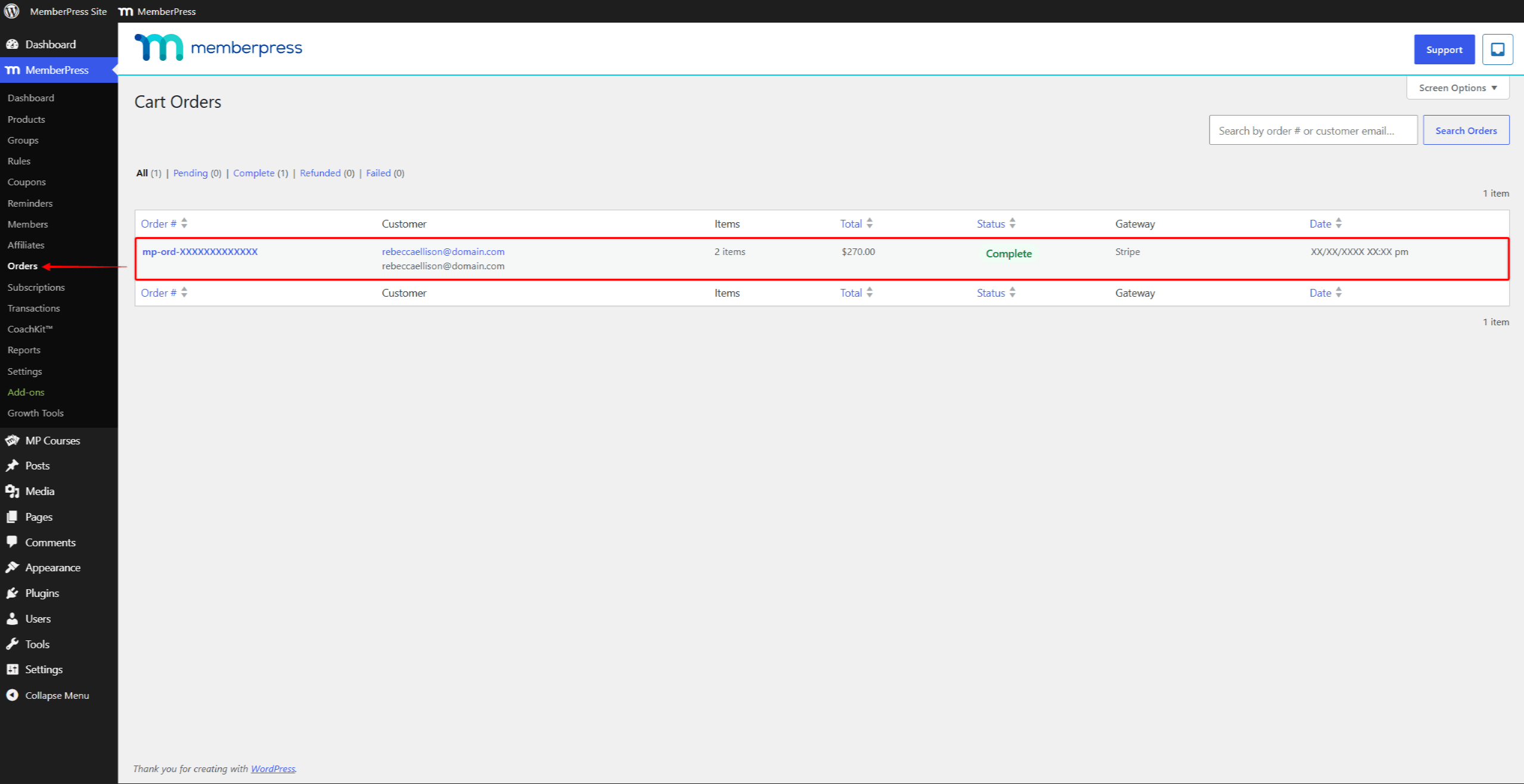
Die “Warenkorb-Bestellungen” Auf dem Bildschirm werden alle Bestellungen mit ihren Artikeln, Gesamtbeträgen und ihrem Status aufgelistet. Von einer Bestellung aus können Sie Rückerstattungen vornehmen, die Quittung erneut versenden, die Bestellung stornieren und Bestellhinweise hinzufügen. Kunden können ihre eigenen Bestellungen auf der Bestellungen Seite ihres Kontos.
Der Warenkorb fügt sechs E-Mail-Benachrichtigungen hinzu. MemberPress versendet diese automatisch bei bestimmten Bestellereignissen:
- Bestellbestätigung für den Warenkorb – an den Kunden gesendet, zusammen mit einer entsprechenden Benachrichtigung an den Administrator;
- Rückerstattung einer Bestellung aus dem Warenkorb – an den Kunden gesendet, zusammen mit einer entsprechenden Benachrichtigung an den Administrator;
- Stornierung einer Bestellung im Warenkorb – an den Kunden gesendet, zusammen mit einer entsprechenden Benachrichtigung an den Administrator.
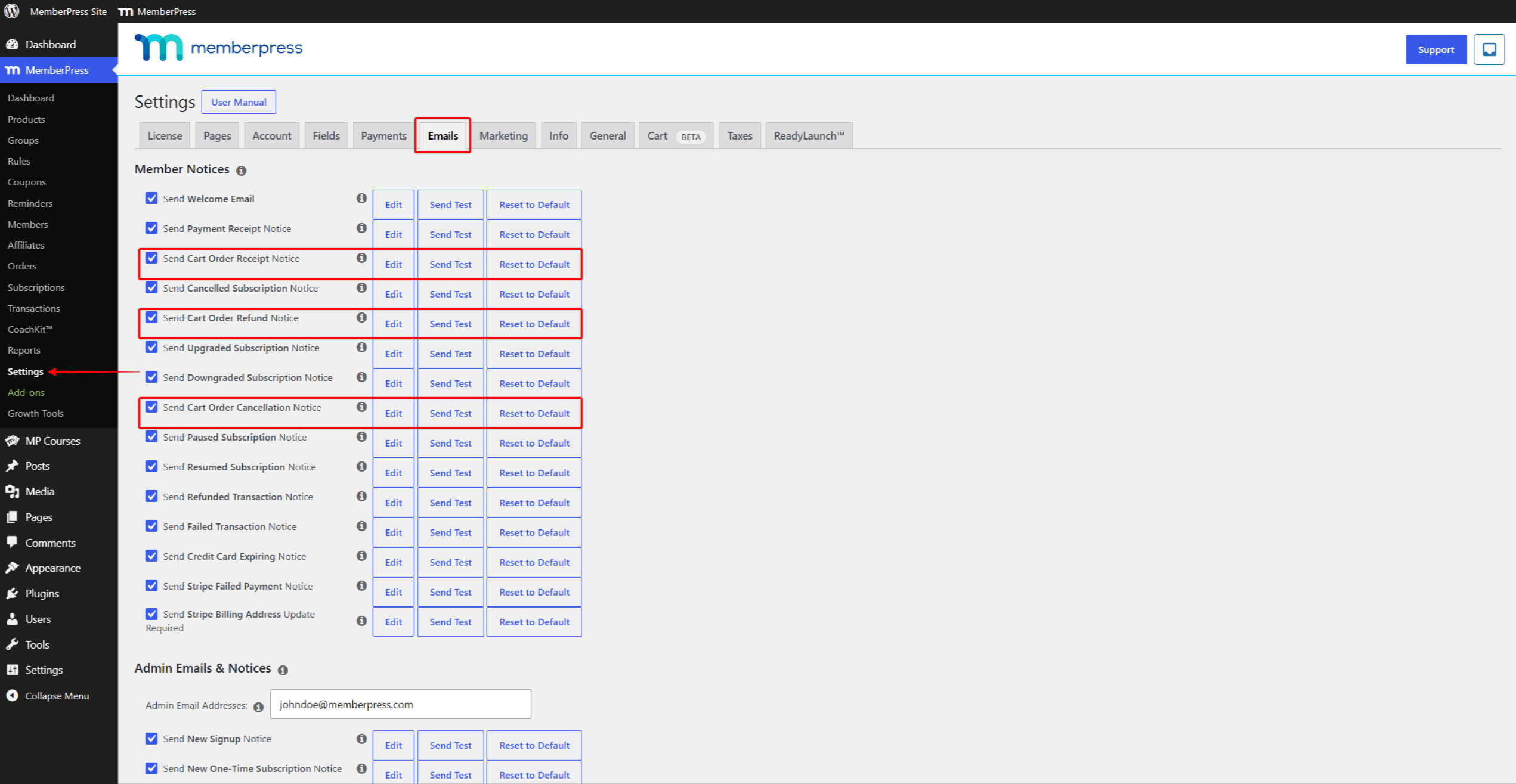
Sie können diese Hinweise unter Dashboard > MemberPress > Einstellungen, unter dem E-Mails tab.
Was sich durch den Einkaufswagen nicht ändert
Die bestehenden MemberPress-Funktionen funktionieren weiterhin wie bisher. Der Warenkorb verändert die Art und Weise, wie Kunden einkaufen, nicht aber, was sie kaufen.
Die folgenden Bereiche bleiben unverändert:
- Inhaltsschutz durch MemberPress-Regeln;
- wiederkehrende Abrechnungen, Abonnements und Transaktionen für Mitgliedschaftsprodukte;
- Mitgliederkonten, Gruppen und Gutscheine;
- Eigenständige Registrierungsseiten, die unabhängig davon, ob der Warenkorb aktiviert ist oder nicht, weiterhin unterstützt werden.
Gruppen akzeptieren ausschließlich Produkte vom Typ „Mitgliedschaft“. Auf dem Bearbeitungsbildschirm der Gruppe werden diese unter dem “Mitgliedschaftsprodukte” Feld.











 DE
DE  EN
EN  ES
ES  FR
FR  PT
PT 