

MemberPress proporciona un bloque Gutenberg y shortcodes para mostrar Círculos en cualquier página o post. El bloque Circle y los shortcodes ofrecen un control total sobre cómo aparecen los círculos en el sitio web.
En este documento se explica cómo utilizar el shortcode Archivo de círculos, el bloque Círculo único y el shortcode Círculo único. Estas opciones permiten incrustar círculos en cualquier lugar, con una configuración de visualización personalizable.
Círculo Archivo Shortcode
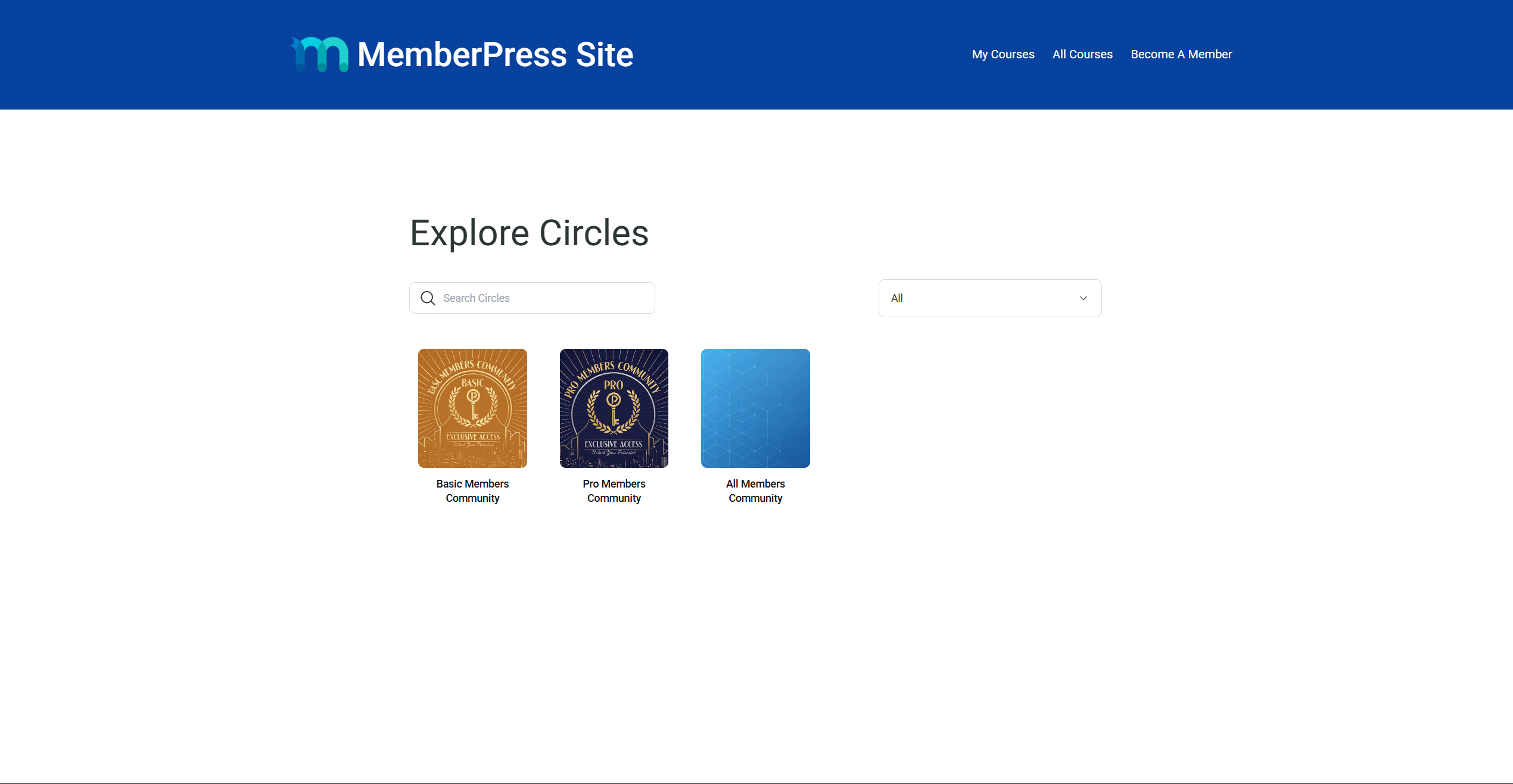
El shortcode Archivo de Círculos muestra el archivo completo de Círculos en cualquier página. Este es el mismo listado disponible en la página por defecto /mp-circle URL en el sitio web. Los miembros pueden navegar, buscar y unirse a los Círculos directamente desde esta página.
El shortcode funciona con el Editor de bloques Gutenberg y constructores de páginas populares como Elementor y Divi.
Añadir el código corto de archivo con Gutenberg
Sigue estos pasos para añadir el archivo Circles a cualquier página o entrada:
- Vaya a Panel > Páginas > Añadir nueva página.
- Añade un título a la página.
- Añadir un Código corto al área de contenido de la página.
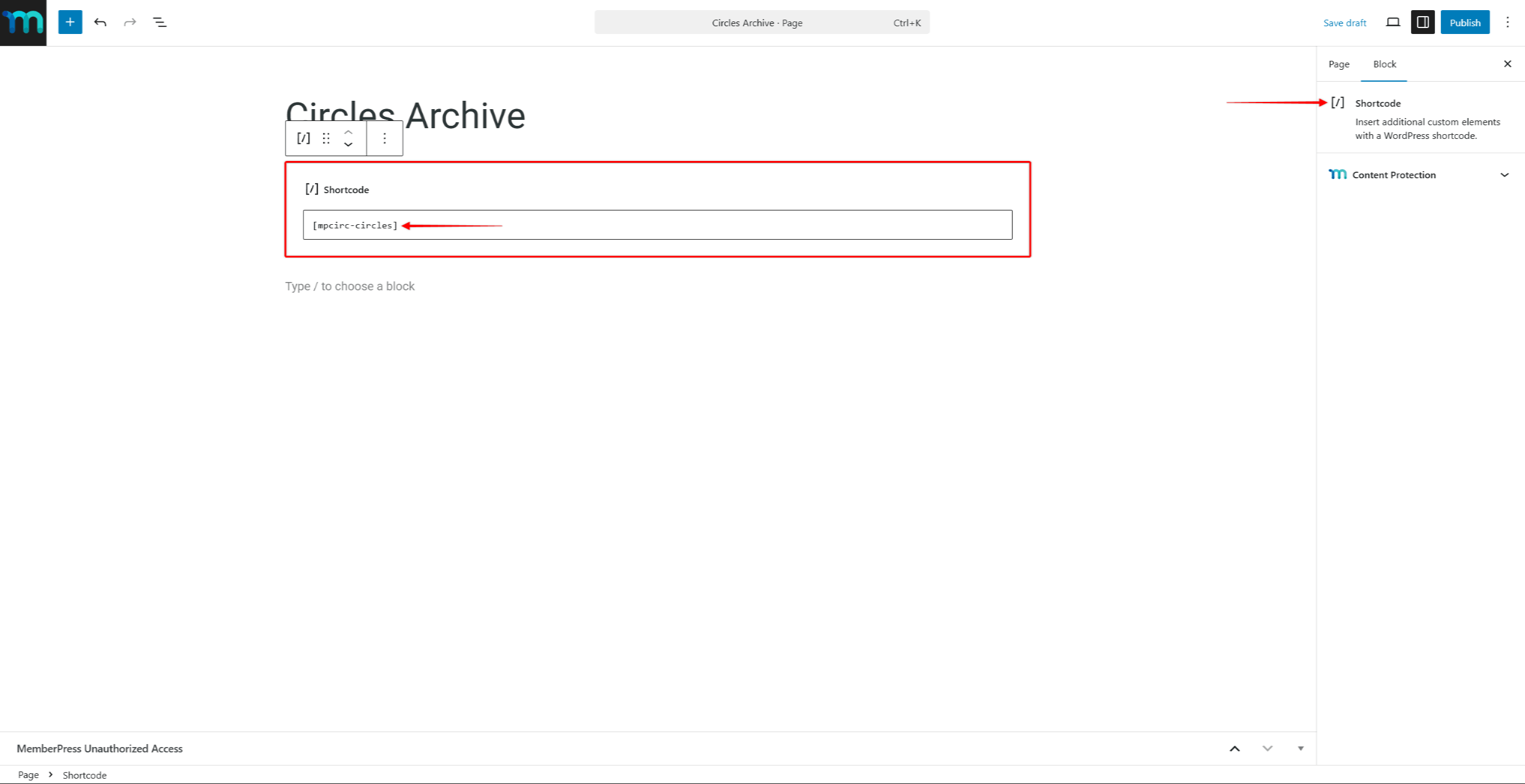
- Introduzca el siguiente shortcode:
[mpcirc-circles]- Haga clic en Publique para guardar la página.
La página mostrará ahora el archivo de Círculos con todos los Círculos visibles.
Cómo añadir el código corto de archivo con los creadores de páginas
El código corto del archivo de Circle se puede añadir a páginas creadas con casi cualquier constructor de páginas. Para ello, utiliza el módulo de códigos cortos del constructor de páginas para añadir el código corto del archivo de Circle a una página.
Por ejemplo, añada el Widget de código corto en Elementor o el Módulo de código en Divi. A continuación, pegue el siguiente código corto de archivo Circle en él:
[mpcirc-circles]Bloque circular único
MemberPress incluye un bloque dedicado de Gutenberg para mostrar un único Círculo en cualquier página o publicación. La página Bloque circular proporciona una forma visual de incrustar un Círculo específico sin escribir shortcode.
El bloque utiliza el mismo sistema de renderizado que las páginas Circle. Respeta todos los control de acceso y ajustes de visibilidad configurado para cada Círculo.
Añadir el bloque circular
Sigue estos pasos para añadir el bloque Círculo a una página o entrada:
- Vaya a Panel > Páginas y abra una página existente, o pulse Añadir nueva página.
- Haga clic en el botón Insertador de bloques (+) para añadir un nuevo bloque.
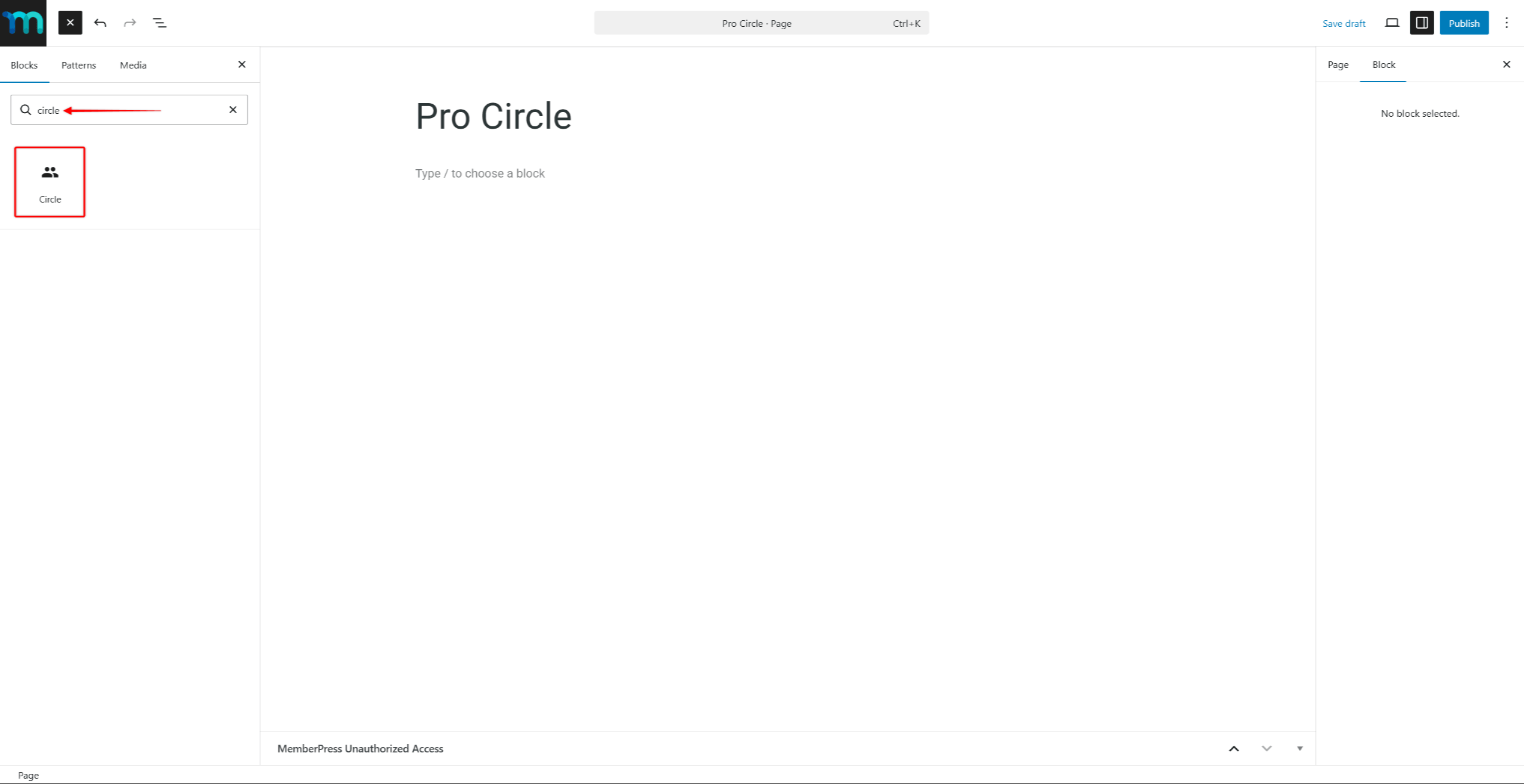
- Buscar “Círculo” en el campo de búsqueda de bloques.
- Seleccione Círculo bloque de los resultados.
- En el Ajustes de bloque de la derecha, utilice el botón Seleccionar círculo para elegir el Círculo a mostrar.
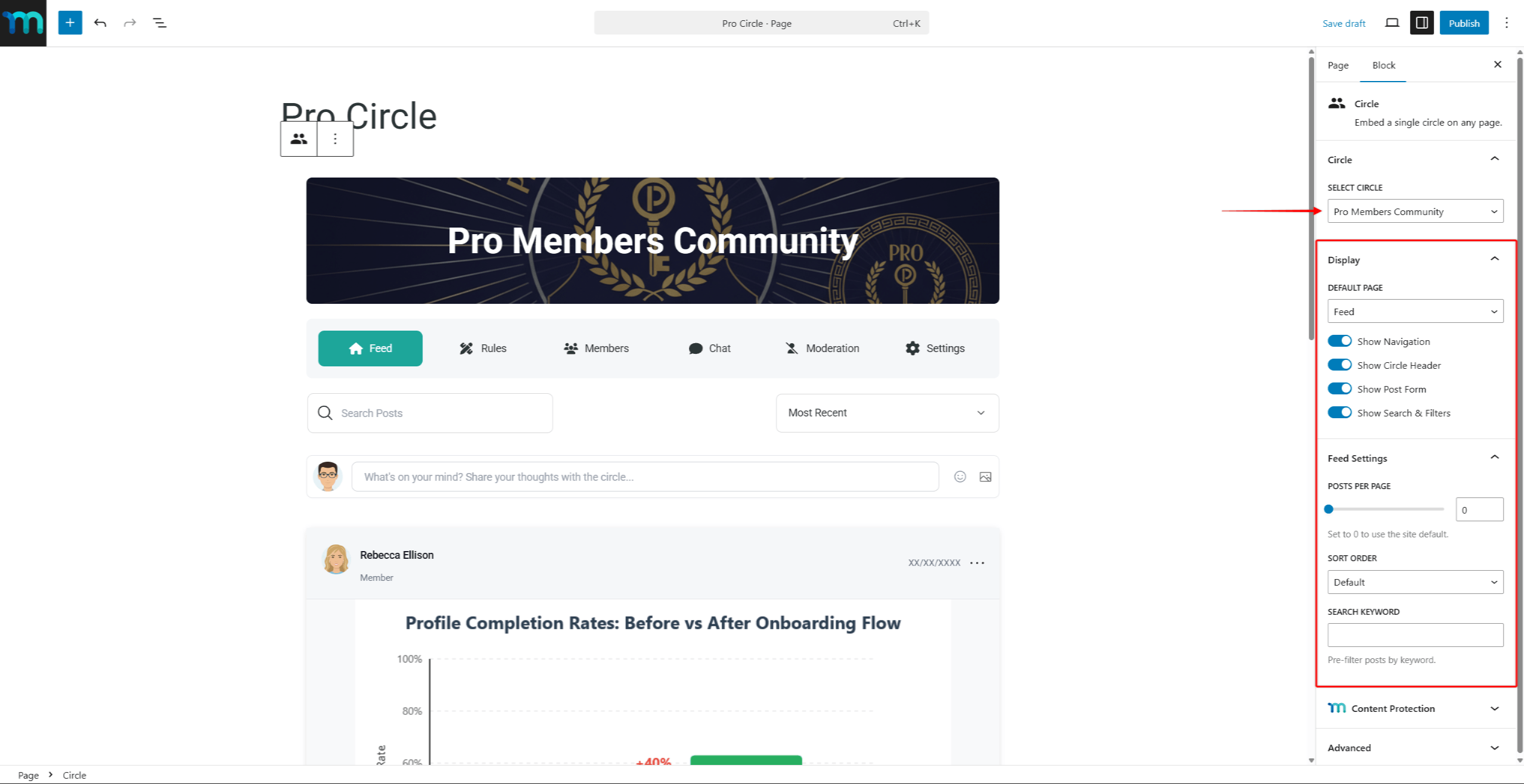
- Opcionalmente, ajuste el Mostrar y Ajustes de alimentación en el panel de bloques para personalizar el aspecto del Círculo.
- Haga clic en Publique o Actualización para guardar la página.
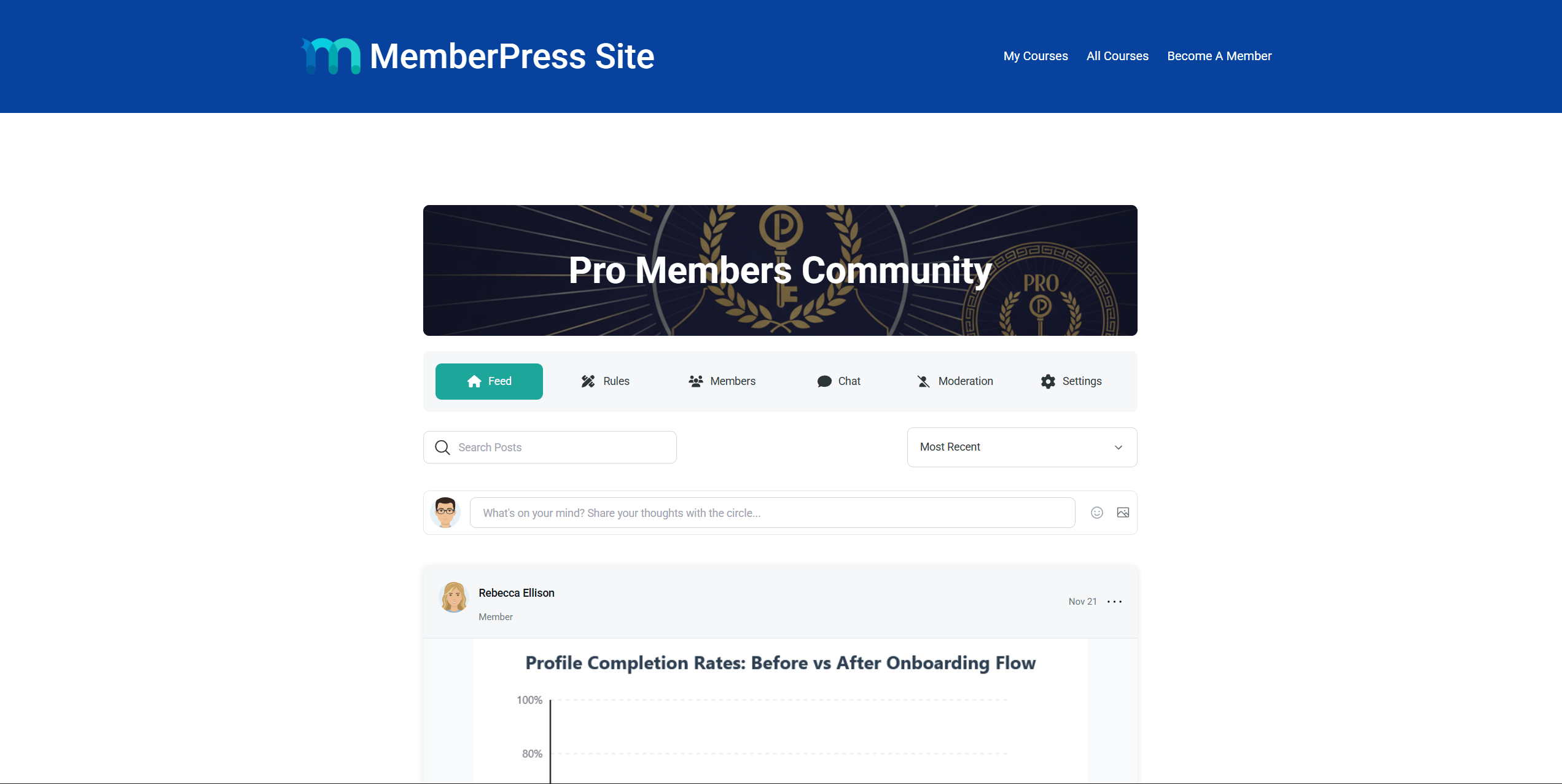
El editor mostrará una vista previa en directo del Círculo, incluyendo la imagen principal, las pestañas de navegación, el feed y las entradas.
Ajustes de visualización del bloque circular
El bloque Círculo ofrece las mismas opciones de visualización que el bloque atributos del shortcode single Circle. Estos ajustes están disponibles en Ajustes de bloque cuando se selecciona el bloque Círculo:
- Página por defecto - establece la página que se muestra cuando se carga el bloque (Feed, Miembros, Reglas, Configuración o Moderación);
- Mostrar navegación - activa el menú de navegación de la página (Feed, Reglas, Miembros, Chat, Moderación, Configuración);
- Mostrar cabecera circular - alterna entre la imagen y el título del héroe del Círculo;
- Mostrar formulario - activa el formulario de creación de entradas en la página de alimentación;
- Mostrar búsqueda y filtros - activa los controles de búsqueda y clasificación en la página de feeds;
- Mensajes por página - establece el número de entradas que se muestran por página (establece 0 para utilizar el valor predeterminado del sitio);
- Orden de clasificación - establece el orden por defecto de las entradas (Por defecto, Recientes, Populares o Comentadas);
- Buscar palabra clave - rellena previamente la búsqueda para mostrar sólo las entradas coincidentes.
Código corto de círculo único
El shortcode Círculo único muestra un Círculo específico en cualquier página o entrada. A diferencia del shortcode de archivo que muestra todos los círculos, este shortcode sólo muestra el círculo que coincide con el ID proporcionado.
Este shortcode requiere el ID del Círculo. Por ejemplo, para mostrar el Círculo con el ID de 123, se debe utilizar el siguiente shortcode:
[mccirc-circle id="123"]El shortcode Circle único respeta todos los control de acceso y ajustes de visibilidad configurado para el Círculo.
Encontrar el ID del círculo
Para encontrar el ID de un Círculo, siga estos pasos:
- Vaya a Panel de control > ClubSuite™ > Círculos.
- Pase el ratón sobre el nombre del Círculo. El ID del círculo aparecerá en la URL que se muestra en la barra de estado del navegador. El ID es el número que aparece después de
post=en la URL.
Como alternativa, haga clic en Editar en el Círculo. El ID del Círculo será visible en la URL de la barra de direcciones del navegador.
Atributos del código corto
El código corto Circle admite varios atributos que controlan la visualización del círculo. En la tabla siguiente se enumeran todos los atributos disponibles:
| Atributo | Por defecto | Valores aceptados | Descripción |
|---|---|---|---|
id | - (obligatorio) | Círculo ID | El ID del Círculo a mostrar. |
página | alimentar | feed, miembros, normas, configuración, moderación | La página por defecto que se muestra cuando se carga el shortcode. Los visitantes aún pueden navegar a otras páginas. |
mostrar_navegación | sí | sí, no | Mostrar u ocultar el menú de navegación de la página (Feed, Miembros, Reglas, etc.). |
mostrar_héroe | sí | sí, no | Mostrar u ocultar la cabecera del Círculo (imagen principal y título). |
show_post_form | sí | sí, no | Mostrar u ocultar el formulario de creación de entradas en la página de alimentación. |
mostrar_buscar | sí | sí, no | Mostrar u ocultar los controles de búsqueda y clasificación en la página de feeds. |
posts_por_página | Sitio por defecto | Cualquier número positivo | Número de entradas a mostrar por página en el feed. |
orden_puestos | reciente | reciente, popular, discutido | Orden por defecto de las entradas en la página de feeds. |
posts_buscar | — | Cualquier texto | Rellene previamente la búsqueda con una palabra clave para mostrar sólo las entradas coincidentes. |
Anular comportamiento
Cuando un visitante utiliza los controles de búsqueda u ordenación de la página, los parámetros URL anulan los valores predeterminados del shortcode. Por ejemplo, si se define posts_order="popular" en el shortcode muestra las entradas ordenadas por popularidad. Sin embargo, si un visitante selecciona “Más reciente” Al utilizar el menú desplegable, la selección del visitante tiene prioridad.
Ejemplos de códigos cortos
A continuación se muestran ejemplos de diferentes combinaciones de atributos para el shortcode Circle. En todos los ejemplos se utiliza el ID de círculo ficticio 123. Sustituya este ID por el ID real del círculo.
Uso básico - mostrar una fuente Circle:
[mccirc-circle id="123"]Empezar en la página de miembros sin estandarte de héroe:
[mccirc-circle id="123" page="miembros" show_hero="no"]Alimentación de sólo lectura - ocultar el formulario de publicación y los controles de búsqueda:
[mccirc-circle id="123" show_post_form="no" show_search="no"]Alimentación compacta - mostrar 5 entradas por página, ordenadas por popularidad:
[mccirc-circle id="123" posts_per_page="5" posts_order="popular"]Incrustación mínima - sólo alimentación, sin navegación ni héroe:
[mccirc-circle id="123" show_navigation="no" show_hero="no"]Pienso prefiltrado - mostrar sólo las entradas que coincidan con una palabra clave:
[mccirc-circle id="123" posts_search="anuncio"]Personalización total - todos los atributos combinados:
[mccirc-circle id="123" page="feed" show_navigation="yes" show_hero="no" show_post_form="no" show_search="yes" posts_per_page="3" posts_order="discussed"]Añadir el código corto de círculo único con Gutenberg
Sigue estos pasos para añadir un único shortcode de Círculo utilizando el editor de Gutenberg:
- Vaya a Panel > Páginas y abra una página existente, o pulse Añadir nueva página.
- Añadir un Código corto al área de contenido de la página.
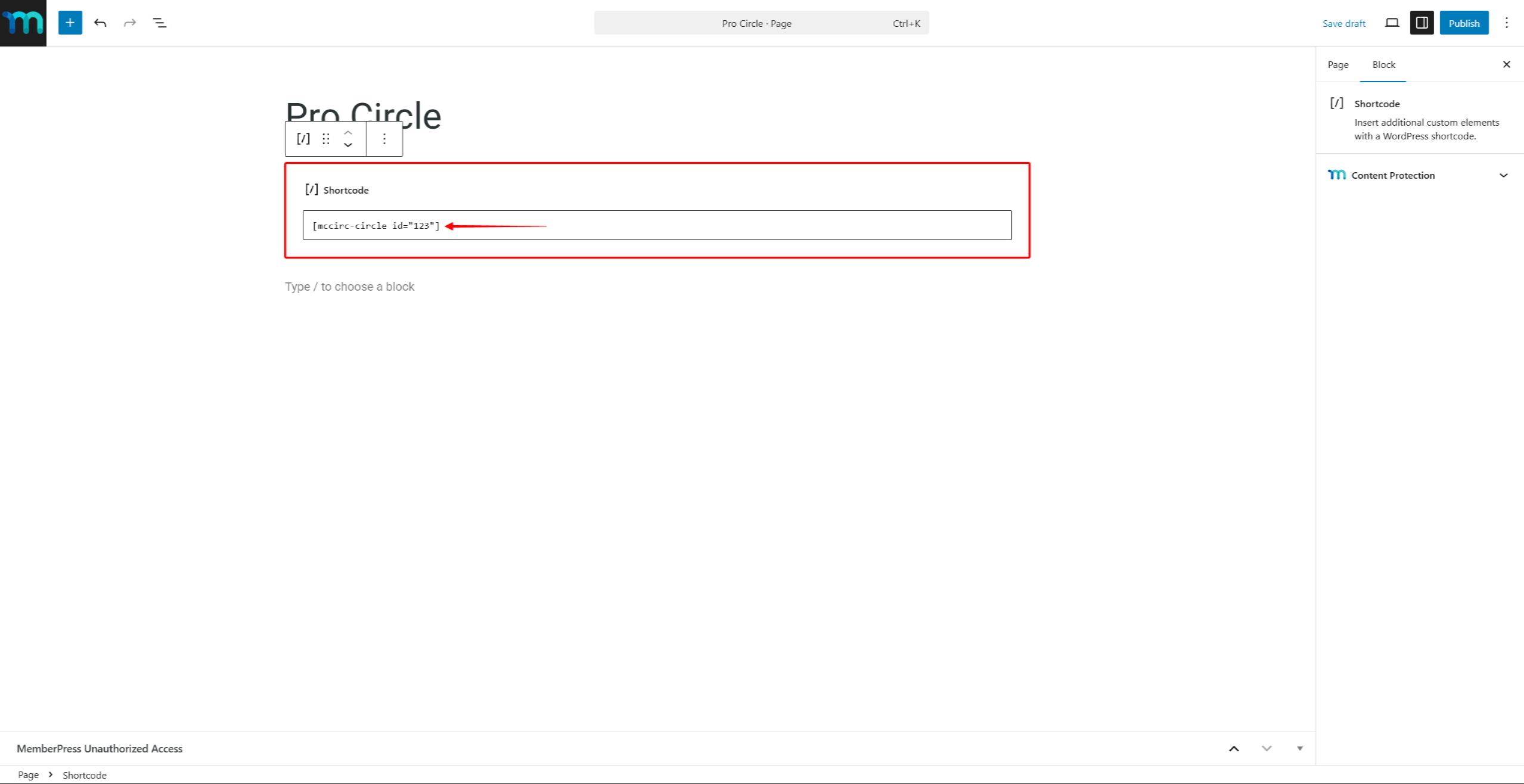
- Introduzca el shortcode con el Circle ID y lo que desee atributos. Por ejemplo:
[mccirc-circle id="123"]- Haga clic en Publique o Actualización para guardar la página.
Cómo añadir el código corto de círculo único con los creadores de páginas
El código corto «Circle» se puede añadir a las páginas creadas con creadores de páginas. Utiliza el módulo de códigos cortos del creador de páginas para pegar el código corto.
Por ejemplo, añada el Widget de código corto en Elementor o el Módulo de código en Divi. A continuación, pegue en él el shortcode Círculo único con atributos.
Mejores prácticas para mostrar círculos
Al incrustar círculos en páginas personalizadas, tenga en cuenta las siguientes recomendaciones:
- Utilice la código corto o bloque Circle para mostrar círculos específicos en páginas de destino o áreas de afiliación;
- Utilice la shortcode de archivo para ofrecer a los afiliados un directorio completo de Círculos;
- Aplique el
show_navigation="no"yshow_hero="no"al incrustar un círculo en una barra lateral o en un diseño compacto; - Utilice la
posts_buscarpara crear vistas prefiltradas que destaquen temas específicos dentro de un Círculo.
Para obtener más información sobre la creación y configuración de círculos, consulte la página Crear y gestionar círculos documentación.










 ES
ES  EN
EN  FR
FR  DE
DE  PT
PT 