

Las entradas de blog atraen al público, muestran la experiencia y aumentan la retención de miembros dentro de las aplicaciones móviles. MemberPress AppKit le permite mostrar el contenido del blog optimizado para dispositivos móviles.
En este documento se explica cómo añadir la página Blog a los menús de las aplicaciones, crear entradas de blog y optimizar el contenido para su visualización en dispositivos móviles.
Comprender la funcionalidad del blog
La función Blog muestra las entradas de WordPress dentro de la interfaz de la aplicación. Los miembros acceden al contenido del blog a través de elementos de navegación específicos en la barra de pestañas o en el menú Más. Las entradas creadas en WordPress aparecen automáticamente en la sección Blog de la aplicación. Las imágenes destacadas y el formato del contenido mejoran la experiencia de lectura en dispositivos móviles.
Revisar el Creación de múltiples versiones de menú documentación para opciones avanzadas de configuración del menú.
Añadir la página del blog a la navegación de la aplicación móvil
La página del blog debe añadirse a la navegación de la aplicación antes de que los miembros puedan acceder al contenido del blog.
Añadir el menú Blog a la barra de pestañas
- Vaya a Panel de control > MP AppKit > Menús > Barra de pestañas.
- Localice el Núcleo de la aplicación sección en el panel de elementos disponibles.
- Encuentre Blog en la lista App Core.
- Marca la casilla junto a Blog.
- Haga clic en Añadir al menú.
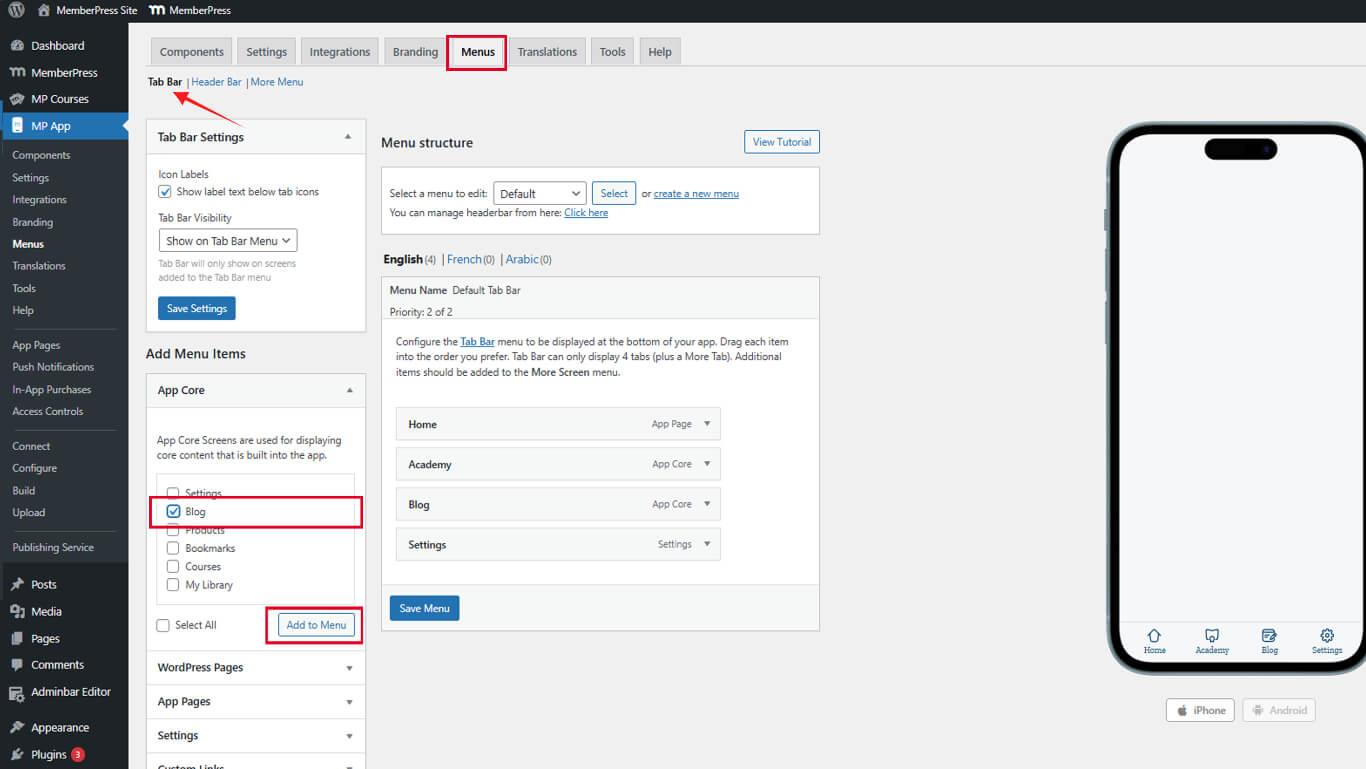
- Arrastra el elemento Blog a la posición deseada en el orden del menú.
- Haga clic en el botón Guardar menú.
La pestaña Blog aparece en la barra de pestañas de la aplicación móvil (iOS/Android) después de guardarla.
Añadir el menú Blog al menú Más
- Vaya a Panel > MP AppKit > Menús > Menú Más.
- Localice el Núcleo de la aplicación sección en el panel de elementos disponibles.
- Encuentre Blog en la lista App Core.
- Marca la casilla junto a Blog.
- Haga clic en Añadir al menú.
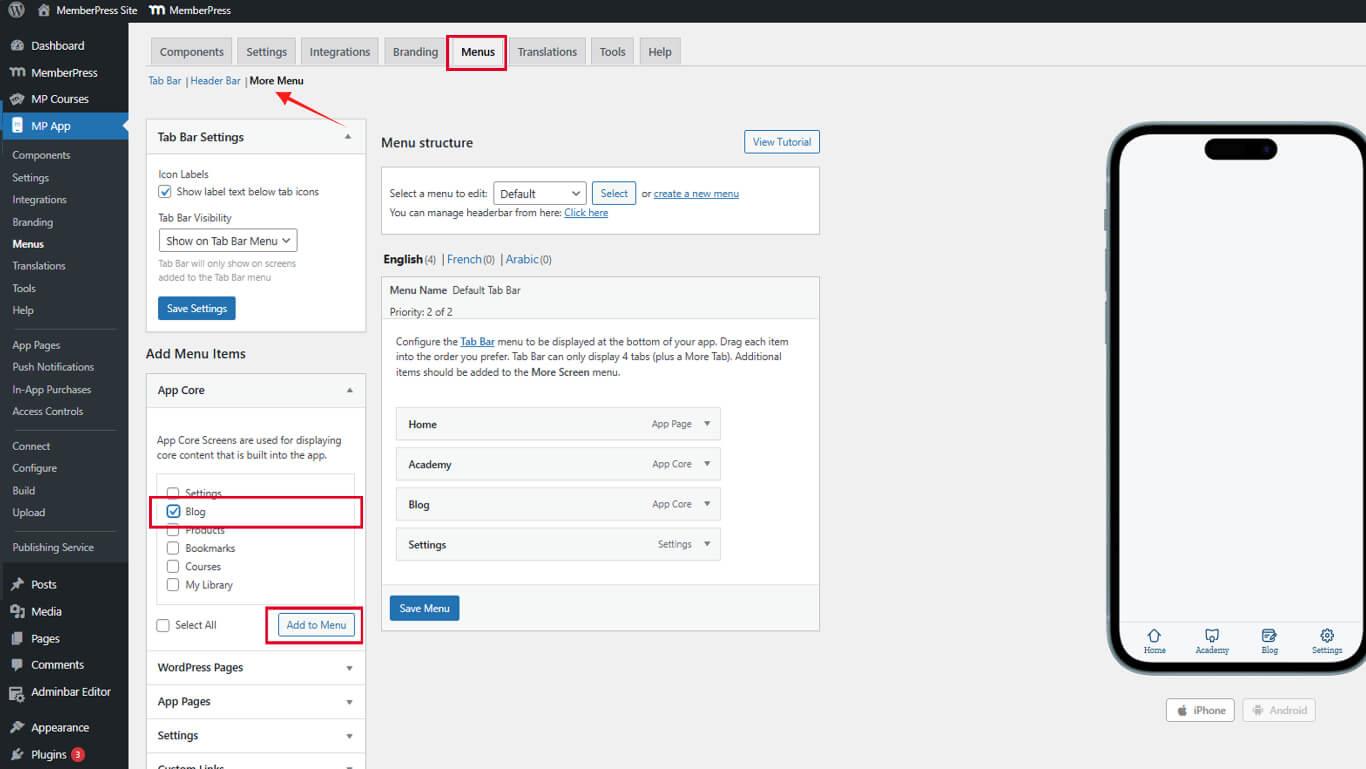
- Arrastra el elemento Blog a la posición deseada en el orden del menú.
- Haga clic en el botón Guardar menú.
La opción Blog aparece en el menú Más después de guardar.
Creación de entradas de blog
Las entradas de WordPress aparecen automáticamente en la sección Blog de la aplicación tras su publicación.
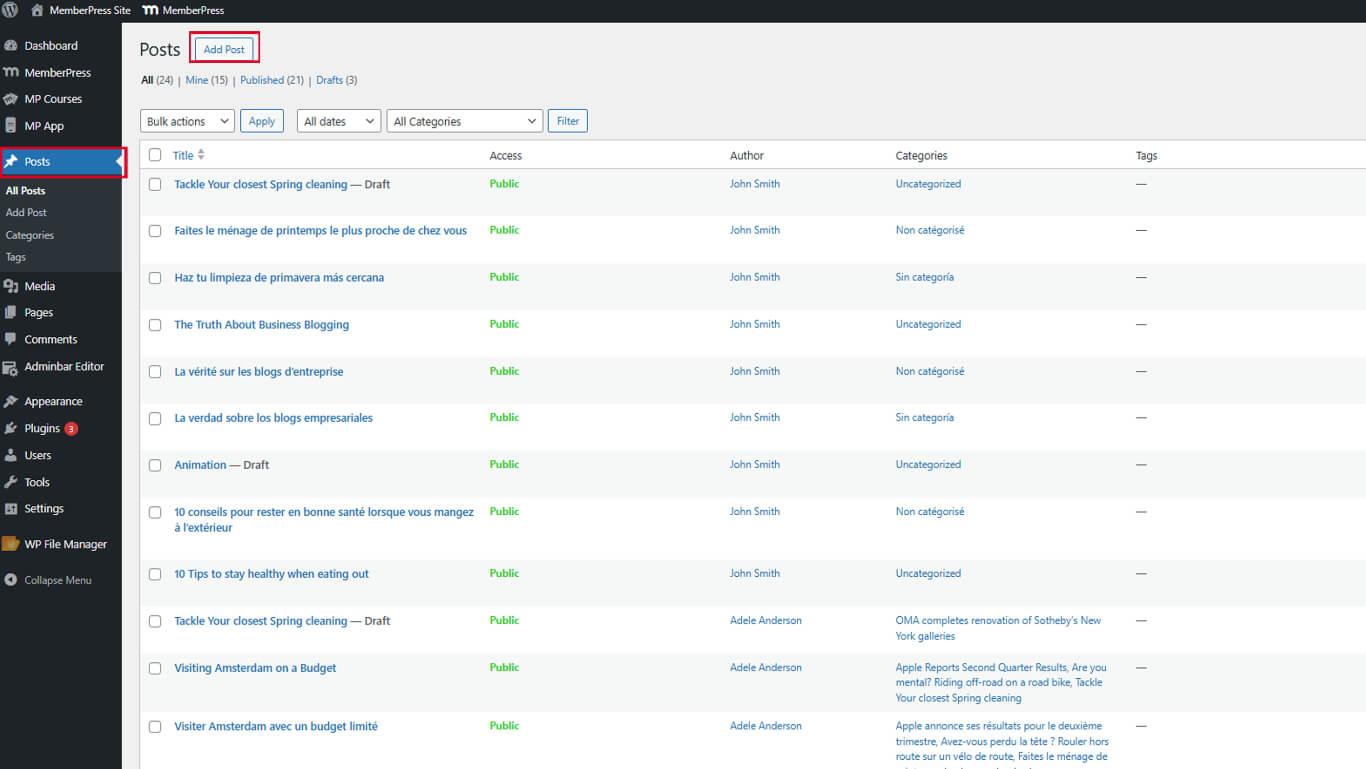
- Vaya a Panel > Mensajes > Añadir nuevo.
- Introduzca un título descriptivo en el Título campo.
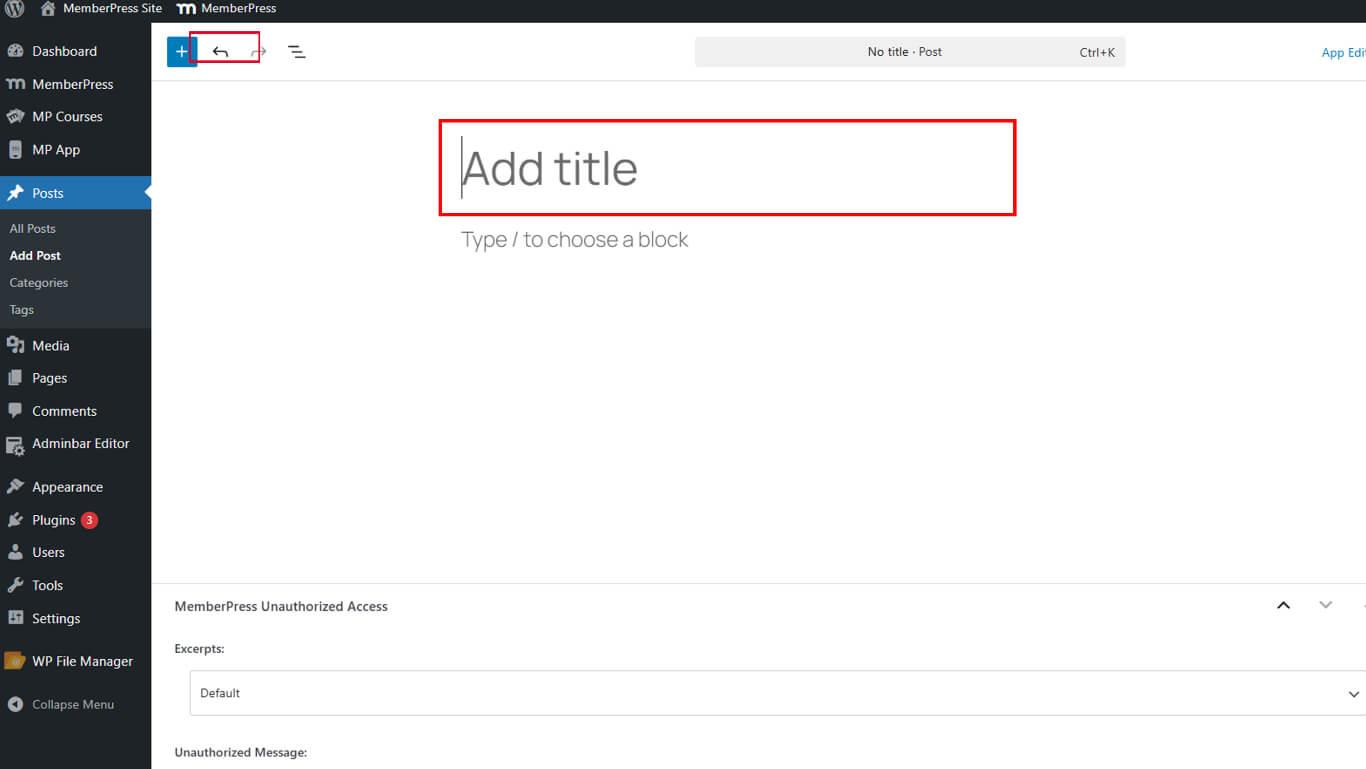
- Escribe el contenido de la publicación en el editor de bloques.
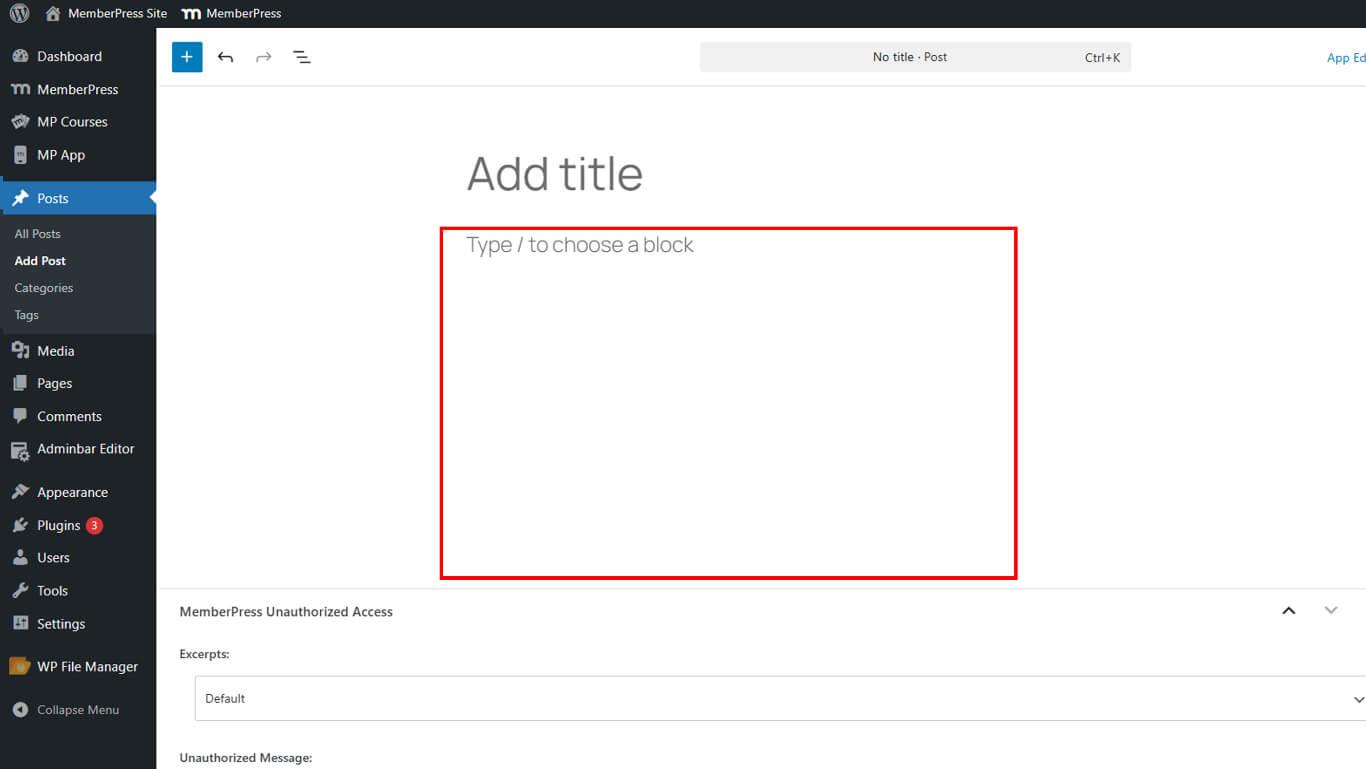
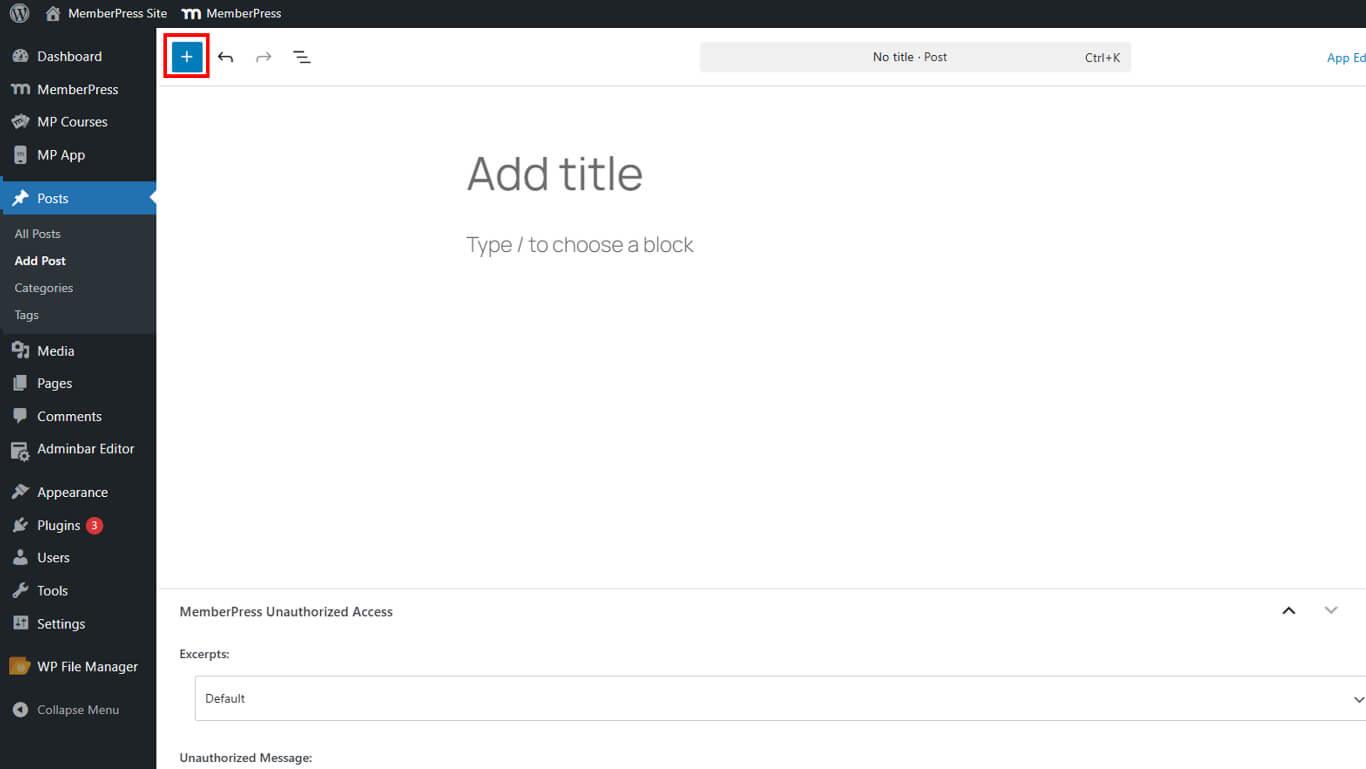
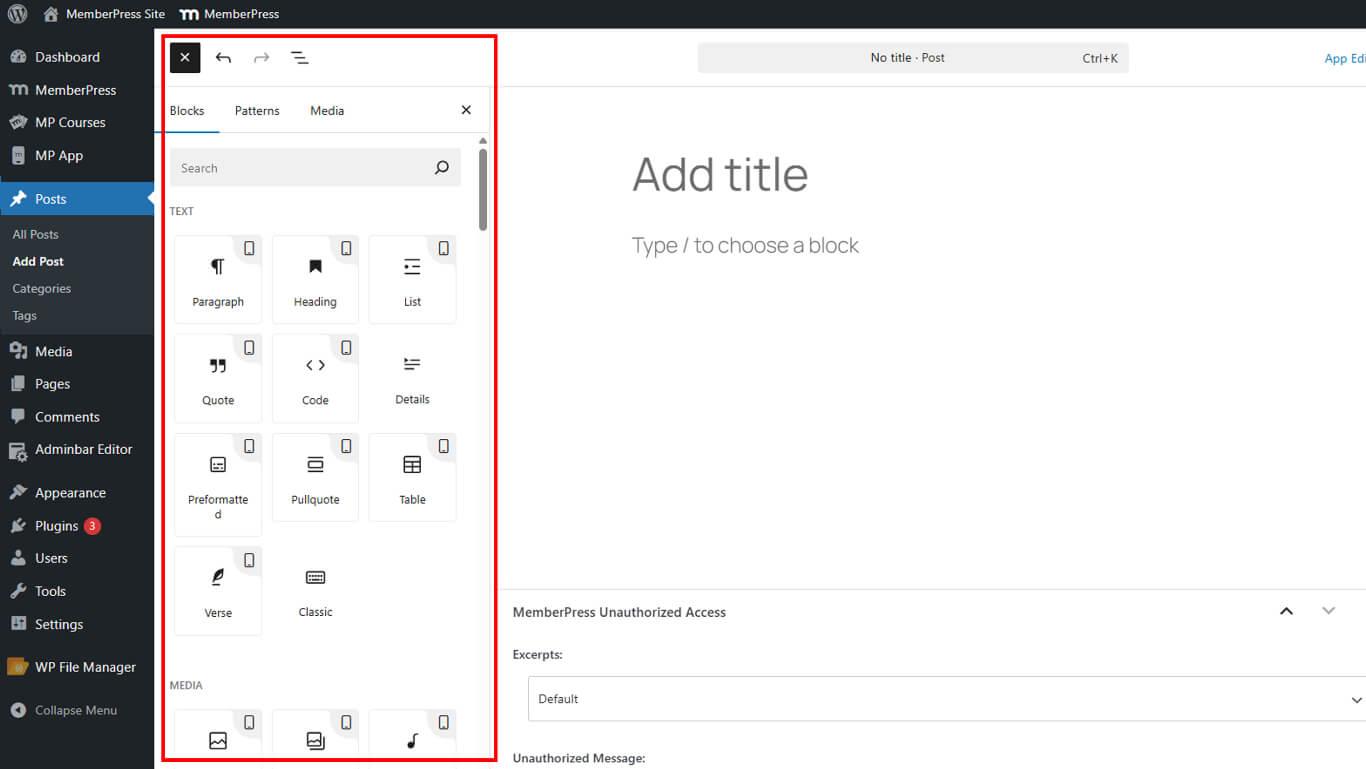
- Utiliza los bloques de Gutenberg para dar formato al texto, añadir imágenes y estructurar el contenido.
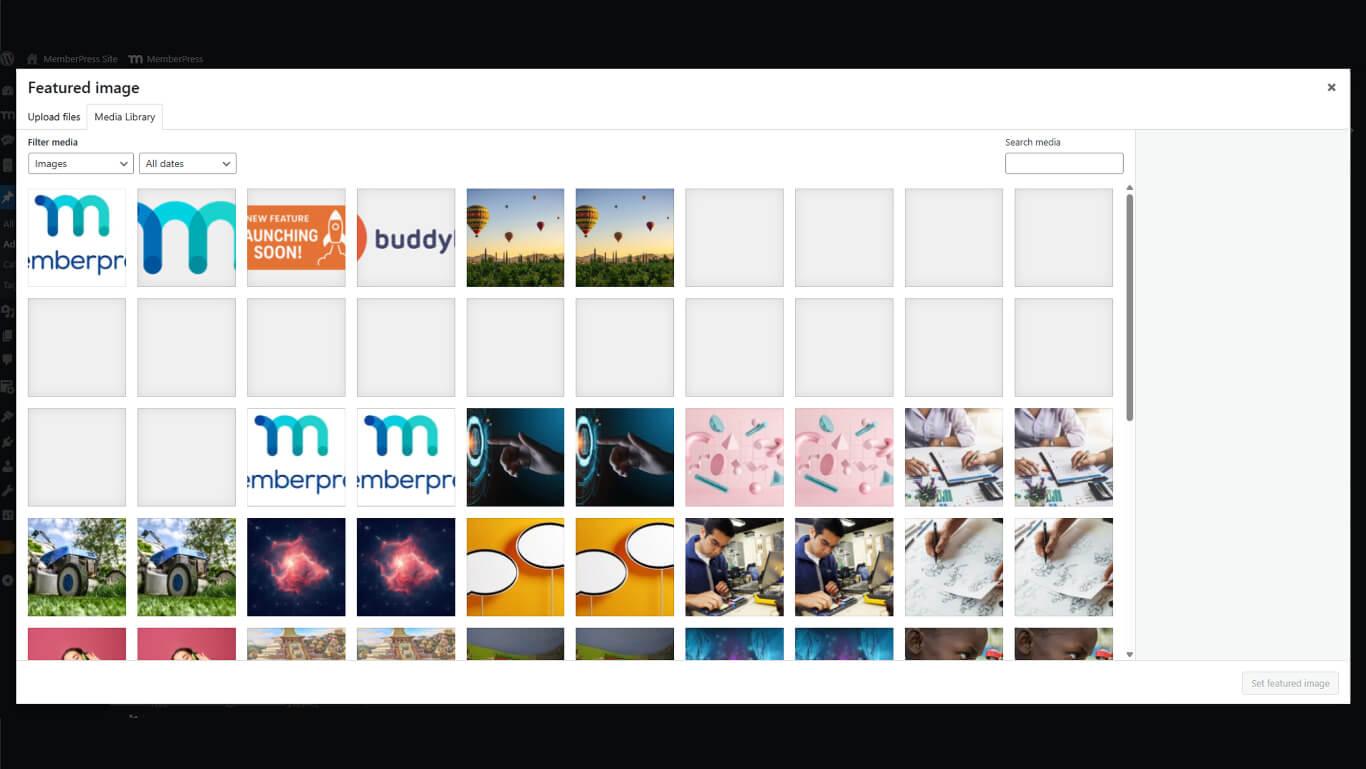
- Haga clic en Establecer imagen destacada en la barra lateral derecha.
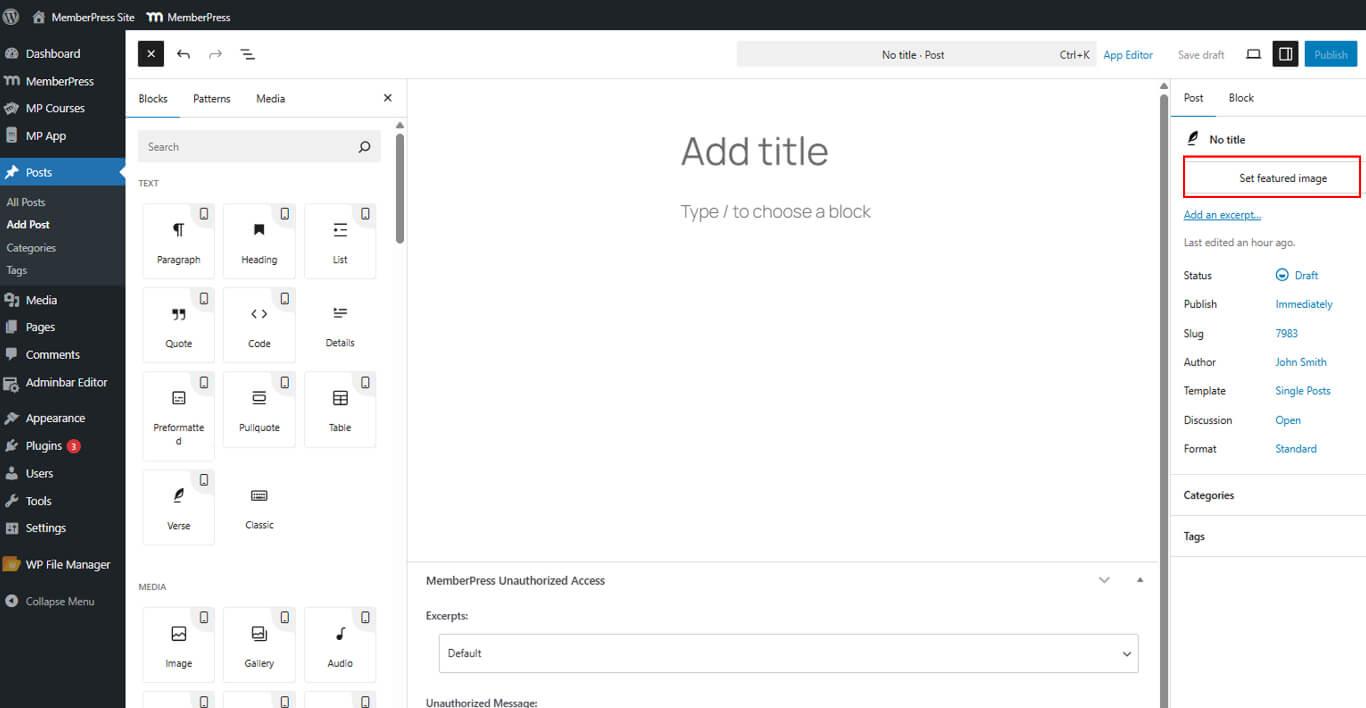
- Sube o selecciona una imagen. para representar la publicación en los listados del blog.
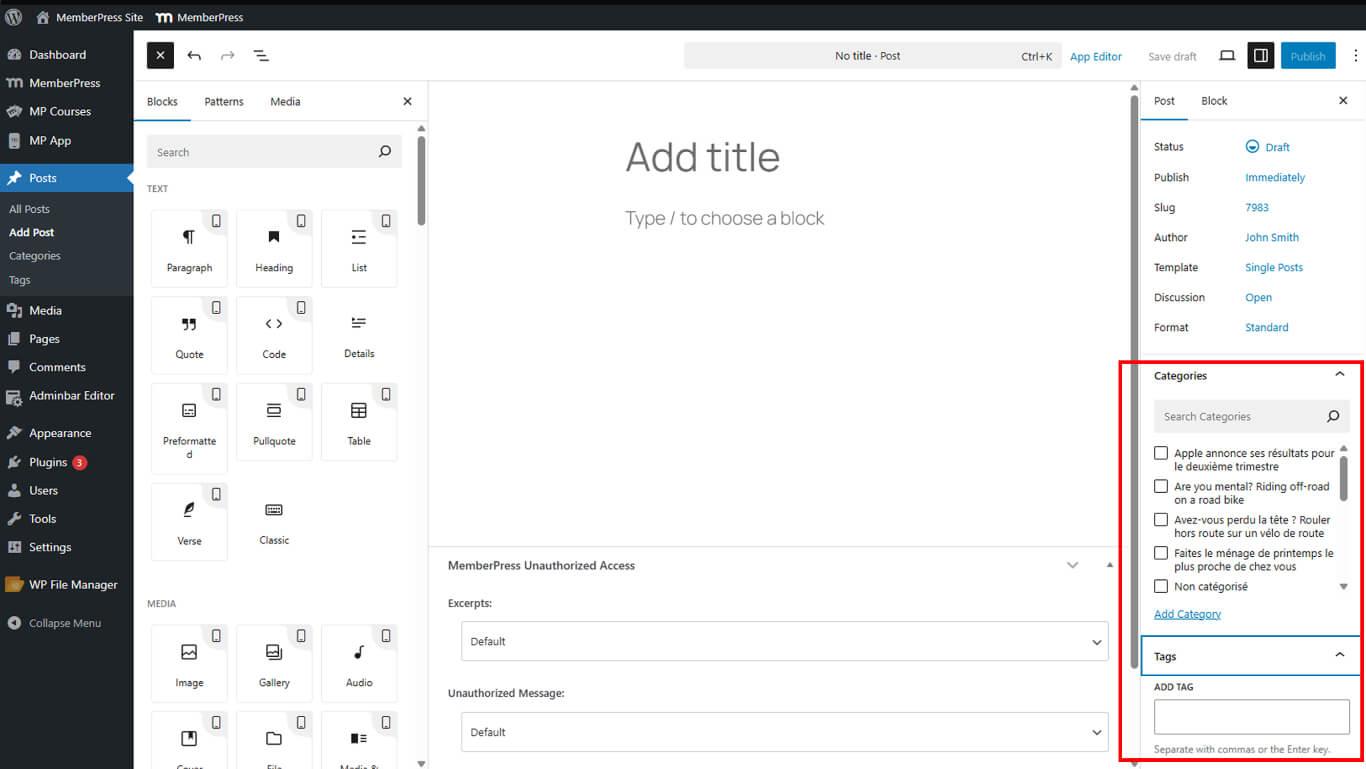
- Configura las categorías y etiquetas de las publicaciones si lo deseas.
- Haga clic en Publique cuando el contenido esté completo.
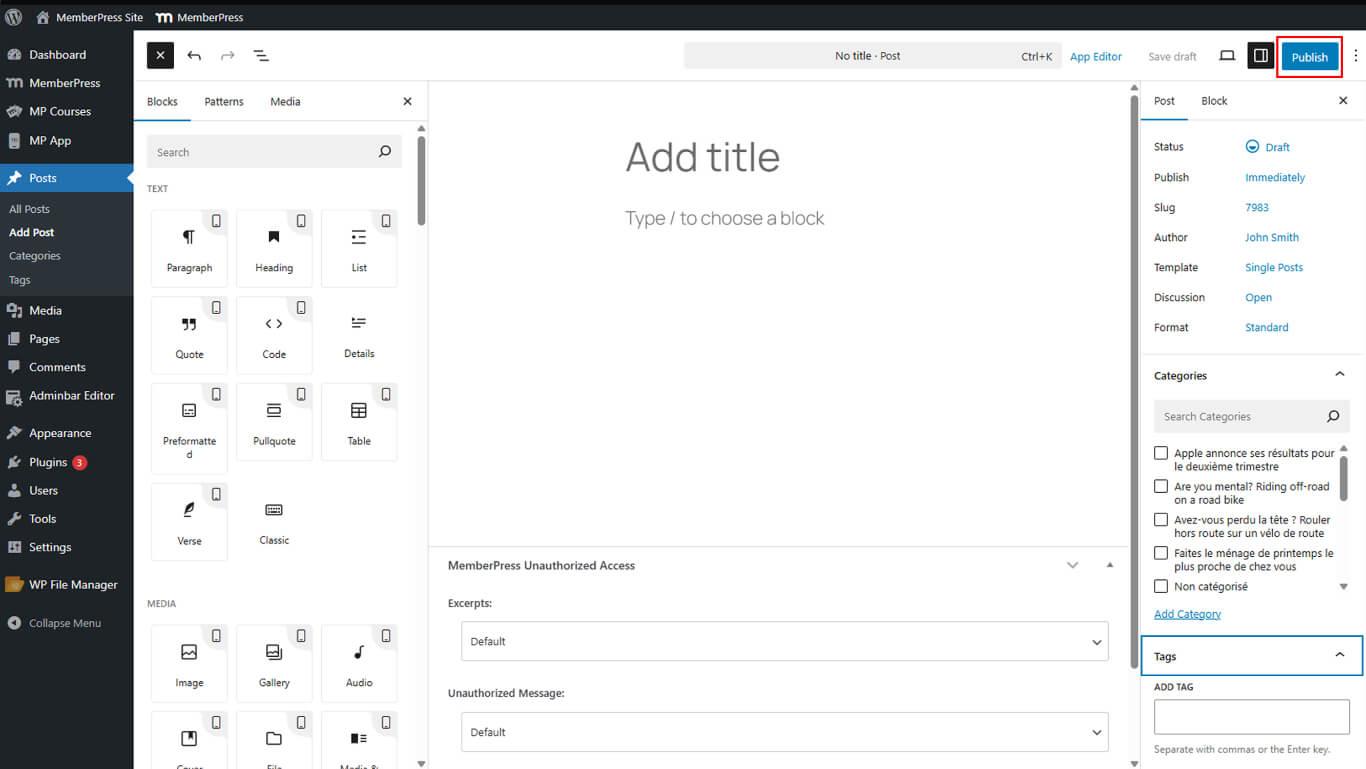
Las publicaciones publicadas aparecen inmediatamente en la sección Blog de la aplicación sin necesidad de configuración adicional.
Optimización de entradas de blog para aplicaciones móviles
- Si tu publicación contiene bloques no compatibles, un advertencia aparecerá en la parte superior del editor.
- Para proporcionar una versión móvil optimizada, cambie a la Editor de aplicaciones pestaña y añadir contenido alternativo.
Una vez publicada, la entrada aparecerá automáticamente dentro del Pestaña Blog en tu aplicación MemberPress iOS/Android.










 ES
ES  EN
EN  FR
FR  DE
DE  PT
PT 