

El MemberPress AI Course Generator es un generador de cursos basado en IA. Se integra directamente en los cursos de MemberPress. El complemento genera estructuras de curso completas a través de un chat con un agente de IA. Esto incluye secciones, lecciones, cuestionarios y borradores de contenido. El generador de cursos AI también incluye Asistente de lecciones AI y el AI Quiz Builder.
Este documento mostrará cómo crear cursos utilizando el Creador de Cursos AI MemberPress.
Requisitos previos
El complemento AI Course Generator requiere lo siguiente para funcionar:
- Plugin MemberPress instalado y activado;
- Complemento MemberPress Courses instalado y activado;
- Complemento AI Course Generator instalado y activado;
- Créditos AI disponibles en la cuenta.
Para la generación de cuestionarios, el Complemento MemberPress Courses Quizzes también debe instalarse y activarse.
Tutorial en vídeo
Modos del generador de cursos AI
El Generador de cursos AI MemberPress puede generar cursos, lecciones, cuestionarios y su contenido. También puede mejorar o ampliar los contenidos existentes.
El complemento AI Course Generator tiene tres modos:
- Creador de cursos de AI - utilizado para crear cursos completos. Esto incluye un curso, un plan de estudios con lecciones y el contenido inicial;
- Asistente de lecciones AI - para generar nuevos contenidos. También puede mejorar el contenido de cursos o lecciones existentes;
- AI Quiz Builder - este modo genera cuestionarios.
Creación de nuevos cursos con AI Course Creator
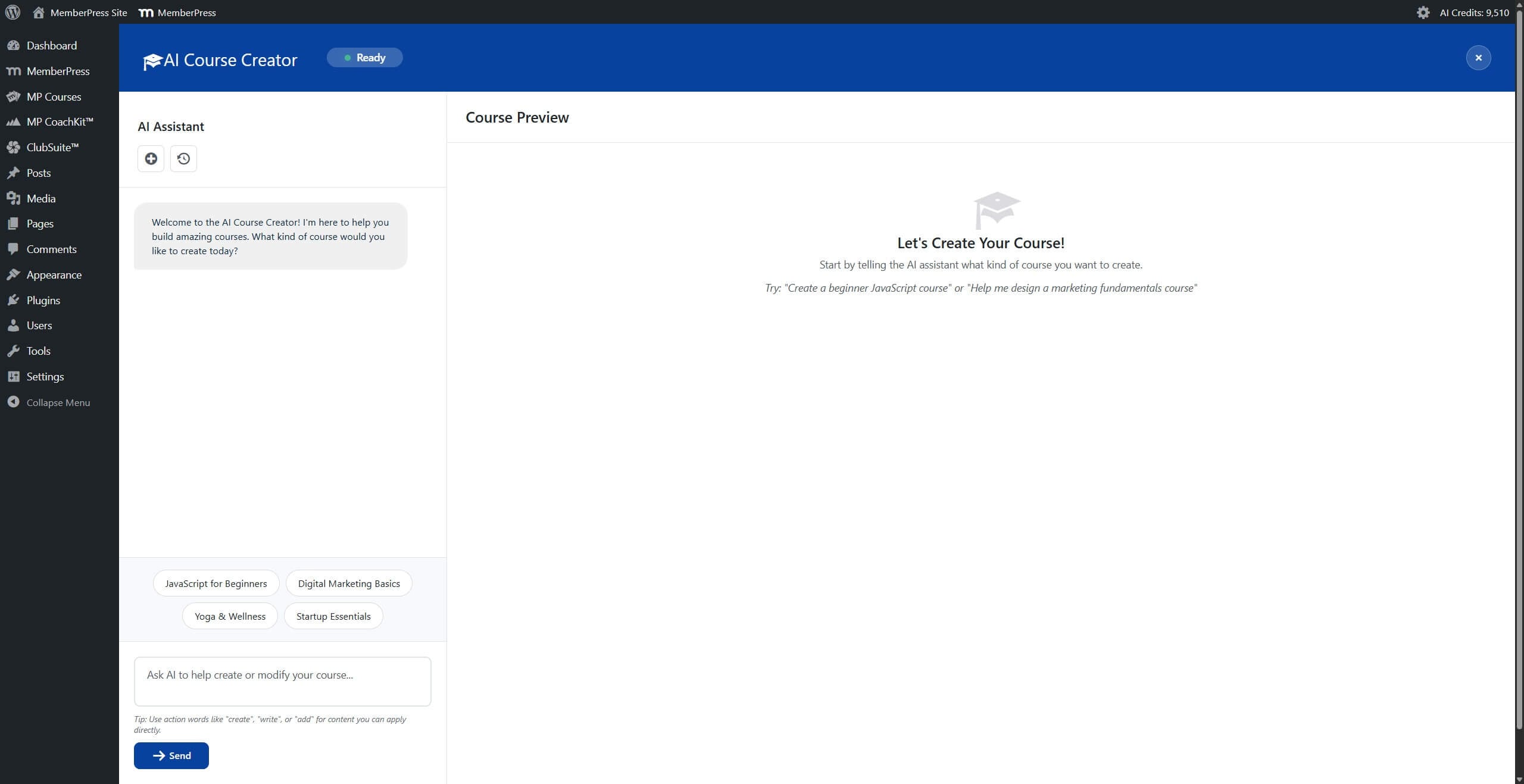
El AI Course Creator utiliza un diseño de dos paneles para la creación de cursos. El panel izquierdo contiene una interfaz de chat en la que el asistente de IA formula preguntas y recibe respuestas. El panel derecho muestra una vista previa en vivo de la estructura del curso que se actualiza a medida que avanza la conversación.
La conversación del Creador de cursos de AI comienza con un mensaje principal que explica qué tipo de curso debe crearse. El mensaje puede incluir detalles como el tema principal, el público objetivo, las metodologías de enseñanza, los resultados específicos del aprendizaje y la duración prevista del curso.
Una vez reunidos los requisitos, la IA genera una estructura completa del curso. Esto incluye el título del curso, las secciones, las lecciones dentro de cada sección, las duraciones estimadas, los objetivos de aprendizaje y el borrador del contenido.
El contenido generado puede modificarse mediante indicaciones adicionales en la interfaz de chat. También existen opciones de edición manual para ajustar la estructura del curso.
Generar una estructura de curso
Para crear un nuevo curso con el AI Course Creator:
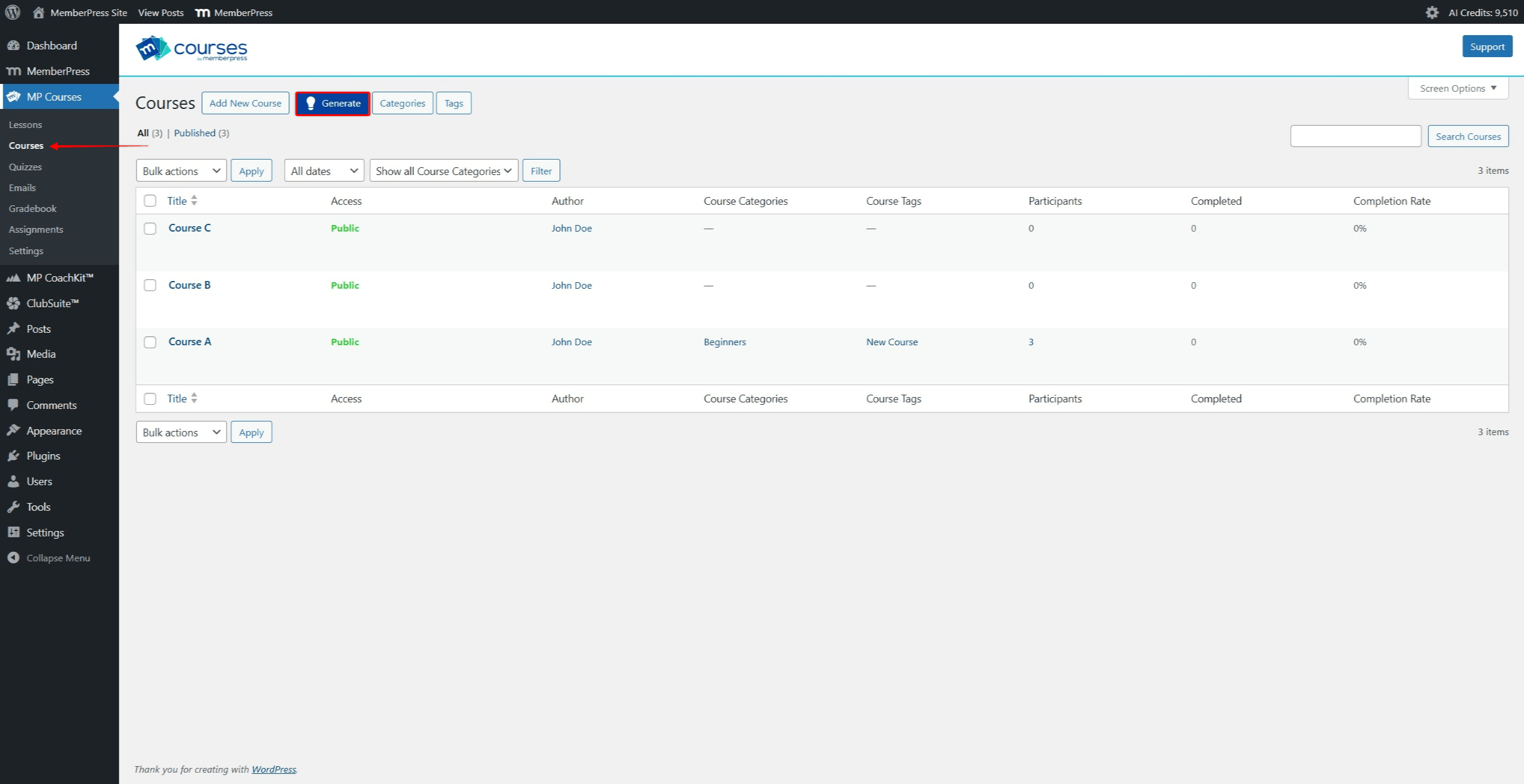
- Vaya a Panel de control > MP Cursos > Cursos.
- Haga clic en el botón Genere en la parte superior de la página Cursos. Este botón se encuentra junto al botón Añadir nuevo curso botón.
- La interfaz del AI Course Creator se abre con un diseño de dos paneles.
- En el campo de chat, escriba un mensaje que describa el curso que desea crear. Incluya detalles como el tema principal, áreas de interés específicas adicionales, público objetivo y duración del curso o número de lecciones.
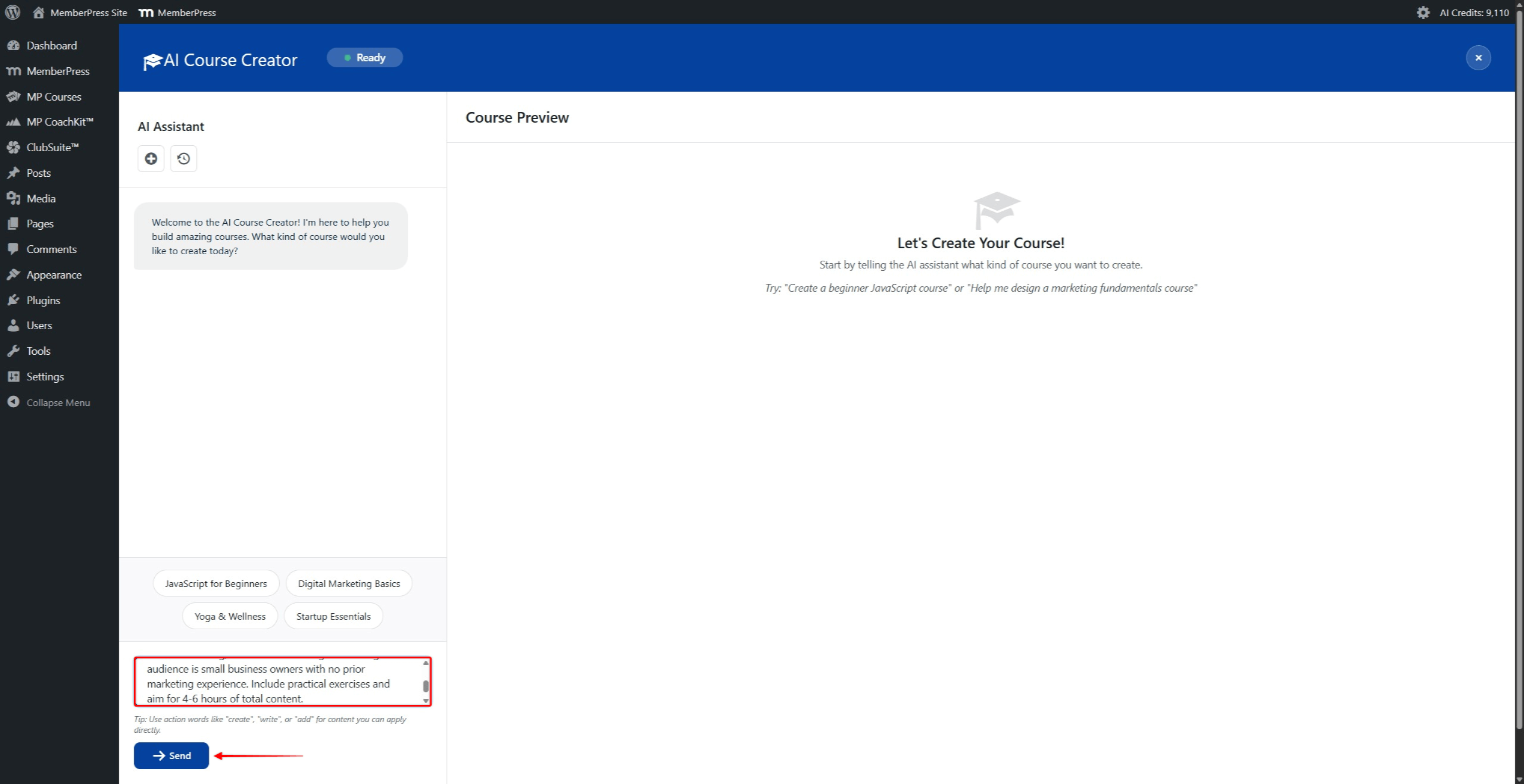
- Haga clic en el botón Enviar para enviar la solicitud.
- Espere a que la IA genere la estructura del curso. El panel Vista previa del curso se actualiza para mostrar el curso generado.
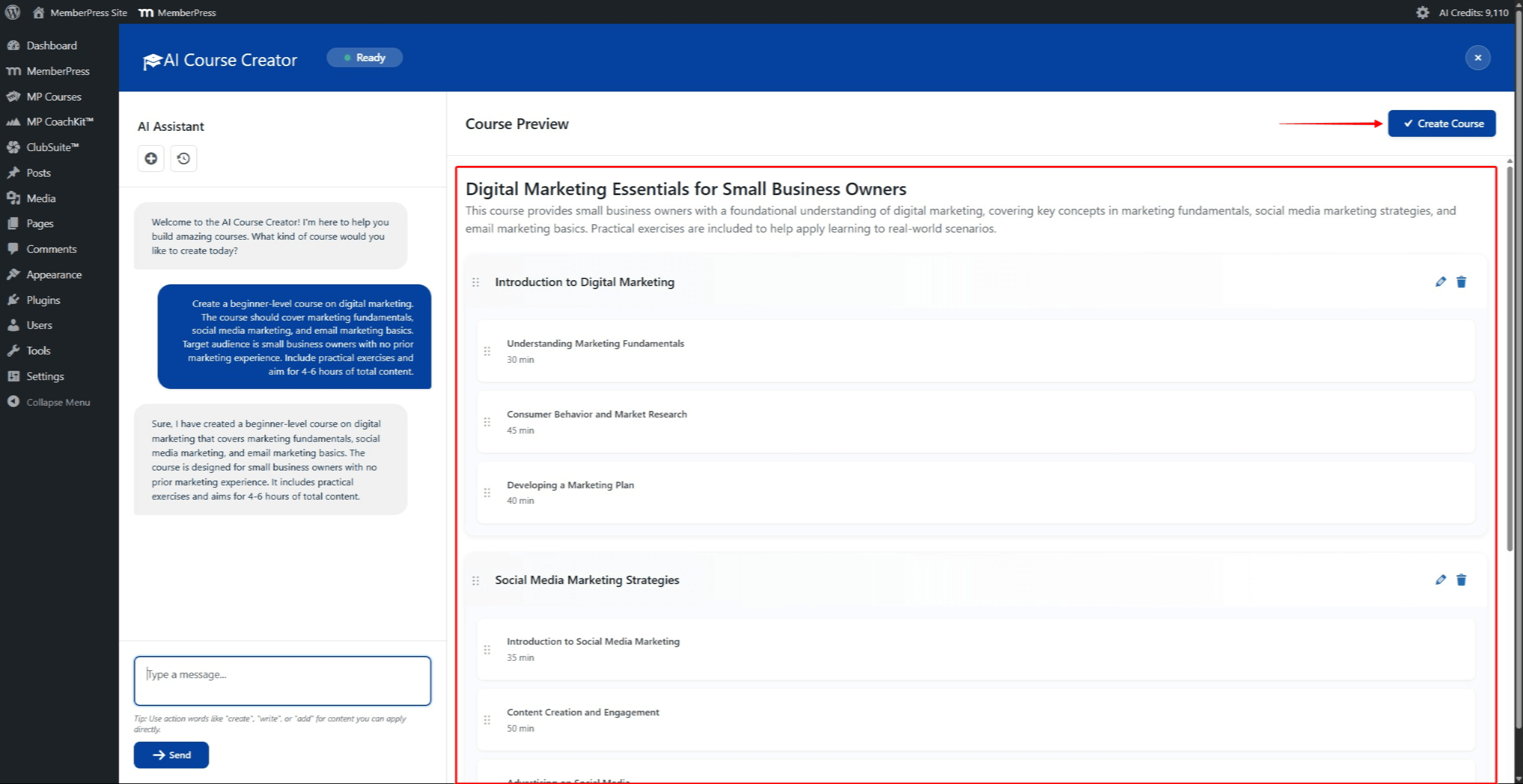
- Revise la estructura del curso generada. La estructura puede modificarse mediante mensajes de chat adicionales o edición manual.
- Haga clic en el botón Crear curso en la esquina superior derecha del panel Vista previa del curso para guardar el curso.
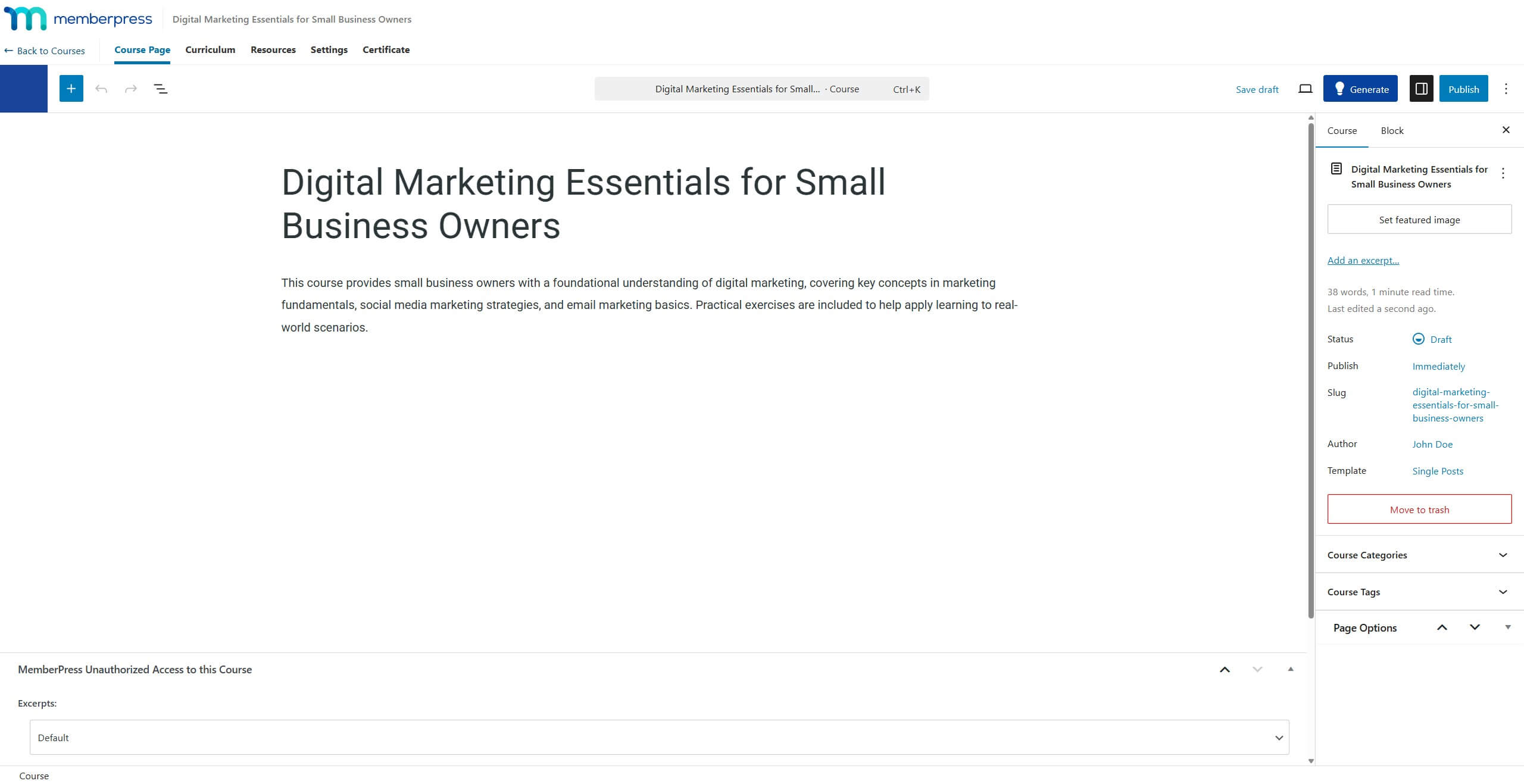
Edición de la estructura generada del curso
La estructura generada del curso puede modificarse antes de guardarlo. Varias opciones de edición están disponibles directamente en el panel Vista previa del curso.
Reorganización de secciones y lecciones
Las secciones y lecciones pueden reordenarse mediante la función de arrastrar y soltar. Mantenga pulsada una sección o lección y arrástrela hasta la posición deseada. También se pueden solicitar lecciones y secciones adicionales a través del panel de chat.
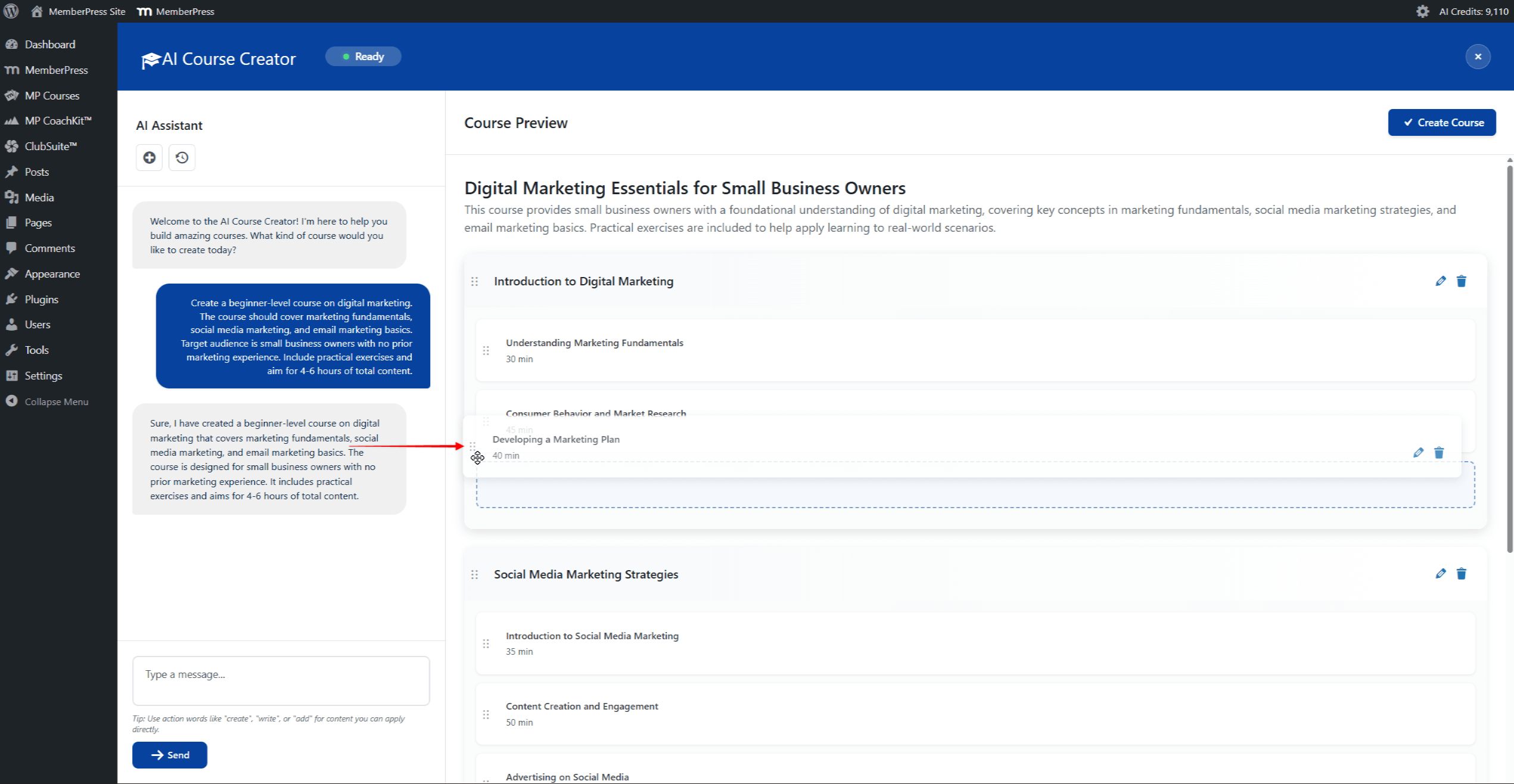
Renombrar y borrar secciones y lecciones
Cada sección y lección muestra iconos de edición en la parte derecha cuando se pasa el ratón por encima:
- Haga clic en el botón icono de lápiz para renombrar una sección o editar una lección;
- Haga clic en el botón icono de papelera para borrar una sección o lección.
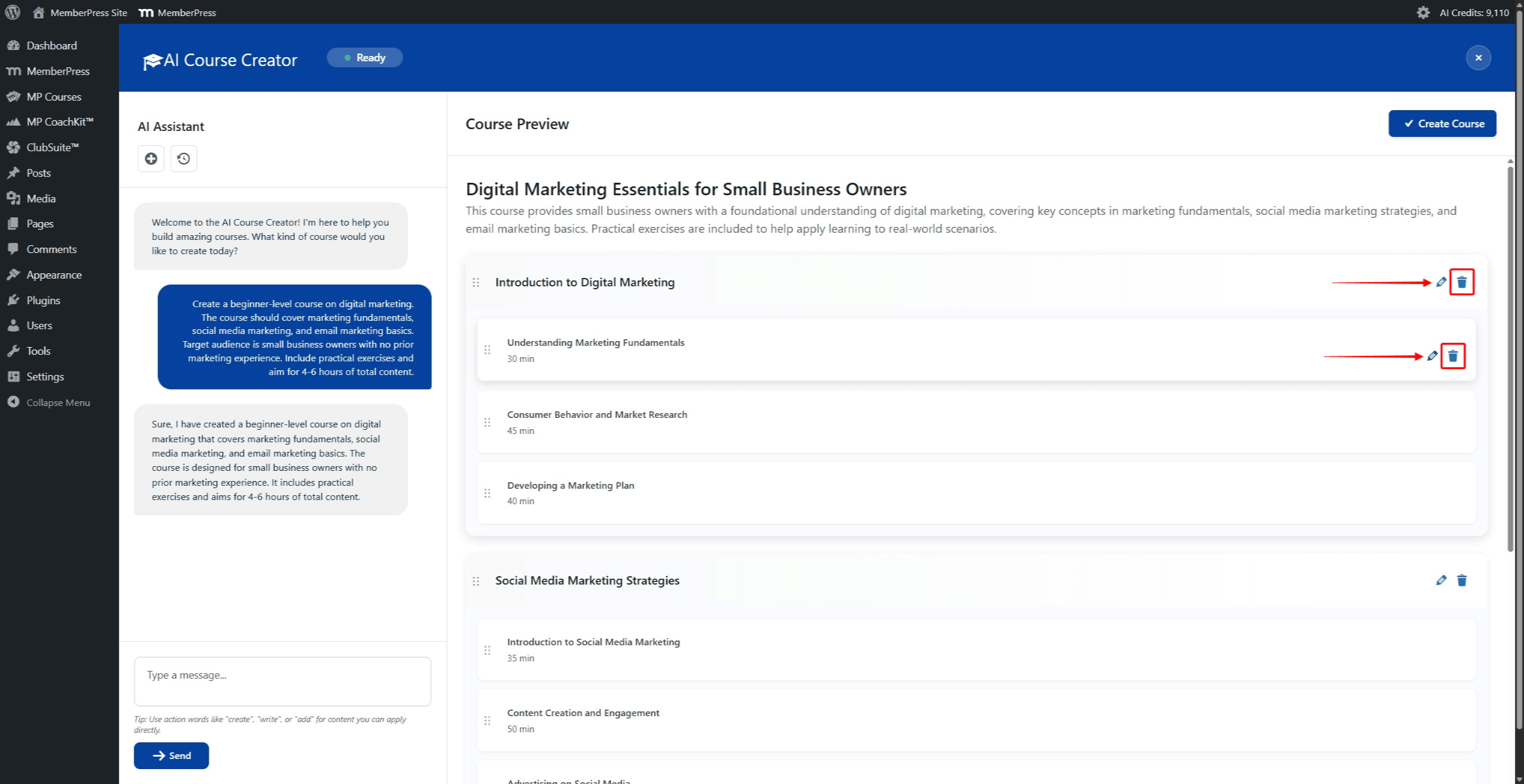
Generar el contenido de la lección
El contenido de las lecciones puede generarse directamente en el Creador de cursos AI. Esto permite rellenar las lecciones con contenido generado por AI antes de guardar el curso.
Generar contenidos para una lección:
- En el panel Vista previa del curso, haga clic en el botón icono de lápiz junto a una lección.
- Se abre una ventana emergente que muestra el título de la lección y las opciones de contenido. La ventana emergente incluye tres pestañas: Vista previa, Editary Cuestionario.
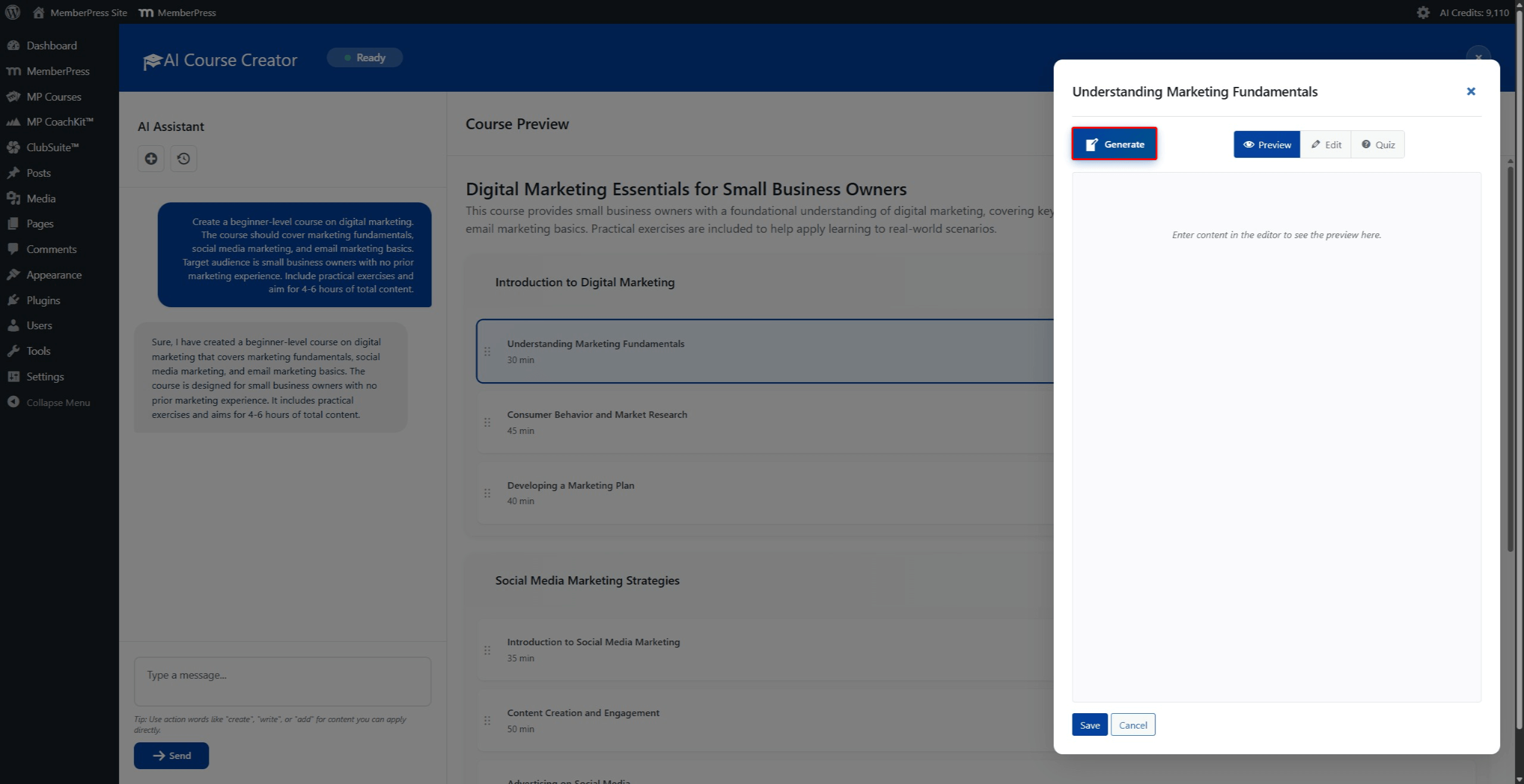
- Haga clic en el botón Genere en la ventana emergente para generar el contenido de la lección utilizando IA.
- Espere a que la IA genere el contenido. El contenido generado aparece en el área de vista previa.
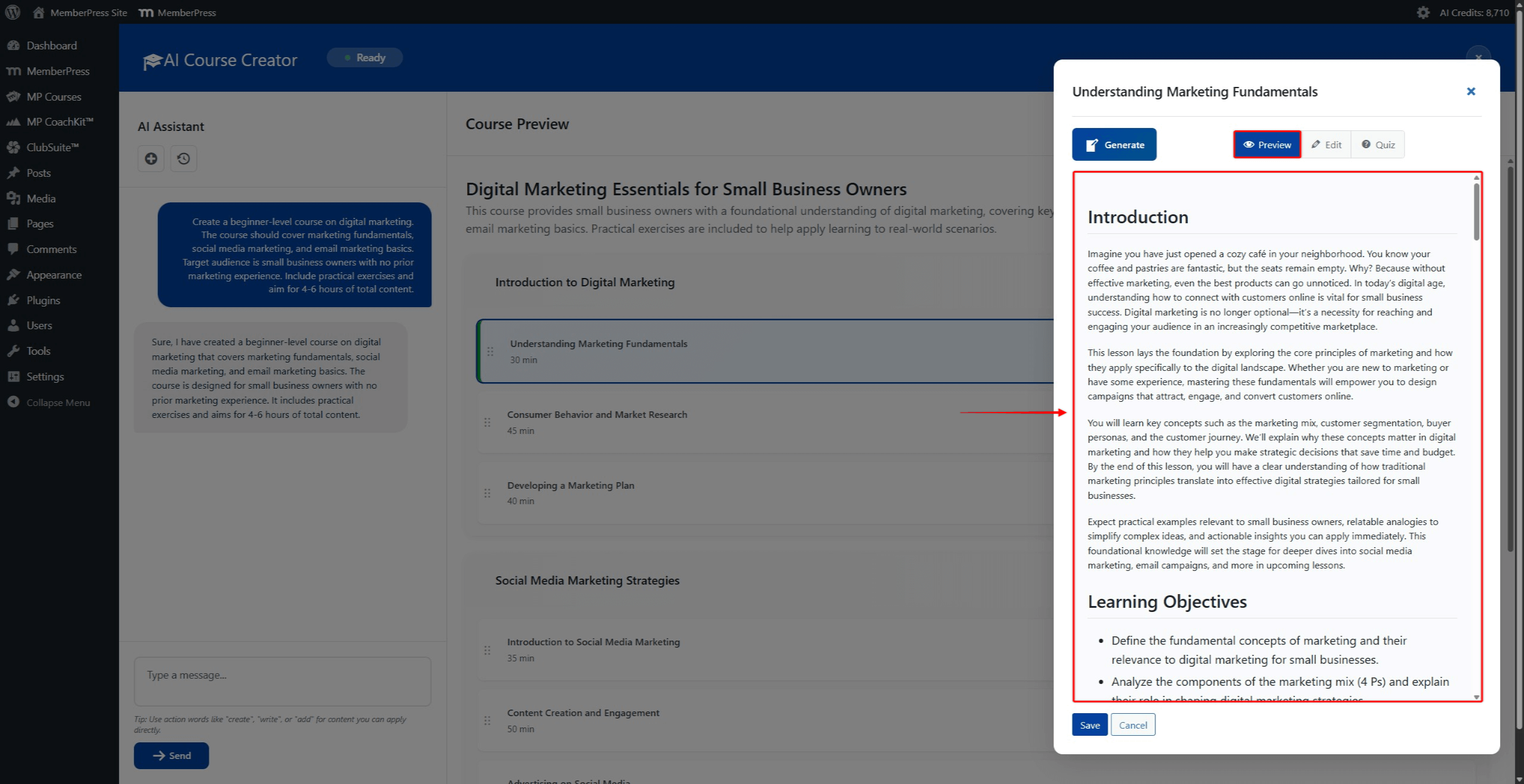
- Revise el contenido generado en el Vista previa ficha.
- Haga clic en el botón Editar para ver y modificar el contenido en formato HTML.
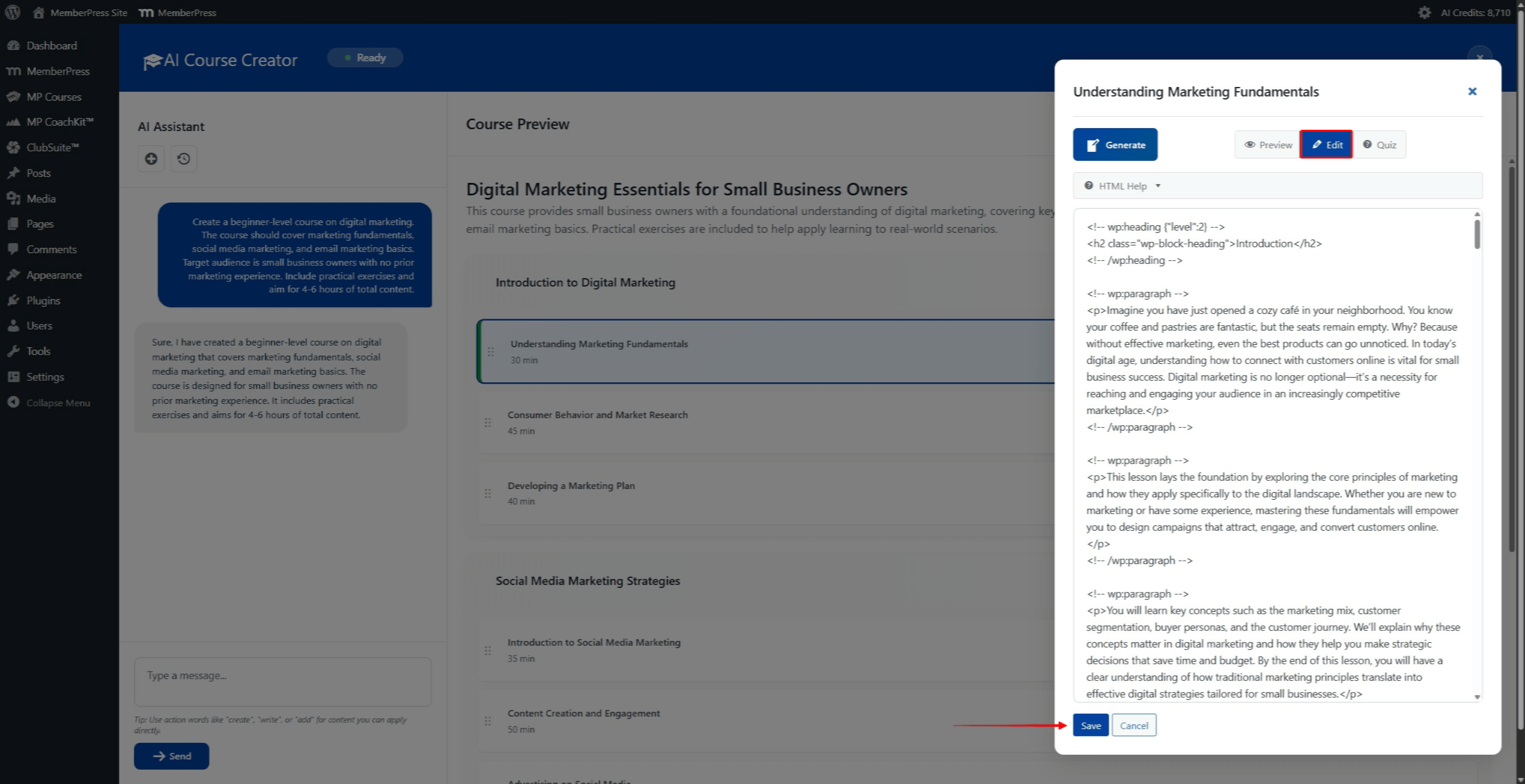
- Haga clic en el botón Guardar para guardar el contenido de la lección. Haga clic en Cancelar para descartar los cambios.
Estos pasos pueden repetirse para cualquier lección dentro del plan de estudios generado. El panel Vista previa del curso muestra resúmenes de contenido para las lecciones que han generado contenido.
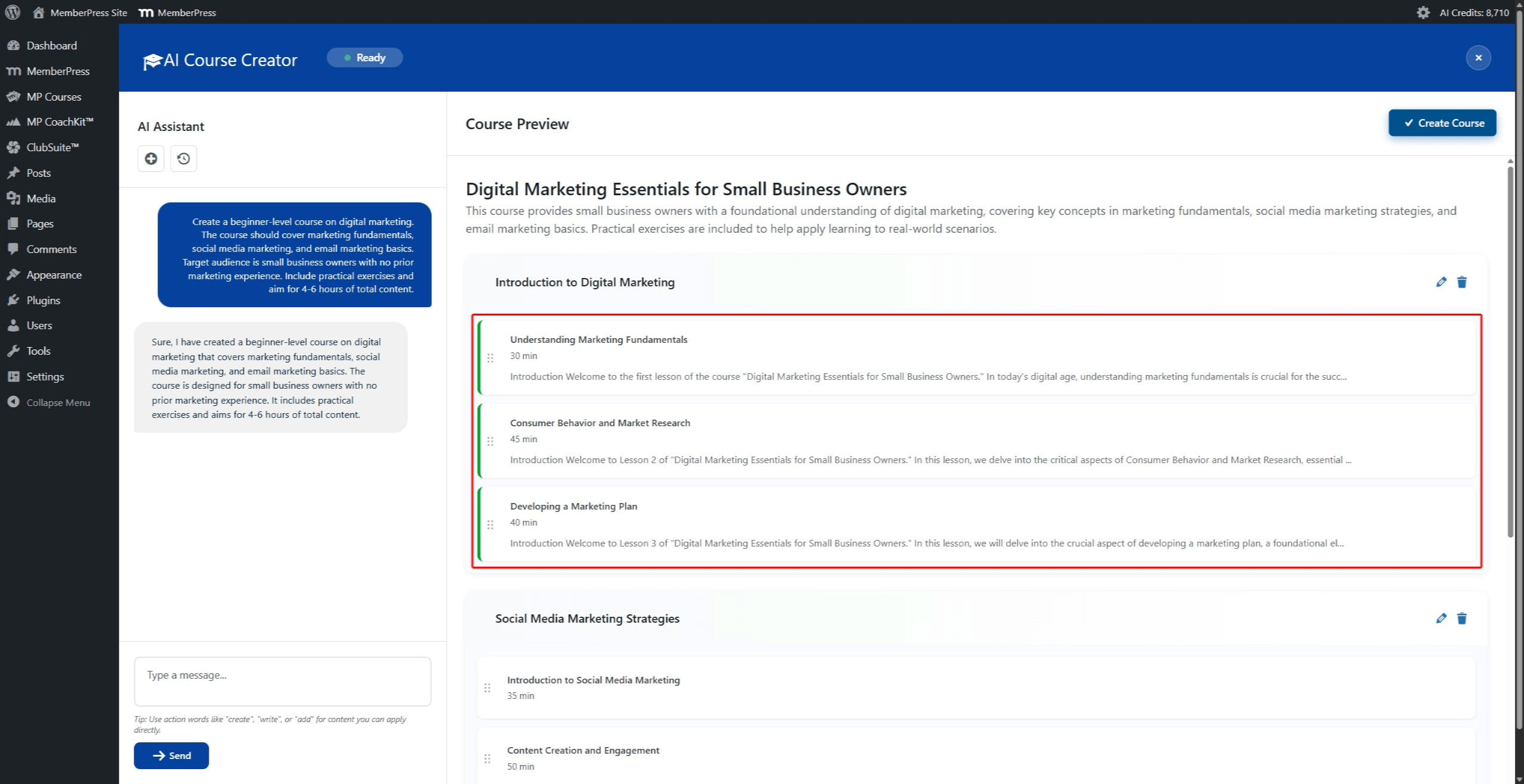
El contenido de las lecciones también puede generarse o modificarse posteriormente mediante la función Asistente de lecciones AI. Navegue hasta Panel de control > Cursos MP > Lecciones y edite cualquier lección para acceder al Asistente de Lección AI.
Generar cuestionarios de lecciones
La ventana emergente de la lección también incluye un Cuestionario pestaña. Esta pestaña permite generar un breve cuestionario basado en el contenido de la lección. El cuestionario se genera utilizando el contenido de la Vista previa ficha.
Esta función proporciona una forma rápida de añadir preguntas de cuestionario mientras se construye el plan de estudios del curso. Sin embargo, tiene algunas limitaciones en comparación con la versión completa. AI Quiz Builder:
- Sólo se pueden generar 5 preguntas por lección;
- Sólo se admite el tipo de pregunta de opción múltiple;
- El cuestionario se basa únicamente en el contenido específico de la lección y no puede incluir preguntas de varias lecciones.
Para crear cuestionarios más completos con múltiples tipos de preguntas y lecciones, utilice la función AI Quiz Builder después de crear el curso.
Para generar un cuestionario de la lección:
- En la ventana emergente de la lección, haga clic en el botón Cuestionario ficha.
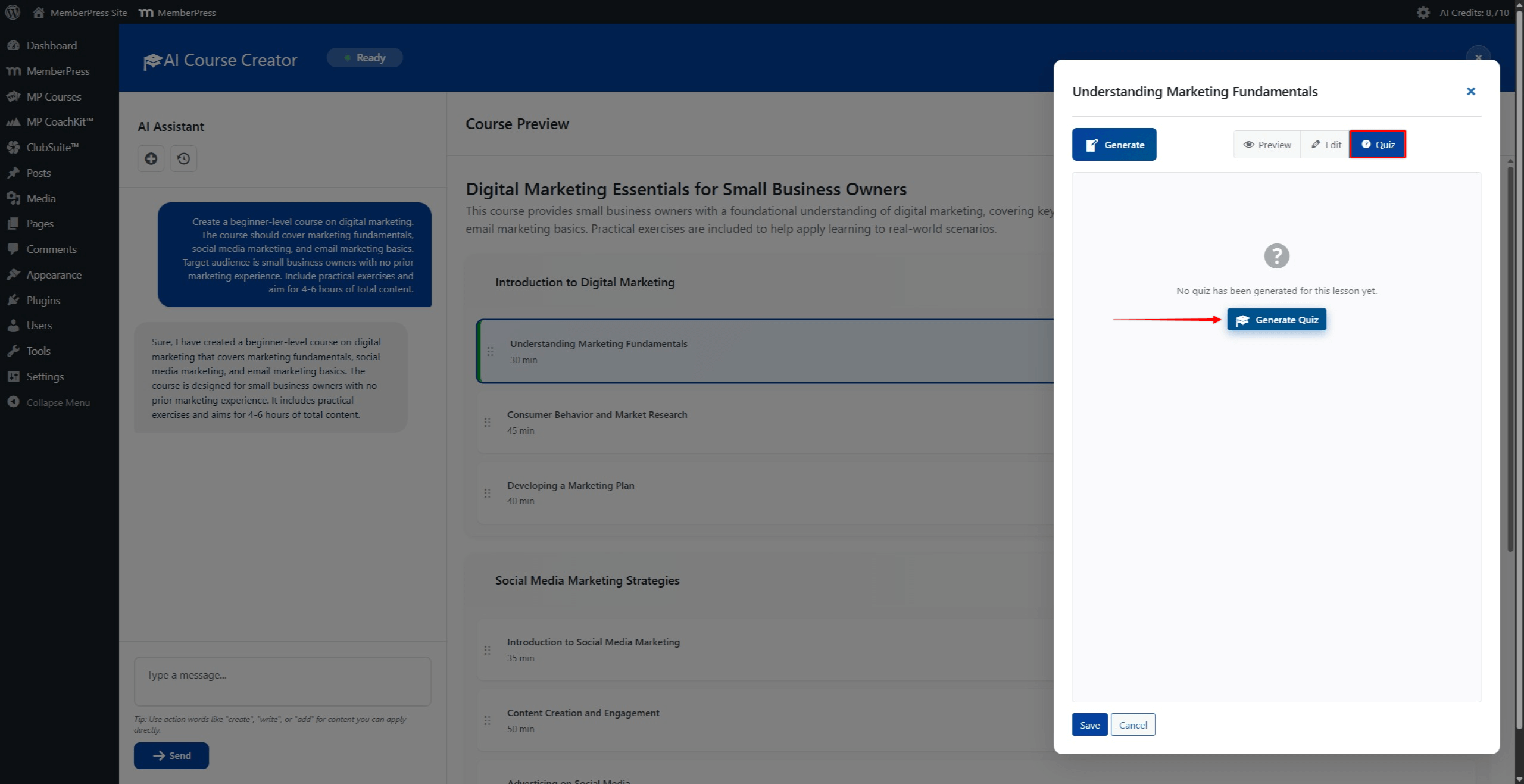
- Haga clic en el botón Generar cuestionario para generar 5 preguntas tipo test.
- Espera a que la IA genere las preguntas del cuestionario.
- Revise las preguntas generadas en la pestaña Cuestionario.
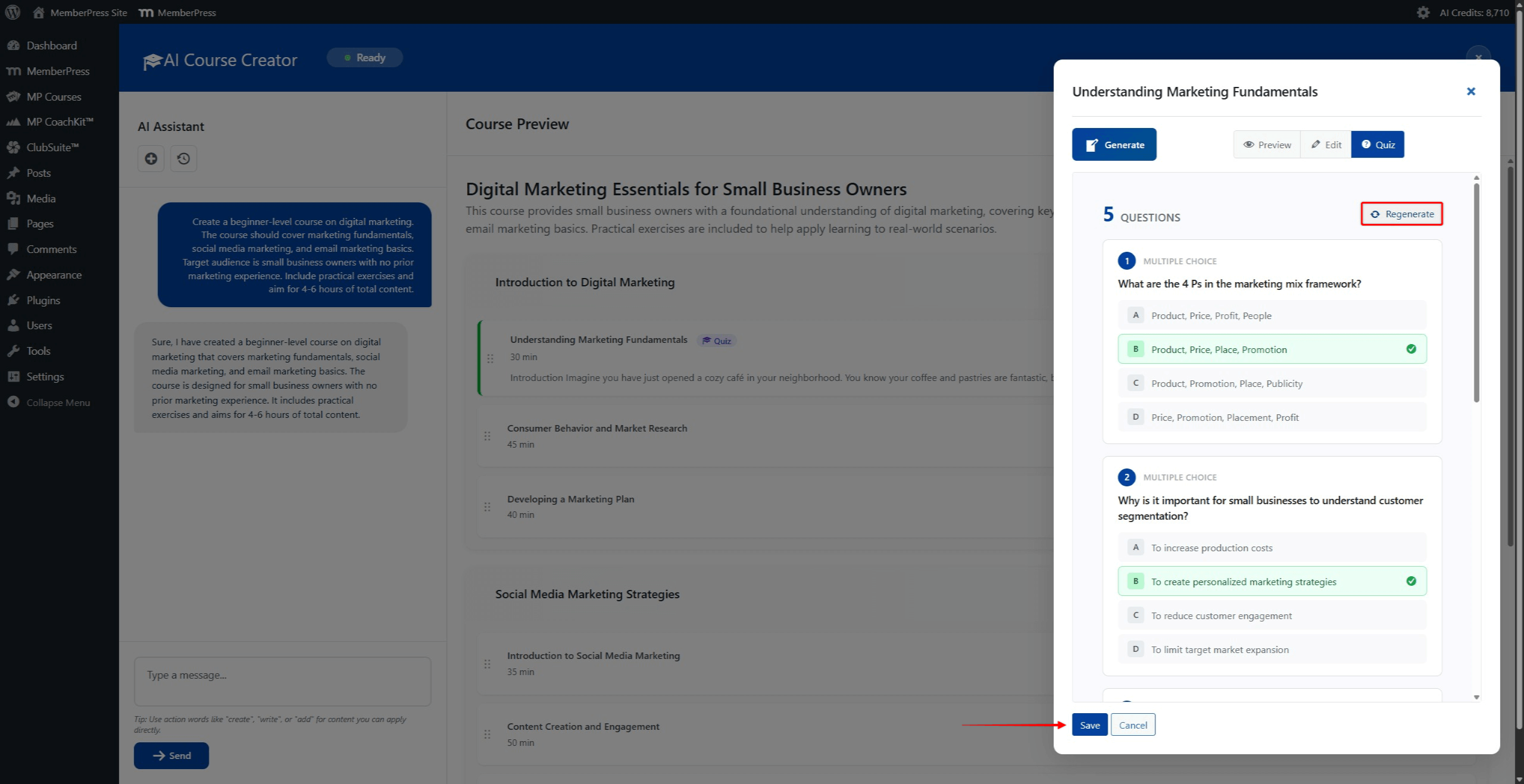
- Si las preguntas no son satisfactorias, pulse el botón Regenere para generar un nuevo conjunto de 5 preguntas.
- Haga clic en el botón Guardar para guardar tanto el contenido de la lección como el cuestionario.
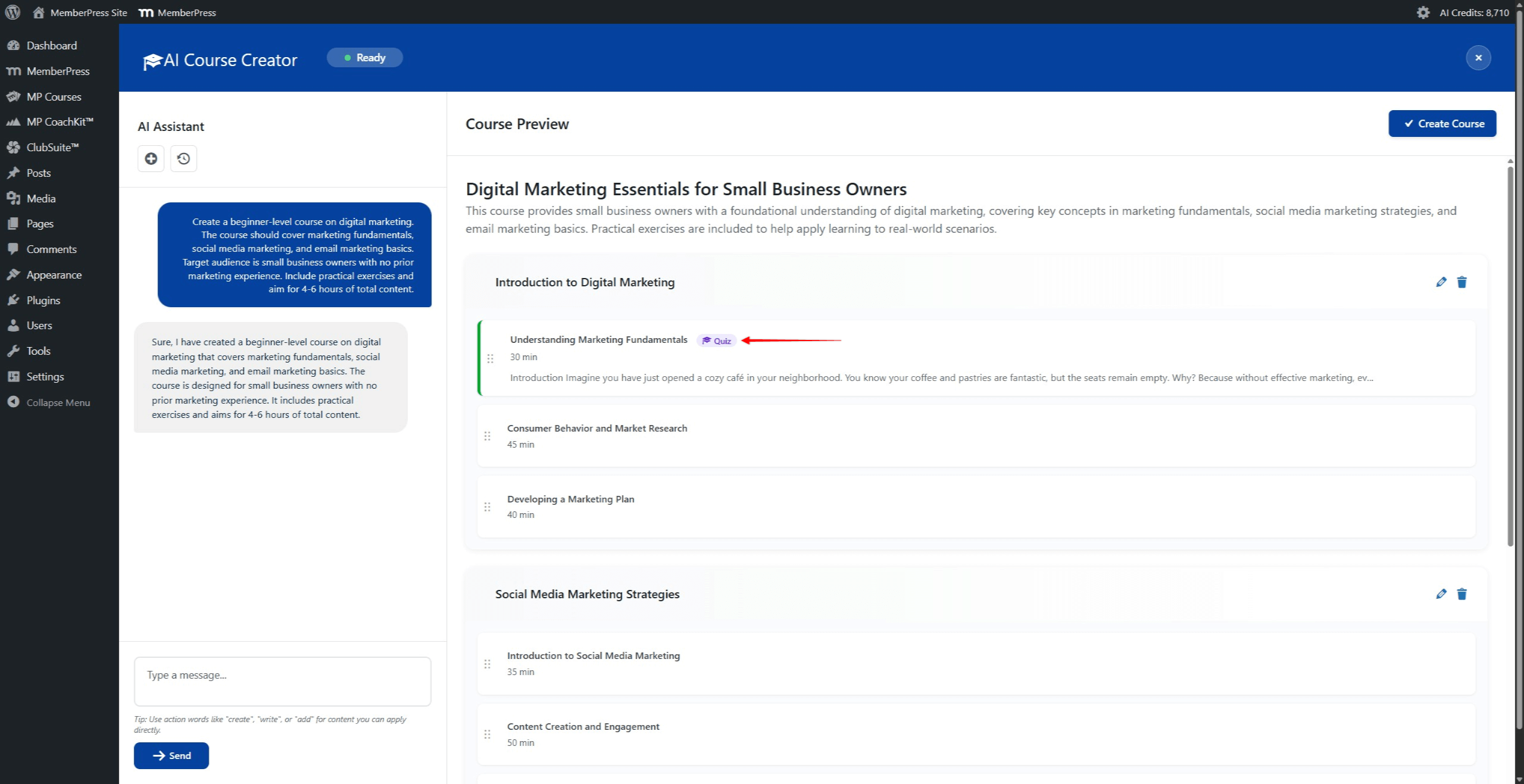
Después de guardar, las lecciones con cuestionarios generados muestran un “Cuestionario” junto al título de la lección en el panel Vista previa del curso.
Compatibilidad de cursos
Todos los cursos generados por IA son totalmente compatibles con las funciones existentes en MemberPress. Entre ellas se incluyen:
- Normas de acceso para la protección de contenidos;
- Configuración de la protección de contenidos;
- Plantillas ReadyLaunch para el diseño de cursos.
Sistema de créditos AI
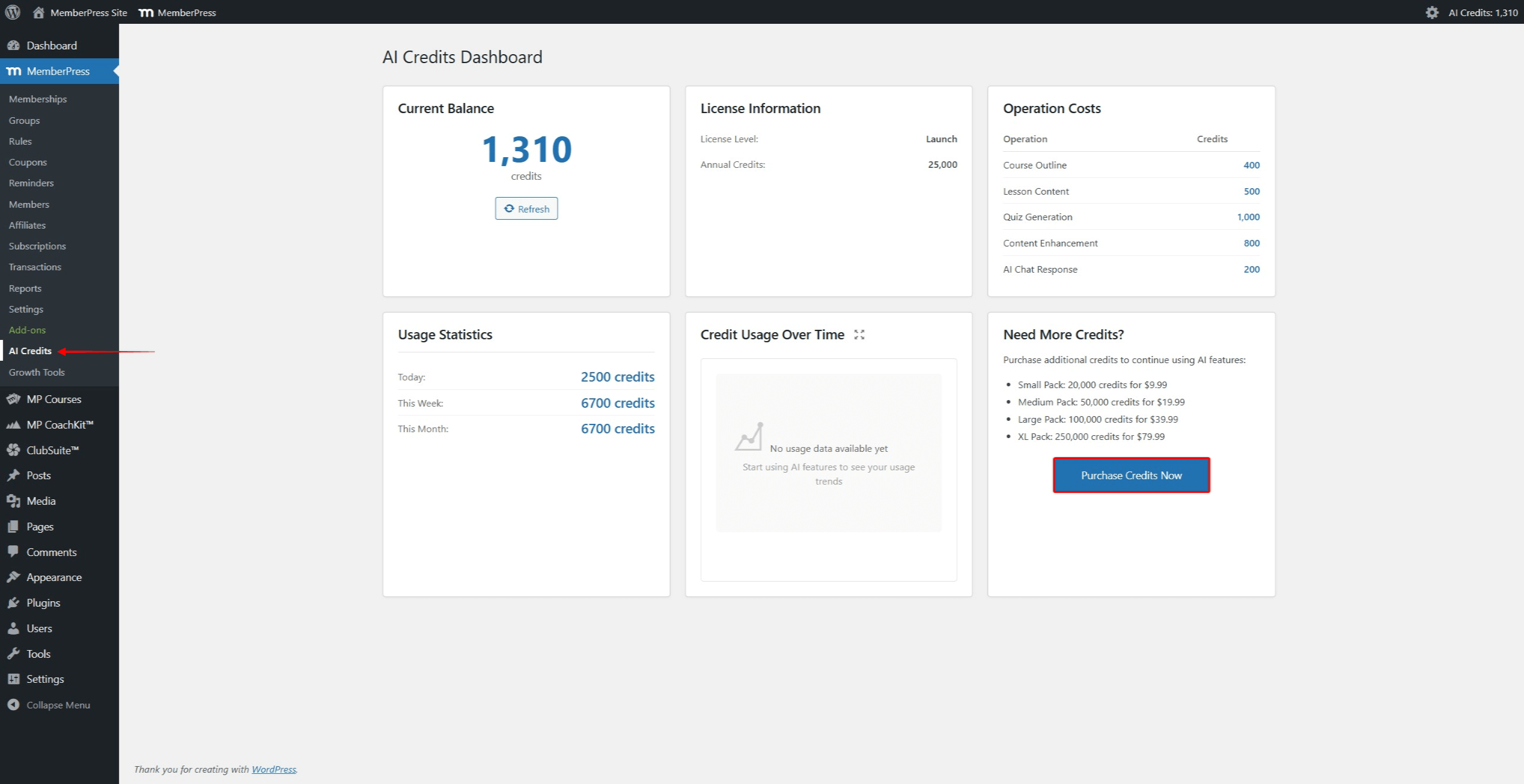
Las funciones del Generador de cursos de IA consumen créditos de IA. Los créditos se utilizan en función de la complejidad de cada acción. Las siguientes acciones requieren créditos:
- Generación del esquema del curso;
- Creación de contenidos didácticos;
- Regeneración de contenidos;
- Generación de preguntas de test.
Ver el saldo de AI
El saldo actual puede consultarse en Panel de control > MemberPress > Créditos AI. Este panel ofrece opciones para:
- Adquiera créditos adicionales;
- Ver historial de uso.
Para adquirir créditos adicionales, pulse el botón “Comprar créditos ahora” en la página de Créditos AI.
Resumen
El generador de cursos de IA MemberPress simplifica la creación de cursos mediante la asistencia de la IA. El complemento genera estructuras completas de cursos, contenidos de lecciones y preguntas de cuestionarios.
Las características clave incluyen:
- Modo AI Course Creator para crear cursos completos con plan de estudios;
- Asistente de lecciones AI para generar y mejorar el contenido de las lecciones;
- AI Quiz Builder para crear preguntas de cuestionario basadas en el contenido de la lección;
- Sistema basado en créditos para gestionar el uso de la IA.
El generador de cursos de inteligencia artificial se basa en Cursos MemberPress y apoya Cursos MemberPress Cuestionarios.










 ES
ES  EN
EN  FR
FR  DE
DE  PT
PT 