

Preparar la aplicación MemberPress iOS para la App Store de Apple requiere una configuración adecuada de MemberPress AppKit y App Store Connect. Los pasos de configuración garantizan el cumplimiento de las directrices de Apple y agilizan el proceso de revisión.
Este documento explica cómo preparar la aplicación en MemberPress AppKit, configurar los ajustes en App Store Connect y enviarla para su revisión en App Store.
Comprender los requisitos de la App Store
El envío a la App Store de Apple requiere configuraciones e información específicas antes de la aprobación de la revisión. Las aplicaciones deben cumplir las directrices de Apple, incluidas las políticas de privacidad, la clasificación por edades y las restricciones de contenido. La configuración de las compras dentro de la aplicación, la documentación de la política de privacidad y las credenciales de acceso del revisor son obligatorias para la presentación. Una preparación adecuada reduce el riesgo de rechazo y acelera los plazos de aprobación.
Configuración de las compras dentro de la aplicación
La configuración de las compras dentro de la aplicación permite la monetización a través de la facturación del App Store cuando proceda.
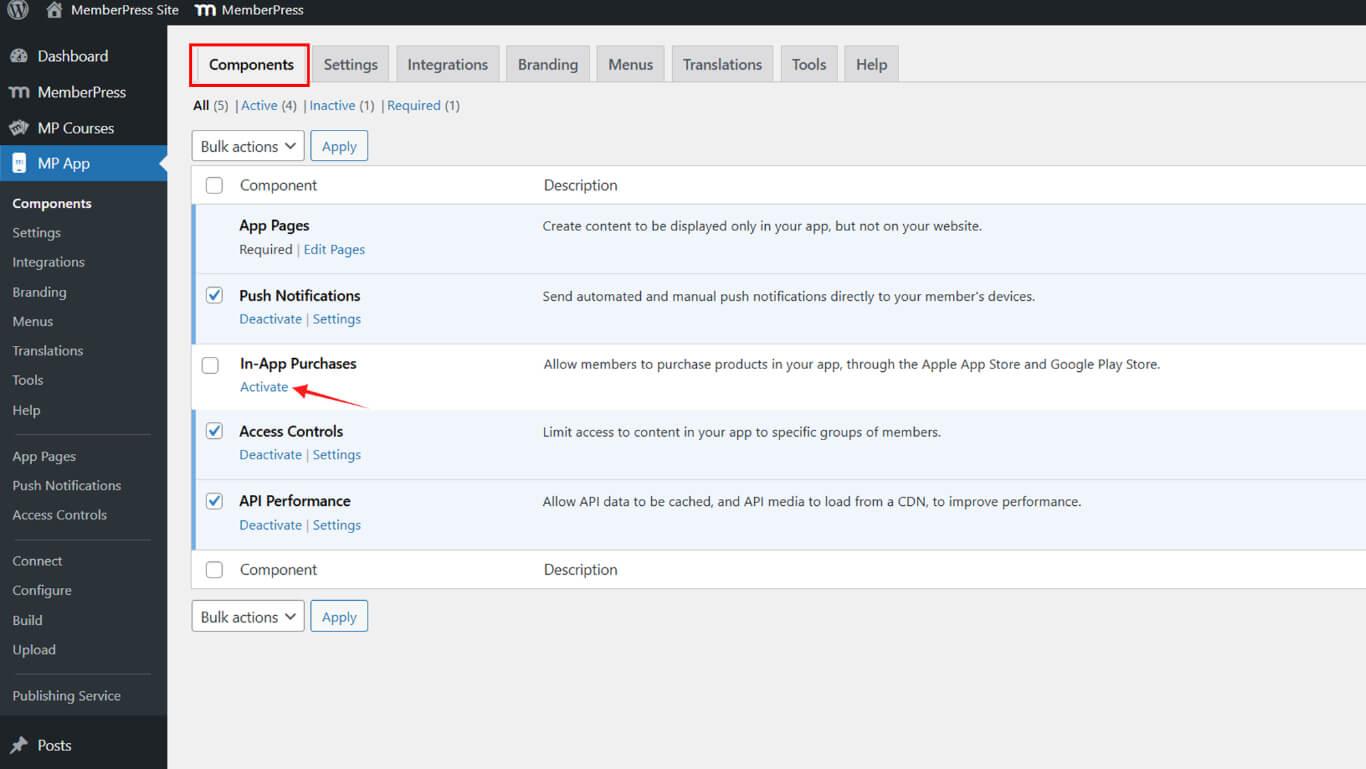
- Vaya a Panel > MP AppKit > Componentes.
- Activar Compras dentro de la aplicación.
Generación de la compilación de lanzamiento de iOS
La creación de la versión de iOS prepara el archivo de la aplicación para su envío al App Store.
- Vaya a Panel > MP AppKit > Construir.
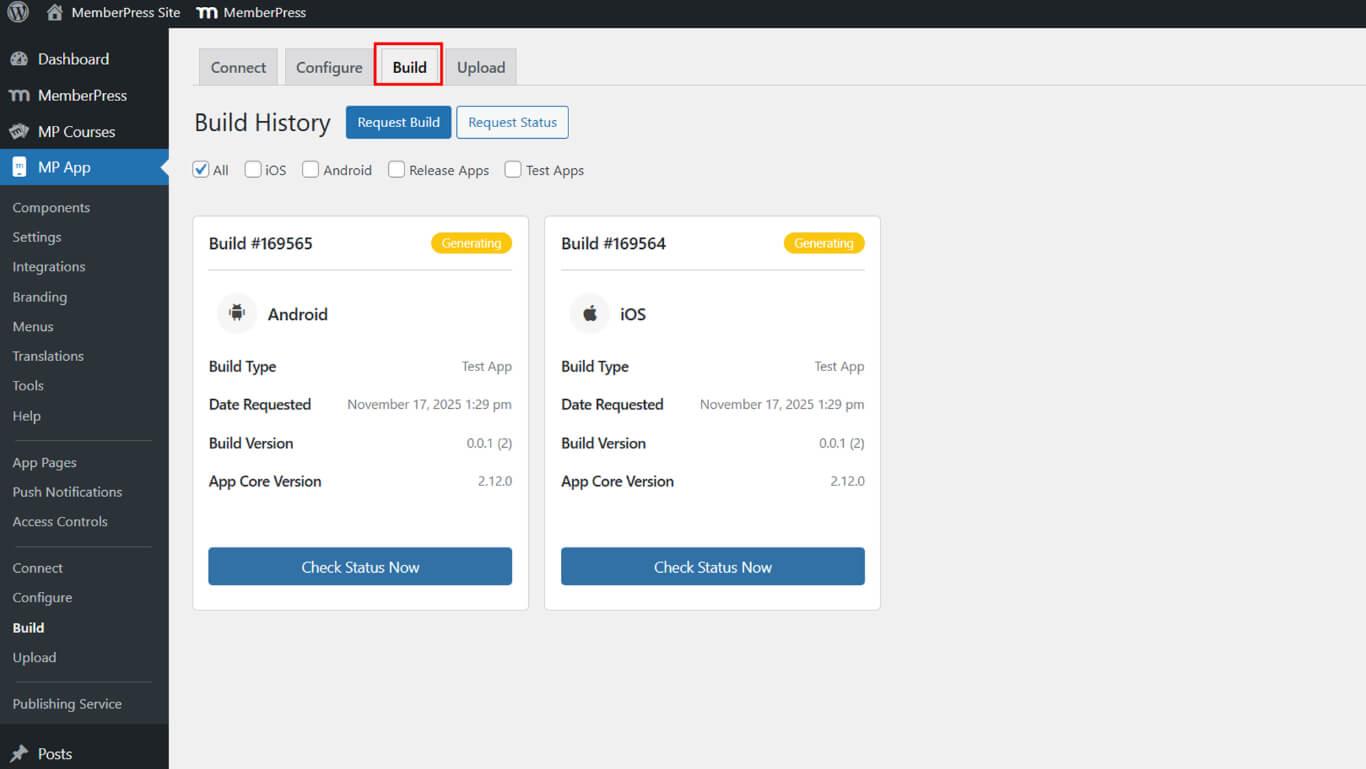
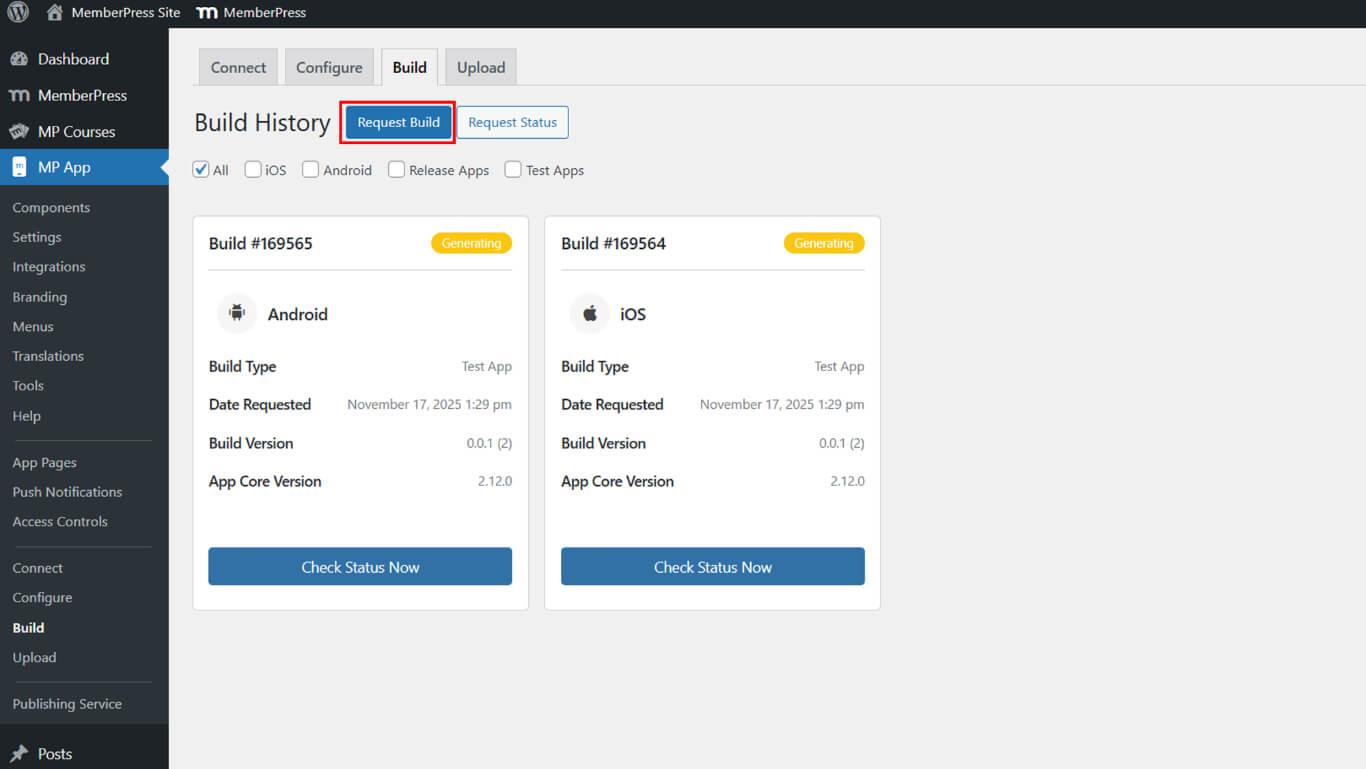
- Haga clic en el botón Solicitar Construya botón.
- Compruebe el iOS como plataforma.
- Seleccione Liberar aplicación como tipo de construcción.
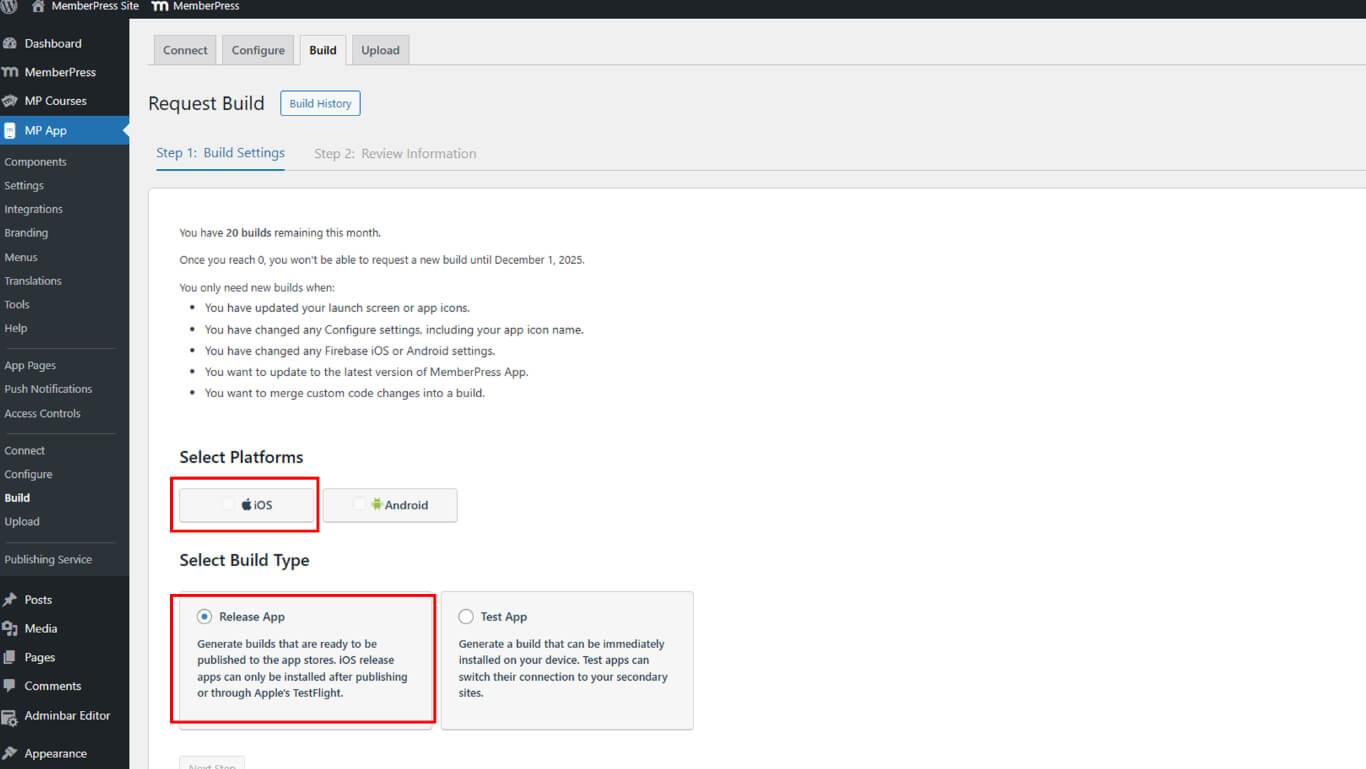
- Haga clic en Siguiente para proceder.
- Haga clic en Enviar solicitud de construcción para presentar la solicitud.
- Supervise el estado de la compilación en Historia de la construcción.
La construcción suele completarse en 5-10 minutos tras el envío de la solicitud.
Acceso a la información de la aplicación
La configuración de Información de la aplicación establece los detalles básicos de la aplicación en App Store Connect.
- Inicie sesión en App Store Connect en appstoreconnect.apple.com.
- Haga clic en Aplicaciones en la navegación.
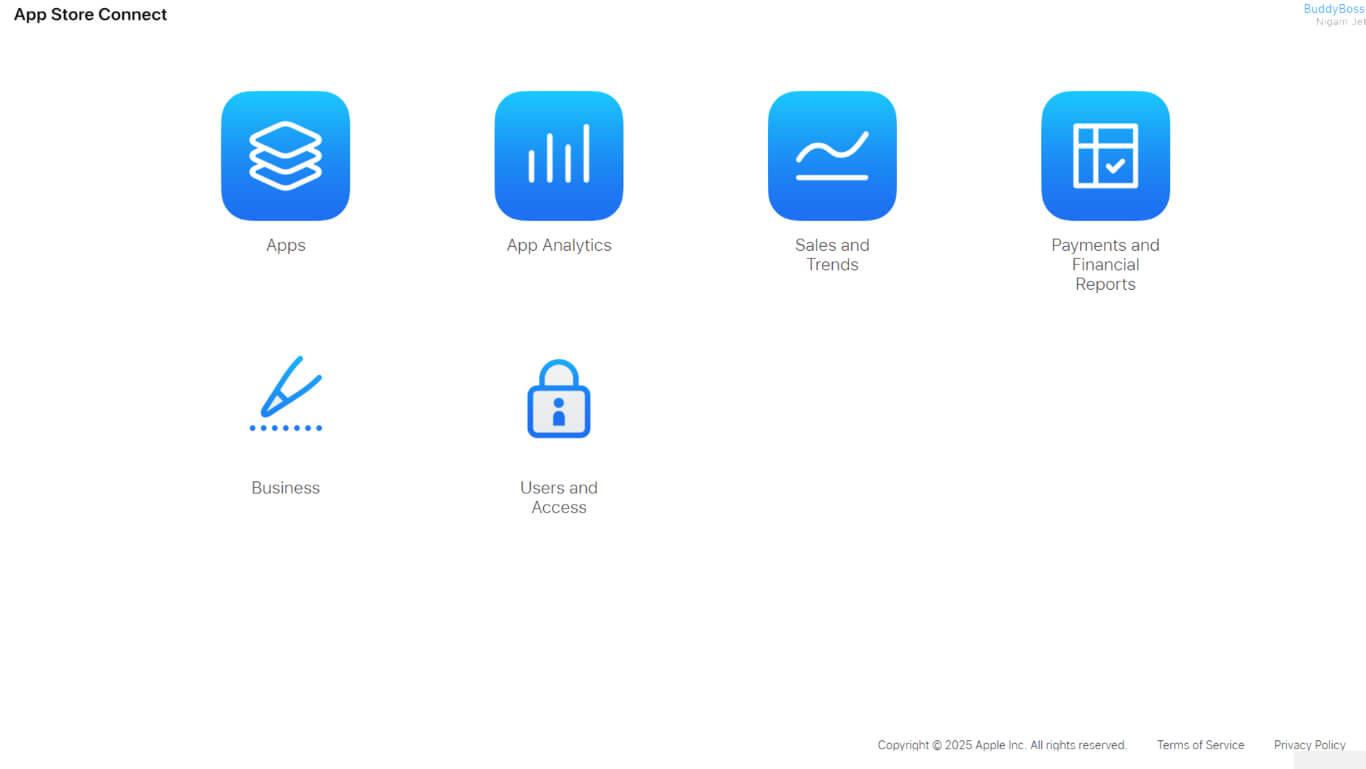
- Selecciona la aplicación de la lista de aplicaciones.
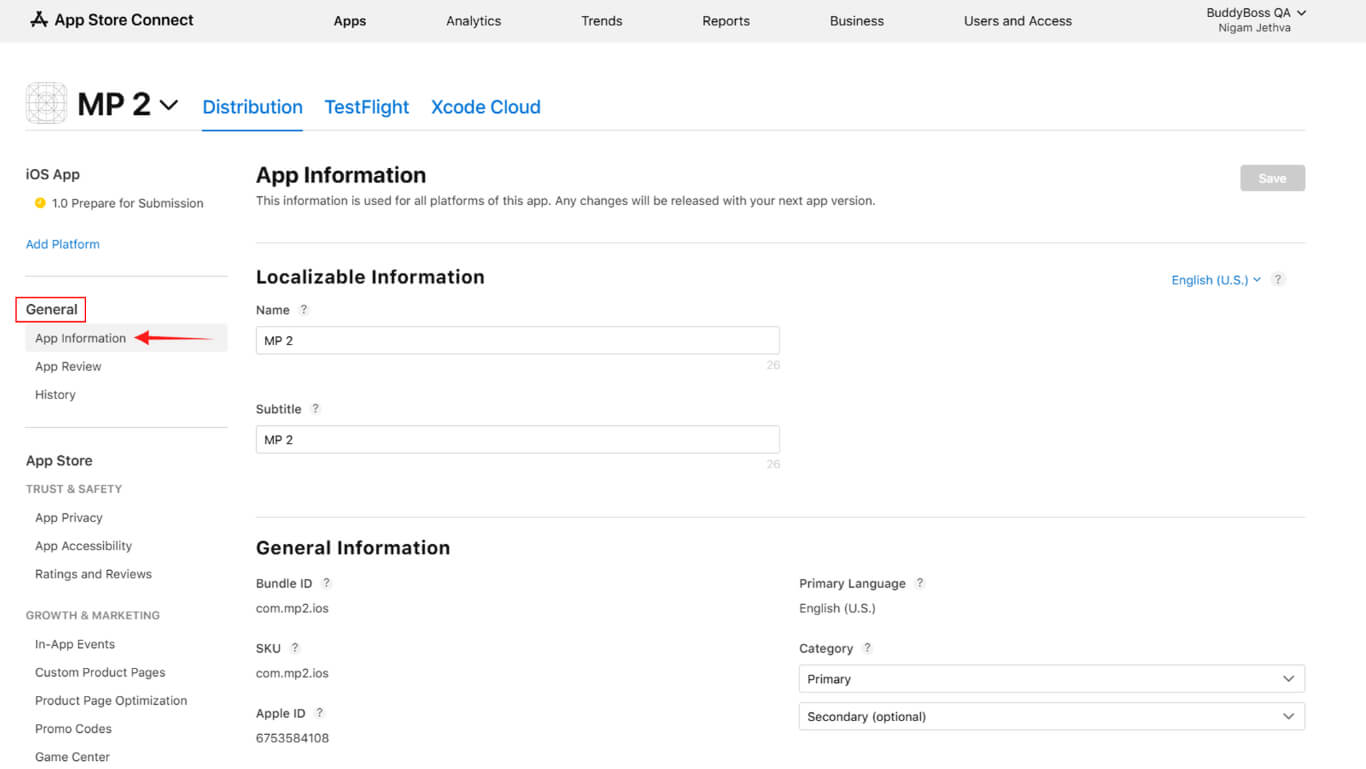
- Haga clic en Información de la aplicación en la sección General.
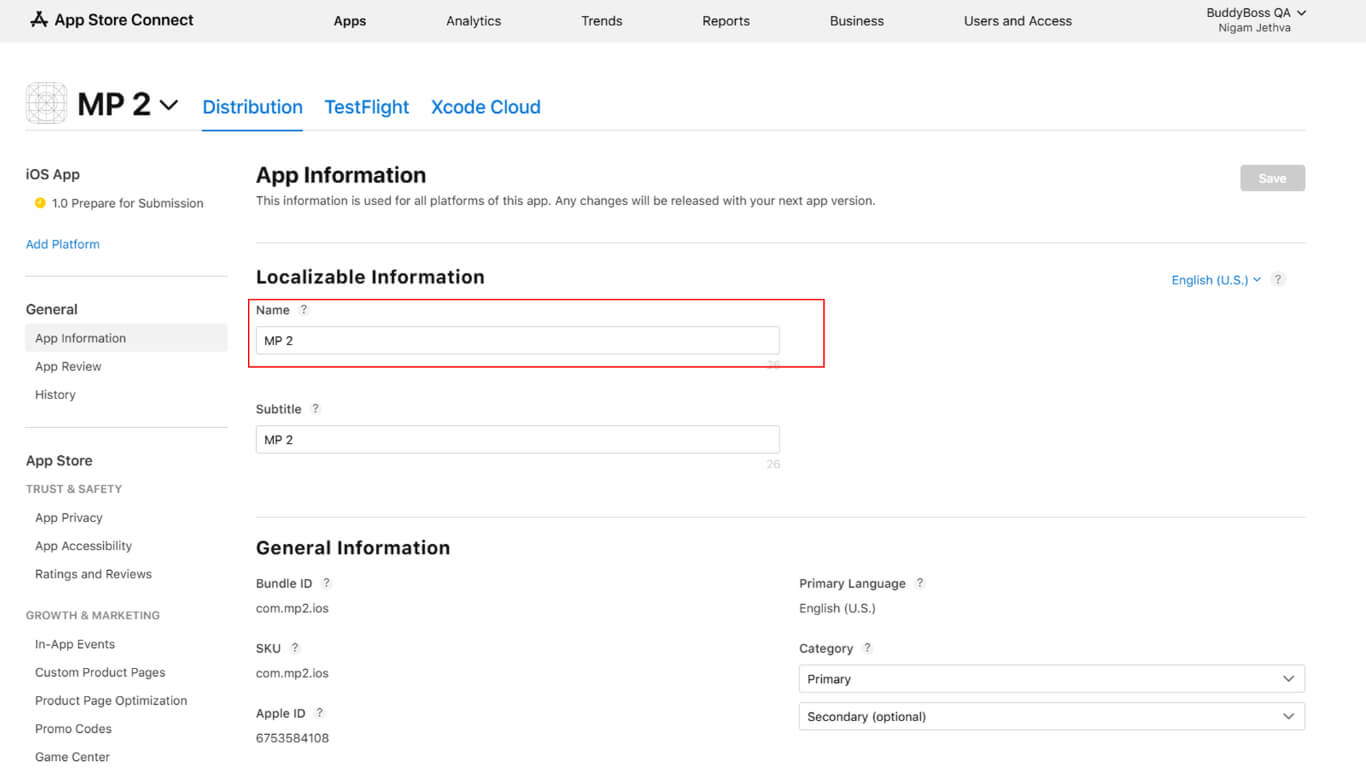
- Confirme o actualice el Nombre de la aplicación en el campo del nombre.
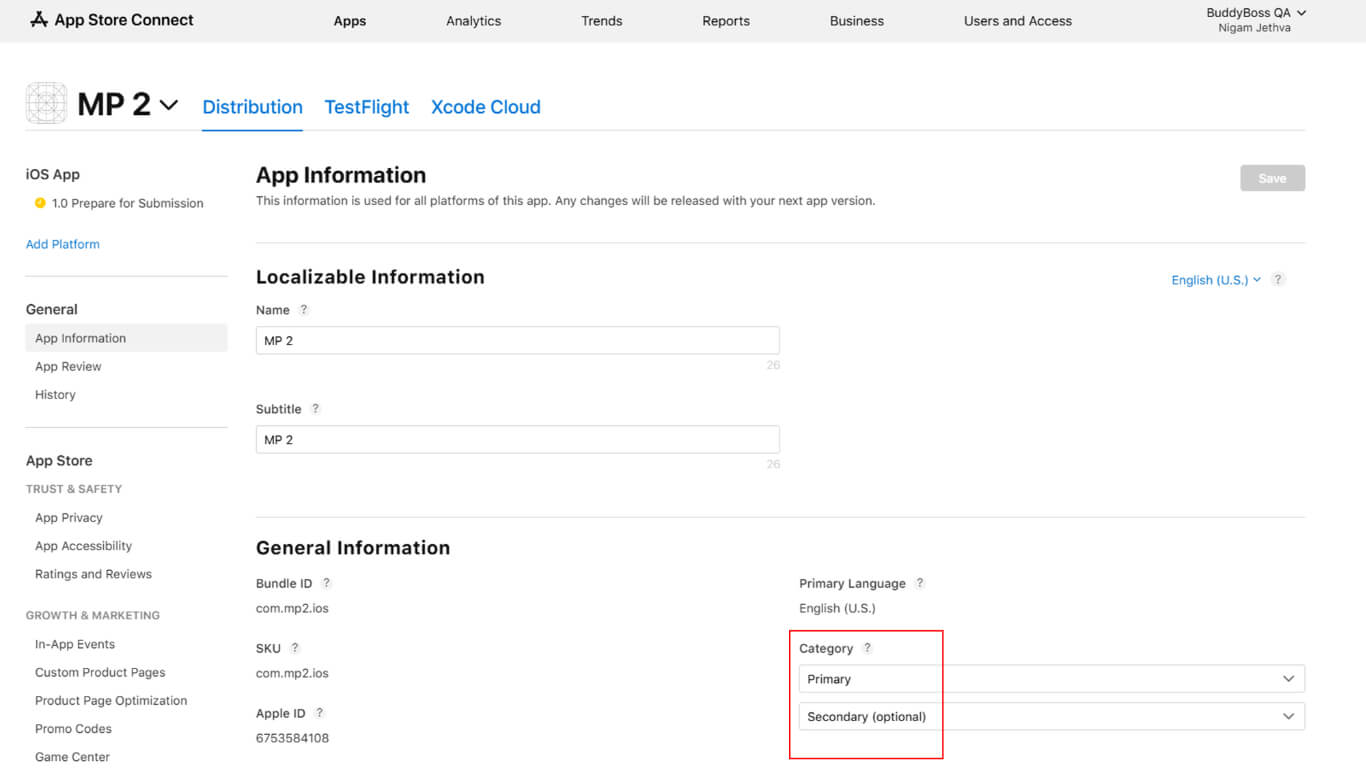
- Seleccione Categoría principal del menú desplegable de categorías.
- Seleccione Categoría secundaria si procede.
- Indique los derechos de contenido de terceros si la aplicación contiene contenido bajo licencia.
- Seleccione el tipo de acuerdo de licencia:
- CLUF estándar de Apple por defecto;
- CLUF personalizado si proporciona un acuerdo de licencia personalizado.
- Complete el Clasificación por edades cuestionario con exactitud.
- Haga clic en Guardar para almacenar información sobre la aplicación.
Fijación de precios y disponibilidad
La configuración de precios determina el coste de la aplicación y la disponibilidad regional.
- Vaya a Monetización > Precios y disponibilidad en App Store Connect.
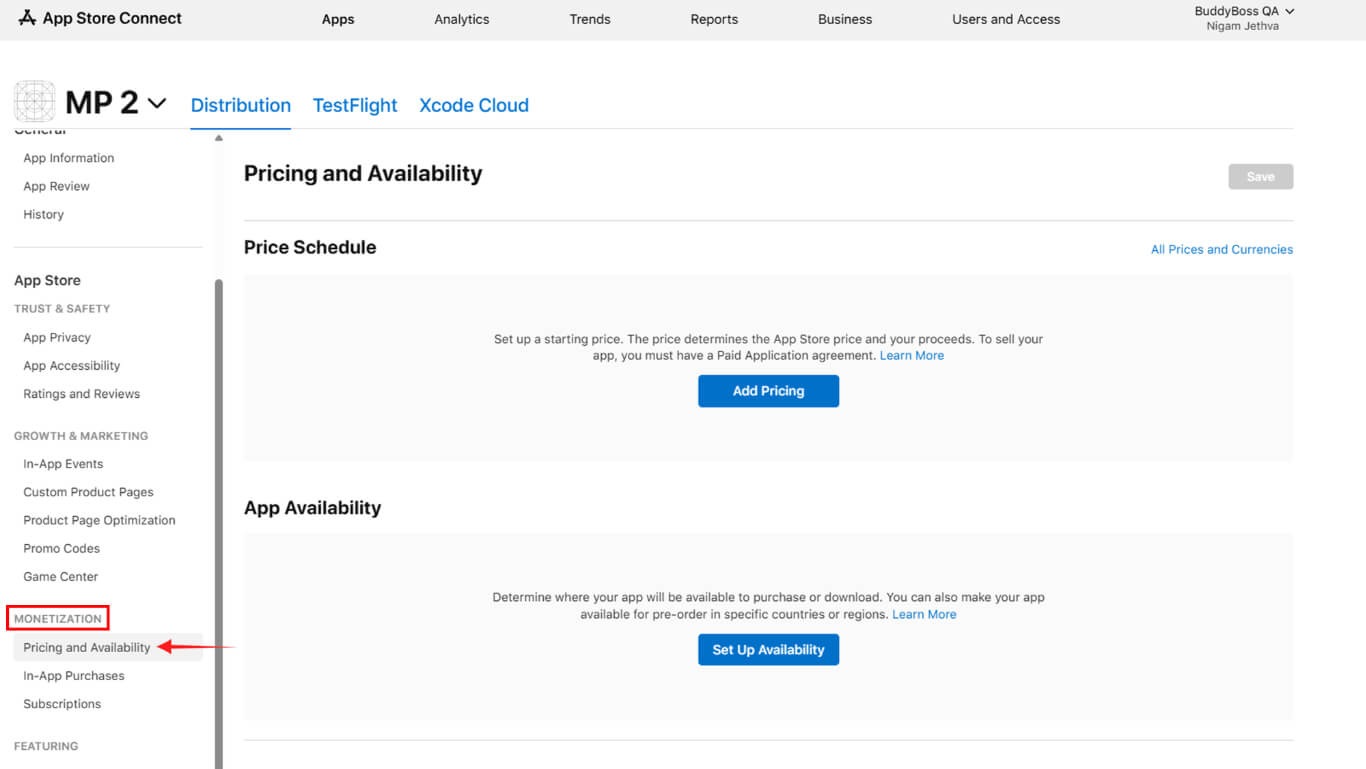
- Seleccione el nivel de precios:
- Gratis para aplicaciones gratuitas;
- Pagado para aplicaciones que requieren compra.
- Cumplimente el Acuerdo de aplicaciones de pago si selecciona precios de pago.
- Configure las opciones de disponibilidad:
- Todas las regiones para disponibilidad mundial;
- Regiones seleccionadas para países concretos;
- Pedidos anticipados si habilita las compras anticipadas.
- Haga clic en Siguiente para revisar las selecciones.
- Haga clic en Confirme para finalizar la configuración de precios.
Información sobre la privacidad de la aplicación
La configuración de privacidad de la aplicación revela las prácticas de recopilación y uso de datos.
- Vaya a Privacidad de las aplicaciones > Confianza y seguridad en App Store Connect.
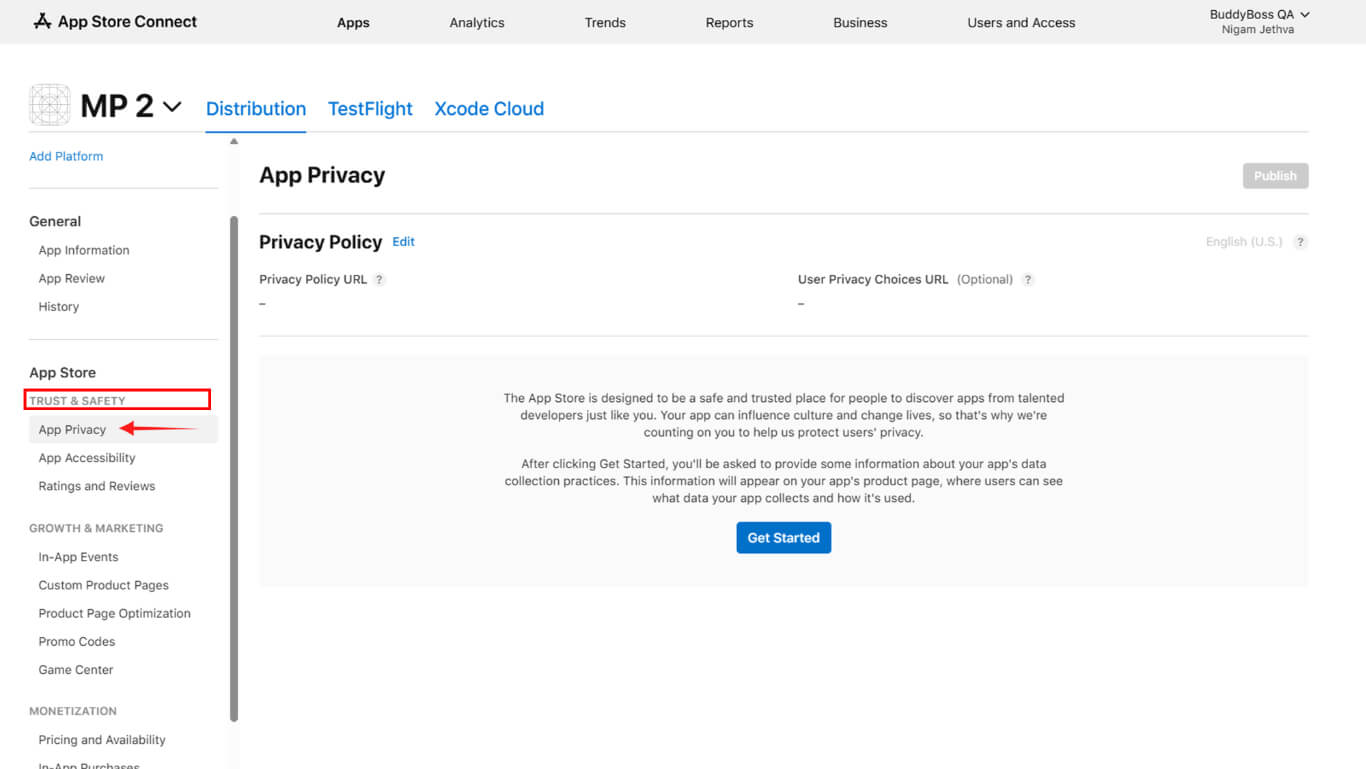
- Introduzca el Política de privacidad URL en el campo URL.
- Haga clic en Comenzar para iniciar el cuestionario de privacidad.
- Indique todos los tipos de datos recogidos por la aplicación.
- Especifique la finalidad de cada tipo de recogida de datos.
- Indique si los datos están vinculados a la identidad del usuario.
- Indique si los datos se utilizan con fines de seguimiento.
- Haga clic en Guardar después de rellenar todas las secciones del cuestionario.
Preparación de la versión de la aplicación
La preparación de la versión de la aplicación crea el contenedor de envío para las compilaciones y los metadatos.
Las nuevas aplicaciones incluyen la versión 1.0, creada automáticamente durante la configuración inicial. Las apps existentes requieren la creación manual de la versión para las actualizaciones.
- Navegue hasta el aplicación en App Store Connect.
- Haga clic en el botón + junto a las versiones si va a crear una actualización.
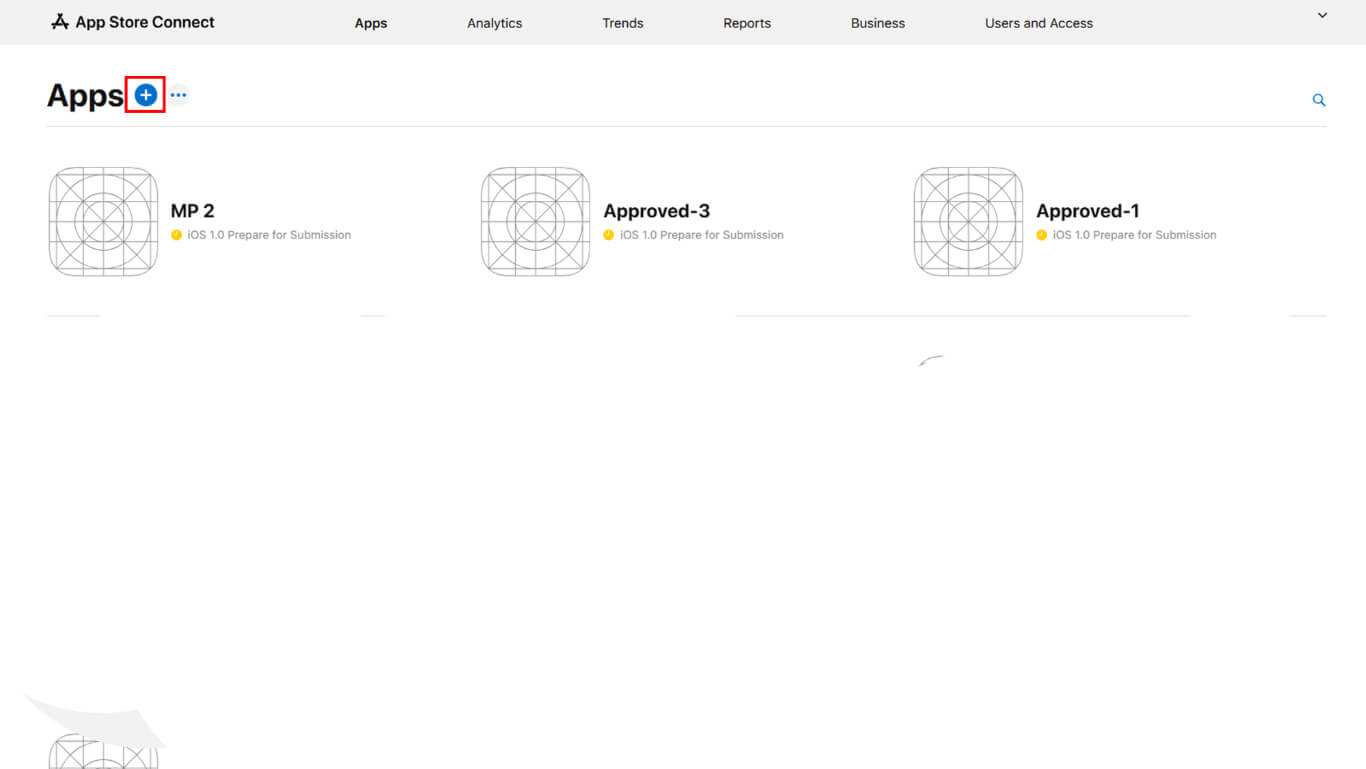
- Introduzca el nuevo número de versión si se le solicita.
- Espere a que finalicen las revisiones en curso antes de crear nuevas versiones.
- Otra posibilidad es cancelar las revisiones en curso antes de crear la versión.
Cargar capturas de pantalla
La carga de capturas de pantalla muestra la interfaz de la aplicación a los usuarios potenciales.
- Ve a la página de la versión en App Store Connect.
- Desplácese hasta el Avances y capturas de pantalla sección.
- Haga clic en Añadir en la categoría de tamaño de dispositivo adecuada.
- Suba al menos una captura de pantalla para los tamaños de visualización requeridos:
- iPhone de 6,5 pulgadas: 1242×2688 píxeles en vertical o 2688×1242 píxeles en horizontal;
- iPhone de 6,9 pulgadas: 1290×2796 píxeles en vertical o 2796×1290 píxeles en horizontal.
- Compruebe que el formato de la captura de pantalla es JPG o PNG en el espacio de color RGB.
- Arrastre las capturas de pantalla para reordenar la secuencia de visualización si se cargan varias capturas.
Añadir detalles de la aplicación
Los detalles de la aplicación proporcionan contenido descriptivo para el listado de la App Store.
- Ve a la página de la versión en App Store Connect.
- Entre en Texto promocional destacando las principales características de la aplicación en el campo de texto promocional.
- Introduzca un Descripción explicando la funcionalidad de la aplicación en el campo de descripción.
- Entre en Palabras clave separados por comas para optimizar la búsqueda.
- Introduzca el Soporte URL enlaces a recursos de atención al cliente.
- Introduzca el URL de marketing enlace al sitio web promocional.
- Introduzca el Copyright información, incluidos el año y el nombre de la empresa.
- Actualizar el Versión si es diferente de la versión inicial.
- Haga clic en Guardar para almacenar los detalles de la aplicación.
Información sobre la revisión de aplicaciones
App Review Information permite a los revisores de Apple probar todas las funciones de la aplicación.
- Ve a la página de la versión en App Store Connect.
- Desplácese hasta el Información sobre la revisión de la aplicación sección.
- Consulte Inscripción obligatoria si la aplicación requiere autenticación.
- Introduzca un Nombre de usuario en el campo de nombre de usuario de la cuenta demo.
- Introduzca un Contraseña en el campo de contraseña de la cuenta demo.
- Entre en Notas de revisión explicando las instrucciones especiales para las pruebas.
- Cargue archivos adjuntos si la documentación adicional ayuda a la revisión.
- Introduzca el contacto Nombre para la comunicación con los revisores.
- Introduzca el contacto Número de teléfono para preguntas urgentes de los revisores.
- Introduzca el contacto Correo electrónico para la correspondencia con los revisores.
- Haga clic en Guardar para almacenar información de revisión.
Selección de opciones de liberación
Las opciones de publicación determinan cuándo estará disponible la aplicación tras su aprobación.
- Ve a la página de la versión en App Store Connect.
- Desplácese hasta el Versión sección.
- Seleccione la preferencia de tiempo de liberación:
- Desbloqueo manual publicar manualmente después de la aprobación;
- Liberación automática publicar inmediatamente después de su aprobación;
- Publicación programada para publicar en una fecha y hora determinadas.
- Introduzca la fecha y hora de publicación si selecciona una publicación programada.
- Haga clic en Guardar para almacenar las preferencias de liberación.
La publicación manual permite controlar el momento exacto de la publicación tras la aprobación. La publicación automática publica las aplicaciones inmediatamente después de su aprobación, sin necesidad de acciones adicionales.
Someter a revisión
El envío de la revisión envía la aplicación a Apple para su evaluación.
- Vaya a Panel > MP AppKit > Servicio de publicación > Apple App Store en WordPress.
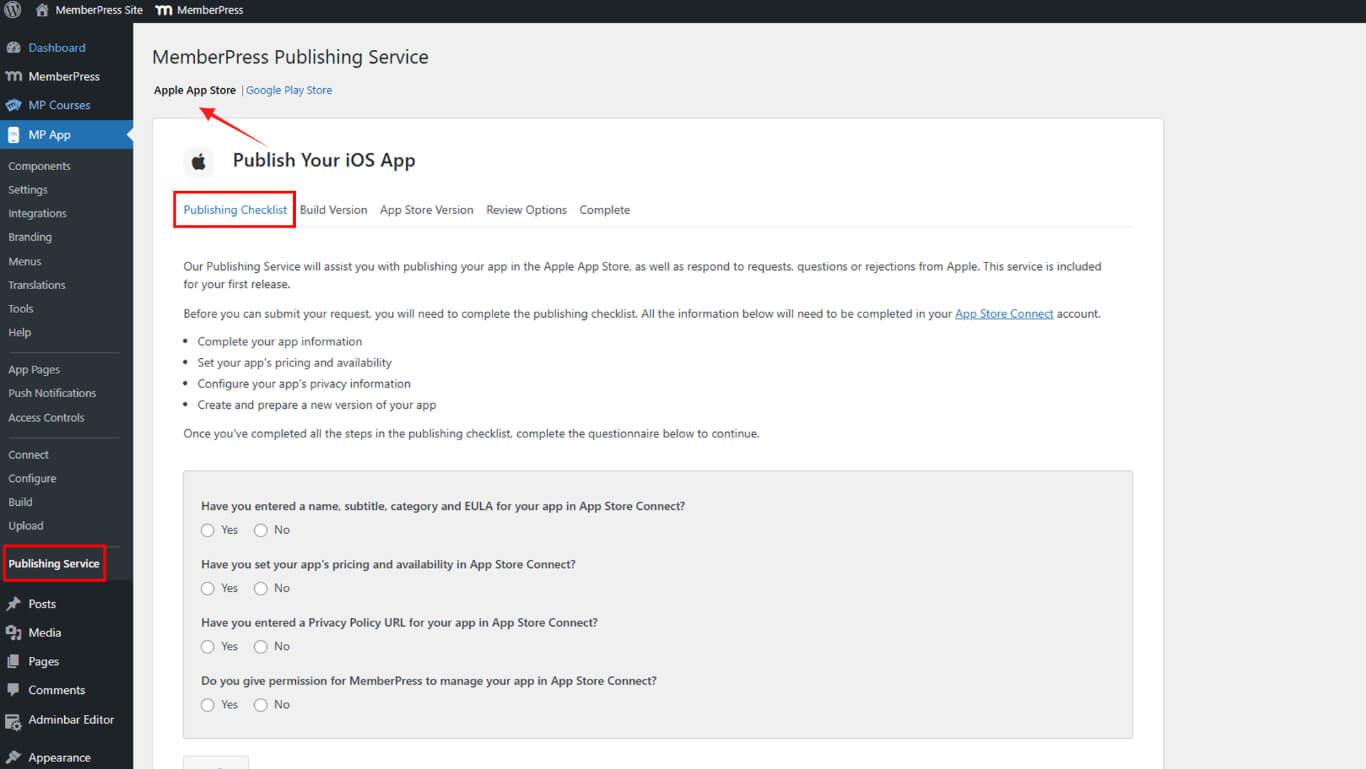
- Revise la lista de control de presentación para comprobar que se cumplen todos los requisitos.
- Haga clic en Enviar para iniciar el proceso de presentación.
- Opcionalmente, solicite una revisión previa a la presentación para mejorar las posibilidades de aprobación.
- El equipo de publicación carga la compilación y prepara la publicación.
- El equipo de publicación envía la aplicación a Apple para su revisión.
- Supervise el estado del envío en App Store Connect.
El equipo de publicación se encarga de la carga de la compilación, la preparación del lanzamiento y el envío oficial a Apple. Las actualizaciones del estado de la aplicación aparecen en App Store Connect durante el proceso de revisión.










 ES
ES  EN
EN  FR
FR  DE
DE  PT
PT 