

Las actualizaciones de la aplicación Android de MemberPress garantizan que los miembros tengan acceso a las últimas funciones, correcciones de errores y actualizaciones de precios. Las actualizaciones periódicas mantienen la funcionalidad de la aplicación y el cumplimiento de los requisitos de Google Play Store.
En este documento se explica cómo generar nuevas compilaciones de versiones de Android, descargar archivos AAB, enviar actualizaciones a Google Play Console y gestionar los comentarios de revisión.
Entender las actualizaciones de las aplicaciones
Las actualizaciones de aplicaciones ofrecen mejoras y correcciones a las instalaciones existentes a través de Google Play Store. Las actualizaciones mantienen el mismo identificador de aplicación y clave de firma que la publicación original. Los códigos de versión deben aumentar con cada actualización para permitir la correcta detección e instalación de actualizaciones.
Creación de una nueva compilación de Android
La generación de compilaciones de lanzamiento crea el paquete de aplicaciones actualizado para su envío a Google Play.
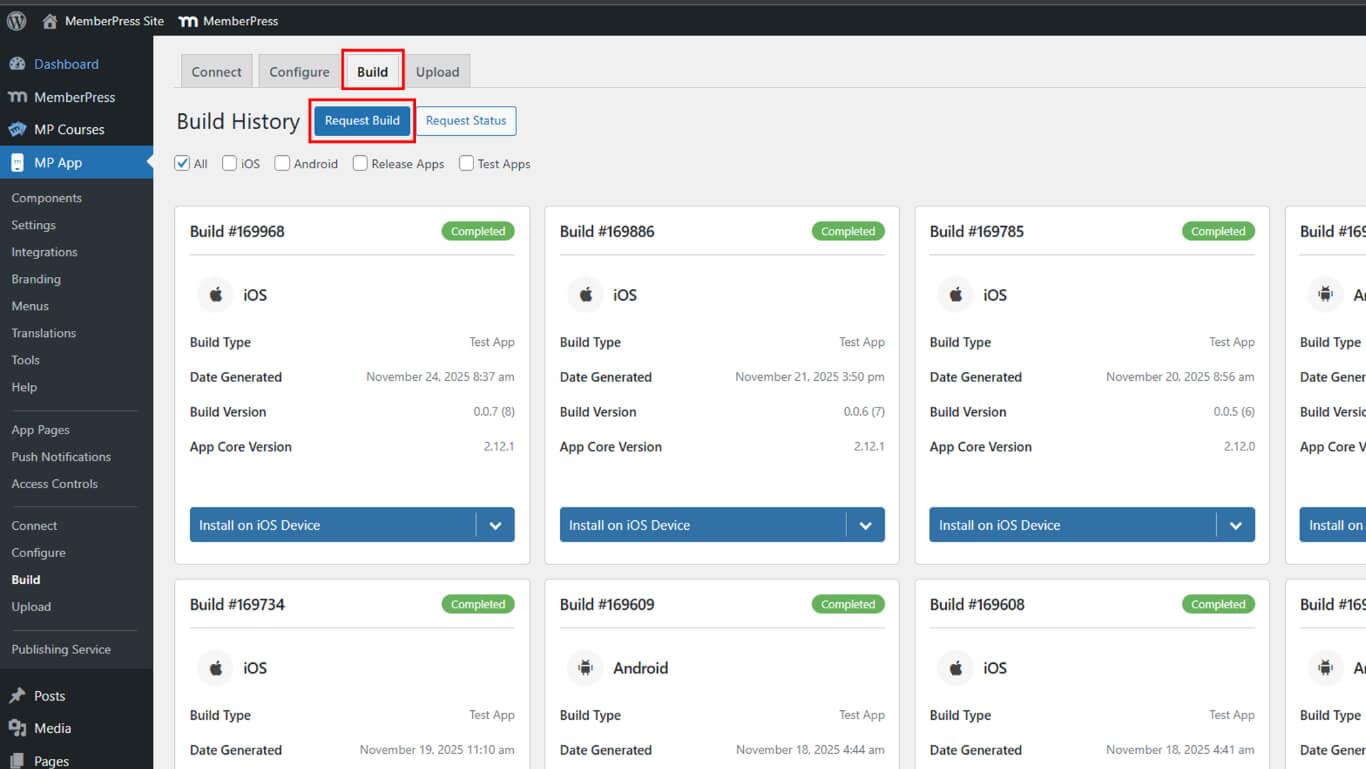
- Vaya a Panel de control > MP AppKit > Crear.
- Haga clic en el botón Solicitar construir botón.
- Compruebe el Android como plataforma.
- Seleccione Liberar aplicación como tipo de construcción.
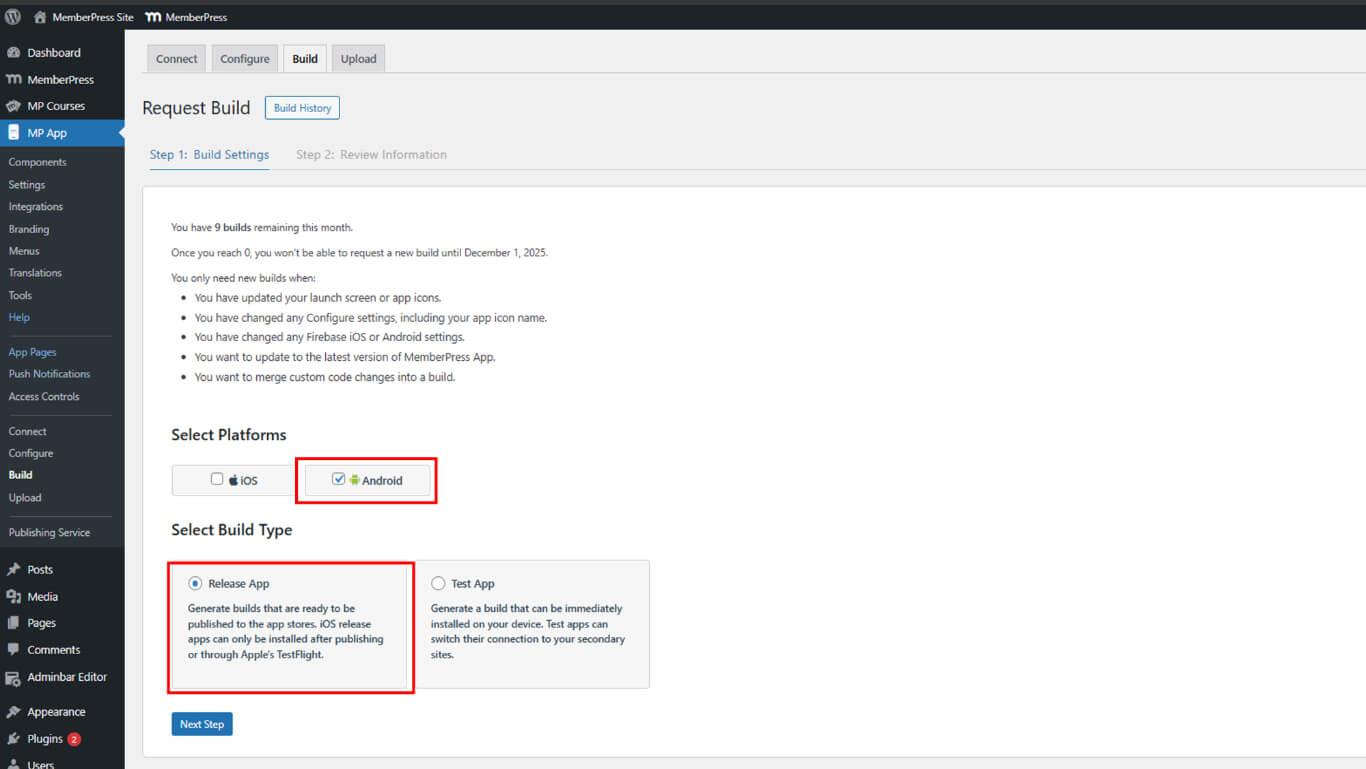
- Haga clic en Siguiente paso para proceder a la configuración de la compilación.
- Haga clic en Enviar solicitud de construcción para enviar la solicitud de construcción.
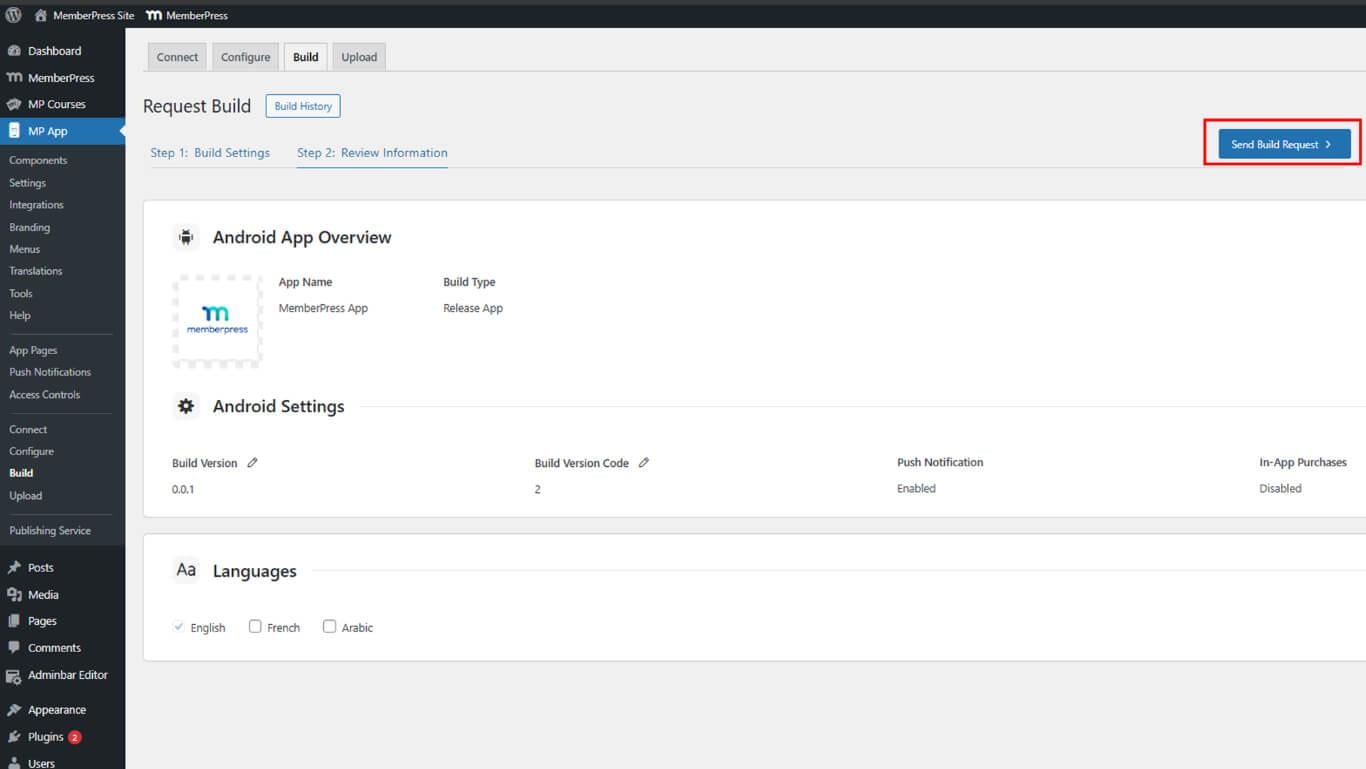
- Supervisar el progreso de la construcción en Historia de la construcción.
- Espere al estado de finalización de la compilación.
La construcción suele completarse en 5-10 minutos tras el envío de la solicitud.
Descarga del archivo de compilación AAB
La descarga del archivo AAB prepara el paquete actualizado de la aplicación para subirlo a Google Play Console.
- Vaya a Panel > MP AppKit > Construcción > Historial de construcción una vez finalizada la construcción.
- Busque la versión finalizada en la lista de versiones.
- Haga clic en Descargar archivo AAB junto a la versión de lanzamiento.
- Guarda el archivo AAB en una ubicación segura del dispositivo.
Ambos métodos de descarga proporcionan el mismo archivo AAB para su presentación.
Envío de la actualización a Google Play Console
El envío de actualizaciones envía la nueva versión de la aplicación a Google para su revisión.
- Inicie sesión en Google Play Console en play.google.com/console.
- Vaya a Todas las aplicaciones y selecciona la aplicación de la lista.
- Haga clic en Pruebas y lanzamiento > Producción en la barra lateral izquierda.
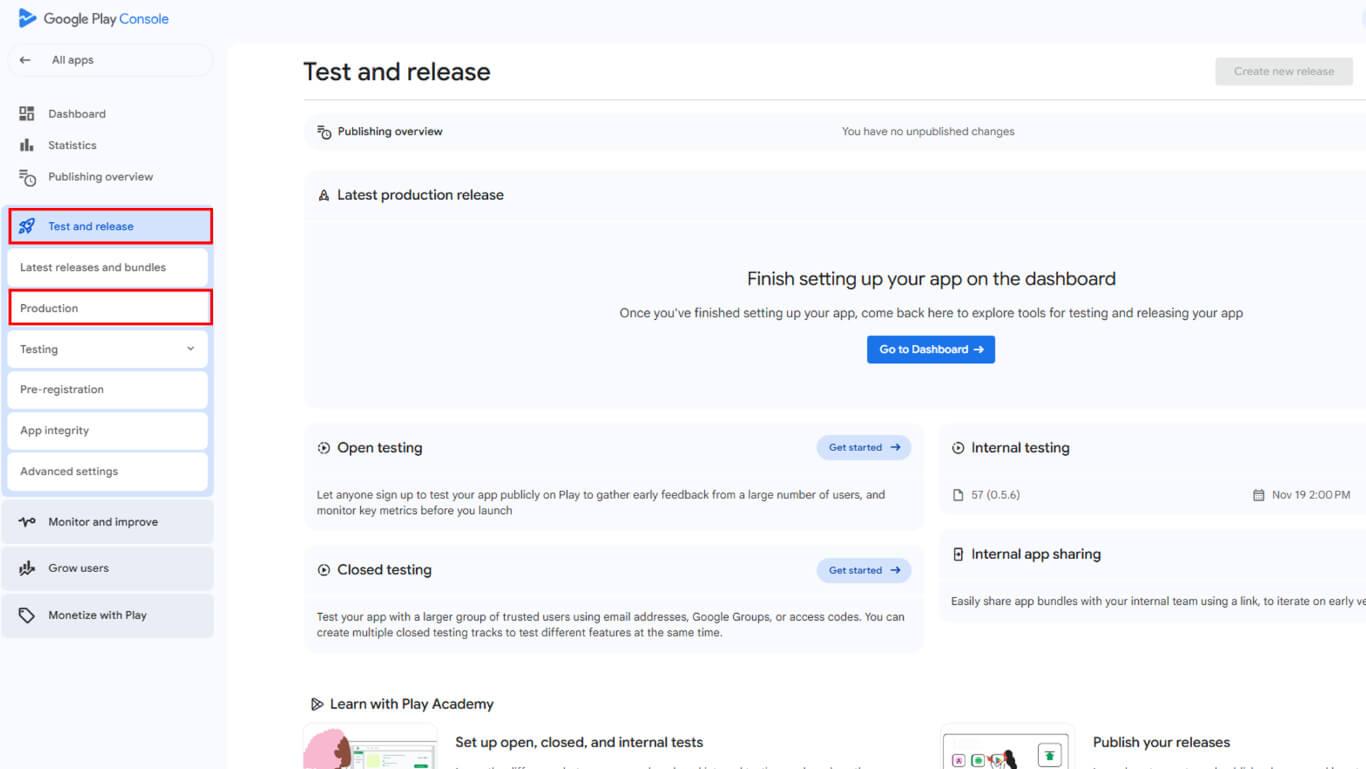
- Haga clic en Crear nueva versión para el envío de nuevas actualizaciones.
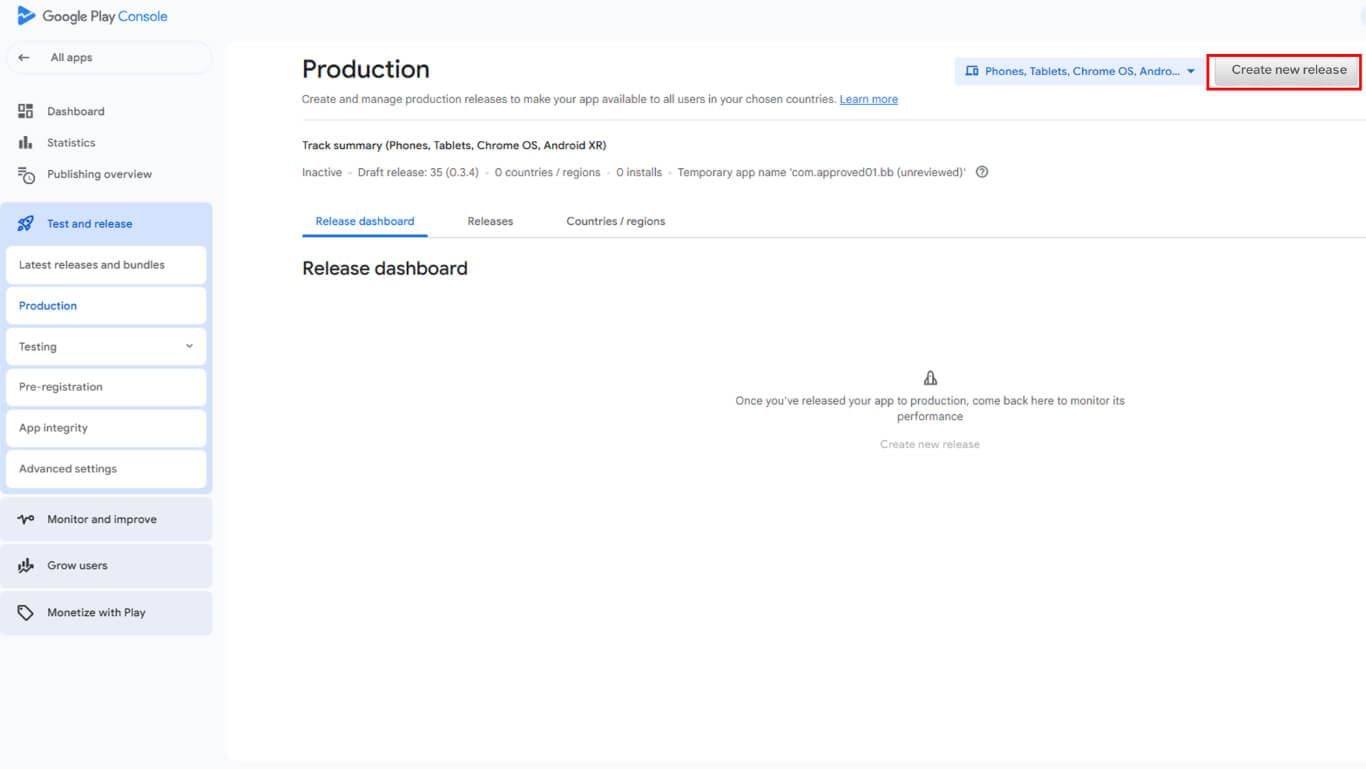
- Haga clic en Editar publicación si existe un proyecto de comunicado de prensa.
- Desplácese hasta el Paquetes de aplicaciones y APK sección.
- Haga clic en Cargar para abrir la selección de archivos.
- Seleccione el archivo AAB descargado del dispositivo.
- Espere a que finalice la carga y se procese el archivo.
- Introduzca un Nombre de la publicación en el campo del nombre de la versión.
- Entre en Notas de publicación describir los cambios y mejoras.
- Haga clic en Guardar para guardar el comunicado como borrador.
- Haga clic en Revisión del lanzamiento para proceder a la revisión de la presentación.
Revisión de la configuración de actualización
La revisión de las actualizaciones verifica la compatibilidad de las versiones y los requisitos de lanzamiento.
- Revise la página de resumen de la versión en busca de errores o advertencias.
- Compruebe que el código de la versión es superior al de las versiones anteriores.
- Subsane todos los errores requeridos antes de la presentación.
- Opcionalmente, resuelva las advertencias para mejorar la calidad de la actualización.
- Confirme que las notas de la versión describen con precisión los cambios.
- Revise los países y regiones para conocer la disponibilidad de actualizaciones.
Envío de la actualización para su revisión
El envío de la actualización envía la publicación al equipo de revisión de Google.
- Revise todos los detalles actualizados en la página de revisión.
- Compruebe que no quedan errores de bloqueo en la configuración.
- Haga clic en Inicio de la puesta en producción para enviar la actualización.
- Confirme el envío en el cuadro de diálogo de confirmación.
- Supervise el estado del envío en Google Play Console.
Tipos de rechazo
Google puede rechazar el envío de actualizaciones por problemas técnicos o de conformidad.
Cuestiones de metadatos implican contenido de la lista de la tienda, actualizaciones de la política de privacidad o cambios en la clasificación del contenido. Los rechazos de metadatos requieren actualizaciones de Play Console sin nuevas compilaciones de aplicaciones.
Problemas con la aplicación implican problemas de código, infracciones de las políticas o defectos de funcionalidad. Los rechazos de aplicaciones requieren correcciones de código, nuevas compilaciones y un nuevo envío completo.










 ES
ES  EN
EN  FR
FR  DE
DE  PT
PT 