

Le générateur de cours MemberPress AI est un générateur de cours alimenté par l'IA. Il s'intègre directement dans les cours MemberPress. Le module complémentaire génère des structures de cours complètes par le biais d'un chat avec un agent d'intelligence artificielle. Cela inclut les sections, les leçons, les quiz et les projets de contenu. Le générateur de cours AI comprend également les éléments suivants Assistant de cours IA et le AI Quiz Builder.
Ce document explique comment créer des cours à l'aide du MemberPress AI Course Creator.
Conditions préalables
Le module complémentaire AI Course Generator nécessite les éléments suivants pour fonctionner :
- Plugin MemberPress installés et activés ;
- MemberPress Cours complémentaires installés et activés ;
- Module complémentaire AI Course Generator installés et activés ;
- Crédits AI disponibles sur le compte.
Pour la génération de quiz, le MemberPress Cours Quiz add-on doit également être installé et activé.
Tutoriel vidéo
Modes du générateur de cours d'IA
Le générateur de cours MemberPress AI peut générer des cours, des leçons, des quiz et leur contenu. Il peut également améliorer ou développer le contenu existant.
Le module complémentaire AI Course Generator comporte trois modes :
- Créateur de cours d'IA - utilisé pour créer des cours entiers. Il s'agit d'un cours, d'un curriculum avec des leçons et d'un contenu initial ;
- Assistant de cours IA - pour générer de nouveaux contenus. Il peut également améliorer le contenu d'un cours ou d'une leçon existants ;
- AI Quiz Builder - ce mode génère des quiz.
Création de nouveaux cours avec AI Course Creator
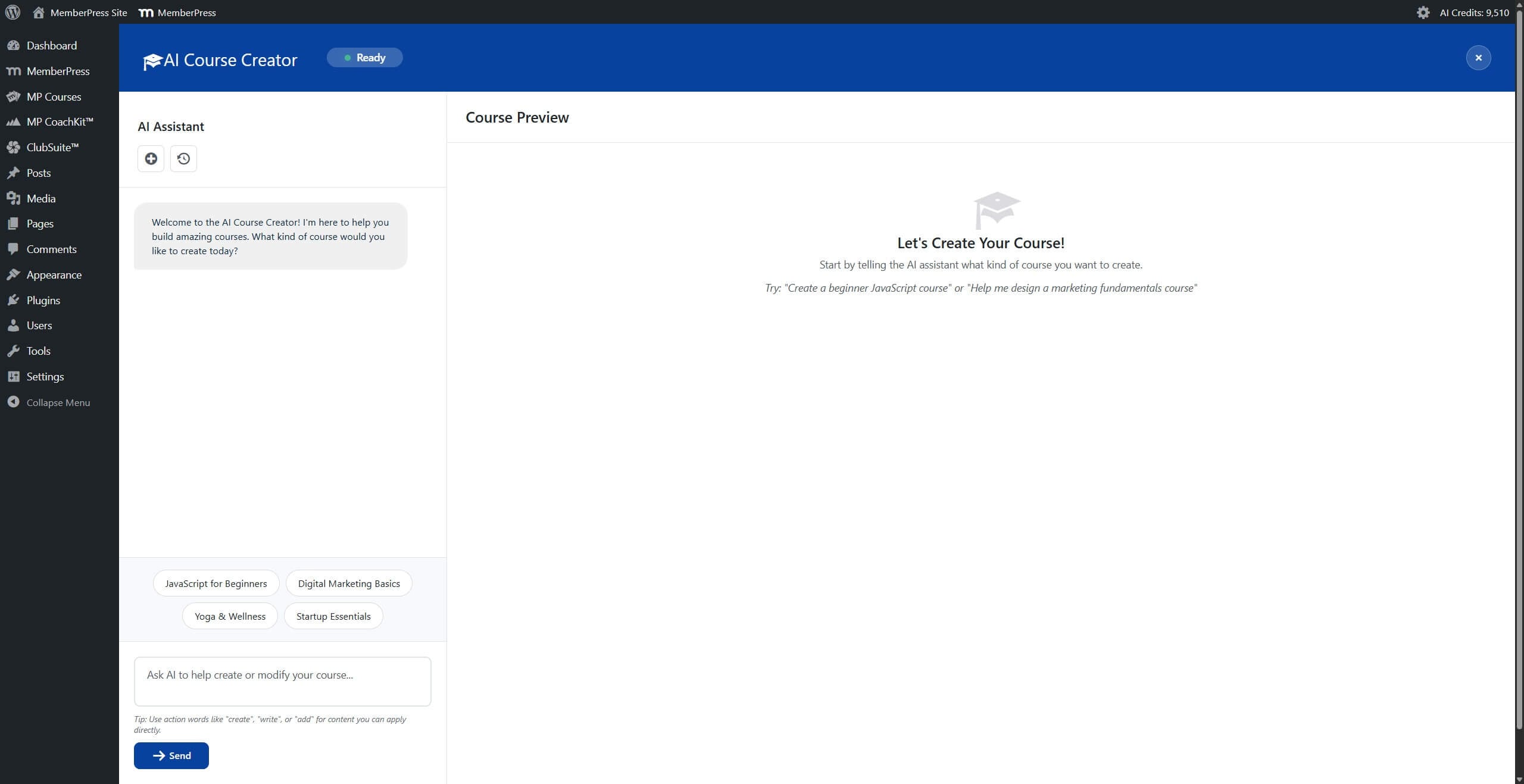
Le Créateur de cours AI utilise une présentation à deux panneaux pour la création de cours. Le panneau de gauche contient une interface de chat où l'assistant IA pose des questions et reçoit des réponses. Le panneau de droite affiche un aperçu en direct de la structure du cours, qui se met à jour au fur et à mesure de la conversation.
La conversation avec le créateur de cours d'IA commence par une invite principale expliquant le type de cours à créer. L'invite peut inclure des détails tels que le sujet principal, le public cible, les méthodes d'enseignement, les résultats d'apprentissage spécifiques et la durée prévue du cours.
Une fois les exigences recueillies, l'IA génère une structure de cours complète. Celle-ci comprend le titre du cours, les sections, les leçons de chaque section, les durées estimées, les objectifs d'apprentissage et le projet de contenu.
Le contenu généré peut être modifié grâce à des invites supplémentaires dans l'interface de discussion. Des options d'édition manuelle sont également disponibles pour affiner la structure du cours.
Création d'une structure de cours
Pour créer un nouveau cours avec AI Course Creator :
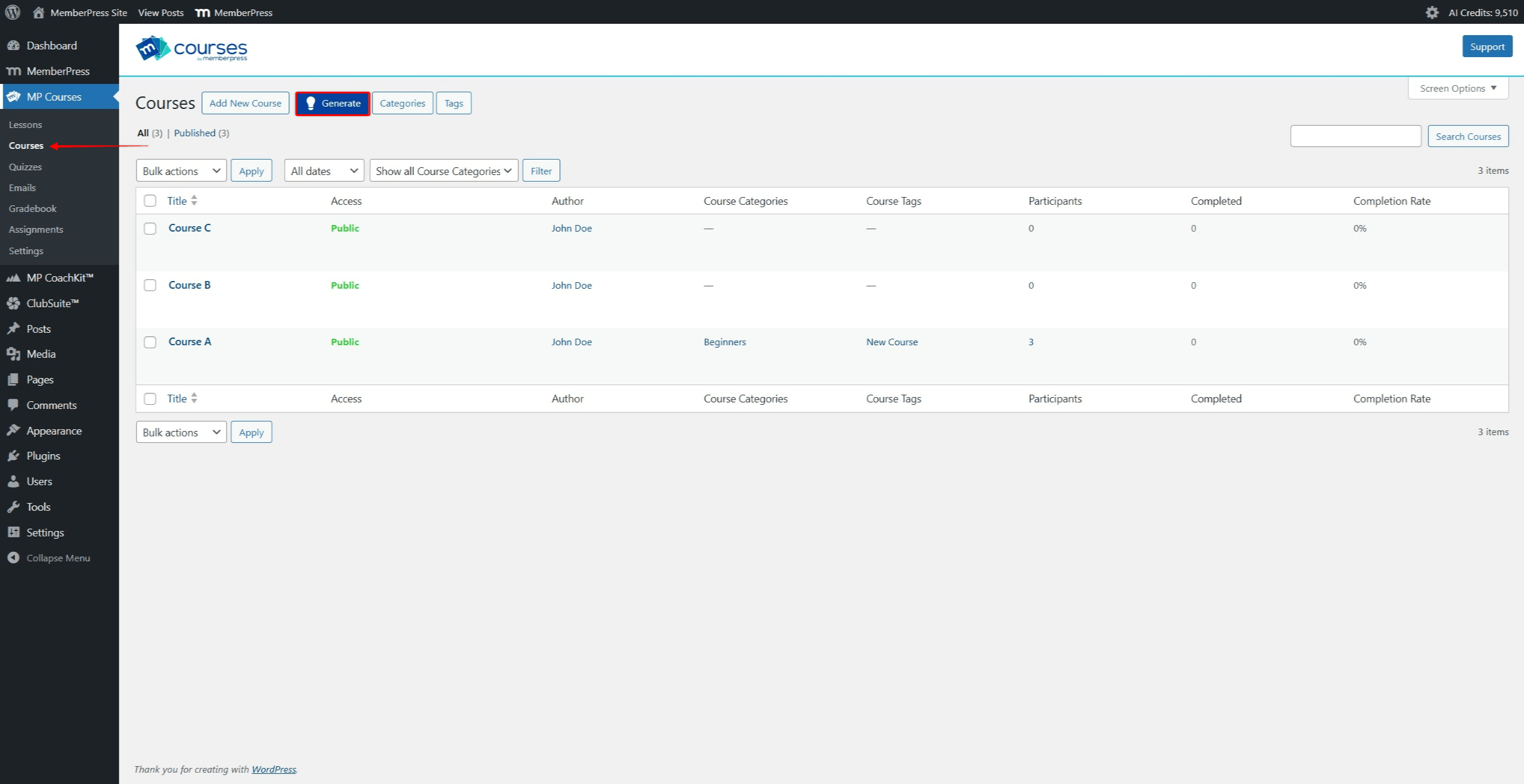
- Naviguez jusqu'à Tableau de bord > Cours MP > Cours.
- Cliquez sur le bouton Générer en haut de la page des cours. Ce bouton se trouve à côté du bouton Ajouter un nouveau cours bouton.
- L'interface AI Course Creator s'ouvre sur deux panneaux.
- Dans le champ de discussion, saisissez une invite décrivant le cours à créer. Incluez des détails tels que le sujet principal, les domaines spécifiques supplémentaires, le public cible et la durée du cours ou le nombre de leçons.
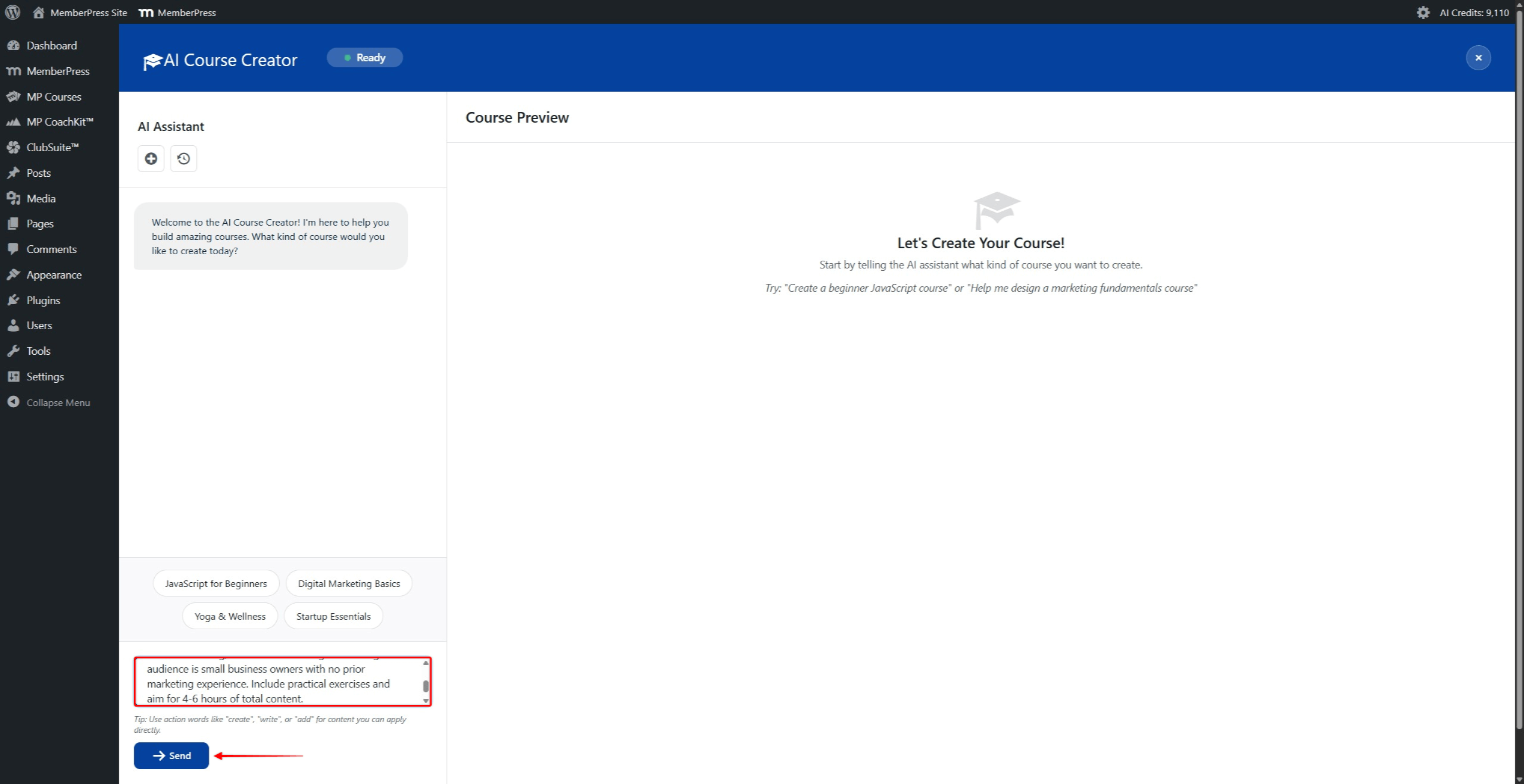
- Cliquez sur le bouton Envoyer pour soumettre l'invite.
- Attendez que l'IA génère la structure du cours. Le panneau Aperçu du cours se met à jour et affiche le cours généré.
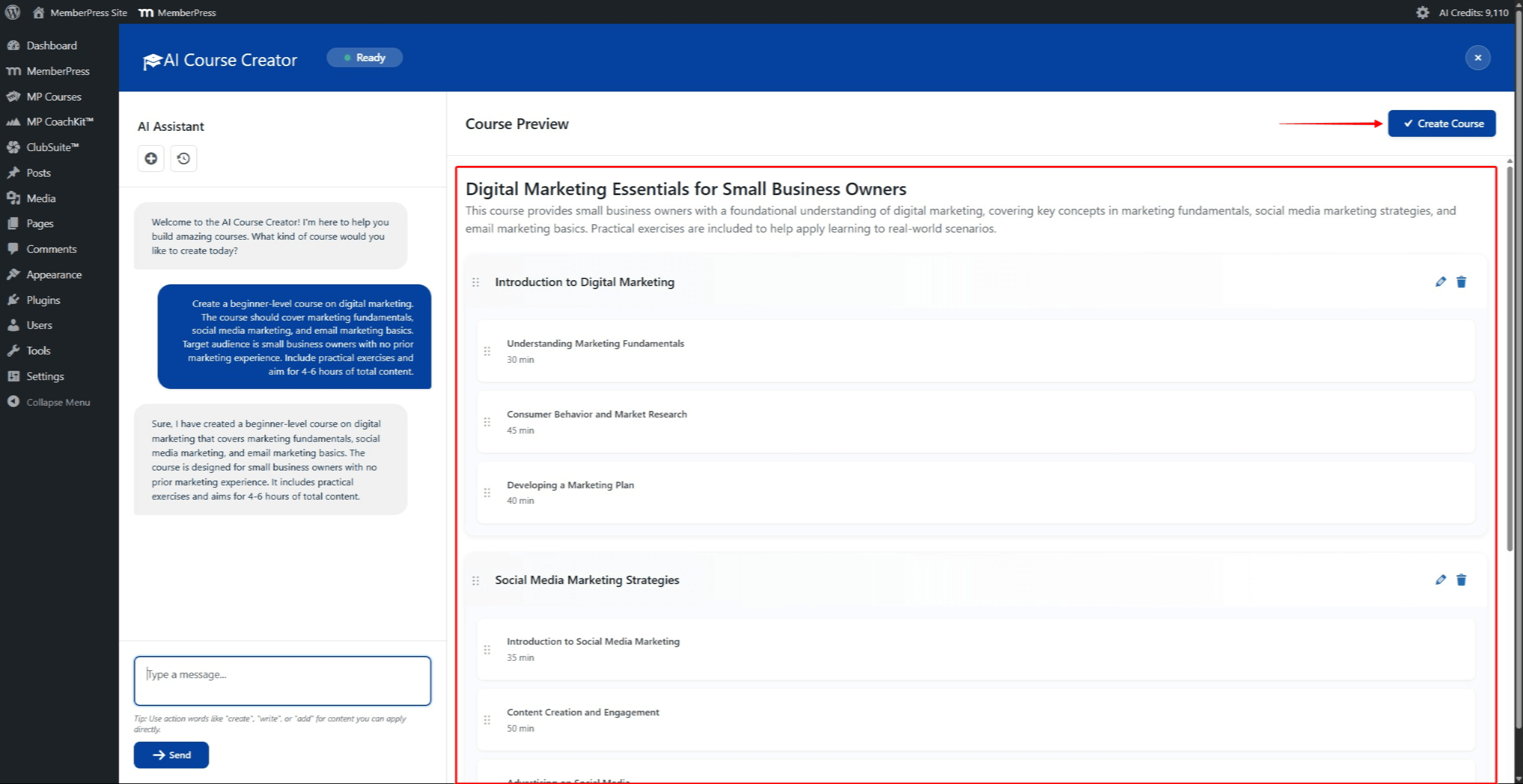
- Examinez la structure du cours générée. La structure peut être modifiée à l'aide d'invites de chat supplémentaires ou d'une édition manuelle.
- Cliquez sur le bouton Créer un cours dans le coin supérieur droit du panneau Aperçu du cours pour enregistrer le cours.
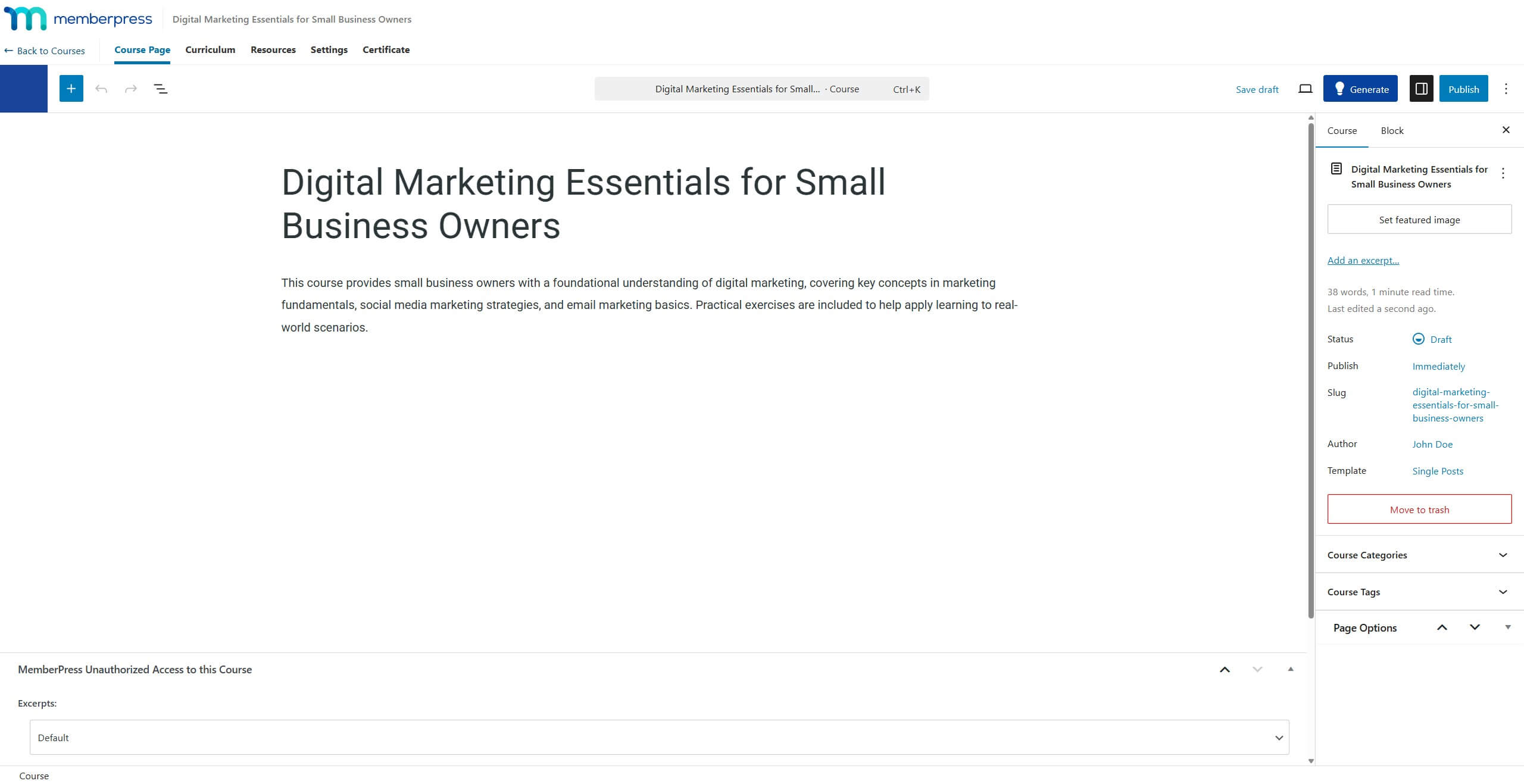
Modification de la structure du cours généré
La structure du cours générée peut être modifiée avant d'être enregistrée. Plusieurs options d'édition sont disponibles directement dans le panneau d'aperçu du cours.
Réorganisation des sections et des leçons
Les sections et les leçons peuvent être réorganisées à l'aide de la fonctionnalité "glisser-déposer". Il suffit de cliquer sur une section ou une leçon et de la maintenir enfoncée, puis de la faire glisser jusqu'à la position souhaitée. Il est également possible de demander des leçons et des sections supplémentaires via le panneau de discussion.
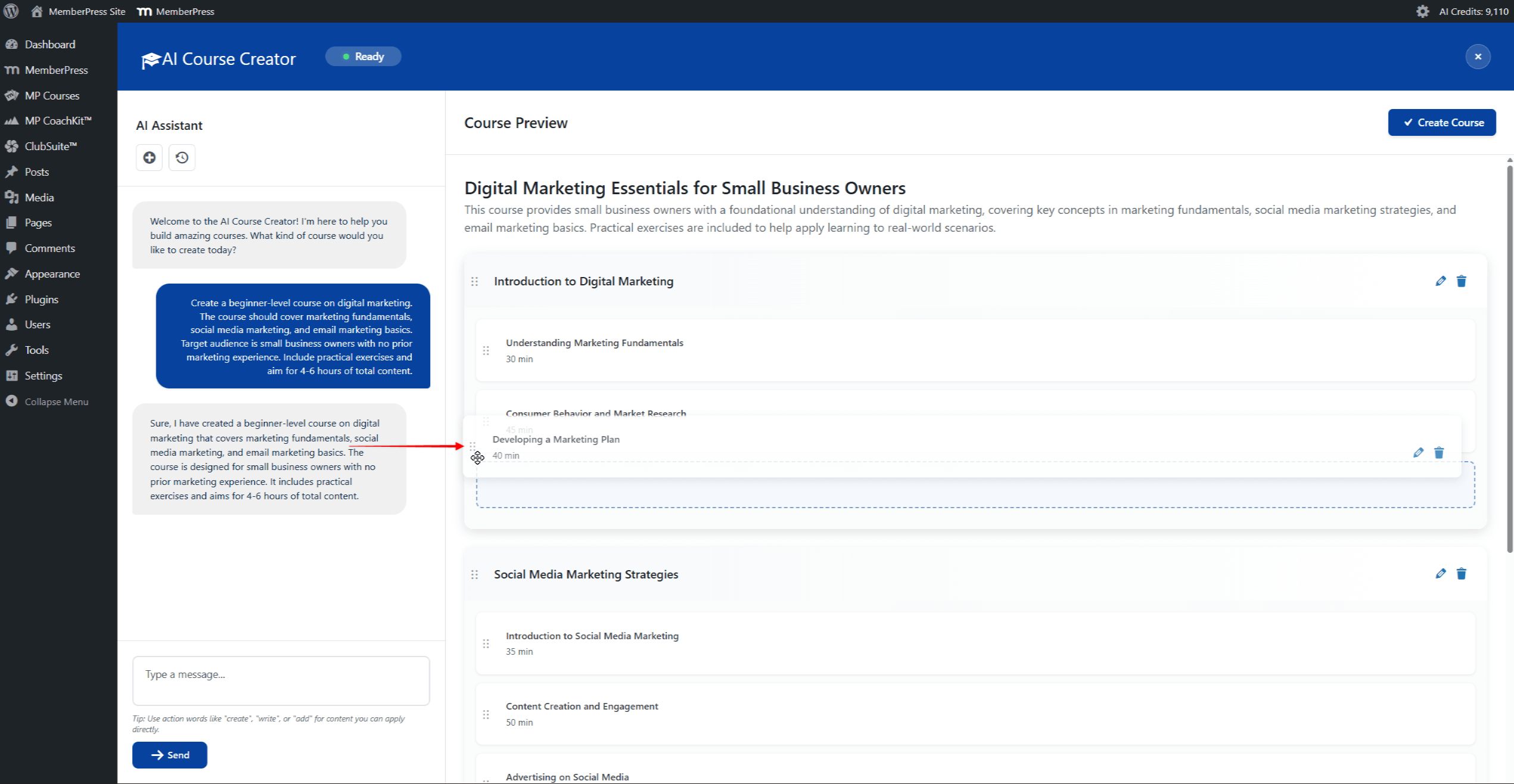
Renommer et supprimer des sections et des leçons
Chaque section et leçon affiche des icônes d'édition sur le côté droit lorsqu'elles sont survolées :
- Cliquez sur le bouton icône de crayon pour renommer une section ou modifier une leçon ;
- Cliquez sur le bouton icône de la corbeille pour supprimer une section ou une leçon.
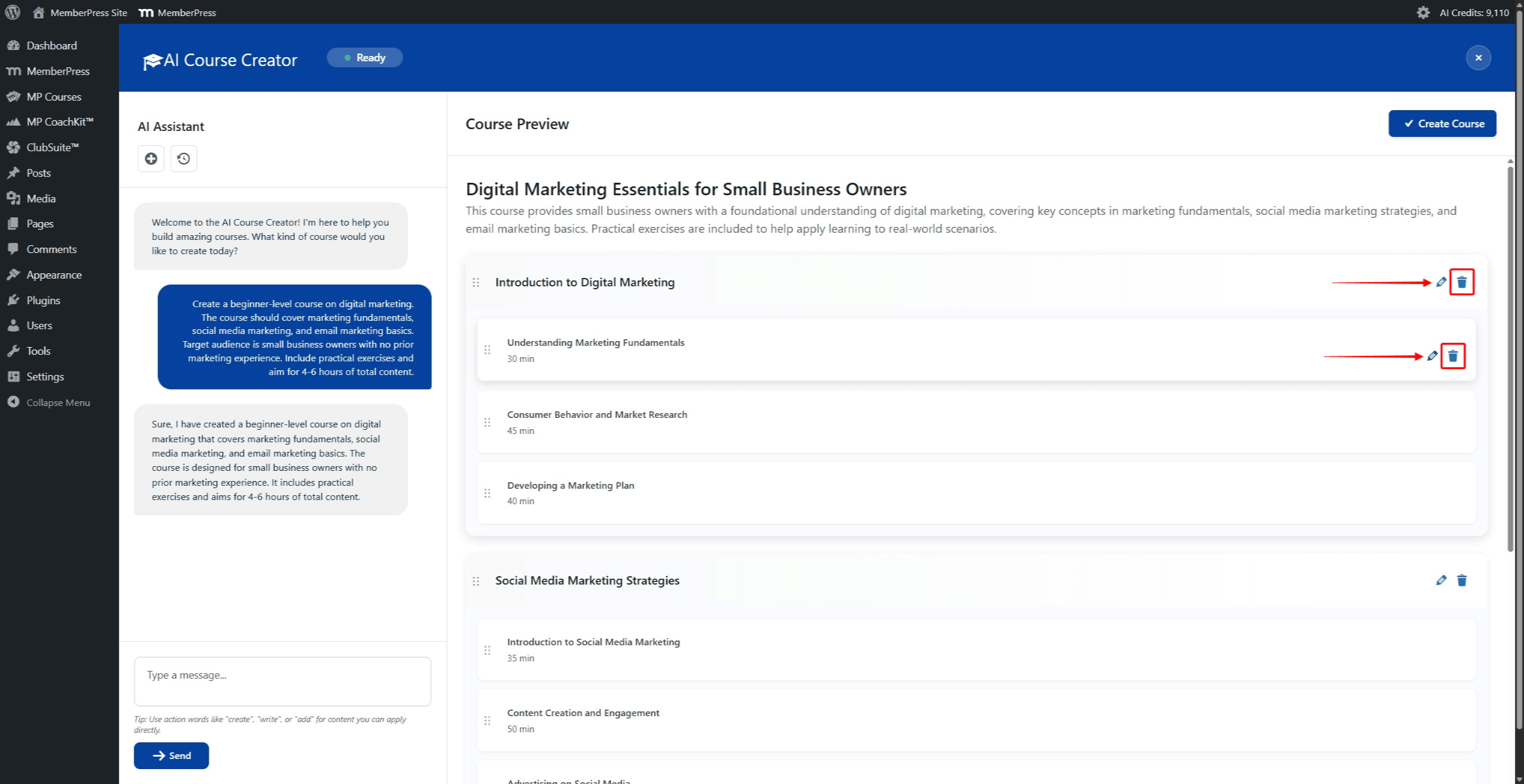
Générer le contenu de la leçon
Le contenu des leçons peut être généré directement dans le créateur de cours AI. Cela permet d'alimenter les leçons avec du contenu généré par l'IA avant d'enregistrer le cours.
Pour générer du contenu pour une leçon :
- Dans le panneau d'aperçu du cours, cliquez sur le bouton icône de crayon à côté d'une leçon.
- Une fenêtre contextuelle s'ouvre et affiche le titre de la leçon et les options de contenu. La fenêtre popup comprend trois onglets : Avant-première, Editeret Quiz.
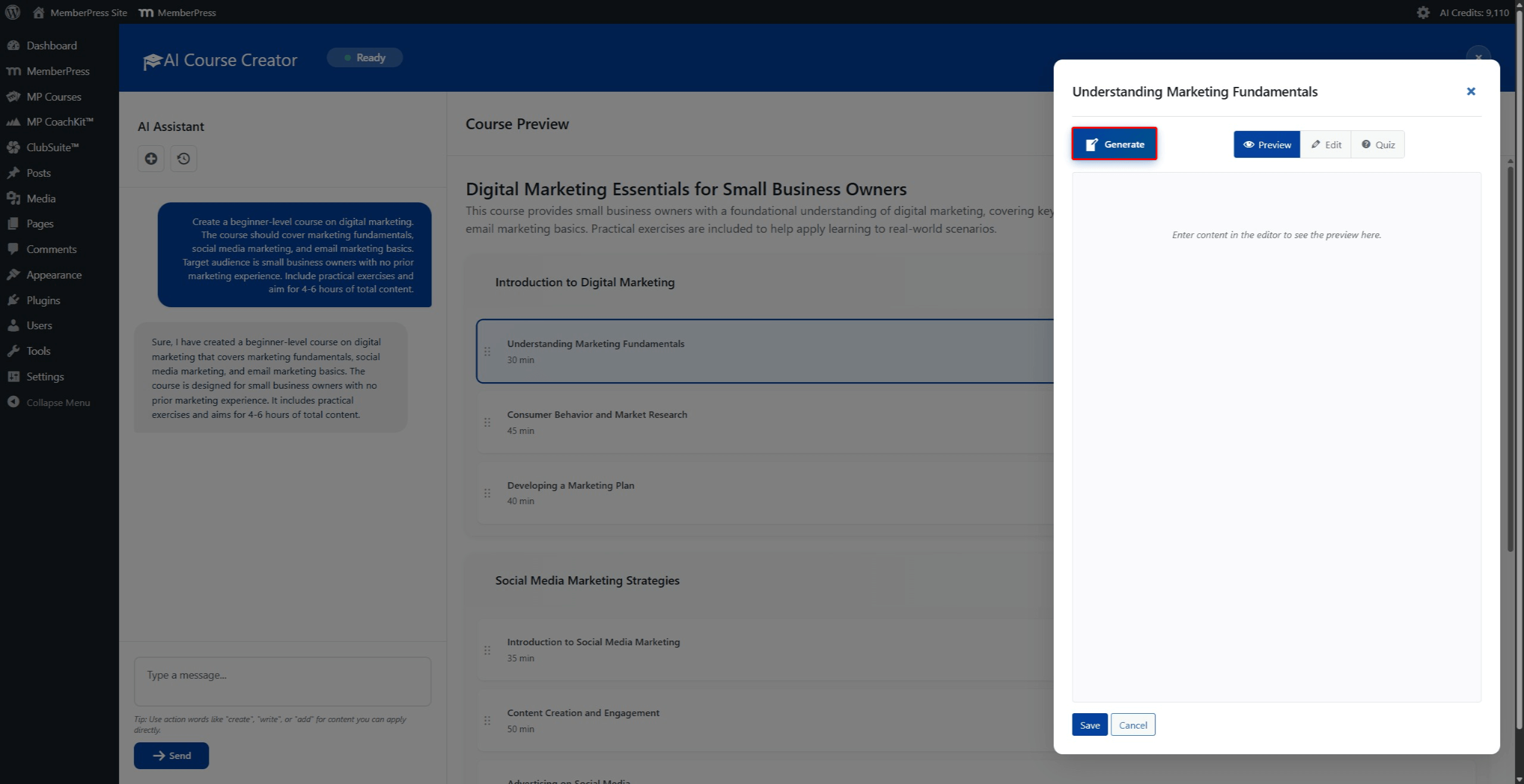
- Cliquez sur le bouton Générer dans la fenêtre contextuelle pour générer du contenu de leçon à l'aide de l'IA.
- Attendez que l'IA génère le contenu. Le contenu généré apparaît dans la zone de prévisualisation.
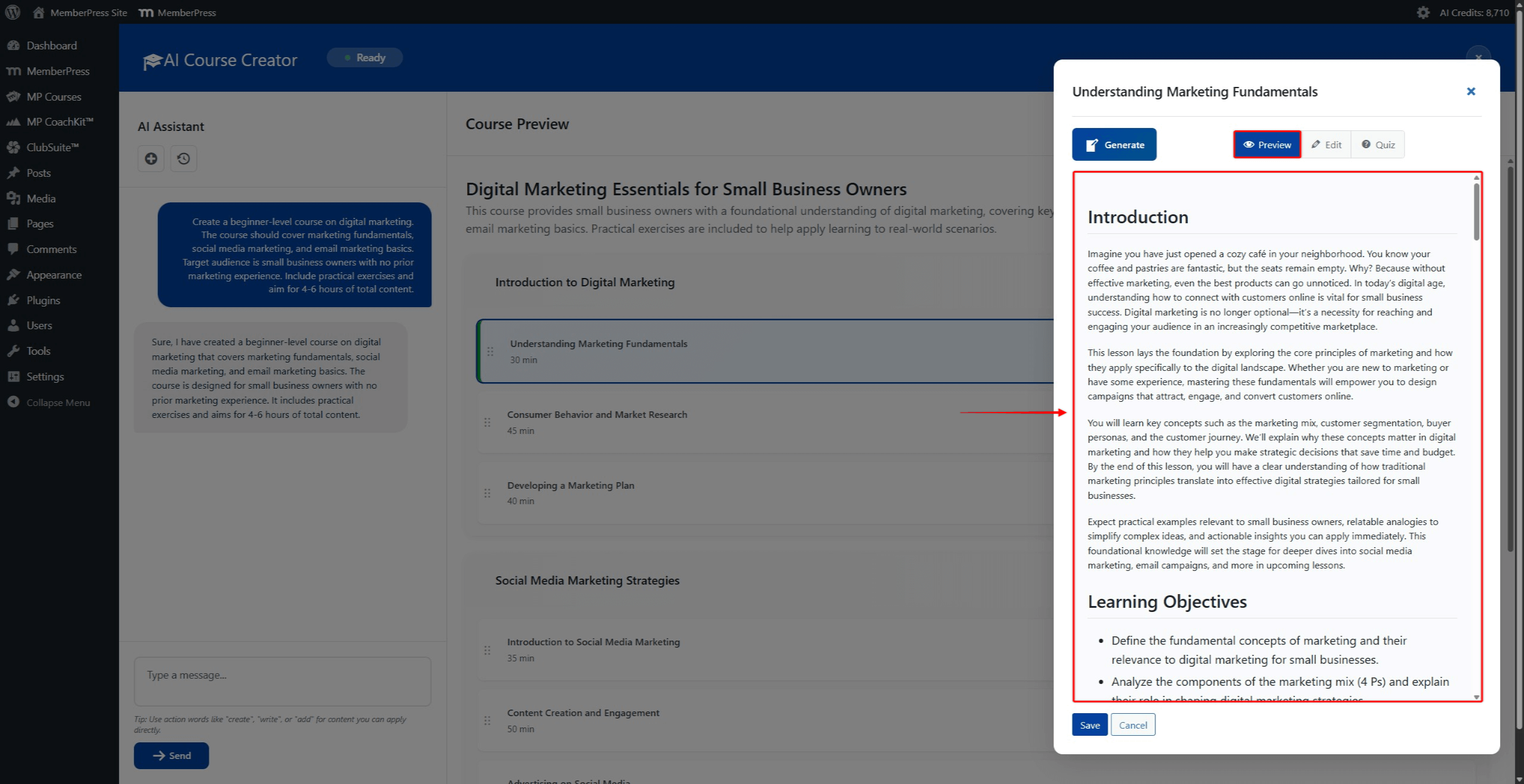
- Examinez le contenu généré dans le Avant-première tabulation.
- Cliquez sur le bouton Editer pour visualiser et modifier le contenu au format HTML.
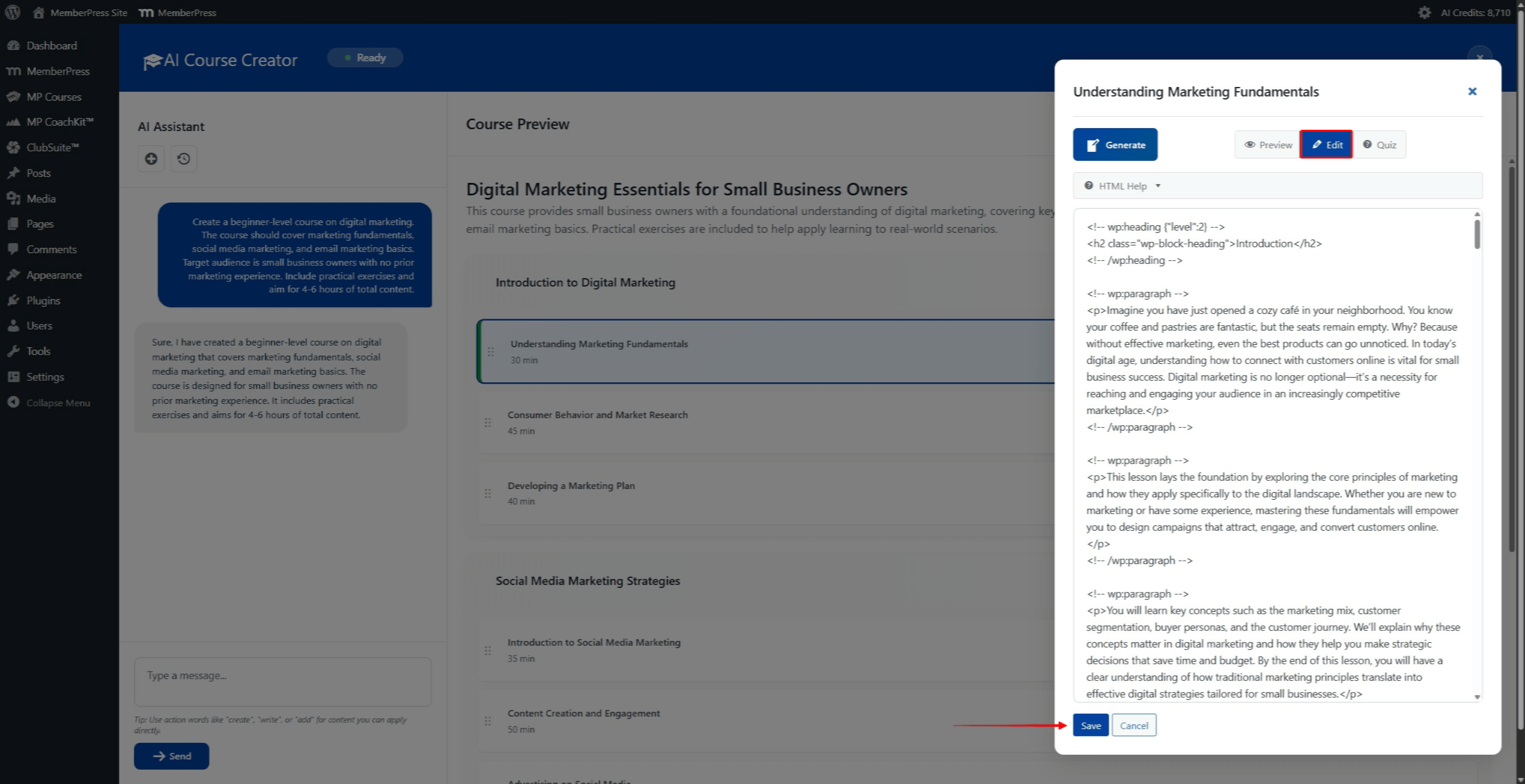
- Cliquez sur le bouton Économiser pour enregistrer le contenu de la leçon. Cliquez sur Annuler pour annuler les modifications.
Ces étapes peuvent être répétées pour n'importe quelle leçon du programme généré. Le panneau Aperçu du cours affiche des résumés de contenu pour les leçons dont le contenu a été généré.
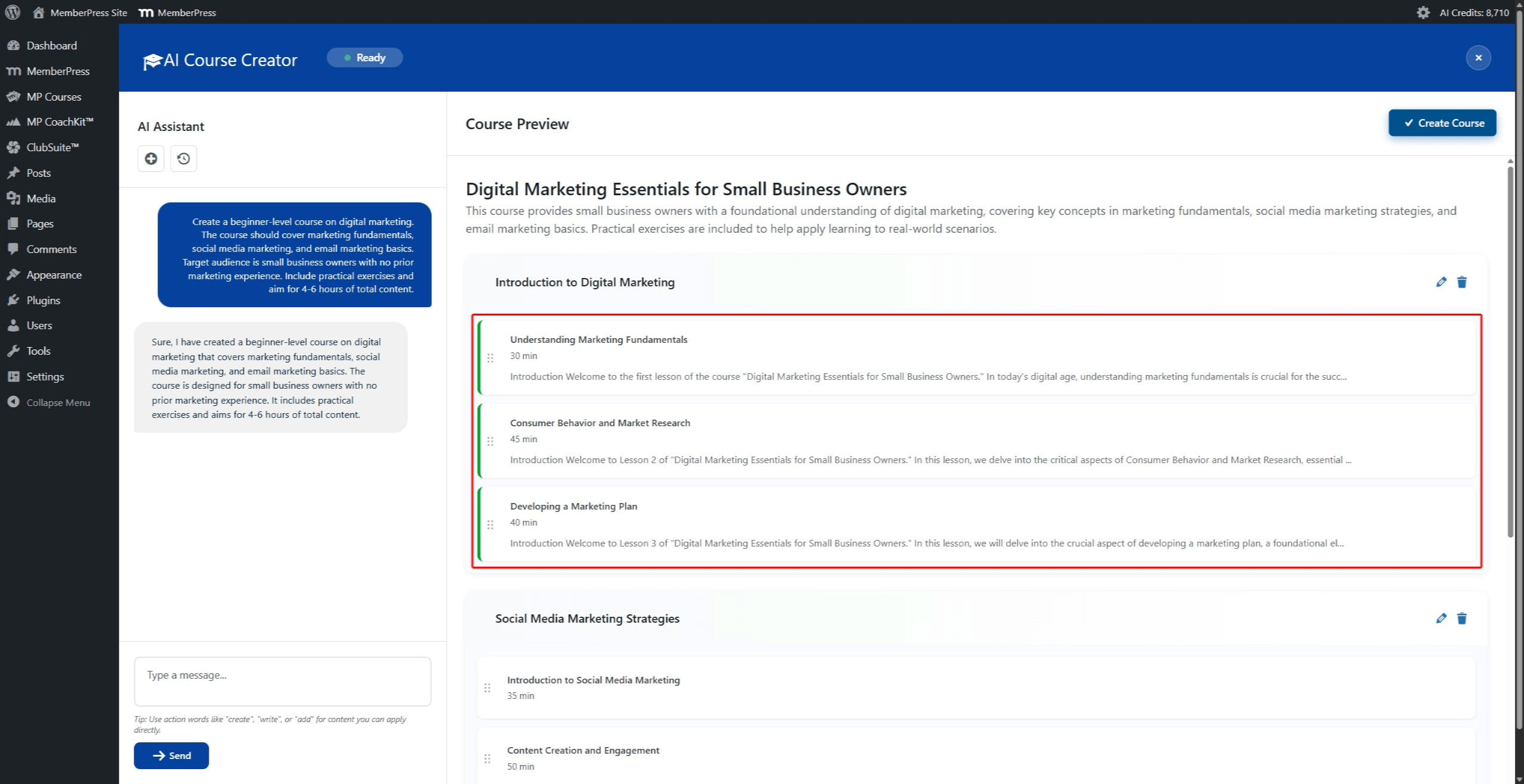
Le contenu de la leçon peut également être généré ou modifié ultérieurement à l'aide de la fonction Assistant de cours IA. Naviguez jusqu'à Tableau de bord > Cours MP > Leçons et modifiez n'importe quelle leçon pour accéder à l'assistant de leçon AI.
Générer des questionnaires de cours
La fenêtre contextuelle de la leçon comprend également un Quiz onglet. Cet onglet permet de générer un petit quiz basé sur le contenu de la leçon. Le quiz est généré en utilisant le contenu de l'onglet Avant-première tabulation.
Cette fonction permet d'ajouter rapidement des questions de quiz lors de l'élaboration du programme de cours. Cependant, elle présente certaines limites par rapport à la version complète de l'application. AI Quiz Builder:
- Seules 5 questions de quiz peuvent être générées par leçon ;
- Seul le type de question à choix multiple est pris en charge ;
- Le quiz est basé uniquement sur le contenu de la leçon spécifique et ne peut pas inclure des questions provenant de plusieurs leçons.
Pour une création plus complète de quiz avec plusieurs types de questions et de leçons, utilisez la fonction AI Quiz Builder après avoir créé le cours.
Pour générer un quiz de cours :
- Dans la fenêtre de la leçon, cliquez sur le bouton Quiz tabulation.
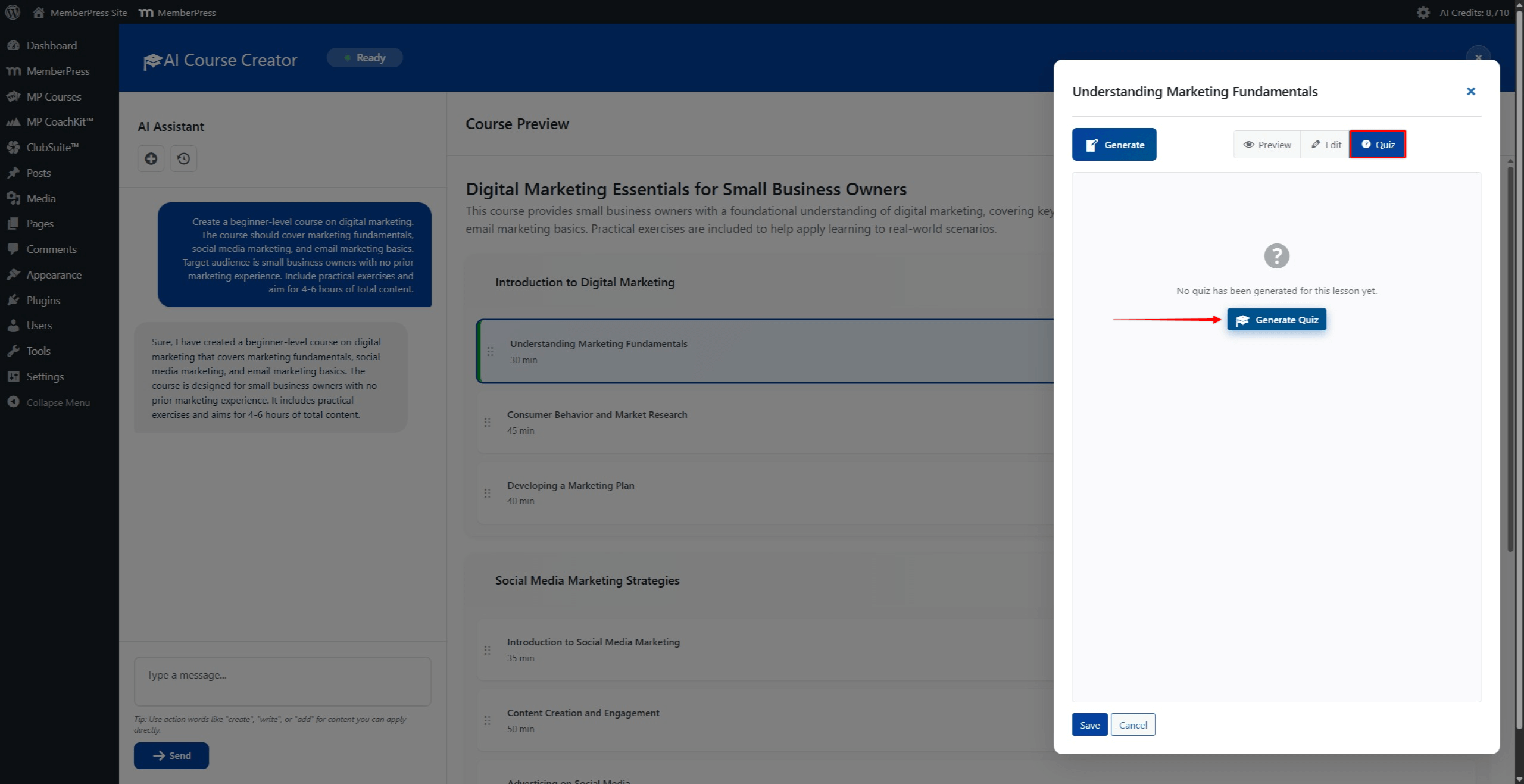
- Cliquez sur le bouton Générer un quiz pour générer 5 questions à choix multiples.
- Attendez que l'IA génère les questions du quiz.
- Passez en revue les questions générées dans l'onglet Quiz.
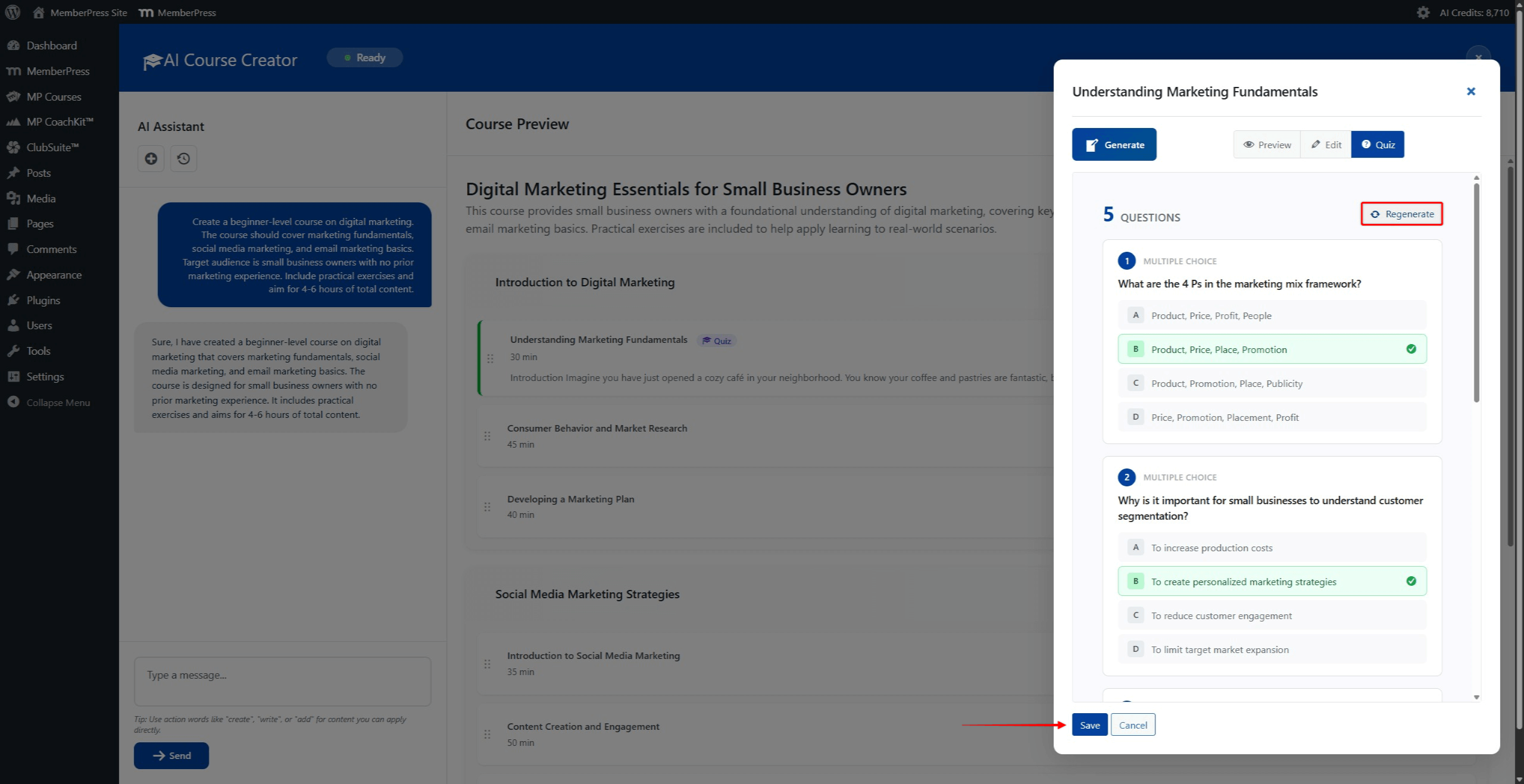
- Si les questions ne sont pas satisfaisantes, cliquez sur le bouton Régénérer pour générer une nouvelle série de 5 questions.
- Cliquez sur le bouton Économiser pour enregistrer le contenu de la leçon et le questionnaire.
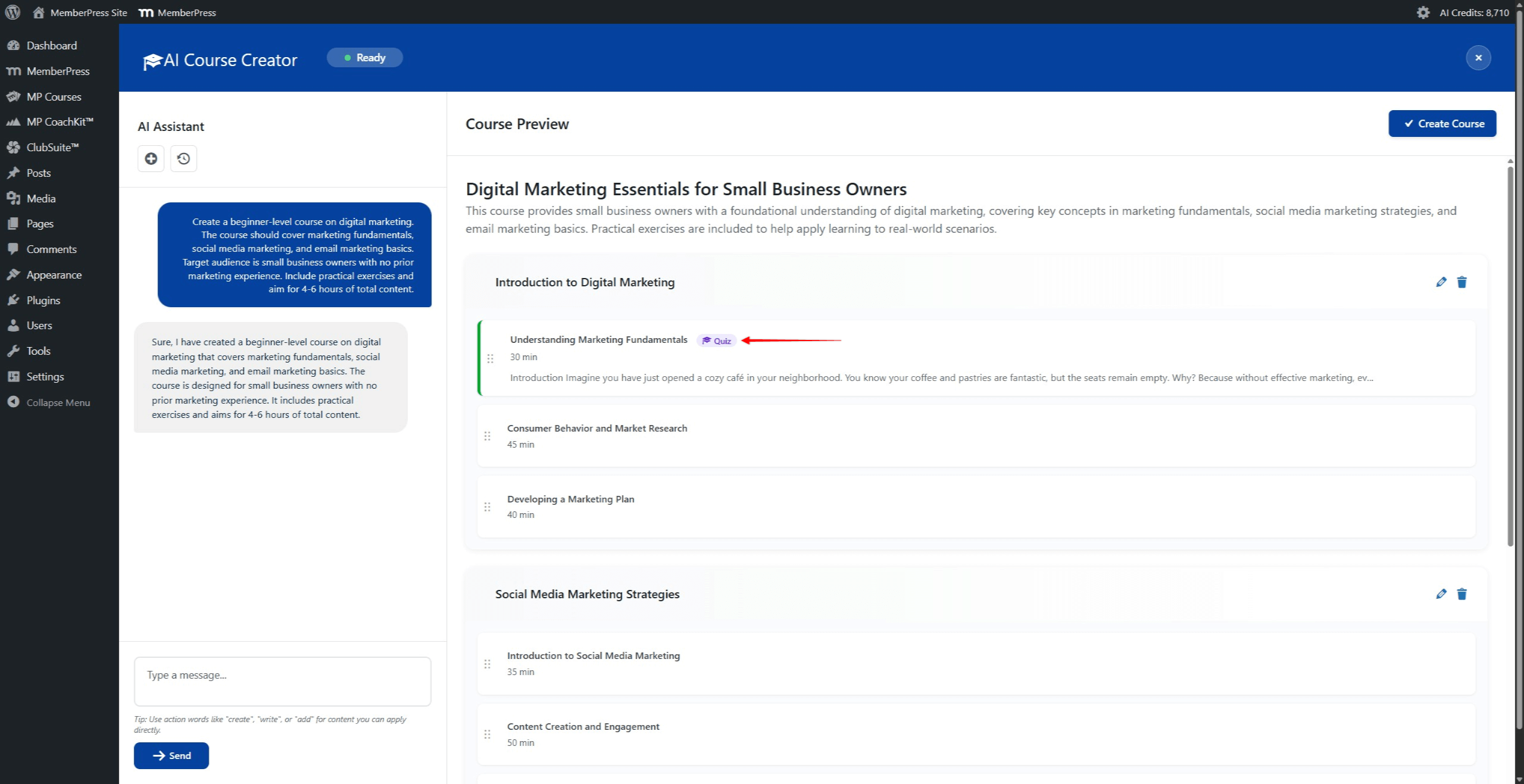
Après l'enregistrement, les leçons avec des quiz générés affichent une icône “Quiz” à côté du titre de la leçon dans le panneau d'aperçu du cours.
Compatibilité des cours
Tous les cours générés par l'IA sont entièrement compatibles avec les fonctions existantes de MemberPress. Celles-ci comprennent
- Règles d'accès pour la protection du contenu ;
- Paramètres de protection du contenu ;
- Modèles ReadyLaunch pour la conception des cours.
Système de crédits AI
Les fonctions du générateur de cours d'IA consomment des crédits d'IA. Les crédits sont utilisés en fonction de la complexité de chaque action. Les actions suivantes nécessitent des crédits :
- Génération d'un plan de cours ;
- Création du contenu des cours ;
- Régénération du contenu ;
- Génération de questions de quiz.
Consultation du solde du crédit AI
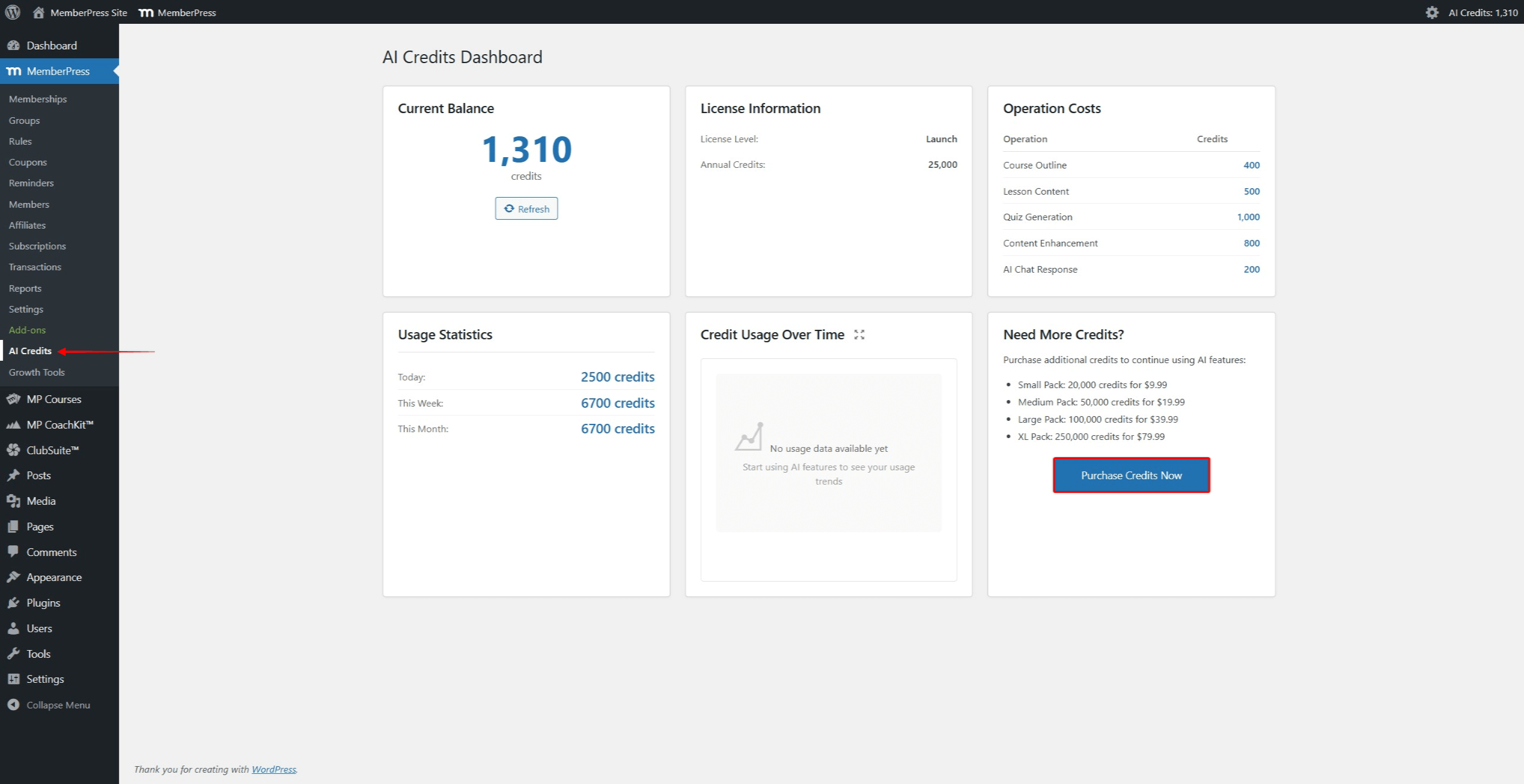
Le solde créditeur actuel peut être consulté à l'adresse suivante Tableau de bord > MemberPress > Crédits AI. Ce tableau de bord propose des options pour :
- Acheter des crédits supplémentaires ;
- Voir l'historique de l'utilisation.
Pour acheter des crédits supplémentaires, cliquez sur le bouton “Acheter des crédits maintenant” sur la page Crédits AI.
Résumé
Le générateur de cours MemberPress AI simplifie la création de cours grâce à l'assistance de l'IA. Ce module complémentaire génère des structures de cours complètes, des contenus de leçons et des questions de quiz.
Les principales caractéristiques sont les suivantes :
- Le mode AI Course Creator permet de créer des cours entiers avec un programme d'études ;
- Assistant de cours IA pour générer et améliorer le contenu des cours ;
- AI Quiz Builder pour créer des questions de quiz basées sur le contenu de la leçon ;
- Système de gestion de l'utilisation de l'IA basé sur des crédits.
Le générateur de cours d'IA s'appuie sur Cours sur MemberPress et soutient MemberPress Cours Quiz.










 FR
FR  EN
EN  ES
ES  DE
DE  PT
PT 