

La fonctionnalité Gestion des liens externes vous permet de contrôler la façon dont les URL externes s'ouvrent dans votre application MemberPress (iOS/Android), qu'il s'agisse d'articles de blog, de contenu ou de menus personnalisés. Vous pouvez choisir d'ouvrir les liens dans un navigateur intégré à l'application, dans le navigateur par défaut de l'appareil ou de laisser les utilisateurs choisir leur préférence.
Ce guide vous explique comment configurer les paramètres de gestion des liens dans MemberPress AppKit et comment les utilisateurs peuvent gérer leurs préférences dans l'application.
Comprendre la fonctionnalité de gestion des liens externes
Les exigences relatives à la gestion des liens externes définissent la manière dont les URL externes à l'application s'ouvrent lorsque les membres appuient sur des liens dans le contenu de l'application.
Option de navigateur intégré à l'application: ouvre les liens externes dans le navigateur intégré, tout en maintenant la continuité de la session de l'application. Les membres restent dans l'environnement de l'application tout en accédant à du contenu externe.
Option navigateur externe: ouvre les liens dans le navigateur natif de l'appareil, tel que Safari ou Chrome. L'ouverture dans un navigateur externe offre toutes les fonctionnalités du navigateur et une interface familière.
Option au choix du membre: invite les utilisateurs à sélectionner leur type de navigateur préféré pour chaque interaction avec un lien. Les préférences de l'utilisateur sont enregistrées pour les futurs clics sur des liens, ce qui garantit une expérience cohérente.
Flexibilité de configuration: permet aux administrateurs d'imposer un comportement spécifique ou de déléguer le choix aux membres. Différentes stratégies conviennent à différents types de contenu et objectifs en matière d'expérience utilisateur.
Persistance des préférences: mémorise la sélection du navigateur membre entre les sessions de l'application lorsque l'option de choix est activée. Les préférences enregistrées réduisent les invites répétées et améliorent l'efficacité de la navigation.
Configuration des options de gestion des liens
La configuration de la gestion des liens définit le comportement par défaut pour l'ouverture des URL externes dans l'ensemble de l'application.
Accéder aux paramètres de compatibilité
L'accès aux paramètres de compatibilité permet de configurer la gestion des liens et de contrôler leur comportement.
- Dans WordPress, allez à Tableau de bord > MP AppKit > Paramètres > Compatibilité.
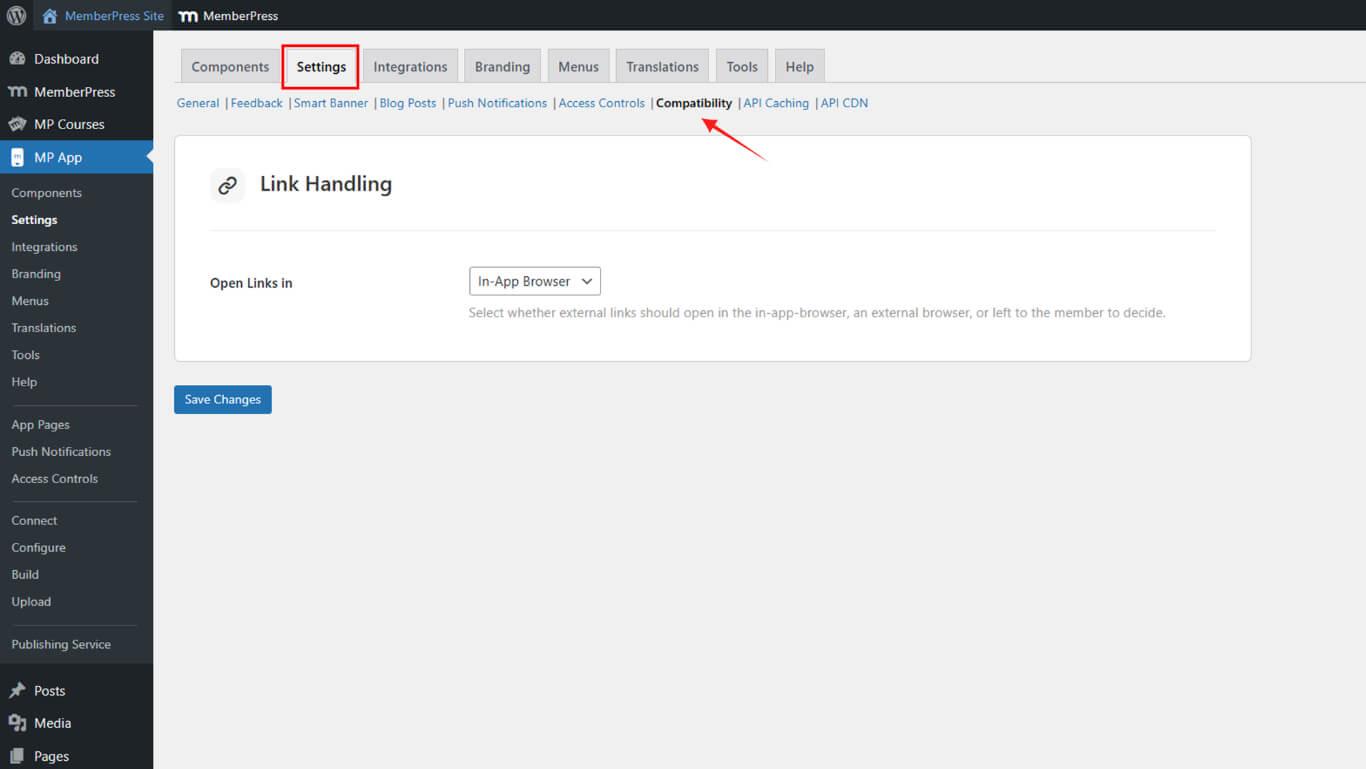
- Localiser le Gestion des liens liste déroulante.
Utilisation du navigateur intégré à l'application
La configuration du navigateur intégré à l'application ouvre les liens externes dans le navigateur intégré à l'application, ce qui permet de maintenir la continuité de la session.
- Sélectionner Navigateur intégré à l'application dans la liste déroulante.
- Cliquez sur Enregistrer les modifications.
- Quittez brutalement et relancez l'application MemberPress (iOS/Android).
- Appuyez sur un lien externe pour vérifier qu'il s'ouvre dans le navigateur intégré à l'application.
Utilisation d'un navigateur externe
La configuration du navigateur externe ouvre les liens dans l'application de navigation native de l'appareil, en dehors de l'environnement de l'application.
- Aller à Compatibilité > Traitement des liens.
- Sélectionner Navigateur externe.
- Cliquez sur Enregistrer les modifications, puis redémarrez l'application.
- Appuyez sur n'importe quel lien pour vérifier qu'il s'ouvre dans le navigateur natif de votre appareil (Safari ou Chrome).
Laisser les membres choisir
La configuration du choix des membres invite les utilisateurs à sélectionner le type de navigateur préféré pour l'ouverture des liens externes.
- Dans le cadre de la Gestion des liens dans le menu déroulant, sélectionnez Demander à un membre.
- Cliquez sur Enregistrer les modifications.
- Fermez complètement l'application et rouvrez-la.
- Appuyez sur un lien externe pour afficher une invite demandant aux utilisateurs de choisir entre l'application intégrée ou le navigateur externe.
Le choix de l'utilisateur est enregistré pour les futurs clics sur le lien.
Modification des préférences du navigateur dans l'application
La modification des préférences dans l'application permet aux membres de mettre à jour la sélection du navigateur sans intervention de l'administrateur.
- Dans l'application MemberPress, allez dans Plus > Paramètres > Navigateur Web.
- Basculer entre Navigateur intégré à l'application et Navigateur externe.
Cette option n'apparaît que si Demander à un membre est sélectionné dans les paramètres du plugin.










 FR
FR  EN
EN  ES
ES  DE
DE  PT
PT 