

Le bloc AppKit Blog Posts affiche le contenu d'un blog WordPress sélectionné dans un carrousel sur les pages de l'application personnalisée. Ce bloc permet de promouvoir des articles et offre un accès direct au blog dans l'application mobile MemberPress.
Ce document explique comment ajouter le bloc Blog Posts, personnaliser son design, filtrer le contenu et prévisualiser la mise en page.
Comprendre le bloc des articles de blog
Le bloc Blog Posts crée des carrousels déroulants de contenu de blog sur les pages d'application. Le bloc permet de filtrer par catégories, étiquettes, auteurs ou dates. Des articles spécifiques peuvent être sélectionnés manuellement pour être affichés. Le format carrousel favorise la découverte du contenu par balayage horizontal.
Ajout du bloc Blog Posts
Vous pouvez éditer les pages de l'application à l'aide de l'interface en bloc (Gutenberg). Editeur de pages d'application:
- Naviguez jusqu'à Tableau de bord > MP AppKit > Pages de l'application.
- Localiser la page de l'application à l'endroit où vous souhaitez ajouter le bloc Blog Posts.
- Survolez le nom de la page de l'application pour afficher des options supplémentaires, puis cliquez sur Editer.
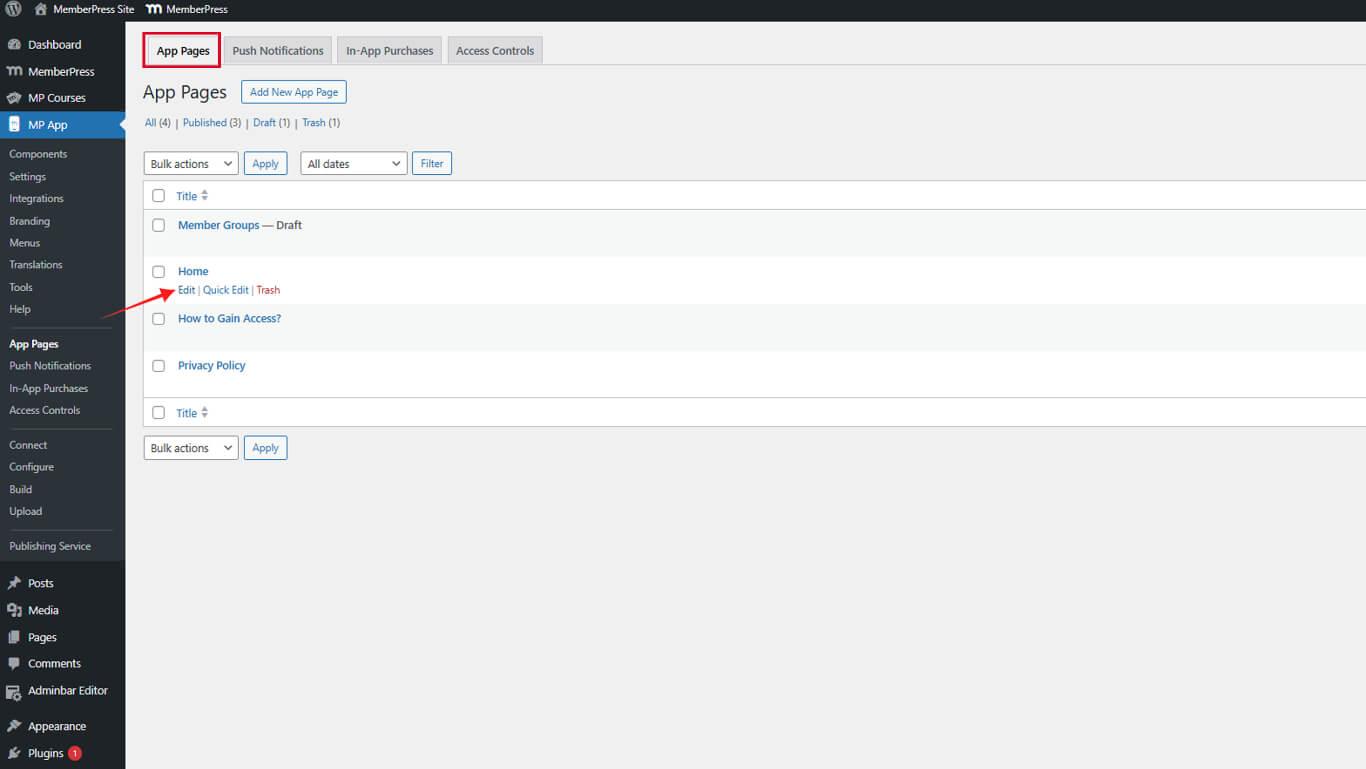
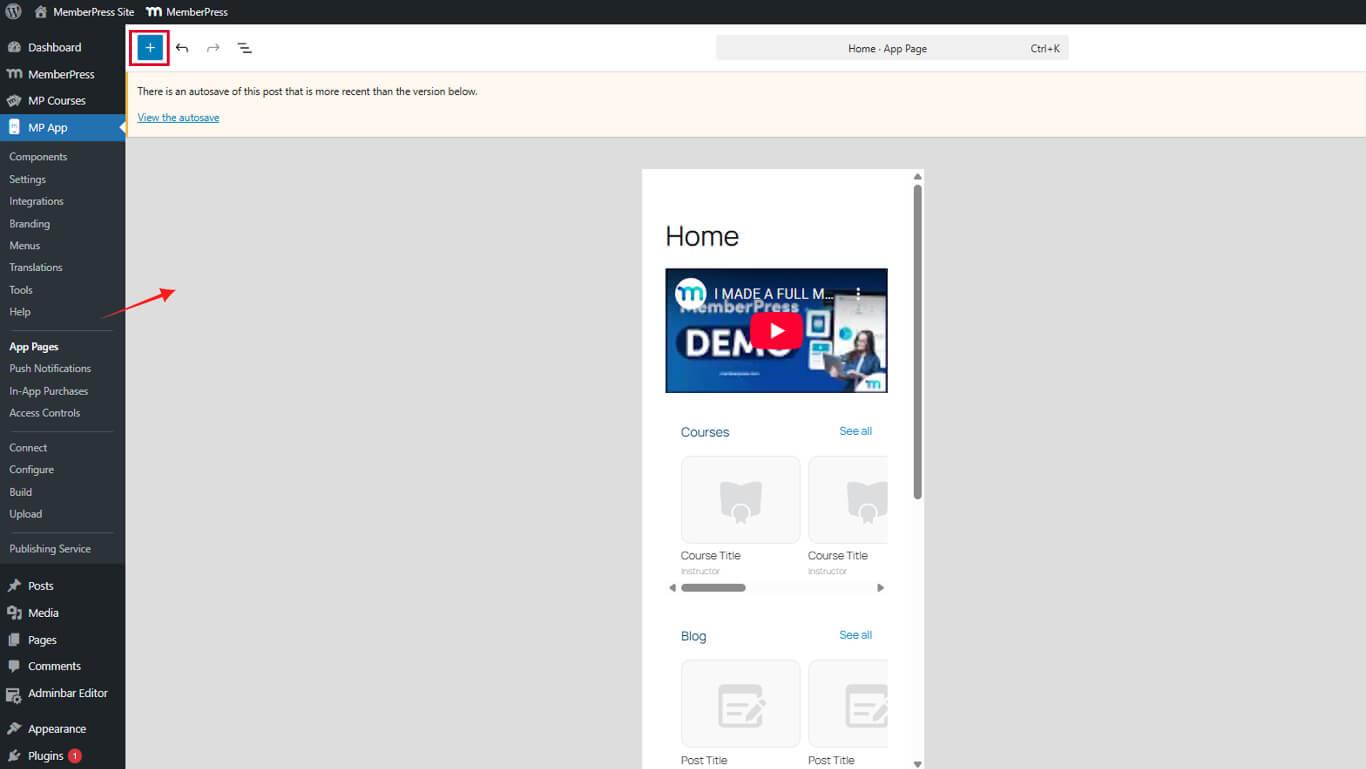
Dans l'éditeur de pages d'application, l'option Bloc d'articles de blog est ajouté par le biais de l'inserteur de blocs :
- Cliquez sur le bouton + icône dans l'éditeur de la page d'application pour insérer un nouveau bloc.
- Faites défiler jusqu'à la MemberPress AppKit Blocs section.
- Sélectionnez l'option Articles de blog parmi les blocs disponibles.
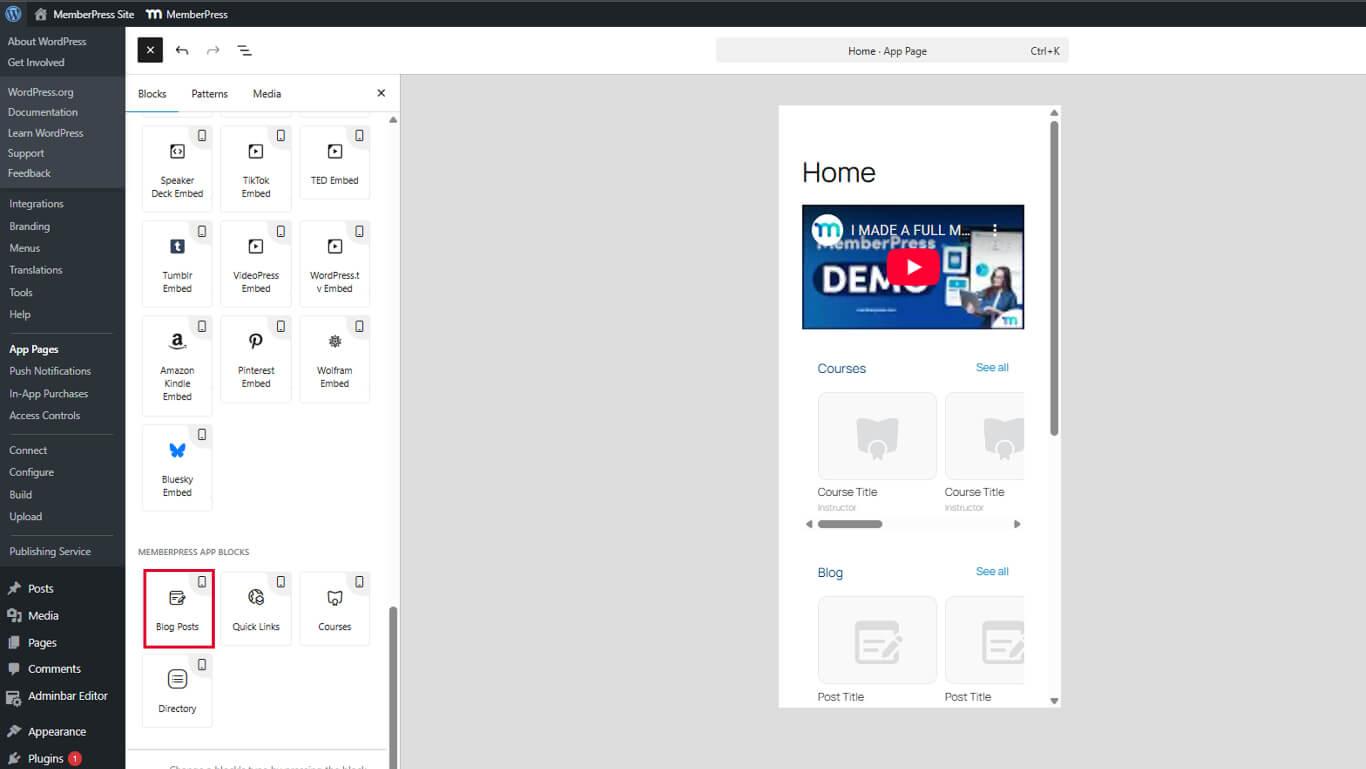
- Faites glisser le bloc jusqu'à la position souhaitée sur la page.
Personnalisation des articles de blog
Une fois ajouté, vous devez personnaliser les articles de blog. Vous pouvez ajuster les couleurs et définir quels articles seront affichés et dans quel ordre. Vous pouvez configurer le bloc en utilisant les paramètres dans la barre latérale droite :
- Dans l'éditeur de page d'application, sélectionner le bloc Blog Posts que vous souhaitez configurer.
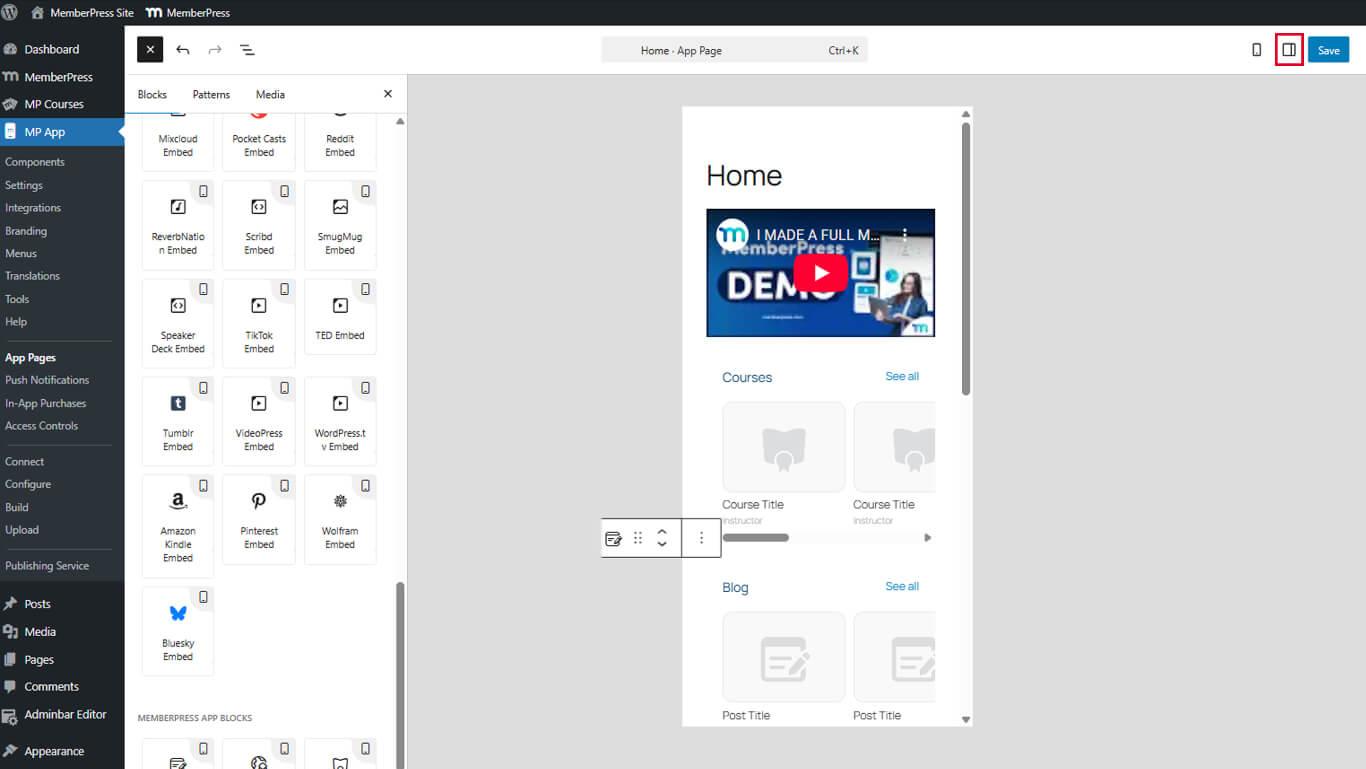
- Localiser le Paramètres dans la barre latérale droite.
Titre et couleurs du bloc
Commencez par personnaliser le titre et les couleurs du bloc :
- Trouver le Titre et le texte que vous souhaitez afficher en haut du blog de cet articleg.
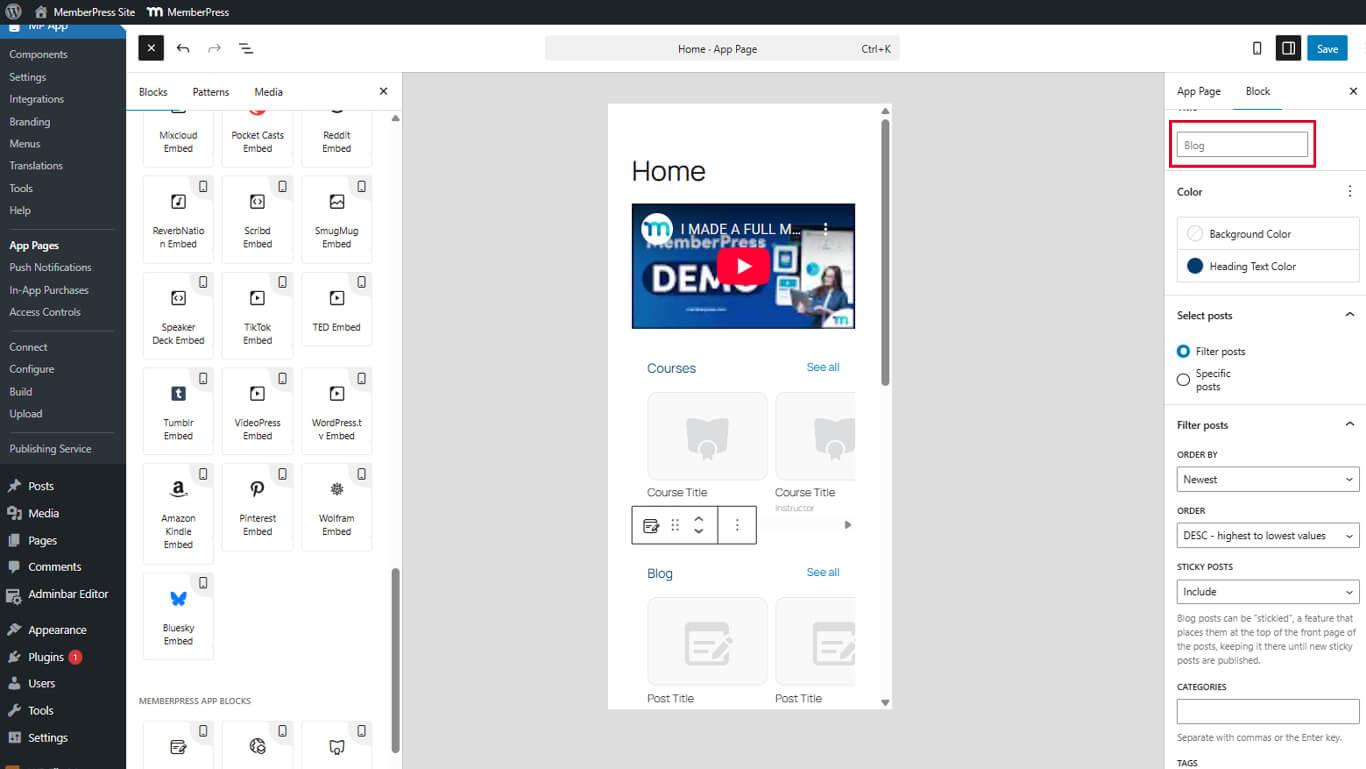
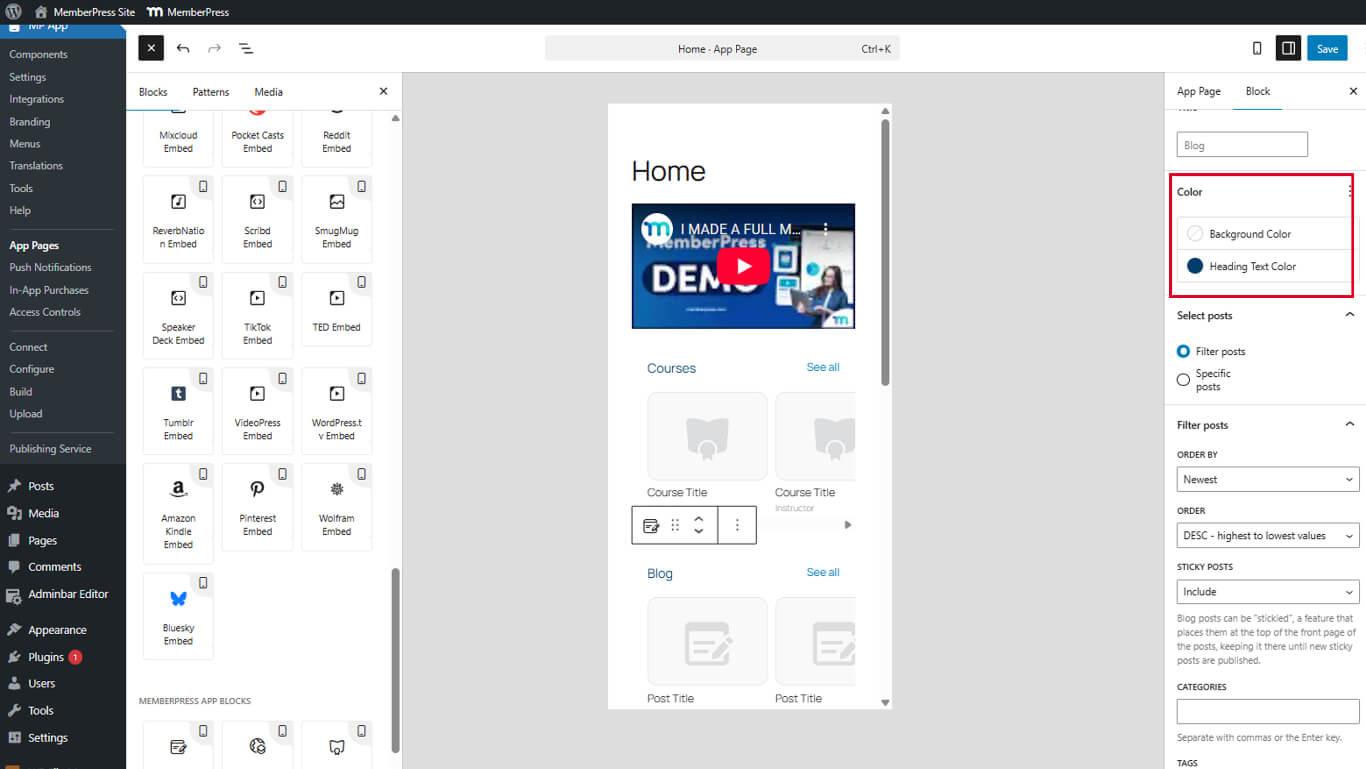
- Ensuite, sous la rubrique Couleur vous pouvez définir le Couleur du texte de l'en-tête et Couleur de fond options.
- Sélectionner une couleur en utilisant le sélecteur de couleurs ou en choisissant transparent.
- Cliquez sur Mise à jour pour enregistrer les modifications.
Sélectionner des articles à l'aide de la fonction Filtrer les articles
Dans le cadre de la Sélectionner les postes vous pouvez choisir d'utiliser le panneau Filtrer les messages option. Le filtrage des messages permet d'afficher le contenu en fonction de conditions spécifiques.
L'option Filtrer les messages est assortie de multiples options de personnalisation :
- Sélectionnez le bloc Blog Posts dans l'éditeur.
- Localiser le bloc Paramètres panneau.
- Sélectionner Filtrer les messages pour configurer les options de filtrage.
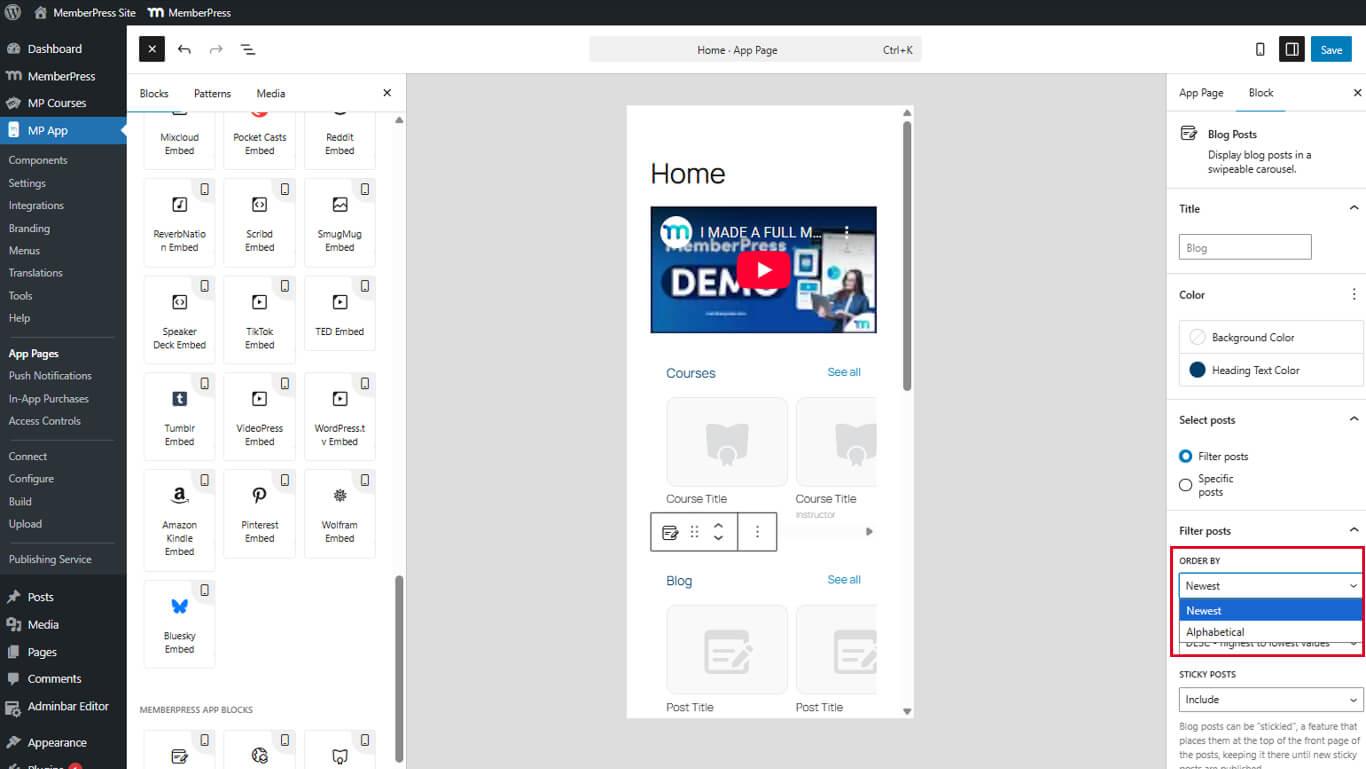
- Commander par pour trier par ordre chronologique ou alphabétique.
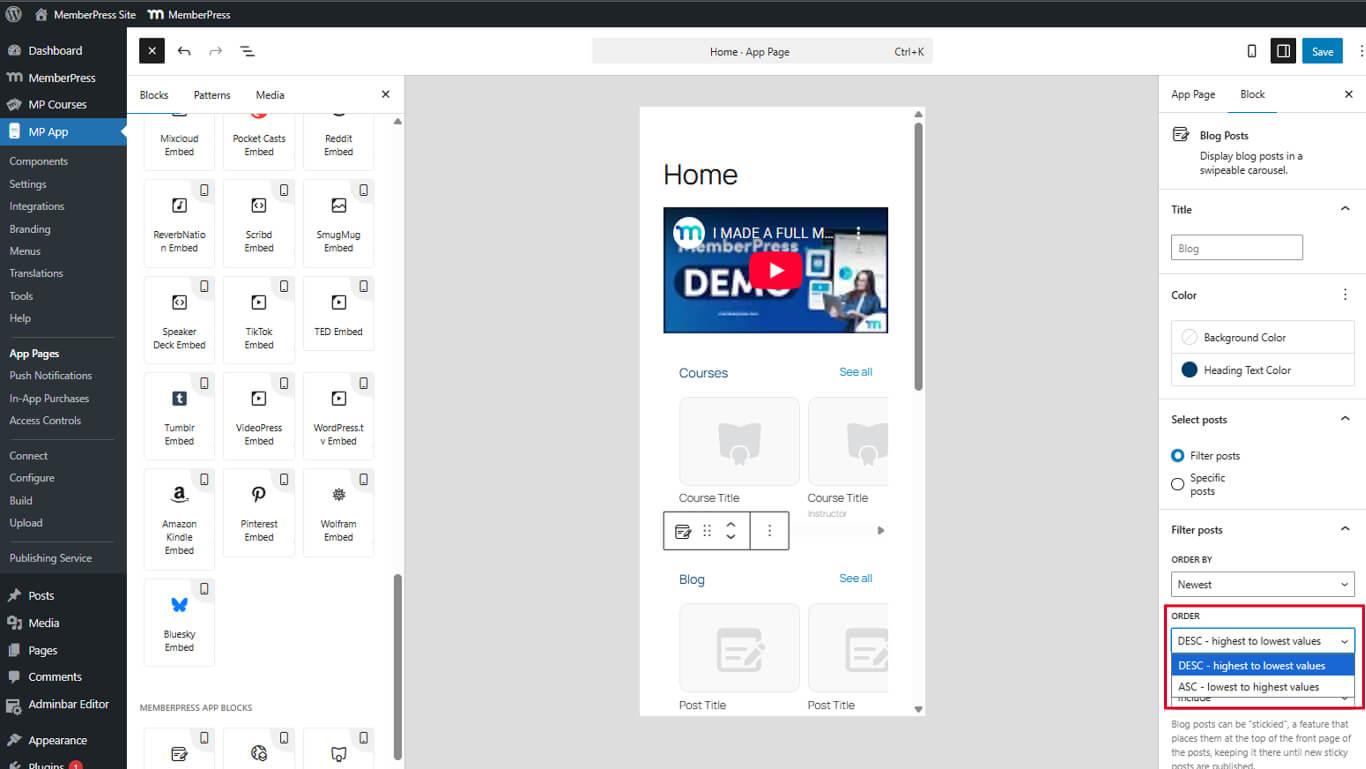
- Commande pour classer en ordre ascendant ou descendant.
- Postes sensibles pour Inclure, Exclure ou Afficher uniquement les messages collants.
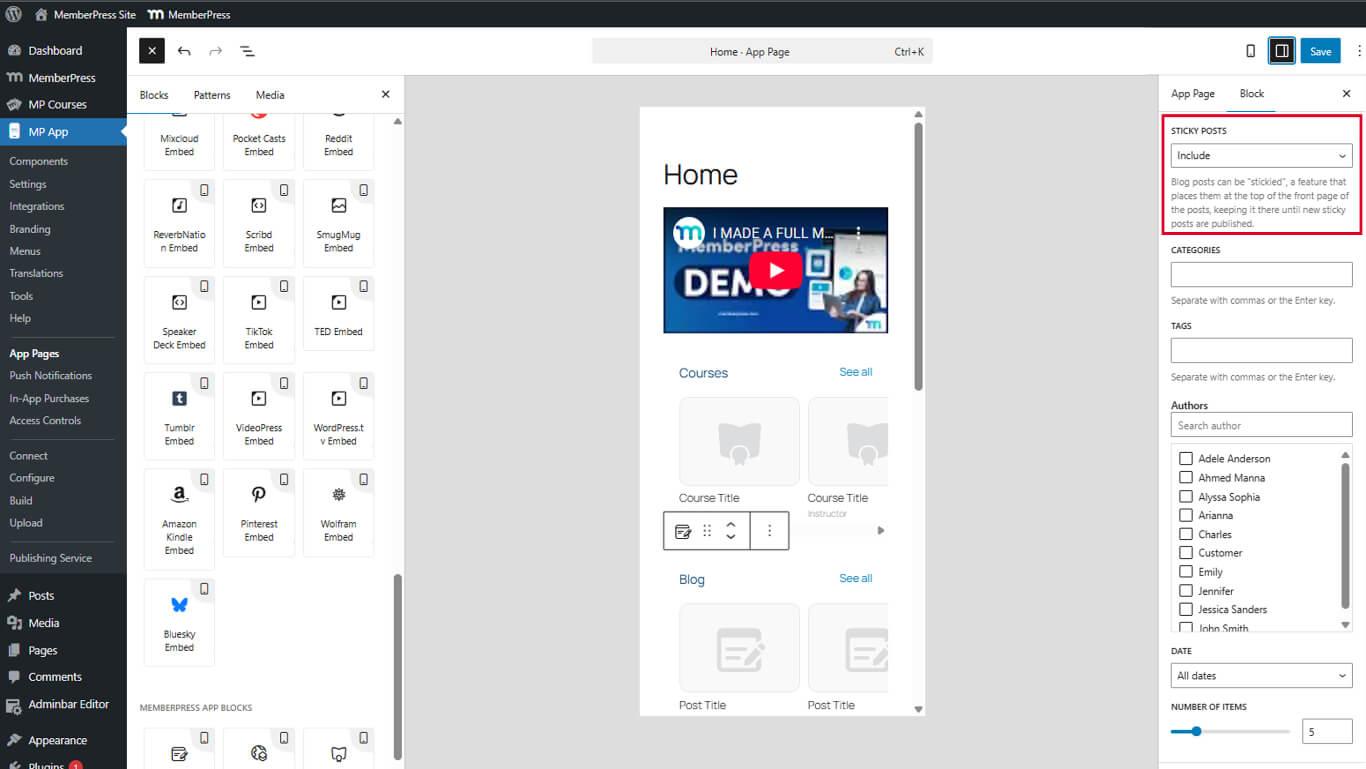
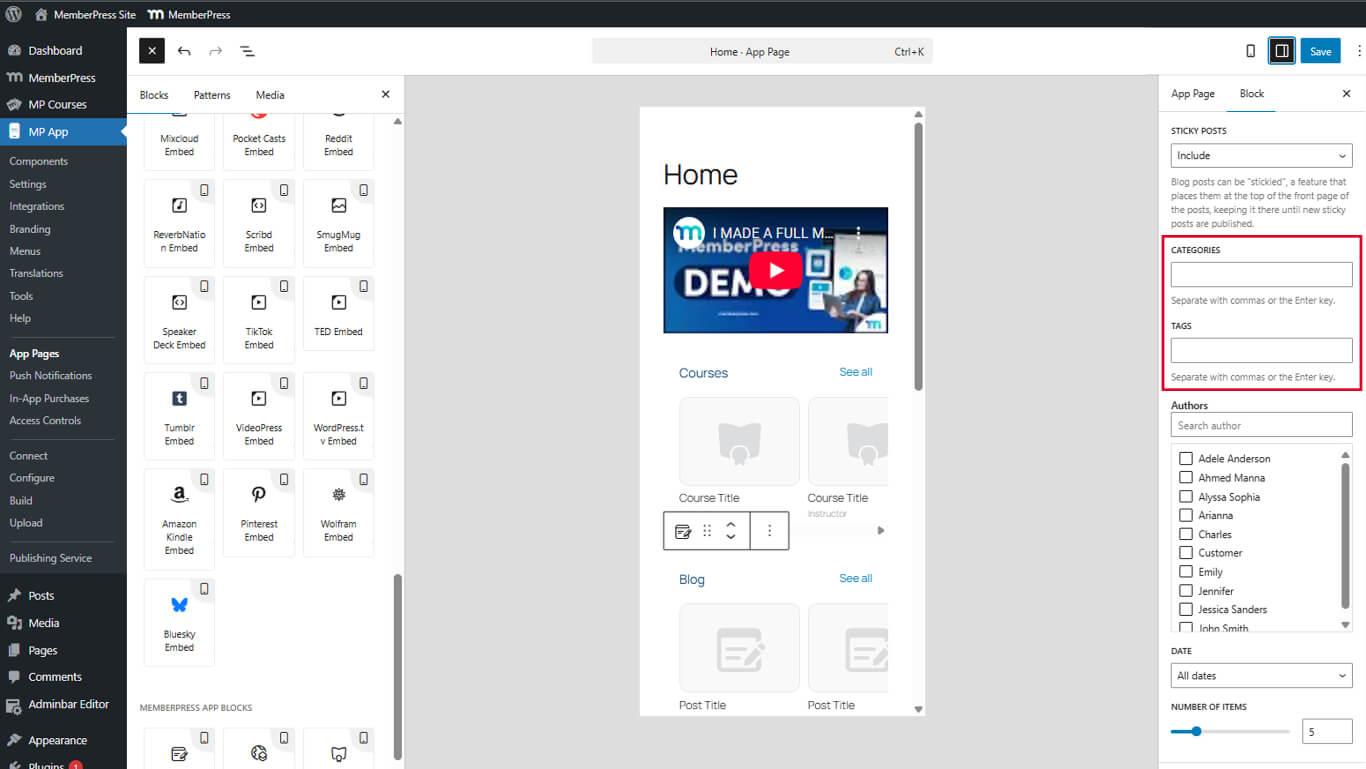
- Catégories/Tags pour filtrer par catégories ou tags séparés par des virgules.
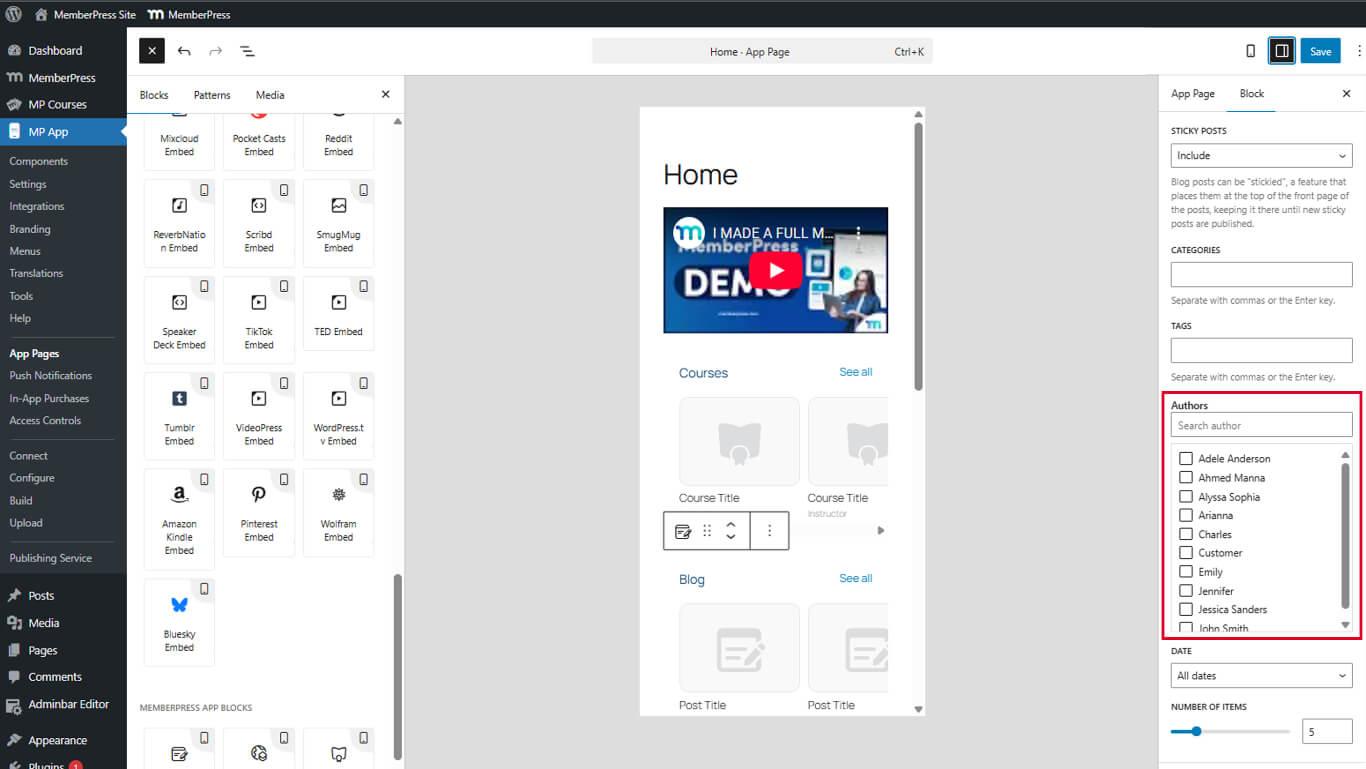
- Auteurs pour filtrer par noms d'utilisateurs d'auteurs séparés par des virgules.
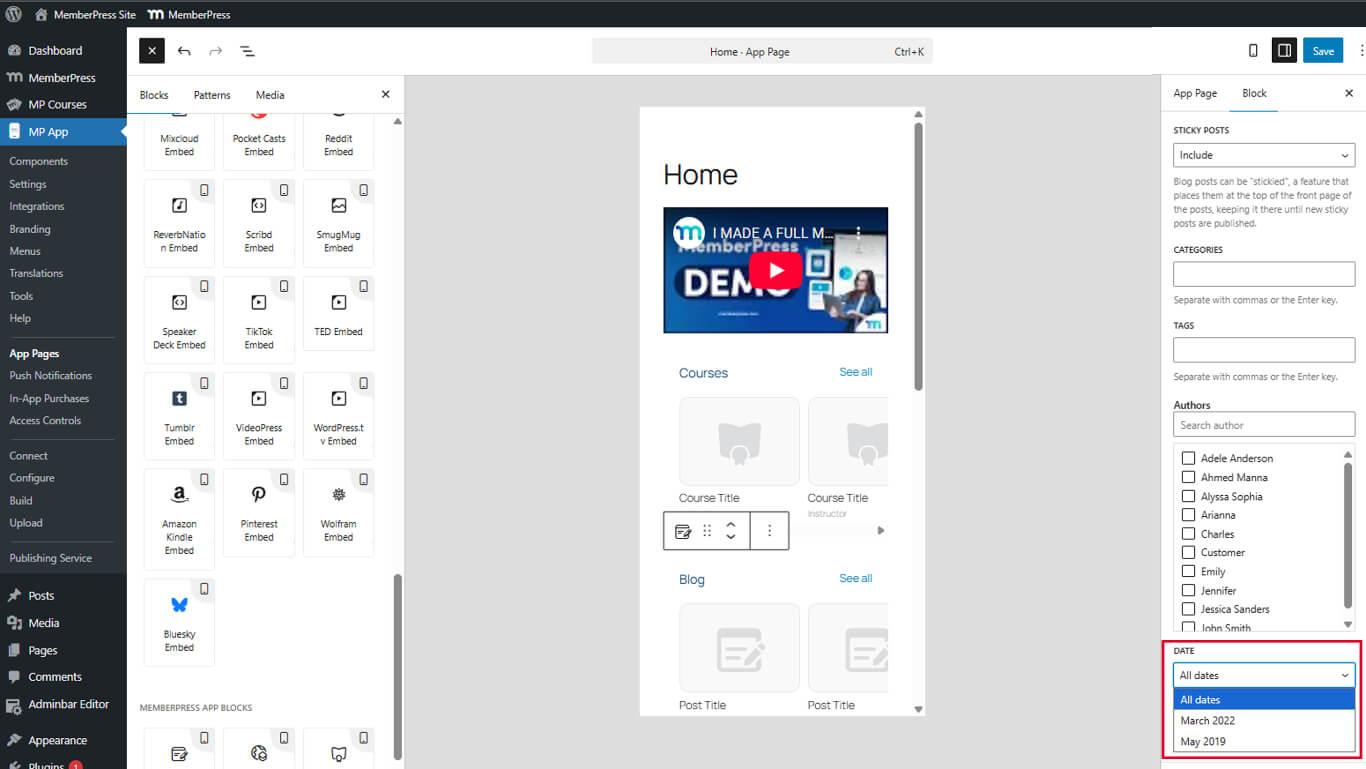
- Date pour filtrer les messages par date.
- Éléments à montrer pour définir le nombre d'éléments visibles du carrousel.
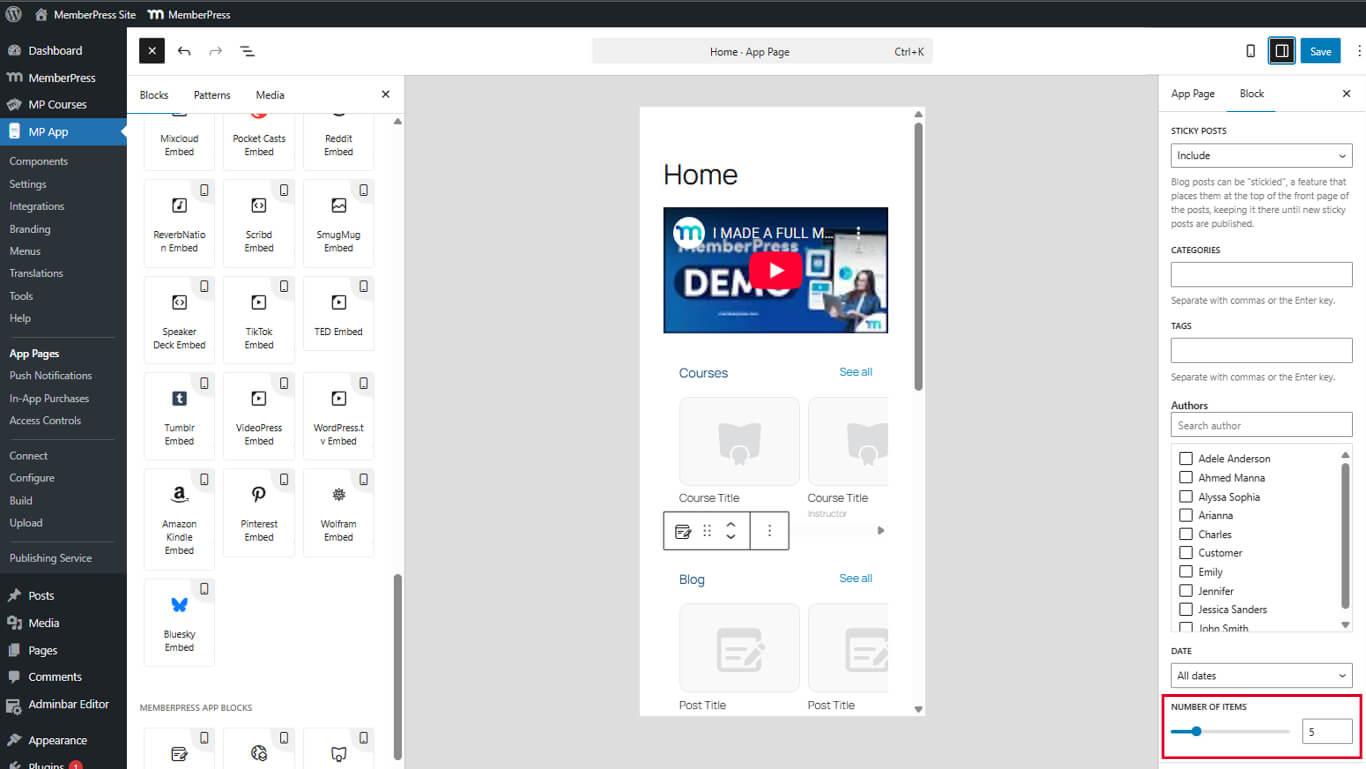
- Cliquez sur Mise à jour pour enregistrer la page.
Sélectionner les messages en affichant des messages spécifiques
La sélection d'articles spécifiques permet d'afficher des articles de blog sélectionnés manuellement.
- Sélectionnez le bloc Blog Posts dans l'éditeur.
- Localiser le Sélectionner les postes dans le panneau Paramètres.
- Sélectionner Postes spécifiques.
- Cliquez sur le bouton Postes spécifiques pour ouvrir le sélecteur de messages.
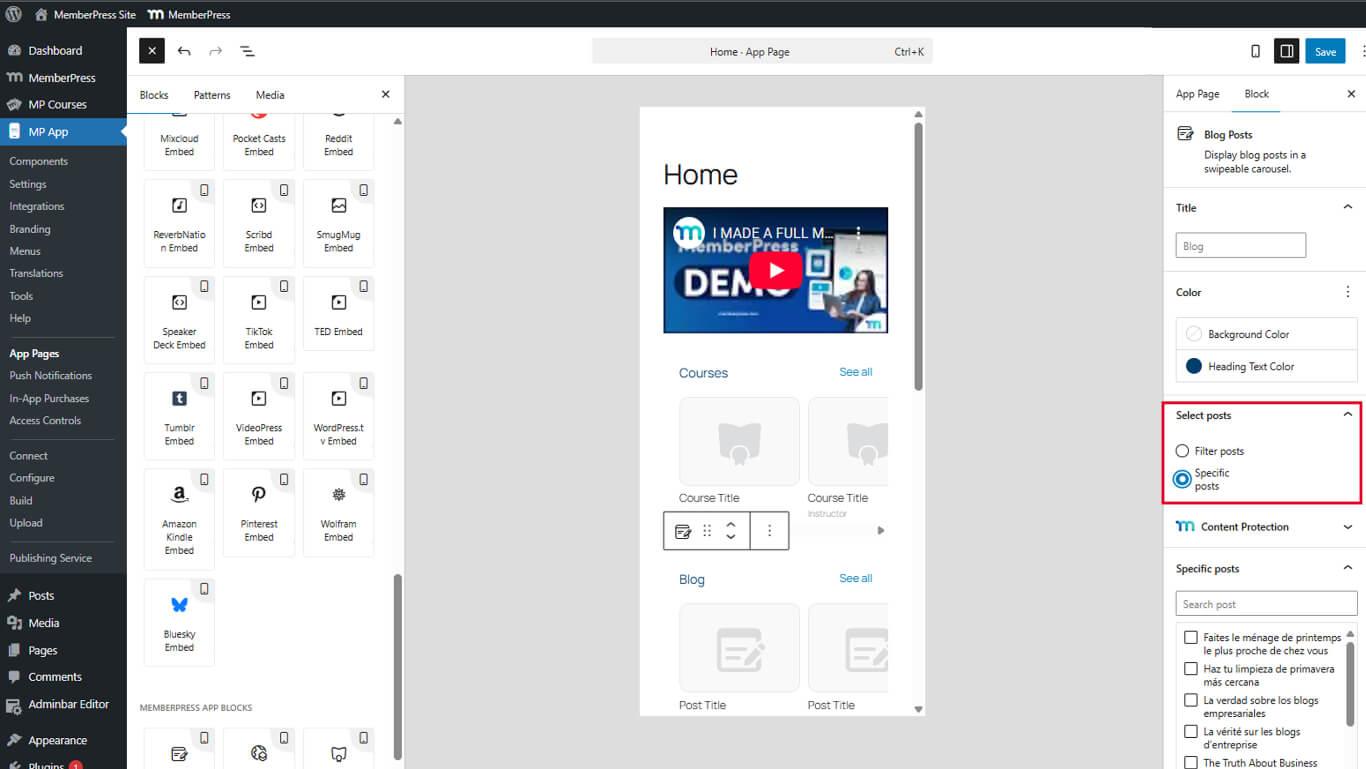
- Dans la liste disponible, choisir les articles de blog que vous souhaitez afficher.
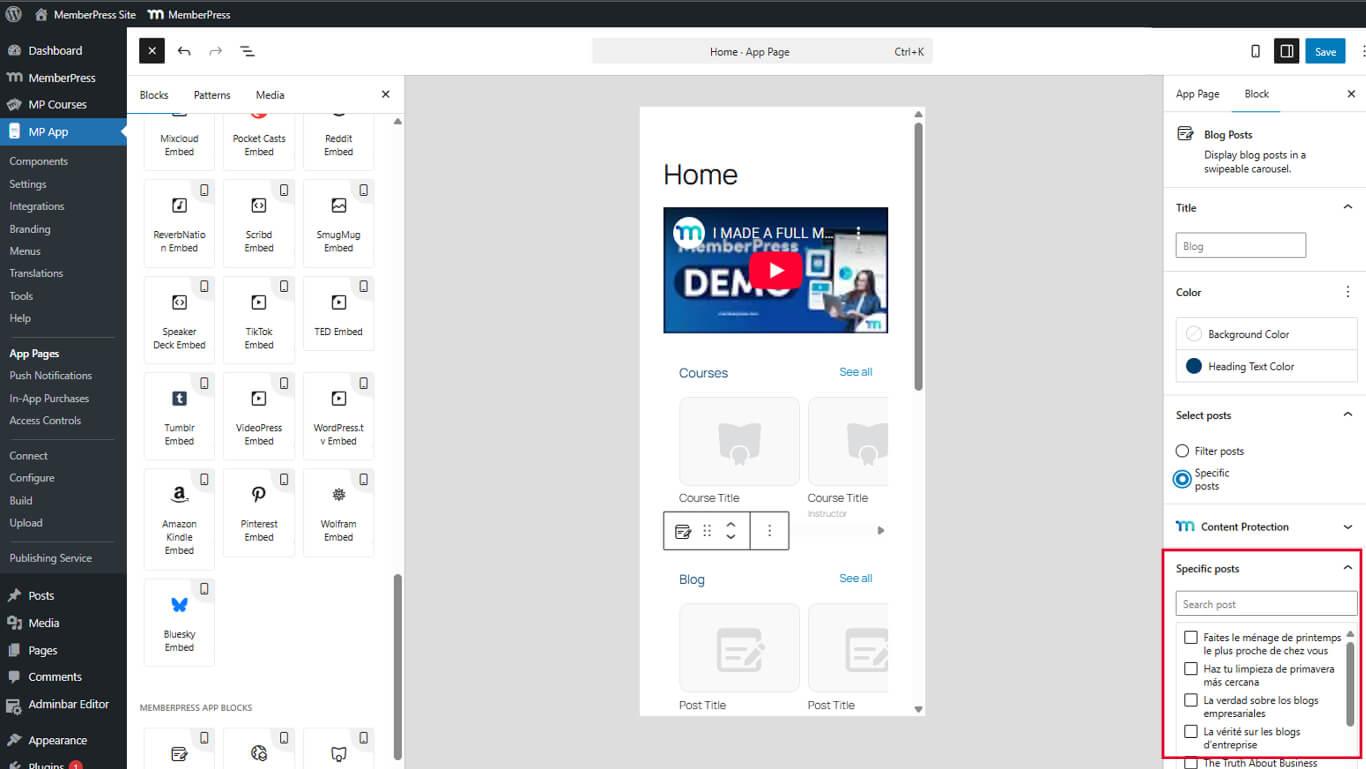
- Cliquez sur Confirmer ou Appliquer pour finaliser la sélection.
- Sauvegardez les modifications en cliquant sur le bouton Mise à jour bouton.
La sélection d'un article spécifique remplace tous les critères de filtrage lorsqu'elle est activée.
Sauvegarde et prévisualisation
La configuration du bloc doit être sauvegardée et l'application doit être redémarrée pour visualiser les changements.
- Cliquez sur Mise à jour dans l'éditeur de la page d'application pour enregistrer les modifications.
- Forcer la fermeture de l'application MemberPress iOS/Android entièrement sur l'appareil mobile.
- Rouvrir l'application pour recharger la configuration de la page.
- Naviguer vers la page contenant le bloc Blog Posts.
- Révision l'affichage du carrousel et la disposition des postes.
- Balayez horizontalement pour parcourir les éléments du carrousel.
- Appuyez sur Tout voir pour ouvrir l'archive complète du blog si elle est disponible.
Le carrousel se met automatiquement à jour lorsque de nouveaux articles de blog sont publiés si le filtrage est configuré.










 FR
FR  EN
EN  ES
ES  DE
DE  PT
PT 