

Conceder ao proprietário da equipe acesso ao seu projeto Firebase permite que ele configure notificações push, análises e outros serviços de back-end para o seu AppKit MemberPress sem restrições.
Este guia o orienta a convidar a equipe MemberPress como colaborador proprietário no Console do Firebase.
Compreender os requisitos de acesso da equipe
A equipe do MemberPress requer permissões específicas do projeto Firebase para suporte e gerenciamento abrangentes do serviço de back-end.
Nível de acesso do proprietário fornece controle total sobre a configuração e os serviços do projeto Firebase. As permissões de proprietário permitem que os membros da equipe gerenciem todos os aspectos da configuração e manutenção do back-end.
Gerenciamento de notificações push requer acesso de proprietário para a configuração do Firebase Cloud Messaging. A equipe configura a entrega de notificações e os serviços de mensagens.
Configuração de análises Permite a configuração do rastreamento de eventos e do monitoramento do comportamento do usuário. O acesso do proprietário permite uma personalização abrangente das análises.
Controle do serviço de back-end fornece gerenciamento de recursos de autenticação, banco de dados e armazenamento. A equipe mantém a funcionalidade adequada do back-end para as operações do aplicativo.
Gestão contínua mantém as operações e atualizações contínuas do serviço Firebase. O acesso da equipe permite suporte proativo e ajustes de configuração.
Adição da equipe do AppKit do MemberPress como proprietária
O convite do proprietário concede à equipe do MemberPress as permissões necessárias para a configuração e o gerenciamento do projeto Firebase.
- Ir para console.firebase.google.com e faça login.
- Clique no projeto que deseja conectar.
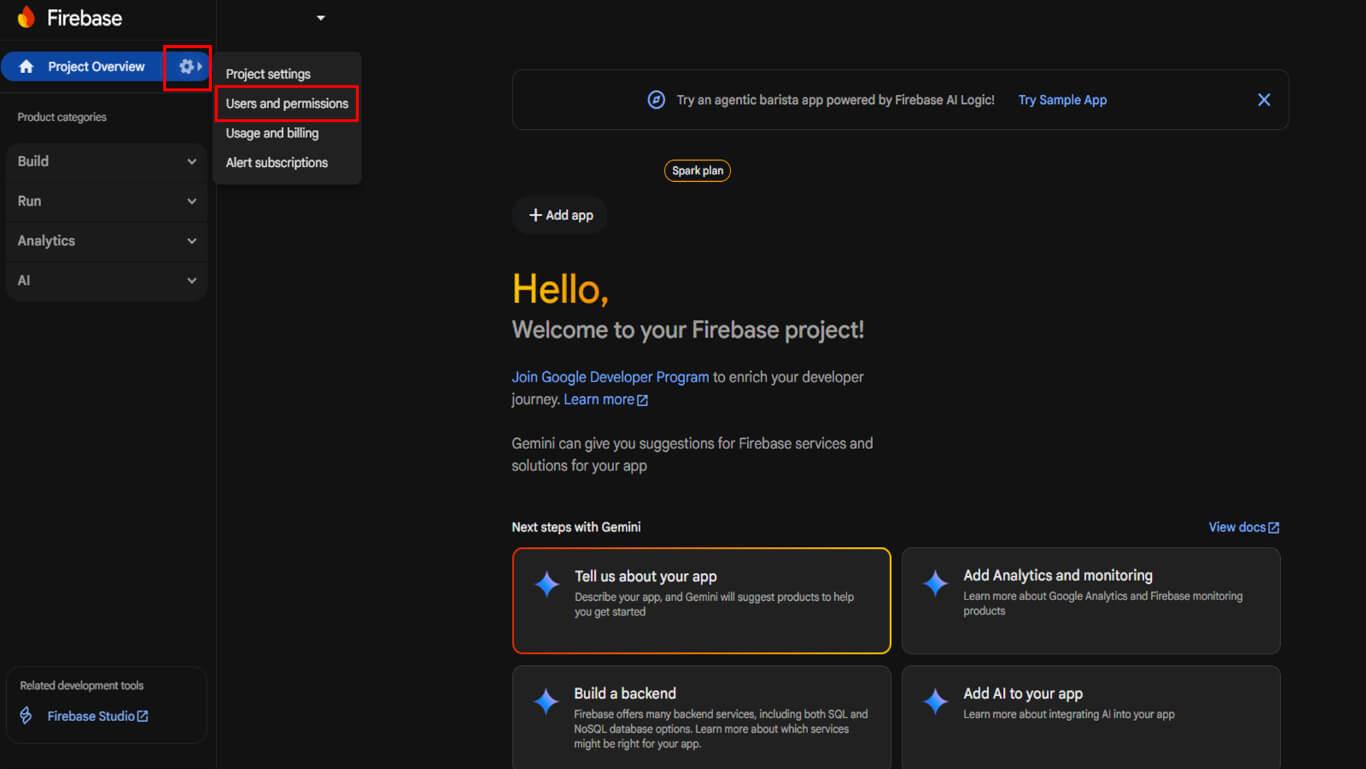
- Clique no botão Configurações ícone de engrenagem ao lado de Visão geral do projeto.
- Selecione Usuários e permissões no menu.
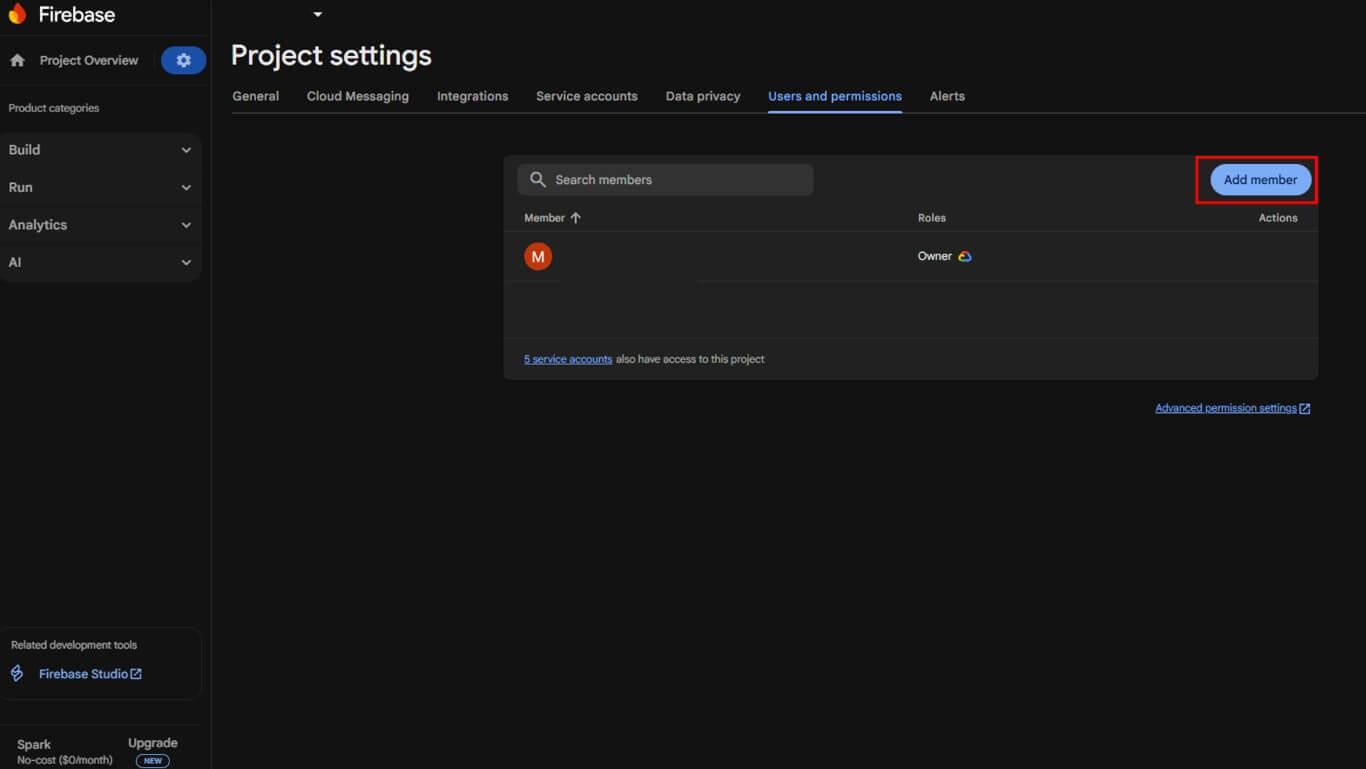
- Clique em Adicionar membro.
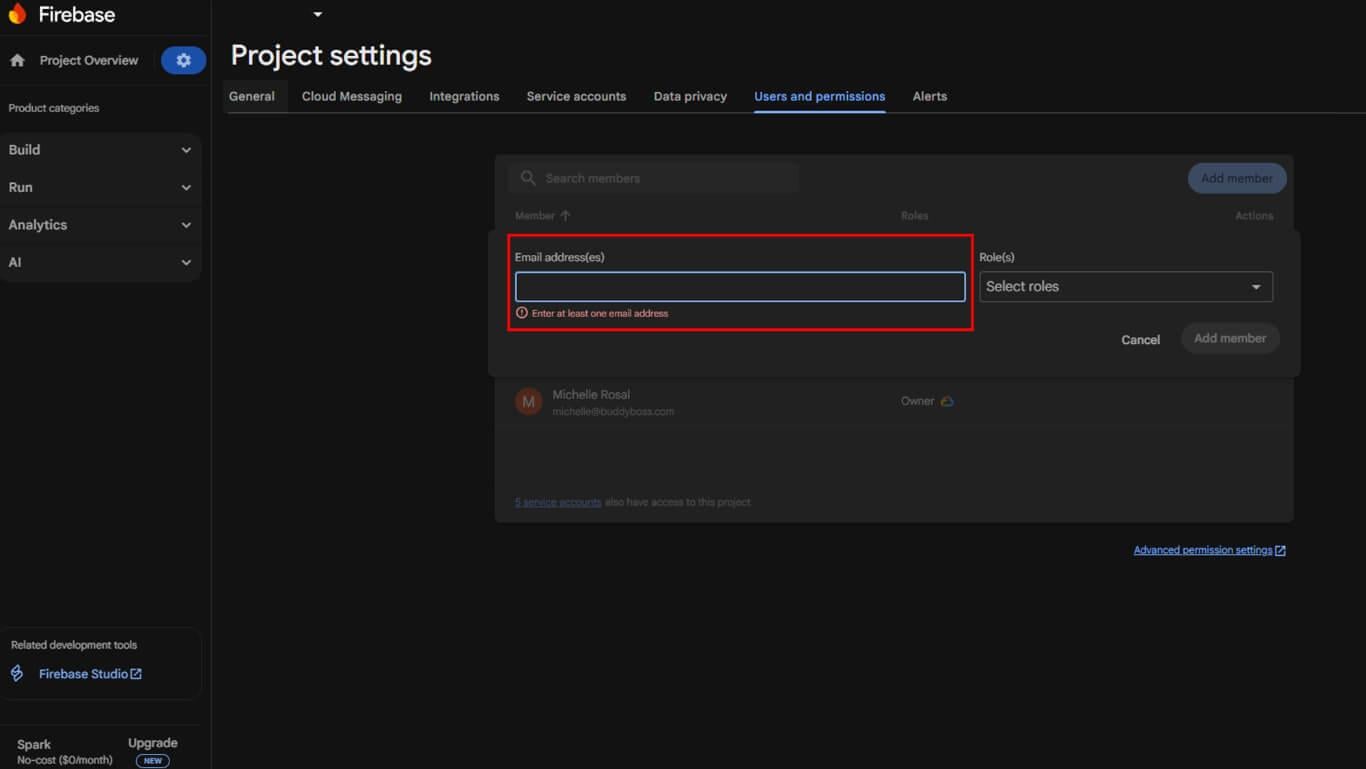
- Para E-mail, insira appsup@memberpress.com.
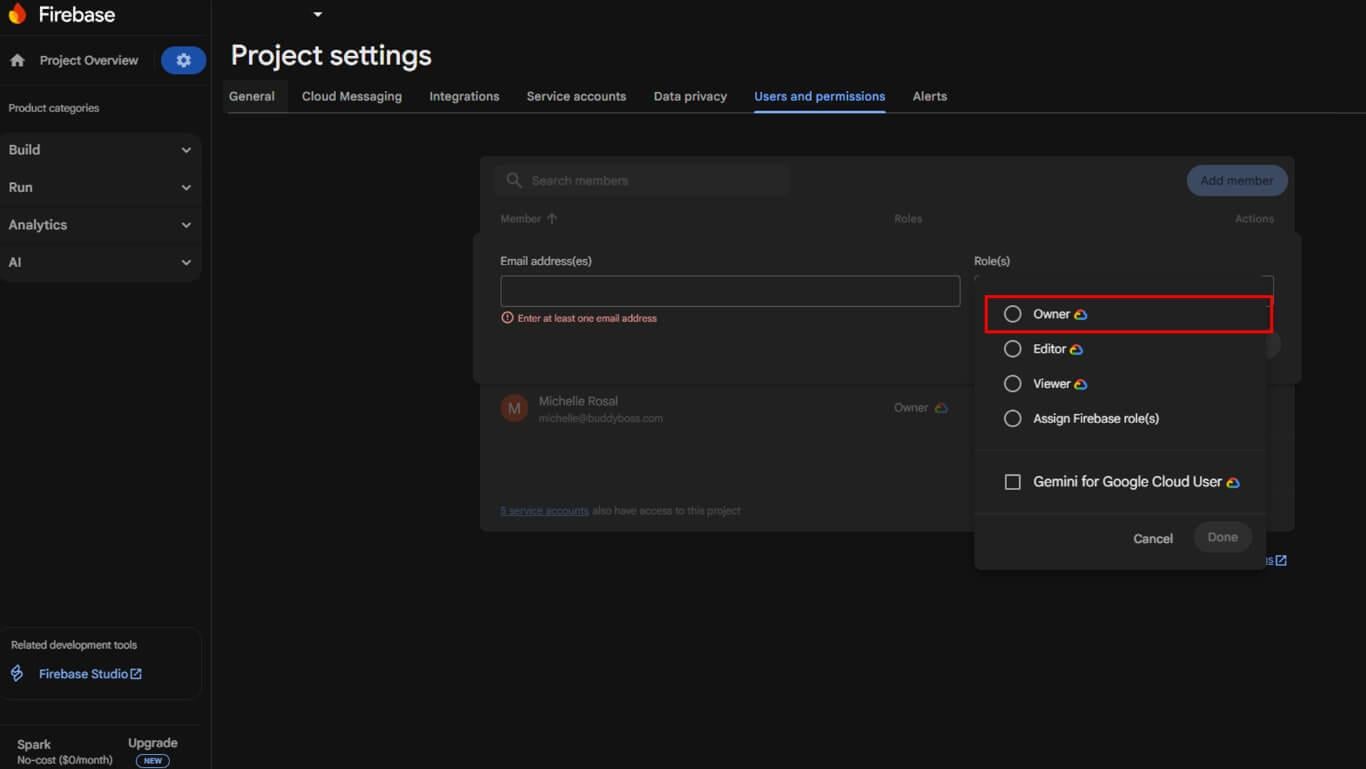
- Abaixo de Função, selecione Proprietário.
- Clique em Adicionar membro.
A equipe do MemberPress receberá o convite e o aceitará, concluindo a configuração.










 PT
PT  EN
EN  ES
ES  FR
FR  DE
DE 