

O bloco do aplicativo Courses destaca os cursos selecionados nas páginas do aplicativo usando um layout de carrossel deslizante. Esse bloco permite que os membros acessem rapidamente os cursos em destaque ou naveguem pelo índice completo de cursos no site WordPress conectado.
Este documento explica como adicionar, configurar e gerenciar o bloco Courses (Cursos) no AppKit do MemberPress.
Entendendo o bloco de aplicativos de cursos
O bloco do aplicativo Courses exibe os cursos em um carrossel horizontal que pode ser deslizado dentro do aplicativo. Os membros podem tocar em um curso individual para visualizar seus detalhes ou selecionar Ver tudo para abrir o índice completo de cursos do site do WordPress. O bloco pode ser personalizado para exibir cursos filtrados ou selecionados manualmente com base em critérios específicos.
Acesso a páginas de aplicativos
Você pode adicionar e configurar o bloco Curso no editor de páginas do aplicativo.
- Navegue até Painel de controle > MP AppKit > Páginas de aplicativos.
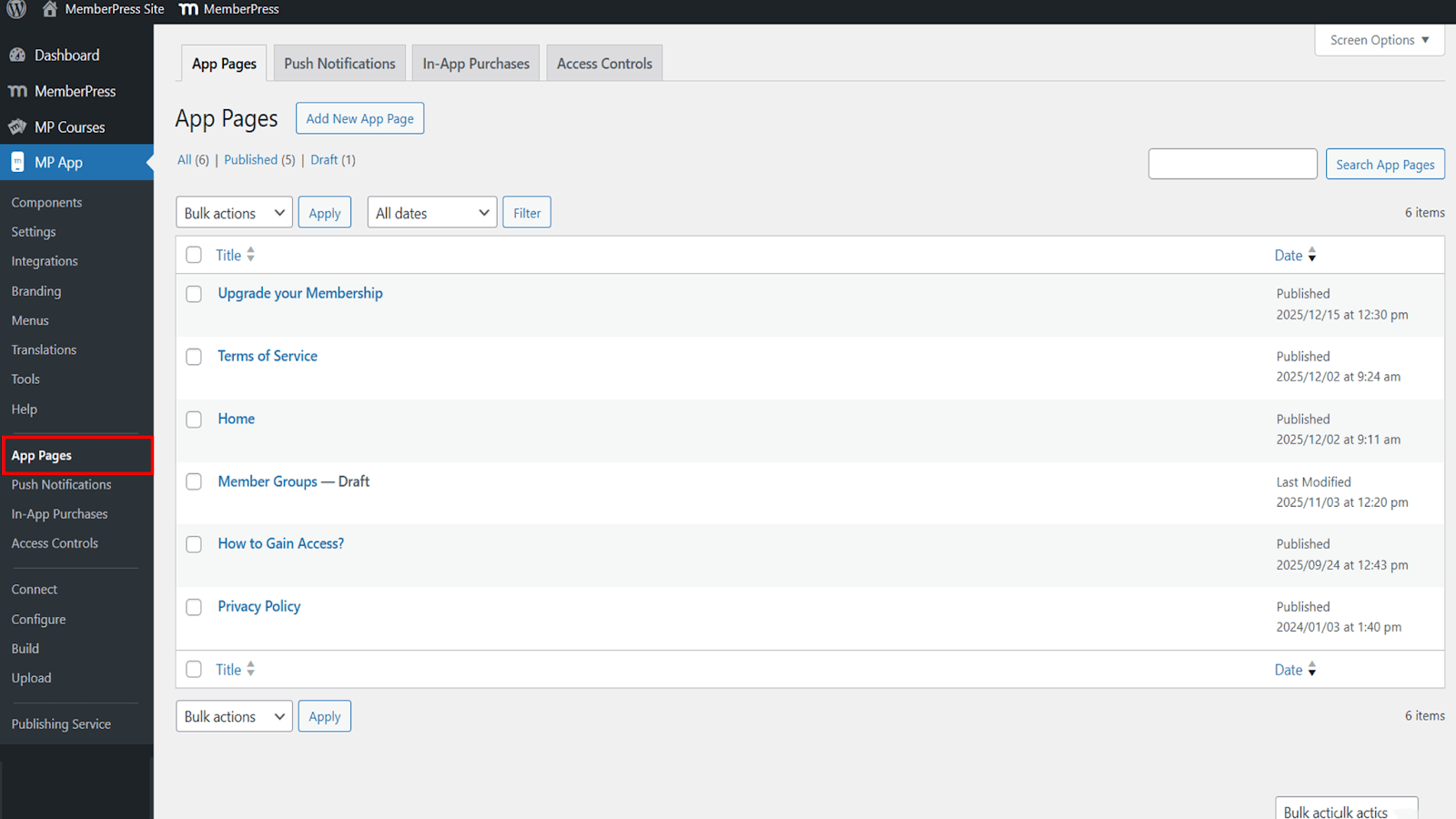
- Abra uma página existente, como a página inicial, ou crie uma nova página para edição.
Adição do bloco de cursos
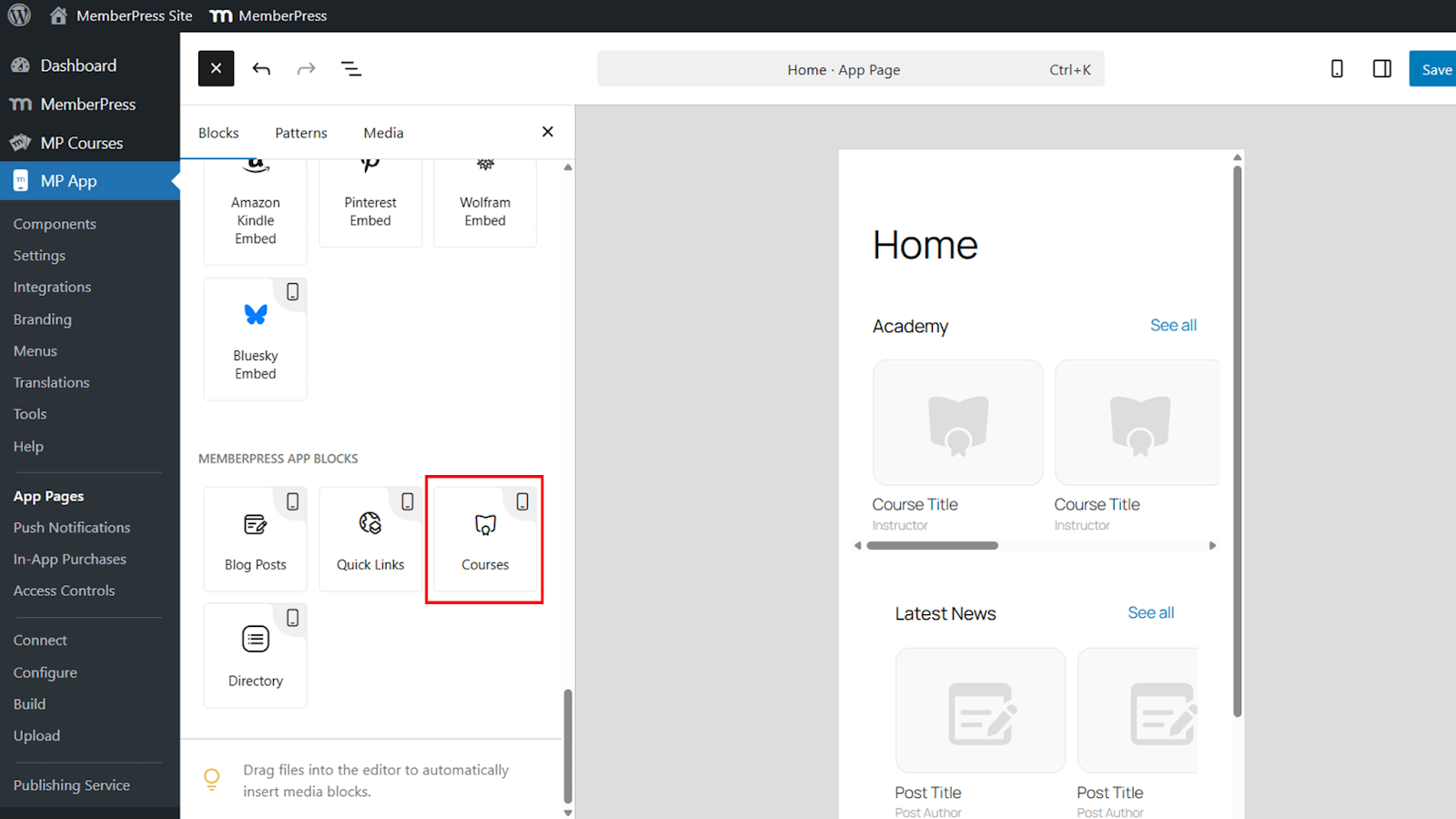
O bloco Courses está disponível na biblioteca de blocos do AppKit do MemberPress.
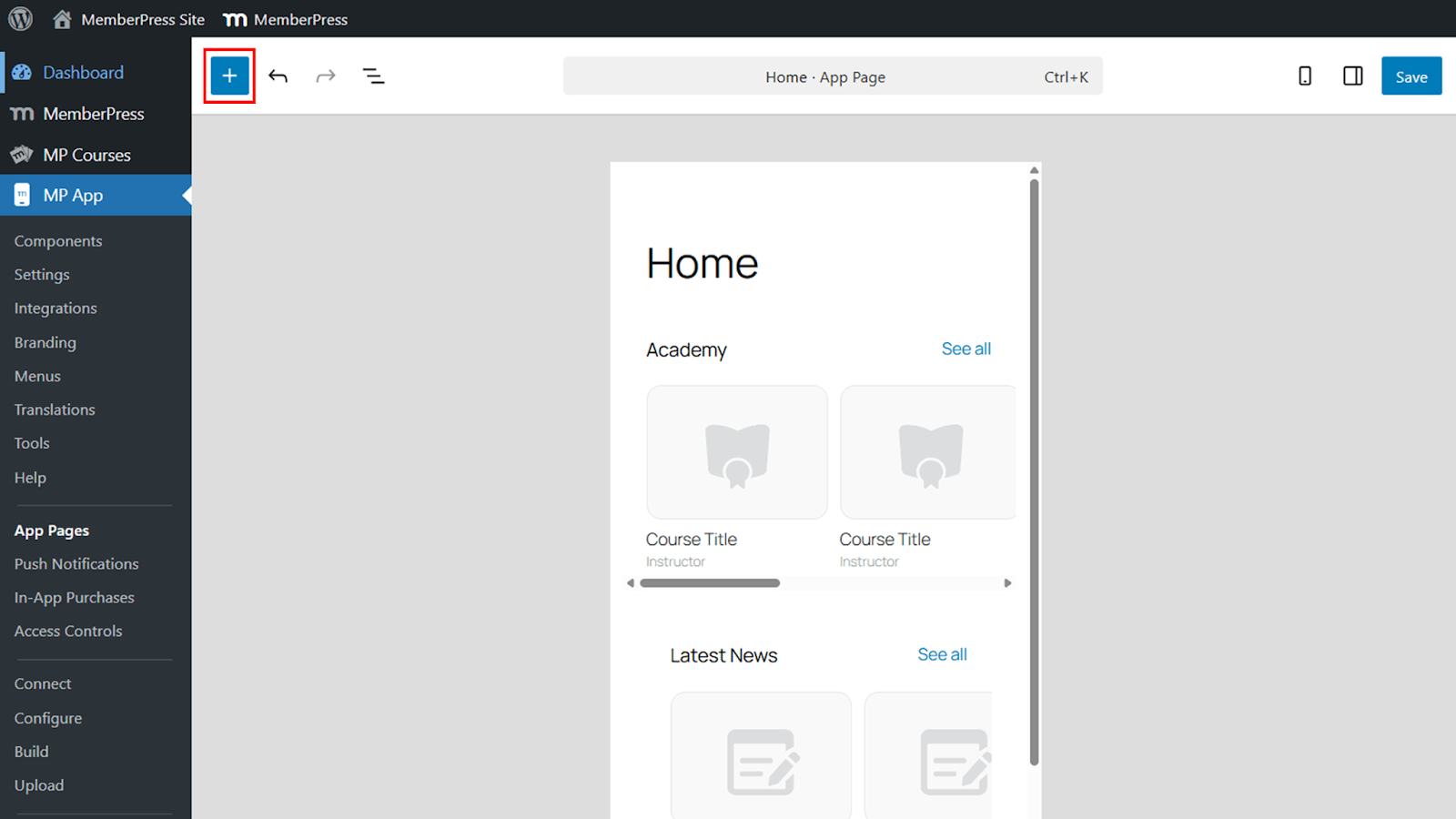
- Clique no ícone +.
- Selecione o Cursos do bloco Blocos de aplicativos MemberPress seção.
- Mova o bloco para a posição desejada na página.
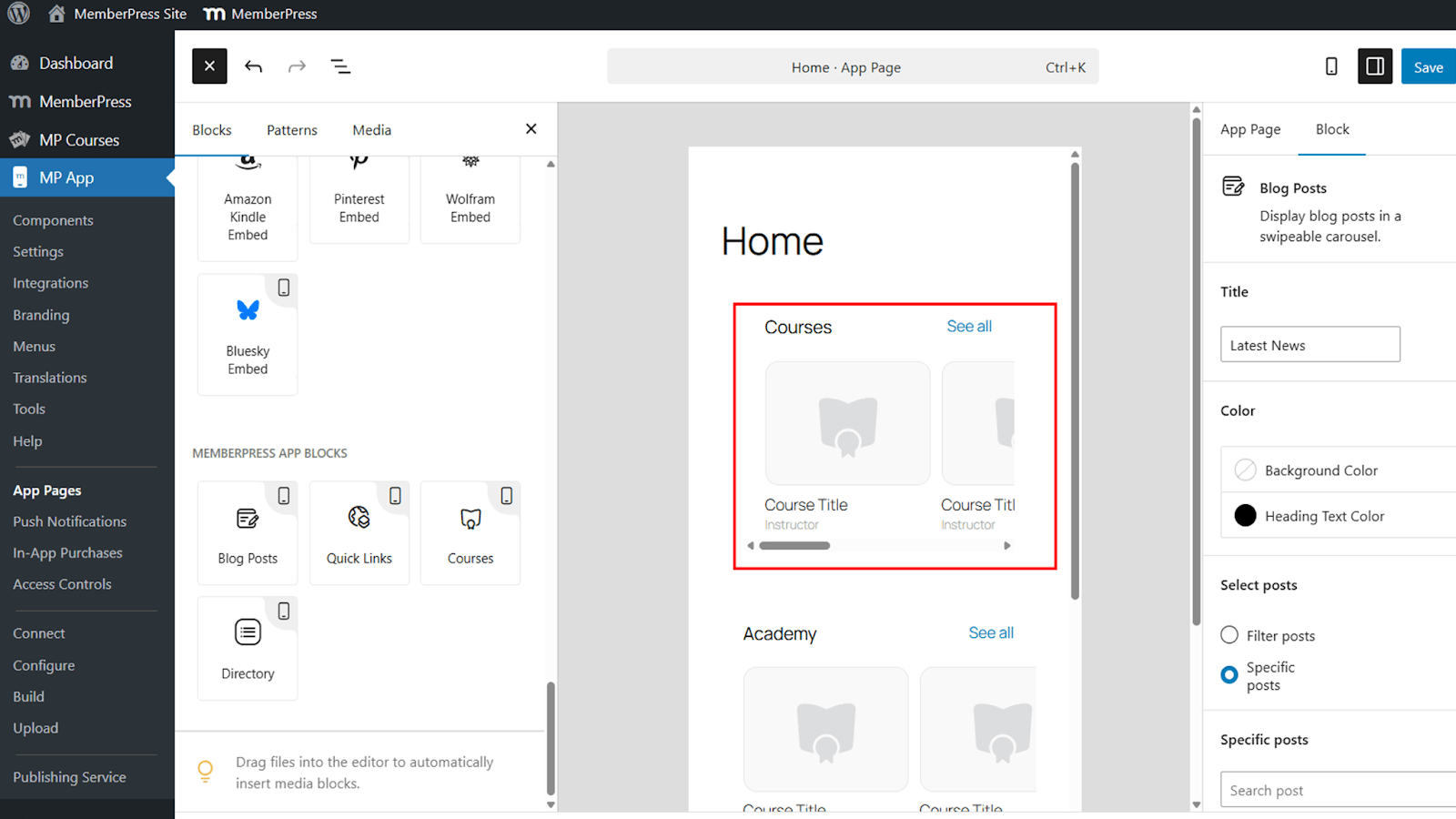
Uma visualização em tempo real mostra como o bloco aparecerá dentro do aplicativo.
Configuração do bloco de cursos
O bloco Courses oferece várias opções de configuração para controlar a aparência e o conteúdo.
Título
- Localize o Título campo.
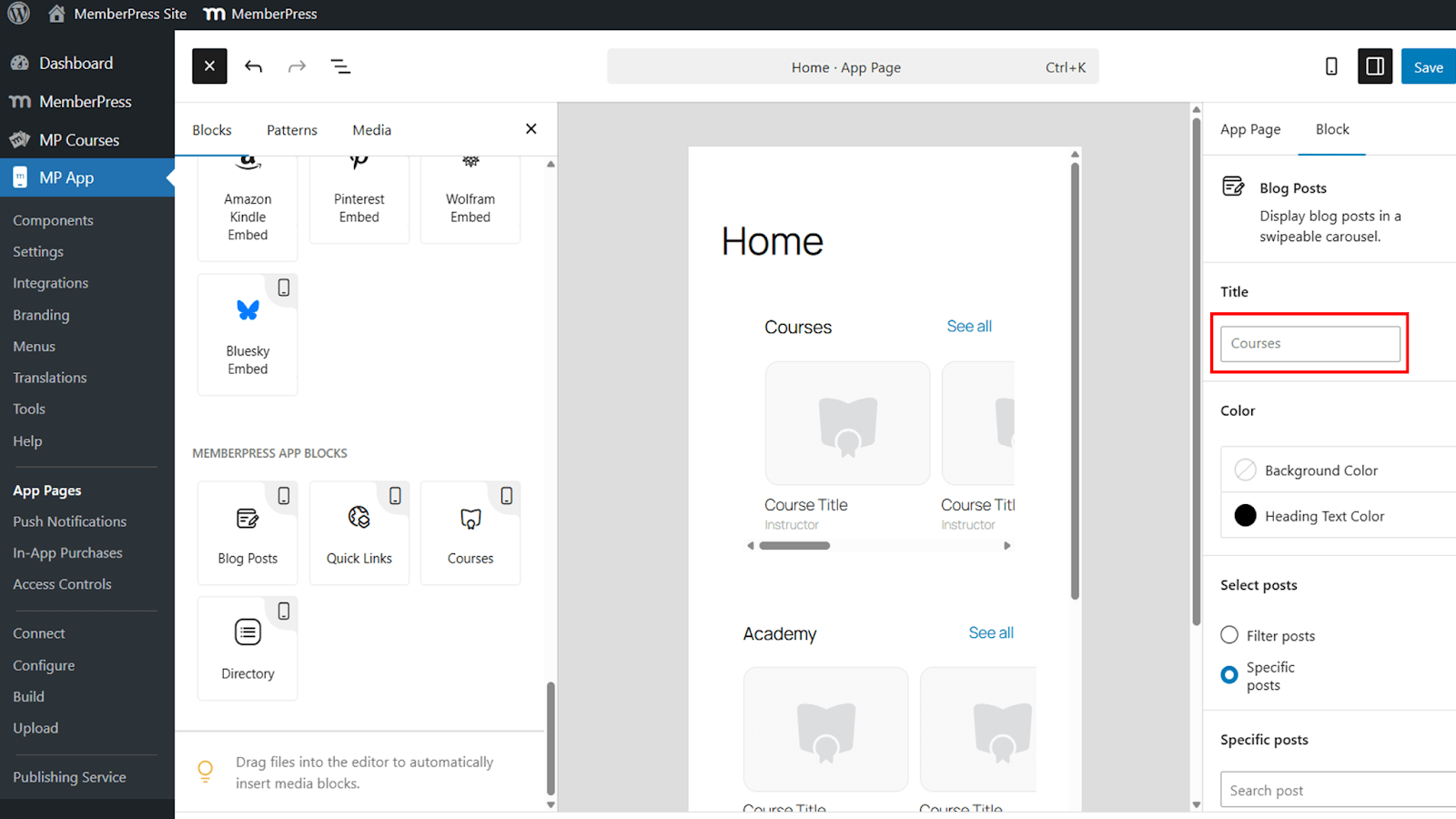
- Renomear o título do bloco a partir do padrão Cursos para corresponder à marca ou ao contexto, como Academia.
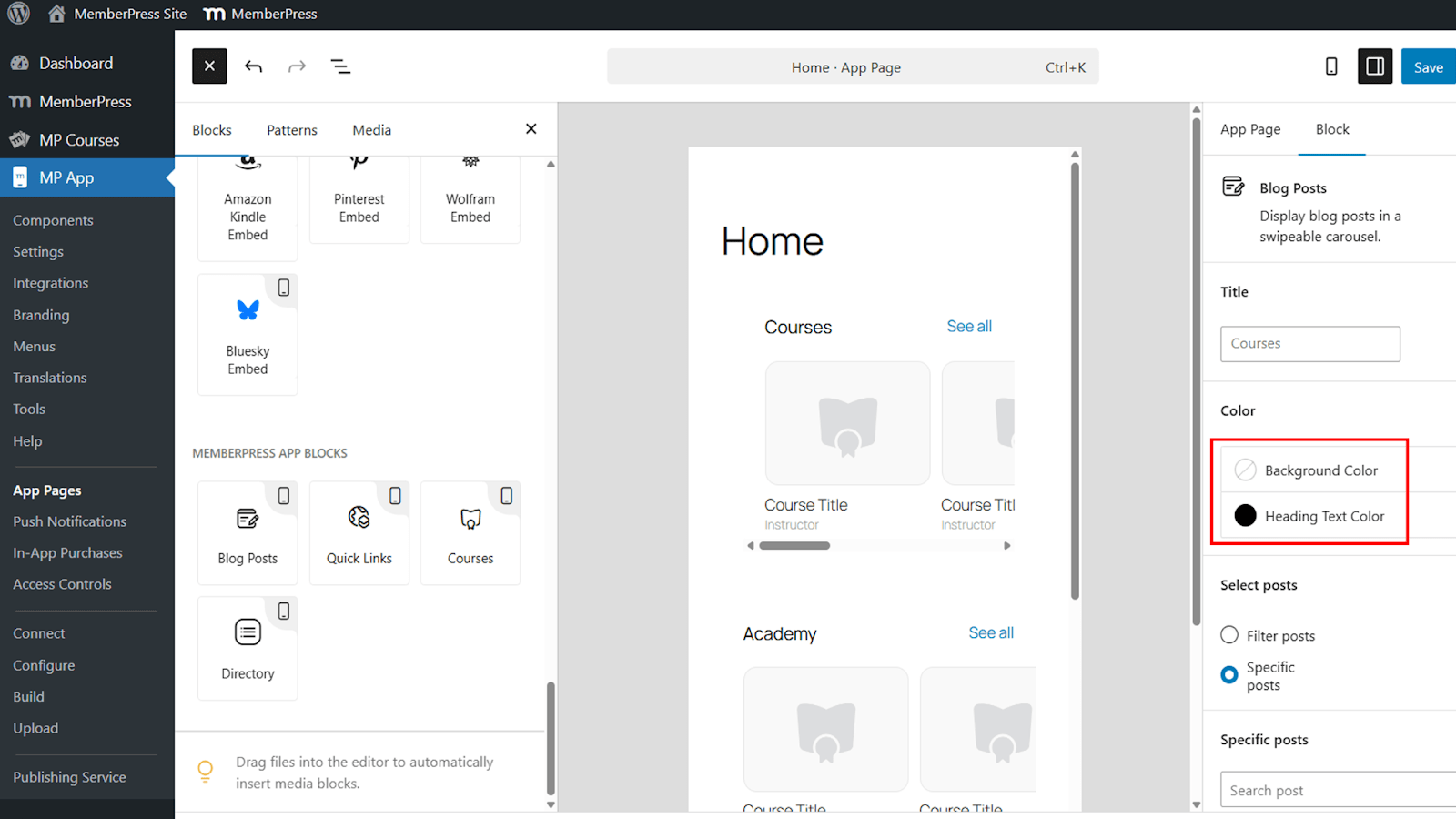
Cor do plano de fundo e do cabeçalho
- Atribua uma cor de fundo ao bloco ou deixe-o transparente para que se misture ao design da página.
Opções de exibição de conteúdo
- Escolha se deseja exibir os cursos usando filtros ou cursos específicos.
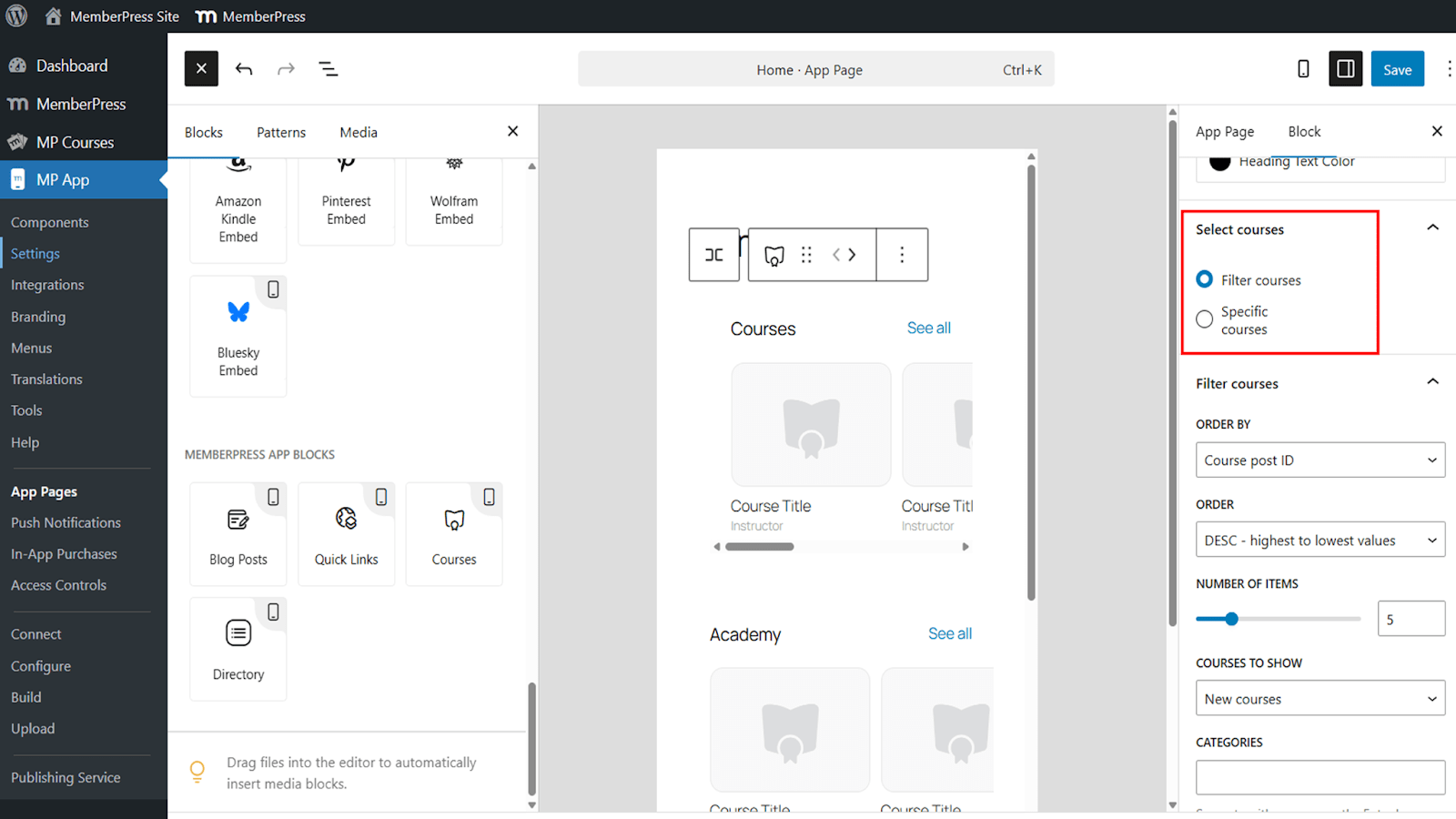
Uso de filtros para exibir cursos
Os filtros permitem o controle dinâmico sobre quais cursos aparecem no carrossel.
- Classifique os cursos por ID do curso, título ou data de publicação.
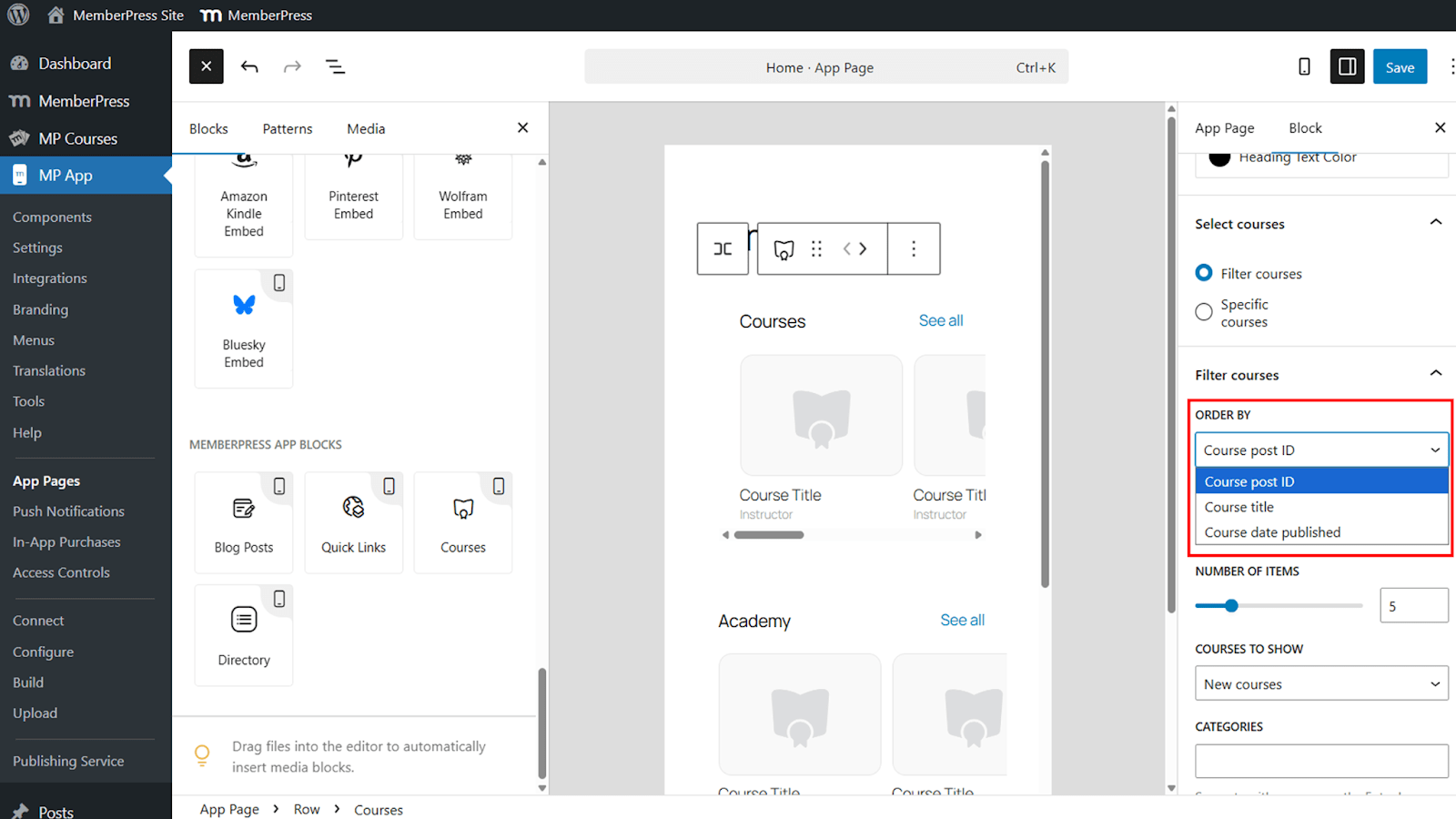
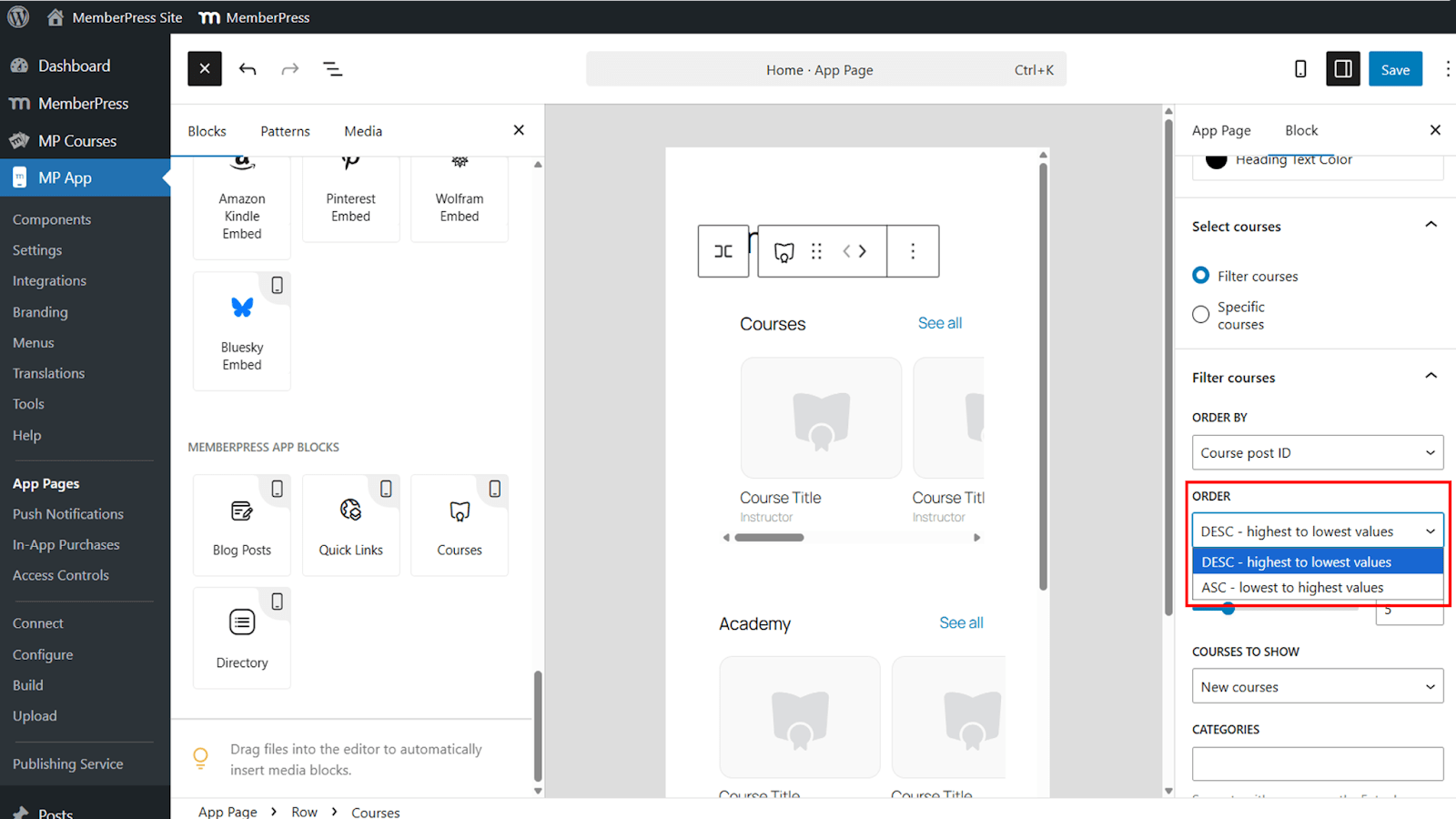
- Escolha a ordem ascendente ou descendente.
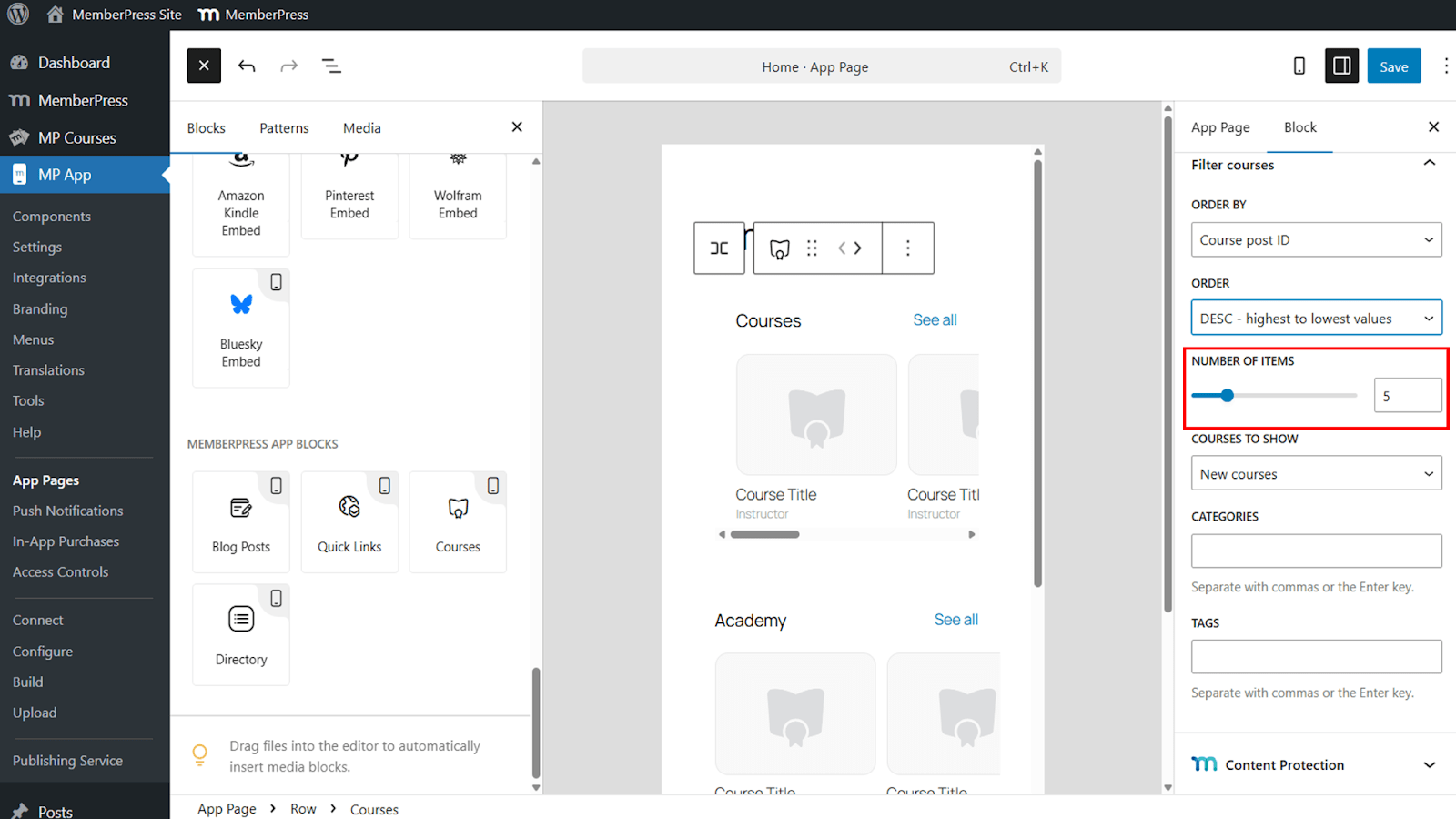
- Defina o número de cursos exibidos no carrossel.
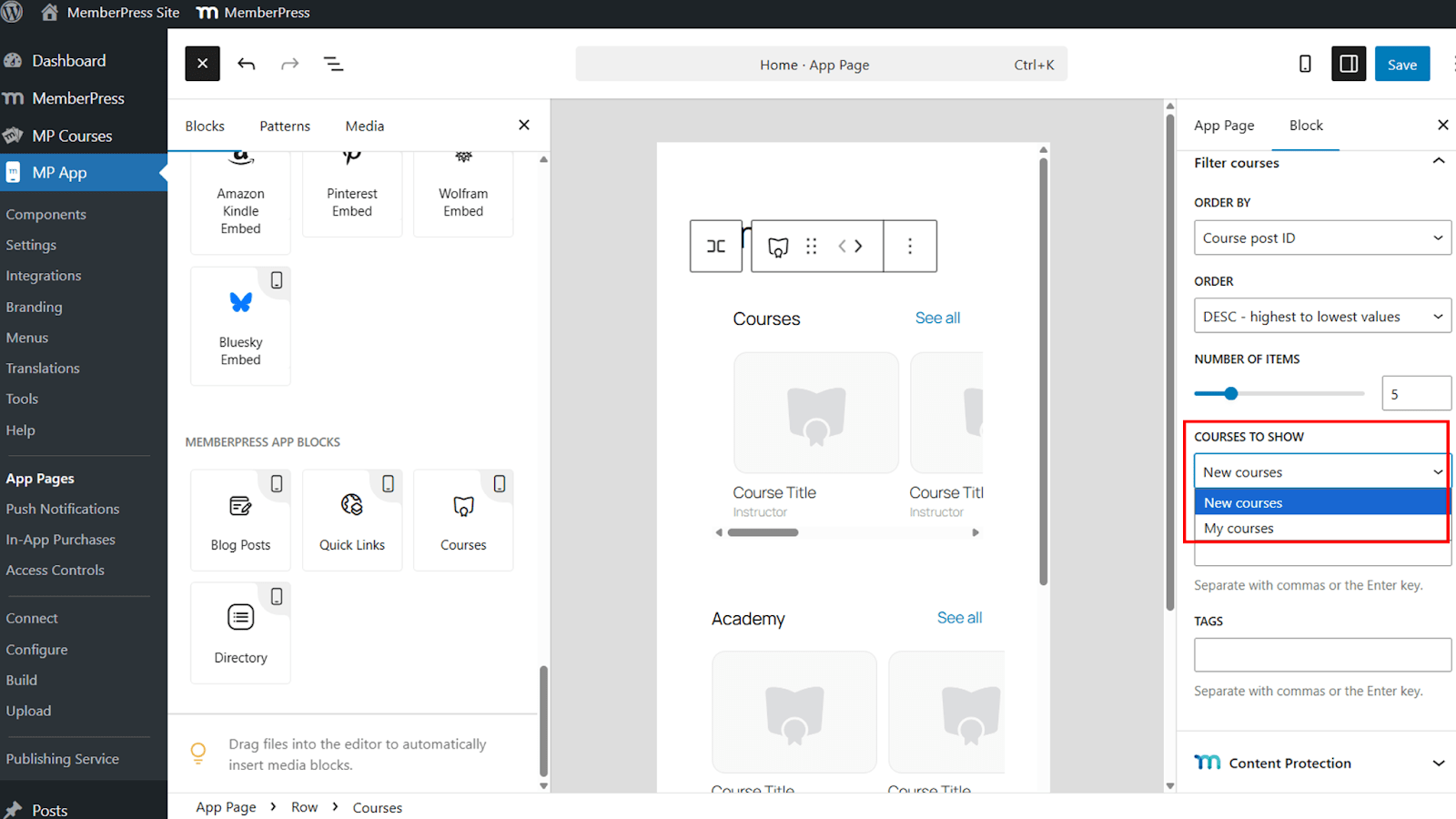
- Tela Novos cursos ou Meus cursos com base no membro conectado.
- Filtre os cursos usando categorias e tags.
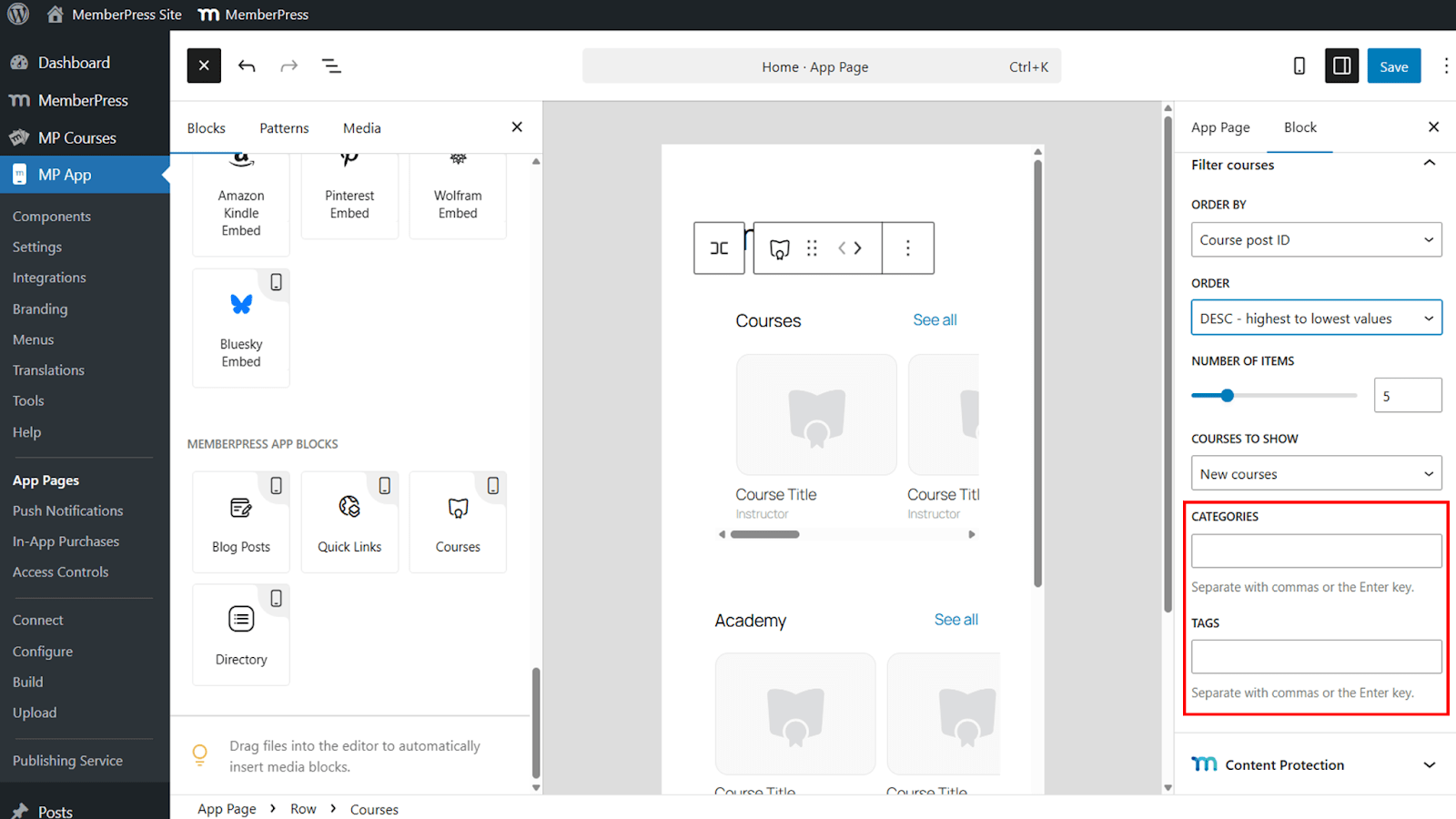
Os filtros são úteis para destacar grupos específicos de cursos e oferecem controle refinado sobre a visibilidade do curso no aplicativo MemberPress para iOS/Android.
Seleção de cursos específicos
A seleção específica do curso permite o controle manual do conteúdo exibido.
- Mudar de cursos filtrados para Cursos específicos.
- Selecione cursos individuais para serem incluídos no bloco.
Essa opção é ideal para destacar cursos em destaque ou promocionais.
Salvando e verificando o bloco
Quando a configuração estiver concluída, salve as alterações para publicar o bloco.
- Clique em Salvar para aplicar as configurações de bloqueio.
- Abra o Aplicativo MemberPress para iOS/Android em um dispositivo móvel.
- Navegue até a página que contém o Cursos bloco.
- Verifique se o carrossel exibe os cursos corretos.
- Toque em um curso ou Ver tudo para confirmar a navegação correta.
Vários blocos de cursos podem ser adicionados à mesma página, cada um com seu próprio título e filtros, permitindo a segmentação de conteúdo em todo o aplicativo.










 PT
PT  EN
EN  ES
ES  FR
FR  DE
DE 