

A opção de refazer o questionário permite que os alunos respondam a um questionário do MemberPress Courses mais de uma vez. O MemberPress salva todas as tentativas e considera uma delas para a nota do aluno.
Este documento explica como funcionam as repetições de questionários e o histórico de tentativas. Ele aborda as configurações de repetição, o que os alunos veem e como revisar ou excluir tentativas.
Requisitos
As repetições de questionários e o histórico de tentativas utilizam os seguintes complementos:
- Cursos MemberPress, ativado e configurado;
- Questionários do curso MemberPress, para criar questionários para suas disciplinas;
- Caderno de notas do curso MemberPress, para avaliar as tentativas e consultar o histórico de tentativas no boletim do curso.
O histórico de tentativas requer o MemberPress Courses 1.6.0, o MemberPress Course Quizzes 1.3.0 e o MemberPress Course Gradebook 1.3.0 ou versões posteriores.
Como funcionam as novas tentativas nos questionários e o histórico de tentativas
Uma tentativa de prova é um envio da prova. Por padrão, cada aluno pode enviar uma prova apenas uma vez.
Com a opção de repetição ativada, o aluno pode enviar o questionário novamente, até o limite de repetições. O MemberPress salva cada tentativa como um registro separado, com suas próprias respostas e pontuação.
Antes do histórico de tentativas, os cursos MemberPress armazenavam uma única tentativa por aluno e por questionário. Cada nova tentativa substituía o resultado anterior.
O MANTER Essa configuração determina qual tentativa será considerada para a nota. O MemberPress aplica essa configuração sempre que exibe a nota. Assim, todas as tentativas permanecem disponíveis, independentemente da opção escolhida.
Como configurar a repetição de questionários
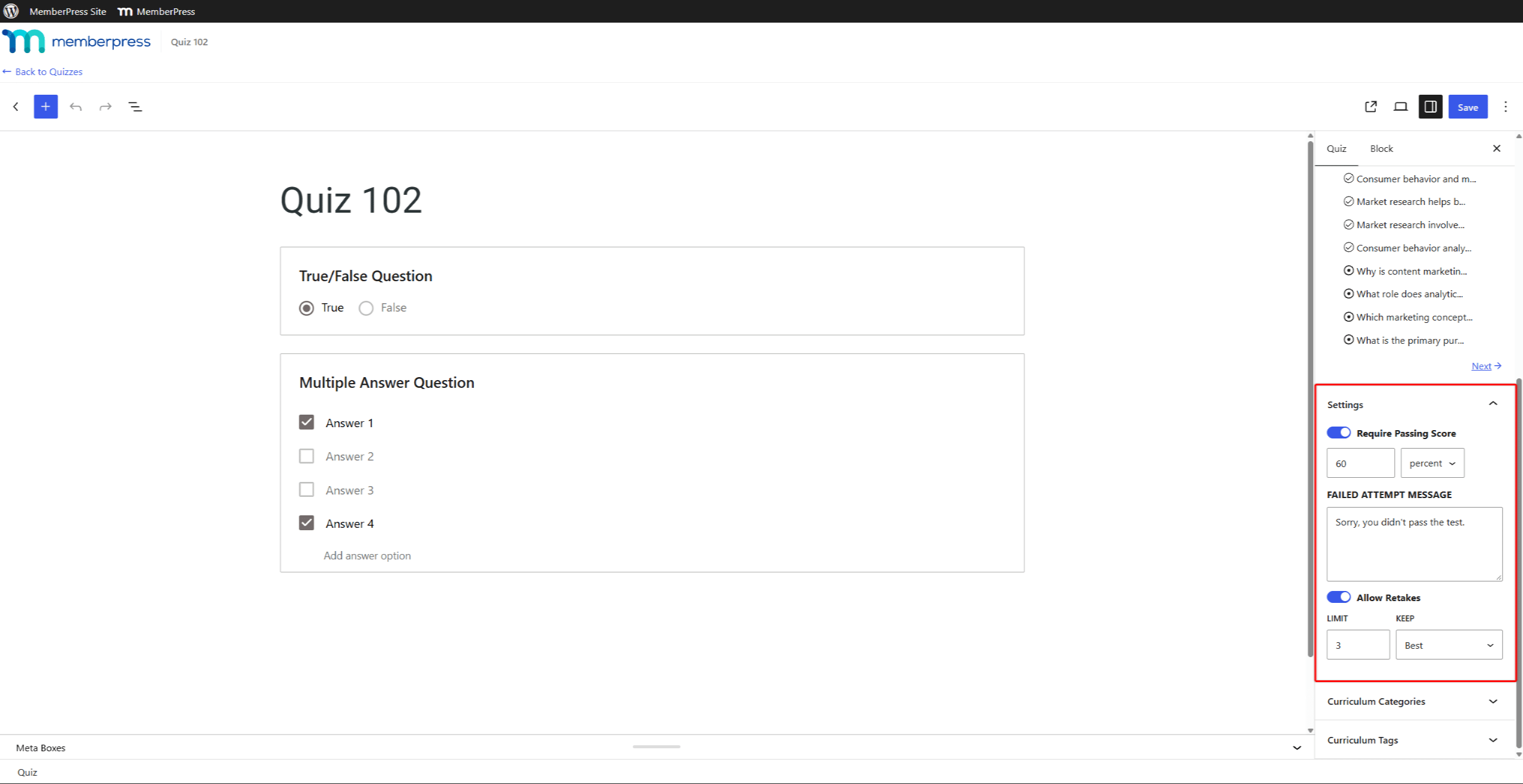
Cada questionário possui suas próprias configurações de repetição no Configurações painel da barra lateral do editor de questionários. Para ativá-los, siga as etapas para permitindo a repetição dos questionários.
As configurações de repetição incluem:
- Permitir repetições: permite que o questionário seja refeito. Essa opção está desativada por padrão;
- LIMITE: define quantas novas tentativas um aluno pode fazer após a primeira tentativa. O valor padrão é 1;
- MANTER: seleciona a tentativa que será considerada para a nota. Escolha Mais recentes (padrão) ou Melhor.
Por exemplo, um limite de 3 dá a cada aluno quatro tentativas no total. São a primeira tentativa e três novas tentativas.
O que os alunos veem
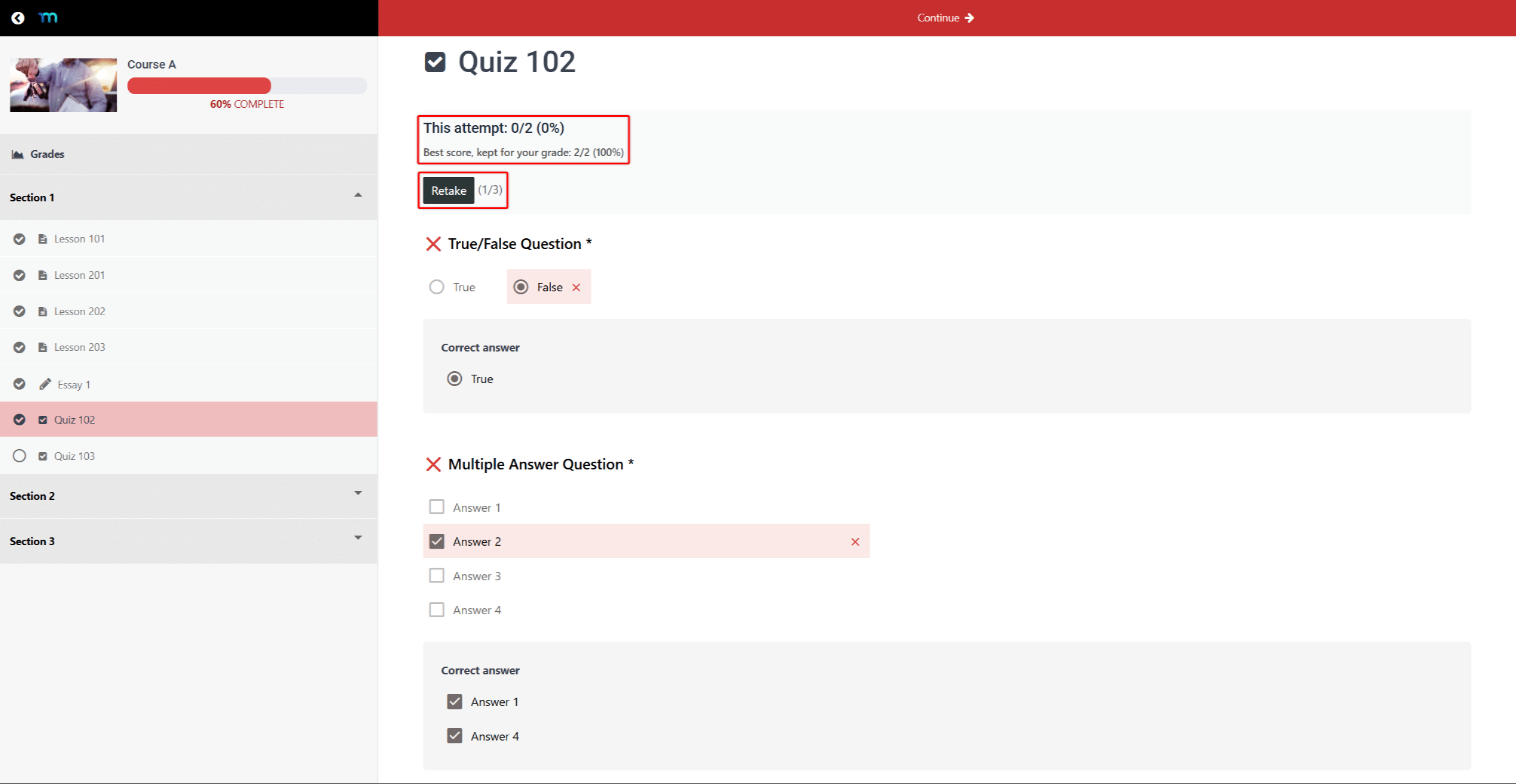
Após enviar um questionário, o aluno vê o resultado, o Repetição botão e um contador de repetições. O contador mostra o número de repetições já utilizadas em relação ao limite. Por exemplo, “(1/3)” significa que o aluno utilizou uma das três oportunidades de recuperação.
Clicando em Repetição abre uma nova tentativa em branco. A página de resultados sempre exibe a tentativa mais recente.
Em questionários com MANTER definir como Melhor, uma nota inferior na repetição do exame não substitui a melhor nota. Nesse caso, o resultado apresenta duas notas:
- “Essa tentativa:”: a pontuação da tentativa mais recente;
- “Melhor nota, registrada para sua avaliação:”: a nota que conta para a avaliação final.
Quando a última tentativa também é a melhor, o resultado mostra um único “Pontuação:” linha.
Se o questionário exigir uma nota mínima para aprovação, uma nova tentativa malsucedida não exibirá a mensagem de tentativa malsucedida, já que a melhor nota ainda é suficiente para a aprovação.
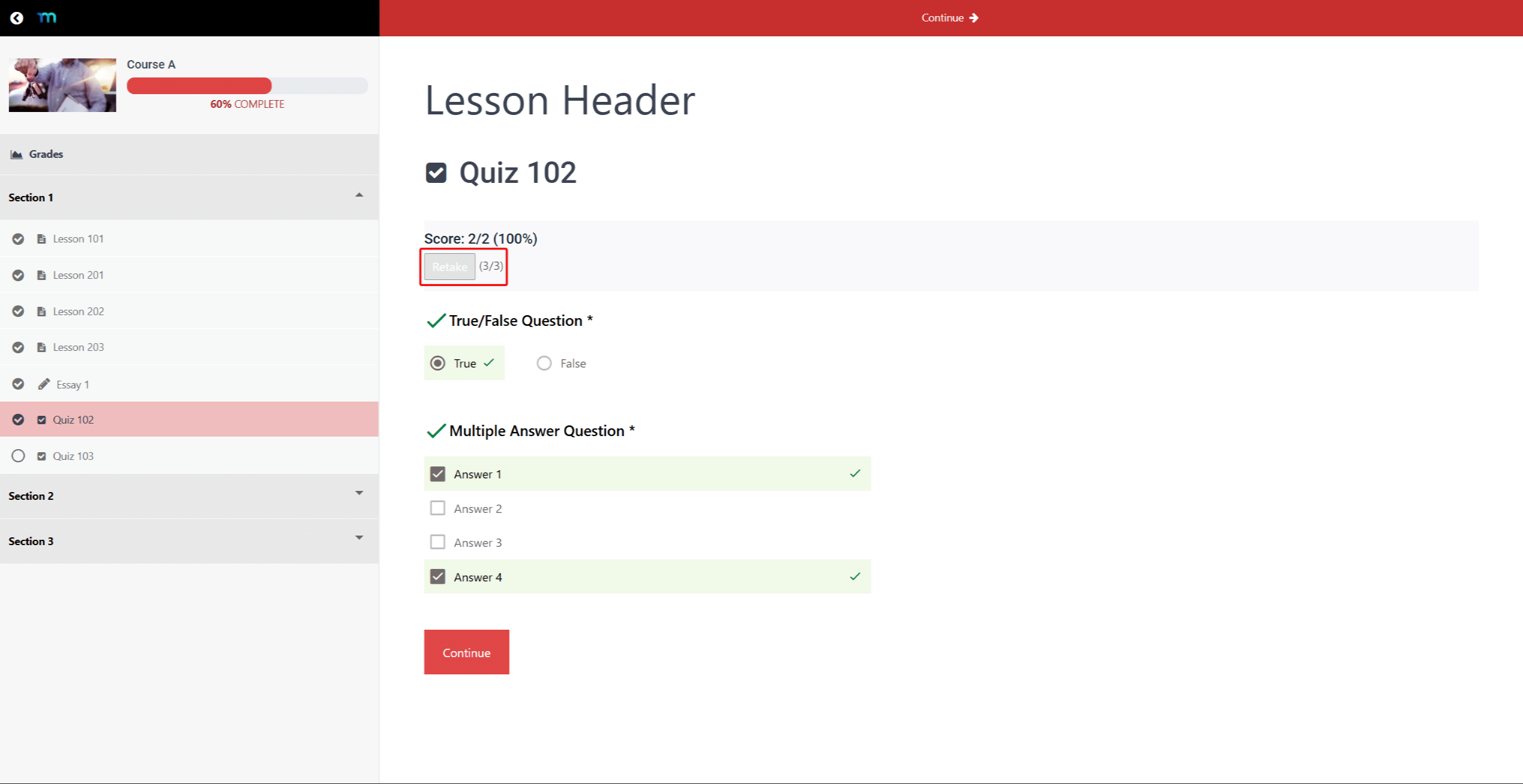
Assim que o aluno esgotar todas as tentativas de recuperação, o MemberPress desativa o Repetição botão. O contador exibe o limite total, como, por exemplo, “(3/3)”.
O tentativas de exclusão Esta seção explica como conceder ao aluno uma nova chance de fazer a prova.
Como o MemberPress escolhe a tentativa que vale
O MANTER Essa configuração determina qual tentativa conta para a nota:
- Mais recentes: conta a tentativa enviada mais recentemente, mesmo que sua pontuação seja menor;
- Melhor: conta a tentativa com a maior pontuação percentual. Se duas tentativas tiverem a mesma pontuação mais alta, conta a mais recente.
Análise das tentativas dos alunos
O MemberPress oferece dois locais para revisar as tentativas. Sem o complemento “Boletim do Curso”, você usa a página “Tentativas de questionário”. Com o complemento “Boletim” ativado, você revisa e avalia as tentativas no Boletim.
Página de tentativas do questionário
A página “Tentativas do questionário” lista todas as tentativas enviadas para um determinado questionário. Ela também faz parte de acompanhamento do progresso dos alunos nos cursos MemberPress. Se o complemento “Boletim” estiver ativo, as etapas abaixo abrirão o Boletim, filtrado para o questionário.
Para abrir a página “Tentativas de questionário”, siga estas etapas:
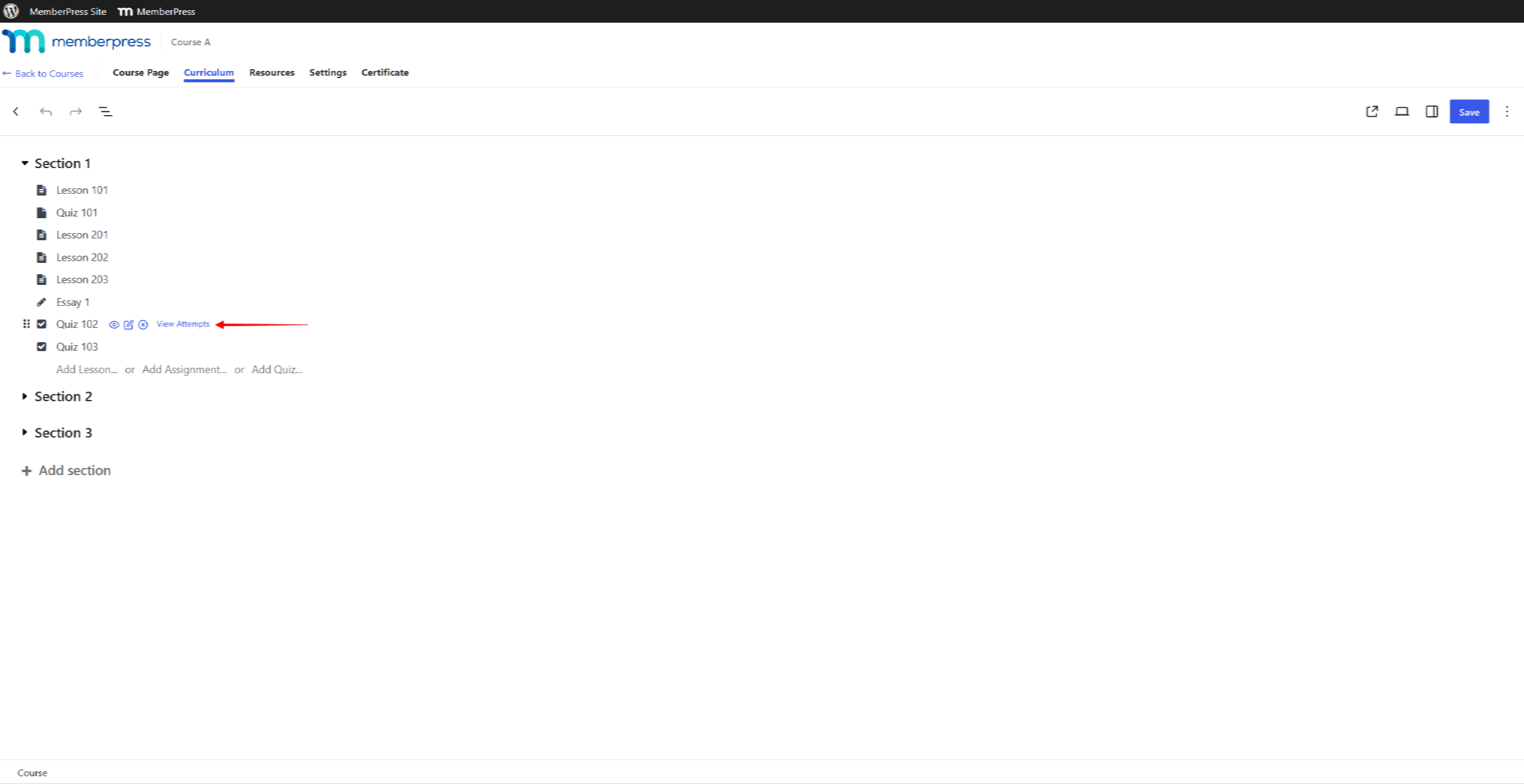
- Navegue até Painel de controle > Cursos MP > Cursos, e abra o curso para edição.
- Clique no botão Currículo guia.
- Passe o mouse sobre o questionário e clique Exibir tentativas.
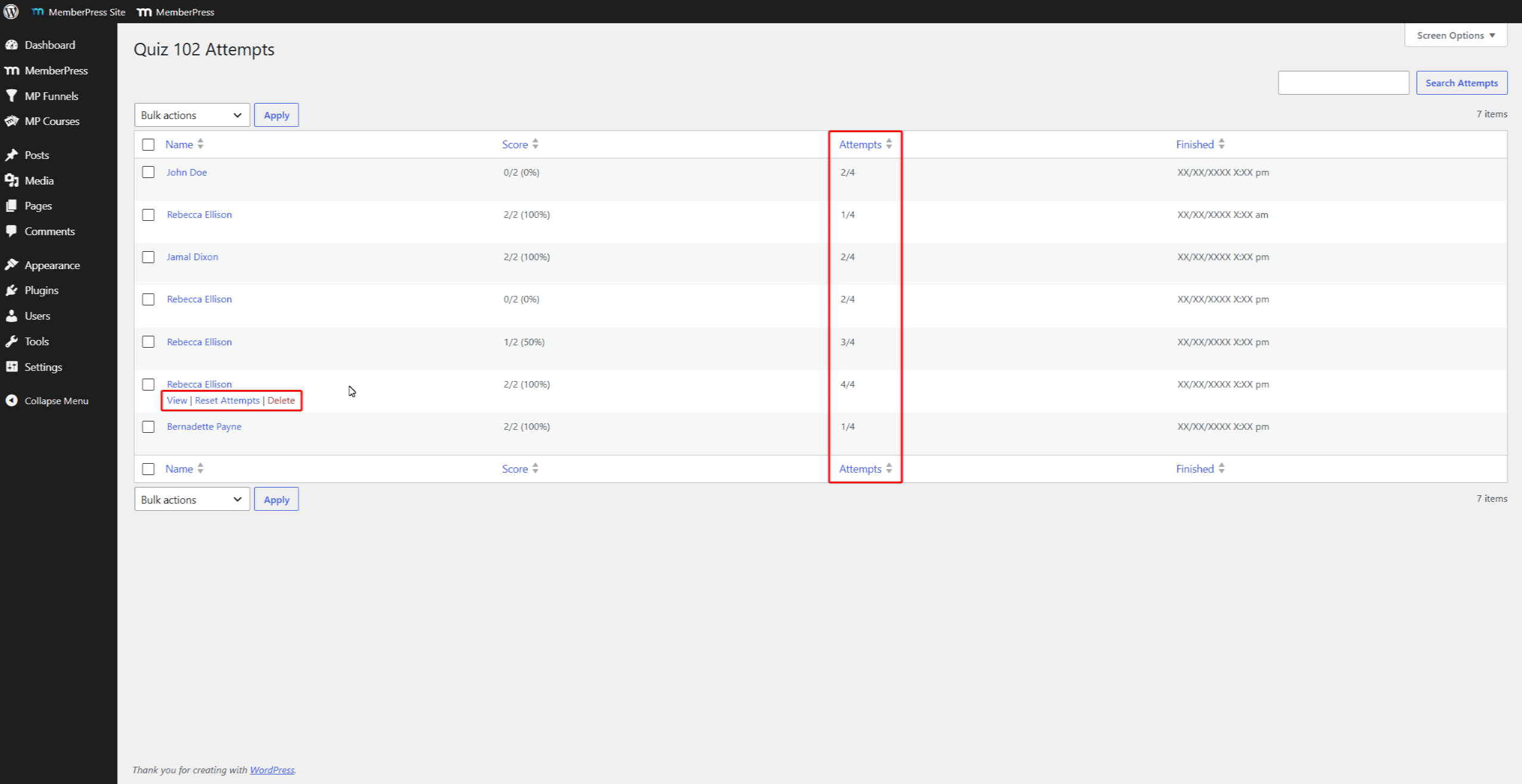
A página exibe uma linha por tentativa, com o Nome, Pontuação, Tentativase Concluído colunas. O Tentativas A coluna mostra o número de tentativas em relação ao total permitido. Por exemplo, “2/4” marca a segunda das quatro tentativas possíveis.
Passe o mouse sobre uma linha para exibir o Ver, Tentativas de reinicializaçãoe Excluir ações. Ver abre as respostas do aluno para essa tentativa. A página “Tentativas do questionário” não inclui campos de avaliação.
Histórico de tentativas no Boletim de Notas
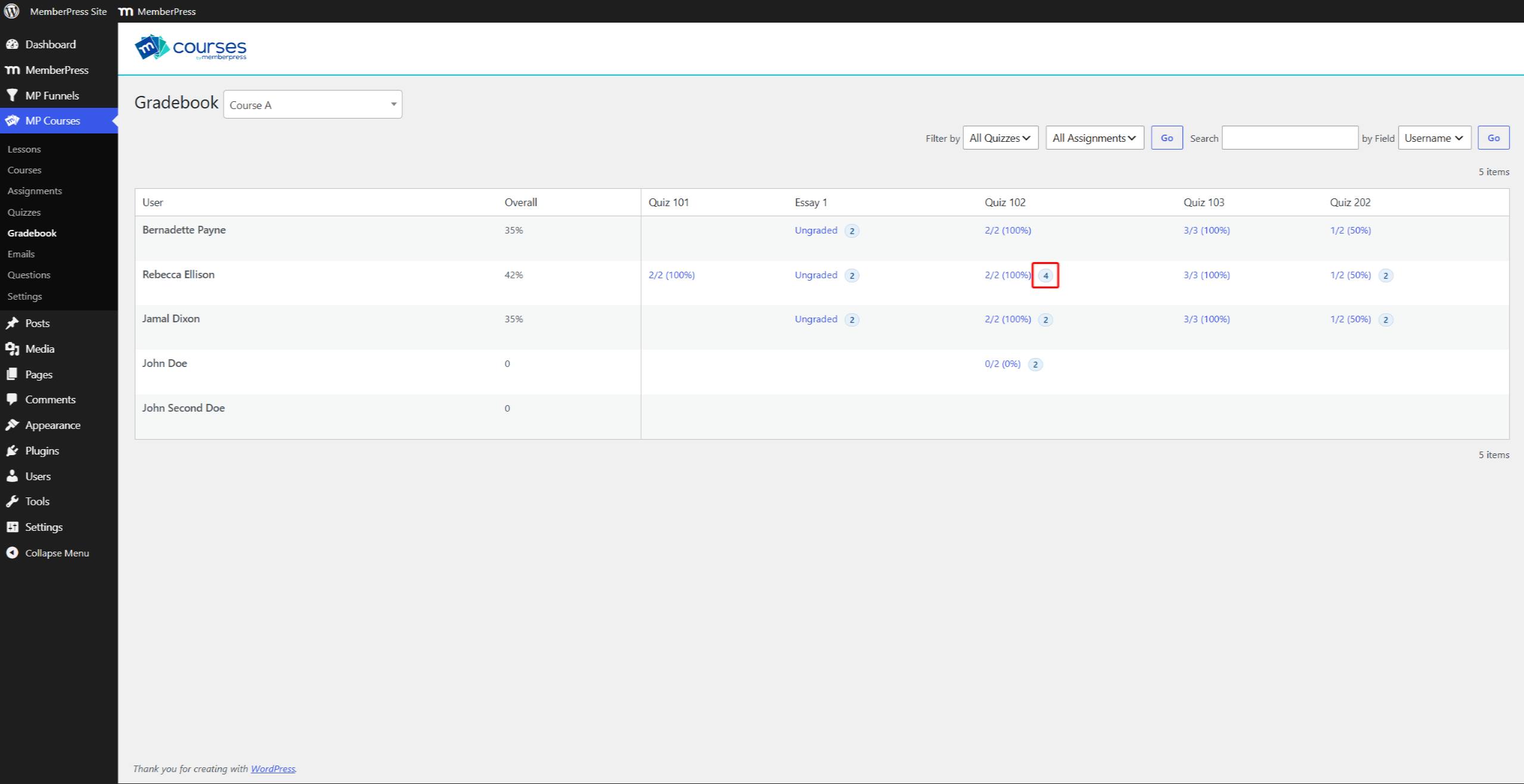
No Boletim, cada célula do questionário exibe a nota da tentativa que vale para a avaliação. Quando um aluno tem mais de uma tentativa, um ícone numérico aparece ao lado da nota. O ícone indica quantas tentativas o aluno fez.
Para consultar o histórico de tentativas de um aluno, siga estas etapas:
- Navegue até Painel de controle > Cursos MP > Boletim de notas, e selecione o curso.
- Clique no ícone com o número ao lado da nota do aluno no questionário.
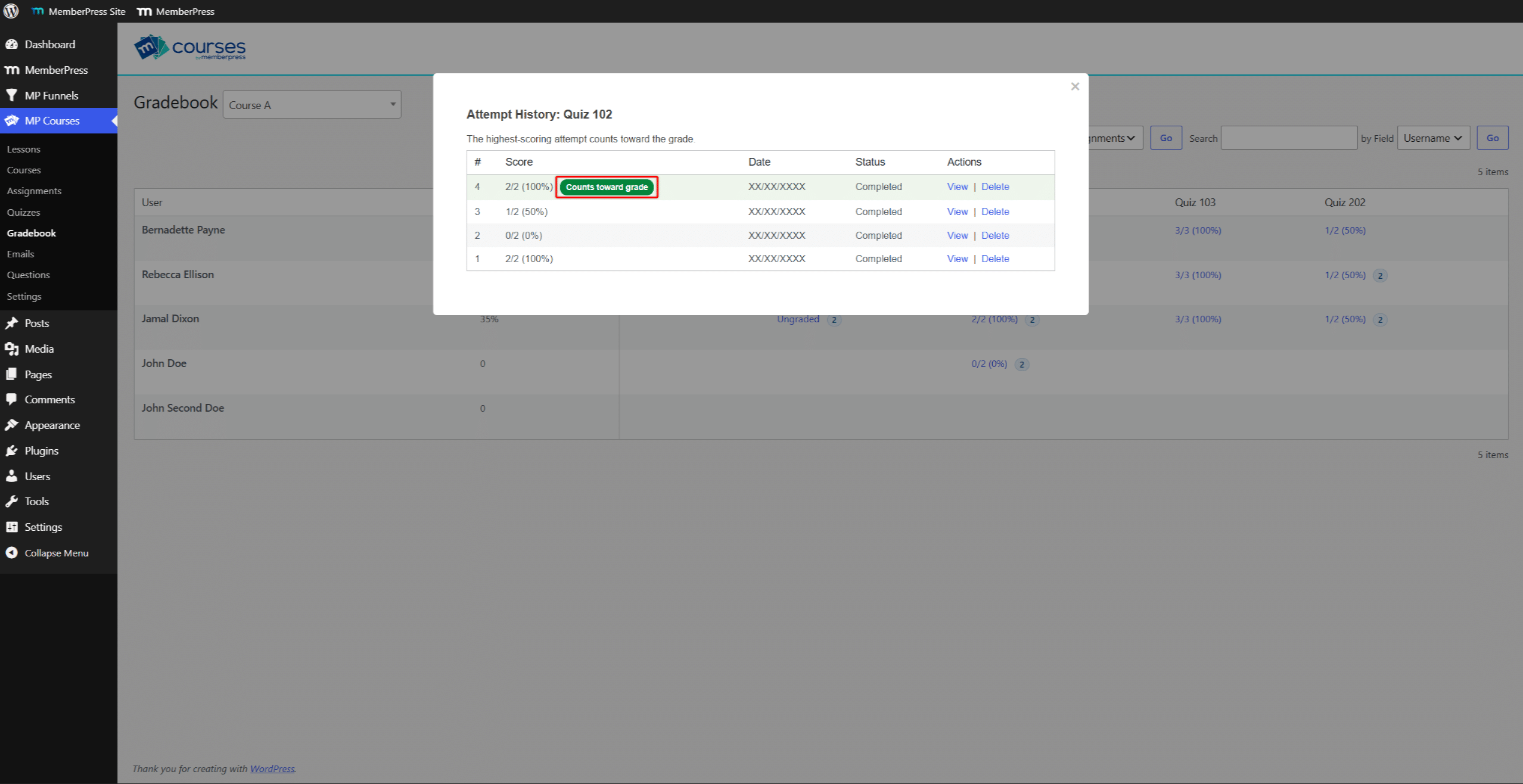
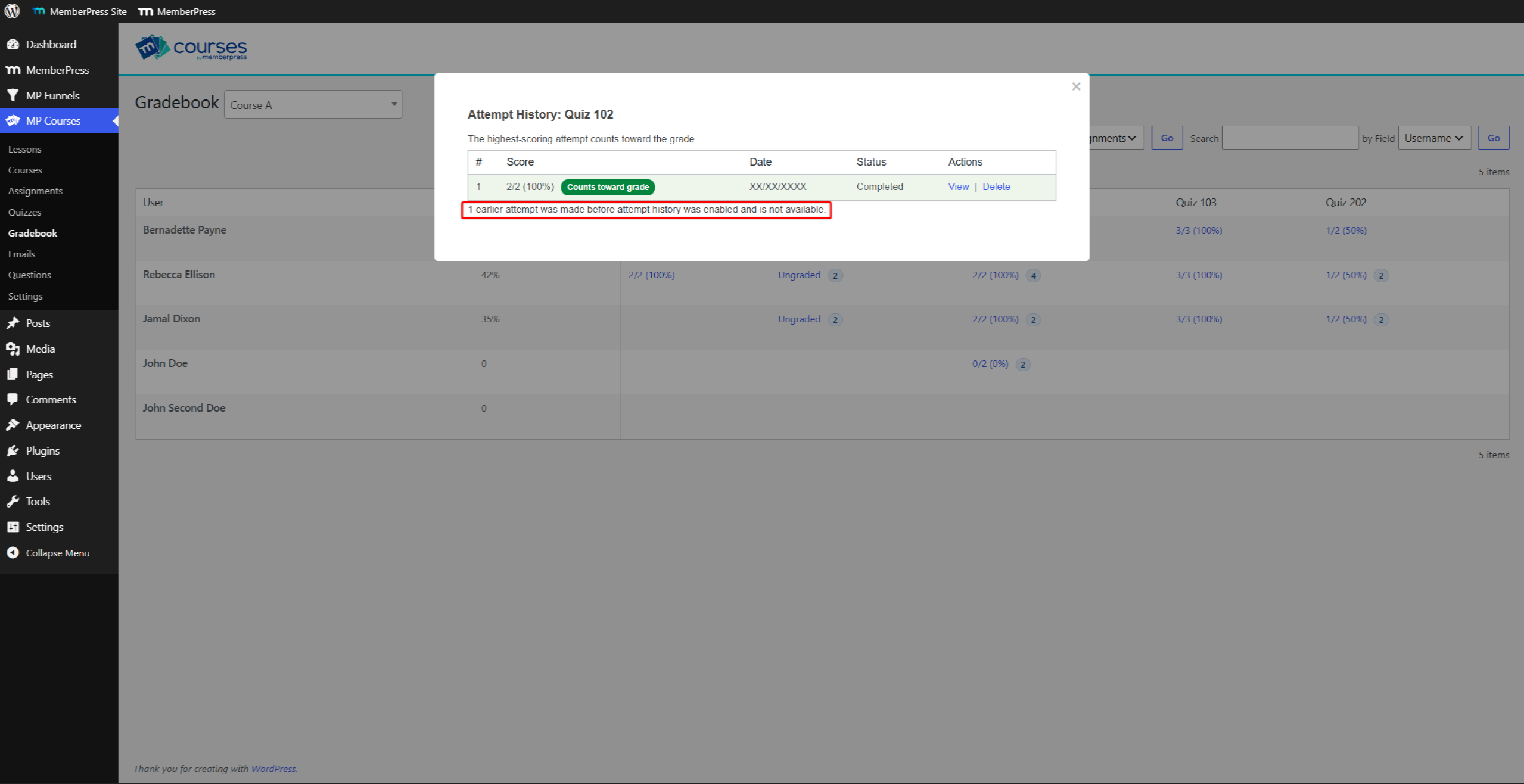
O “Histórico de tentativas” A janela lista todas as tentativas, começando pelas mais recentes. Ela mostra o #, Pontuação, Data, Statuse Ações colunas. Um verde “Conta para a nota” O que importa é a tentativa.
Acima da tabela, uma linha indica a regra do questionário. Ela diz: “A tentativa mais recente conta para a nota.” ou “A tentativa com a pontuação mais alta conta para a nota.”
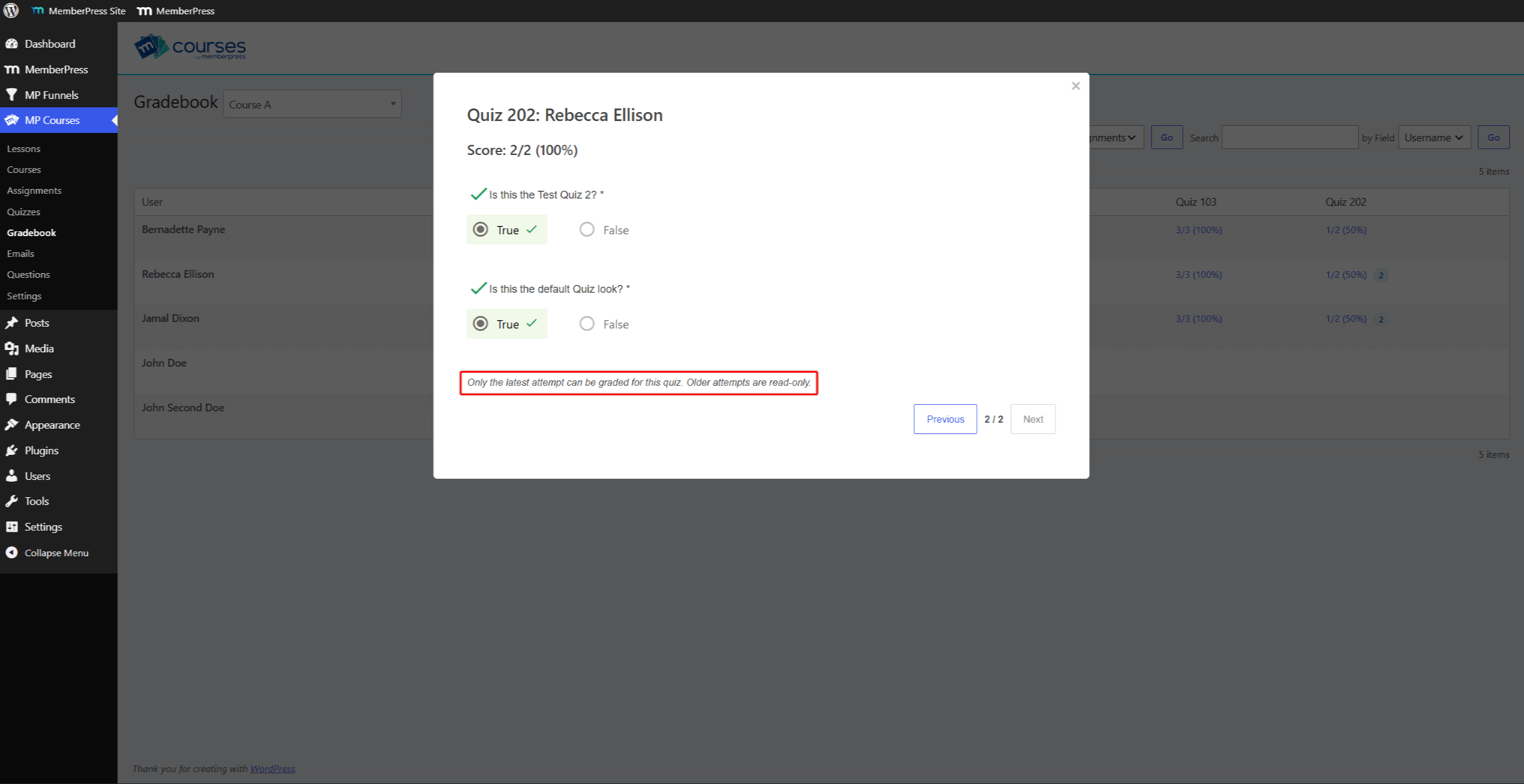
- Clique em Ver além de uma tentativa de tornar suas respostas mais abertas.
- Clique em Anterior ou Próximo para alternar entre as tentativas do aluno.
As opções de avaliação dependem do MANTER configuração:
- Mais recentes: você só pode corrigir a tentativa mais recente. As tentativas anteriores mostram o “Apenas a última tentativa poderá ser avaliada neste questionário. As tentativas anteriores estão apenas para leitura.” mensagem;
- Melhor: você pode corrigir qualquer tentativa.
O período de notas funciona conforme descrito em corrigir questionários no Boletim de Notas.
Tentativas de exclusão
Você pode excluir uma única tentativa ou todas as tentativas de um aluno em um questionário. O MemberPress não consegue restaurar tentativas excluídas.
Exclusão de uma única tentativa
Ao excluir uma tentativa, suas respostas e pontuação são removidas. O aluno tem direito a uma nova tentativa. Se o aluno tiver outra tentativa concluída, o questionário permanece como concluído.
Para excluir uma única tentativa, siga estas etapas:
- Abra o arquivo do aluno “Histórico de tentativas” janela no Boletim de Notas.
- Clique em Excluir ao lado da tentativa.
- Clique em OK na janela de confirmação.
O Excluir A ação na página “Tentativas do questionário” remove uma única tentativa da mesma forma.
Excluindo todas as tentativas
A exclusão de todas as tentativas permite que o aluno recomece o questionário. O código MemberPress também remove a marcação de conclusão do questionário, de modo que o progresso do aluno no curso diminui.
Para excluir todas as tentativas de um aluno em um questionário, siga estas etapas:
- Navegue até Painel de controle > Cursos MP > Boletim de notas, e selecione o curso.
- Passe o mouse sobre a nota do aluno no questionário e clique Excluir tudo.
- Clique em OK na janela de confirmação.
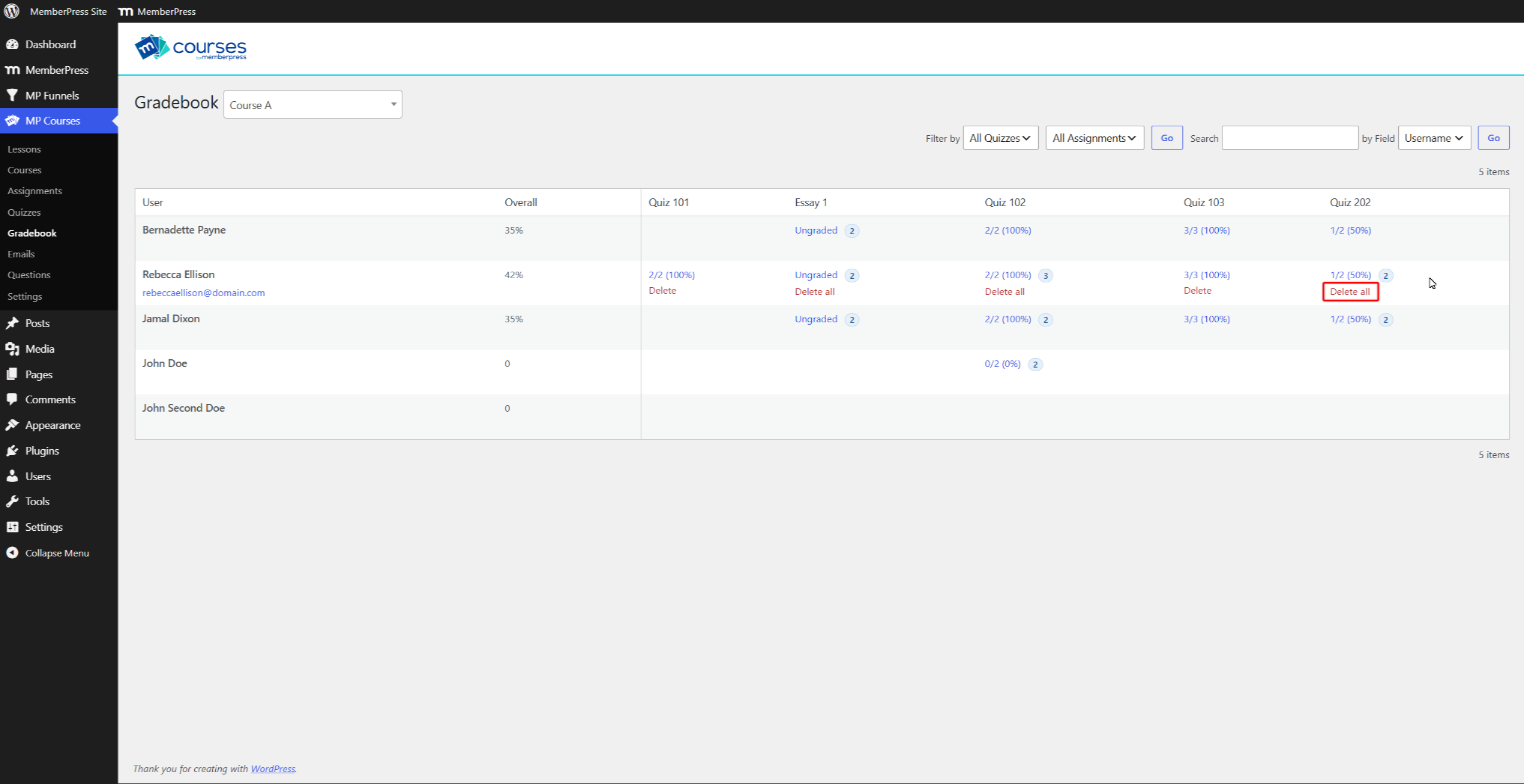
O Tentativas de reinicialização Essa ação na página “Tentativas do questionário” também exclui todas as tentativas do aluno para esse questionário.
Tentativas realizadas antes do histórico de tentativas
Antes do histórico de tentativas, o MemberPress armazenava uma tentativa por aluno e por questionário. Após a atualização, essa tentativa armazenada aparece como a única linha no histórico.
O MemberPress ainda contabiliza as repetições anteriores para o limite. Uma linha abaixo da tabela de histórico indica as tentativas que faltam. Por exemplo: “Foi feita uma tentativa anterior, antes de o histórico de tentativas ter sido ativado, e ela não está disponível.”










 PT
PT  EN
EN  ES
ES  FR
FR  DE
DE 