

Durch die Möglichkeit zur Wiederholung von Tests können Studierende einen Test in MemberPress-Kursen mehrmals ablegen. MemberPress speichert jeden Versuch und berücksichtigt einen davon für die Note des Studierenden.
In diesem Dokument wird erläutert, wie die Wiederholung von Quizzen und der Versuchsverlauf funktionieren. Es behandelt die Einstellungen für die Wiederholung, was die Teilnehmer sehen und wie man Versuche einsehen oder löschen kann.
Anforderungen
Für die Wiederholung von Quizzen und den Verlauf der Versuche werden die folgenden Add-ons verwendet:
- MemberPress-Kurse, aktiviert und eingerichtet;
- MemberPress-Kursquizze erstellen Quizze für Ihre Kurse;
- MemberPress-Kursnotenbuch, um Versuche zu benoten und den Verlauf der Versuche im Kurs-Notenbuch.
Für den Versuchsverlauf sind die Versionen MemberPress Courses 1.6.0, MemberPress Course Quizzes 1.3.0 und MemberPress Course Gradebook 1.3.0 oder höher erforderlich.
So funktionieren Wiederholungsprüfungen und der Verlauf der Prüfungsversuche
Ein Quizversuch ist eine Abgabe eines Quiz. Standardmäßig kann jeder Schüler ein Quiz nur einmal abgeben.
Wenn Wiederholungsversuche aktiviert sind, kann der Schüler das Quiz erneut einreichen, bis das Limit für Wiederholungsversuche erreicht ist. MemberPress speichert jeden Versuch als separaten Datensatz mit eigenen Antworten und einer eigenen Punktzahl.
Vor Einführung des Versuchsverlaufs speicherten die MemberPress-Kurse nur einen einzigen Versuch pro Schüler und Quiz. Bei jeder Wiederholung wurde das vorherige Ergebnis überschrieben.
Die BEHALTEN Diese Einstellung legt fest, welcher Versuch für die Note berücksichtigt wird. MemberPress wendet diese Einstellung bei jeder Anzeige der Note an. Somit bleiben alle Versuche verfügbar, unabhängig davon, welche Option Sie wählen.
Einrichten von Wiederholungsprüfungen
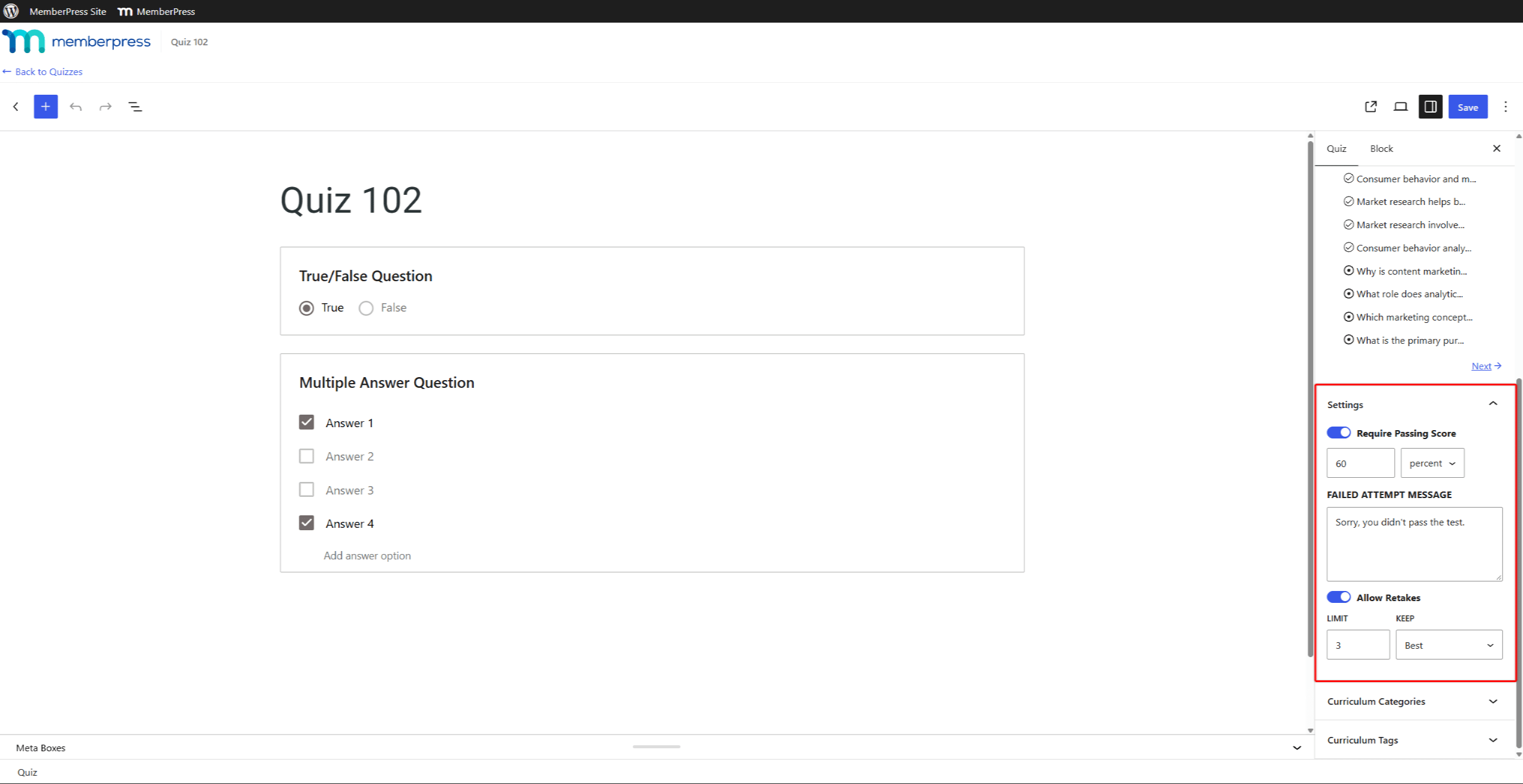
Jedes Quiz verfügt über eigene Einstellungen für die Wiederholung in der Einstellungen Bereich in der Seitenleiste des Quiz-Editors. Um diese zu aktivieren, befolgen Sie die Schritte für Wiederholungen von Quizzen zulassen.
Zu den Einstellungen für die Wiederholung gehören:
- Wiederholungen zulassen: Ermöglicht die Wiederholung des Quiz. Diese Option ist standardmäßig deaktiviert;
- LIMIT: Legt fest, wie viele Wiederholungsversuche ein Schüler nach dem ersten Versuch absolvieren darf. Der Standardwert ist 1;
- BEHALTEN: Wählt den Versuch aus, der für die Note zählt. Wählen Sie Neueste (Standard) oder Am besten.
Bei einem Limit von 3 hat beispielsweise jeder Schüler insgesamt vier Versuche. Dabei handelt es sich um den ersten Versuch und drei Wiederholungsversuche.
Was die Schüler sehen
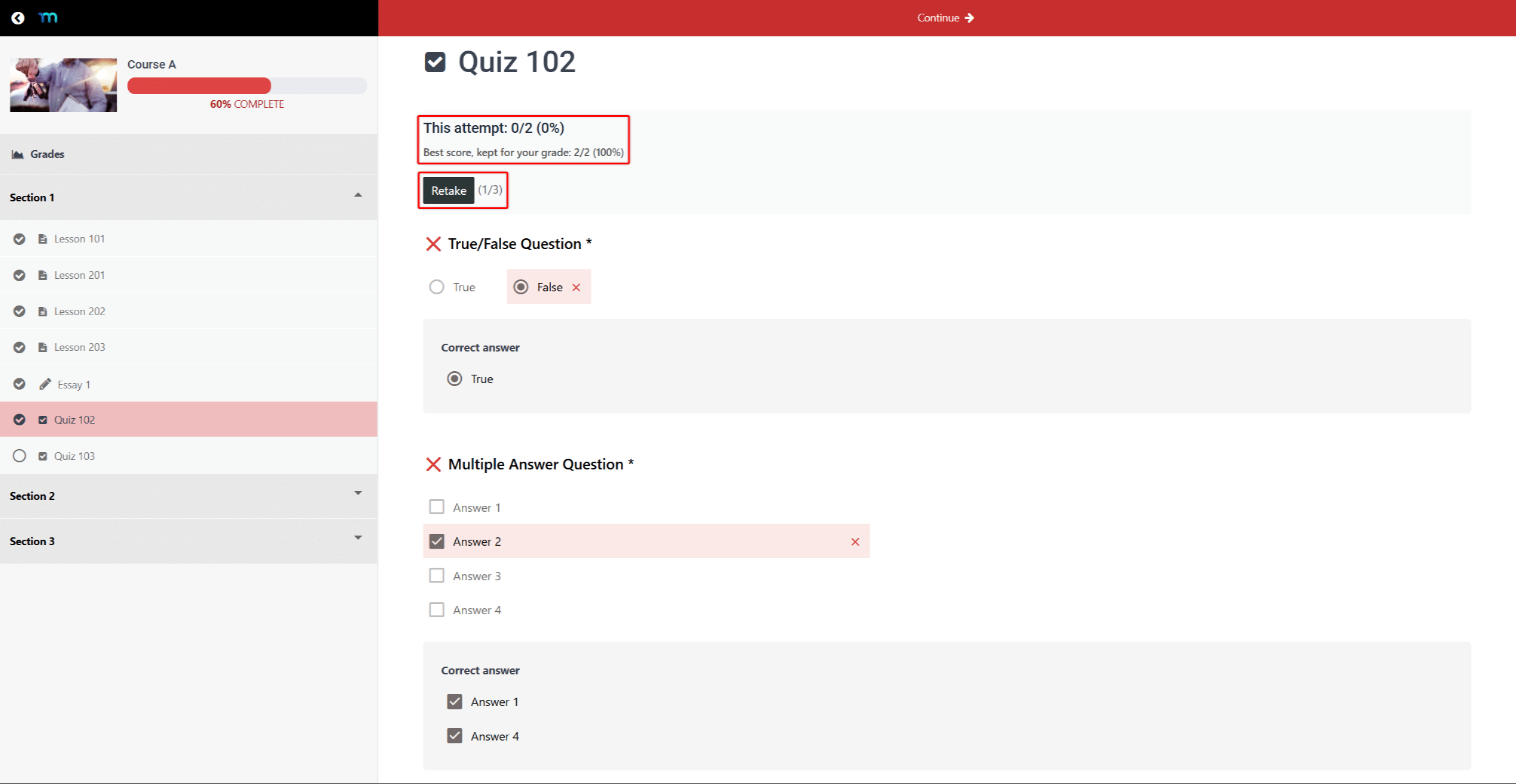
Nach dem Absenden eines Quiz sieht der Schüler das Ergebnis, das Wiederholung Schaltfläche und einen Wiederholungszähler. Der Zähler zeigt die bereits genutzten Wiederholungen im Verhältnis zum Gesamtlimit an. Zum Beispiel:, “(1/3)” bedeutet, dass der Schüler eine von drei Wiederholungsprüfungen in Anspruch genommen hat.
Klicken Sie auf Wiederholung Öffnet einen neuen, leeren Versuch. Auf der Ergebnisseite wird immer der aktuellste Versuch angezeigt.
Bei Quizzen mit BEHALTEN auf … einstellen Am besten, eine schlechtere Wiederholungsprüfung ersetzt jedoch nicht die beste Note. In diesem Fall werden im Ergebnis zwei Noten angezeigt:
- “Dieser Versuch:”: die Punktzahl des letzten Versuchs;
- “Beste Punktzahl, die für deine Note gewertet wird:”: die Punktzahl, die in die Note einfließt.
Wenn der letzte Versuch auch der beste ist, ergibt sich ein einziges “Ergebnis:” Zeile.
Wenn für das Quiz eine Mindestpunktzahl erforderlich ist, wird bei einer nicht bestandenen Wiederholungsprüfung keine Meldung über den fehlgeschlagenen Versuch angezeigt, da die beste Punktzahl weiterhin ausreicht, um das Quiz zu bestehen.
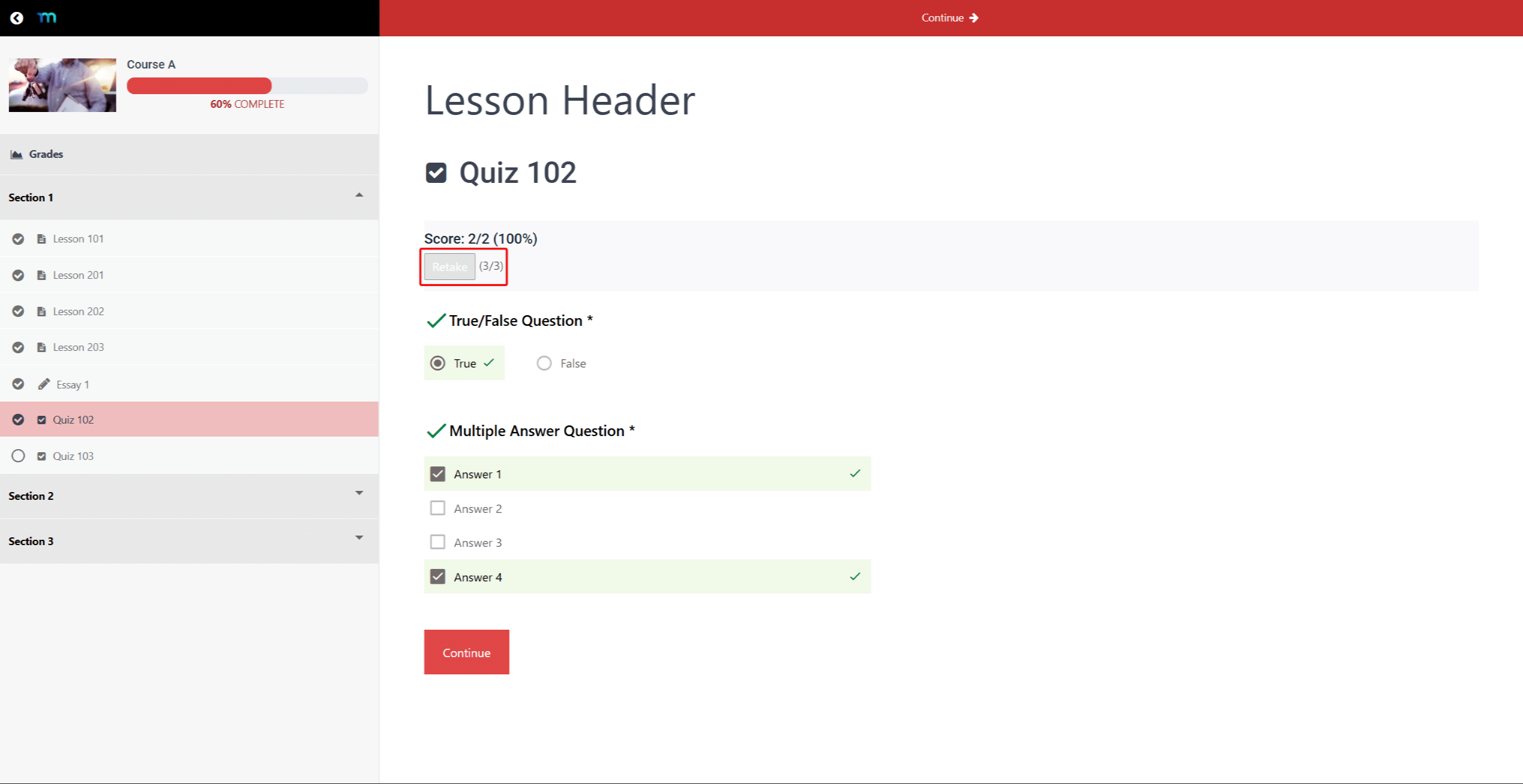
Sobald der Studierende alle Wiederholungsversuche aufgebraucht hat, deaktiviert MemberPress die Wiederholung Schaltfläche. Der Zähler zeigt das volle Limit an, zum Beispiel “(3/3)”.
Die Löschversuche In diesem Abschnitt wird erläutert, wie man dem Schüler eine weitere Wiederholungsprüfung gewährt.
Wie MemberPress den Versuch auswählt, der zählt
Die BEHALTEN Diese Einstellung legt fest, welcher Versuch für die Note zählt:
- Neueste: Es zählt der zuletzt eingereichte Versuch, auch wenn die Punktzahl niedriger ist;
- Am besten: Es zählt der Versuch mit der höchsten prozentualen Punktzahl. Wenn zwei Versuche die gleiche höchste Punktzahl aufweisen, zählt der jüngere Versuch.
Überprüfung der Schülerversuche
MemberPress bietet zwei Möglichkeiten, die Versuche zu überprüfen. Ohne das Add-on „Kurs-Notenbuch“ nutzen Sie die Seite „Quiz-Versuche“. Ist das Add-on „Notenbuch“ aktiviert, überprüfen und benoten Sie die Versuche im Notenbuch.
Seite „Quizversuche“
Auf der Seite „Quizversuche“ werden alle eingereichten Versuche für ein Quiz aufgelistet. Sie ist außerdem Teil von den Lernfortschritt der Schüler verfolgen in MemberPress-Kursen. Ist das Add-on „Notenbuch“ aktiviert, wird durch die folgenden Schritte stattdessen das Notenbuch geöffnet, gefiltert nach dem Quiz.
Um die Seite „Quizversuche“ zu öffnen, gehen Sie wie folgt vor:
- Navigieren Sie zu Dashboard > MP-Kurse > Kurse, und öffnen Sie den Kurs zur Bearbeitung.
- Klicken Sie auf die Lehrplan tab.
- Führen Sie den Mauszeiger über das Quiz und klicken Sie darauf Versuche anzeigen.
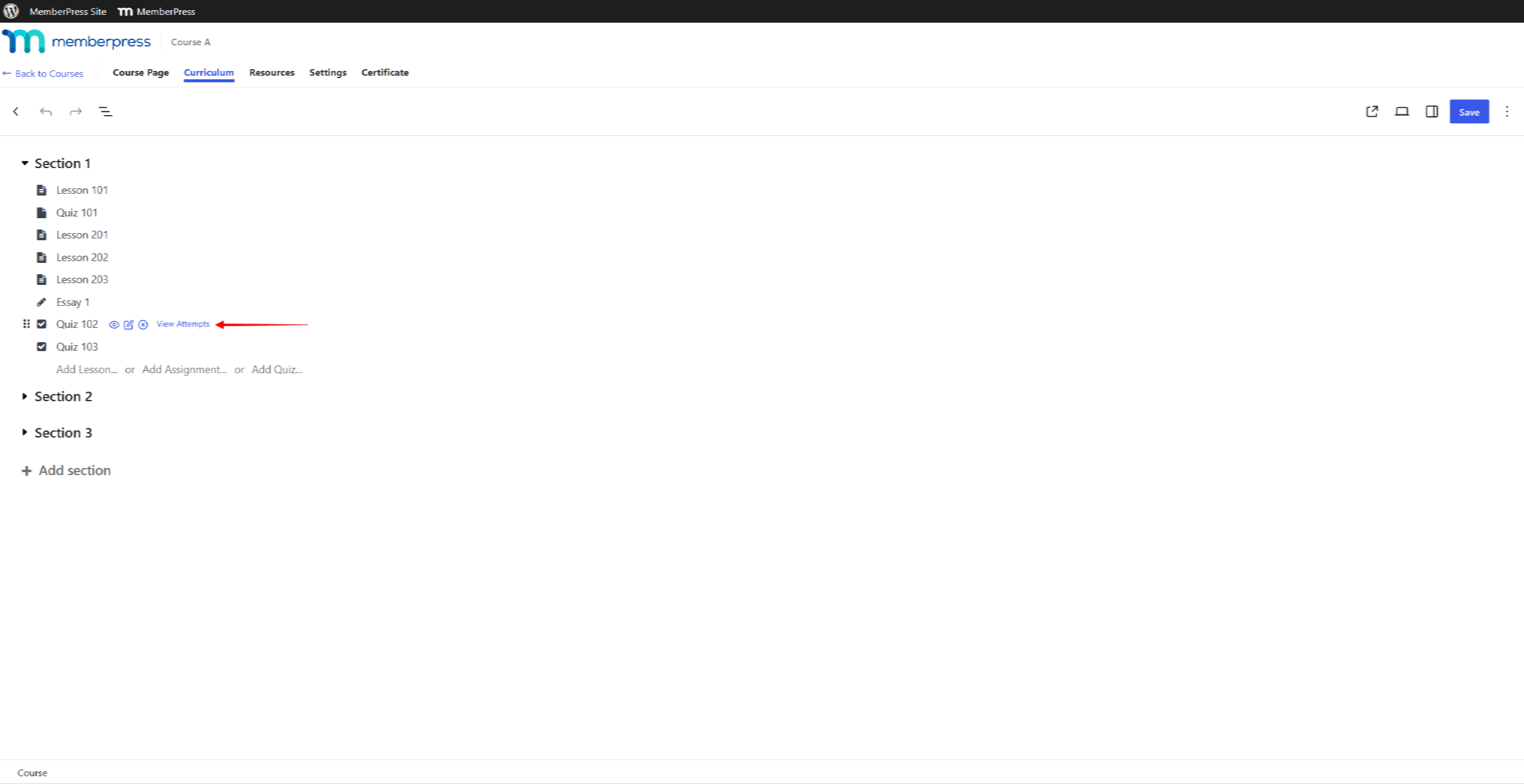
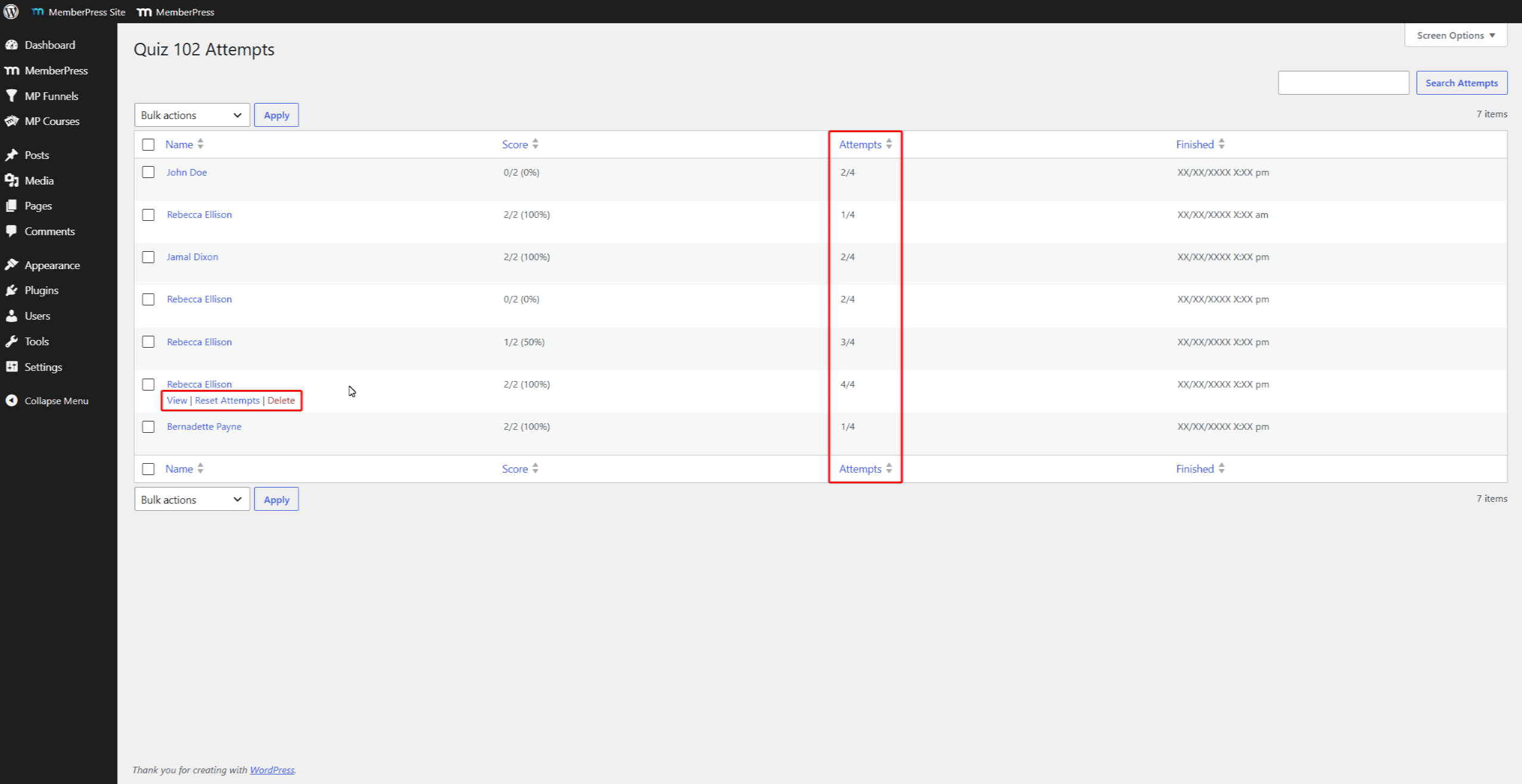
Auf der Seite wird pro Versuch eine Zeile angezeigt, wobei die Name, Ergebnis, Versucheund Fertig Spalten. Die Versuche In dieser Spalte wird die Anzahl der Versuche im Verhältnis zur Gesamtzahl der zulässigen Versuche angezeigt. Zum Beispiel:, “2/4” Dies ist der zweite von vier möglichen Versuchen.
Führen Sie den Mauszeiger über eine Zeile, um die Siehe, Reset-Versucheund Löschen Maßnahmen. Siehe Öffnet die Antworten des Teilnehmers für diesen Durchgang. Die Seite „Quiz-Durchgänge“ enthält keine Felder zur Benotung.
Versuchsverlauf im Notenbuch
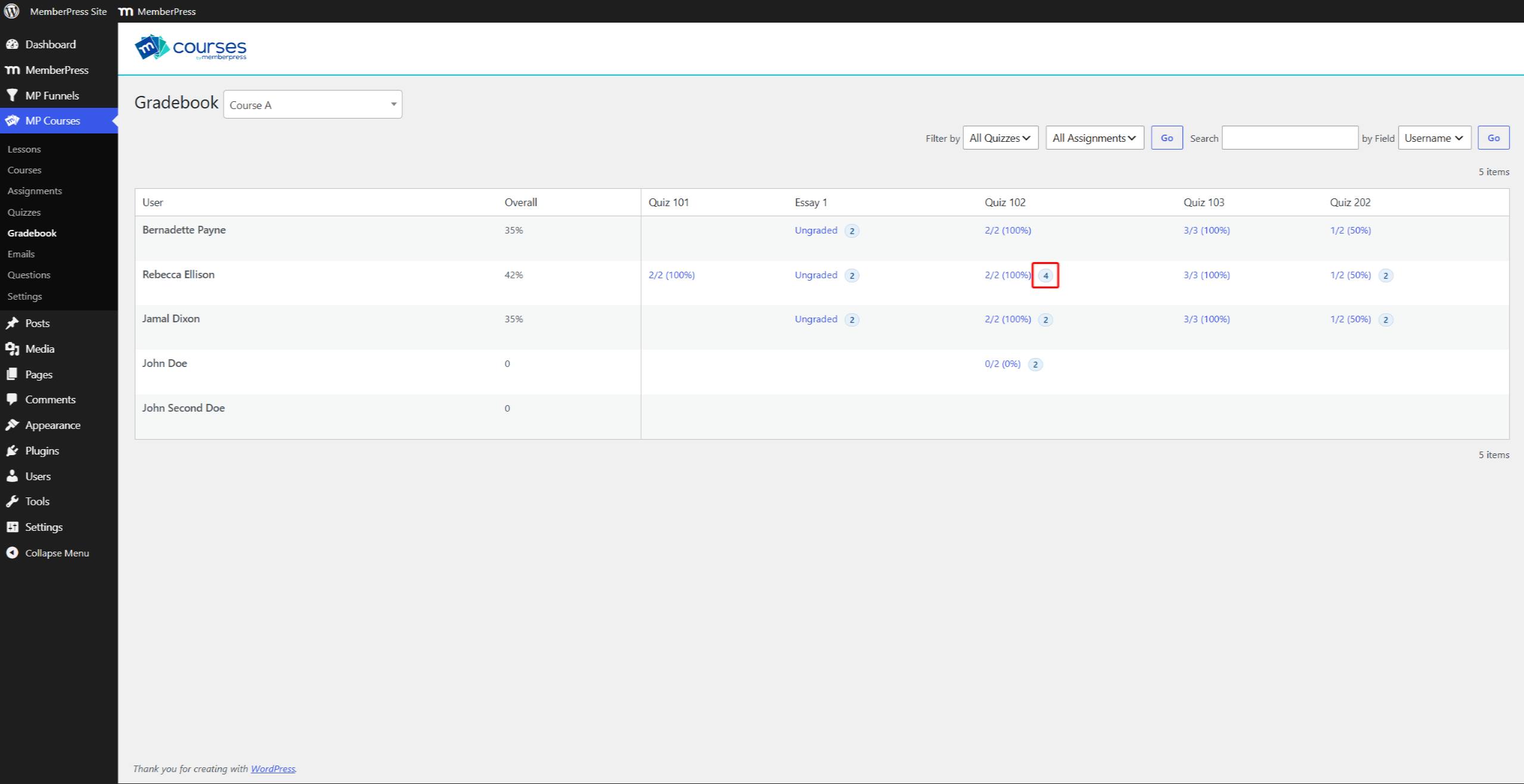
Im Notenbuch wird in jeder Quizzelle die Note des gültigen Versuchs angezeigt. Wenn ein Schüler mehr als einen Versuch unternommen hat, erscheint neben der Note ein Zahlenabzeichen. Das Abzeichen gibt an, wie viele Versuche der Schüler unternommen hat.
Um den Versuchsverlauf eines Schülers einzusehen, gehen Sie wie folgt vor:
- Navigieren Sie zu Dashboard > MP-Kurse > Notenbuch, und wählen Sie den Kurs aus.
- Klicken Sie auf das Zahlen-Symbol neben der Quiznote des Schülers.
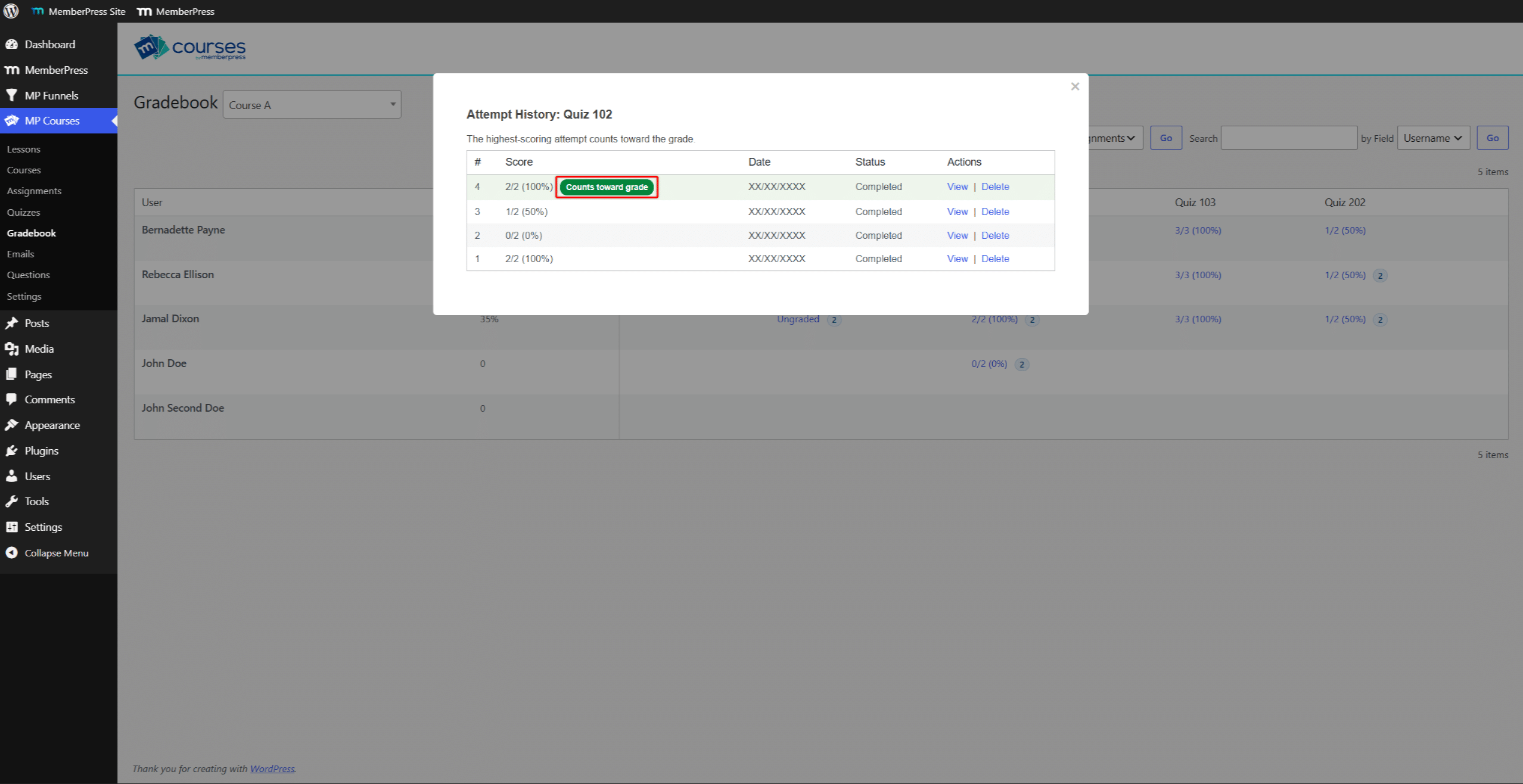
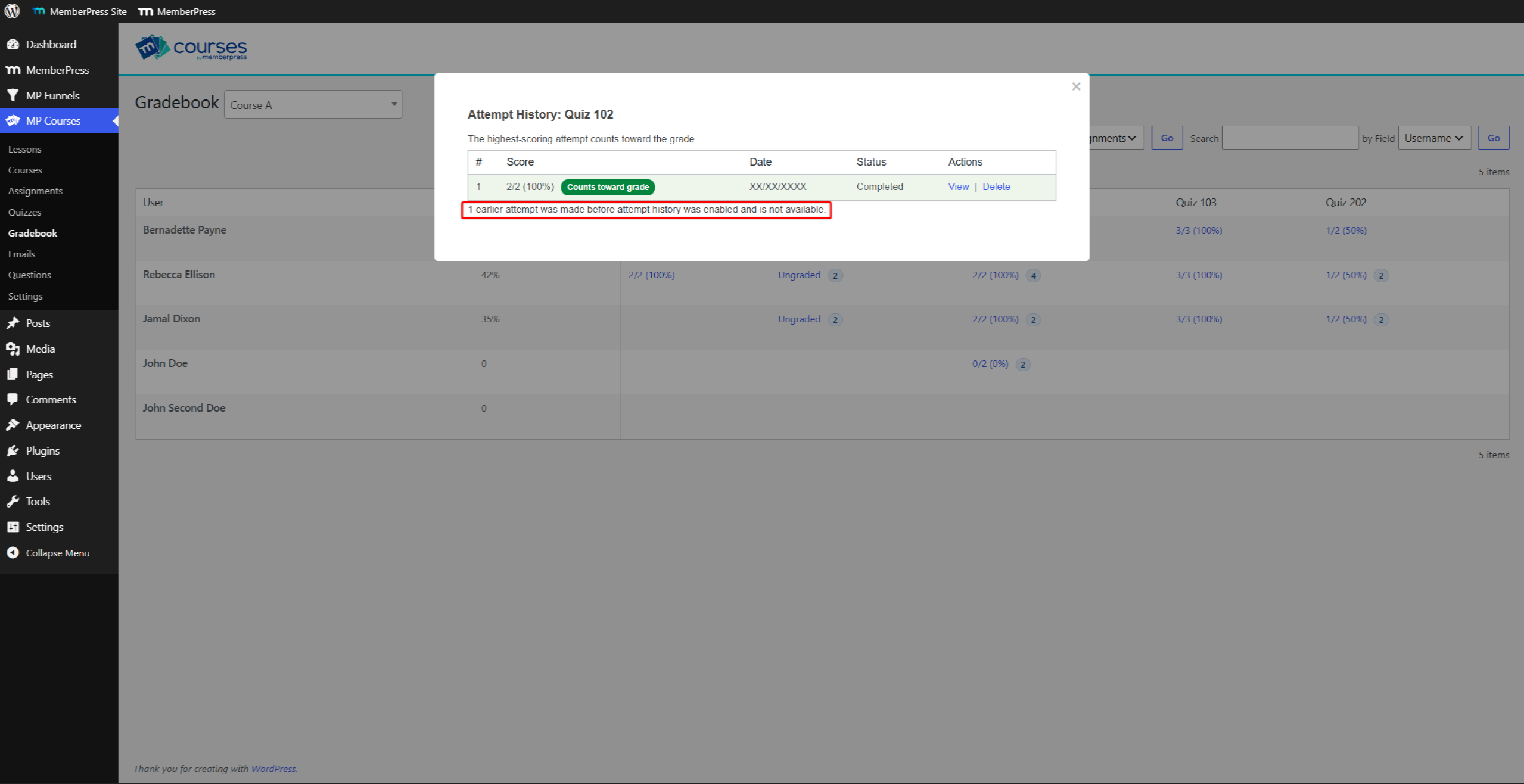
Die “Versuchsverlauf” In diesem Fenster werden alle Versuche aufgelistet, beginnend mit dem neuesten. Es zeigt die #, Ergebnis, Datum, Statusund Aktionen Spalten. Ein grünes “Wird für die Note gewertet” Das Motto lautet: Der Versuch zählt.
Über der Tabelle steht in einer Zeile die Regel für das Quiz. Dort heißt es: “Der letzte Versuch fließt in die Note ein.” oder “Der Versuch mit der höchsten Punktzahl fließt in die Note ein.”
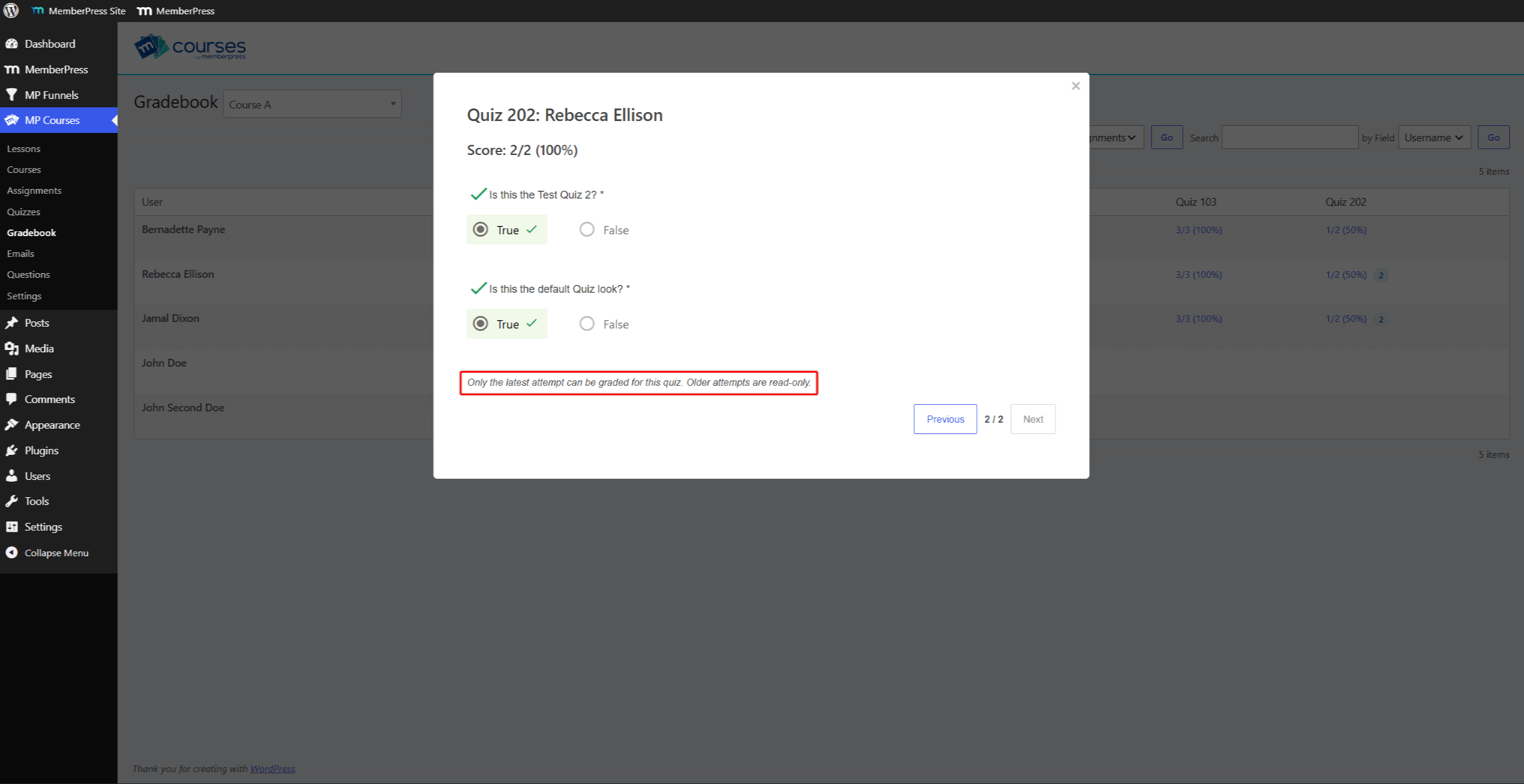
- Klicken Sie auf Siehe neben dem Versuch, seine Antworten offenzulegen.
- Klicken Sie auf Vorherige oder Weiter um zwischen den Versuchen des Schülers zu wechseln.
Die Benotungsmöglichkeiten hängen von der BEHALTEN Einstellung:
- Neueste: Sie können nur den letzten Versuch benoten. Ältere Versuche zeigen die “Für dieses Quiz kann nur der letzte Versuch bewertet werden. Ältere Versuche sind schreibgeschützt.” Nachricht;
- Am besten: Sie können jeden Versuch benoten.
Das Benotungsfenster funktioniert wie in Bewertung von Quizzen im Notenbuch.
Löschversuche
Sie können einen einzelnen Versuch oder alle Versuche eines Teilnehmers für ein Quiz löschen. MemberPress kann gelöschte Versuche nicht wiederherstellen.
Einen einzelnen Versuch löschen
Durch das Löschen eines Durchgangs werden dessen Antworten und die Punktzahl entfernt. Der Schüler erhält eine Wiederholungsmöglichkeit. Verfügt der Schüler über einen weiteren abgeschlossenen Durchgang, bleibt das Quiz als abgeschlossen erhalten.
Um einen einzelnen Versuch zu löschen, gehen Sie wie folgt vor:
- Öffnen Sie die Datei des Schülers “Versuchsverlauf” Fenster im Notenbuch.
- Klicken Sie auf Löschen neben dem Versuch.
- Klicken Sie auf OK im Bestätigungsfenster.
Die Löschen Die Aktion auf der Seite „Quizversuche“ löscht auf dieselbe Weise einen einzelnen Versuch.
Alle Versuche löschen
Durch das Löschen aller Versuche kann der Teilnehmer das Quiz von vorne beginnen. MemberPress löscht zudem den Abschluss des Quiz, sodass sich der Kursfortschritt des Teilnehmers verringert.
Um alle Versuche eines Teilnehmers für ein Quiz zu löschen, gehen Sie wie folgt vor:
- Navigieren Sie zu Dashboard > MP-Kurse > Notenbuch, und wählen Sie den Kurs aus.
- Führen Sie den Mauszeiger über die Quiznote des Schülers und klicken Sie auf Alle löschen.
- Klicken Sie auf OK im Bestätigungsfenster.
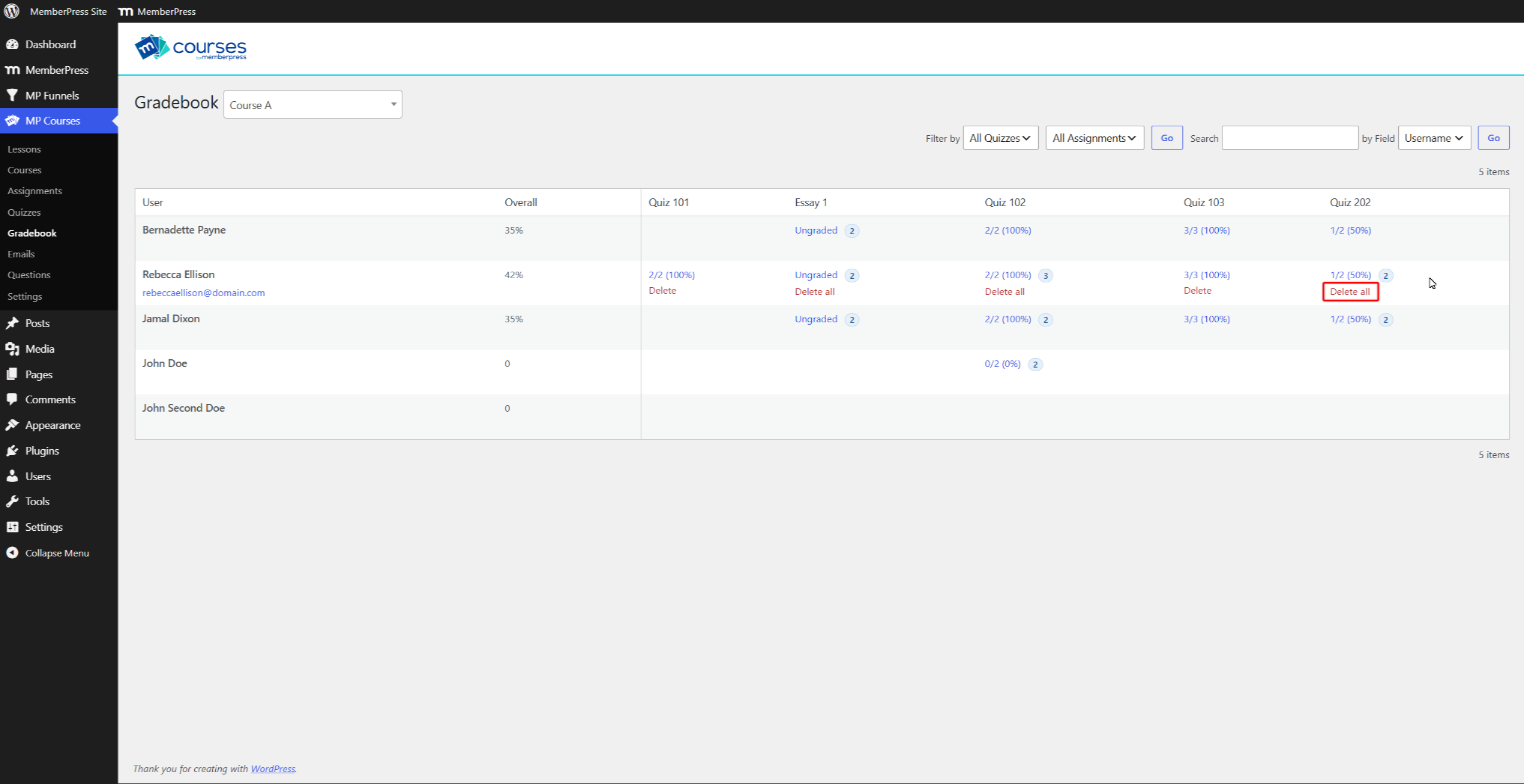
Die Reset-Versuche Durch diese Aktion auf der Seite „Quizversuche“ werden außerdem alle Versuche des Teilnehmers für dieses Quiz gelöscht.
Bisherige Versuche – Versuchsverlauf
Vor der Einführung des Versuchsverlaufs speicherte MemberPress einen Versuch pro Schüler und Quiz. Nach der Aktualisierung erscheint dieser gespeicherte Versuch als einzige Zeile im Verlauf.
Bei MemberPress werden die früheren Wiederholungsversuche weiterhin auf das Limit angerechnet. Eine Zeile unterhalb der Verlaufstabelle gibt Auskunft über die fehlenden Versuche. Zum Beispiel: “Ein früherer Versuch wurde unternommen, bevor der Versuchsverlauf aktiviert wurde, und ist daher nicht verfügbar.”










 DE
DE  EN
EN  ES
ES  FR
FR  PT
PT 