


Você está pensando em criar um site de assinaturas com vídeos? Aqui vai um tutorial rápido sobre como você pode fazer isso com o MemberPress e Wistia.
Para falar a verdade, você pode usar o Wistia, o Vimeo Pro, o Brightcove ou até mesmo a Amazon Web Services (AWS) em conjunto com o MemberPress para criar um site de assinaturas baseado em vídeos. Mas descobrimos que o Wistia é fácil de usar, possui ótimas ferramentas de gerenciamento de vídeos e tem um preço realmente bom. Usando nosso complemento MemberPress AWS é um pouco mais eficaz e provavelmente mais barato, mas pode haver uma curva de aprendizado mais acentuada... por isso, achamos que o Wistia é uma opção realmente excelente para quem deseja iniciar um site de associação de vídeos.
Antes de começarmos, é importante saber que não existe uma solução milagrosa para proteger seus vídeos. Uma pessoa suficientemente motivada e com conhecimentos técnicos, que seja membro do seu site, geralmente consegue descobrir uma maneira de baixar seus vídeos ou gravá-los usando um software de captura de tela. O segredo aqui é tornar muito difícil, ou até mesmo impossível, para seus membros baixarem seus vídeos — isso normalmente será suficiente para impedir a maior parte da pirataria no seu site. A boa notícia é que, ao usar as técnicas deste artigo, você conseguirá impedir completamente que pessoas sem acesso ao seu site de assinantes visualizem ou baixem conteúdo em vídeo, além de dificultar que seus membros fiquem com cópias dos seus vídeos.
Então, eis o que você vai precisar para começar:
- Um site WordPress auto-hospedado
- MemberPress
- Uma conta Wistia
Configurando as coisas no Wistia
Portanto, para os fins deste artigo, vamos partir do princípio de que você já possui um site WordPress auto-hospedado, que já instalou o MemberPress, e vamos nos concentrar principalmente na parte relacionada ao Wistia.
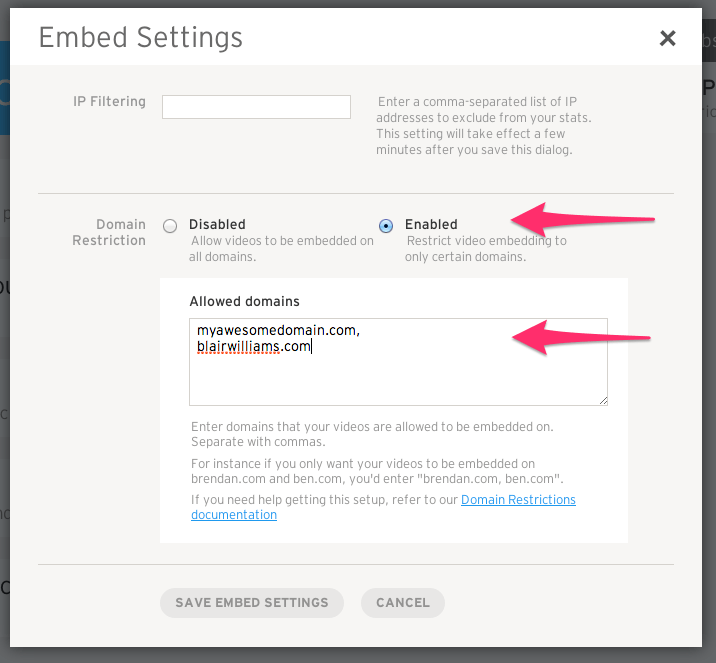
Antes de entrarmos nos detalhes técnicos, vamos falar sobre os conceitos de proteção de vídeo. Vamos usar um recurso disponível no Wistia (e na maioria dos outros serviços premium de hospedagem de vídeo) para restringir a incorporação do vídeo a um conjunto específico de nomes de domínio ou endereços IP. Isso significa que o vídeo só poderá ser incorporado em sites com os domínios que você especificar. Em seguida, vamos usar uma regra no MemberPress para proteger as páginas onde nossos vídeos estão incorporados. Assim, com essa técnica, o MemberPress fornecerá a primeira linha de proteção, de modo que quem não for membro nem mesmo consiga assistir aos seus vídeos; a segunda linha de proteção é a filtragem de domínios no Wistia, para que seu vídeo não possa ser incorporado em outros sites.
Aqui vamos nós:
1. Crie uma conta e carregue seu vídeo no Wistia
Isso é bastante simples e a equipe de suporte do Wistia é realmente excelente, portanto, você não deve ter problemas com essa etapa.
2. Habilite o bloqueio de domínio no painel da conta do Wistia
Você pode encontrar as configurações de incorporação em "Account" (Conta) -> "Account Dashboard" (Painel da conta) -> "Embed Settings" (Configurações de incorporação):
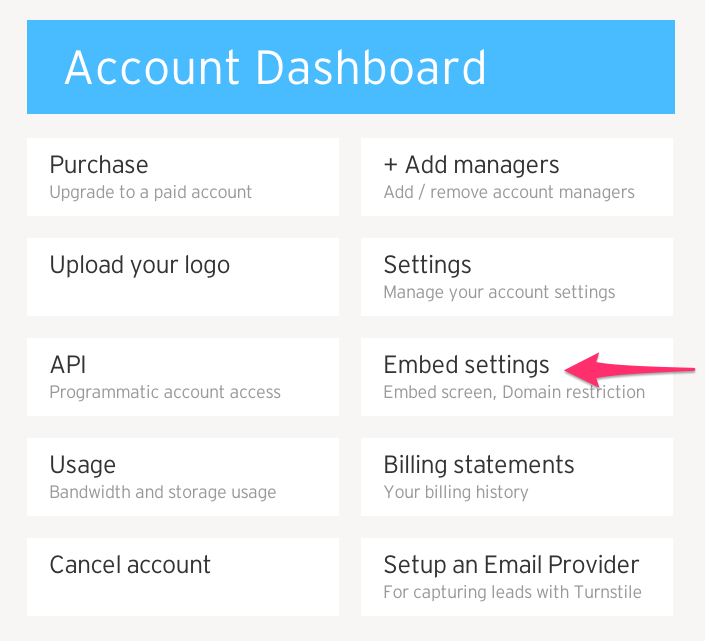
Depois de clicar em “Configurações de incorporação”, você poderá inserir os nomes de domínio dos sites que terão permissão para incorporar vídeos da sua conta do Wistia. É aqui que você deve inserir os nomes de domínio do seu site de assinaturas do WordPress que utiliza o MemberPress:
Configurando-o no lado do WordPress
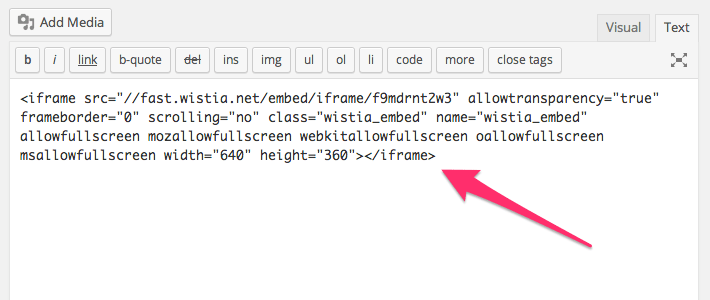
Agora você pode pegar o código de incorporação do vídeo recém-carregado no Wistia e colá-lo em um novo post ou página no seu site WordPress:
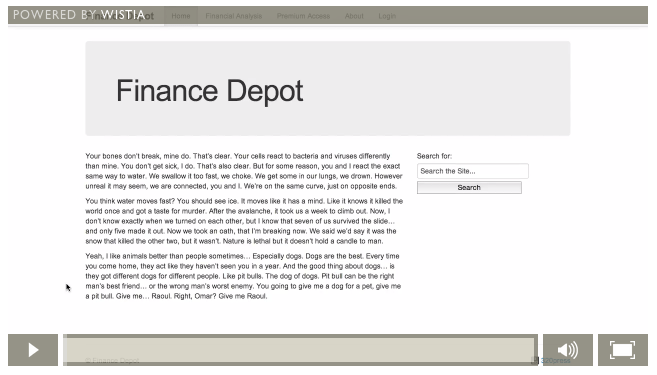
E você tem um vídeo legal na sua página do WordPress:
Quando isso for concluído, você poderá impedir o acesso à página em que o vídeo está incorporado criando uma regra MemberPress simples:
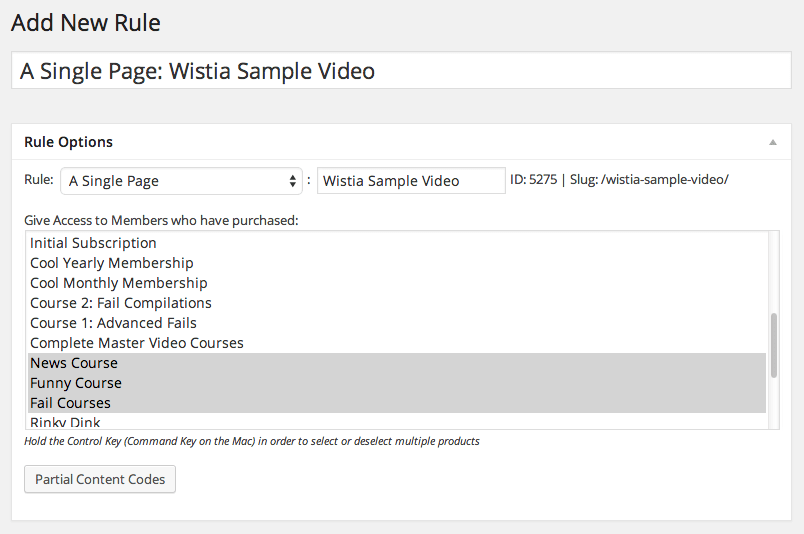
É claro que com o MemberPress você pode criar uma regra que protegerá grandes grupos de páginas ou postagens, mas isso também funcionará.
Portanto, embora o Wistia não proteja os vídeos com a mesma eficácia que uma solução como o nosso plug-in MemberPress para AWS, ele oferece ótimos recursos de gerenciamento de vídeos para quem não quer se dar ao trabalho de lidar com a AWS — e tudo isso por um preço bem razoável!











 PT
PT  EN
EN  ES
ES  FR
FR  DE
DE 