

O teste de aplicativos Android do MemberPress permite testar seu aplicativo com usuários selecionados antes de um lançamento público. Novas contas individuais de desenvolvedor do Google criadas após 13 de novembro de 2023 devem concluir os requisitos de testes fechados antes do acesso à produção.
Este documento explica como criar trilhas de teste fechadas, adicionar testadores, gerenciar versões e solicitar acesso à produção.
Compreensão dos requisitos de testes fechados
A Google Play Store exige a conclusão de testes fechados para novas contas de desenvolvedor individuais registradas após 13 de novembro de 2023. O teste fechado envolve pelo menos 12 testadores usando o aplicativo por um mínimo de 14 dias consecutivos. O acesso à trilha de produção é desbloqueado somente após a conclusão e aprovação bem-sucedida do teste fechado.
As contas de desenvolvedor da organização estão isentas dos requisitos de testes fechados. As contas de desenvolvedor registradas antes de 13 de novembro de 2023 também estão isentas dos testes fechados obrigatórios. As contas individuais criadas após a data de exigência devem concluir o teste fechado antes da publicação em produção.
Criação de trilha de teste fechada
A criação de faixas de teste fechadas estabelece o ambiente de teste para a distribuição de aplicativos de pré-lançamento.
- Faça login no Google Play Console em play.google.com/console.
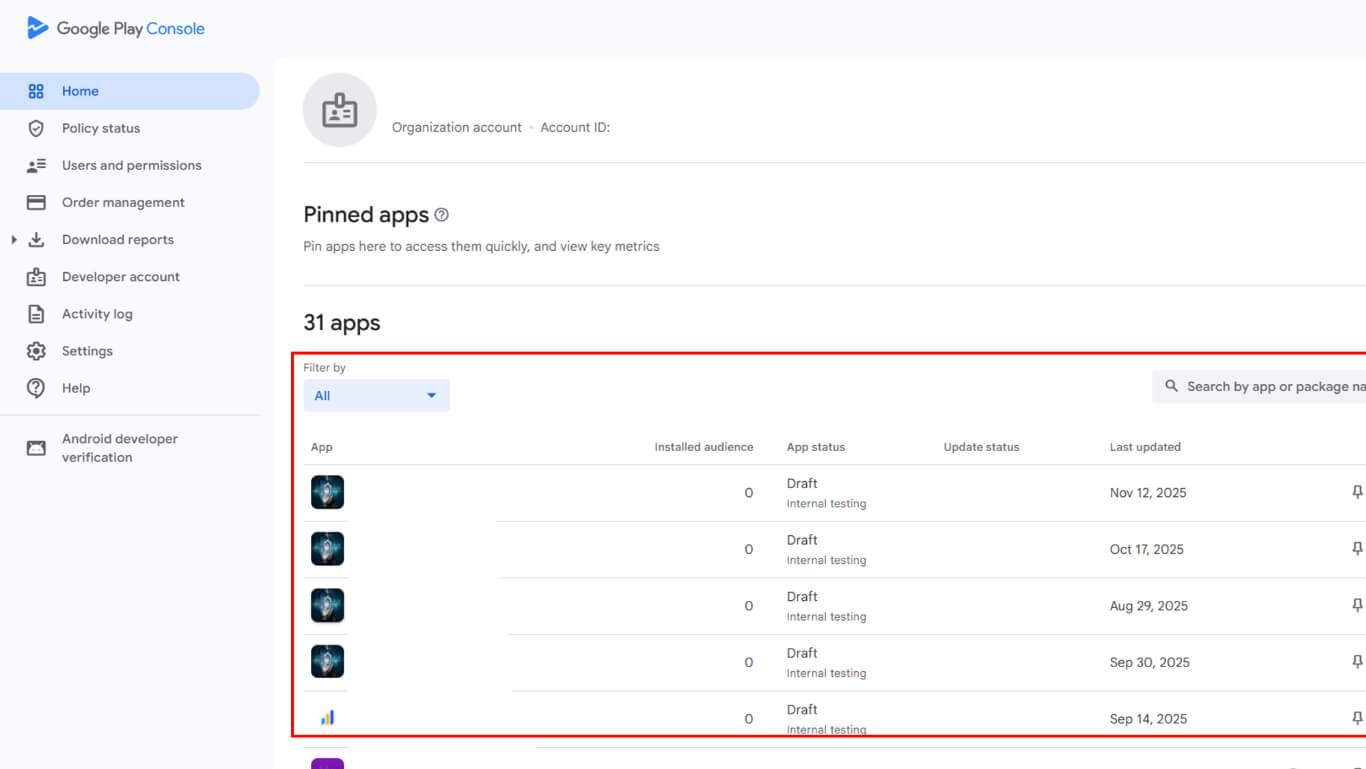
- Selecione o aplicativo na lista de aplicativos.
- Navegue até Release > Testes > Testes fechados na barra lateral esquerda.
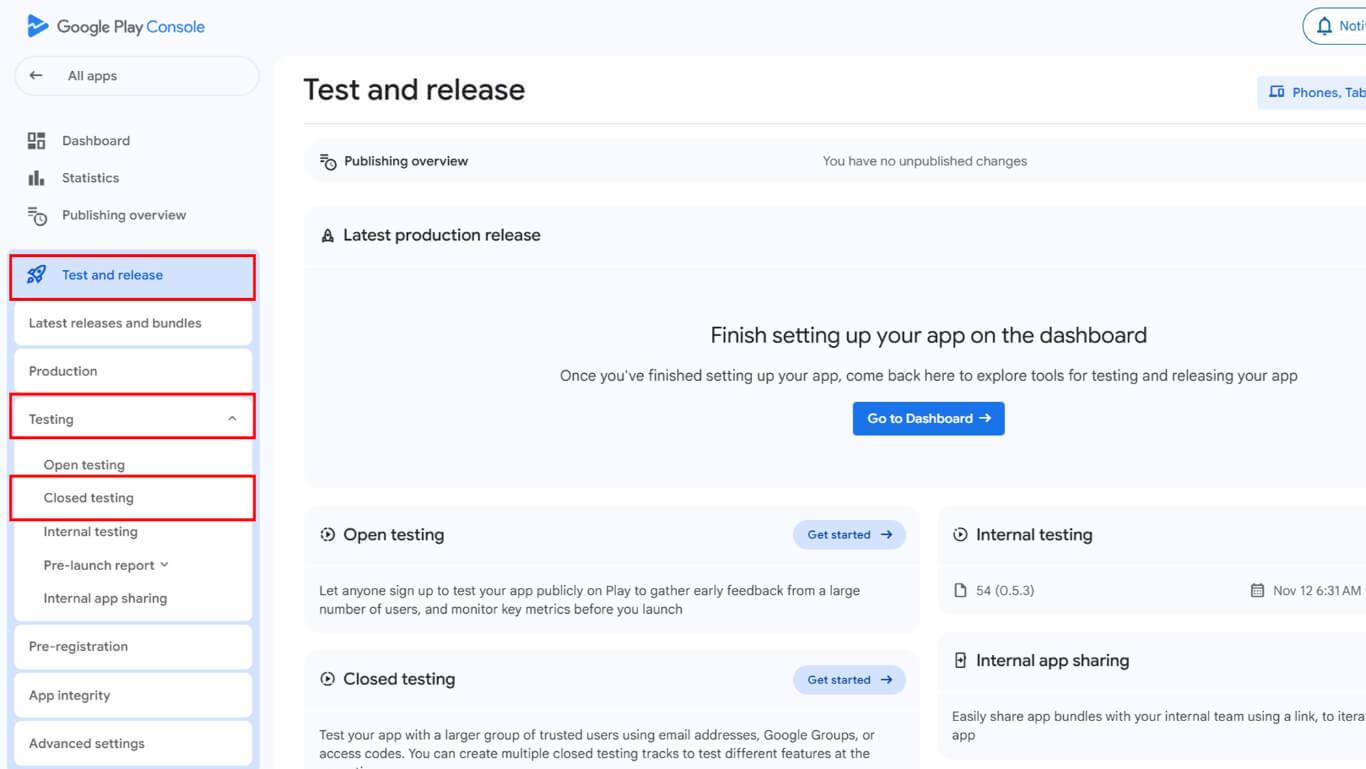
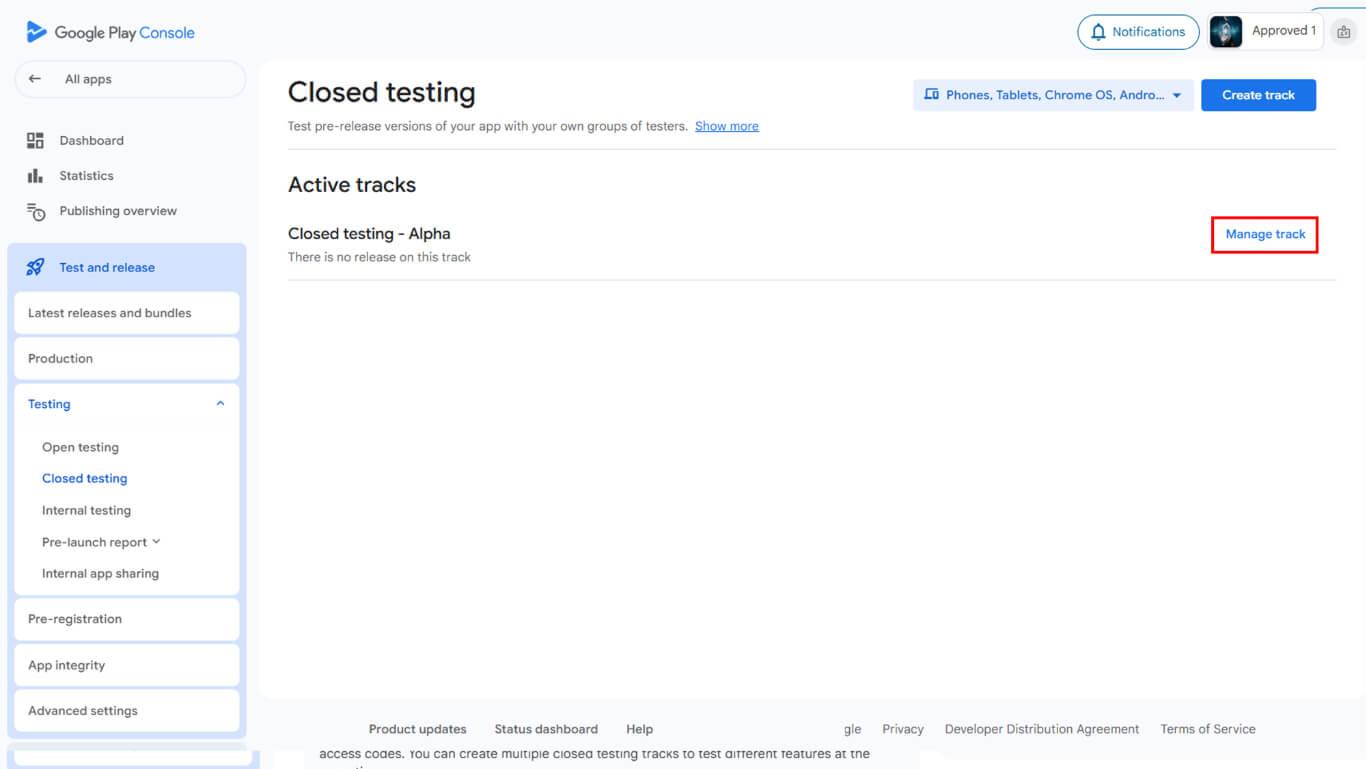
- Analise as trilhas de testes ativos disponíveis.
- Clique em Gerenciar trilha se uma trilha existente estiver disponível.
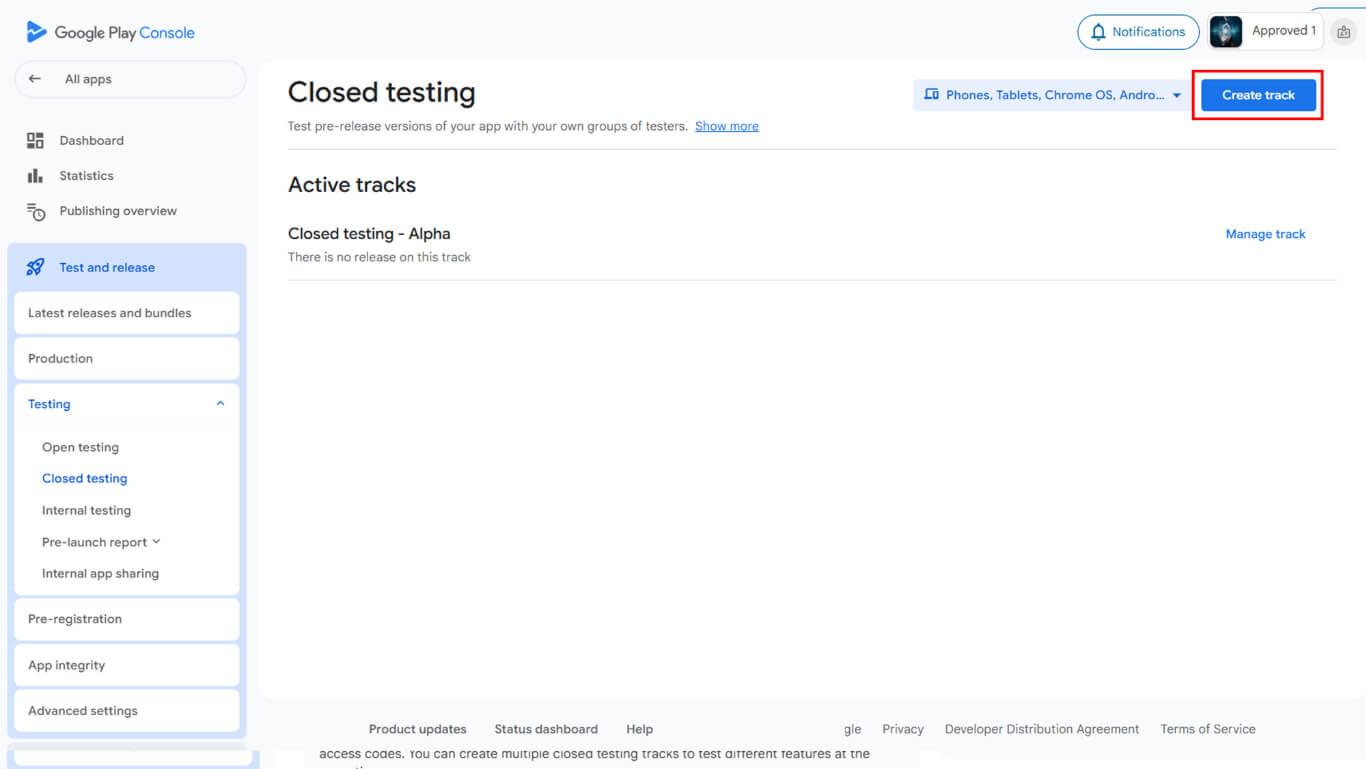
- Clique em Criar trilha se estiver criando uma nova trilha de teste.
- Insira um nome descritivo no campo Nome da trilha campo.
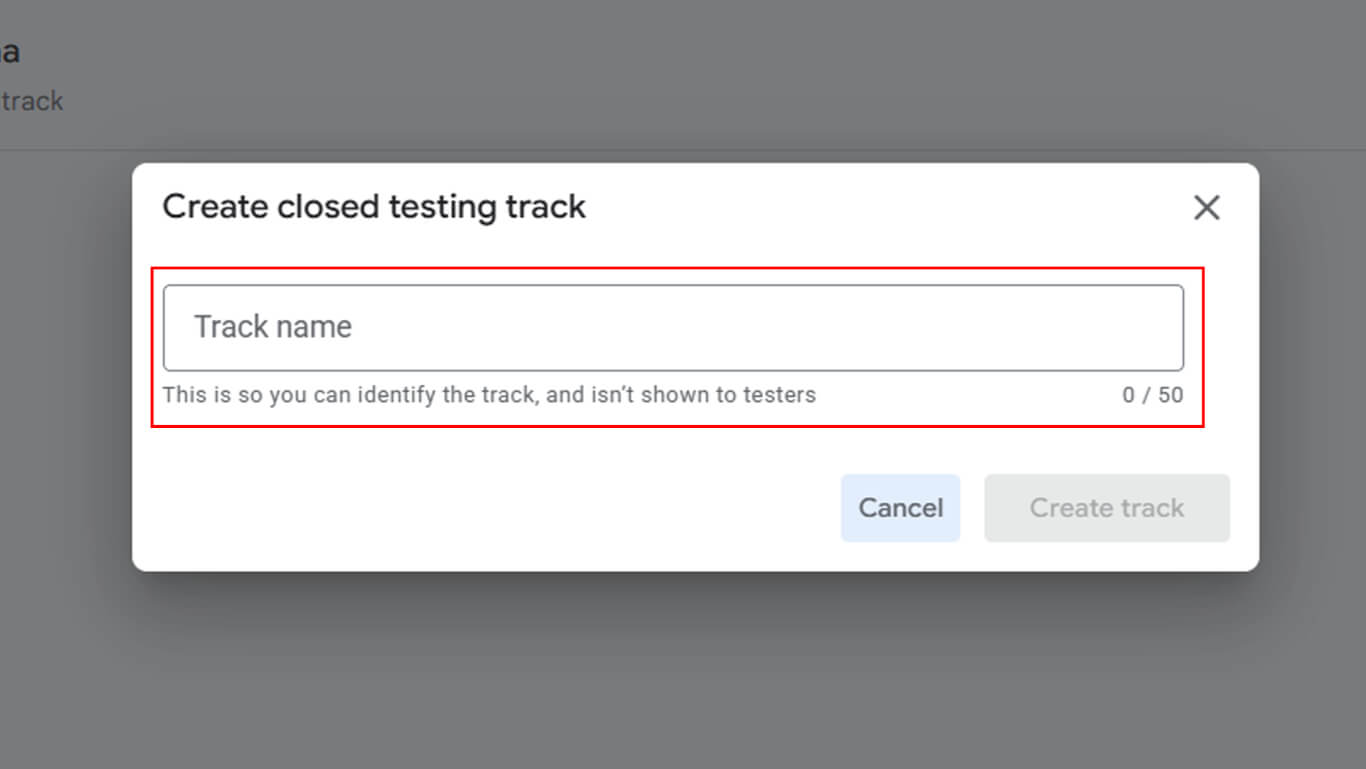
- Clique em Criar trilha para finalizar a criação da trilha.
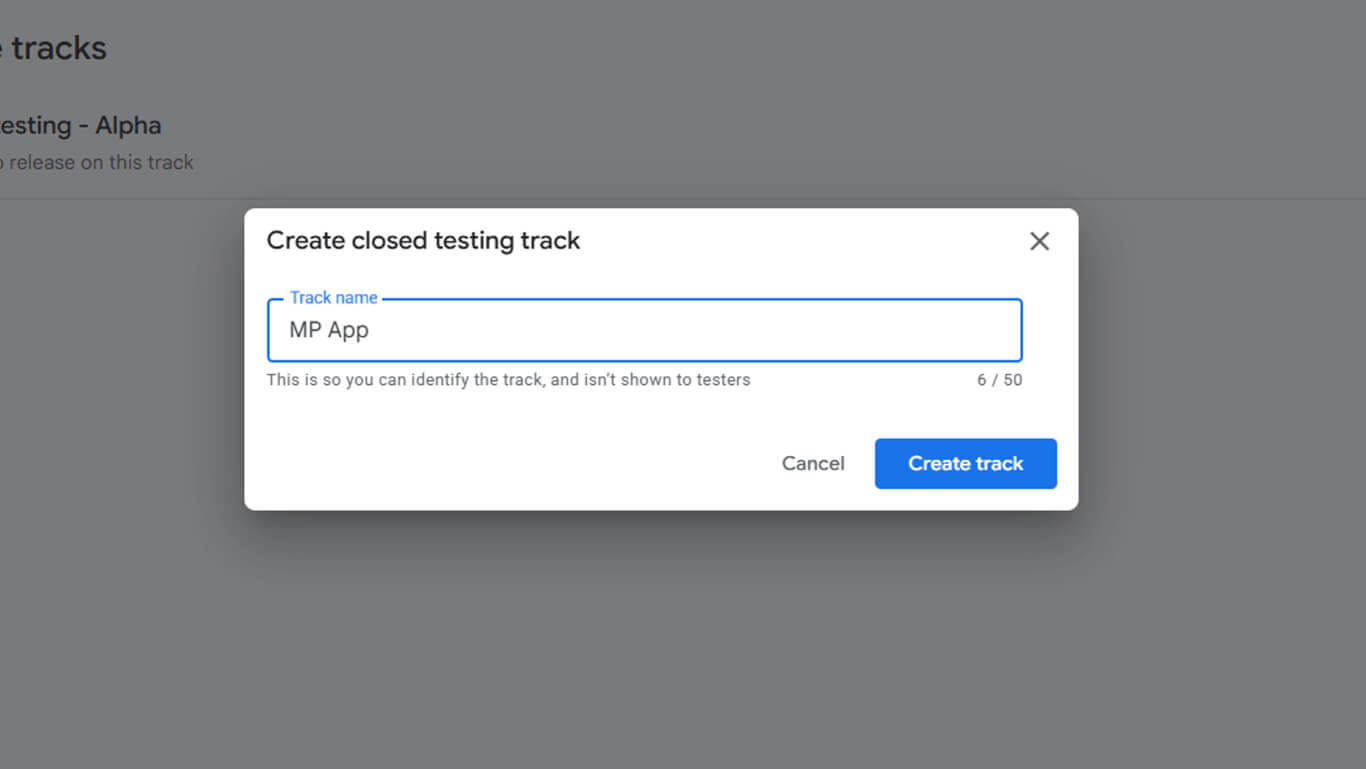
- Navegue até a seção Países/Regiões guia.
- Clique em Adicionar Países/Regiões.
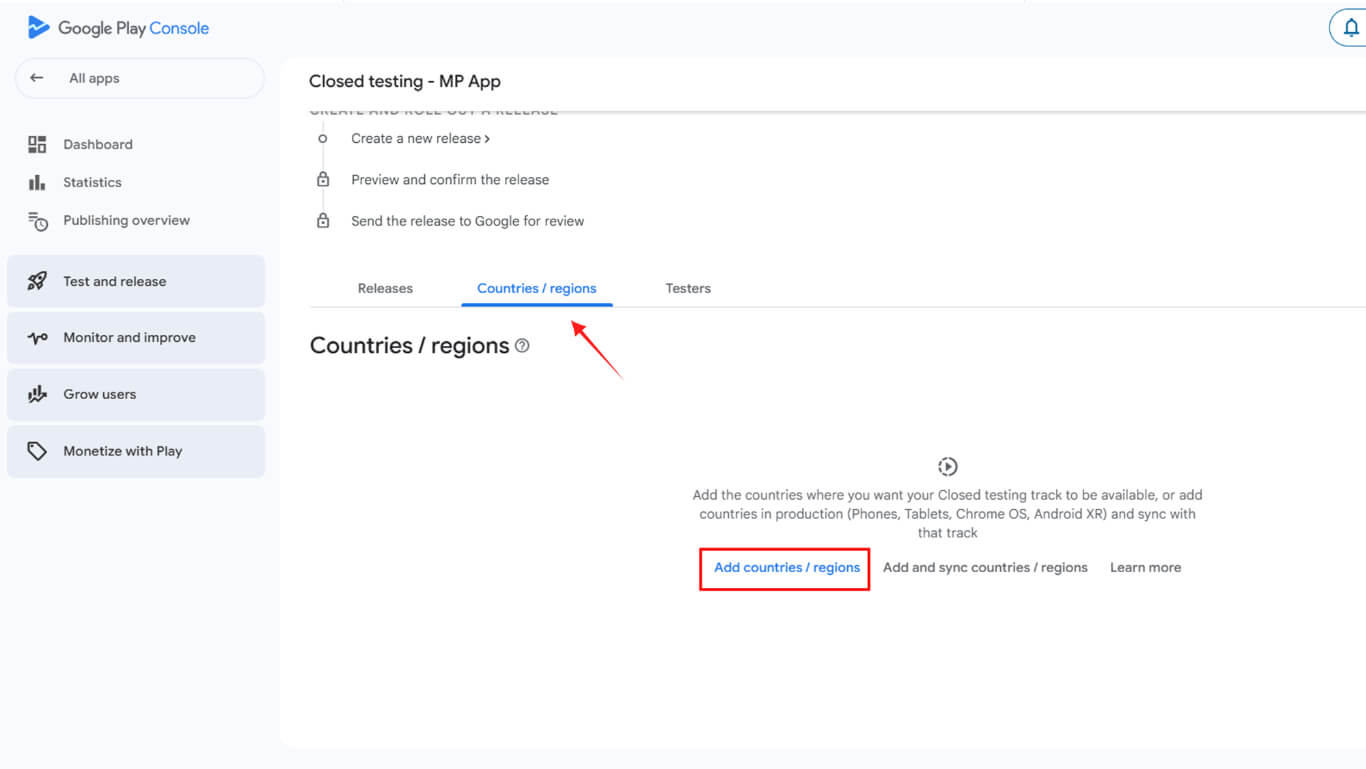
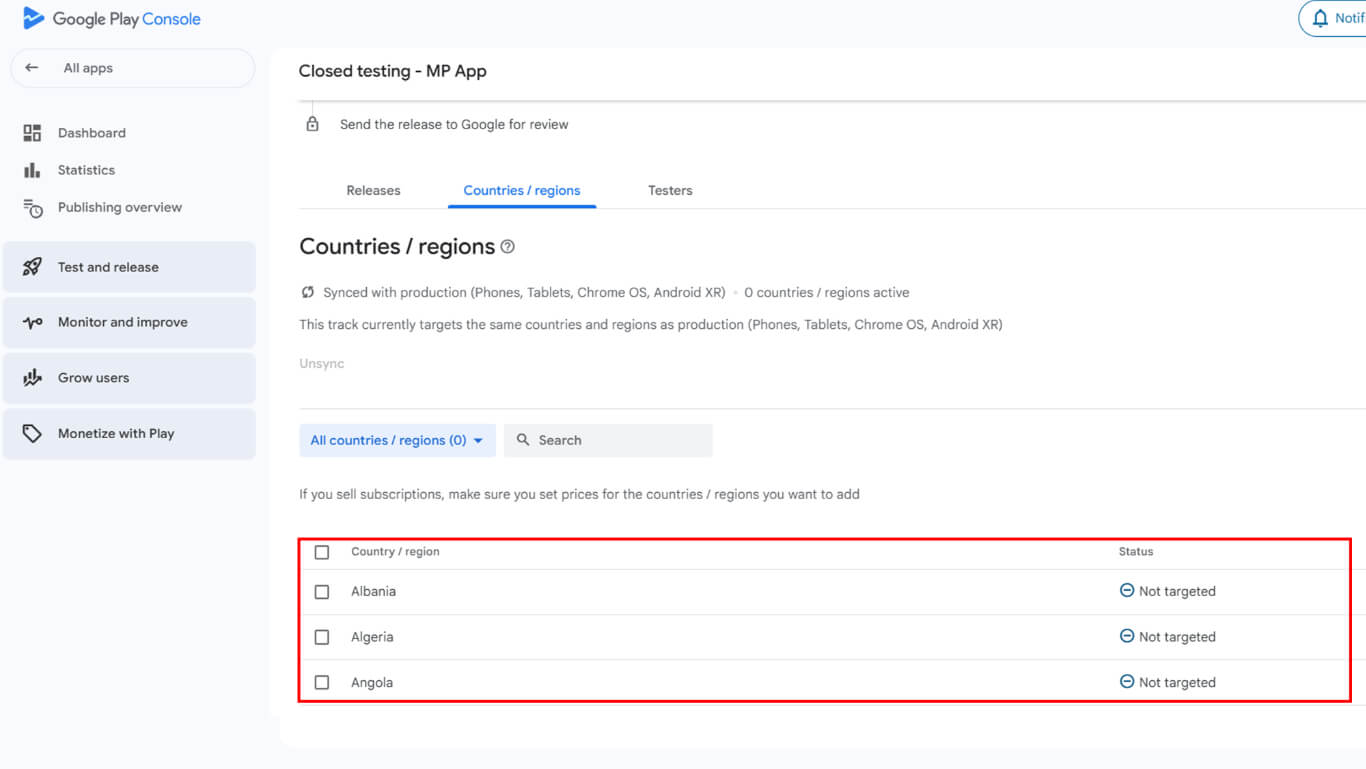
- Selecione os países onde o aplicativo deve estar disponível para teste.
- Marque a caixa para selecionar todos os países para disponibilidade global de testes.
Adição de testadores ao teste fechado
A adição do Tester permite que usuários específicos acessem e testem o aplicativo.
- Navegue até a guia Testadores na trilha de teste fechada.
- Revisar as listas de e-mail existentes
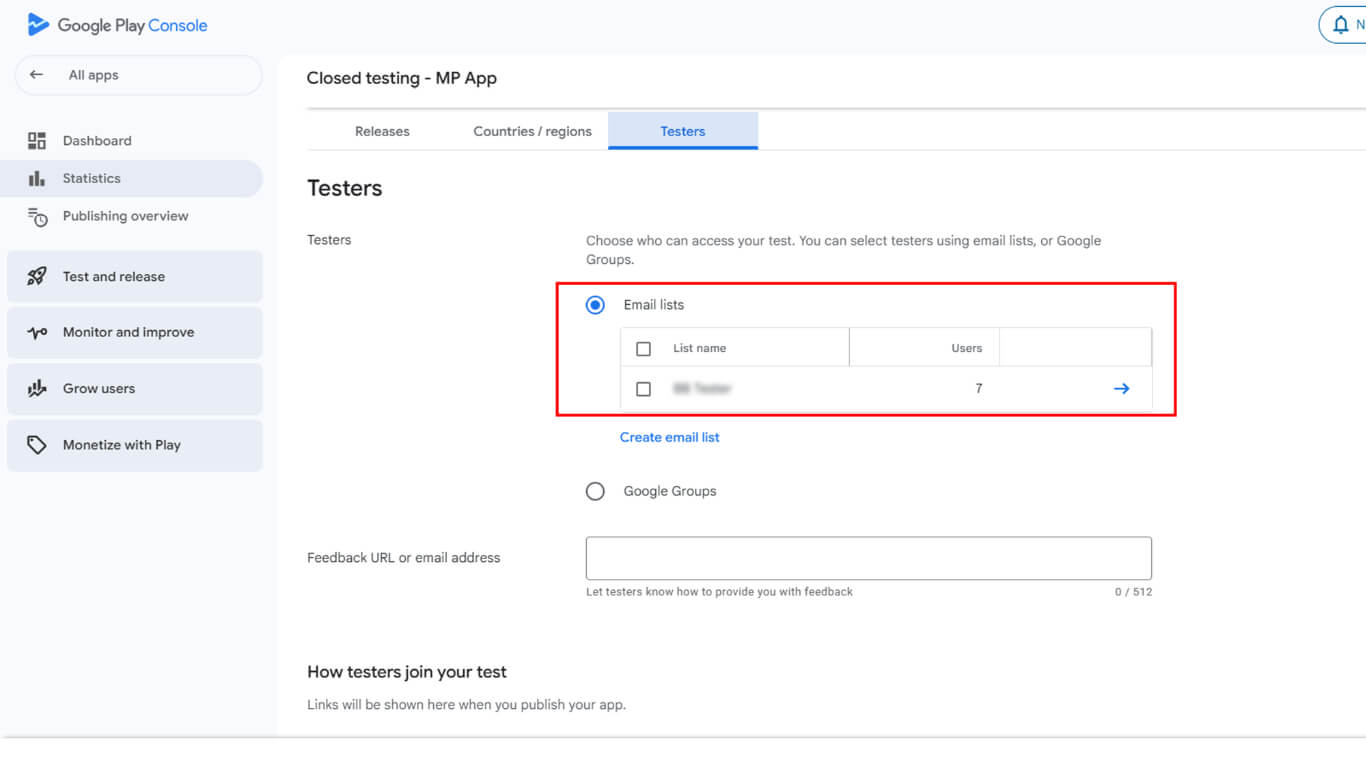
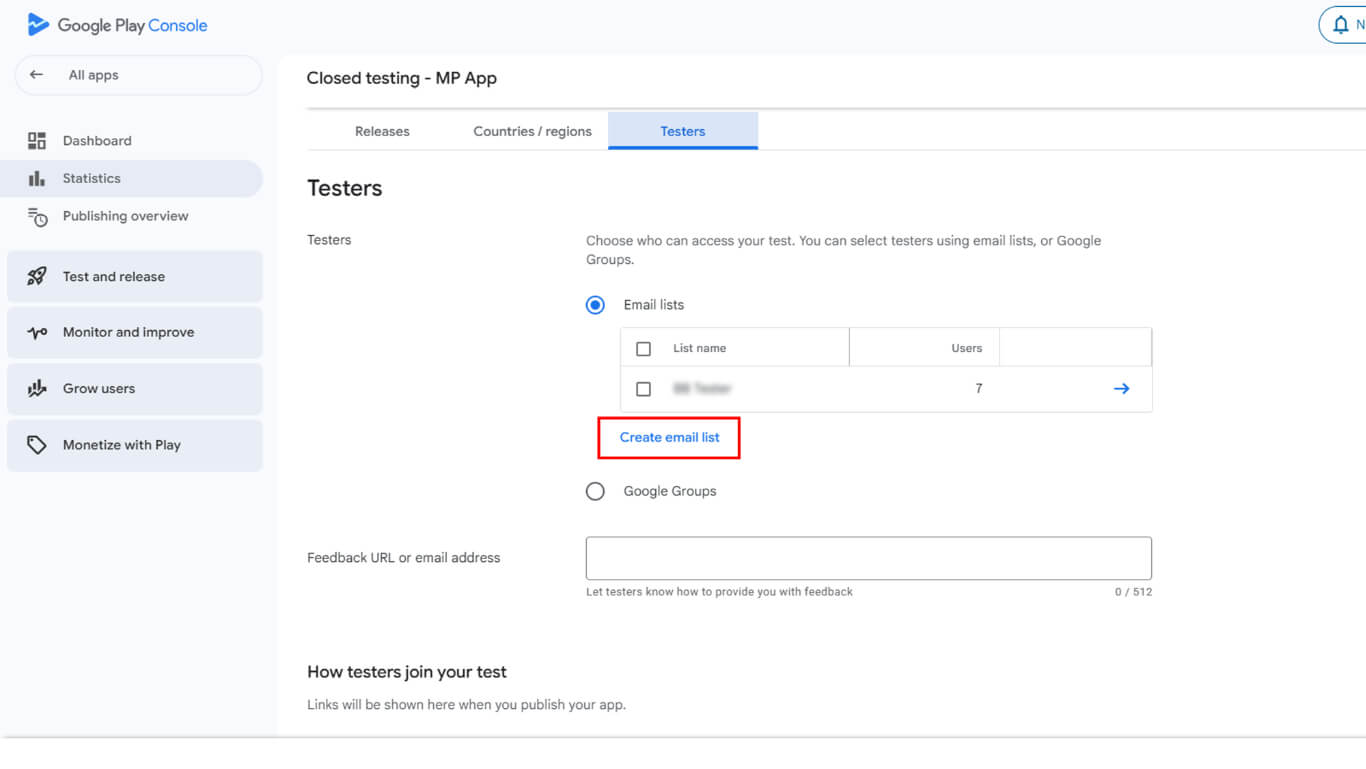
- Ou clique Criar Lista de e-mails.
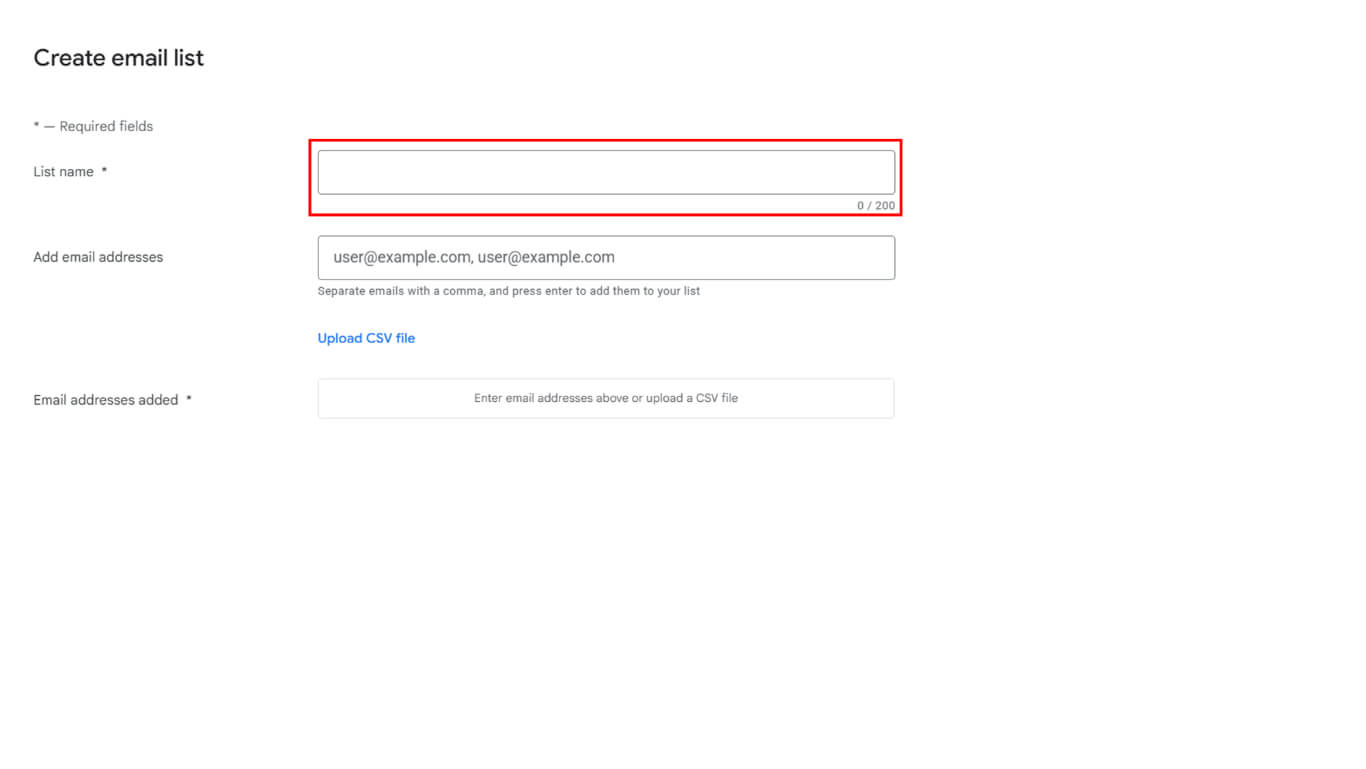
- Insira um nome descritivo no campo Campo Nome da lista.
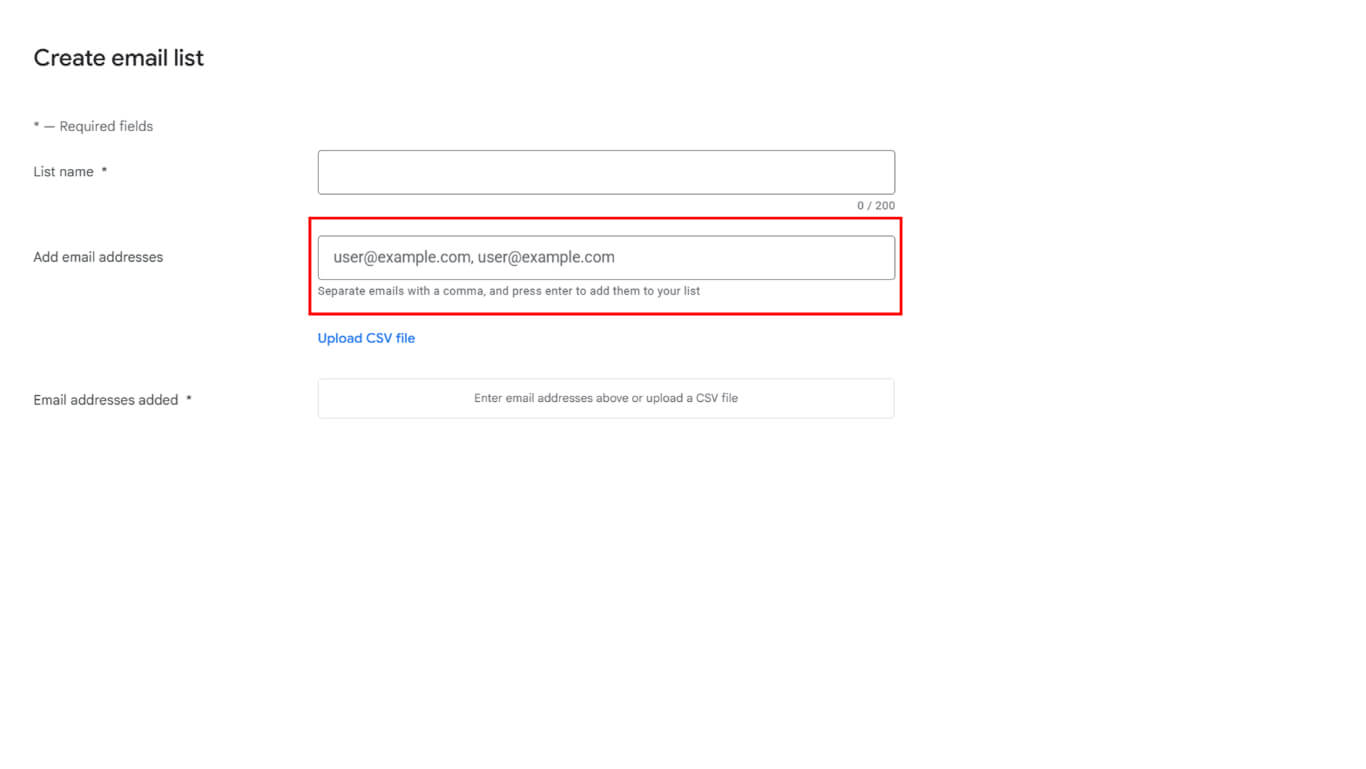
- Adicione pelo menos 12 endereços de e-mail à lista de testadores ou carregue uma lista CSV.
- Clique em Save Changes (Salvar alterações) para armazenar a lista de e-mails.
- Clique em Create para finalizar a criação da lista.
- Digite um URL de feedback ou endereço de e-mail para o envio de feedback do testador.
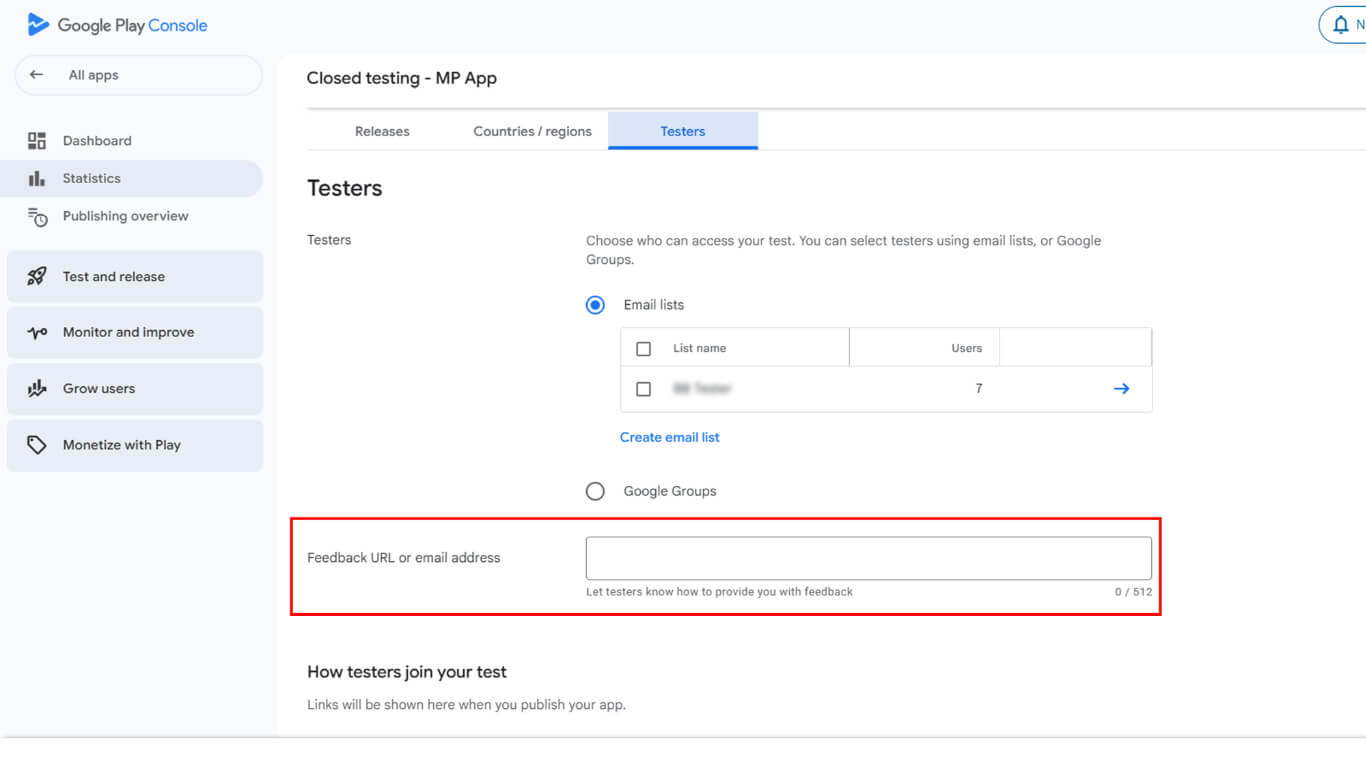
- Clique em Salvar para armazenar as informações de feedback.
- Clique em Go to Overview quando solicitado.
Criação de nova versão para testes fechados
A criação da versão prepara a compilação do aplicativo para a distribuição do testador.
- Navegue até a faixa de teste fechada no Google Play Console.
- Clique no botão Criar nova versão botão.
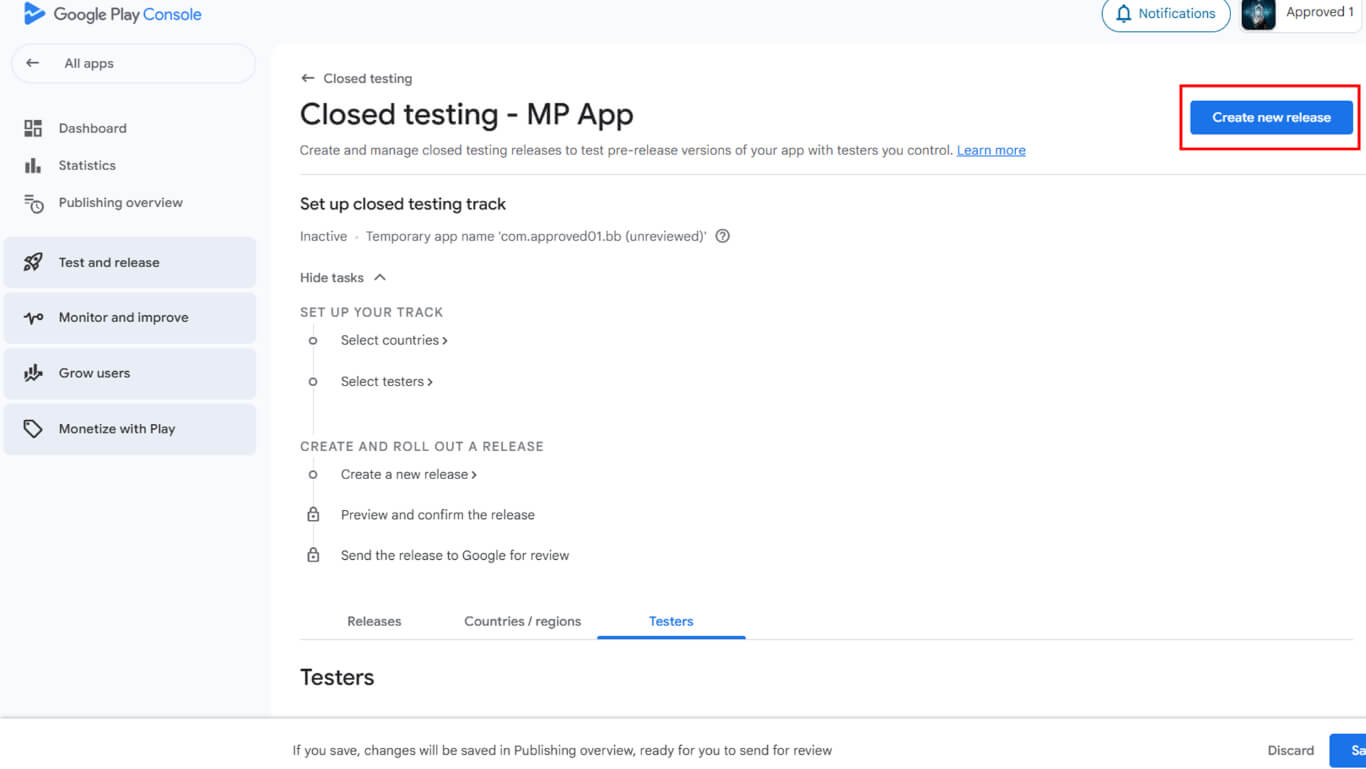
- Role até o Pacotes de aplicativos seção.
- Clique em Carregar para selecionar o arquivo AAB do dispositivo.
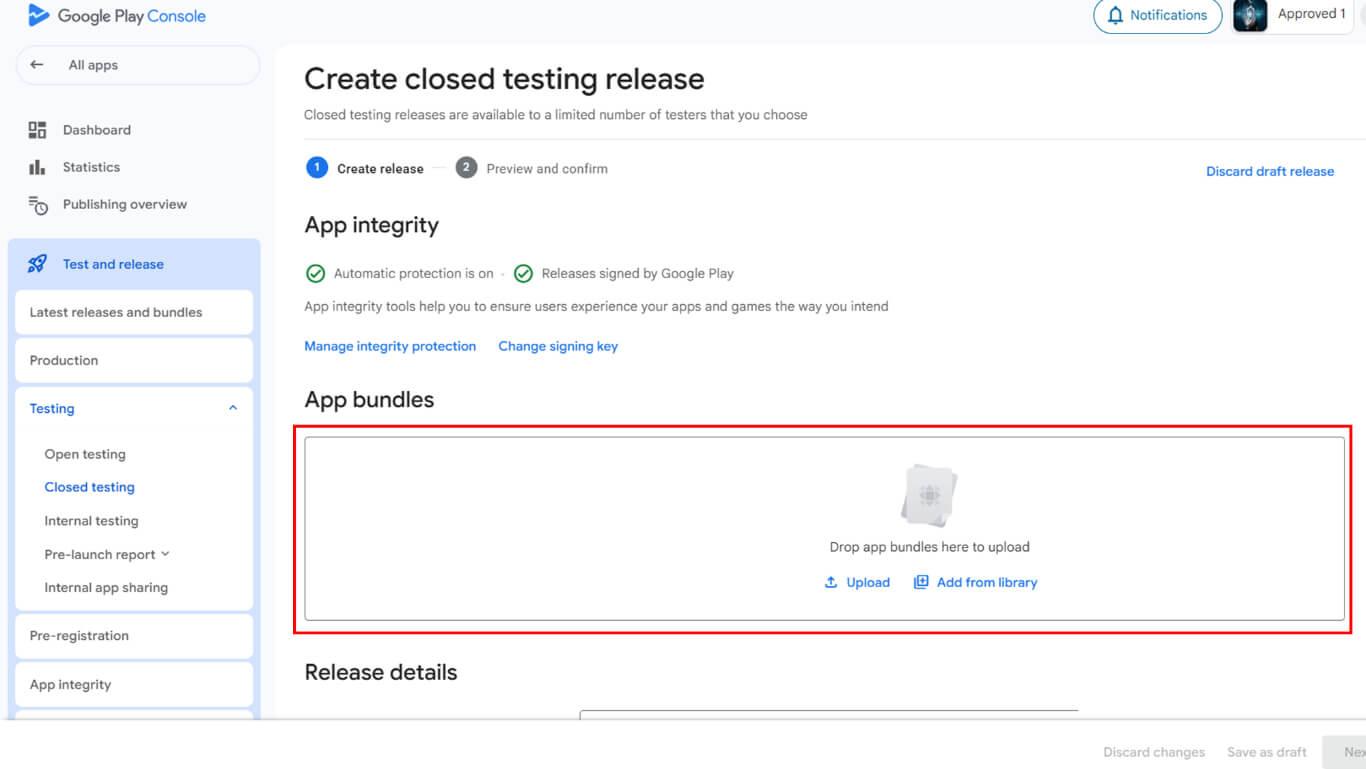
- Como alternativa, selecione um AAB existente na biblioteca.
- Clique em Adicionar à versão depois de selecionar a compilação.
- Navegue até a seção Detalhes da versão seção.
- Verifique se o número da versão preenchido automaticamente está correto.
- Entrar Notas de lançamento descrevendo alterações ou recursos.
- Clique em Próximo para prosseguir com a revisão.
- Clique em Salvar para armazenar informações de liberação.
- Clique em Ir para a visão geral na janela pop-up de confirmação.
- Clique em Enviar alterações para revisão para enviar para aprovação.
- Confirme o envio na caixa de diálogo de confirmação.
Configuração do teste de licença
O teste de licença restringe o acesso ao aplicativo a testadores autorizados durante o período de teste.
- Navegue até Todos os aplicativos na barra lateral esquerda do Google Play Console.
- Clique em Configurações > Teste de licença na navegação.
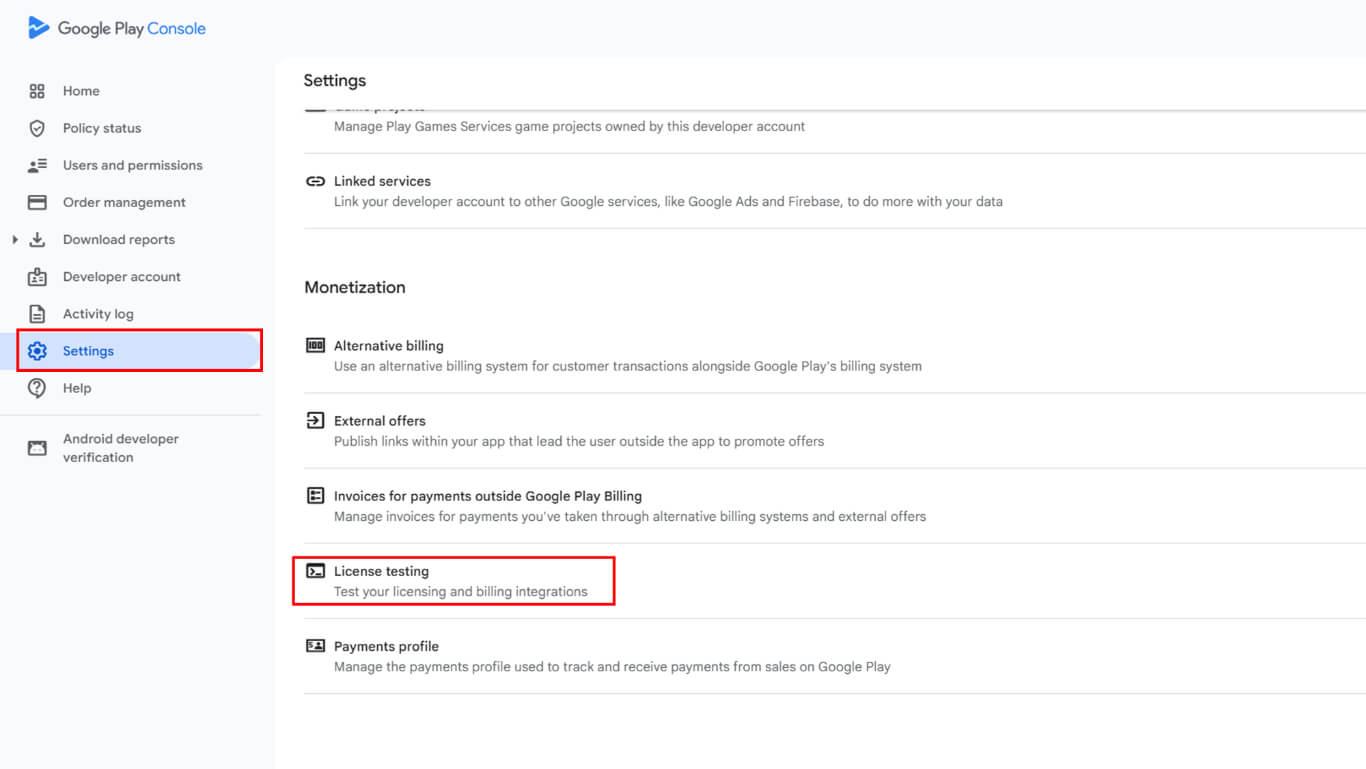
- Selecione as listas de e-mail do testador entre as opções disponíveis.
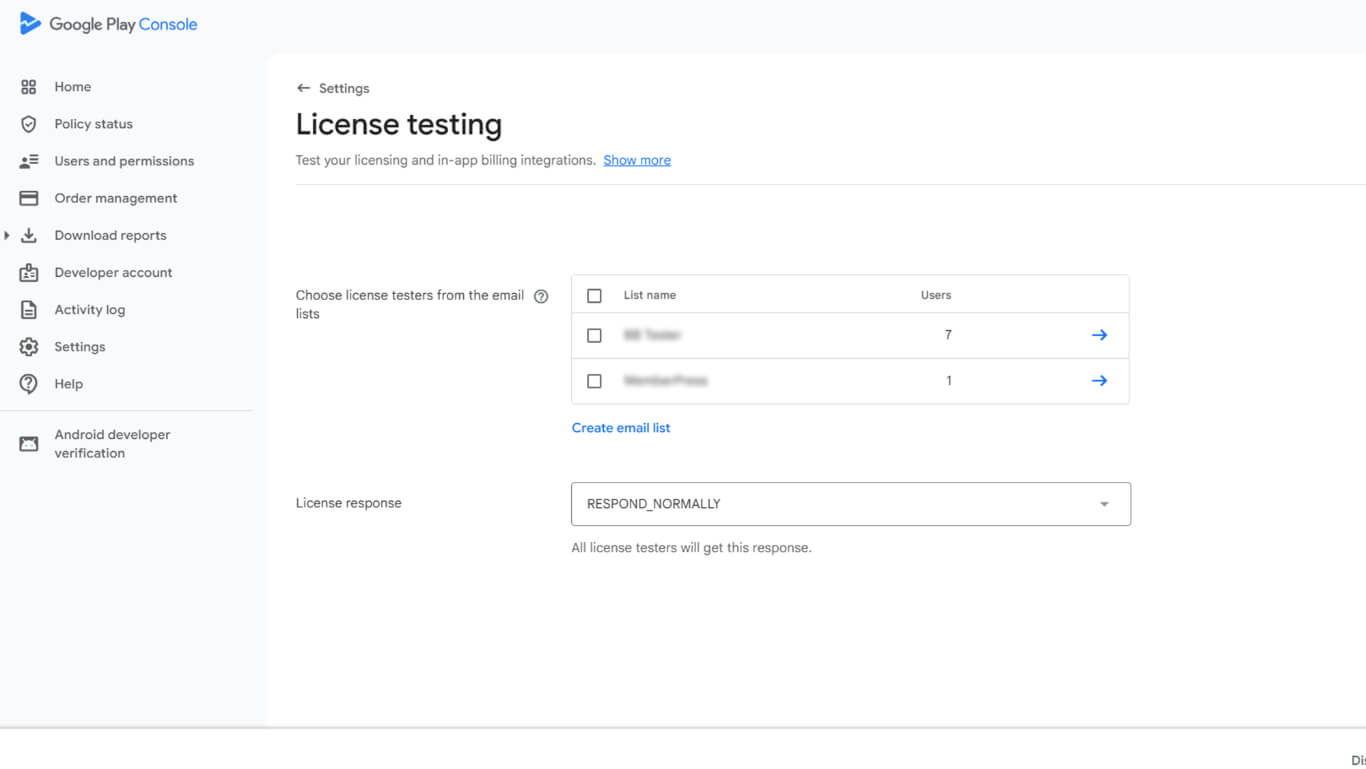
- Clique em Salvar alterações para finalizar a configuração do teste de licença.
O teste de licença garante que somente testadores autorizados possam instalar e acessar o aplicativo durante a fase de teste fechado.
Período de teste fechado de 14 dias em andamento
A execução do período de teste coleta feedback e valida a funcionalidade do aplicativo antes da produção.
- Aguarde a confirmação da aprovação do Google para a liberação do teste fechado.
- Copie o link do teste da visão geral da trilha de teste fechada.
- Compartilhe o link do teste com todos os 12 ou mais testadores por e-mail.
- Verifique se os testadores optam por participar do teste fechado por meio do link.
- Monitore o envolvimento do testador durante o período mínimo de 14 dias.
- Colete feedback dos testadores por meio do canal de feedback designado.
- Analise o feedback para identificar melhorias antes do lançamento da produção.
- Certifique-se de que pelo menos 12 testadores usem ativamente o aplicativo por 14 dias consecutivos.
Solicitação de acesso à produção
As solicitações de aplicativos de acesso à produção desbloqueiam a trilha de produção para o lançamento de aplicativos públicos.
- Navegue até o painel de controle do aplicativo em Console Google Play após a conclusão dos requisitos de teste.
- Clique no botão Candidatar-se à produção botão.
- Analise o questionário do aplicativo de acesso à produção.
- Responder a perguntas sobre o processo e os resultados do teste fechado.
- Fornecer detalhes sobre a funcionalidade e os recursos do aplicativo ou do jogo.
- Confirmar a prontidão da produção e os padrões de qualidade.
- Clique em Enviar para enviar o aplicativo para análise do Google.
- Aguarde a decisão de revisão do Google sobre o acesso à produção.
Normalmente, o Google analisa os aplicativos de acesso à produção dentro de sete dias ou menos. A guia Produção é desbloqueada após a aprovação, permitindo a preparação do lançamento público.
Publicação após o acesso à produção
A preparação da liberação da produção segue a aprovação do acesso à produção.
- Navegue até a seção Produção no Google Play Console após a aprovação.
- Clique em Criar nova versão na trilha de produção.
- Carregue o arquivo AAB de compilação final do aplicativo.
- Detalhes completos da versão, incluindo informações sobre a versão e notas de versão.
- Salve a configuração da versão de produção.
- Navegue até Painel de controle > MP AppKit > Serviço de publicação > Google Play Store em WordPress.
- Clique em Enviar para criar uma solicitação de publicação.
- A equipe de publicação gerencia o envio de aplicativos para a Google Play Store.
- Monitore o e-mail para obter atualizações da equipe de publicação sobre o status do envio.
A equipe de publicação cuida do envio final do aplicativo e da comunicação com a equipe de revisão da Google Play Store.










 PT
PT  EN
EN  ES
ES  FR
FR  DE
DE 