

O recurso External Link Handling permite controlar como os URLs externos são abertos em seu aplicativo MemberPress (iOS/Android), seja a partir de publicações de blog, conteúdo ou menus personalizados. Você pode optar por abrir os links em um navegador no aplicativo, no navegador padrão do dispositivo ou permitir que os usuários escolham sua preferência.
Este guia o orienta na definição das configurações de tratamento de links no AppKit do MemberPress e em como os usuários podem gerenciar suas preferências no aplicativo.
Entendendo o recurso de tratamento de links externos
Os requisitos de tratamento de links externos definem como os URLs fora do aplicativo são abertos quando os membros tocam nos links dentro do conteúdo do aplicativo.
Opção de navegador no aplicativoAbre links externos no navegador incorporado, mantendo a continuidade da sessão do aplicativo. Os membros permanecem no ambiente do aplicativo enquanto acessam o conteúdo externo.
Opção de navegador externoAbre links no navegador nativo do dispositivo, como o Safari ou o Chrome. A abertura do navegador externo oferece recursos completos de navegador e uma interface familiar.
Opção de escolha do membroSolicita aos usuários que selecionem o tipo de navegador preferido para cada interação de link. A preferência do usuário é salva para futuros toques no link, mantendo uma experiência consistente.
Flexibilidade de configuraçãoO que é uma estratégia: permite que os administradores imponham um comportamento específico ou deleguem a escolha aos membros. Diferentes estratégias se adequam a diferentes tipos de conteúdo e objetivos de experiência do usuário.
Persistência de preferênciasO aplicativo de navegação do membro: lembra a seleção do navegador do membro em todas as sessões do aplicativo quando a opção de escolha está ativada. As preferências salvas reduzem as solicitações repetidas e melhoram a eficiência da navegação.
Configuração das opções de tratamento de links
A configuração do tratamento de links estabelece o comportamento padrão para a abertura de URLs externos em todo o aplicativo.
Acesso às configurações de compatibilidade
O acesso às configurações de compatibilidade permite a configuração do manuseio de links e as opções de controle de comportamento.
- No WordPress, vá para Painel de controle > MP AppKit > Configurações > Compatibilidade.
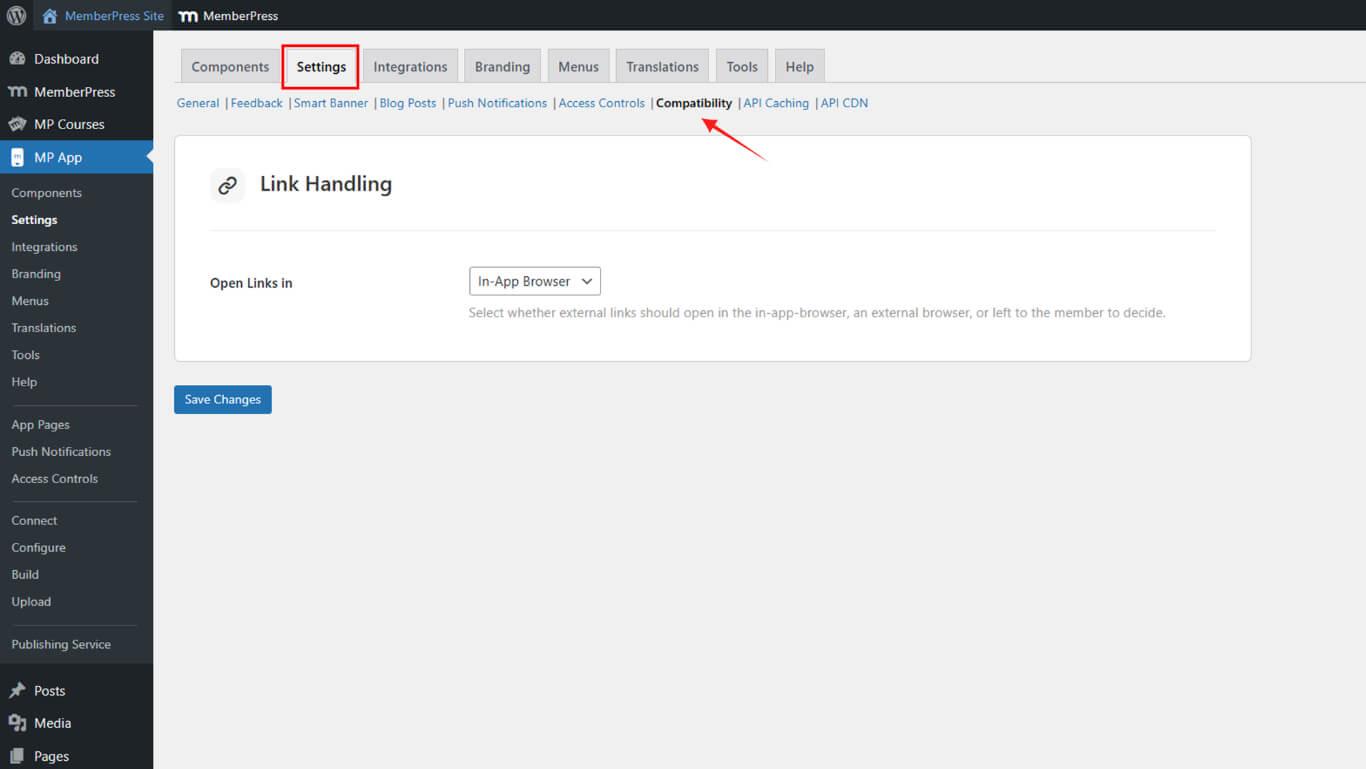
- Localize o Manuseio de links lista suspensa.
Usando o navegador no aplicativo
A configuração do navegador no aplicativo abre links externos no navegador interno do aplicativo, mantendo a continuidade da sessão.
- Selecione Navegador no aplicativo no menu suspenso.
- Clique em Salvar alterações.
- Saia do aplicativo MemberPress (iOS/Android) e reinicie-o.
- Toque em um link externo para verificar se ele é aberto no navegador interno do aplicativo.
Usando um navegador externo
A configuração do navegador externo inicia links no aplicativo de navegador nativo do dispositivo fora do ambiente do aplicativo.
- Ir para Compatibilidade > Tratamento de links.
- Selecione Navegador externo.
- Clique em Salvar alterações, e, em seguida, reinicie o aplicativo.
- Toque em qualquer link para verificar se ele abre no navegador nativo de seu dispositivo (Safari ou Chrome).
Deixando os membros escolherem
A configuração de escolha de membro solicita que os usuários selecionem o tipo de navegador preferido para a abertura de links externos.
- No Manuseio de links selecione Pergunte ao membro.
- Clique em Salvar alterações.
- Feche o aplicativo e abra-o novamente.
- Toque em um link externo para ver um prompt solicitando que os usuários escolham entre o navegador no aplicativo ou externo.
A escolha do usuário é salva para futuros toques no link.
Alteração das preferências do navegador no aplicativo
A modificação de preferências no aplicativo permite que os membros atualizem a seleção do navegador sem a intervenção do administrador.
- No aplicativo MemberPress, vá para Mais > Configurações > Navegador da Web.
- Alternar entre Navegador no aplicativo e Navegador externo.
Essa opção só aparece se Pergunte ao membro é selecionado nas configurações do plug-in.










 PT
PT  EN
EN  ES
ES  FR
FR  DE
DE 